


 TL;DR:
CapCut for PC provides a robust multi-track editing environment with advanced AI tools ideal for short-form viral content, though steep 2025 subscription price hikes make Wondershare Filmora a more reliable alternative for long-form creators.
● The 2025 pricing restructure doubled the CapCut Pro subscription to $19.99/month or $179.99/year, locking previously free tools like auto-captions and 1080p/60fps exports behind a paywall that is frequently criticized by users for double-billing and post-cancellation charges.
● Compared to the mobile app, the desktop version is necessary for users who require an advanced keyframe graph editor with Bezier curves, a full color grading panel with color wheels, and better performance stability when managing lengthy 4K footage.
● Choose CapCut for fast turnarounds on trend-driven TikToks or Reels, but opt for Wondershare Filmora if you are building structured, heavy multi-track YouTube projects that require multi-camera editing, hardware acceleration, a one-time perpetual license, or third-party plugins.
Ask AI for a summary
 ChatGPT
 Perplexity
 Gemini
 Claude
 Grok
Grok
Started as a mobile app, CapCut has expanded into a full CapCut desktop editor with a multi-track timeline, keyframe animation, color grading tools, AI-powered features, and cloud sync across devices. If you have outgrown the mobile app and need more control over your edits, this is your starting point.
This article breaks down what the CapCut for PC version can do, how it compares to mobile and online, and whether it’s worth using.
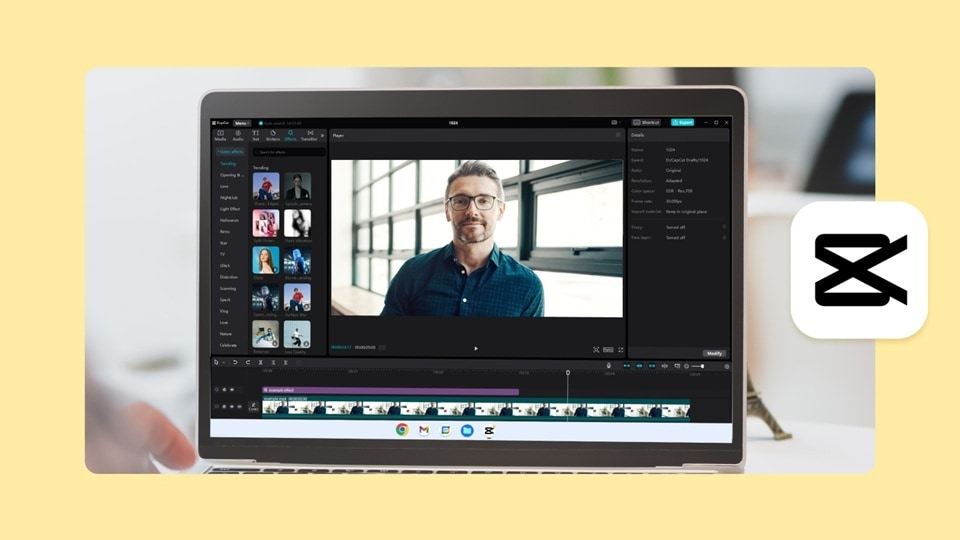
Part 1. What is CapCut? A Brief Overview
CapCut is a video editing software by ByteDance, the same company behind TikTok. It was made available globally in 2020 as a mobile-first editor and built a massive user base fast, mostly because it’s easy enough for anyone to pull off without prior editing experience.
The app became especially popular for short-form content. Features like auto-captions, trending templates, beat sync, and background removal were once mostly found in more advanced editing software, but CapCut made them more accessible.
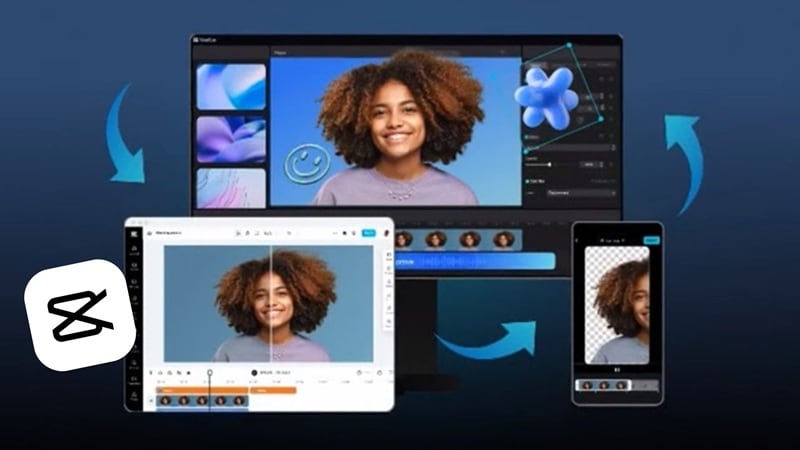
CapCut for PC: Why Users Prefer Editing on Desktop
CapCut for Windows launched on February 1, 2021, with the CapCut Mac version following later that same year. The desktop version targets users who want more screen space, more precision, and a proper timeline to work with. Compared to the mobile app, it gives you:
- ✅ Larger timeline with more tracks. You can layer multiple video clips, audio tracks, and effects on separate tracks with more flexibility.
- ✅ Bigger canvas. Working on a full monitor means you can see your footage clearly while editing.
- ✅ Keyboard shortcuts. If you usually navigate menus in the CapCut mobile app, you can speed up your tasks with shortcuts so you don’t have to keep opening menus while editing.
- ✅ Better performance on long videos. Mobile devices can slow down or drop frames when handling high-resolution or long-form footage. A desktop with decent specs handles this much more comfortably.
- ✅ Easier file management. You can drag and drop files directly from your desktop, access local folders without workarounds, and export to specific locations with more control.
- ✅ Multi-panel workspace. The desktop UI shows your timeline, preview window, effects panel, and asset library all at once, unlike the more limited layout on mobile.
Because of this, CapCut is often compared to Premiere Pro as an alternative for creators who want a capable desktop editor without the cost or the learning curve.
CapCut for PC System Requirements
- CapCut PC download (Windows): click here.
- CapCut for Mac download: click here.
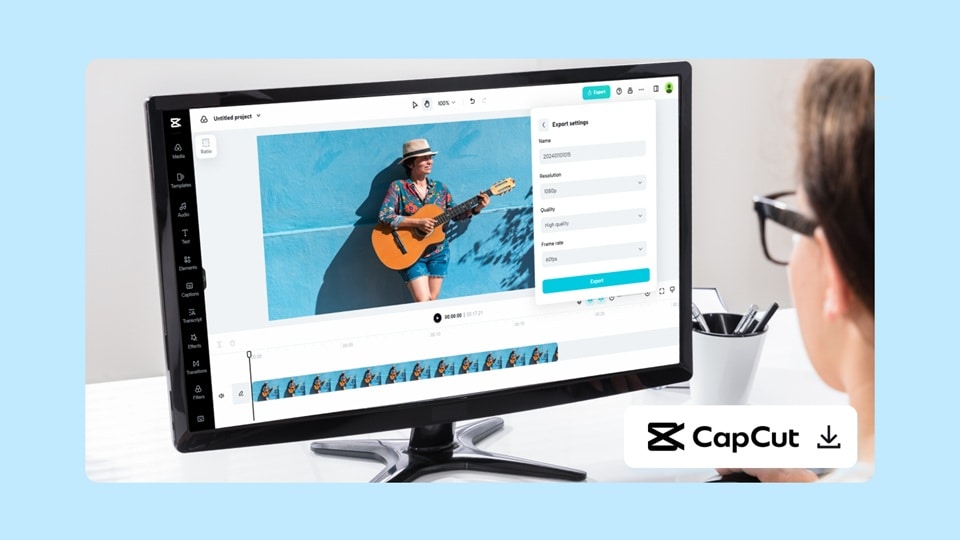
To ensure you have a smooth editing experience, check the minimum system requirements for using CapCut below:
| Category | Windows | Mac |
| Supported OS | Windows 10 (64-bit) or later | macOS 10.14–10.15+ or later |
| Processor (CPU) | Intel Core i3 or equivalent | Dual-core processor |
| RAM (Memory) | 4 GB minimum, 8 GB recommended | 4 GB minimum, 8 GB recommended |
| Graphics (GPU) | Intel HD Graphics 4000 or above | Integrated graphics (dedicated GPU recommended) |
| Storage Space | 2 GB available disk space | 2 GB available disk space |
Avoid downloading the CapCut mod APK for PC that claims to unlock premium features for free. These unofficial versions can expose your device to malware, data theft, or unstable performance.
Part 2. Editing Features on CapCut for PC
The CapCut app for PC covers a wide range of editing tools, more than we can reasonably cover in one article. So rather than listing everything, we're focusing on the features you'll actually use. Some are available across all platforms; others are exclusive to the CapCut desktop app.
Core Editing Tools
- Multi-track timeline. Arrange video clips, audio, effects, and overlays across multiple tracks.
- Speed control and speed curves. Adjust playback speed from 0.1x to 100x, or create smooth slow-motion ramps with Speed curves.
- Chroma key (green screen). Remove a green or solid-color background and replace it with any background of your choice.
- Keyframe animation. Apply keyframes to position, scale, opacity, rotation, and effects. The keyframe graph editor on CapCut desktop gives you more precise control over animation curves compared to the mobile version.
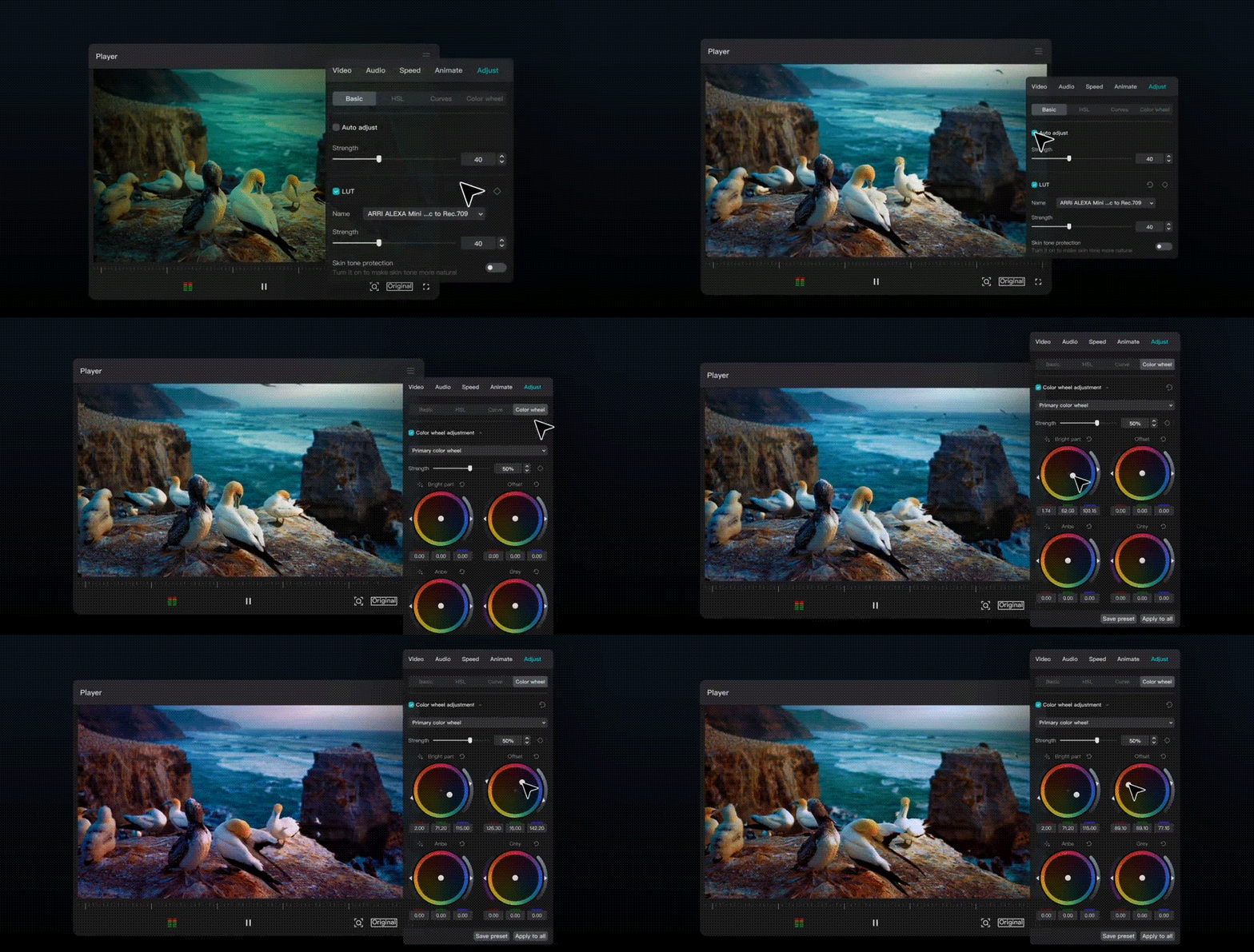
- Color grading with the color wheel and curves. The desktop version includes a full color grading panel with color wheels (lift, gamma, gain), HSL adjustments, and curve editors.
- Video stabilization. Reduces camera shake in handheld footage. The strength is adjustable, though on heavily shaky clips, some quality loss is noticeable.
- Mask and blend modes. Apply shape masks (rectangle, circle, or custom) to clips, with adjustable feathering. Blend modes let clips interact visually with layers below them.
- Advanced keyframe graph editor. On mobile, keyframe control is simplified. The desktop version includes a graph editor for animation curves, giving you Bezier curve control.
AI Tools on CapCut for Desktop
- Auto captions. Transcribes spoken audio and generates synced captions automatically. Caption styling is available, though high-quality presets are mostly for Pro users only.
- Remove filler words. Automatically detects and cuts filler sounds like “um,” “uh,” and long pauses from spoken audio.
- Script to Video. Type a topic or idea for the AI to generate a script, and then CapCut will assemble a rough video with stock footage, subtitles, voiceover, and music based on that.
- Long Video to Shorts. Scans uploaded footage and suggests short-form clip extracts based on key moments. Works reasonably well for repurposing podcast or interview content.
- Text-to-speech. Converts typed text into voiceover across a selection of voice styles. Voice variety is limited unless you're on Pro.
- Auto Reframe. Automatically adjusts the aspect ratio of your footage to fit different platforms (vertical, square, widescreen) while keeping the main subject in frame.
- Noise reduction. Reduces background noise in audio recordings, which is useful for clips shot in noisy environments.
- AI image generator. Generates images from text prompts to use in your projects.
Of all the features listed above, one particular feature that’s useful for creators who switch between devices is cloud sync. Projects saved to CapCut desktop's cloud can be opened on mobile and vice versa, so you can rough-cut on your phone and finish on PC, or the other way around.
Part 3. CapCut Desktop Pricing – Is It Worth It?
CapCut's pricing has been a source of frustration for a lot of users, particularly after a notable restructure in 2025 that added a new tier and raised prices. As of 2026, the CapCut PC pricing plans are divided into Standard (Free) and Pro, with details as follows:
| Standard (Free) | Pro | |
| Pricing | $0 | $19.99/mo or $179.99/yr |
| Export Resolution | 1080p | Up to 4K |
| Filters, Transitions & Effects | Limited | Full Access |
| Music Library | Limited | Full Access |
| Watermark | ||
| Motion Tracking | ||
| AI Video & Music Generation | ||
| AI Image Generator | ||
| Background Remover | ||
| Cloud Storage | None | 1,024 GB |
*) Note: Pricing may vary depending on the region, platform, and ongoing promotions.
While the free plan covers the basics well enough for casual editing and simple social media content, the CapCut desktop Pro plan is almost a given for creators who publish regularly, especially if you rely on AI tools or want access to the full asset library without hitting a paywall mid-project.
Meanwhile, the pricing alone has become a dealbreaker for a lot of users, since the Pro subscription was actually doubled from its previous $77/year rate to $179.99/year and $9.99 to $19.99/month. Many are initially caught off guard when their renewal price jumps overnight.
Does CapCut Pro for PC include mobile access, too?
Yes, thankfully. A CapCut Pro subscription works across desktop (Windows and Mac), mobile (iOS and Android), and the web version. You log into the same account on any device, and your Pro features follow you.
Part 4. CapCut for PC vs Mobile vs Online Differences
All three versions of CapCut (desktop, mobile, and browser) share similar core editing tools and run on the same account. But the platform you edit on affects everything from how much control you have over your timeline to which AI tools are actually available. This is how they differ.
| PC/Mac | Mobile | Online | |
| AI Tools | Full access to background remover, noise reduction, filler word removal, Script to Video, and more | Similar to CapCut Desktop; often gets new AI features first | Limited subset (no motion tracking, filler word removal, Script to Video, noise reduction, AI dubbing, AI relight, and more) |
| Editing Control | Highest (multi-track timeline, keyframe graph editor with Bezier curves, full color grading panel) | Good (multi-track timeline, simplified keyframe controls) | Limited (basic timeline, no keyframe graph editor, no color grading panel) |
| Performance | Handles 4K and long-form footage well on mid-range specs | Can slow down or overheat on older phones during 4K or lengthy footage playback | Fully dependent on the browser and internet speed; not suitable for large files or complex projects |
| Export Quality | Up to 4K/60fps (Pro); 1080p (Free) | Up to 4K/60fps (Pro); 1080p (Free) | 1080p |
| Supported Format | Broad | Supports most common formats | Limited (MP4 and web-friendly formats) |
| Best Use Case | Long-form YouTube videos, structured multi-track editing, professional or branded content | Short-form TikToks, Reels, and Shorts | Fast, lightweight edits |
Part 5. User Review: How CapCut for PC Performs in Daily Use
Editing on CapCut's desktop app, mobile, and web is not a uniform experience. Some things like the AI tools, the interface, and the speed, genuinely impress, while other areas, particularly billing and the expanding paywall, have become hard to ignore.
A Powerful Editor with a Low Learning Curve
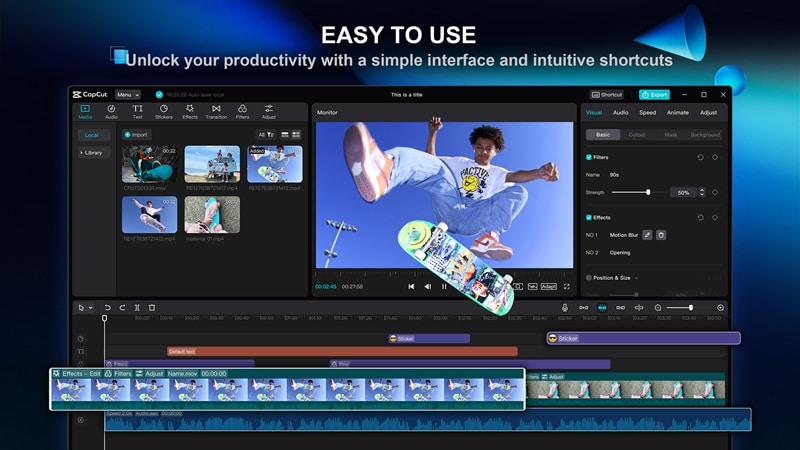
CapCut video editor for PC often becomes the go-to editor for anyone who wants real editing control without spending weeks learning the software. The multi-track timeline, color grading panel, and keyframe controls are all accessible without overwhelming its users. It’s something you can say about Premiere Pro or DaVinci Resolve. You don’t always need high-performance Macs to make such professional edits.
Create Content Fast with AI Tools and Trendy Templates
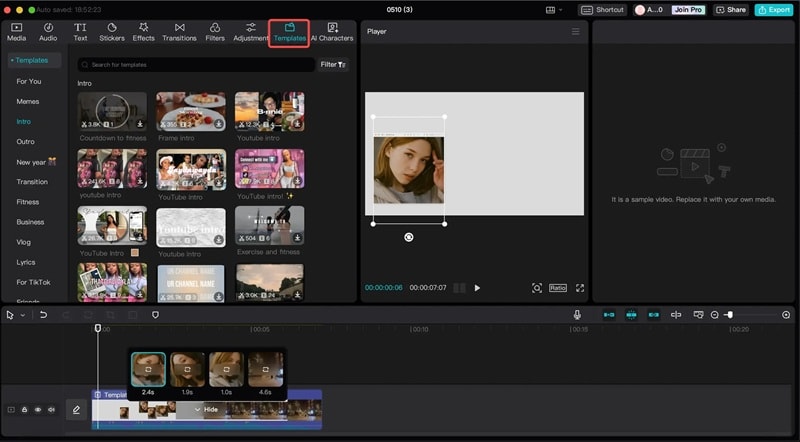
ByteDance is not new to AI, and a lot of that experience shows up in CapCut for desktop. The desktop version carries the most complete set of AI tools across all three platforms. On top of that, CapCut PC version is optimized for trends and viral formats, just like the mobile app. The CapCut templates on desktop updates quickly, sometimes within days of a format going viral on TikTok.
More Free Features are Progressively Moved to Pro
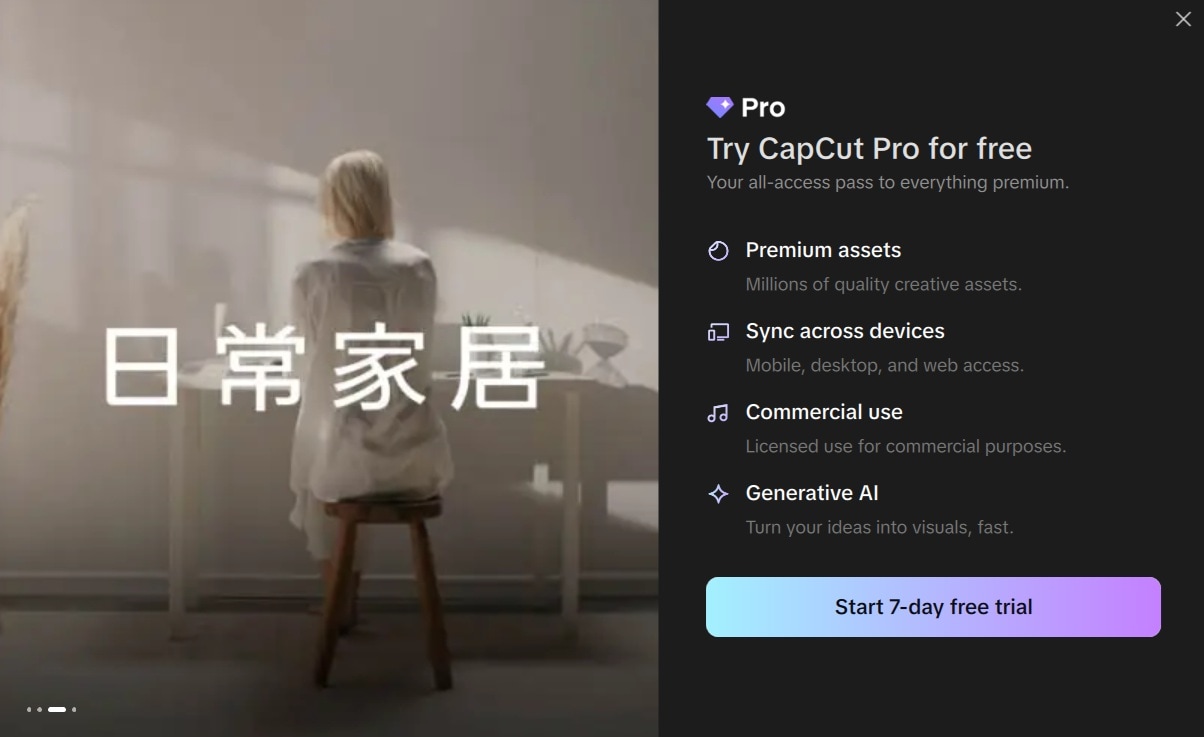
On top of the steep price increase, auto captions, specific effects, and 1080p/60fps export were all free at some point and are no longer. One user on Reddit summarized the frustration directly: “Locking 1080p and 60fps behind a paywall while hiking prices, with no apology, heads up, or acknowledgment.”
Billing and Support Are the Biggest Letdowns

The feature set gets solid marks. The billing experience does not. Trustpilot currently shows a 1.2 out of 5-star rating, with the bulk of complaints centered on billing, not features. Multiple users report being charged after cancellation, double-billed, or unable to reach a real person in support.
If you subscribe, managing your plan through your app store account rather than directly through CapCut gives you more recourse if something goes wrong.
Part 6. Pros and Cons of CapCut for PC
After everything we've covered, here's the clearest way to sum up where CapCut for PC stands. The editor itself is genuinely good. The problems are almost entirely on the business side.
- Multi-track timeline with full keyframe and color grading controls
- Complete AI tool set (auto-captions, background removal, noise reduction, filler word removal, etc.)
- Direct TikTok publishing from desktop
- Template library updates quickly to reflect current trends
- Cloud sync lets you start on mobile and finish on desktop
- Pro paywall appears after building projects with assets that look free
- Pro price doubled in 2025 from $9.99 to $19.99/month
- Mobile gets new AI features before desktop
- Performance can lag on lower-spec hardware or with complex effect stacks
Part 7. Desktop Video Editors Similar to CapCut – Filmora
If CapCut's pricing model or ownership concerns don't work for your situation, Wondershare Filmora is the closest CapCut desktop alternative in terms of workflow and target user.
Similar to CapCut editor for PC, Filmora is built for creators who want something more capable than a basic editor but less complex than advanced video editors. It has a multi-track timeline, AI tools, motion tracking, built-in royalty-free music, and a large effects library. It runs on Windows and Mac, as well as Android and iOS.
 Secure Download
Why We Recommend Filmora
- Multi-camera editing. Filmora supports syncing and cutting between multiple camera angles in a single project.
- More advanced keyframe control. Filmora's path curve feature lets you animate objects along a custom motion path with Bezier curve precision, giving you smoother and more complex animations than CapCut's keyframe system allows.
- Perpetual license option. Unlike CapCut's subscription-only model, Filmora lets you pay once for permanent access to core editing tools.
- Hardware acceleration for faster rendering. Filmora supports hardware acceleration, which speeds up export times on compatible systems.
- Better suited for long-form content. Filmora handles heavy 4K files and complex multi-track projects more reliably, making it a stronger pick for YouTube tutorials, documentaries, or branded video content.
For its AI video generation, Filmora supports more than one AI model, including Veo 3.1, Sora 2, Tomoviee, and ByteDance’s latest AI model, Seedance 2.0.
CapCut vs. Filmora
| CapCut | Filmora | |
| Best For | Short-form social content, TikTok, Reels, Shorts, quick turnarounds | Long-form YouTube videos, tutorials, branded content, and higher-production projects |
| Platform | Windows, Mac, Mobile (iOS & Android), Web | Windows, Mac, Mobile (iOS & Android), Web |
| Editing Control | Multi-track timeline, keyframe animation, color wheel, and curves | Multi-track timeline, advanced keyframe path curves, multi-camera editing, magnetic timeline |
| AI Video Models | Seedance 1.0, Seedance 1.5, Seedance 2.0, Sora 2 | Seedance 2.0, Veo 3.1, ToMoviee 2.5, Sora 2 |
| Third-party Plugins | No third-party plugin support | Supports third-party plugins, like Boris FX and NewBlue FX |
| Performance | Good on mid-range specs; can lag with complex effect stacks or on lower-end hardware | Better handling of heavy 4K files and complex multi-track projects, with hardware acceleration support |
| Export Quality | Up to 4K/60fps (Pro); 1080p (Free with watermark) | Up to 4K (all plans); free version exports with watermark |
Verdict:
- If you make a lot of short-form content, CapCut PC app is faster and more trend-aware.
- If you're building a YouTube channel, tutorials, or anything that needs a polished structure, Filmora gives you the headroom to grow.
Secure DownloadConclusion
CapCut has grown a lot since it first released, and with the desktop version, it has enough tools to challenge more advanced, professional editors that cost significantly more and demand more power. But the 2025 pricing overhaul changed the value equation.
Features that were previously free got moved behind a Pro subscription that now costs twice what it used to. If the price or any of the issues mentioned above is a dealbreaker, Filmora is the closest CapCut for PC alternative in terms of workflow and target user, with better performance on heavier projects and a one-time purchase option.
FAQs
-
1. Is CapCut for PC good for YouTube videos?
CapCut for PC works well for YouTube videos, especially if you're making shorter content or vlogs. For longer, more structured videos like tutorials or documentaries, it can handle the job, but you may run into limitations with complex multi-track projects on lower-spec hardware. -
2. Why is CapCut lagging on my PC?
If your CapCut desktop app is lagging, the most common causes are insufficient RAM, a weak GPU, or you’re trying to edit 4K footage on hardware that doesn't meet the recommended specs. If your specs meet the requirements and it's still lagging, try reducing the preview resolution in settings or closing background apps while editing. -
3. Does CapCut for PC leave a watermark?
Yes, the free plan adds a watermark to exported videos. Removing it requires a Pro subscription. -
4. Can CapCut for PCs work offline?
Most core editing features work offline. However, AI tools like auto captions, background remover, and text-to-speech require an internet connection since they run on CapCut's servers. -
5. Do I need an account to use CapCut on PC?
You can use CapCut without logging in, but an account is required to access certain advanced features, cloud sync, AI tools, and your saved projects across devices. If you're only doing basic local edits, you can get by without one.
