


 TL;DR:
Captions AI Eye Contact automatically corrects a subject's gaze to simulate looking directly at the camera across web, iOS, and Android platforms, but it processes the entire video universally without allowing selective adjustments.
● The free plan restricts users to a maximum of 60 to 200 non-refilling lifetime credits and forces watermarks on exports, requiring a Pro, Max, or Scale subscription for regular usage.
● The cloud-based AI struggles with extreme camera angles and excessive head movements, requiring stable, high-resolution, front-facing footage shot at eye level to prevent unnatural visual results.
● Wondershare Filmora serves as a better alternative for creators who need precise control over individual clips and access to a full editing timeline, which the built-in Captions AI editor lacks once the eye fix is applied.
Ask AI for a summary
 ChatGPT
 Perplexity
 Gemini
 Claude
 Grok
Grok
StudyFinds reported that 78% of people trust brands more when videos feature real people instead of AI avatars. It shows that audiences tend to connect better with videos that feel more human and natural.
The problem is, maintaining eye contact while recording is not always easy. Many people end up looking at scripts or teleprompters instead of directly at the camera. One tool that can fix your gaze is Captions AI Eye Contact. It makes it look like you were staring straight at the camera, even if you were reading the whole time.
So today, we’ll explore how Captions AI Eye Contact works, how much it costs, and what to do if the feature is not working properly.
Part 1. Captions AI Eye Contact Overview
Captions is a platform that helps you edit videos with AI. You can create AI avatars, generate captions automatically, or even let the AI transform raw footage into a more polished video. The platform has also been used by brands like Forbes, Bloomberg, and CNBC.
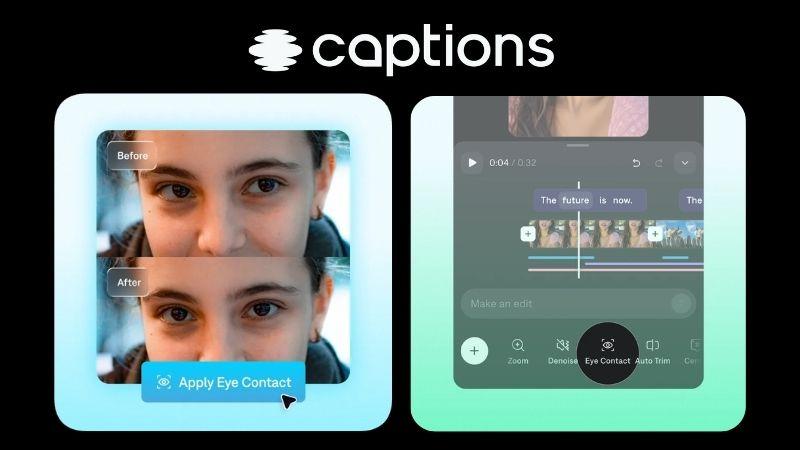
One of its main features is Captions AI Eye Contact Correction. The AI scans your video and identifies moments when you accidentally look away from the camera. After that, it adjusts the footage so it appears as if you’re always looking directly into the lens.
This Captions Eye Contact Correction feature is especially useful when:
- You keep glancing at scripts, notes, or teleprompters while recording.
- You want to fix awkward eye movement without reshooting the whole video.
- Your talking-head videos feel less engaging because you are not looking at the camera.
- You want your video to feel more natural, polished, and easier to watch.
- You want to save time in post-production instead of re-recording every small mistake.
How to Access Captions AI Eye Contact
To use the Captions AI Eye Contact feature, you first need to access the Captions AI platform. It can be used directly from the website or through the mobile Caption app for AI Eye Contact, depending on which feels more convenient for you.
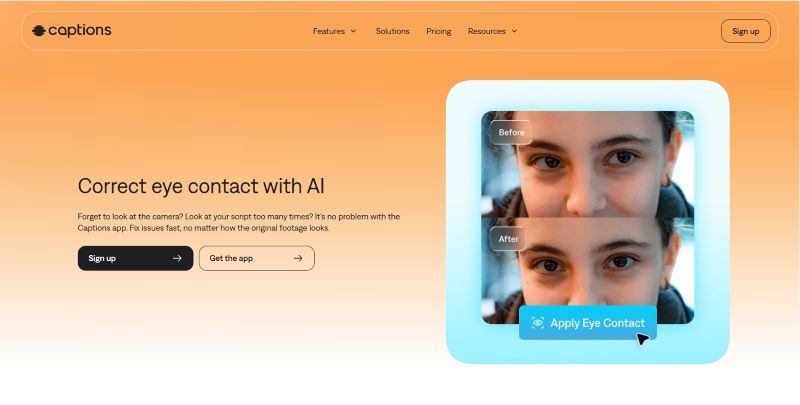
Captions AI Eye Contact Online
If you want to use it online, visit Captions AI Eye Contact to start using the feature. Simply sign up or log in to begin correcting eye gaze in your videos.
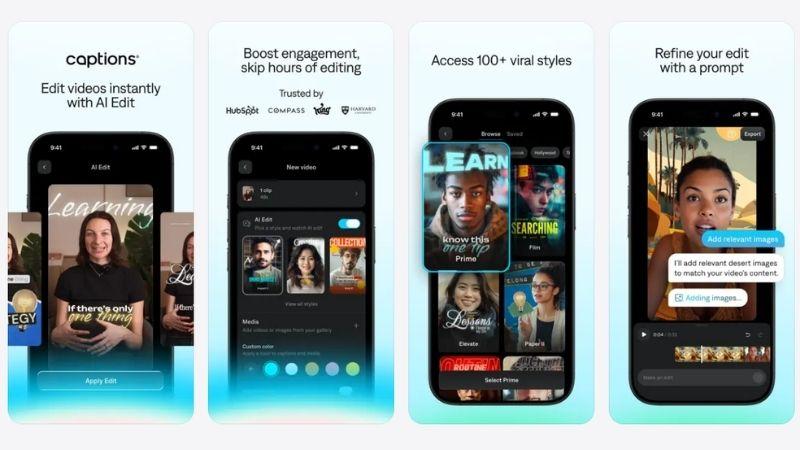
Captions AI Eye Contact on Mobile App
If you prefer a more flexible option to edit on the go, the mobile app for Captions AI Eye Contact is also available. You can download it through:
- App Store for iOS users.
- Google Play Store for Android users.
Best Uses for Captions AI Eye Contact
When recording videos, you may not realize how often your eyes drift away from the camera. Sometimes you’re reading a script, checking notes, or focusing too much on what you’re explaining.
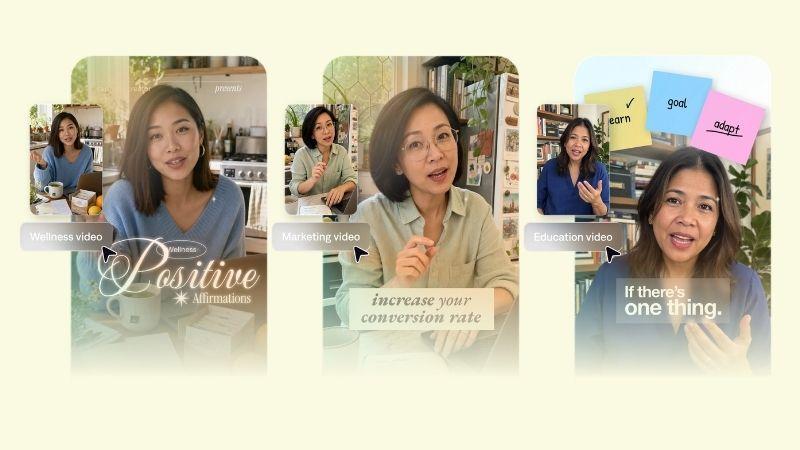
That’s where Captions AI Eye Contact becomes useful for these types of video content:
- Talking-head videos: It can be difficult to keep your eyes focused on the camera, especially when speaking for long periods or reading points from a script.
- Tutorials: When you’re more focused on demonstrating the tutorial itself, it’s easy to stop looking directly at the camera.
- Social clips: Helps your short videos feel more personal, as if you’re talking directly to the viewers.
- Sales videos: Direct eye contact can make your message feel more convincing and trustworthy to potential customers.
- Online lessons: Make educational videos feel more direct and connected to students.
Part 2. Is Captions AI Eye Contact Free?
Caption AI Eye Contact free plan exists, but with several limitations. Free users only receive around 60–200 lifetime credits, and exported videos will still include a watermark.
Once your free credits run out, you’ll need to upgrade to a paid plan, especially if you use the feature regularly for content creation. To make the differences easier to understand, we’ve summarized the Captions AI pricing plans in the table below.
| Pro | Max | Scale | |
| Pricing | $9.99 per month | $24.99 per month | $69.99 - $279.99 per month |
| Credits | 200 credits | 500 credits | 1400 - 5600 credits |
| Auto Captions | |||
| AI Edit Style Library | |||
| AI Avatar Customization | |||
| Chat-based Editor | Not Available | Limited Access | Full Access |
| Access to AI Generation Models | , with more advanced models | ||
| Full AI Video Creation | Not Available | , with more customization options | |
| Watermark | No Watermark | No Watermark | No Watermark |
|
Show More
Show Less
|
|||
Generally, the higher the subscription tier, the more credits and AI features you unlock. The good news is that the Captions AI Eye Contact price is already included within the paid plans, so there’s no need for a separate purchase.
⚠️ Pro Tip: Beware of Captions AI Eye Contact Mod APKs.
Some websites may offer “Caption AI Eye Contact APK” files that claim to unlock premium features without payment. However, these modified apps are unofficial and can put your privacy and device security at risk.
Part 3. How to Use Captions AI Eye Contact on Web and Mobile
To give you a clearer idea of how the feature works, we’ll walk through the process of using Captions AI Eye Contact on both the web version and the mobile app. This way, you can see how the editing workflow looks across different devices. Let’s dig in.
How to Use Captions AI Eye Contact on Your Phone
If you usually edit on your phone, the Captions app makes it easy to fix eye contact on the go. In this example, we’ll follow a simple tutorial by BIGVU on YouTube.
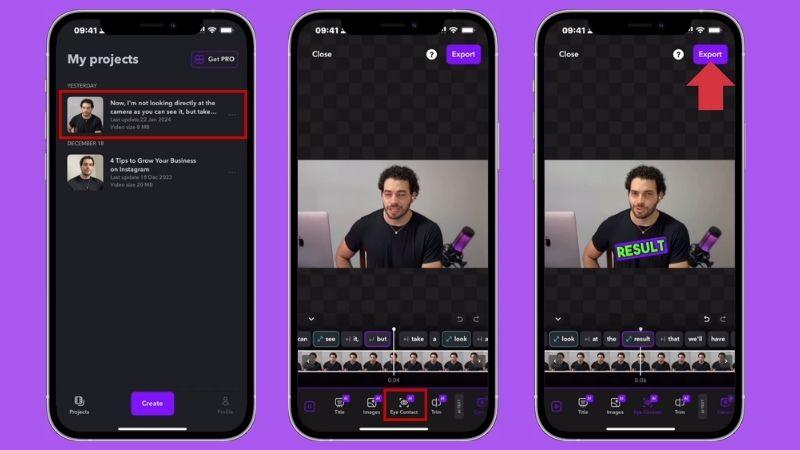
How to Use Captions AI Eye Contact on the Web
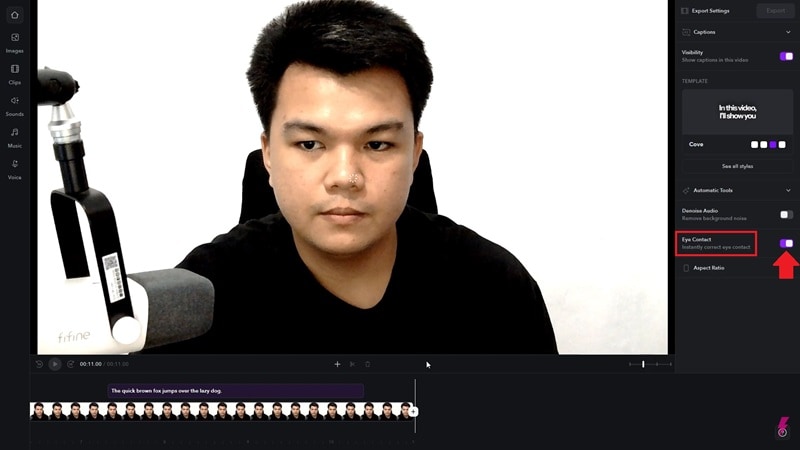
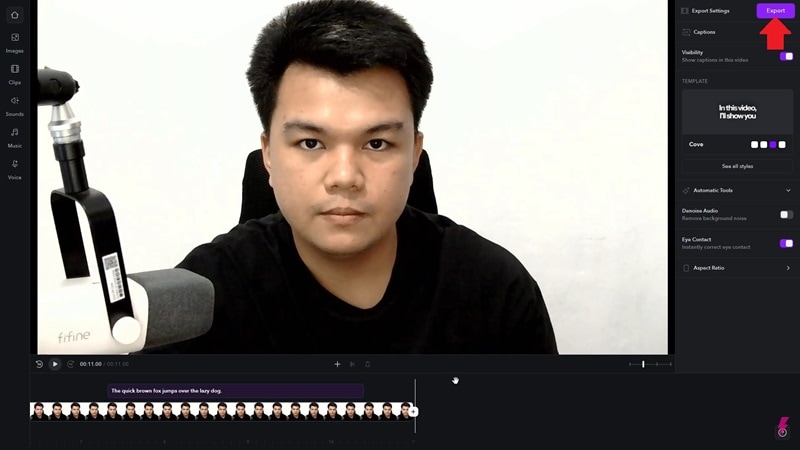
If you prefer working on a larger screen, the web version of Captions AI Eye Contact is a better option. It gives you a clearer view of your timeline and editing tools, making it easier to fine-tune your video. For this example, we’ll refer to a tutorial from Answer ASAP on YouTube.
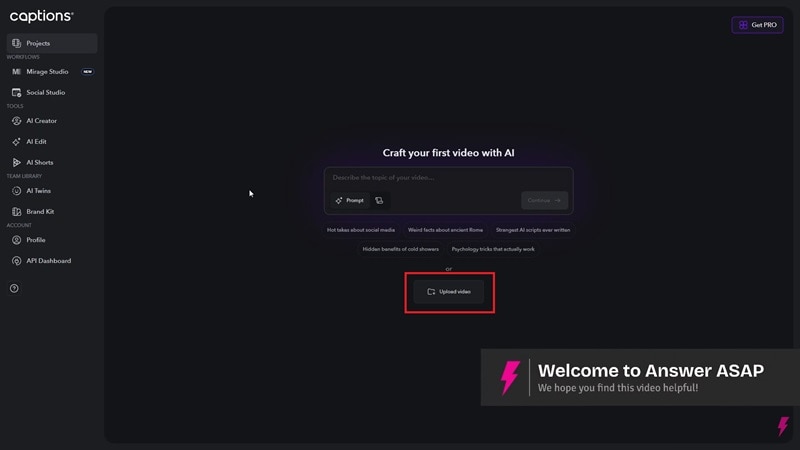
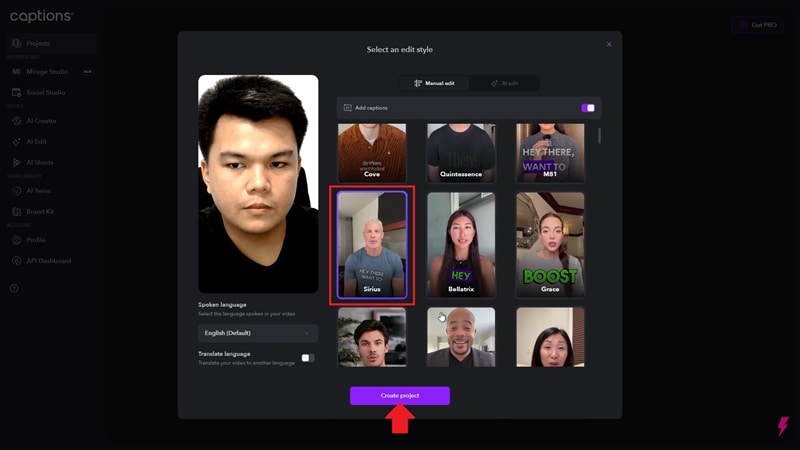
Part 4. The Strengths and Limitations of Captions AI Eye Contact
Captions AI Eye Contact can save a lot of retakes, especially if you record scripted videos. But like most AI correction tools, it works best when your face is clear, your eyes are visible, and your script is placed close to the camera.
Below are the main strengths and drawbacks you should know before using it.
- No Learning Curve: Using Captions AI Eye Contact is very straightforward and easy to understand. Even if you don’t have any video editing experience, you can still use it without any difficulty.
- Fast Processing: The AI takes only a short time to analyze your video and apply the eye contact correction. Processing usually takes between a few seconds and a couple of minutes, depending on the length of your video.
- Doesn’t Affect Video Quality: The editing process doesn’t reduce your video quality, so the final output still looks clear and professional.
- Imperfect Results: If you move your head too much or frequently look far away from the camera, the AI correction may not look fully natural.
- Limited Free Plan Benefits: The free plan only provides a small amount of lifetime credits, and these credits don’t refill. This means you will eventually need to upgrade to a paid subscription if you want to continue using the feature regularly.
- Limited Control Over Eye Contact Editing: The Captions AI Eye Contact feature is automatically applied across the entire video. You cannot selectively choose which parts of the clip should be corrected and which should remain unchanged.
Part 5. What to Do If Captions AI Eye Contact Is Not Working
If Captions AI Eye Contact is not working properly, there are several possible causes. The issue is usually related to your footage, the app itself, your internet connection, or your subscription plan. Here are a few ways you can try to fix it.
1. Check your footage quality
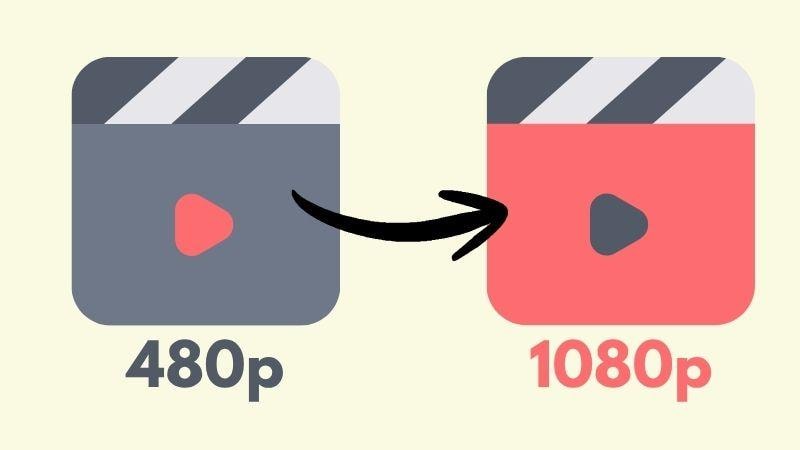
If your video quality is too low, the Captions AI Eye Contact may struggle to detect and map your face properly. Try improving the resolution of your footage so your facial features are clearer and easier for the system to process.
2. Avoid extreme angles
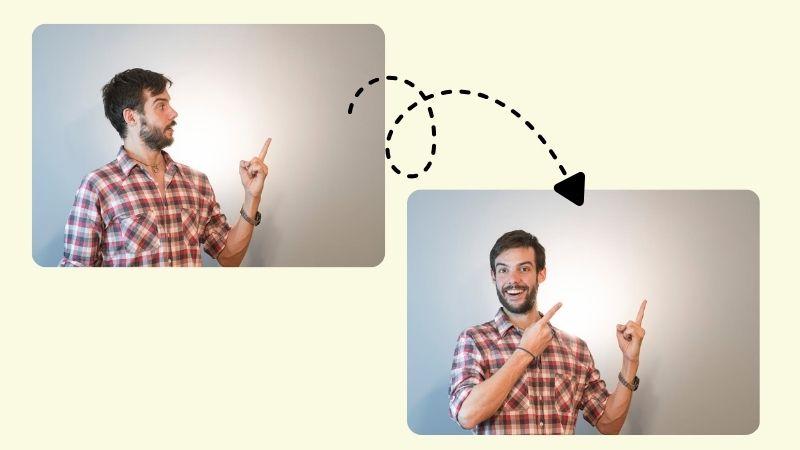
Captions AI Eye Contact may struggle to detect your face properly when the camera angle is too extreme. This usually happens when your face is turned too far to the side, tilted too much up or down, partially out of frame, or only a side profile is visible.
To avoid this, try recording at eye level with your face clearly visible and mostly facing the camera. If the angle is too extreme, the best solution is to reshoot using a more front-facing position so the AI can process your face correctly.
3. Try a shorter clip
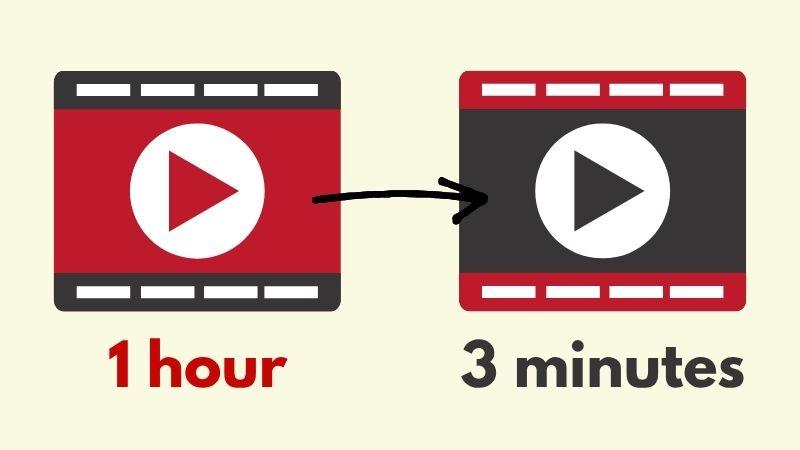
Since Captions AI Eye Contact runs online, longer videos can sometimes be harder to process, especially if your internet connection is unstable. To make the process smoother and more stable, it’s better to work with shorter clips when editing.
Try an Alternative: Filmora AI Eye Contact
Captions AI Eye Contact works well for fast eye corrections, but the editing tools inside the platform are still fairly limited. Once the eye contact fix is applied, there’s not much flexibility for making more detailed edits directly within the built-in editor.
If you want more control over your videos, Wondershare Filmora might be a better fit. Beyond correcting eye contact, Filmora lets you make more precise video adjustments so you can customize the video more freely. It also comes with additional AI and video editing features that help improve the overall quality of your content.

To better understand why Filmora can be a stronger alternative to Captions AI Eye Contact, let’s take a look at some of the features it offers.
- AI Generative Tools: Filmora comes with various AI generative tools that allow you to create videos from ideas, text prompts, images, or even audio inputs.
- Intuitive Editing Timeline: Filmora provides a complete editing timeline with features like a magnetic timeline for smoother editing, compound clips to combine multiple clips into one, and a dual timeline view for easier project management.
- Library of Creative Assets: You also get access to a wide collection of animations, transitions, filters, stickers, royalty-free images, videos, and audio.
- Available on Desktop and Mobile: Filmora supports cross-device editing, so you can switch between desktop and mobile more flexibly while keeping your projects synced.
 Secure Download
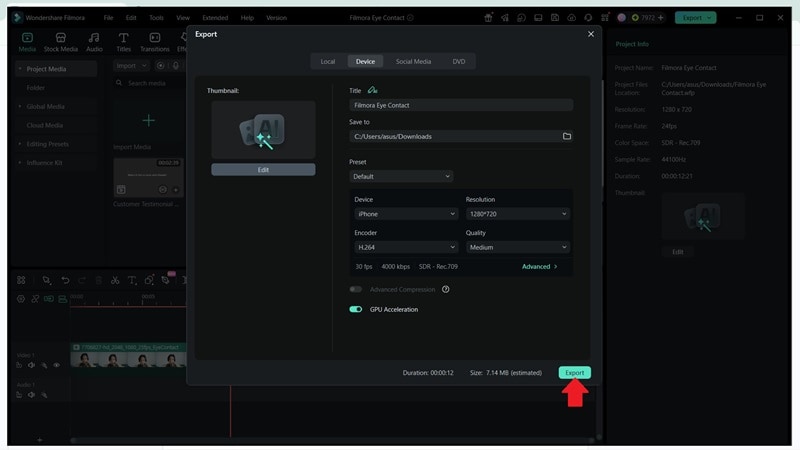
How To Use Filmora AI Eye Contact
After exploring Captions AI Eye Contact, it’s also worth seeing how Filmora AI Eye Contact works. For this example, we’ll use the desktop version of Filmora to correct eye contact in a video.
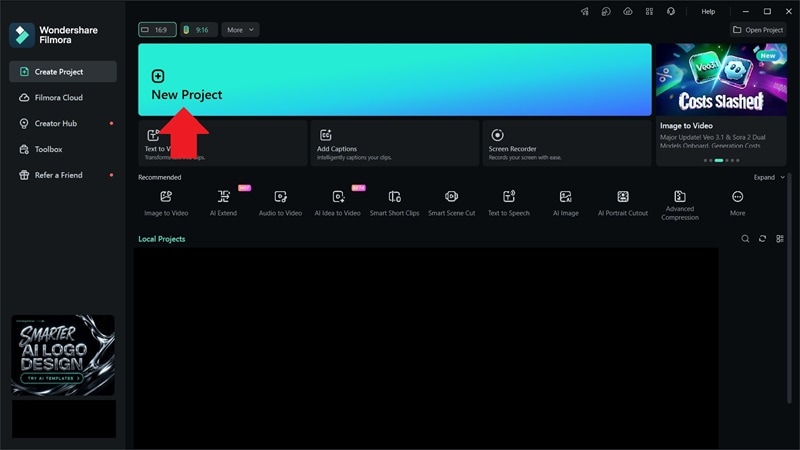
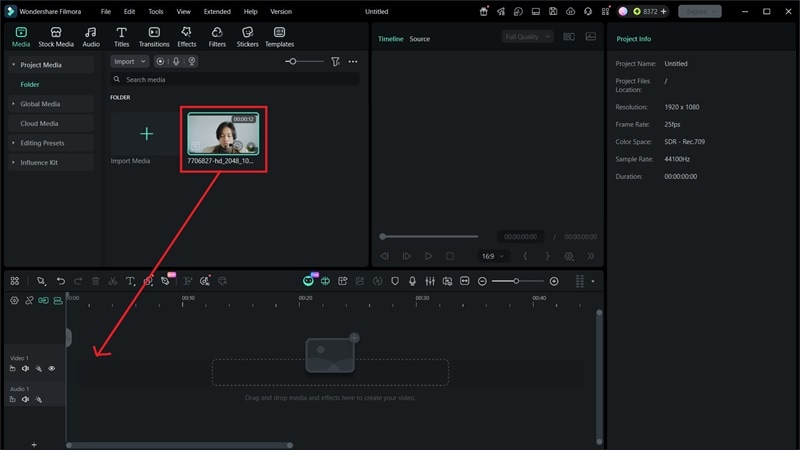
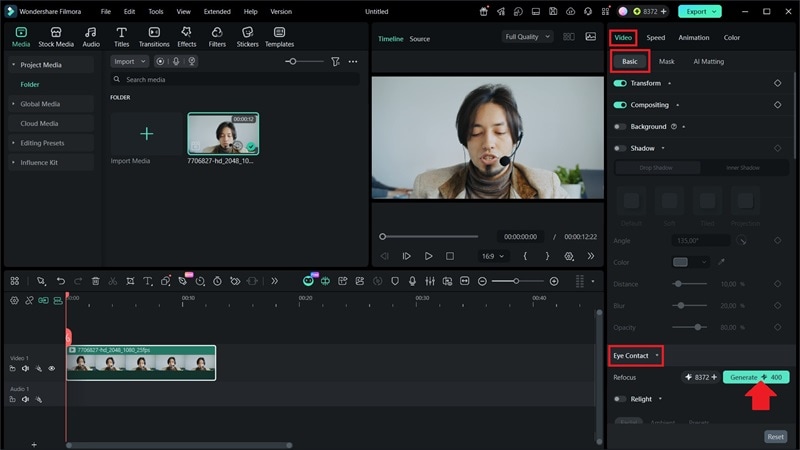
 Secure Download
Conclusion
You no longer have to worry about footage where your eyes keep drifting away from the camera. Captions AI Eye Contact offers a quick way to correct your gaze, even clips that look awkward at first can be improved in just a few clicks. However, once you move beyond eye correction, the editing tools can feel limited.
For a more complete editing experience, Wondershare Filmora is worth considering. In addition to AI eye correction, Filmora provides a full set of editing tools and AI-powered features that give you greater control over the final look and quality of your videos.
FAQs
-
1. Is Captions AI Eye Contact safe to use?
Yes. Captions AI Eye Contact is safe, and it only works with the video files you upload for editing purposes. -
2. Does Captions AI Eye Contact work offline?
No. The Captions AI Eye Contact feature requires an active internet connection because all processing is done in the cloud. -
3. How long does Captions AI Eye Contact take to process?
For short clips, it usually takes under a minute. For longer videos, processing may take a few minutes, depending on the file length. -
4. Can I turn off Eye Contact after applying it?
Yes. You can undo or disable the Captions AI Eye Contact effect anytime if the result doesn’t match your expectations.
