

 TL;DR:
Perfectly centering text in Adobe After Effects requires combining three specific adjustments: centering alignment in the Paragraph panel, aligning the layer horizontally and vertically to the composition via the Align panel, and centering the anchor point using the Ctrl+Alt+Home or Cmd+Option+Home keyboard shortcuts.
● Centering the anchor point through the Layer Transform menu is a strict prerequisite before applying scale, rotation, or movement effects to prevent the text from pivoting unnaturally during animation.
● Modifying text content after initial alignment causes the layout to shift because anchor points do not update automatically; to resolve this, editors must manually re-center the anchor or apply the sourceRectAtTime() expression for dynamic positioning.
● After Effects is best suited for motion professionals requiring manual keyframe control, whereas Wondershare Filmora is ideal for creators needing fast, one-click text centering and built-in animation presets without technical anchor point configurations.
Ask AI for a summary
 ChatGPT
 Perplexity
 Gemini
 Claude
 Grok
Grok
As an editor, achieving perfectly centered text in After Effects is crucial for professional motion graphics. It ensures smooth movement and clean animation without awkward shifts. Although many know how to center text in After Effects, mastering the nuances of alignment and after effects text anchor point center positioning can be challenging. This guide will show you 3 proven methods to precisely align text after effects and guarantee your center layer after effects settings are perfect, including an easier alternative for beginners.
Part 1. Understanding How to Center Align Text in After Effects: The Core Components
Before learning how to center text in After Effects, it's important to understand how text positioning actually works in Adobe After Effects. Three key elements determine how text is displayed in a composition:
- Alignment: defines how text is positioned within its own text box (left-aligned, right-aligned, or centered).
- Layer position: determines where the text box is placed within the composition.
- Anchor point: pivots for transformations such as scaling, rotating, or moving text.
Each of these elements affects text placement in different ways, which is why beginners often get confused.
A common mistake is to center the text through the Paragraph panel but leave the anchor point uncentered. This can make the text appear aligned at first glance, but it may appear uneven during animation.
Part 2. Step-by-Step: 3 Ways to Perfectly Center Text & Align Text After Effects
Once you understand how alignment, layer positioning, and center text anchor points work together in After Effects, the next step is to apply them correctly. Here are three simple methods to accurately center text in After Effects.
Each method targets a different part of the positioning process to ensure your text is perfectly balanced and ready for animation.
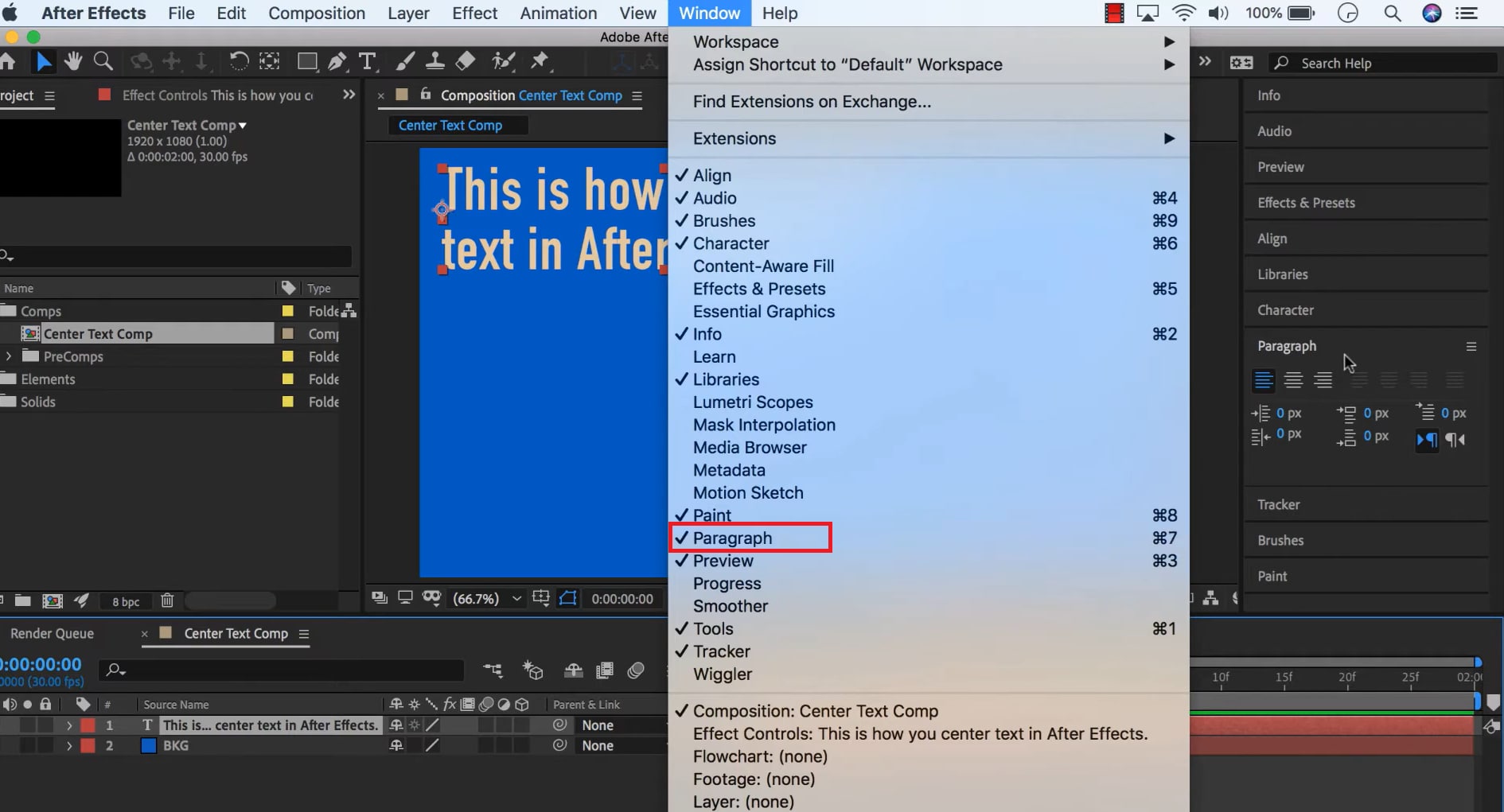
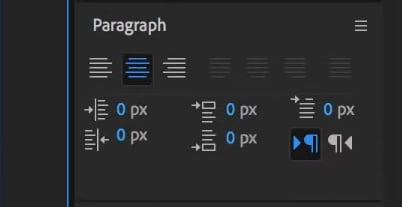
Method 1: Center Text Within the Box (Paragraph Panel)
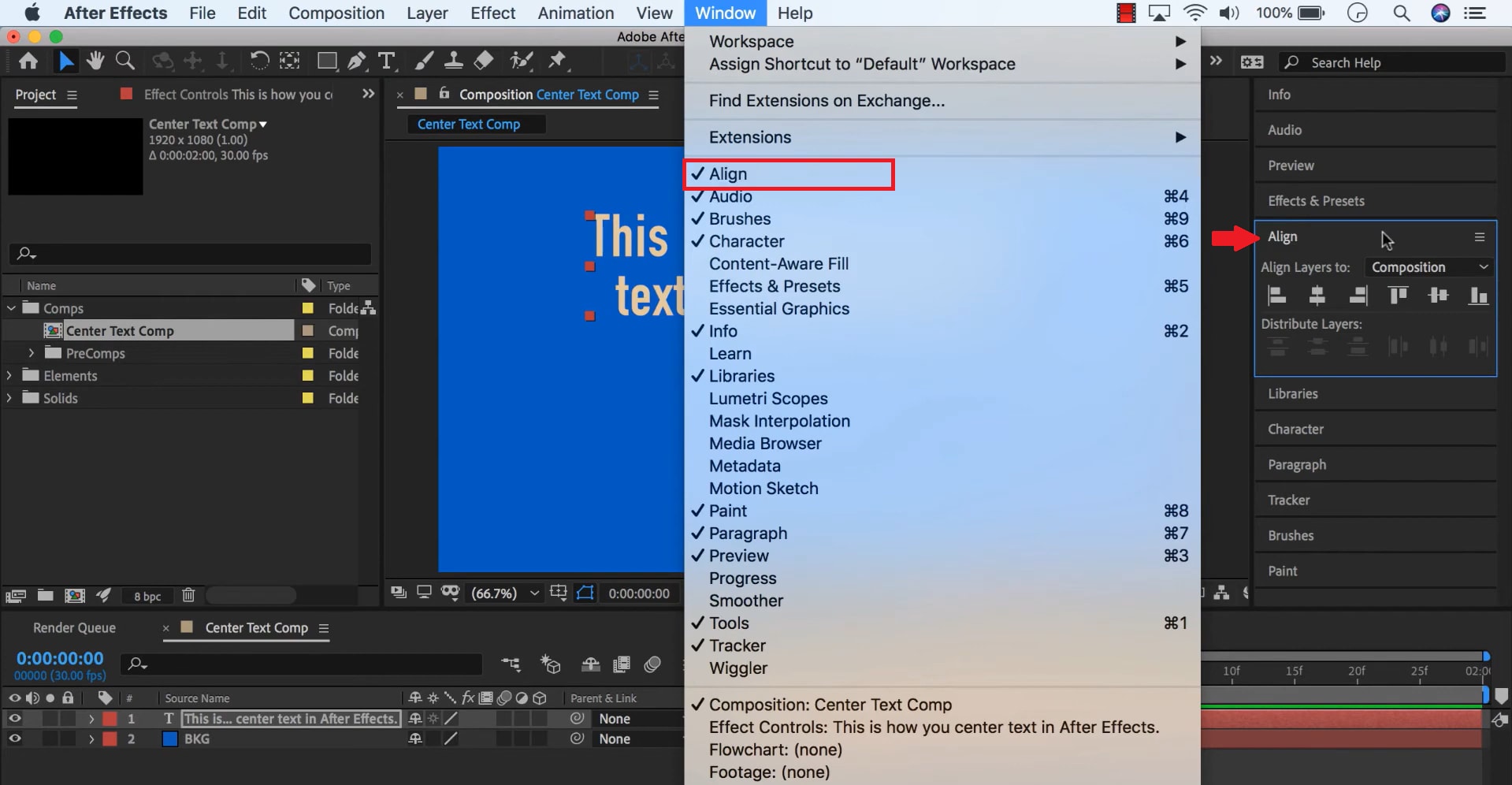
Method 2: How to Center Layer After Effects: Centering the Text Layer in the Composition
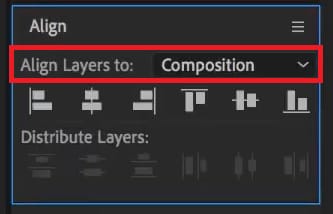
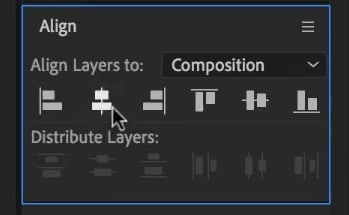
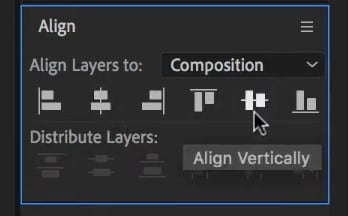
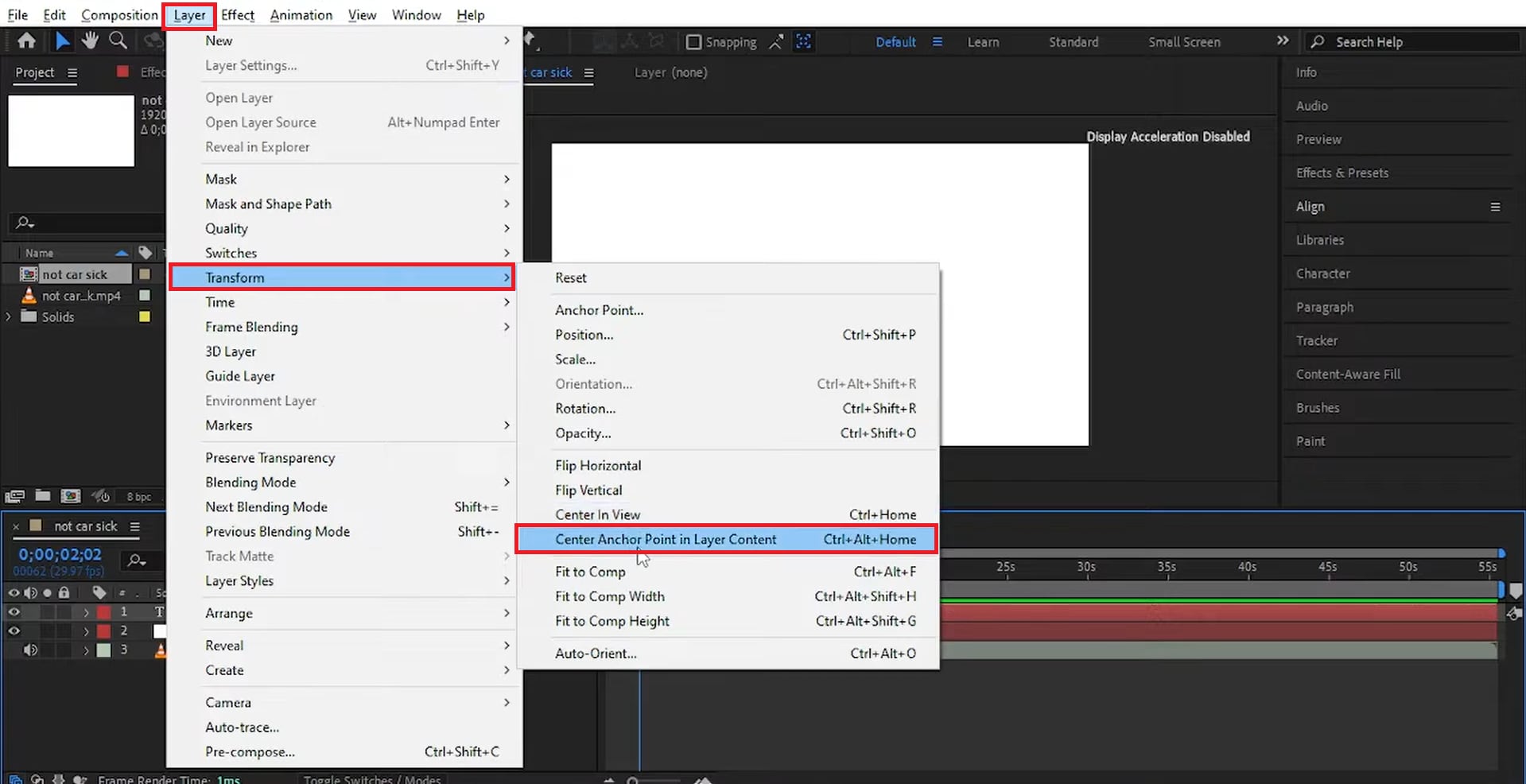
Method 3: Center Text Anchor Point for Clean Animation
Part 3. Text Animation Ideas Once Your Text Is Centered
After we've learned three methods for centering text in After Effects, we can say that centering text isn't just a design choice. It's also a foundation for smooth, balanced animation. When your text and anchor points are perfectly aligned, every movement feels precise and professional. That's why many editors make centering text their first step before adding effects or transitions.

Here are some animation ideas that work best with centered text:
- Fade In and Fade Out: Smooth appearance and disappearance without shifting.
- Scale and Rotation: Text enlarges or rotates evenly from the center to create a clean and stable effect.
- Typewriter Reveal: Each character animates neatly, maintaining perfect alignment.
- Bounce or Pop Effects: Centrally aligned text creates more natural and dynamic motion.
To speed up the process, you can use the built-in animation presets in Adobe After Effects. These ready-to-use effects work best when the text placed in the center is set up correctly, saving you time and ensuring consistent and polished results.
Part 4. The Easier Way: Center & Animate Text with One Click in Filmora
Center text in After Effects does offer a variety of options, but many beginners feel overwhelmed and look for faster and simpler methods to create clean Text Animation.
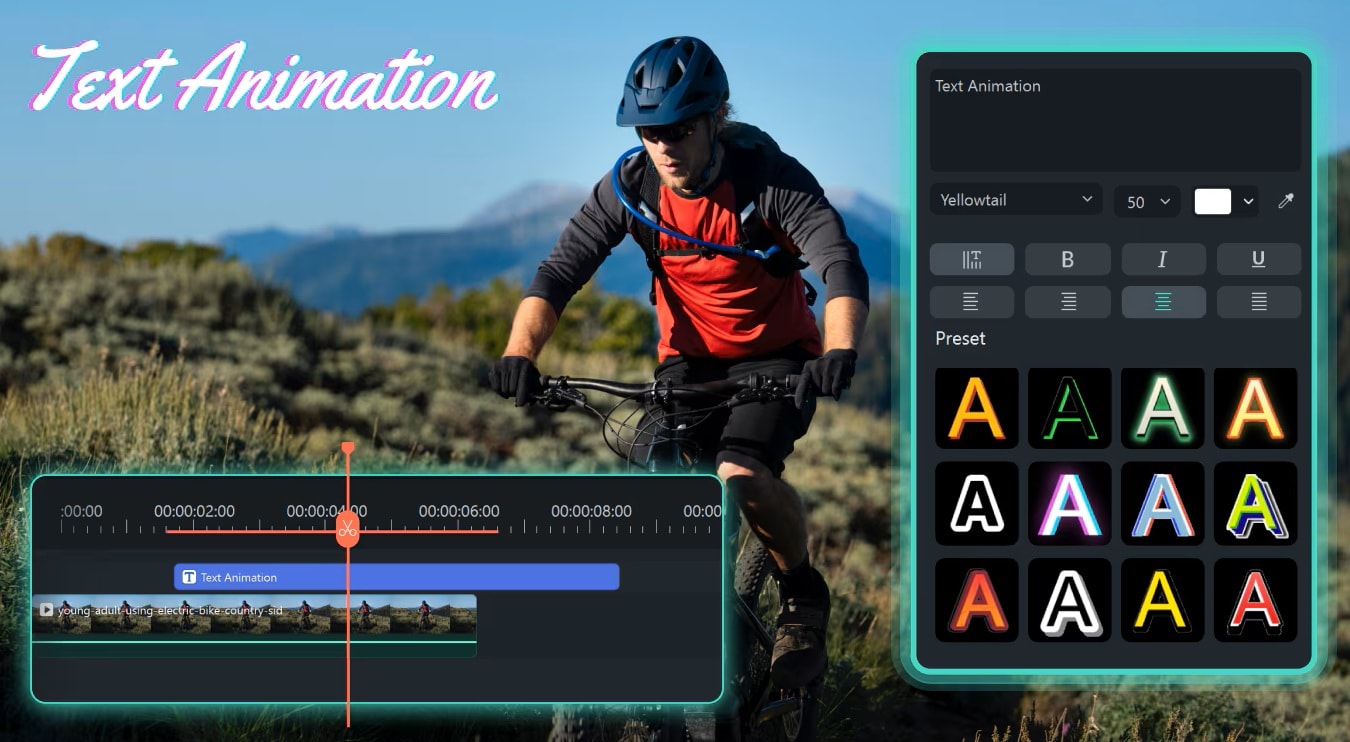
If that's the case, you can try Wondershare Filmora. Text editing isn't limited to advanced software like After Effects. For simple tasks such as centering, fading, or animating titles, Filmora provides an intuitive and beginner-friendly alternative for efficient, everyday video editing.
 Secure Download
Filmora's Text Editing Features
- Accessible Interface: Filmora's text editing panel is straightforward, so you can add and customize text directly in the preview window.
- One-Click Text Centering: Select your text and click the alignment button to automatically center the text in the composition. No anchor point adjustments are needed.
- Built-in Animation Presets: Apply effects such as fade, typewriter, slide, or bounce with a single click.
- Smarter Customization: Quickly adjust duration, speed, and style to fit your project, without any complex keyframes.
- Efficient Workflow: Filmora combines text editing, animation, and effects in one platform to save time and simplify the process for creators.
Part 5. After Effects vs. Filmora: Which Should You Use?
From the explanation of the two tools above, both Adobe After Effects and Wondershare Filmora can help you create centered text animations. However, the key difference between the two lies in how much control you want and how quickly you need results. Here's a quick comparison between the two tools:
| Feature | After Effects | Filmora |
| Text alignment control | Manual control through Paragraph and Align panels, plus anchor point adjustments | One-click centering with no anchor point setup required |
| Learning curve | Steep learning with advanced tools and expressions that need to be learned | Beginner-friendly and easy to navigate |
| Animation flexibility | Highly flexible with custom keyframes and expressions | Preset-based animations with quick adjustments |
| Speed of workflow | Slower due to multiple steps and manual setup | Faster and more efficient with built-in tools |
| Ideal for | Motion designers, professionals, and complex animation projects | Creators who want fast and polished results without technical complexity |
Part 6. Troubleshooting & Common Issues
Sometimes, even if you know how to center text in After Effects, small errors can still cause text to shift or appear off-center during animation. Beginners may face this common problem. Thankfully, most of these problems are easy to fix once you know what to look for.
- Text appears off-center after animation: This usually happens because the reference point is not centered. Be sure to use Layer > Transform > Center Anchor Point in Layer Content or the keyboard shortcut Ctrl + Alt + Home (Windows) / Cmd + Option + Home (Mac) to fix it.
- Paragraph alignment vs. actual centering : Centering text in the Paragraph panel does not always mean that the text is centered in the composition. To fix this, use the Align panel to center the text layer horizontally and vertically within the composition.
- Text shifts when content changes: If you edit text after alignment, the text may shift because the anchor point doesn't update automatically. You can use expressions such as sourceRectAtTime() to keep the text dynamically centered, or reapply the center anchor and align commands to reposition the text correctly.
By checking these areas to figure out what might be the issue, you can quickly identify and fix the problem, so that text stays perfectly centered and animations appear smooth.
Conclusion
In short, mastering how to center text perfectly can make your videos look more presentable and professional. Centering text in After Effects using basic alignment tools or more advanced keyframe techniques requires precision to produce a polished result.
With Filmora, you can achieve this faster and more accurately due to its smart snapping guides, auto-alignment, and animation-friendly interface. Besides learning how to do it, you also need to understand common issues, such as shifting text or a misaligned anchor point, so you can save time and maintain visual style consistency.
After getting used to it, centering text becomes effortless, and you can add extra touches of quality, such as animation, to your content.

