


 TL;DR:
Eddie AI is a text-prompted, desktop-only video editing assistant for Windows and macOS that accelerates early-stage logging and rough cuts for podcasts and documentaries, though it functions strictly as a pre-editing tool.
● Demands a high budget—with a $15-per-export pay-as-you-go tier or monthly plans ranging from $199 to $1499—and requires mandatory integration with Adobe Premiere Pro, DaVinci Resolve, or Final Cut Pro to refine its often robotic-paced AI drafts.
● Delivers significant time savings for long-form, interview-heavy projects via automated 6-camera multicam syncing, detailed B-roll tagging, and a "Night Shift" feature that sorts and syncs raw footage overnight.
● Creators requiring a complete end-to-end solution, cross-device mobile compatibility (Android and iOS), or generative content creation tools like text-to-video are better suited for Wondershare Filmora, which provides full timeline control without forcing a multi-application workflow.
Ask AI for a summary
 ChatGPT
 Perplexity
 Gemini
 Claude
 Grok
Grok
Video editing still eats up hours, especially when you’re dealing with interviews, podcasts, or long-form footage. That’s exactly the problem tools like Eddie AI are trying to fix. Branded as a “ChatGPT for video editing,” the Eddie AI video editor promises to turn raw clips into structured edits using simple prompts instead of manual trimming.
And it’s gaining attention. According to AICPB, Eddie AI 2.0 ranked #1503 globally with 86.26K website visits in February 2026, showing steady interest from creators testing AI-driven workflows. But traffic doesn’t always mean satisfaction. So in this Eddie AI review, we’re breaking down what it actually does, how the Eddie AI pricing works, and whether it’s worth using in real editing workflows.
Part 1. Eddie AI Explained: What It Really Is
Before you get excited about "one-click viral clips," let’s clarify what we’re dealing with. Eddie AI isn't your typical "make a viral video in 30 seconds" web app. Released in 2024, it focuses on something more specific: speeding up the early stages of editing. We’re talking about logging footage, finding highlights, and building a rough cut.
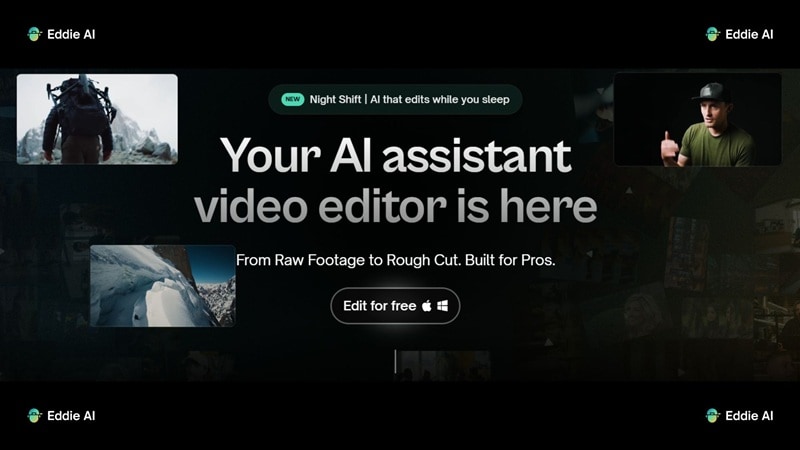
It calls itself the "ChatGPT for video editing" because you can literally talk to it. Instead of dragging clips, you type, "Give me a 30-second highlight of the CEO talking about innovation," and Eddie builds the sequence. It's meant to bridge the gap between your raw footage and your professional NLE (Non-Linear Editor).
Where Can You Use Eddie AI Video Editor?
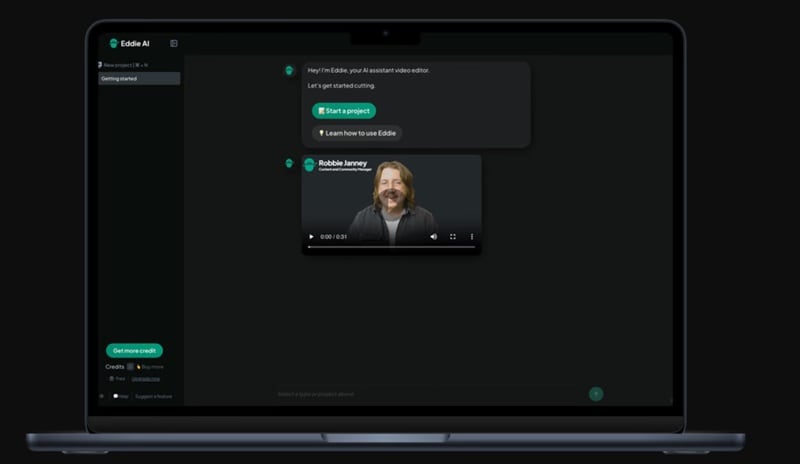
Unlike browser-based tools, the Eddie AI video editor is a downloadable desktop application. Here's what you need to know about platform availability:
- Available on: Windows and macOS.
- No mobile app available (as of 2026).
- Requires installation before use.
- Integrates directly with Adobe Premiere Pro, DaVinci Resolve, and Final Cut Pro.
Quick Overview of Eddie AI
| Category | Details |
| Tool Type | AI-Powered Desktop Video Editing Assistant |
| Release | Initial launch 2024 (v3.0 current as of 2026) |
| Platform | Desktop (Windows / macOS) |
| Key Strength | Text-based editing and massive footage organization |
| Limitations | No mobile support; not a full editor; pricing is steep for casual users |
| Best For | Documentary editors, podcast producers, corporate video teams |
|
Show More
Show Less
|
|
Part 2. Eddie AI Pricing: What You’re Actually Paying For
Before getting excited about features, let’s talk about money. Eddie AI pricing is very different from most tools. Eddie AI does have a free entry point, but it’s more like a trial. Here's what the free/flex tier includes:
- Free to download and install.
- Pay-as-you-go system, no monthly commitment.
- $15 per export credit.
- Full access to NLE integrations (Premiere, Resolve, Final Cut Pro).
- Mac and Windows app access.
Eddie AI Pricing Plans Breakdown
As for the paid plans, there are three tiers: Pro, Pro+, and Ultra. Each of these plans is designed for a different scale of creator. But the price jumps are significant, so let's unpack what you're really paying for.
| Feature | Pro | Pro+ | Ultra |
| Price | $199 per month | $399 per month | $1499 per month |
| Monthly Export Credits | 10 Exports | 25 Exports | 100 Exports |
| Key Features | 6-cam Multicam, BRAW support | Everything in Pro, Premium AI models | Everything in Pro+, Largest project sizes, Most advanced AI models |
|
Show More
Show Less
|
|||
Part 3. What Eddie AI Actually Does (Feature Breakdown)
Okay, so the price tag is real and the promise is bold. But does the feature set actually back it up? At its core, Eddie AI editing is designed to remove the most repetitive part of video editing: organizing and building the first draft.
Here's a breakdown of its main capabilities and how they work in the real world.
Rough Cuts That Build Your Story for You
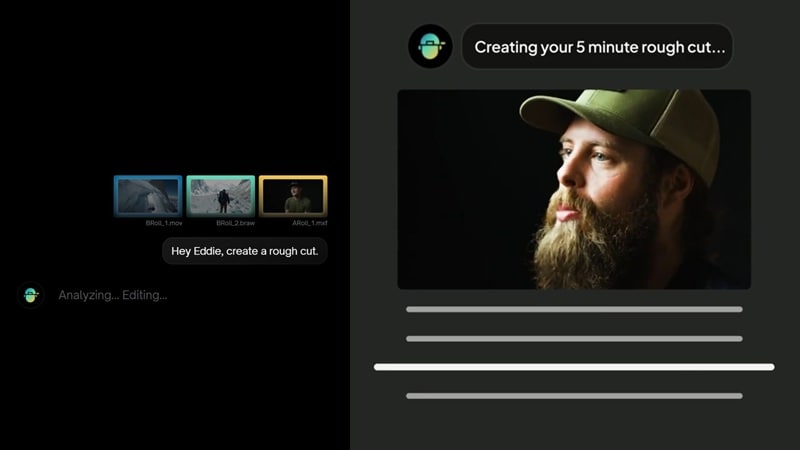
This is Eddie's AI video editing headline feature, and for good reason. You could type: "Create a 90-second intro using the most emotional moments from the interview" and Eddie will generate a sequence from your footage. It arranges clips, structures them narratively, and even places B-roll automatically to support the story.
Key Features:
- Turn interviews into story-driven edits.
- Auto-place B-roll.
- Structure clips into a narrative.
A-Roll & B-Roll Logging That Saves Hours
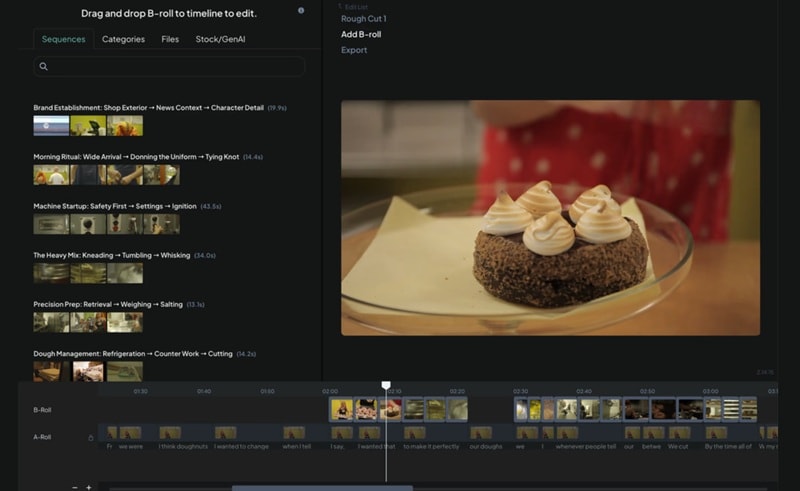
One of Eddie AI’s most practically useful features, especially for documentary filmmakers, is its automatic footage logging. Eddie scans through your raw clips and delivers a searchable, tagged library of everything you've got. This feature alone gets praise from working editors who spend hours doing this manually on every project.
Key Features:
- Identifies key soundbites and quotes.
- Removes filler words (ums, uhs) automatically.
- Tags B-roll with detailed descriptions like "wide shot, sunset, city skyline."
Multicam Podcast Editing Without the Hassle
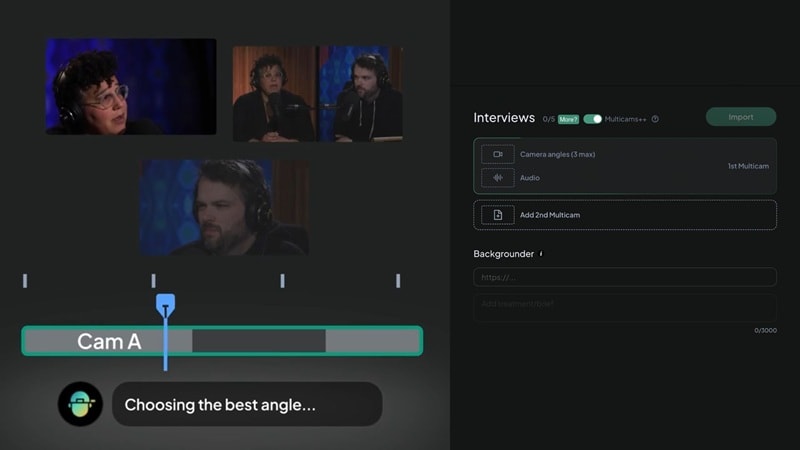
If you're producing podcasts or panel-style interview content, this feature is a serious time-saver. Eddie AI can handle multi-camera setups and automatically cut between angles based on who's speaking, no manual syncing or switch-cuts needed.
Key Features:
- Syncs up to 6 camera angles automatically.
- Detects active speakers and switches to the right camera.
- Handles audio sync across all cameras.
- Perfect for podcast productions and roundtable interview formats.
Script-Based Editing
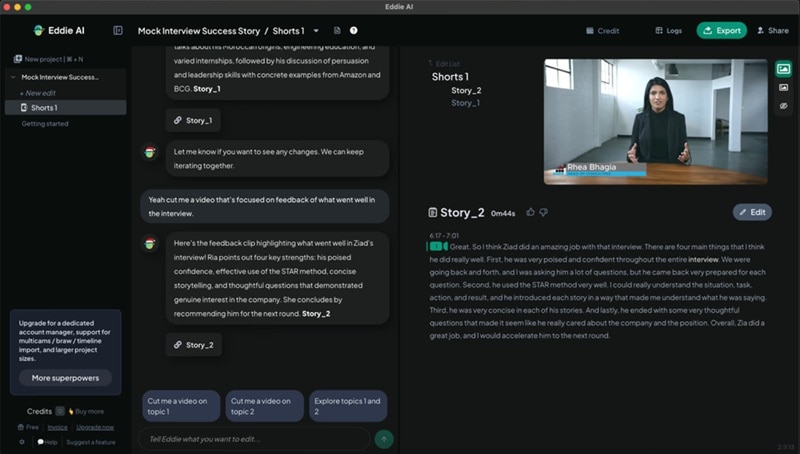
Got a script or approved VO? Eddie AI can work from it. Upload your script, let Eddie match your footage to the content, and it'll automatically identify and select the best takes for each section.
Key Features:
- Automatically selects the best available takes.
- Ideal for branded video, corporate content, and ad productions.
“Night Shift” Automation
This might be the most creatively named feature in the product, and honestly, it delivers. You can drop your raw footage into Eddie before you go to sleep, and by morning you'll wake up to a fully organized Eddie AI video project with multicam synced, clips sorted, and rough cuts ready to review. It's as close as you'll get to having a junior editor working overnight.
Key Features:
- Clips are sorted and tagged.
- Multicam is synced.
- A rough cut is ready for you to open in Premiere Pro.
Part 4. What People Are Saying: Eddie AI Reddit & Real Feedback
With all these features, Eddie AI video editing sounds almost too good on paper. But the real test is always what happens when actual editors sit down and use it on real projects, with real deadlines, real footage, and real expectations.
Here's what the community is actually saying, pulling from first-hand experiences shared by editors online.
What Reddit Users Are Saying About Eddie AI

From Eddie AI’s Reddit discussions, here are some honest takes:
🗨️ Reddit User on r/filmmaking: "It promised I'd spend less time editing, but in reality I ended up spending more time writing prompt after prompt just to get a 'so-so' cut.”
🗨️ Reddit User on r/editors: "The B-roll logging is actually really impressive. It gives shot types, short descriptions, and even categorizes them based on related clips."
🗨️ Reddit User on r/editors: "I gave Eddie a ten-second try on 5 clips for free and it just threw 3 of them into separate folders with annoying names. Not impressed for the price."
Real Pros and Cons of Eddie AI
Based on our experience, user feedback, feature testing, and community discussions, here's an honest breakdown of where Eddie AI shines and where it stumbles.
- Good Integration with Pro Tools: Works smoothly with Premiere, Resolve, and Final Cut Pro.
- Huge Time Saver for Long Footage: Cuts down logging and rough editing significantly for interviews and podcasts. Cuts culling time by up to 80% for interview-heavy projects.
- Smart Footage Organization: Searchable clips and detailed tagging make navigation easier.
- Advanced Logging: The best B-roll tagging system currently on the market.
- Not a Complete Editor: You still need another software for final edits.
- Robotic Pacing: AI cuts can sometimes feel "choppy" and lack emotional timing.
- No Mobile Support: If you edit on the go or switch between devices frequently, Eddie's desktop-only limitation is a real drawback.
- Not Built for Every Genre: Eddie really shines with interview and documentary content, but short-form social content, music videos, and narrative films aren't where it performs best.
Part 5. Do More than Cut Your Long Footage: Wondershare Filmora
On paper, the Eddie AI video editor sounds like a dream. But the people who have actually tried it know it can be hit-or-miss depending on your content style and workflow preferences.
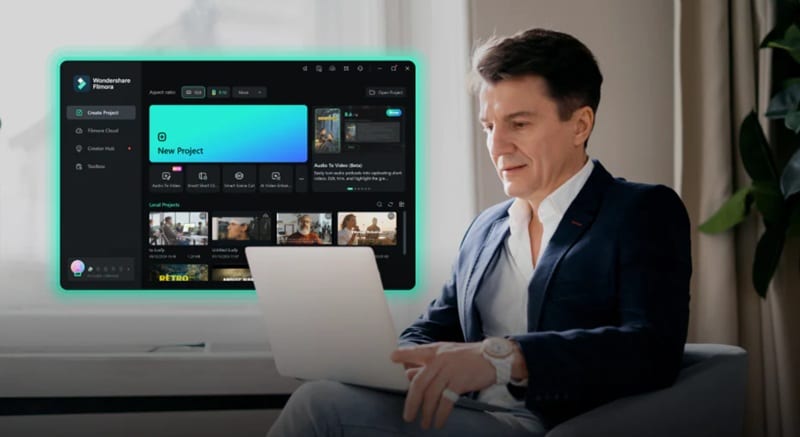
If you're looking for a tool that covers the same AI-powered editing ground but brings a wider creative library and more flexibility to the table, it's worth taking a serious look at Wondershare Filmora.
 Secure Download
Why Filmora Feels More Complete
Same Capabilities as Eddie AI

Filmora doesn't skip on the AI editing fundamentals. It offers AI Smart Scene Cut, which automatically identifies highlight moments in long footage, similar to Eddie's rough cut generation. On top of that, it features AI Copilot Editing, letting you direct your edit through text prompts just like Eddie AI. Filmora also supports robust Multicam editing for podcast and interview-style productions.
Instant AI Video Creation
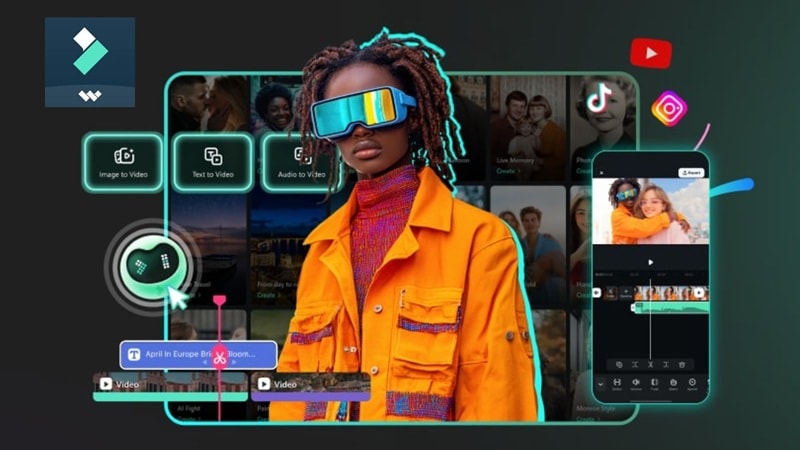
Here's where Filmora steps well beyond Eddie's scope. While Eddie AI focuses on organizing and cutting existing footage, Filmora lets you create content from nothing:
- AI Text-to-Video: You can generate clips just by typing a concept.
- AI Image-to-Video: Brings static images to life.
- AI Audio-to-Video: Build visual sequences directly from your audio.
For content creators who need to produce fast and produce a lot, this is a massive advantage.
More AI Tools in One Place
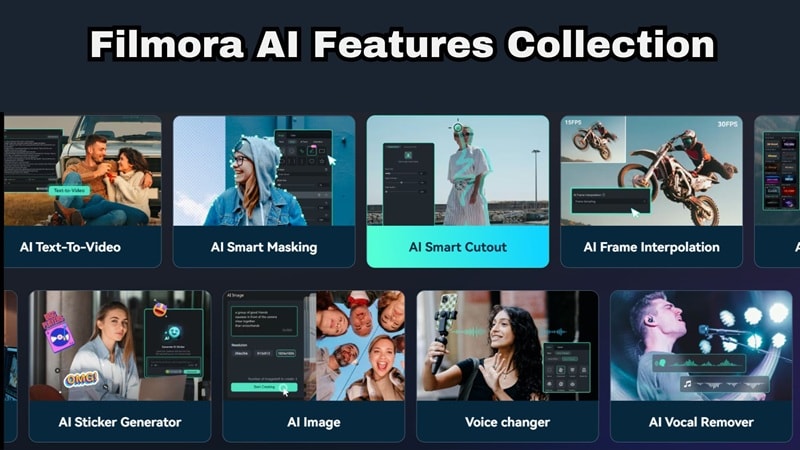
One of Filmora's biggest selling points is that it bundles a full suite of AI tools into one application. Here's what you get:
- AI Text-Based Editing: Edit your video by editing the transcript.
- Auto Captions: Accurate, auto-generated subtitles in seconds.
- Text-to-Speech + Voice Cloning: Generate narration or clone existing voices.
- AI Smart Cutout: Remove or replace backgrounds with precision.
- AI Music Generator: Create custom background tracks to match your edit.
- AI Video Enhancer: Upscale and sharpen footage quality automatically.
So, there's no need to jump between apps or pay for multiple subscriptions.
Extensive Media Library

Unlike Eddie AI, which focuses purely on editing your own footage, Filmora gives you instant access to millions of royalty-free stock assets, transitions, stickers, effects, and templates, all without leaving the app. No need to hunt through stock sites mid-project. Everything you need to finish a polished video is right there!
Edit on Your Mobile
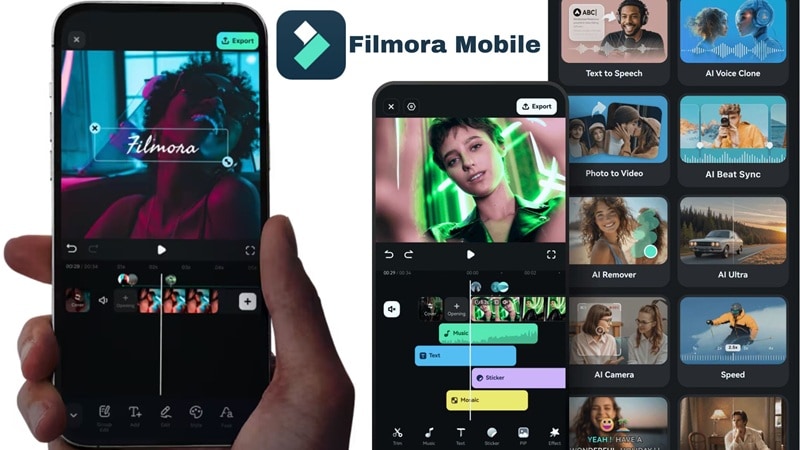
This is a major point of difference. Eddie AI video editor is desktop-only, with no mobile app in sight. Filmora is available on both Android and iOS, meaning you can rough out a project on your phone during a commute and pick up exactly where you left off on your desktop. For modern content creators who work across devices, that kind of flexibility is genuinely valuable.
Secure DownloadConclusion
Eddie AI video editor brings a fresh idea to video editing by focusing on the part most creators hate: organizing footage and building the first draft. For long-form content like interviews and podcasts, Eddie AI can genuinely cut down hours of work. But it’s not a complete solution. You still need another editor to finish the job, and the results depend a lot on how well you guide it.
For creators who want everything in one place, Filmora feels like a more practical option. It combines AI editing, content generation, and full timeline control in a single tool. Instead of switching between apps, you can go from idea to finished video without leaving the editor, which makes the whole workflow much smoother.
FAQs About Eddie AI
-
Can beginners use Eddie AI easily?
It’s not the easiest starting point. While the prompt-based interface sounds intuitive, getting the results you actually want often requires some trial and error, and a solid understanding of editing concepts to write effective prompts. -
Does Eddie AI support short-form content?
Not really. It’s designed more for long-form content like interviews and podcasts. For short-form AI editing, you'd be better served by a tool designed with that format in mind like Filmora. -
Can I use Eddie AI for music videos or narrative films?
You can, but it’s not ideal. Eddie AI works best with structured footage rather than creative storytelling projects. The AI struggles to interpret creative or emotional editorial logic that doesn't stem from speech. For those genres, a traditional NLE with manual control will still give you better results.
