


 TL;DR:
To upscale anime videos for TikTok and Reels without degrading line art, use Wondershare Filmora's AI Video Enhancer on a desktop to apply the Topaz Starlight model for premium quality, or rely on the mobile app's AI Ultra HD feature for fast, everyday edits.
● The desktop version exclusively features the Topaz Starlight integration, requiring longer processing times but delivering superior edge detection and true 4K frame reconstruction ideal for high-end showcase edits.
● The mobile app does not support the Topaz Starlight model, but its AI Ultra HD tool provides a faster, beginner-friendly alternative for quick noise reduction and on-the-go social media formatting.
● When finalizing content for TikTok, export vertical clips at 1080x1920 resolution with a high bitrate instead of 4K, as the platform caps playback quality and higher resolutions will unnecessarily increase the final file size.
Ask AI for a summary
 ChatGPT
 Perplexity
 Gemini
 Claude
 Grok
Grok
Anime used to be the thing people got teased for. But now, it’s everywhere. A whole generation grew up on Naruto, One Piece, and Bleach, and today, anime edits dominate TikTok and Reels feeds.
But with everyone posting clips, your content needs to pop to actually get noticed. If you’re struggling with a grainy, low-res download, using a high-quality anime video quality enhancer is the only way to turn that "meh" clip into a masterpiece. So this time, we’re diving into how you can upscale anime video effortlessly, moving past the blurry past into a crisp, high-definition future.
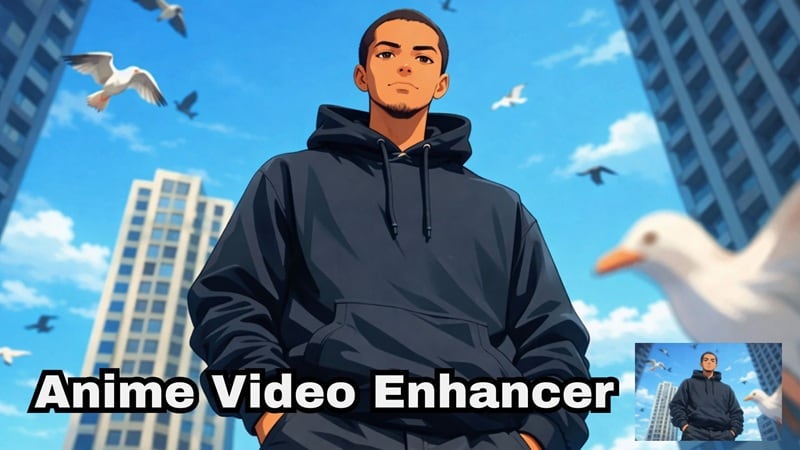
Part 1. Your Secret Weapon: Enhancing Anime with Wondershare Filmora
Fixing blurry anime videos used to be a painful process. You'd need multiple software tools, plug-ins, and a degree in video editing just to make an old clip look halfway decent. But those days are long gone.
Now, AI handles most of it for you. Instead of jumping between apps, you can do everything in one place. That’s where AI video editors like Wondershare Filmora stand out. It’s not just a basic editor; it’s a full anime video quality enhancer with built-in AI tools that actually work for animation.

Why Filmora Works So Well for Anime Enhancement
AI Video Enhancer That Actually Understands Anime
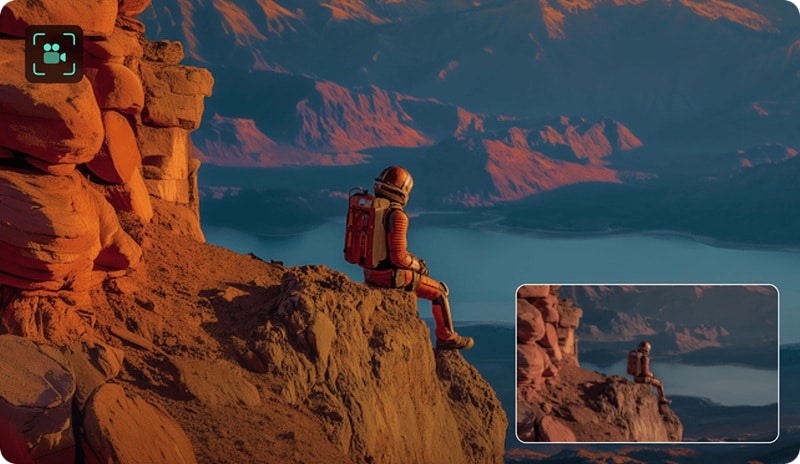
Filmora's AI-powered video enhancer isn't just a generic sharpening filter. It's been trained to understand the unique characteristics of animated footage. Here's what it actually improves:
- Sharpness without destroying line art, so your character outlines stay crisp, not jagged.
- Noise reduction for heavily compressed clips, perfect for those old 480p rips.
- Color clarity restoration for older anime footage, because vintage doesn't mean washed-out.
This makes it a top-tier option for video enhancing AI anime workflows, especially for social content where visual quality is everything.
Topaz Starlight Integration (Next-Level Upscaling)
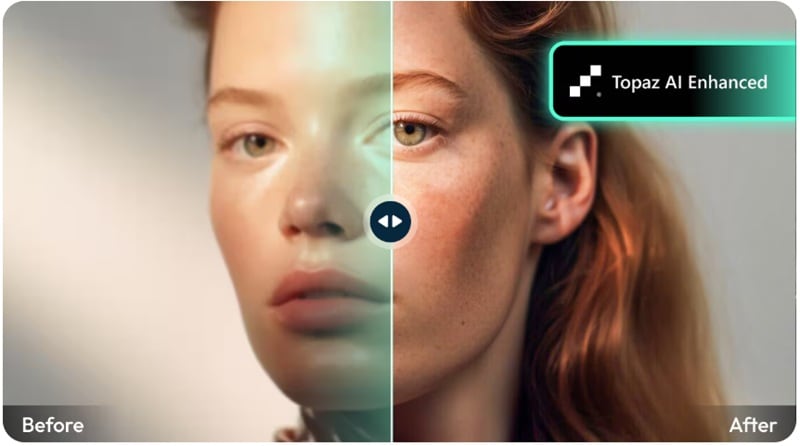
If you've ever heard about Topaz Video Enhance AI anime quality, that's the level Filmora helps you reach. Filmora integrates with Topaz Starlight models, which bring:
- Cleaner, more natural edge detection for animated content.
- Full frame reconstruction (not just interpolation, but actual rebuilding).
- True 4K upscaling that doesn't look like a stretched-out mess.
No Anime Clips? You Can Create Them
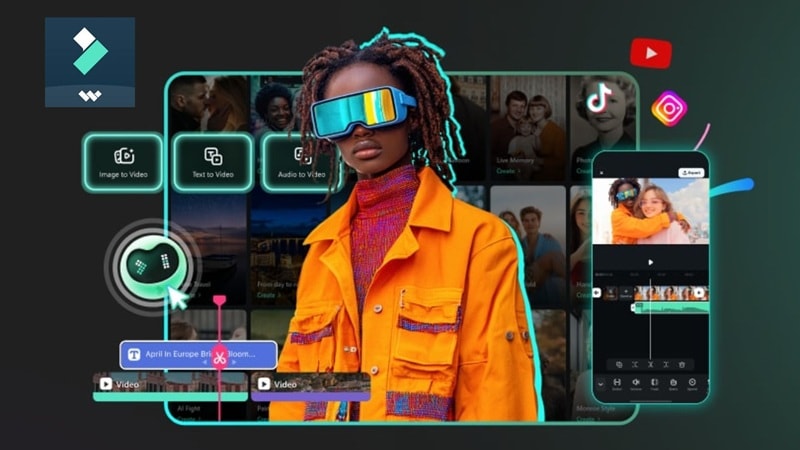
Not everyone has a library of anime footage ready to go. If you're starting from zero, Filmora's got you covered with multiple AI creation tools. You can use AI Text-to-Video or AI Image-to-Video tools to generate brand-new anime-style visuals that never existed before.
Edit Anywhere (Desktop + Mobile)
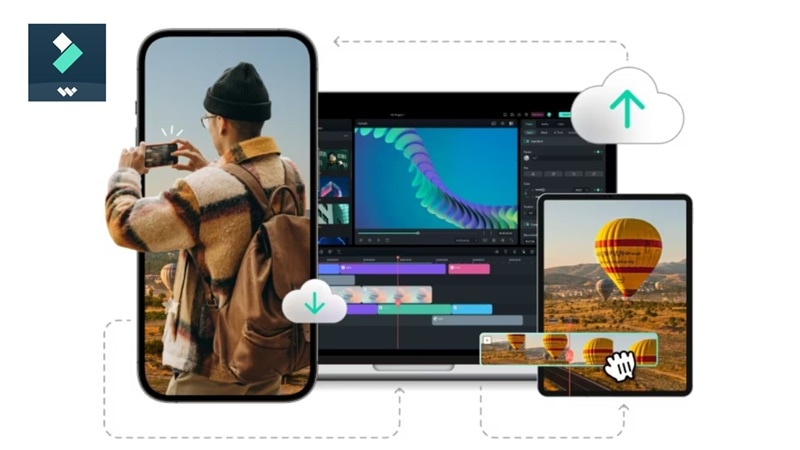
Filmora runs across all your devices, so your workflow isn't locked to one screen:
- Windows & macOS (full desktop power).
- Android & iPhone (edit on the go).
Because of this flexibility, you can start a project on your laptop, tweak it on your phone, and upload straight to TikTok, all without losing progress.
More Than Just an Enhancer
Beyond just fixing anime quality, Filmora also handles everything else your content needs:
- Auto-subtitles and captions (perfect for Reels).
- Beat-sync editing to lock your cuts to the music.
- Built-in TikTok and Reels formatting templates.
- One-click export directly to social platforms.
The whole workflow: enhance, edit, format, export, happens inside one app. No more file-converting chaos.
 Secure Download
Part 2. Desktop Method: How to Upscale Anime Video Like a Pro
If you want the absolute best results, desktop is where it's at. The desktop version of Filmora is where the Topaz Starlight model lives, and the difference in output quality compared to standard tools is honestly kind of wild. This is the go-to method to fix blurry anime videos and make them look like it was drawn yesterday.
How to Upscale an Anime Video on a Desktop
Step 1. Open Filmora and Upload Your Anime Clip
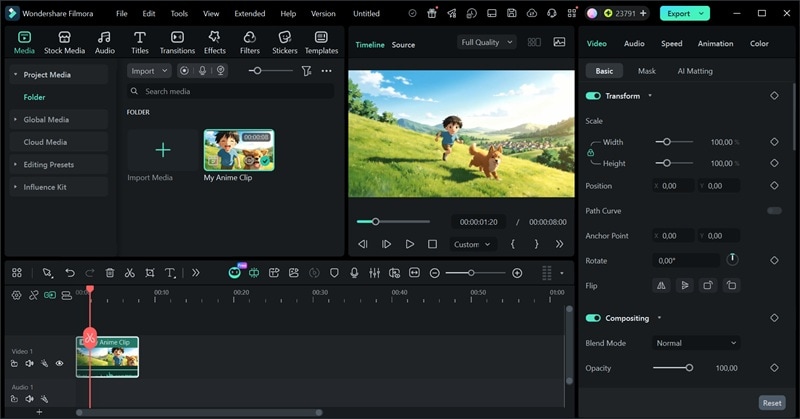
Open Filmora and click ‘Import’ to upload your anime video file straight into the media panel. Drop it onto the editing timeline below once it's imported.
Step 2. Use the AI Video Enhancer
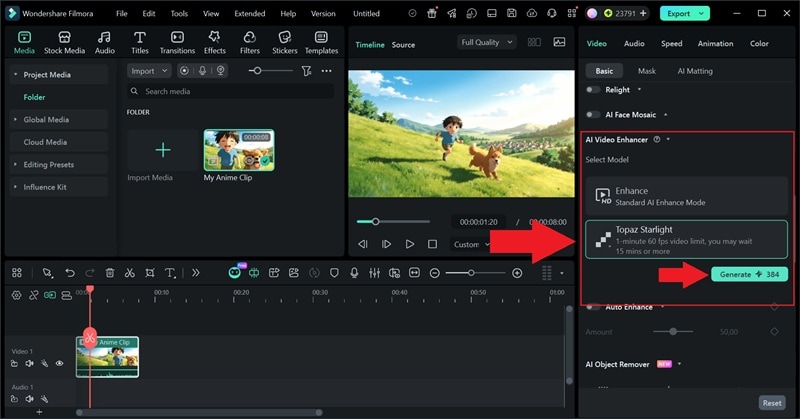
Click on your clip in the timeline and select 'AI Video Enhancer' from the property panel on the right. Inside the enhancer panel, select the 'Topaz Starlight' model. This is the one built specifically for animation and line-art content. Click ‘Generate’ and wait a few seconds.
Step 3. Preview and Export
Once processing is done, preview the result. You'll notice the edges are sharper, the noise is gone, and the overall image looks dramatically cleaner. Click 'Export,' and you're ready to post.
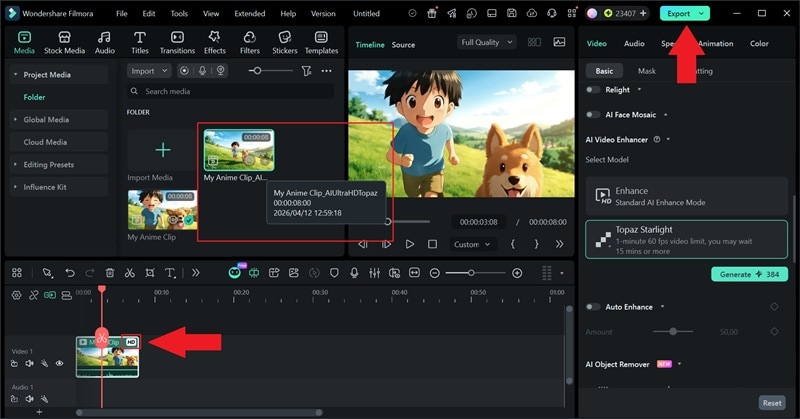
With only 3 simple steps, you have now made an anime edit that looks like it was produced in an actual studio. The Topaz Starlight processing takes a bit longer, but the quality jump is worth every second. Let's see the differences:
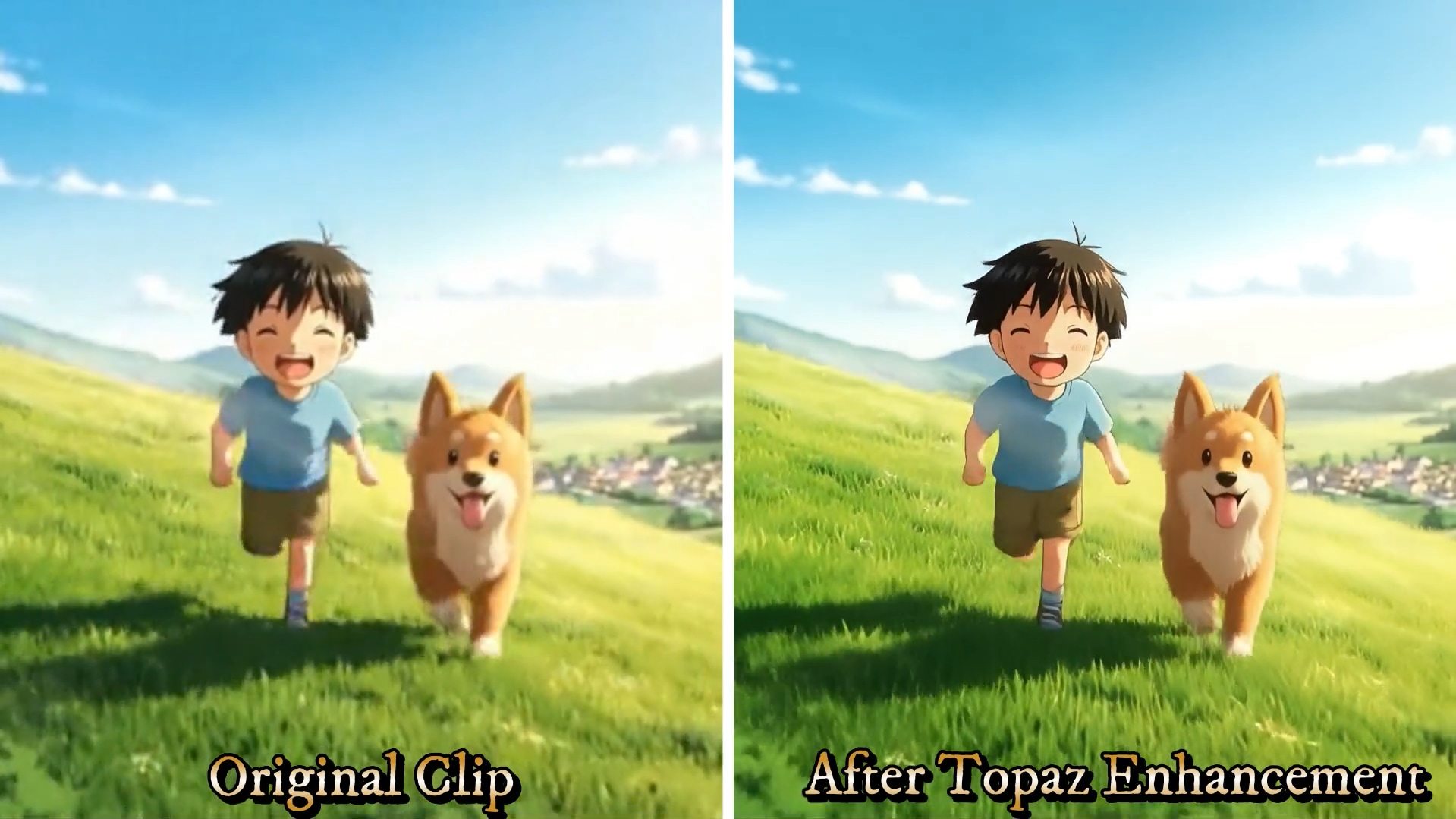
Part 3. Quick Mobile Fix: Enhance Anime Videos on Your Phone
Filmora is also available as a mobile app for everyone who doesn’t want to open a laptop just to edit a short clip or wants to edit ASAP on the go. The difference is that the mobile version doesn't support the Topaz Starlight model yet.
However, you still get an AI Ultra HD feature, which is genuinely solid for quick edits and handles most anime clips surprisingly well.
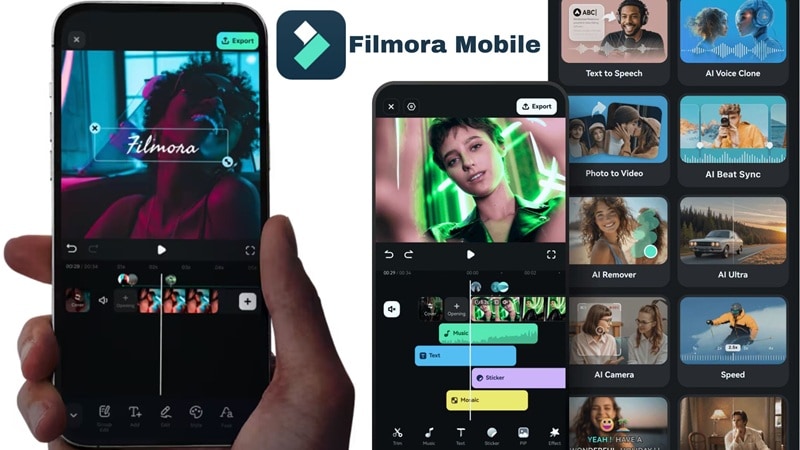
Follow the simple guide below to learn how to fix a blurry anime video right from your phone.
How to Enhance Anime Video on Your Phone
Step 1. Open Filmora Mobile and Use the AI Ultra HD Feature
Grab Filmora from the App Store or Google Play. Open the app and select AI Ultra HD. Select your anime clip and tap Generate.
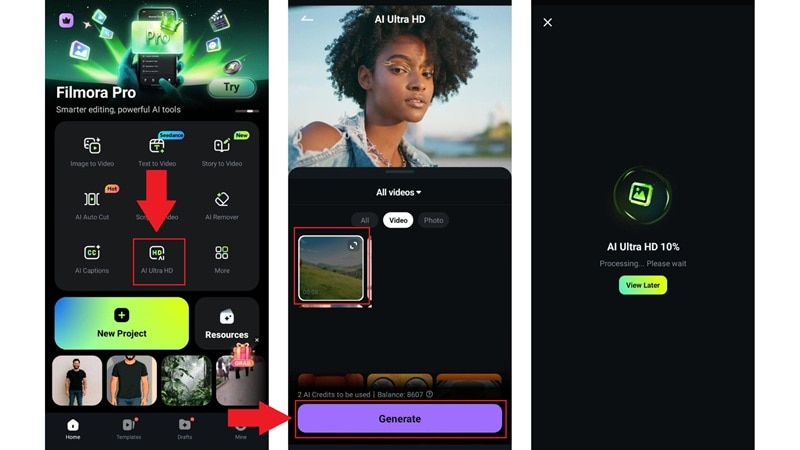
Step 2. Preview and Export Your Video
Choose Save to download the result right away or select Project Editing to make more changes, like trimming your clip, adding music, filters, stickers, transitions, and more.
Step 3. Choose Higher Resolution and Frame Rate
When exporting, tap the three dots next to Export to open the settings. Select Resolution, Frame Rate, and your preferred Aspect Ratio. Tap Export Video to save it to your device.
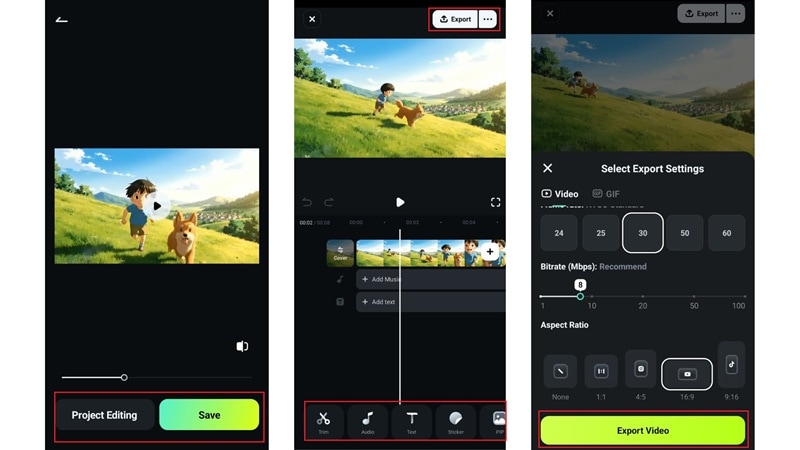
As you can see, the steps are even simpler compared to the desktop method, which makes Filmora Mobile is best for:
- Quick TikTok edits.
- Minor quality fixes.
- Editing on the go.
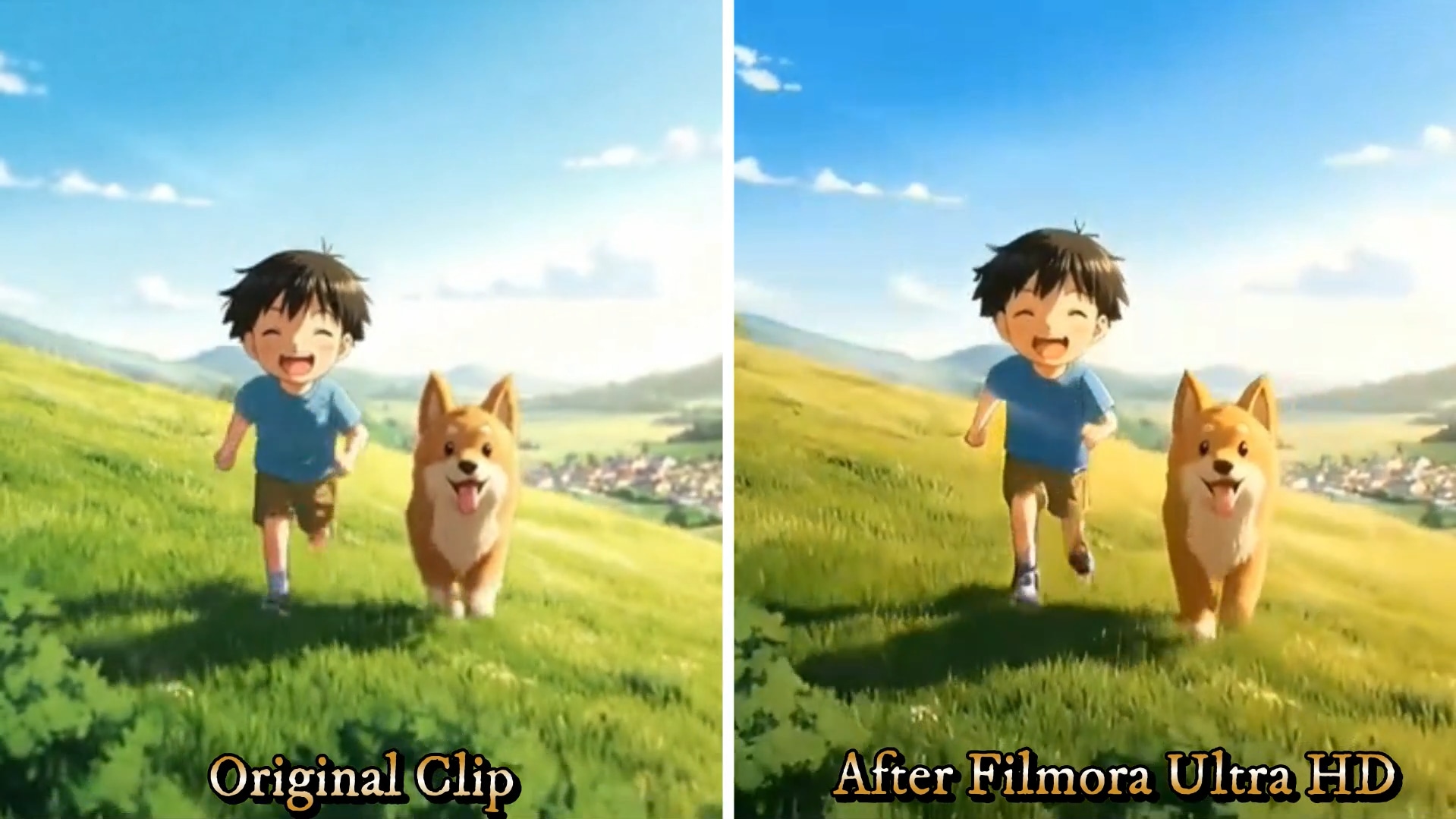
The result may not be as detailed as Topaz Starlight, but it’s still pretty great! See the comparison below:
 Secure Download
Part 4. Real Difference: Standard AI vs Topaz Starlight (Side-by-Side)
Now that you've seen both methods in action, you’ve probably noticed the difference. Not in a way that makes one useless, but in a way that makes each one perfect for a different job. Instead of just telling you which is better, here's a clean breakdown so you can match the right tool to the right situation:
| Feature | AI Video Enhancer | Topaz Starlight |
| Best For | Quick social edits & TikToks | Cinema-grade & archival quality |
| Processing Speed | Fast | Slower (worth the wait) |
| Max Output Resolution | Up to 4K | Up to 4K with superior texture |
| Edge Detection | Good | Excellent |
| Line Art Preservation | Standard | High |
| Noise Reduction | Solid for compressed clips | Advanced grain management |
| Available On | Desktop + Mobile | Desktop only |
| Skill Level Needed | Beginner-friendly | Beginner-friendly |
| Ideal Use Case | Daily TikTok/Reels uploads | Premium showcase edits |
🏆 The Verdict
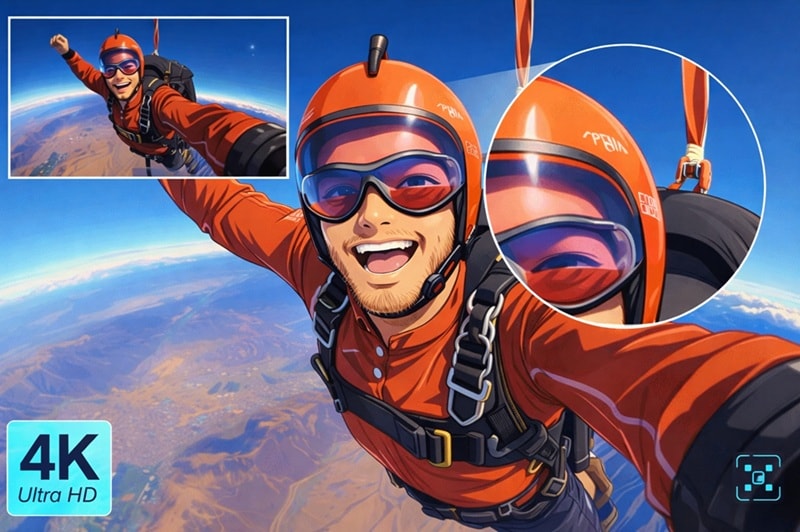
Use the Standard AI Enhancer for quick TikToks and daily Reels. It's fast, easy, and does the job well. But if you want something closer like a 4k anime video upscaler and make your edit to look like a 2026 theatrical anime release, the Topaz Starlight model is the undisputed champion. No contest.
Conclusion
Using a dedicated anime video quality enhancer like Filmora can make your low-quality clip into viral-ready content. With Filmora, you can fix blurry anime videos, upscale anime videos, and even push your content to near 4K quality with minimal effort.
Whether you're running the Topaz Starlight model on a desktop for your most polished edits, or doing a quick AI Ultra HD pass on mobile before a trend dies, they've got the workflow covered. Pick your tool, upscale your clips, and let your content do the talking. The algorithm rewards quality, and now you know exactly how to deliver it.
Secure DownloadFAQs About Anime Video Enhancer
-
Does upscaling anime videos increase file size?
Yes, usually. When you upscale an anime video to 4K, you're adding more data to make the image clearer, so expect the final file to be larger than the original grainy version. -
Can AI fix heavily compressed anime clips?
It can do a lot of the heavy lifting! Tools like Filmora's Topaz video enhance anime are specifically designed to "guess" the missing pixels in compressed files, making them look much smoother and less blocky. -
What’s the best resolution for TikTok anime edits?
While you can upscale to 4K, TikTok usually caps playback quality. The "sweet spot" is often exporting in 1080p with a high bitrate to ensure the source looks perfect. For vertical content, use 1080x1920 (9:16 aspect ratio) to fill the screen perfectly. -
Is 60fps necessary for anime edits?
Not always. Many people love the cinematic feel of the original 24fps. However, if you're doing a "smooth" edit style, you might want to use AI frame interpolation alongside your upscaler.
