

 TL;DR:
You can turn an existing video into a Boomerang by utilizing Instagram's built-in Infinity tool for quick social media sharing, or by using Wondershare Filmora and CapCut to manually copy and reverse clips for high-resolution, watermark-free results.
● Instagram restricts Boomerang conversions to 1-3 second gallery videos that display the Infinity (∞) icon, whereas iPhone users can bypass third-party apps entirely by applying the Bounce effect directly to Live Photos in their native gallery.
● To manually construct a Boomerang effect in Wondershare Filmora or CapCut, you must duplicate a short clip on your timeline, apply a reverse playback speed to the second clip, and repeatedly copy the paired clips to build a continuous loop.
● Relying on professional editors rather than Instagram prevents the social platform's heavy compression from blurring your pre-saved footage and provides complete control over loop length, speed ramping, and export resolution.
Ask AI for a summary
 ChatGPT
 Perplexity
 Gemini
 Claude
 Grok
Grok
How to make a boomerang with an existing video is a top query in 2026. Whether you want to loop a clip for Instagram or create a high-quality loop without Instagram, this guide covers everything for iPhone, Android, and PC. This ultimate guide covers how to make a video a boomerang on iPhone, Android, and PC using built-in tools and professional editors like Wondershare Filmora.
How to Boomerang a Video on Instagram (The Standard Way)
Instagram first introduced the Boomerang format back in 2015. What started as a separate app is now built directly into Instagram, making it easier than ever to create a Boomerang video.
Even now, Instagram remains the go-to platform for creating Boomerang videos. With just a few taps, you can turn short clips into looping motion. If you want a fast and simple way to do it, this is the best place to start.
Here's how to boomerang a video on Instagram.
Quick Way to Make a Boomerang
The easiest way to make a Boomerang on Instagram is by using the Infinity icon. Follow the steps below:
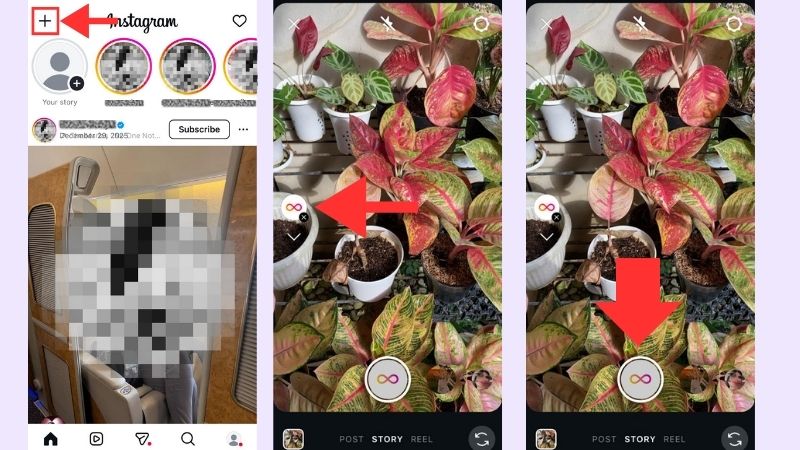
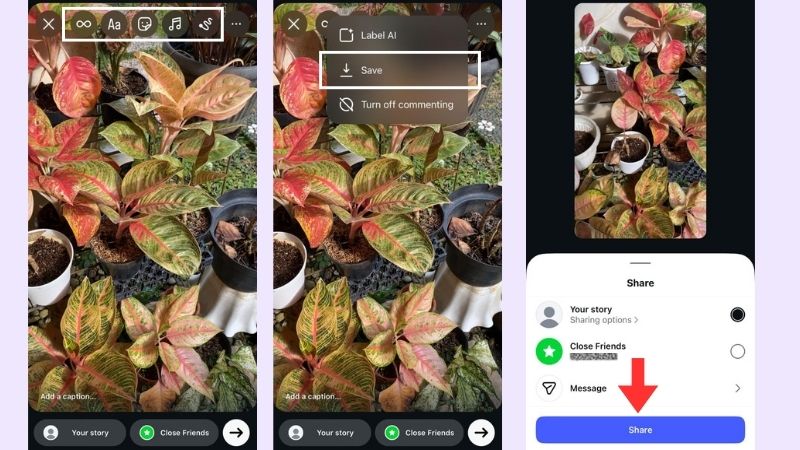
Just like that, your Boomerang is done! Now, let's see the Boomerang result.

Key Tips for Boomerang a Video on Instagram Story and Reels
Boomerang works differently on Instagram Stories and Reels. While Stories include a built-in Boomerang feature, Reels require a few extra steps.
Start by saving the Boomerang from the previous tutorial. Then, you can upload it to Reels using these steps:
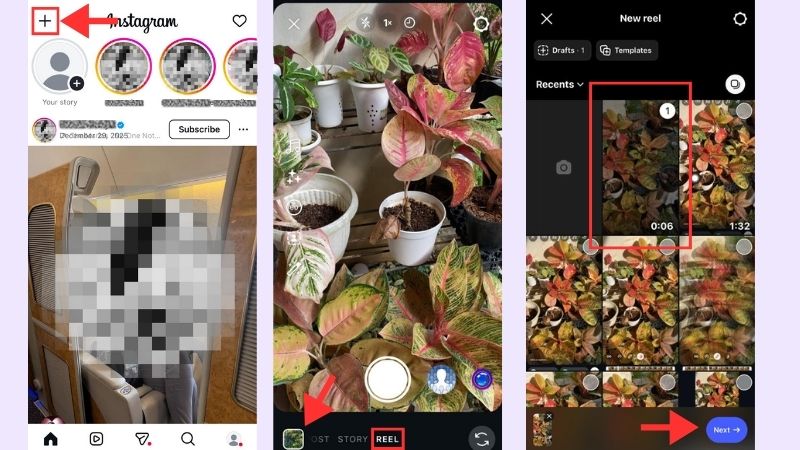
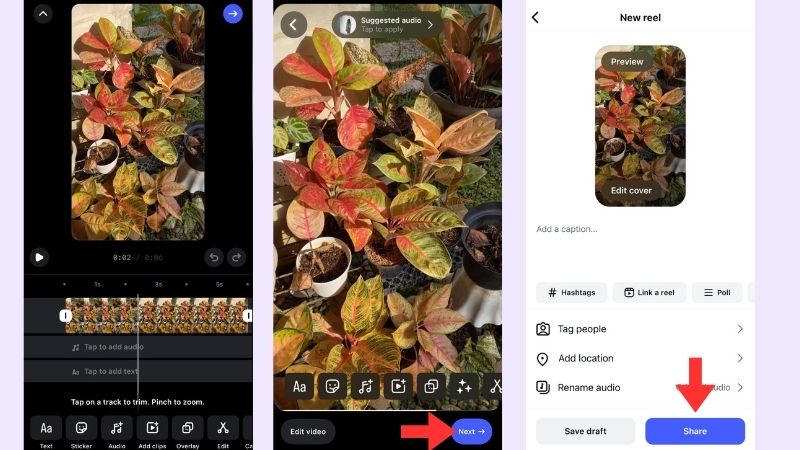
Now that you know how to boomerang a video on Instagram Story and Reels, there are a few small details you should pay attention to:
- Record in good lighting: Dark clips can look grainy once they loop, especially after saving and re-uploading.
- Check the aspect ratio: Vertical clips fit Reels better.
- Save before heavy edits: Do the main edits later in the Reels editor.
Advanced Boomerang Features
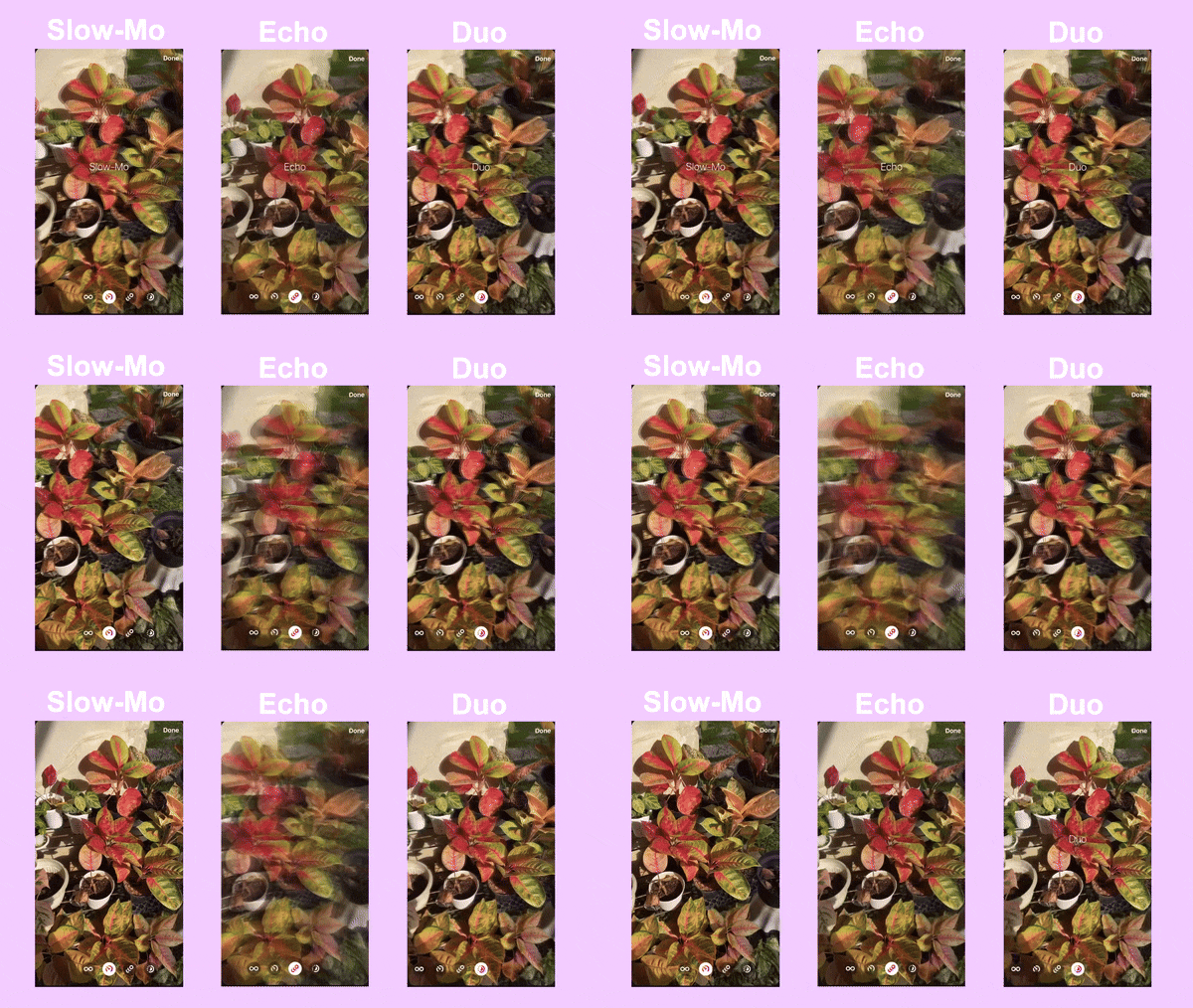
If you want more than a basic loop, Instagram also offers extra Boomerang effects to play with. These modes help change how the motion looks and feels, making your clip more dynamic.
- Slow-Mo: This effect slows down the clip, giving your Boomerang a softer and more dramatic feel.
- Echo: This mode creates a blurred echo of movement, making motion feel smoother and more layered.
- Duo: This option adds a glitch-style effect by combining quick forward and reverse movements.
How to Boomerang a Saved Video from Your Gallery (iPhone & Android)
Not all Boomerang videos have to be recorded directly inside Instagram. If you already have a video saved on your phone, you can still turn it into a Boomerang using a few simple steps. Discover how to boomerang a video on iPhone and Android below.
For iPhone Users
If you're using an iPhone, you can create a Boomerang effect directly from your Photos app. Apple already includes a looping effect that works like a Boomerang. Here's how to boomerang a video on an iPhone easily.
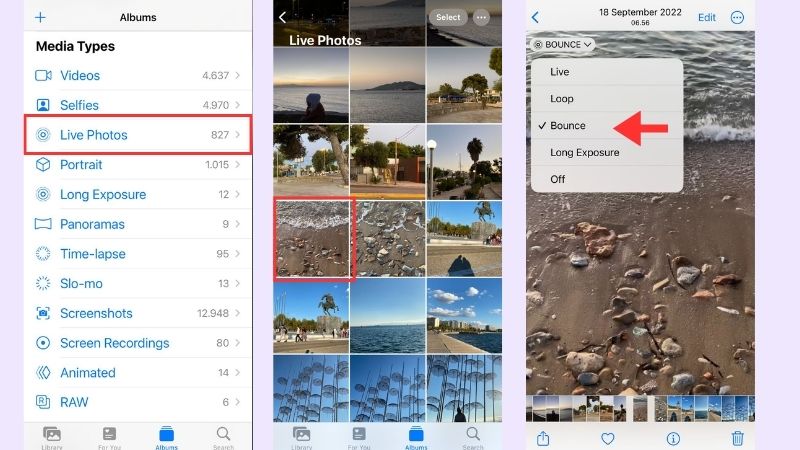
And there you go! The boomerang-style video made on the iPhone is ready.

For Android/Cross-platform
On Android, there is no built-in feature that works similarly to Boomerang. However, Android users and people using different devices can rely on Instagram to convert the video into a Boomerang.
Let's take a look at how to boomerang a saved video on Android.
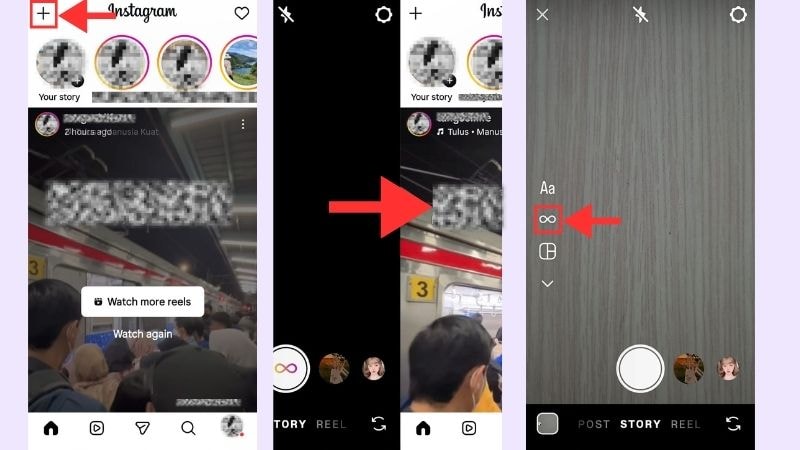
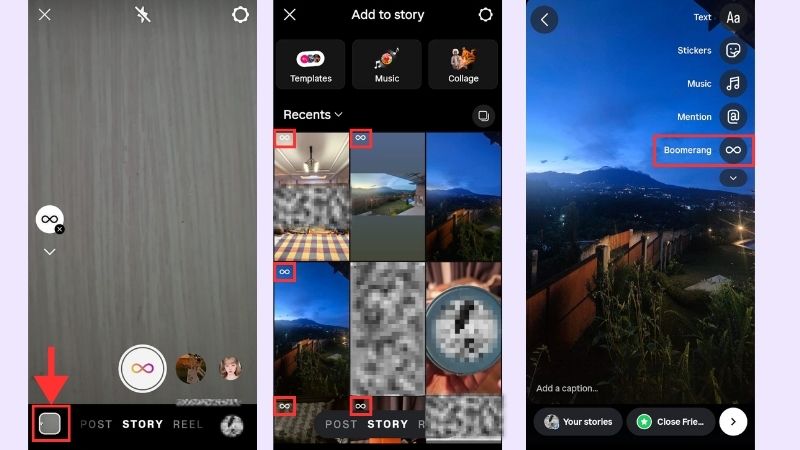
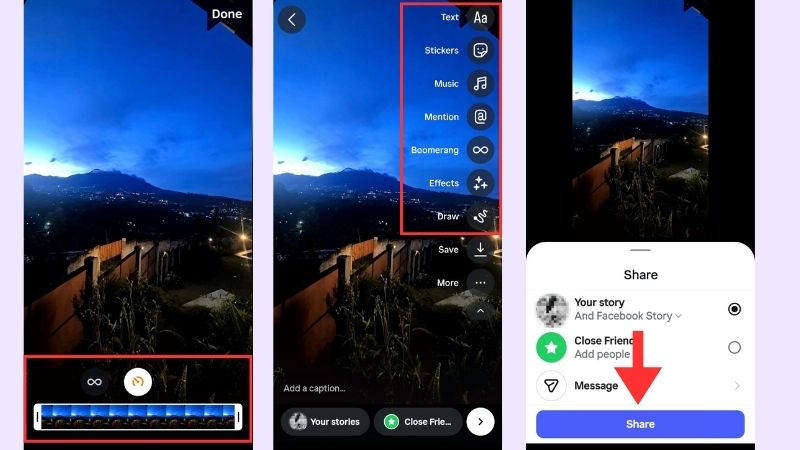
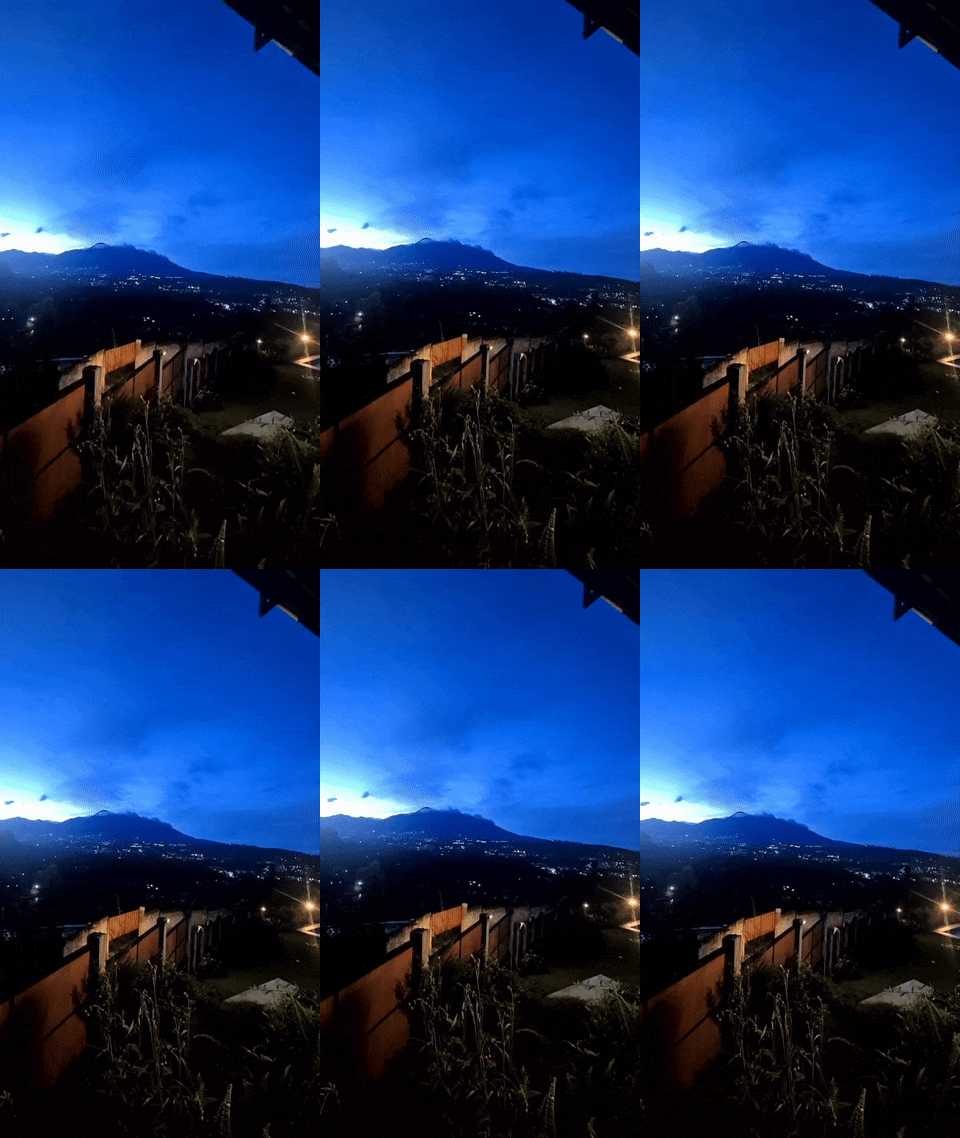
All done. Your video is now a Boomerang-style loop.
Pro Tip: How to Boomerang a Saved Video Without Losing Quality
Turning a saved video into a Boomerang sounds simple, but quality can drop if you're not careful. Compression, resizing, or re-uploading the wrong way can make the video look blurry or choppy.
Here's how to Boomerang a saved video and keep it sharp and smooth from start to finish.
- Trim before uploading: Cut the video to 1-3 seconds to avoid compression issues.
- Use a video with the original resolution: Do not use screen recordings or re-save the video multiple times.
- Upload directly from the gallery: This helps Instagram keep the video quality more stable.
- Export once: Apply the Boomerang effect in one app instead of switching between too many tools.
How to Make a Video into a Boomerang with Filmora & CapCut
If you want more control than what Instagram offers, then using a professional video editor is the better option. With editors like Filmora and CapCut, you are not limited to short clips or preset effects. You can fine-tune the timing, smooth the loop, and adjust the speed to create a cleaner and more professional boomerang video.
In this part, we'll break down how to boomerang a video on CapCut and Filmora.
Filmora Pro Method: Reverse Playback and Speed Ramping
Wondershare Filmora is the best professional method for making a video a boomerang on PC or Mac. Unlike basic app filters, Filmora's Speed Ramping and Reverse features allow you to create a seamless loop without any stutter.
 Secure Download
Filmora also gives you more than just looping features. It offers advanced AI tools along with a large collection of effects, stickers, and audio. Also, you can access Filmora with your iPhone, Android, Windows, and macOS to make editing across devices easier.
How to Make a Video into a Boomerang Using Filmora
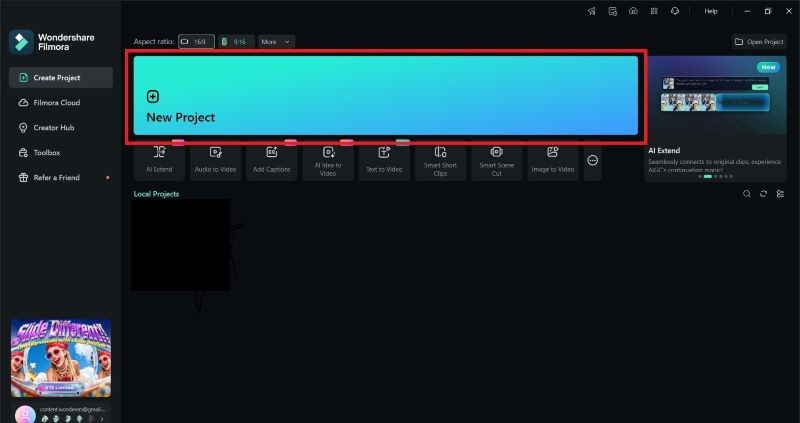 Secure Download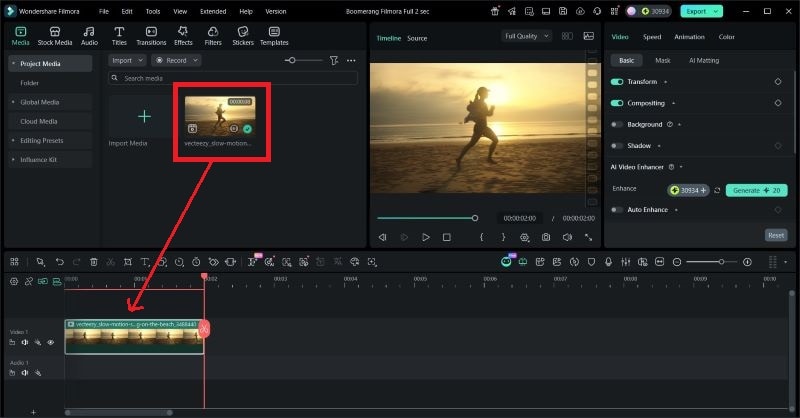
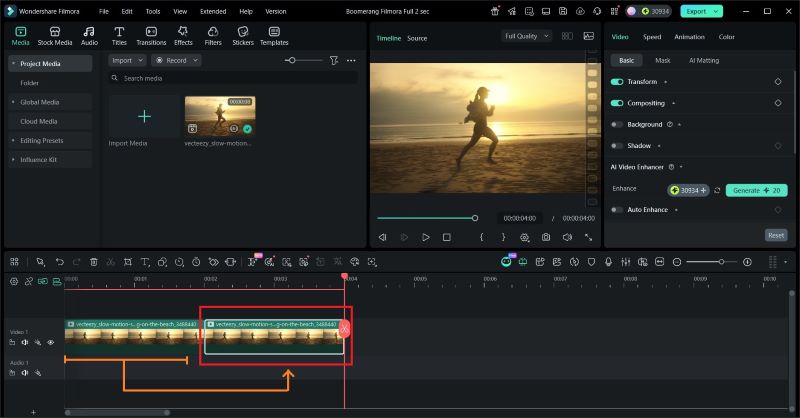
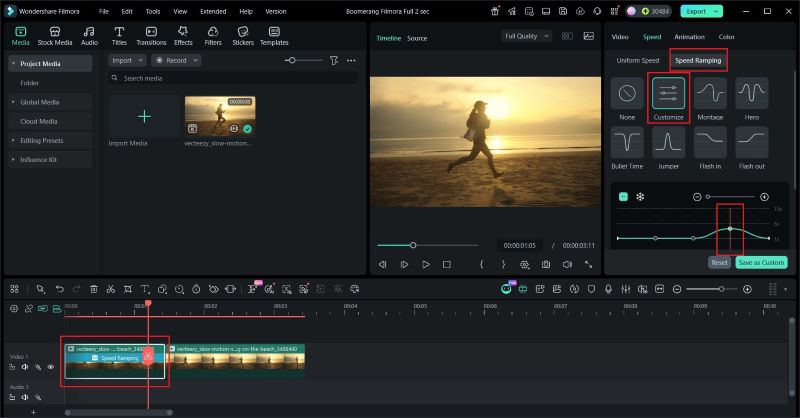
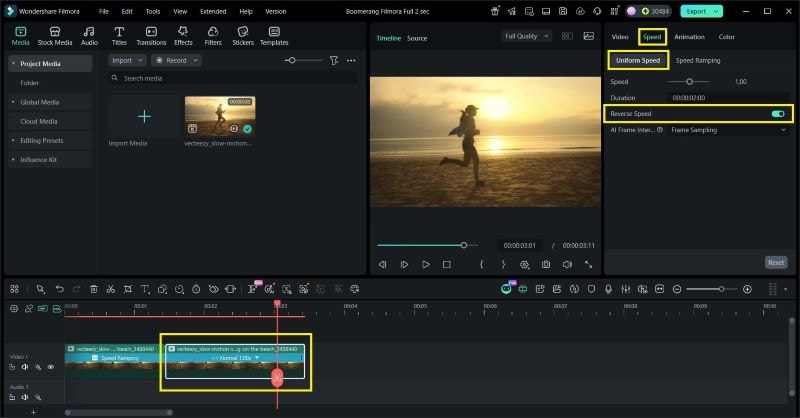
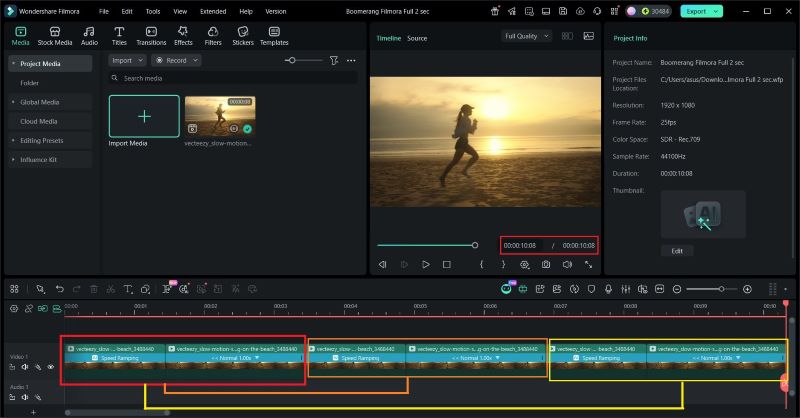
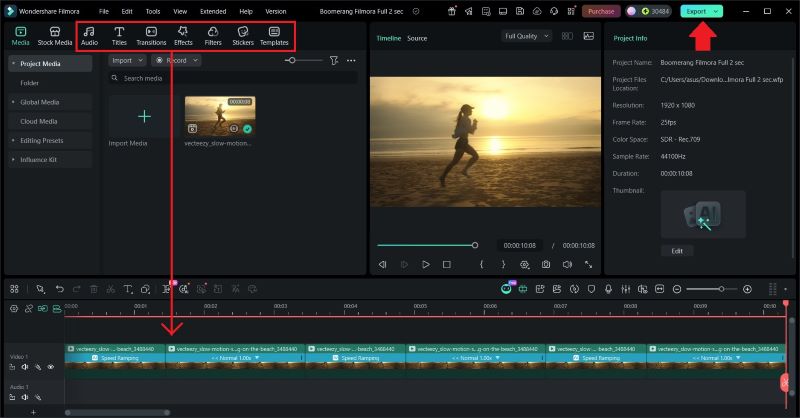
You're all set. The Boomerang is exported and loops smoothly from start to finish. Here's the final result.

CapCut Tutorial: How to Boomerang a Video on CapCut
Another video editor that is able to convert a video into a Boomerang is CapCut. It allows users to work with existing video and manually create a looping effect. This makes it a practical option for users who want more flexibility outside of Instagram.
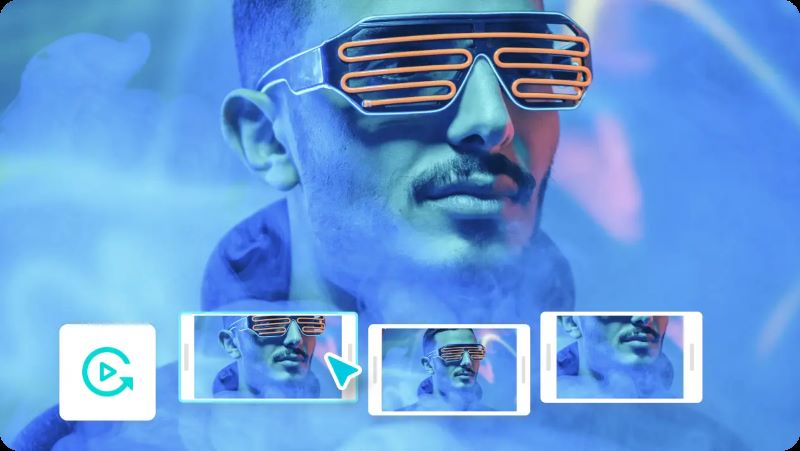
TechSimplify on YouTube provided clear guidance on how to boomerang a video on CapCut. Follow the steps below.
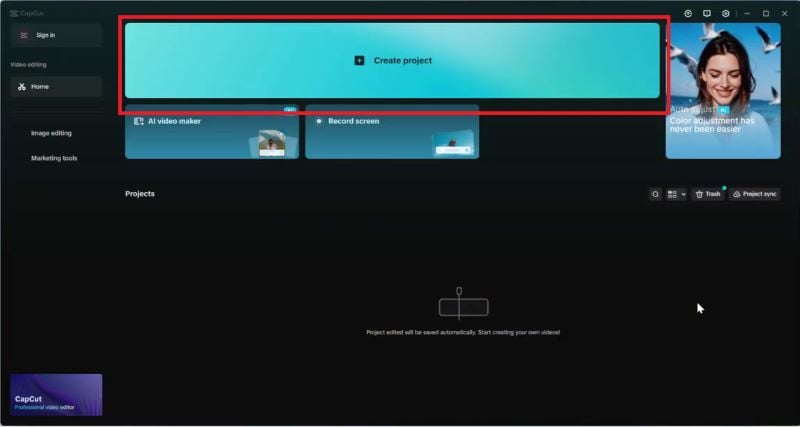
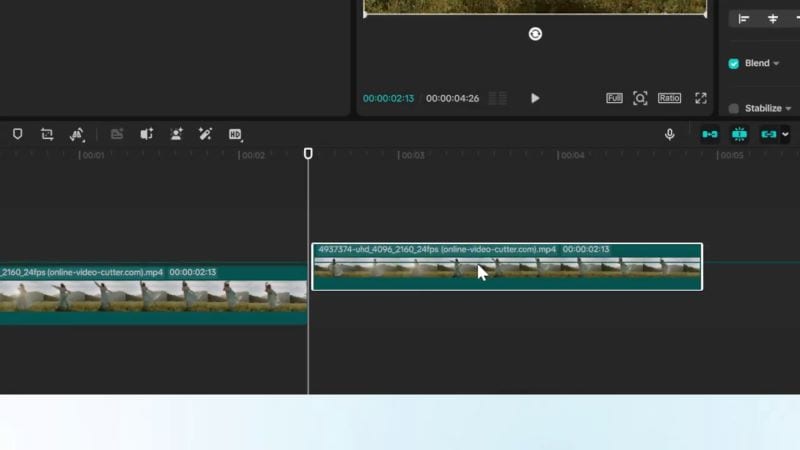
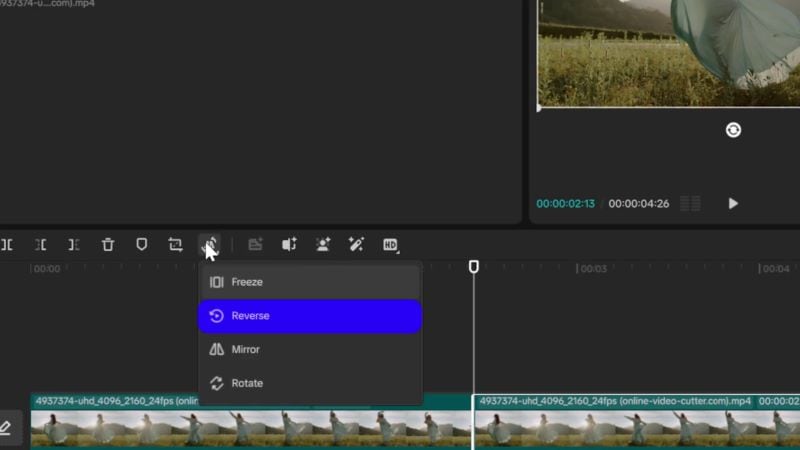
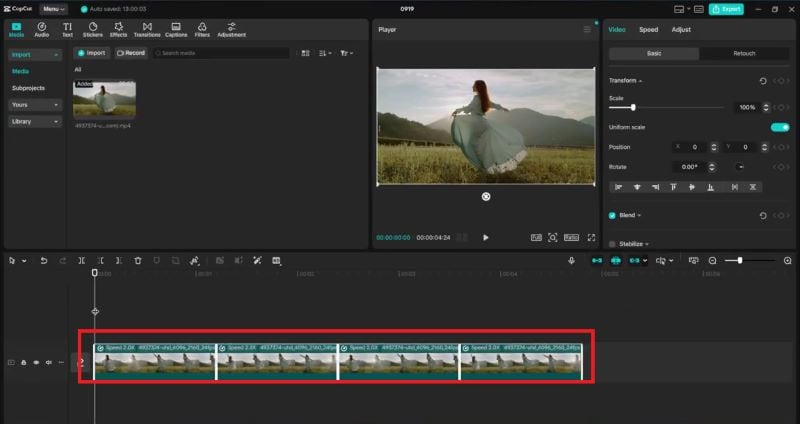
Once you're satisfied with the loop, the clip is ready for export. With just a few steps, your Boomerang-style video is complete. Share it on your socials and other platforms.

Instagram vs. Filmora: Comparison Overview
We've explained how to make a video into a boomerang using Instagram and Video Editors like Wondershare Filmora and CapCut. However, each platform serves different purposes.
Instagram is great if you want to make a Boomerang quickly without extra setup. On the other hand, professional video editors give you more freedom to fine-tune the loop. To help you see the difference, check out this quick comparison table below:
| Aspect | Filmora | |
| Control | Limited control with preset options, such as Classic, Echo, Duo, and Slow-Mo | Full control over timing, speed, direction, and looping length |
| Quality | Optimized for social media sharing, but compression may reduce quality | Higher export quality with options over resolution and frame rate |
| Effects | Basic built-in effects designed for quick edits | Wider range of effects, transitions, audio, and advanced adjustments |
Creative Trends: Making Your Boomerang Stand Out in 2026
We've learned how to make a video a boomerang on different platforms. Now the question is, how to keep them relevant in 2026?
They may look simple, but a few creative touches can level them up. The right timing, effect, and sound can turn a basic loop into something eye-catching.
Tip 1: Choosing The Right "Action Point" for The Loop
The key to a good Boomerang is a clear movement in the middle of the clip. Simple actions like hair flips, hand waves, or opening doors loop more naturally. For example, in this boomerang clip where a cat jumps out of a small wooden house, the jump itself becomes the action point. Start the clip just before the cat pushes off and end it right after it lands.

Tip 2: Adding Motion Blur for a Cinematic Look
A bit of motion blur can help hide harsh cuts in the loop. It makes the movement feel softer and natural. Think about a boomerang clip of someone riding a motorcycle down a village road. With a bit of motion blur, the forward and backward motion feels smooth and natural, not stiff or jumpy.

Tip 3: Make a Video a Boomerang with Trendy Music and Filters
When you're posting on social media, a good sound and a simple effect can make a boomerang feel more fun and scroll-stopping. Just make sure they fit the vibe of the motion, like using upbeat music and a light filter for a girl dancing boomerang clip. When everything matches, the loop feels natural and way more engaging to watch.
Troubleshooting: Why Can't I Boomerang My Video
We've covered different ways on how to make a video into a boomerang, but it doesn't always work smoothly for everyone. You might notice the loop feels awkward, the quality drops, or the Boomerang option doesn't even appear.
But don't worry! Most of these issues are easy to fix:
- The infinity icon is unavailable: This usually happens when the video is too long or not supported. Boomerang works best with short clips around 1 to 3 seconds. Try trimming your video first before uploading it.
- Boomerang works on one device but not another: Features may differ based on device, OS version, or app updates. Make sure Instagram is updated, and if needed, use an editor like Filmora and CapCut to make the Boomerang.
Conclusion
Throughout this guide, we've covered how to make a video into a boomerang using Instagram, iPhone, Android, professional video editors such as Filmora and CapCut.
Each option suits different needs. Instagram works best for quick, in-app Boomerang, while creating a Boomerang from saved videos on iPhone and Android is ideal for on-the-go editing. For more refined results, editors like Filmora and CapCut give you more flexibility to adjust timing, loops, and visual details.
To keep Boomerangs relevant in 2026, focus on clear action points, smoother motion, and sounds or effects that enhance the loop naturally.

FAQs
-
Can I turn a 10-minute video into a boomerang?
Instagram doesn't support turning a long video into a Boomerang. You need to trim the clip to a short 1-3 seconds. Then, use Filmora or CapCut to create the loop. -
What is the difference between a GIF and a Boomerang?
A GIF is an animated image that loops in one direction and can be created from videos or still images. A Boomerang is a shorter video loop that plays forward and backward, which creates the signature bouncing motion. Most people make a Boomerang using Instagram, but you can also convert a video into Boomerang-style clips with CapCut or Filmora. -
How to boomerang a video without the Instagram watermark
If you want to create a Boomerang without any watermarks or app branding, using a desktop editor like Wondershare Filmora is the best solution. Simply import your video, apply the reverse effect, and export it directly.
