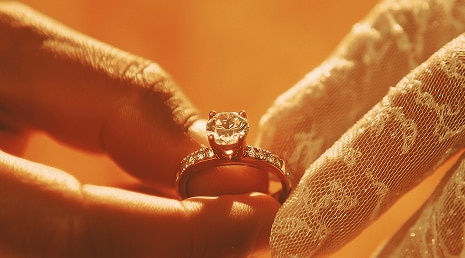
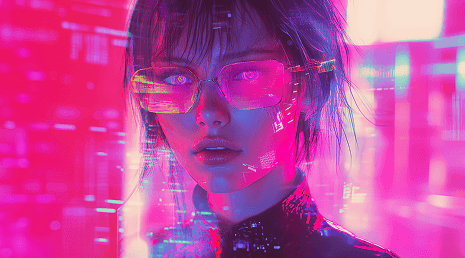
Trending AI Bloom Effect Templates:
Ethereal Glows, Spring Radiance & Soft Filters
From viral bloom portrait effect styles to professional-grade cinematic glows, these bloom effect video templates let you enhance your footage with zero effort. Simply select a bloom effect in Filmora from our library, apply it to your clip, and watch as the AI highlights the light sources for a stunning result. You can also use our AI Image Generator to create custom backgrounds that perfectly complement your glowing aesthetics.
Loading more templates...
 Category:
 Duration:
 Aspect Ratio:
Enhance Your Storytelling
with AI-Powered Bloom Visuals
Achieving a professional bloom effect video usually requires expensive diffusing lens filters or complex lighting setups. Filmora democratizes this look with advanced AI that identifies highlights and spreads them into a soft, glowing halo. Whether you are using a bloom portrait effect for a dreamlike sequence or spring bloom video effect overlays for nature shots, our tools ensure a natural, cinematic result every time.
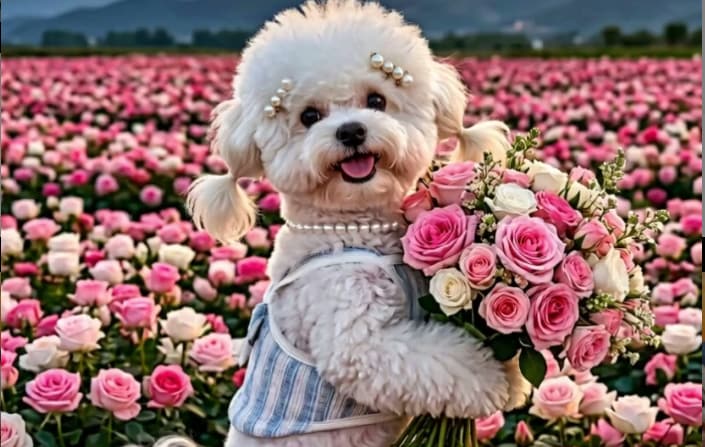
Intelligent Highlight Diffusion: Automatic Light Control
Intelligent Highlight Diffusion: Automatic Light Control
Stop worrying about flat lighting. Filmora's AI scans your video to find natural light sources and applies glow effects that mimic high-end optics. This feature is essential for creators who want to Adjust brightness and contrast while maintaining a soft, ethereal atmosphere.
- ✨ Dynamic Glow Mapping – The AI automatically tracks moving light sources to ensure the bloom remains consistent throughout the clip.
- ✨ Threshold Sensitivity – Fine-tune exactly which parts of your image catch the light for a subtle or dramatic effect.
- ✨ Color Match Integration – Use Color Palettes to ensure the glowing highlights match the overall tone of your video project.
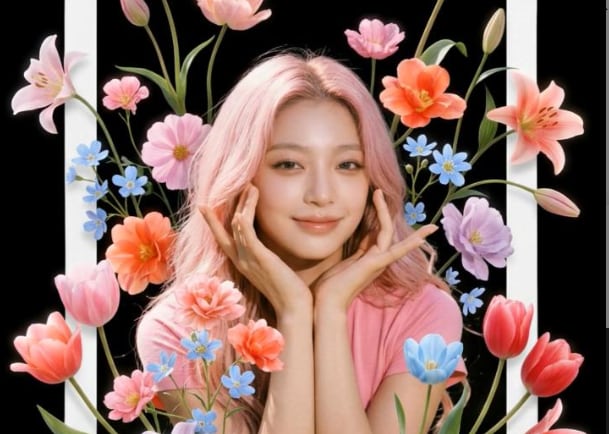
Portrait Radiance: Elevate Your Vlogs and Social Content
Portrait Radiance: Elevate Your Vlogs and Social Content
A bloom portrait effect can make skin look flawless and eyes sparkle. By combining soft light with bokeh backgrounds, Filmora helps you create professional-looking talking head videos or TikToks that stand out from the crowd.
- 📸 Soft Skin Smoothing – The bloom effect naturally softens skin textures while maintaining sharpness in essential areas like the eyes.
- 📸 Dreamy Depth – Layer the bloom with particle effects to create a magical, out-of-this-world vibe for your personal brand.
- 📸 Cinematic Look – Combine these tools with advanced color grading to achieve a Hollywood-style "Pro-Mist" look instantly.
Seasonal Bloom Presets: Capture the Spirit of Spring
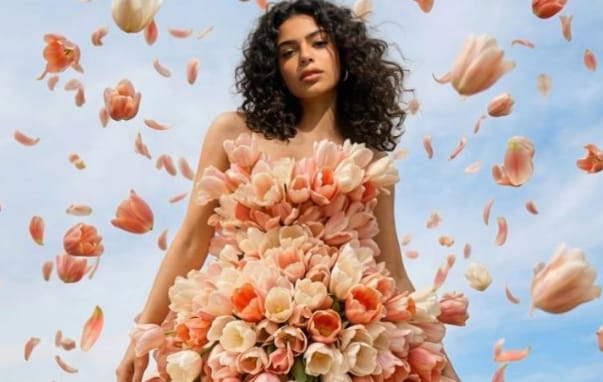
Seasonal Bloom Presets: Capture the Spirit of Spring
Our spring bloom video effect collection is designed to bring out the vibrant colors and soft light of the season. These bloom effect presets are optimized for outdoor footage, making every petal and sunray pop with ethereal beauty.
- 🌸 Vibrant Color Boost – Enhances the natural greens and pinks of nature while wrapping them in a soft, glowing blanket of light.
- 🌸 One-Click Application – Drag and drop presets onto your timeline for instant results, even for beginners.
- 🌸 HD & 4K Ready – All effects are optimized for high-resolution exports, ensuring your bloom effect video looks stunning on any screen.
FAQs About AI Bloom Effect Video
How to Create an AI Bloom Effect Video with Filmora
Follow this quick guide to learn how to add bloom effect radiance to your clips. Whether it is a bloom portrait effect or a cinematic landscape, these steps will help you achieve that professional glow in minutes.
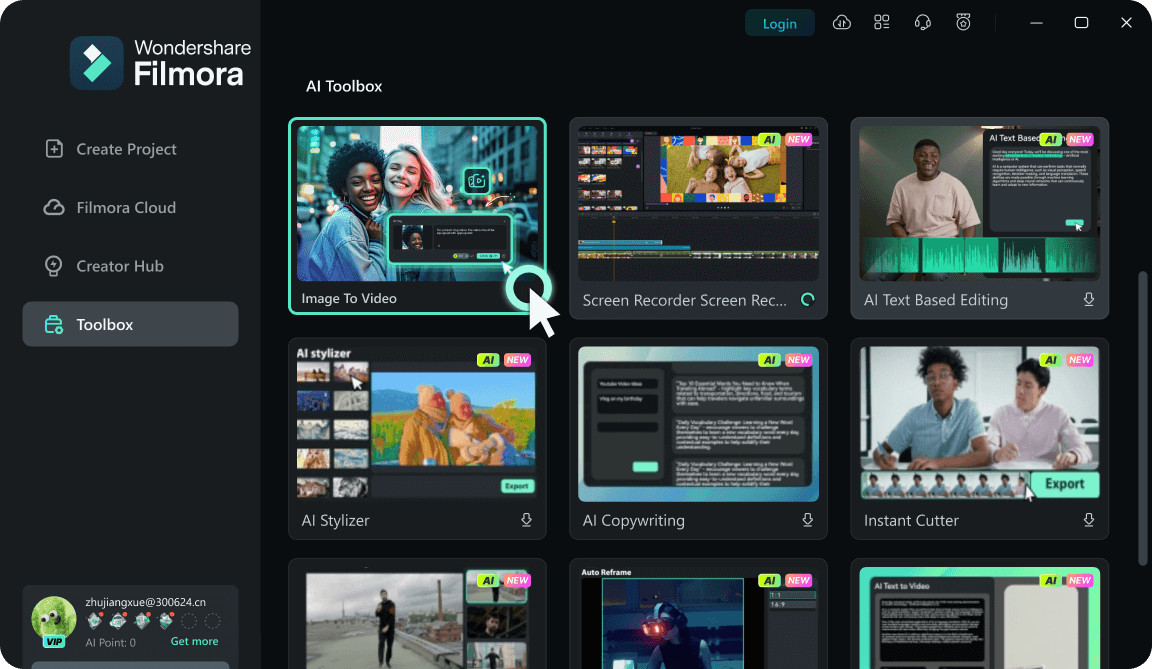
Step 1 Import Your Clips or Choose a Bloom Template
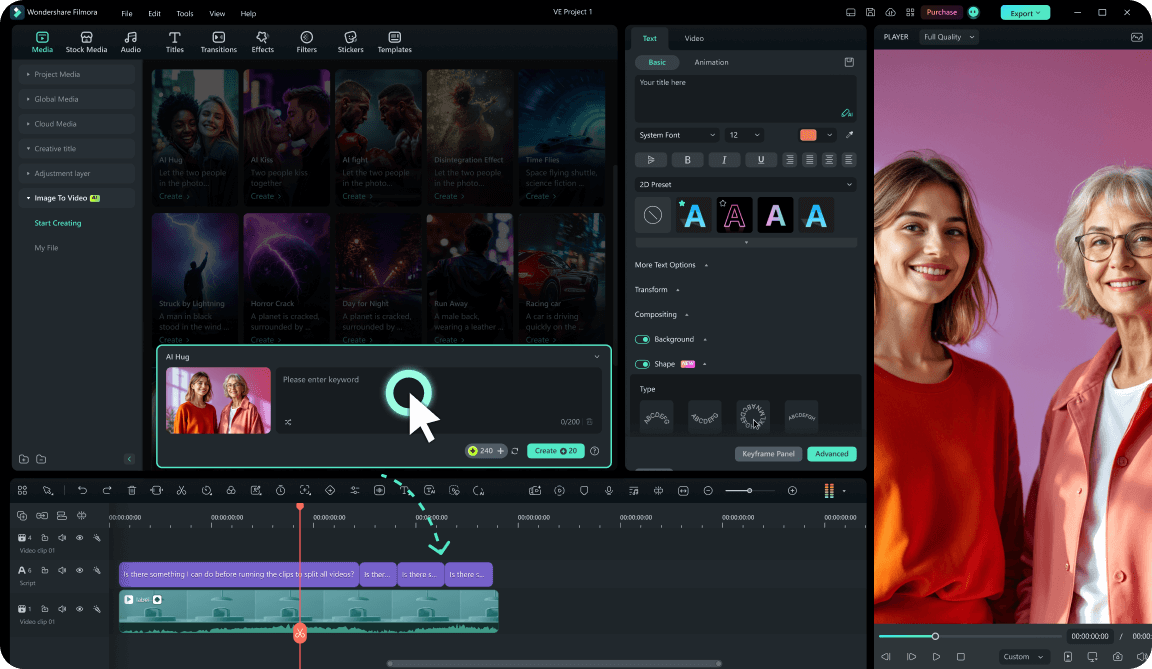
Step 2 Apply Bloom Effect & Customize Intensity
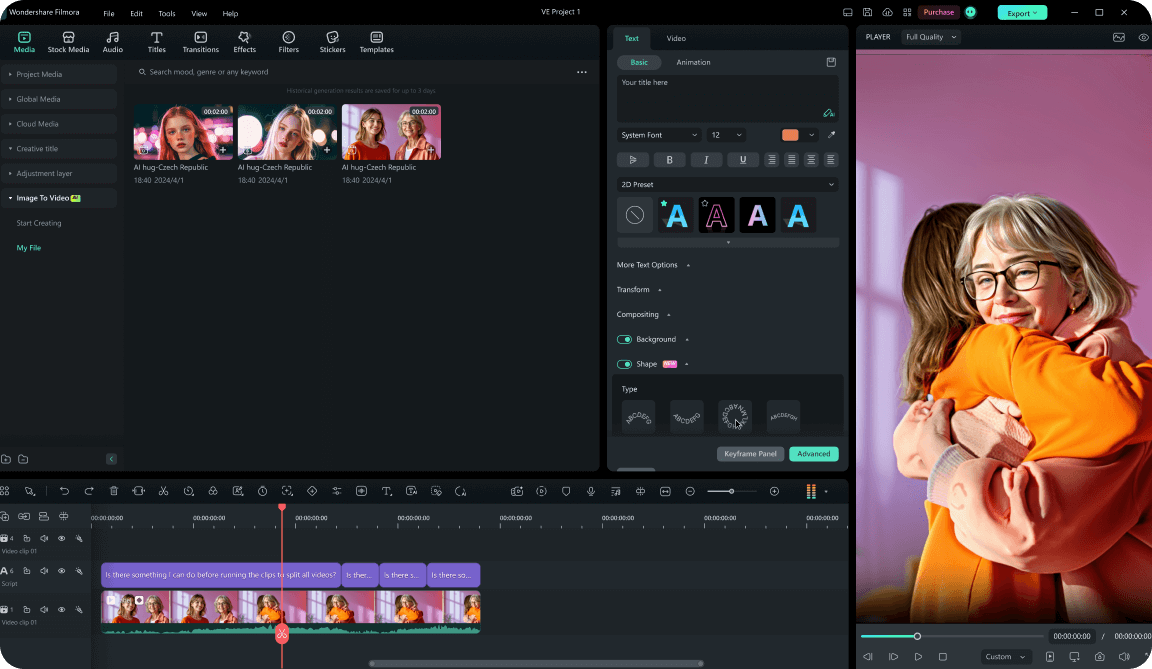
Step 3 Export Your Dreamy Bloom Video
-
1:Import Your Clips or Choose a Bloom Template
Launch Filmora and start a new project. Browse the free bloom templates or import your own HD/4K footage into the media library. Drag your clip onto the timeline to begin. -
2:Apply Bloom Effect & Customize Intensity
Go to the "Effects" tab and search for "Bloom." Drag your chosen effect onto your clip. Use the settings panel to Adjust brightness, radius, and threshold for a custom glow. -
3:Export Your Dreamy Bloom Video
Preview your bloom effect video to ensure the glow looks natural. Once satisfied, hit Export. Choose your desired format and resolution to share your cinematic creation.
Explore More Video Effects & Templates
From ethereal bloom transitions to cinematic glow filters — explore Filmora's full library of effects, templates, and AI-powered creative tools.