Trending Creative Filter Presets:
Instant Hollywood Aesthetics
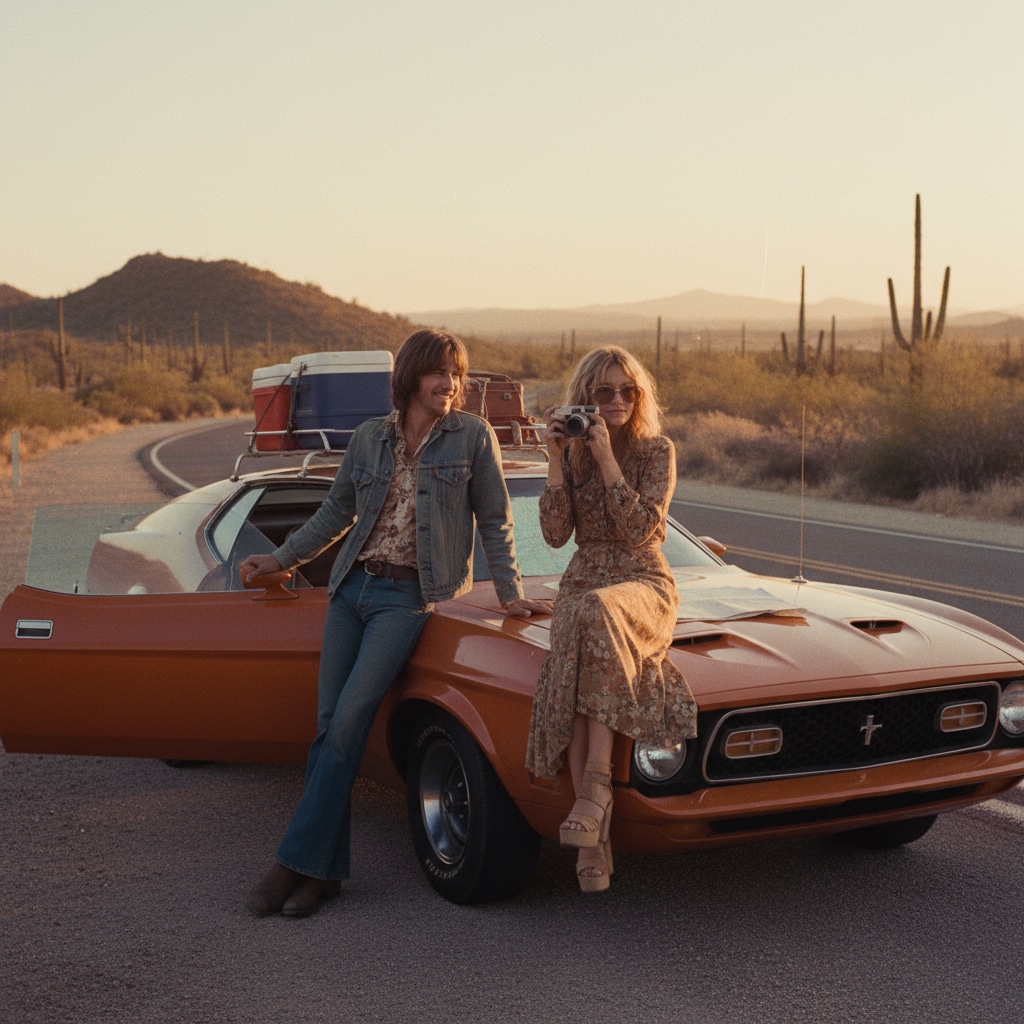
Why spend hours on manual color grading when you can achieve professional results instantly? These curated filter packs cover everything from the popular Teal & Orange cinematic look to gritty retro film grains. Simply select your desired vibe, preview the effect in real-time, and apply it to transform your raw footage into a cohesive visual masterpiece suitable for YouTube, Instagram Reels, or professional presentations.
Loading more presets...
 Category:
 Duration:
 Aspect Ratio:
Elevate Your Video Production
with Professional Creative Filters
Great video editing isn't just about cutting clips; it's about establishing a mood. Filmora's creative filters go beyond basic overlays, offering deep stylistic transformations that integrate seamlessly with your footage. From enhancing the golden hour glow to adding edge with digital distortion, our tools give you the creative control to make every frame memorable.
Achieve Hollywood-Grade Looks with Cinematic Filters

Achieve Hollywood-Grade Looks with Cinematic Filters
Transform flat, digital footage into rich, film-like visuals instantly. Our cinematic creative filters are designed to replicate the color science of major motion pictures, giving you access to moody teals, warm oranges, and dramatic noir contrasts without needing advanced color grading knowledge. Perfect for travel vlogs, short films, and dramatic storytelling.
- One-Click LUTs - Apply industry-standard 3D LUTs that map your colors to professional film stocks.
- Mood Enhancement - Instantly shift the emotional tone from joyful and bright to dark and mysterious.
- Skin Tone Protection - Advanced algorithms ensure your subject looks natural even when the environment changes.
Evoke Nostalgia with Authentic Retro & Vintage Effects

Evoke Nostalgia with Authentic Retro & Vintage Effects
Tap into the power of nostalgia with creative filters that mimic the imperfections of analog media. Whether you want the tracking lines of a 90s VHS tape, the warm grain of 8mm film, or the washed-out colors of a vintage Polaroid, these creative filters add texture and history to your modern footage. Ideal for music videos, flashbacks, and trendy social media content.
- Realistic Textures - Adds authentic film grain, dust scratches, and light leaks for a genuine analog feel.
- VHS Glitch & Distortion - Recreate the tracking errors and color shifts of old home video camcorders.
- Period-Specific Looks - Presets tailored to specific decades, from the vibrant 80s to the grunge 90s.
Energize Your Edits with Dynamic Glitch & Cyberpunk Filters
Energize Your Edits with Dynamic Glitch & Cyberpunk Filters
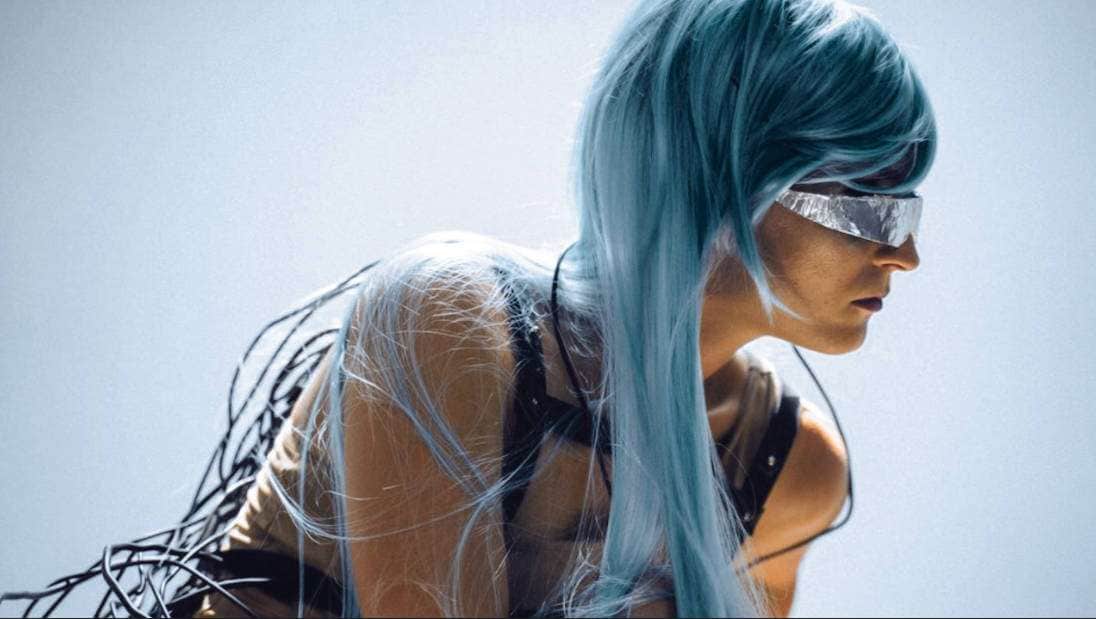
For high-energy content like gaming highlights, tech reviews, or dance videos, static filters aren't enough. Our dynamic creative filters inject motion and chaos into your clips. Use RGB splitting, digital noise, and neon-soaked cyberpunk overlays to create a futuristic, edgy vibe that keeps viewers glued to the screen.
- Beat-Sync Potential - Filters that look incredible when synced to the bass drops of your background music.
- Chromatic Aberration - Add modern "lens error" effects that are popular in sci-fi and tech content.
- Customizable Intensity - Dial back the distortion for a subtle edge or max it out for total visual chaos.
FAQs About Creative Video Filters
How to Use After Dark Filters in Filmora
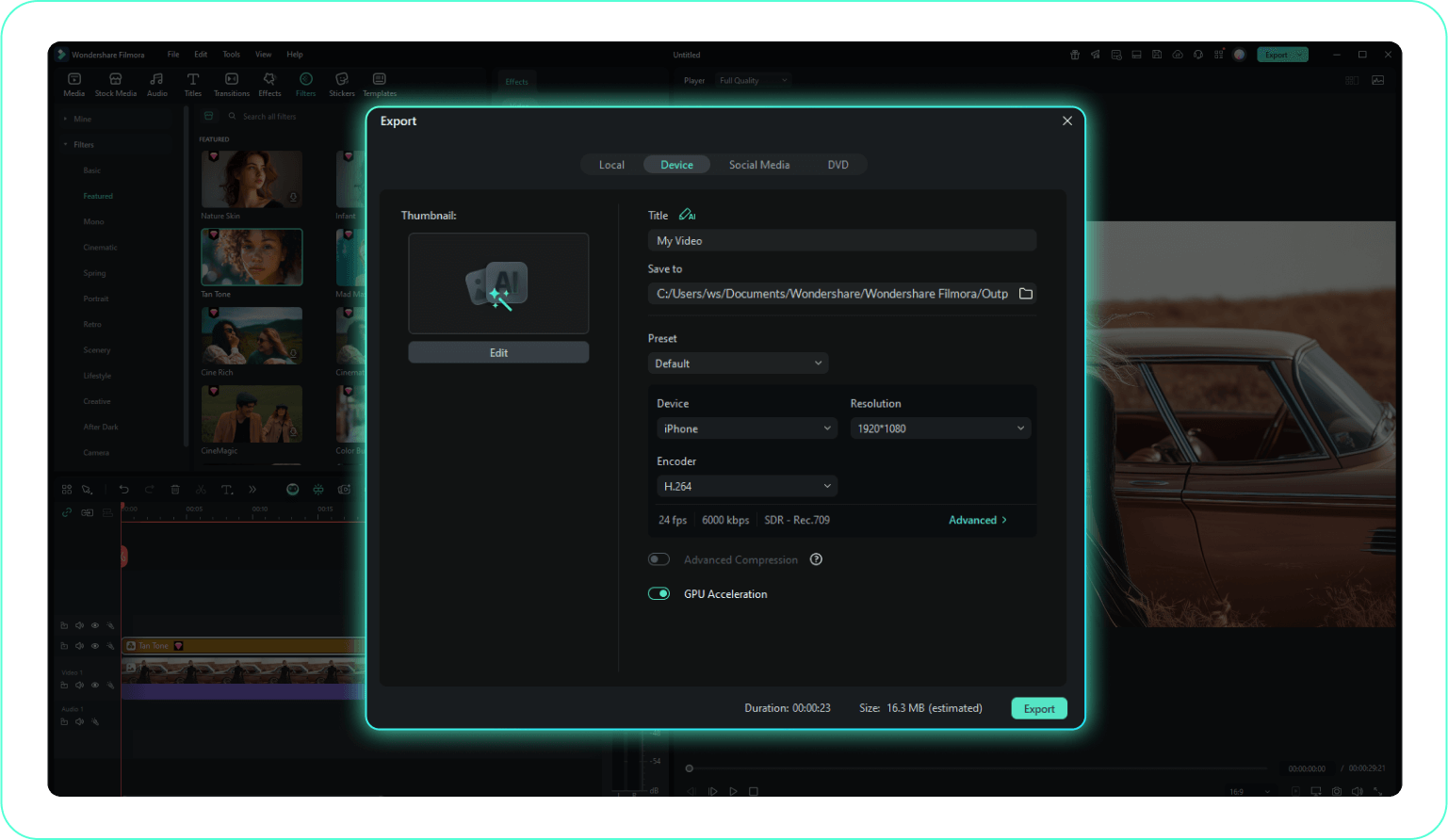
Create stunning nighttime visuals in seconds with Filmora's After Dark Filters. Follow these simple steps to import your footage, apply cinematic night effects, and export a polished dark aesthetic video.
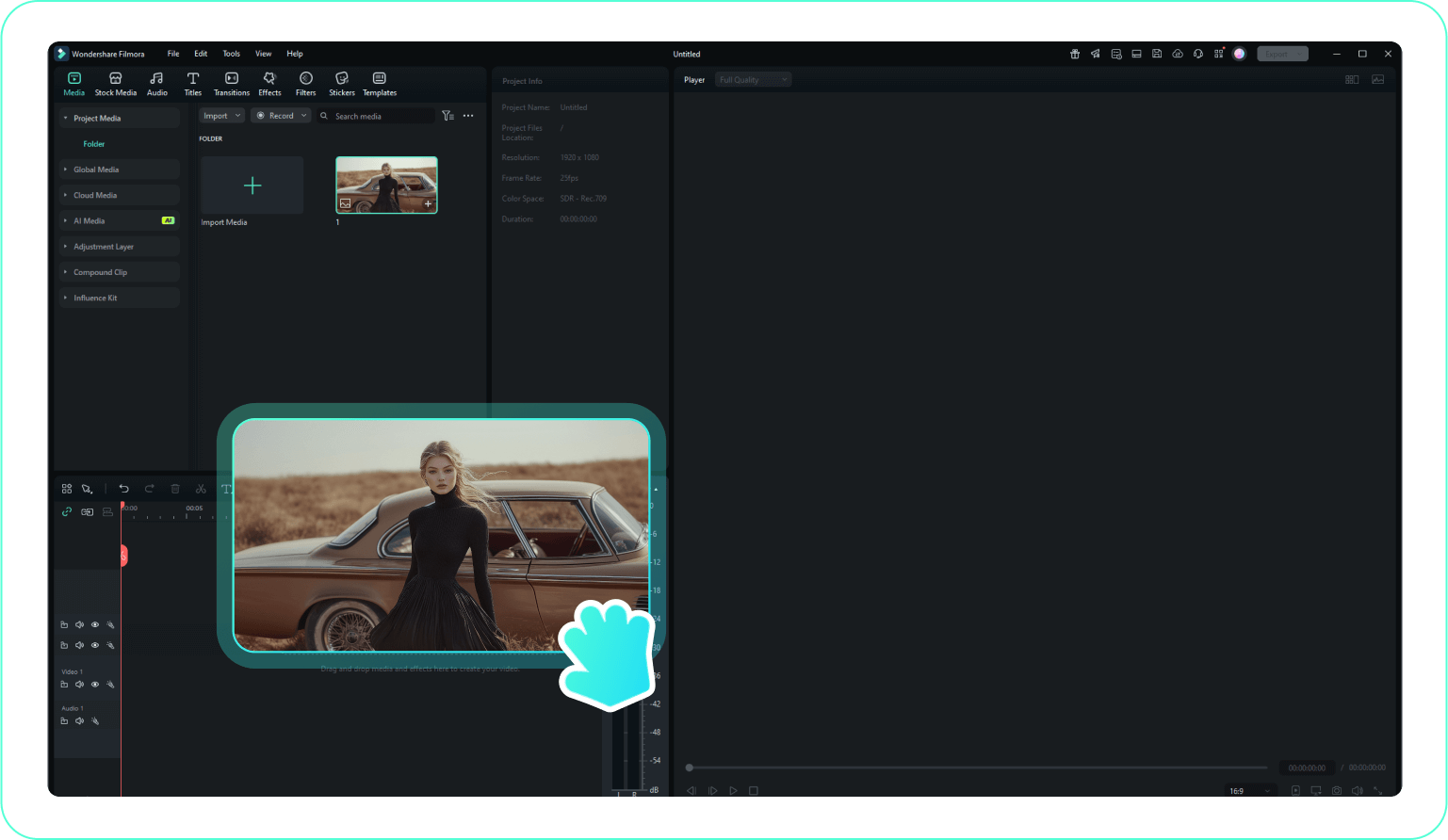
Step 1 Import Your Video
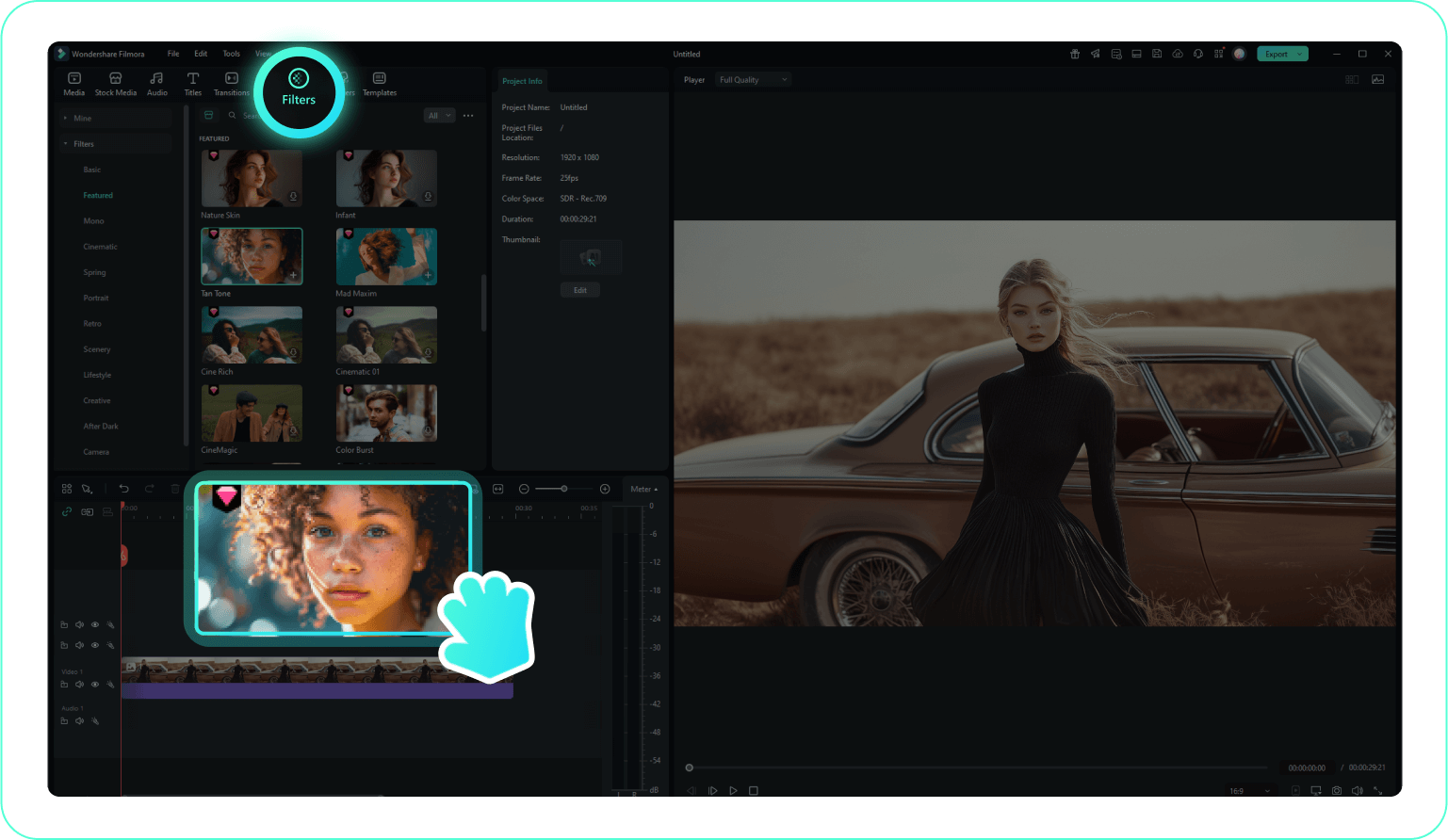
Step 2 Apply an After Dark Filter
Step 3 Adjust the Night Effect & Export
-
1:Import Your Video
Open Filmora and upload your footage by clicking "Import Media". Drag the video to the timeline to prepare it for applying After Dark Filters. -
2:Apply an After Dark Filter
Navigate to the "Filters" tab and explore cinematic night effects. Drag your preferred After Dark Filter onto the clip to instantly create a moody nighttime look. -
3:Adjust the Night Effect & Export
Fine-tune the intensity using controls like Opacity. When your dark aesthetic look is ready, click Export to save the final video.
More Than Just Creative Filters
Filmora is a comprehensive creative suite. Beyond applying stunning filters, use powerful AI tools to generate content, enhance audio, and edit videos like a pro.