



 100% Security Verified | No Subscription Required | No Malware


 ChatGPT
 Perplexity
 Gemini
 Claude
 Grok
Grok
For creators seeking quicker editing and superior video quality, selecting the ideal reel editing app for PC is vital. In the era of short content, such as Instagram, PC editors have more control than mobile apps. They offer sophisticated effects and export quality for the novice and advanced user. For those looking to make engaging and viral short videos, this is the guide to the best reel editing software for PC for beginners and professionals.
In this article
Part 1. Why Editing Reels on PC Is Becoming Popular
In the past, video production was almost exclusively a mobile phone affair, but more creators are turning to PCs for quicker and slicker video editing. Let's delve into the reasons why many creators are shifting to PC editing:
- Easier Editing and Arranging: Desktop editing has a bigger timeline and more precise controls, as they make it easier to cut, trim, and arrange clips than using mobile editing.
- Better Workflow for Content Creators: PCs enable content creators to handle long footage, batch edit multiple clips, and export higher-quality video files more quickly.
- Ideal for Short-Form Content: Editing on a PC is ideal for creators who are creating Instagram Reels, YouTube Shorts, and business promotional videos that need to look professional.
Part 2. What Makes a Good Reel Editing App for PC?
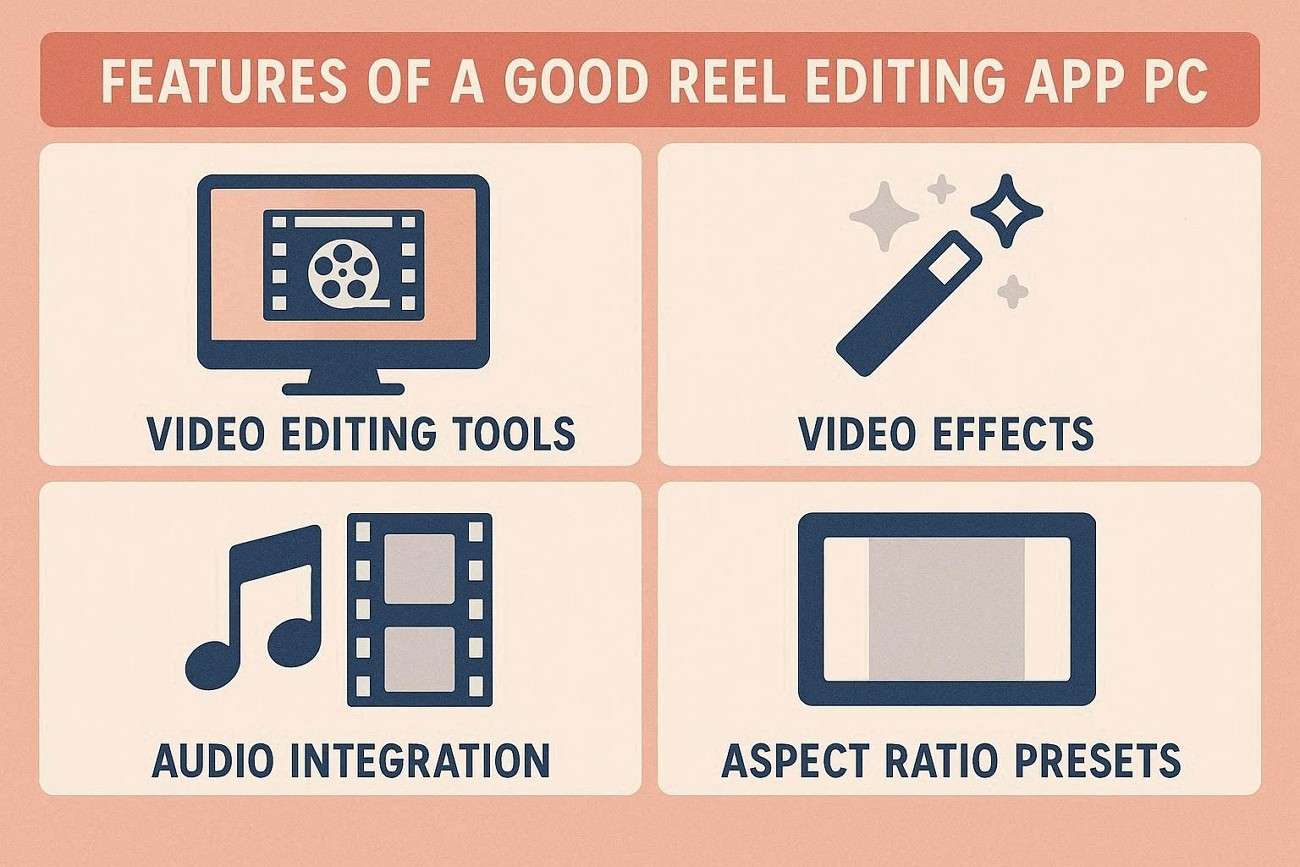
For short-form video creation, having the correct video reel editor can greatly enhance both speed and accuracy. Here are the top features to check for in a reel editing software for PC:
- Vertical Video Support: A good Reels editor should have the ability to create vertical video content effortlessly with no difficult hurdles.
- Enhanced with Built-in Auto Captions and Text Styling: Auto captions and text styling options can make the videos more accessible and appealing, which is why it should be part of the platform.
- Creative Editing Tools: All the music sync, transitions, stickers, filters and pre-designed templates help the creators to create professional reels with less time.
Part 3. Mobile Reel Apps vs. PC Reel Editors
Mobile apps are convenient and fast to upload to, which is why many creators begin editing reels on their phone. The following fast comparison will help the readers determine which one will be best suited for their purpose of content:
| Feature | Mobile Reel Apps | PC Reel Editors |
|---|---|---|
| Ease of Use | Fast and convenient for quick edits on the go | Better control with larger screens and precise editing tools |
| Editing Flexibility | Limited for detailed timelines and advanced adjustments | Ideal for detailed editing, layering, and fine-tuning videos |
| Batch Editing | Difficult to manage multiple projects efficiently | Great for editing multiple clips and content in one workflow |
| Best Content Type | Casual reels, quick trends, and instant uploads | Brand videos, tutorials, business promos, and polished reels |
| Export Quality | Good for basic social uploads | Better quality exports with more customization options |
| Learning Curve | Easier for beginners | Slightly higher but more powerful long term |
When Should Creators Switch to PC Editing?
Look into the following points to see when one should switch from a mobile editor to a PC tool while editing reels on desktop:
- If users create content frequently, PC editing saves time and improves workflow.
- Desktop editors provide cleaner exports and more professional results.
- Handling tutorials, branded content, or client work becomes much simpler with multiple projects.
- PC software provides advanced transitions, effects, captions, and customization options that aren't always found in mobile software.
Part 4. Best Reel Editing Apps for PC
Finding the right reel editing app for PC depends on the type of content users create and how much control they need. Compare the top PC reel editors below to find the best fit for their workflow:
| App | Best For | Key Features | Difficulty Level |
| Filmora | Beginners & social creators | Vertical video templates, AI captions, effects, music library, transitions, easy social export, fast learning curve | Easy |
| CapCut Desktop | Trend-style short videos | Trending effects, auto captions, templates, quick editing for Instagram Reels and YouTube Shorts | Easy |
| Canva | Design-focused reels & business content | Drag-and-drop editor, branded templates, text animations, social media assets | Easy |
| Clipchamp | Quick edits on Windows | Simple interface, browser support, basic transitions, easy exports | Easy |
Part 5. Best Use Cases for PC Reel Editing
PC reel editing offers greater flexibility and professional control, whether one is making content for personal growth or marketing their business. These are the prime applications where reel editing app for PC can really make a difference:
- Instagram Reels for Creators: Editing on PC makes it more accessible to create Instagram Reels with captions, effects, transitions, and consistent branding.
- YouTube Shorts: Creators can now benefit from a larger timeline, enhanced trimming options, and cleaner export specifications for vertical content, making editing YouTube Shorts more efficient.
- Product Promos and Small Business Videos: Businesses can make business promotional videos with text animation, features for products, and branded graphics.
- Tutorial Clips and Educational Shorts: These are ideal for educational material, where creators can record their screen actions, annotate, and provide them with a clear and visual explanation.
Part 6. Step-by-Step: Make a Reel on PC with Filmora
Filmora brings a simple interface to edit Reel videos on the PC. Follow the guide below and learn how the best reel editing app for PC refines footages:
-
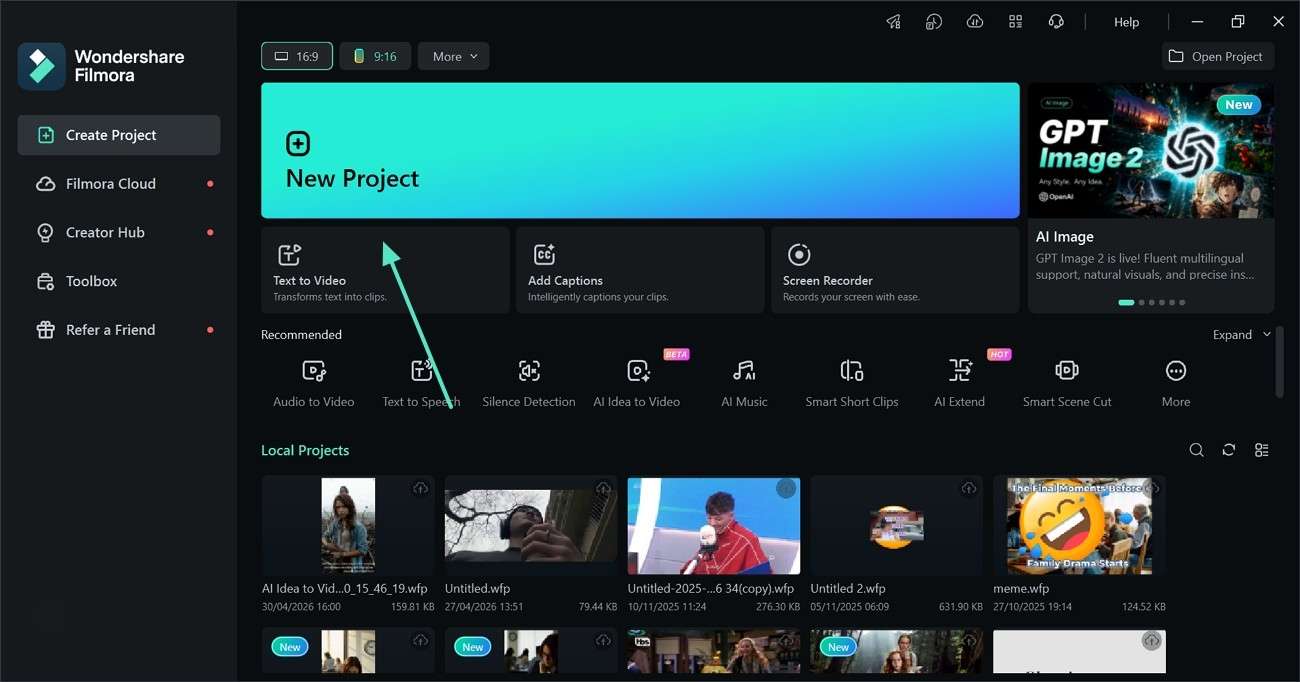
Step 1. Click the New Project Button
Start by clicking the "New Project" button from the main interface of the tool.
-
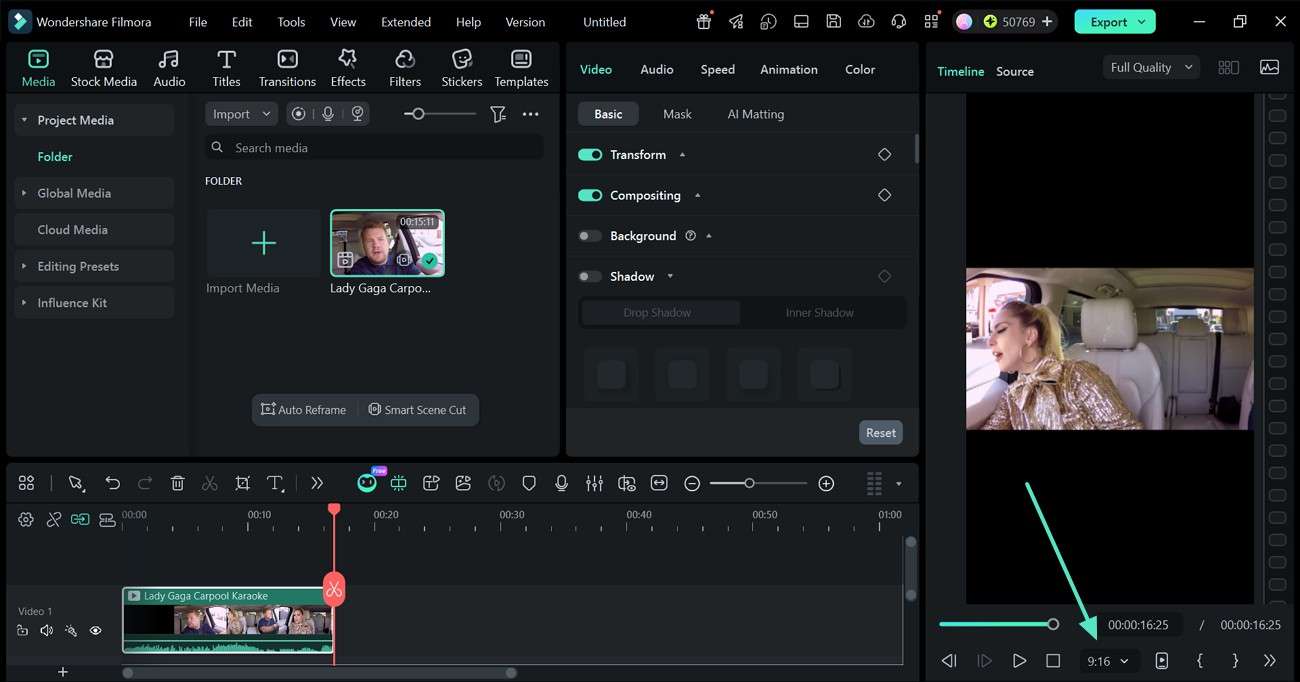
Step 2. Choose a 9:16 Project Ratio and Import Videos
Import a video from the device using the designated button on the top left of the screen. Now, expand the aspect ratio menu from the bottom right of the editing interface and select the "9:16" preset.
-
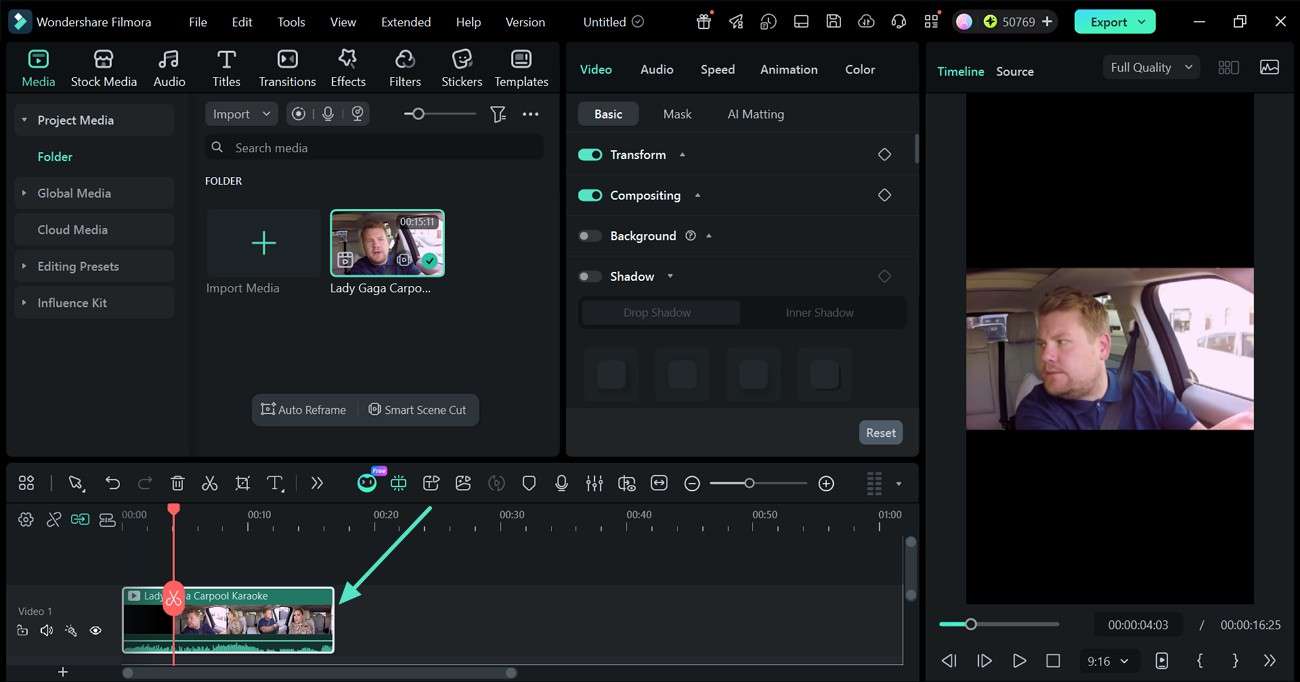
Step 3. Trim the Unwanted Segments of the Video
From the timeline at the bottom, use the trim markers to delete the unwanted clips from the footage.
-
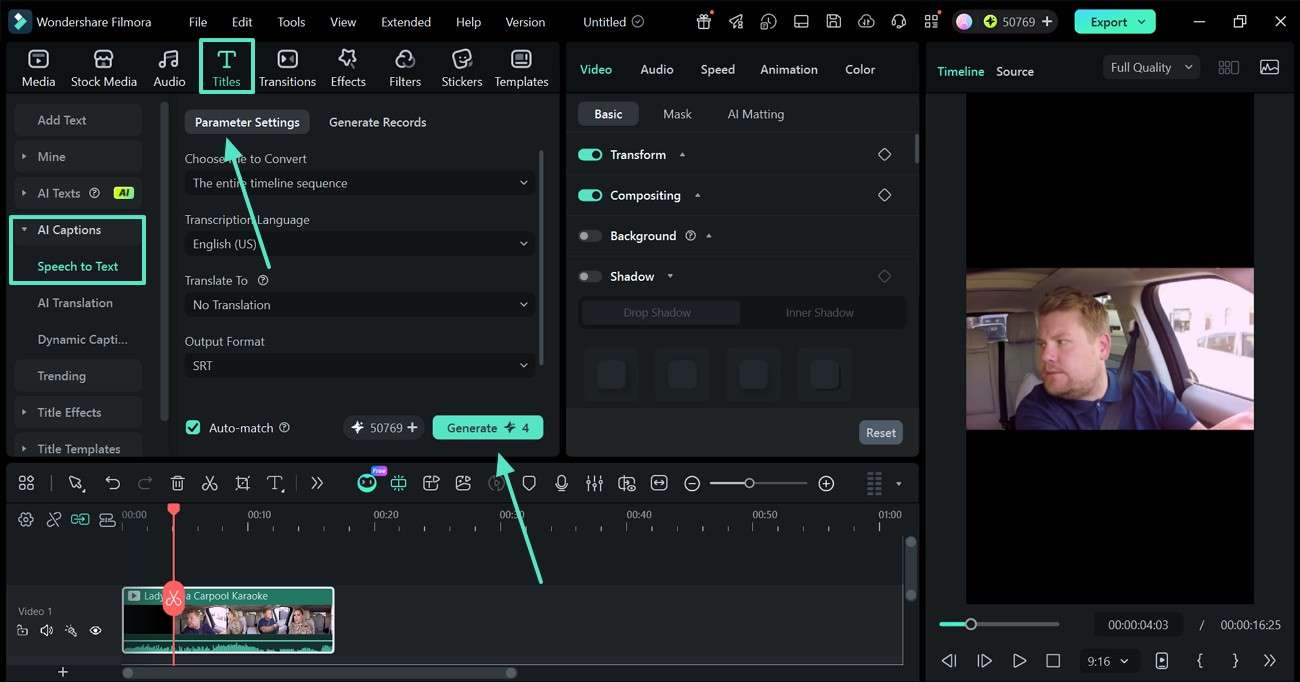
Step 4. Add AI Captions to the Video
Expand the "Titles" tab from the top and select "Speech-to-Text" from "AI Captions". Now, enter the "Parameter Settings" and click "Generate" to create subtitles.
-
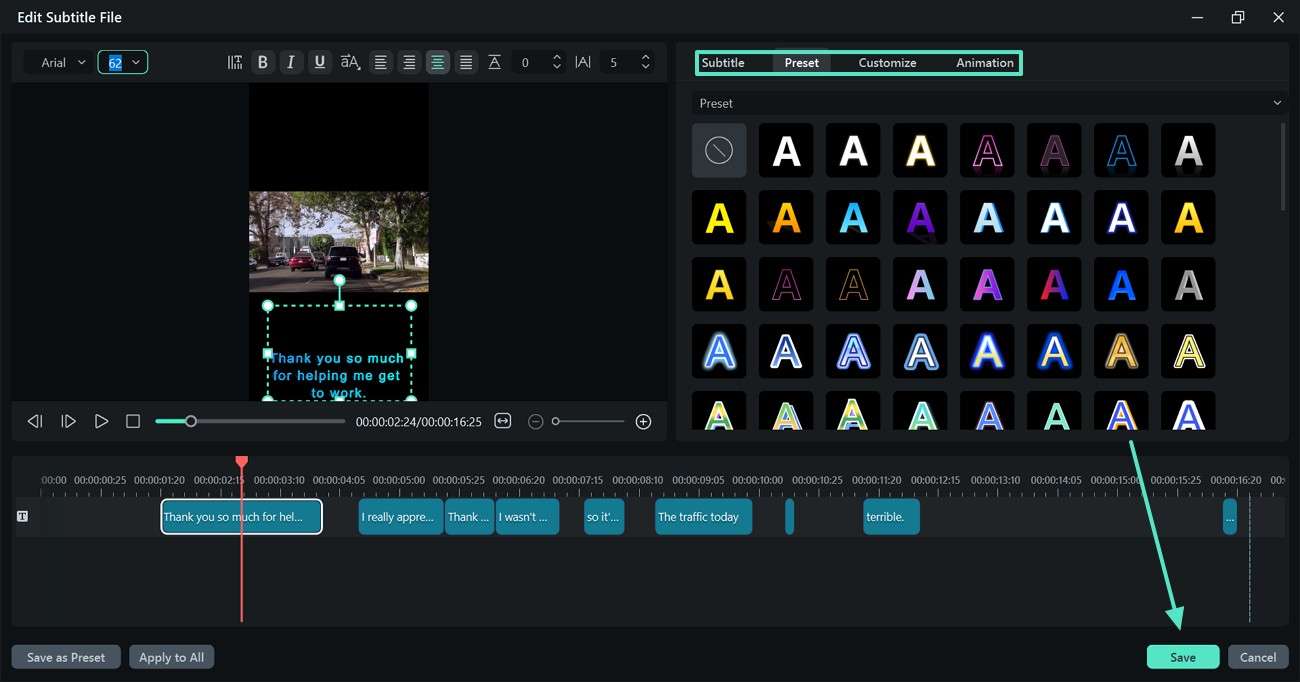
Step 5. Customize Captions and Save Changes
After creating subtitles, double-click the text track and adjust the appearance of the captions. Once done, click the "Save" button to apply these changes.
-
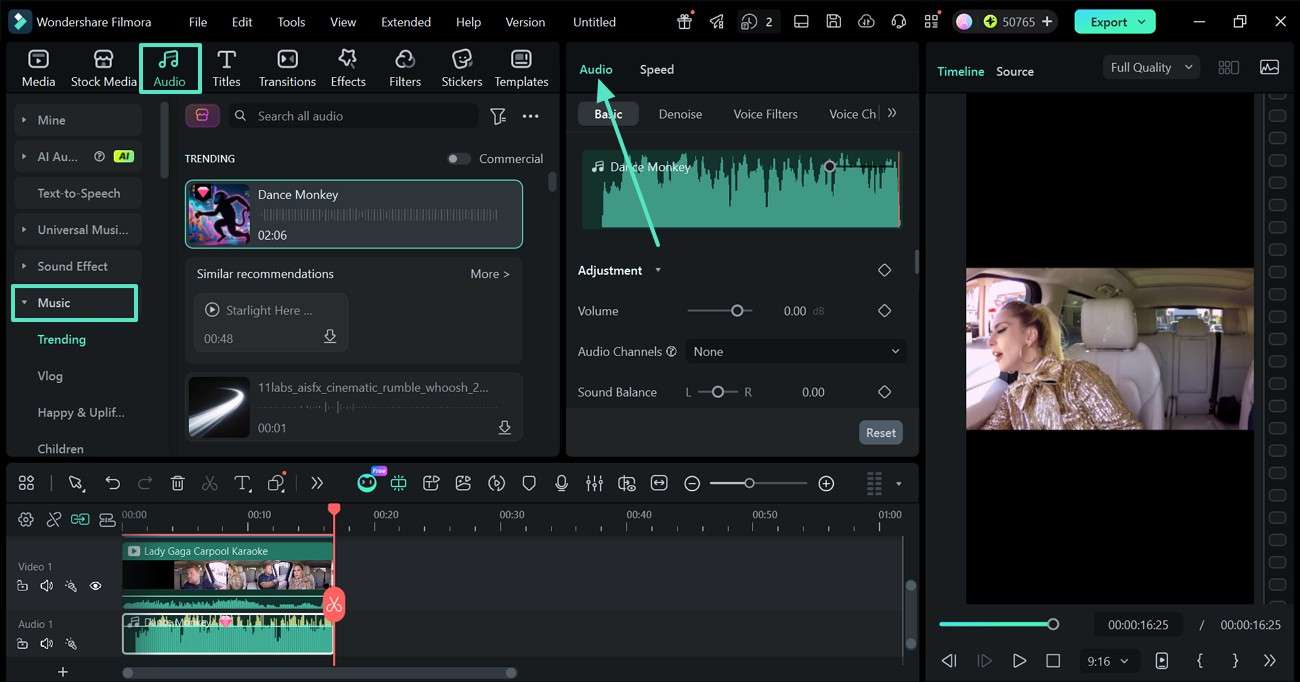
Step 6. Add Music to the Video
Set the right mood by clicking the "Audio" tab and selecting the desired "Music" track. This track can be edited using the "Audio" panel on the right.
-
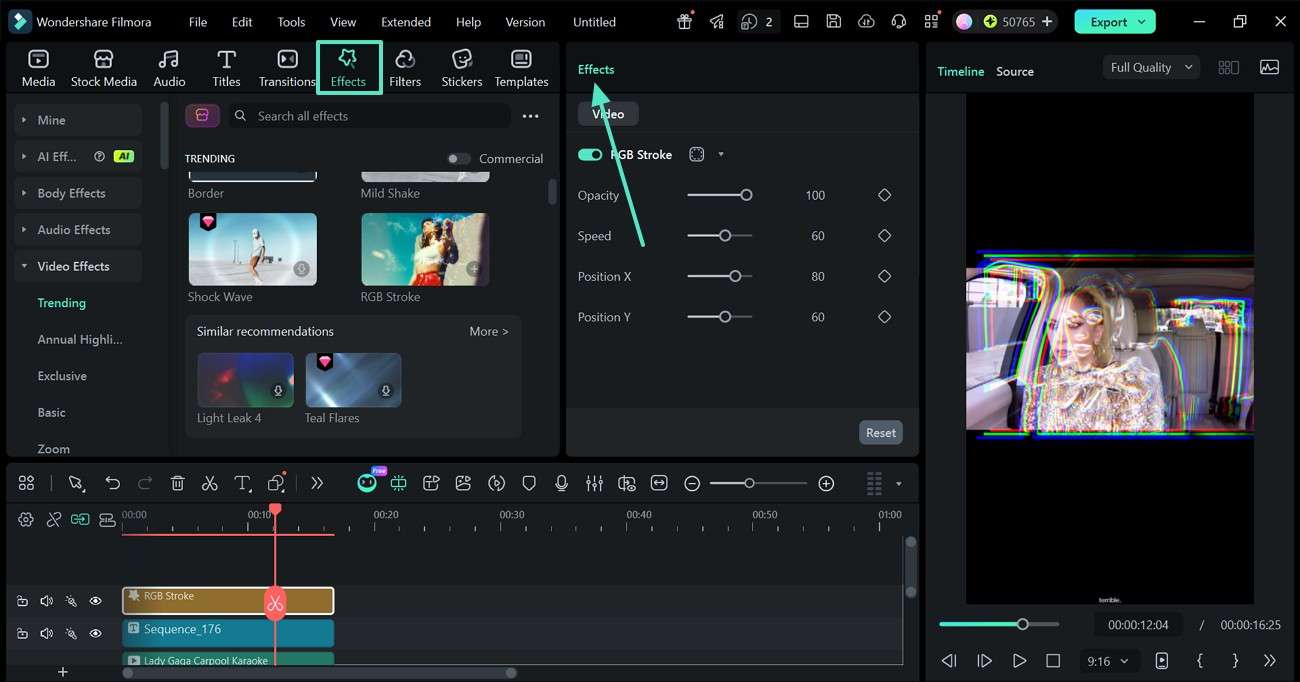
Step 7. Add Effects to the Video
To add visual appeal to the footage, click on the "Effects" tab at the top and apply the desired asset. This effect can be customized using the "Effects" panel.
-
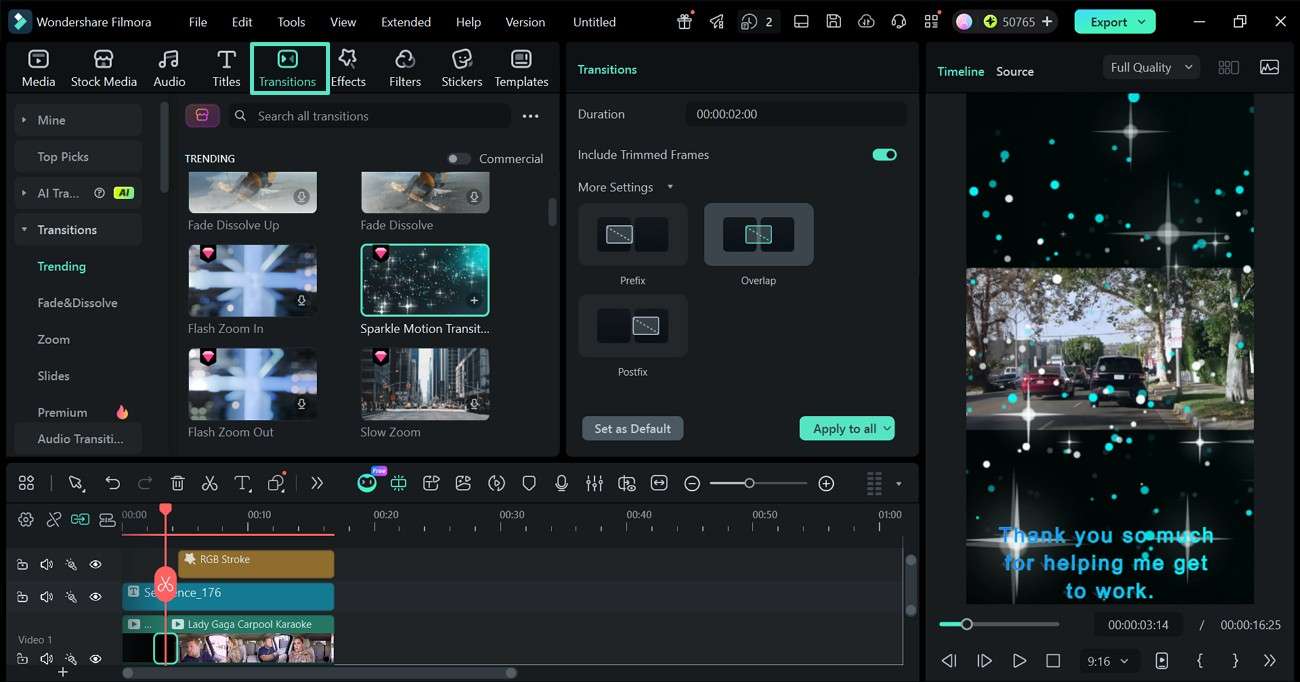
Step 8. Integrate Seamless Transitions
Now, move the playhead to the desired part in the timeline and double-click to split the track into 2. Open the "Transitions" panel and apply them between the split segments.
-
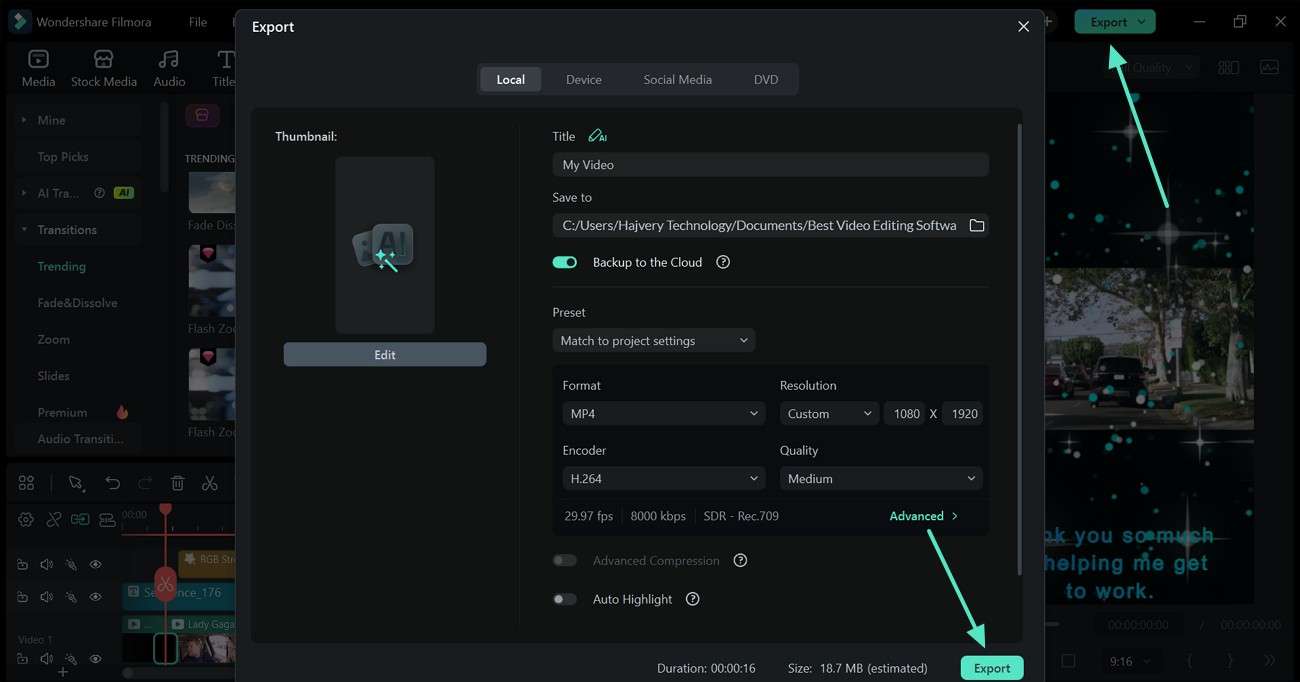
Step 9. Export with Reel-Friendly Settings
After the video is ready, click the "Export" button and save the video in Instagram-specific settings.
Part 7. Final Verdict
In conclusion, there are a variety of the best reel editing app for PC, and the one people select will rely upon their objectives and experience. The top video editing software for newcomers is Filmora because of its ease of operation and powerful editing tools. CapCut is ideal for creators who are drawn to trends and want quick viral style cuts.
Canva is an excellent option for design-heavy marketing reels. The right one comes with the benefit that it makes it easier to edit, produce high-quality content, and create interesting short-form content.
Frequently Asked Questions
-
1. Can I edit Instagram Reels on PC?
While editing reels on Instagram, one can use a video editing software on a PC to edit the video into a vertical format of 9:16. Tools like Filmora and CapCut Desktop can help users achieve a professional look with their reels, such as adding captions, effects, music, and transitions. -
2. What is the best reel editing app for Windows?
Filmora is the suggested Windows video editing software for novices with its social media templates and easy-to-use interface. However, those who prefer trend-style short videos will not want to miss out on the CapCut Desktop. -
3. Which PC editor is best for YouTube Shorts?
AI-generated captions, transitions, and quick export, along with vertical templates, make Filmora a great choice for YouTube Shorts. If creators prefer edits that can be done quickly and cool visuals, then CapCut Desktop is another awesome option for creators. -
4. How do I export reels from a PC without losing quality?
If one exports the reel, make sure the video resolution is 1080x1920 and the bitrate and format are appropriate, as this will help maintain video quality. To maintain quality, most editors, such as Filmora, have optimized export settings for Instagram Reels and YouTube Shorts.
