


 TL;DR:
Canva provides quick, credit-based AI upscaling and manual color adjustments for short social media clips, but strict system limits make Wondershare Filmora a better alternative for true 4K restoration and large file processing.
● Canva's automated AI upscaler requires an A1D.AI account for usage credits and enforces strict upload caps: a maximum resolution of 1920x1080, a 30MB file size, a 60-second duration, and 60fps in MP4, MOV, or MKV formats.
● The built-in manual adjustment panel efficiently fixes underexposed lighting and color balance for decent footage, but the platform cannot perform deep texture reconstruction on severely degraded or heavily compressed videos.
● For footage exceeding Canva's 1080p ceiling or requiring deep visual repair, Wondershare Filmora utilizes Topaz Starlight generative AI to rebuild missing details and export at true 4K without restrictive file size constraints.
Ask AI for a summary
 ChatGPT
 Perplexity
 Gemini
 Claude
 Grok
Grok
Canva offers two primary ways to improve video quality: manual enhancement through its editor and automated Canva video upscaler via AI-powered apps. While the AI can automatically upscale clips, the manual Canva video enhancer lets you tweak brightness, contrast, colors, and clean up your footage using simple sliders.
This flexibility makes it easy to fix clips for social media, presentations, or quick edits without needing advanced skills. If you've been wondering how to increase video quality in Canva, this guide walks you through exactly how it works and what you can realistically expect.
Part 1. How to Increase Video Quality in Canva (Quick Walkthrough)
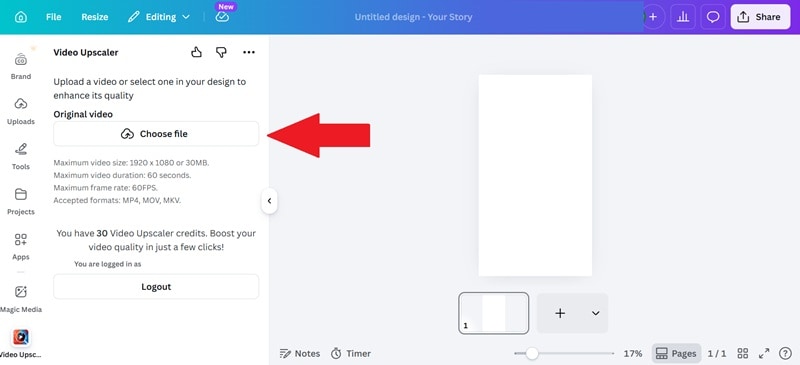
Before you try to enhance your video with the Canva AI video upscaler, there are some limits from your original video that you should know first:
- Max Resolution: 1920 × 1080 (Full HD).
- Max File size: 30MB.
- Max Duration: 60 seconds.
- Max Frame Rate: 60fps.
- Supported Formats: MP4, MOV, MKV.
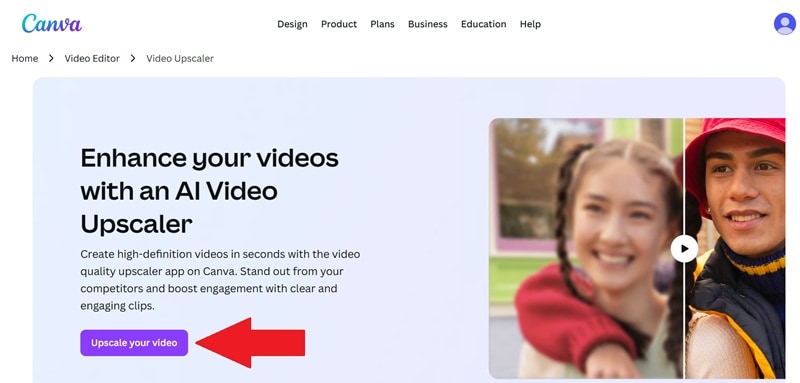
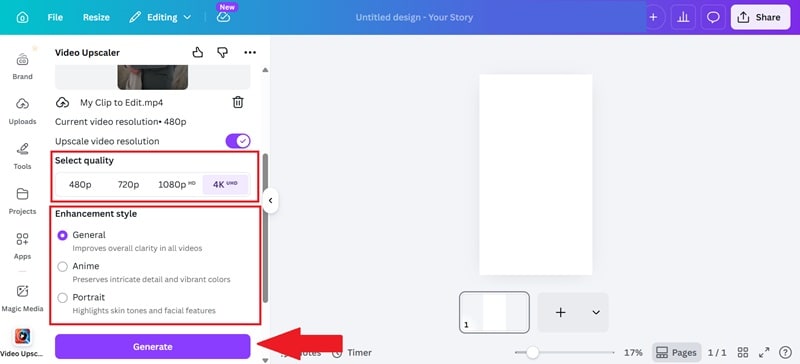
Also, you'll need to sign in to an A1D.AI account within Canva (you usually get 30 free credits just for signing up!). Now that you're ready, just follow the steps below and you'll have a polished, upscaled video in minutes.
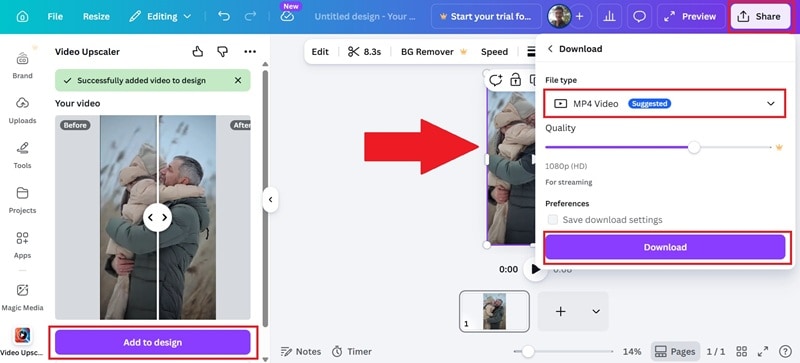
Part 2. The Creator's Toolbox: 3 Ways to Perfect Your Frames
The Canva video enhancer focuses on visual improvements and simple edits rather than deep AI reconstruction. If you prefer to have "hands-on" control over the look of your video, these three methods are your best bet.
1. Fine-Tune Every Frame with Slider Controls
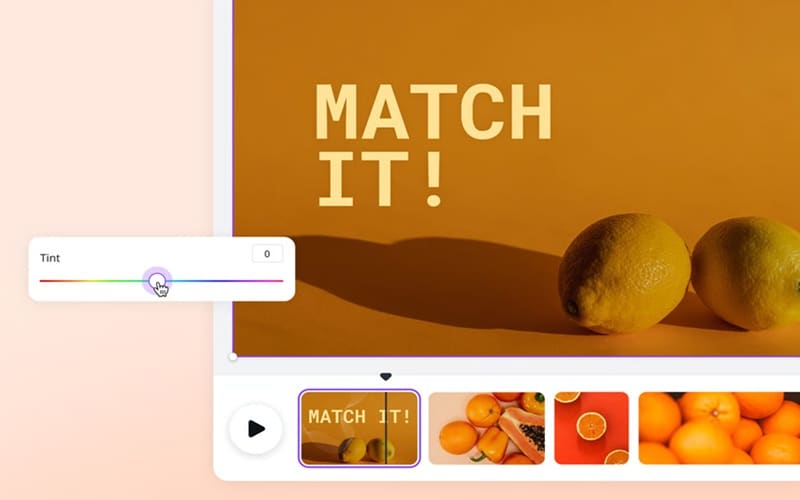
The adjustment panel in Canva is perfect for rescuing underexposed clips or toning down footage that looks washed out.
Key Features:
- Exposure & Contrast: Instantly fix underexposed or "washed-out" footage.
- Saturation & Temperature: Make a scene feel warmer and more inviting or cooler and more professional.
- Precision: Small tweaks to the "Sharpness" slider can help define edges without making the video look over-processed.
2. Balance Light, Shadows, and Colors Easily
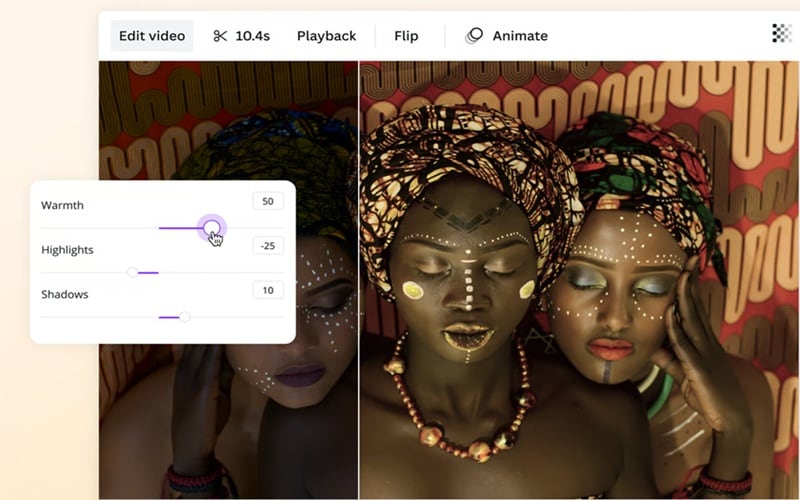
One of the most underrated tools in the Canva video enhancer is the shadow and highlight recovery system. You can pull detail out of dark corners or rein in overexposed skies.
Key Features:
- Highlights & Shadows: Use these to recover detail in a bright sky or a dark corner.
- Vibrancy: This helps colors look more natural rather than "neon," which is great for skin tones.
- Depth: Adjusting the blacks and whites adds a subtle 3D depth to otherwise flat-looking mobile footage.
3. Enhance Videos with Creative Elements
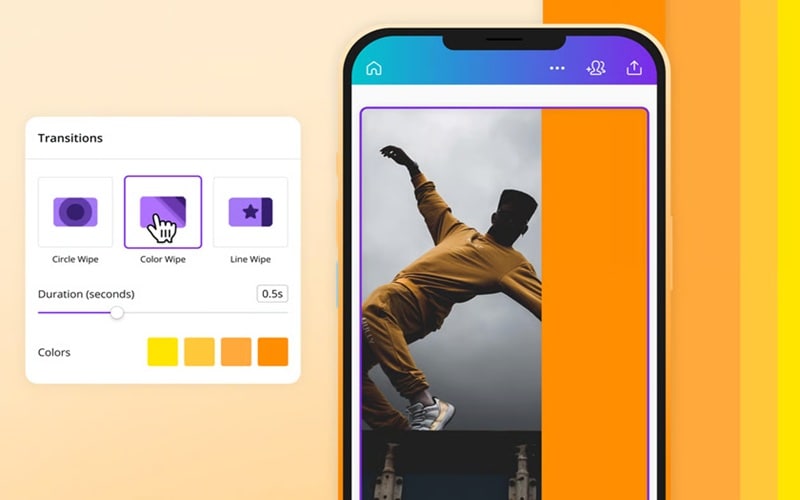
Beyond color correction, you can learn how to enhance video quality in Canva by using creative elements to elevate your videos for social content, presentations, or promos.
Key Features:
- Overlays & Text: Use high-quality fonts and graphic elements to distract from minor quality issues.
- Smooth Transitions: Use "Match and Move" to make scene changes feel seamless and high-end.
- Audio Quality: Swap out grainy background noise for professional tracks in the Canva library to instantly raise the perceived value of the video.
Part 3. Is Canva Video Enhancer Right for You?
Canva's video enhancer tools are genuinely useful, but they're not designed for everyone. Here's a quick breakdown of when Canva works great, and when you might want to reach for something more powerful.
Best Use Cases for Canva Video Enhancer
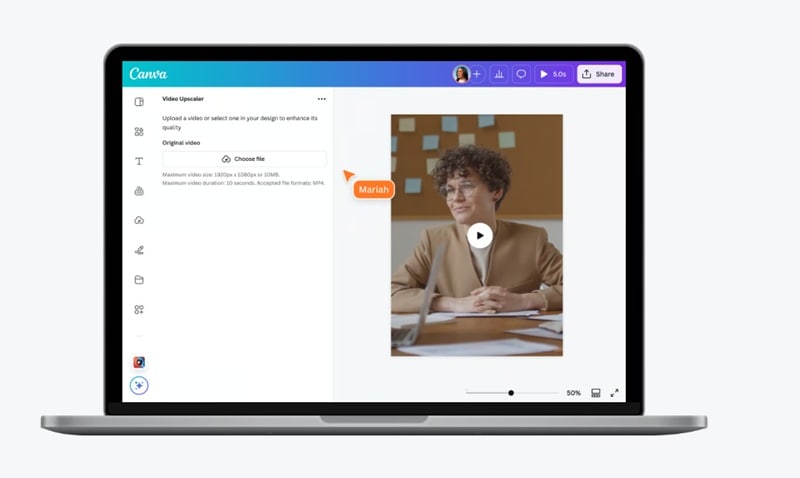
Canva AI video enhancer works best when you need quick, polished results without dealing with complex tools. It's a solid fit for:
- Social Media Content: If you're a creator making TikToks, Instagram Reels, or YouTube Shorts, this tool helps you maintain a high-def aesthetic. It ensures your face-to-camera clips look crisp and professional before you hit post.
- Marketing and Business: When you're a freelancer delivering quick video assets for marketing and business, the Canva video upscaler helps you provide a "finished" look that matches a client's brand colors and quality standards.
- Quick Quality Fixes: Since Canva video enhancer is easy to use, it is perfect for anyone who has a decent clip that just needs a little more "pop." It's the fastest way to fix lighting or dull colors without opening a complex editor.
Pros & Cons: The Honest Breakdown
It's very important to weigh the pros and cons of Canva AI video enhancer before you decide to keep using the tool. Here is a transparent look at what makes it great and where it might fall short.
- Fast Results: You can improve a clip in minutes without going through a complicated setup or long rendering process.
- Zero Learning Curve: You don't need to be a professional editor. If you can move a slider, you can learn how to increase video quality in Canva like a pro. Plus, everything is cloud-based, so you can access it from any browser.
- Flexible Editing: You can choose between AI tools for quick fixes or manual sliders for more control depending on your workflow.
- Strict File Constraints: The 30MB size limit and 60-second duration cap are tough hurdles for long-form YouTubers or anyone working on professional films.
- Limited Restoration Power: It can improve clarity, but it struggles with heavily compressed or very low-resolution footage that needs deeper repair.
- Credit-Based AI: The Canva video upscaler often depends on third-party credits, which can run out quickly if you're testing multiple clips.
A More Advanced Option for Video Enhancement: Wondershare Filmora
If you've hit Canva's video enhancer ceiling and need sharper results, Wondershare Filmora offers a more practical way to enhance video quality.
While Canva is great for quick social edits, Filmora is an all-in-one video editor that includes an advanced AI video enhancer that goes beyond sliders. Instead of just adjusting colors, it can improve clarity, restore details, and enhance footage automatically. This makes a big difference when your source video is blurry or low resolution.
 Secure Download
How to Enhance Video Quality in Filmora
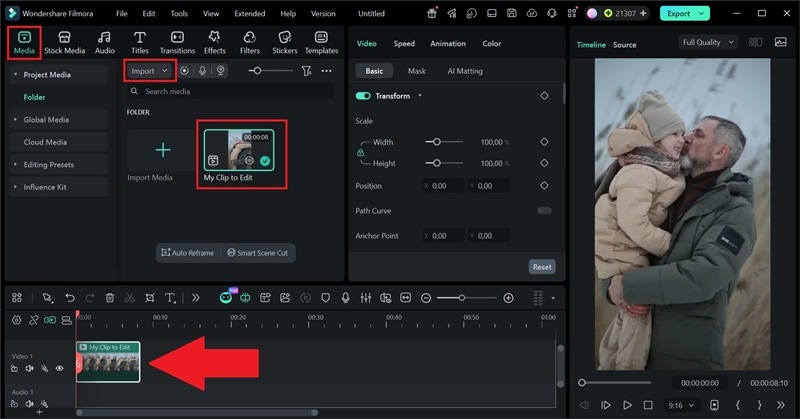
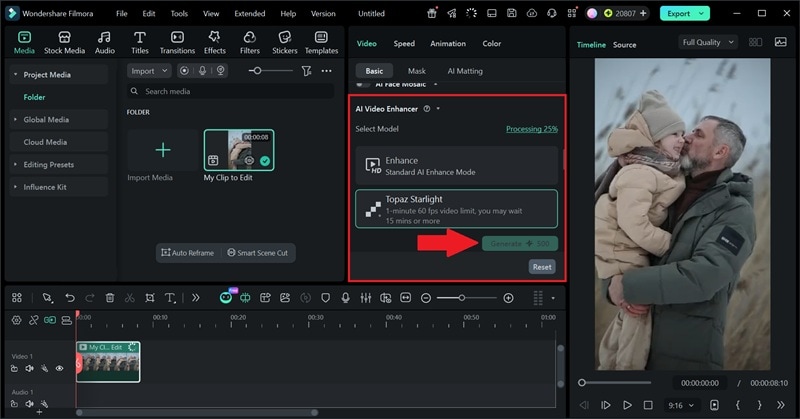
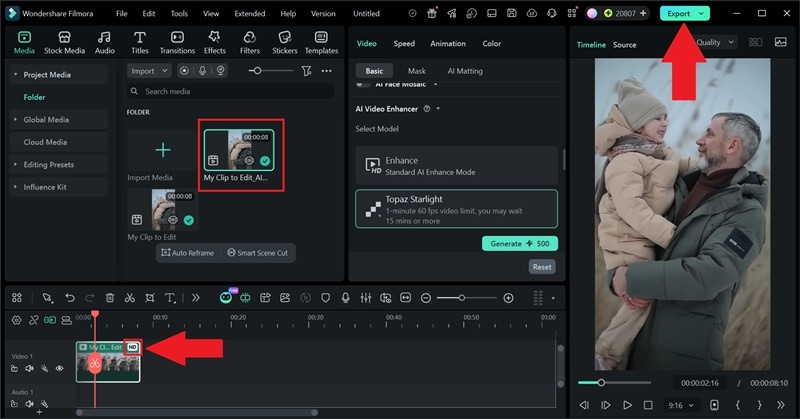
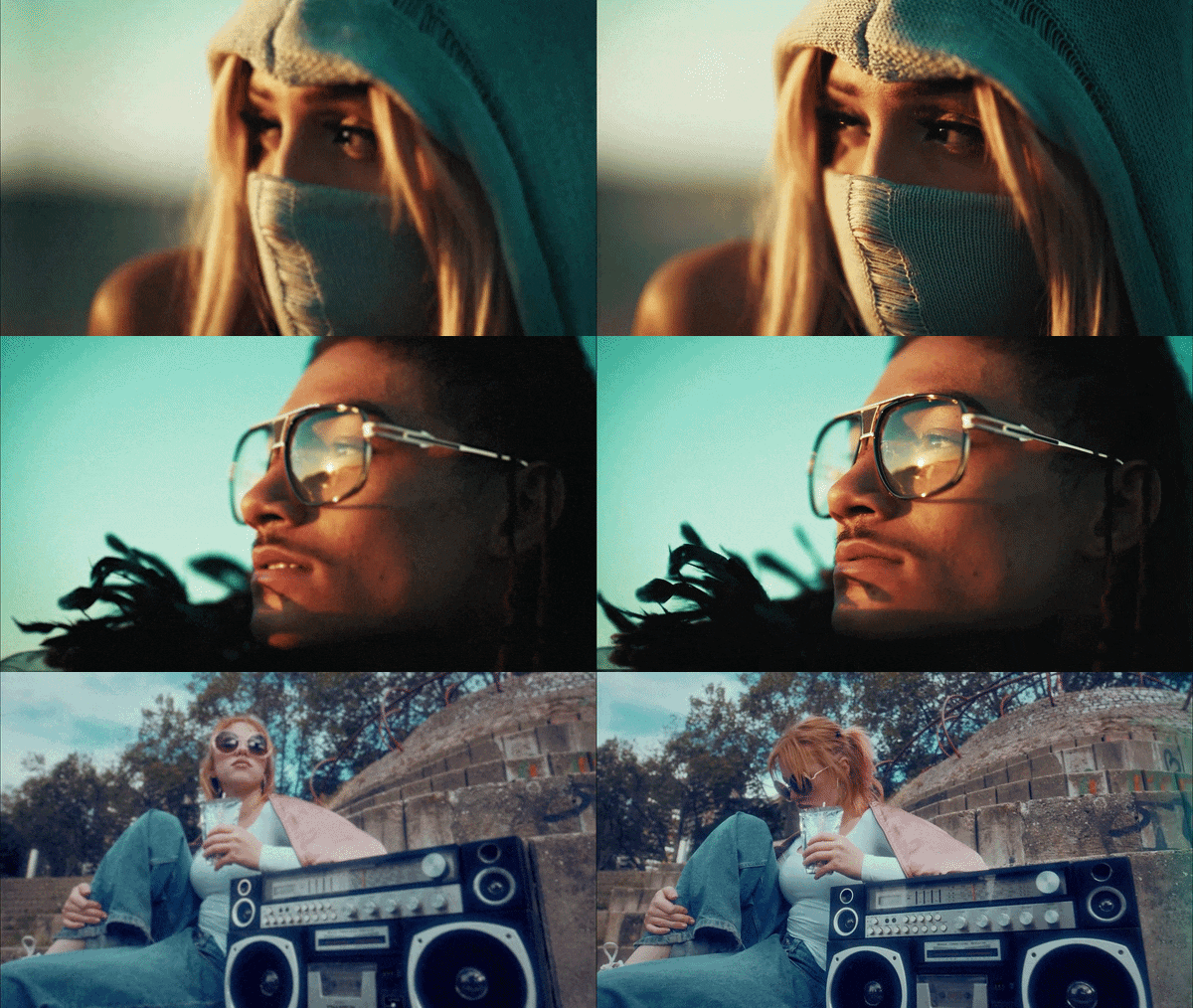
And that's all there is to it! In just a few steps, you can noticeably improve your video quality without much effort. Compared to the Canva video enhancer, Filmora delivers more visible detail and sharper results, especially on lower-quality clips. Take a look below to see the difference.
Why Filmora Works Better for Video Enhancement
1. One-Click AI Magic
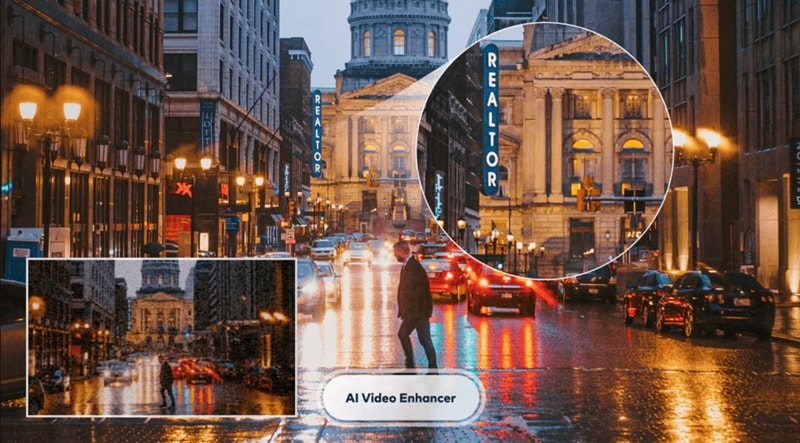
Filmora features an incredibly simple interface where a single click triggers deep-learning algorithms to analyze and fix your footage. It's designed for speed, so you don't have to be a tech genius to get a professional look.
2. Pro Detail with Topaz Starlight'
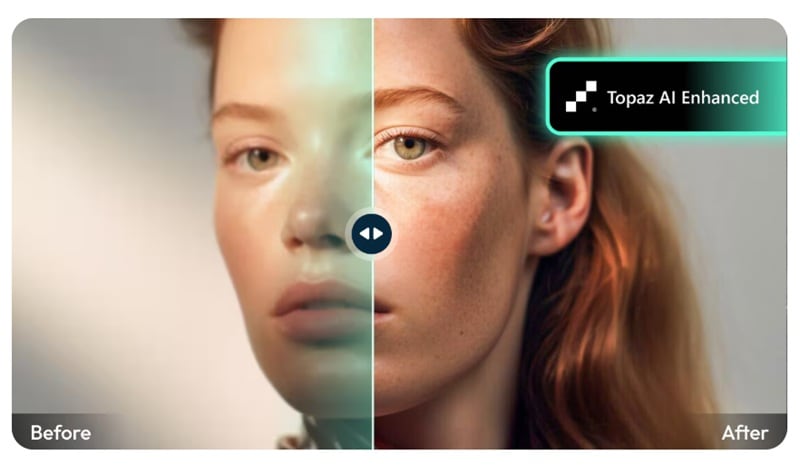
This is a genuine step above basic upscaling. The integration with Topaz Starlight delivers generative AI super-resolution for professional-grade detail reconstruction. This means it doesn't just "stretch" the video; it actually helps rebuild textures for cinema-quality results.
3. Massive File Support
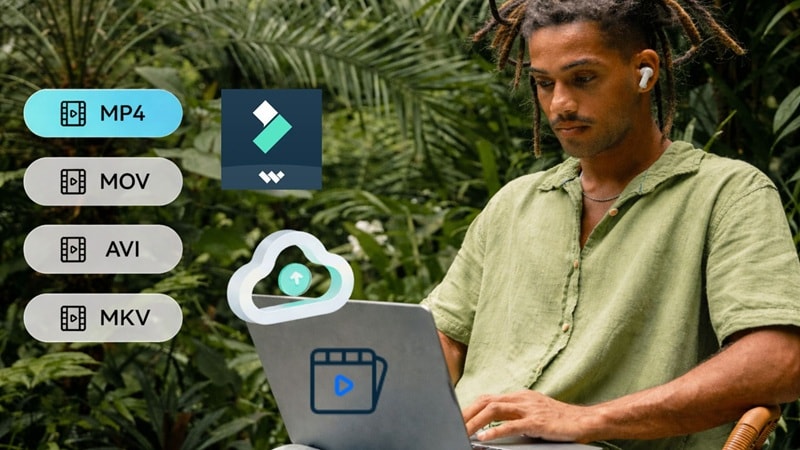
Filmora's AI Video Enhancer works with almost anything you throw at it: MP4, MKV, AVI, WebM, GoPro Cineform, and even image files like JPG and PNG. No conversion headaches.
4. True 4K Upscaling
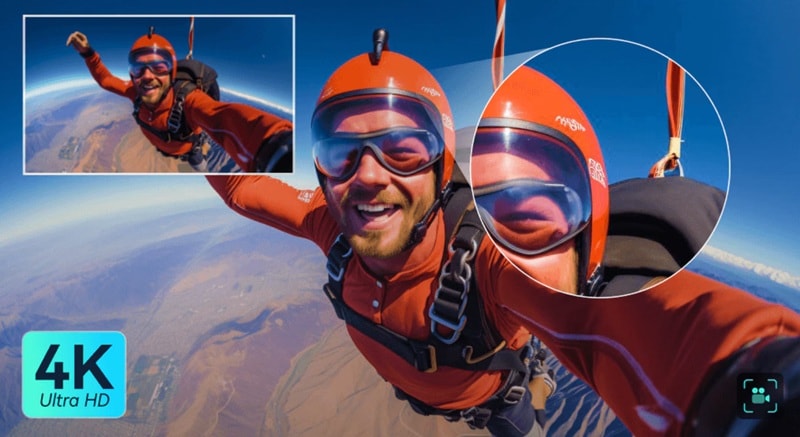
Filmora allows you to upscale videos to full 4K without losing quality. This is clearly a major advantage over Canva's video enhancer 1080p cap. Perfect for creators who need their work to look flawless on high-end monitors and TVs.
Secure DownloadConclusion
Canva video enhancer tool is a great pick when you need quick improvements without getting into complicated editing. The Canva AI video enhancer makes it easy to clean up clips, adjust colors, and get decent results in just a few clicks.
But once you start working with lower quality footage or aiming for sharper output, the limits become more noticeable. Filmora steps in with stronger AI that can rebuild details and push your video quality further, especially with their integration with Topaz Starlight. In the end, both tools have their place, and it really comes down to how far you want to take your video quality.
FAQs About Canva Video Enhancer
-
Can Canva fix blurry or low-resolution videos?
Yes, but with some caveats. The Canva video upscaler works best on relatively recent footage, very degraded or heavily compressed videos may see only modest improvement. For major restoration work on severely low-quality clips, a dedicated tool like Filmora will give better results.
-
What export quality does Canva support for videos?
Canva supports video export up to 1080p (1920x1080) resolution. You can export in MP4 format with solid bitrate settings for most social media platforms. If you need 4K output or more advanced codec options, you'll want to use a dedicated video editor like Filmora instead.
-
Is Canva video enhancer free to use?
The basic Canva video editor is free. The AI-powered video upscaler feature, however, uses credits, and new accounts get 30 free credits when they sign up. After those credits run out, you'll need a Canva Pro subscription or additional credit purchases to continue using the Canva video upscaler.
