

 100% Security Verified | No Subscription Required | No Malware


 ChatGPT
 Perplexity
 Gemini
 Claude
 Grok
Grok
Many students need to rely on video editing software to make presentations and creative videos. However, the affordability of the software is difficult. There are many downloadable video editing software programs that offer useful features to edit videos for free.
In this guide, users will gain knowledge about free video editing software for students and its usability. Readers will be able to select affordable software for high-quality video editing for academic and personal projects.
In this article
Part 1. Why Students Need Simple Video Editing Software
Video editing tools are often associated with filmmakers or professionals. The following points discuss why a student would want a simple editor:
- Academic Presentations and Assignments: Students edit videos for a variety of academic presentations, project submissions, tutoring, and assignments. They can create professional-quality material with ease using simple software so that they don't have to invest hours learning complicated software.
- Social Media Content: Pupils also create material for event highlights, reels, vlogs, or YouTube videos. The intuitive editors allow them to edit their videos, apply music, and cut clips to make interesting and helpful videos for their own or their coursework.
- Speed and Ease of Use: Students prefer not to be confronted with the complexity of the editing controls used by the professionals. Easy-to-use interface simplifies projects, especially when time is short.
- Budget Video Editing Software: Many students look for budget video editing software, as they are on a budget laptop or desktop. They prefer a tool that operates without a load on the system and is independent of costly hardware.
Part 2. What Should Students Look for in a Video Editor?
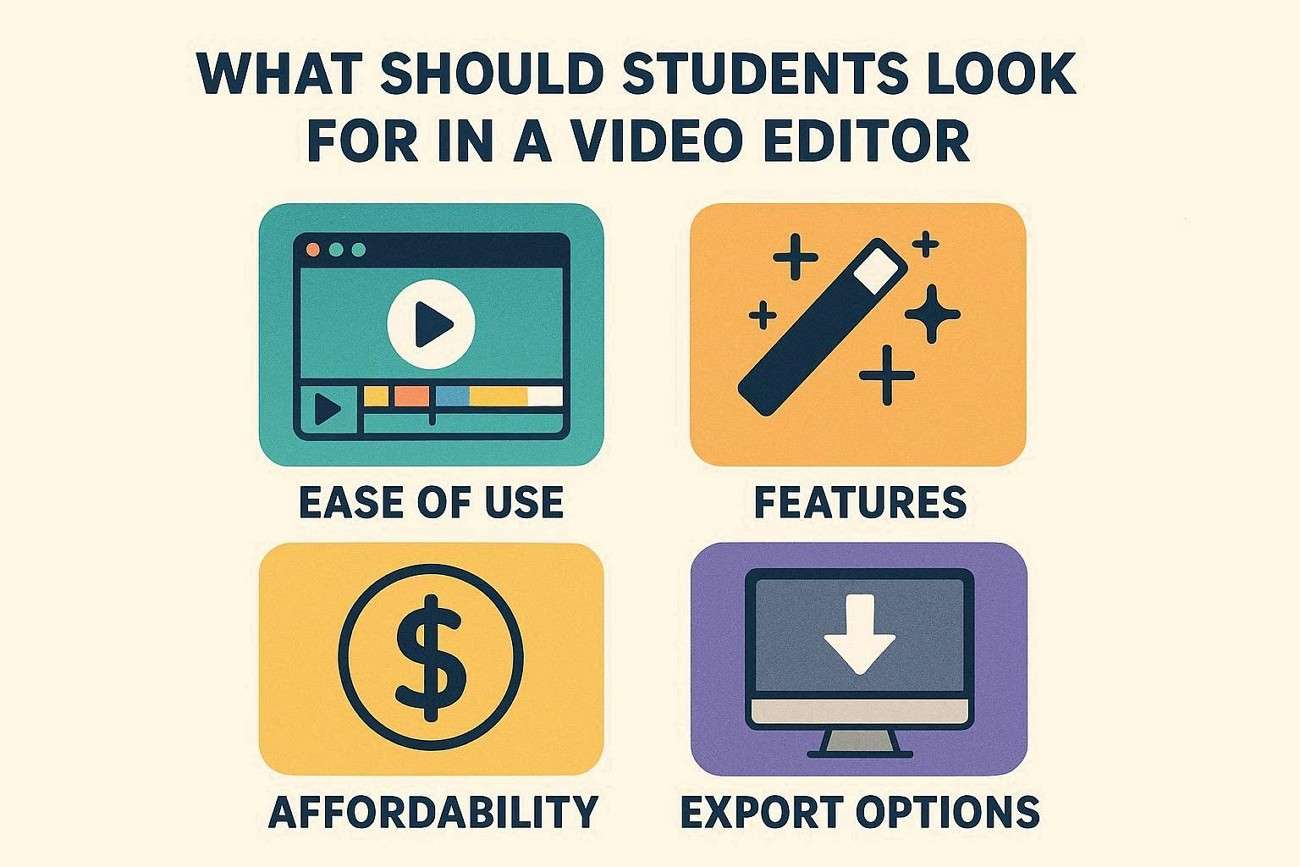
Given the skill level and affordability of students, their go-to video platform should have certain qualities. This section highlights the must-have attributes of the best video editor for students:
- Free or Affordable Access: Students should look for a free or affordable video editor that they can use without paying a subscription fee.
- Simple Drag-and-Drop Editor: It allows easy editing for beginners with an intuitive drag-and-drop interface. This lets students easily streamline clips, images, audio, and transitions without mastering advanced technical skills.
- Essential Editing Tools: An editor should include useful tools such as text overlays, subtitles, voiceovers, background music, templates, and export presets. These are essential to good student-friendly editing.
- Lightweight: The software should not require a lot of system resources due to the students having entry-level laptops.
Part 3. Free vs. Paid Student Video Editors
The decision of free or paid video editors can have a significant impact on the editing process and the final product. Look at the table below and compare the features, limitations, and benefits of each of them, and select the most appropriate one for student projects:
| Aspect | Free Video Editors | Paid/Freemium Video Editors |
|---|---|---|
| Best For | Simple school projects and basic editing | Advanced projects and polished videos |
| Features | Basic editing tools and limited effects | Templates, premium effects, and AI tools |
| Export Limits | May include watermarks or lower-quality exports | Usually watermark-free with better export quality |
| Cost | Completely free | Free trial or paid subscription |
Part 4. Best Free Video Editing Software for Students
Explore the comparison table below to discover the video editor for college students and choose the tool that fits the project's needs:
| Tool | Best For | Key Features | Limitations |
|---|---|---|---|
| Filmora Free Version | Beginners and school projects | Easy timeline, templates, AI subtitles, screen recording | Trial only lasts 30 days |
| Canva Video Editor | Presentation-style videos | Drag-and-drop editing, templates, cloud-based | Limited advanced editing |
| Clipchamp | Quick Windows/browser editing | Beginner-friendly, browser access, stock media | Some premium features locked |
| OpenShot | Basic offline editing | Free, open-source, simple cuts | Limited advanced effects |
 secure download

Part 5. Best Use Cases for Student Video Editing
Video editing is useful for much more than entertainment, helping students create engaging and professional academic content. Explore the use cases below to see how video editing can improve projects throughout student life:
- School Presentation Videos: In the classroom, students may create a raw presentation video. After adding clips, photos, text, and background music, it becomes a more impactful visual story.
- Video Editing for College Project Videos: Video editing is used during group or individual assignments to present the research case studies in a clear and structured visual format.
- YouTube Videos: Students make educational YouTube videos as assignments or tutorials. The editing process clarifies and polishes for clarity, pacing, and presentation.
- Social Media Videos: Students also create short-form video content for social media platforms that capture events and cultural activities at the college.
Part 6. Step-by-Step: Create a Student Project Video with Filmora
Filmora for students in India helps students create professional videos with AI-powered tools like text-to-speech, auto subtitles, and auto reframe. It also offers built-in templates, effects, and easy export or direct social media sharing. The following guide shows how to create a student project video using this tool:
-
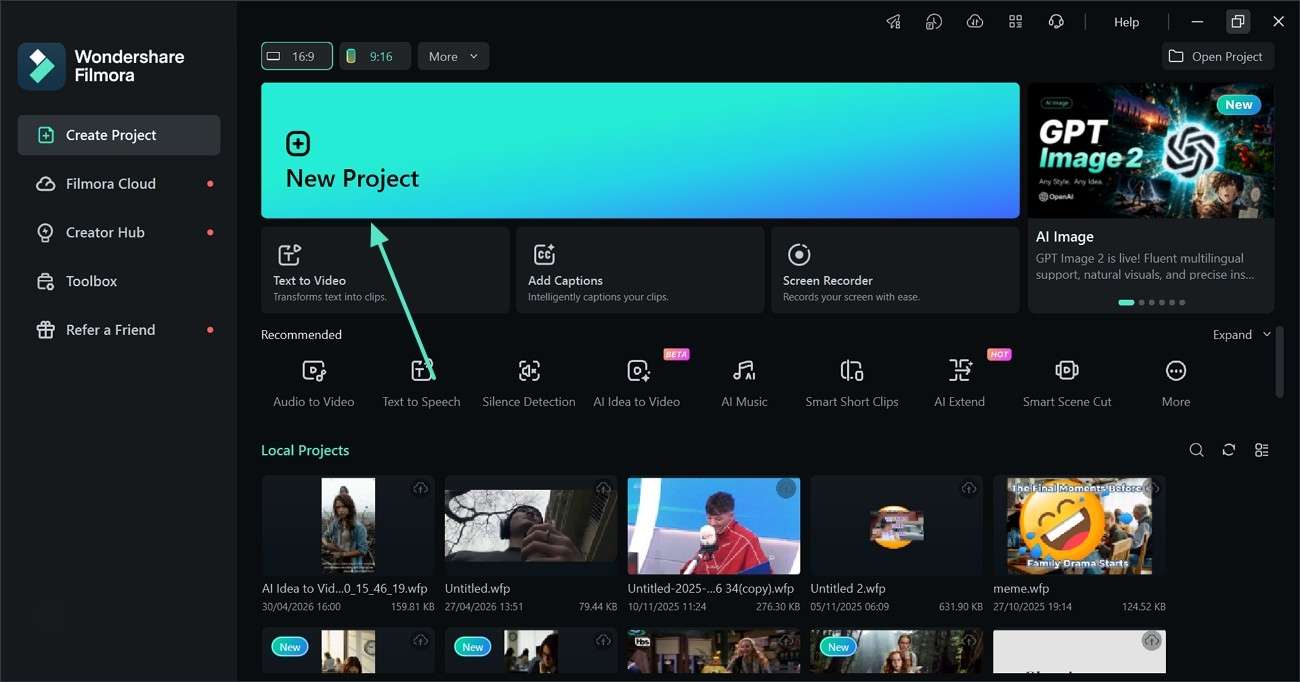
Step 1. Start with a New Project
To begin with, select the "New Project" button and import a video from the device.
-
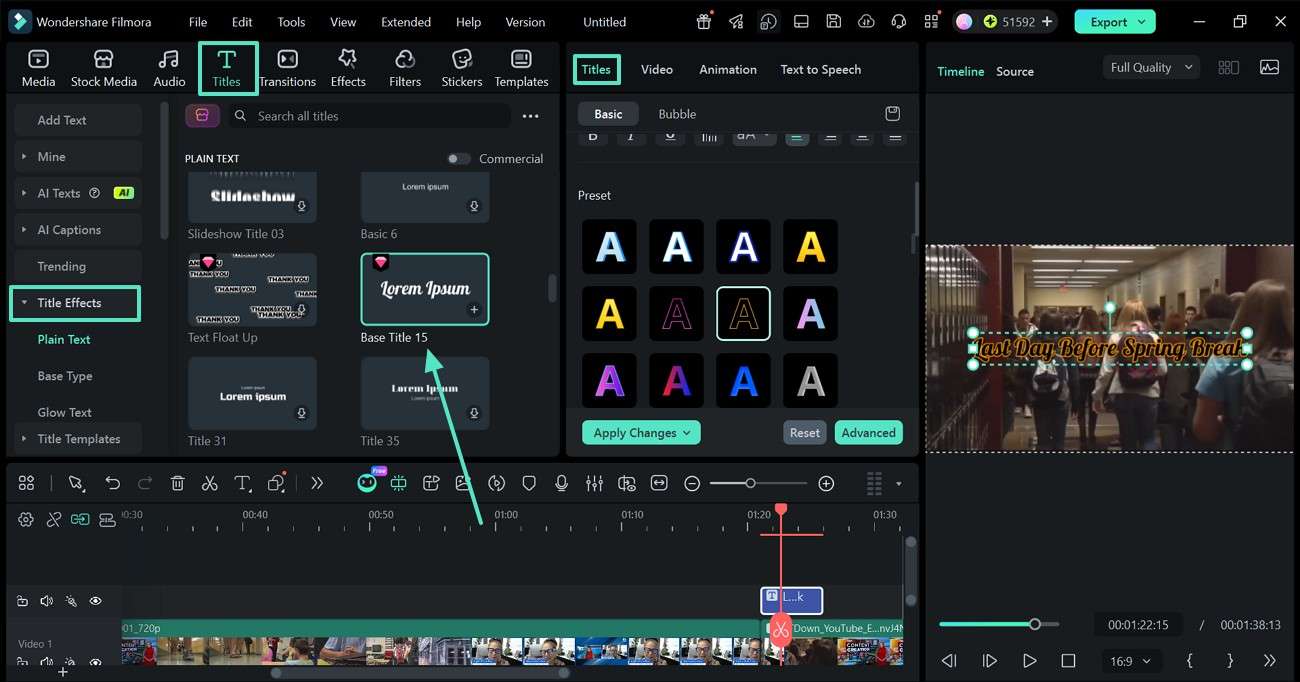
Step 2. Add Titles to Convey a Message
From the top toolbar, enter the "Titles" tab and select the "Title Effects" option from the left sidebar. Upon selecting a style, type the text and use the "Titles" section on the right to customize it.
-
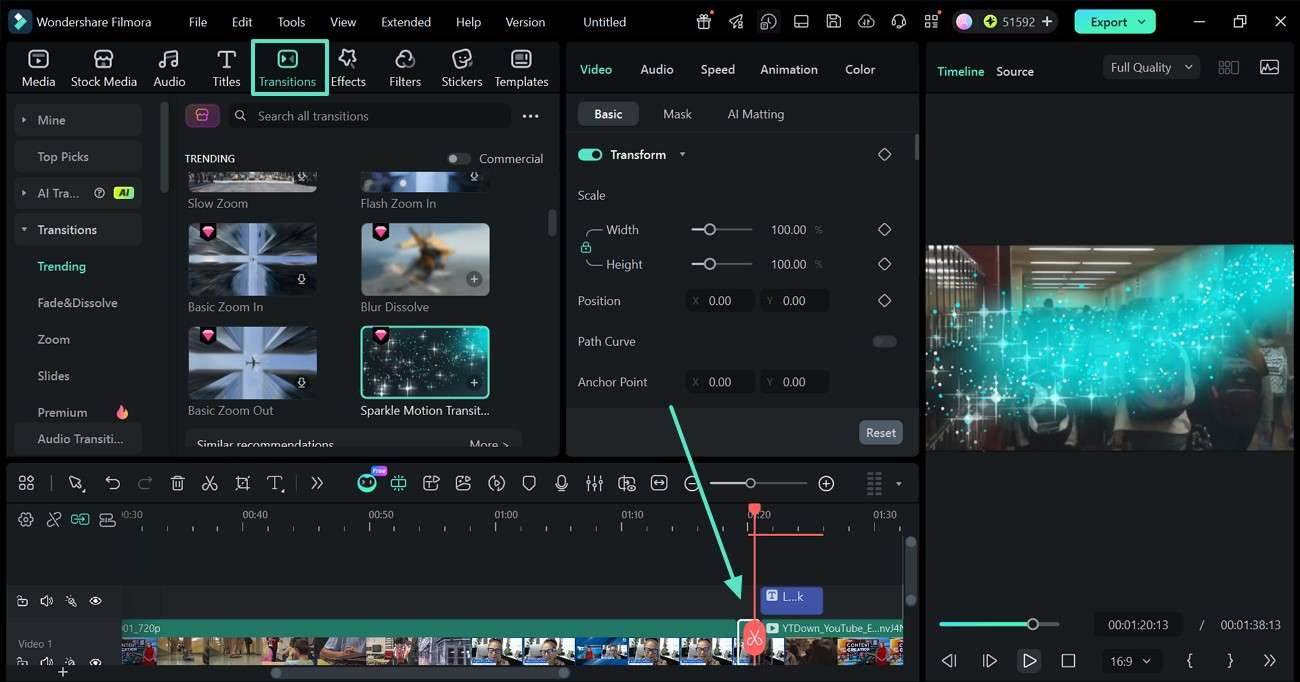
Step 3. Add Transitions for a Smooth Flow
Now, go to the timeline and move the playhead to the point where the transition is needed. Double-click on the point to split the timeline. Next, expand the "Transitions" tab from the top and apply the asset in the middle of the desired segment.
-
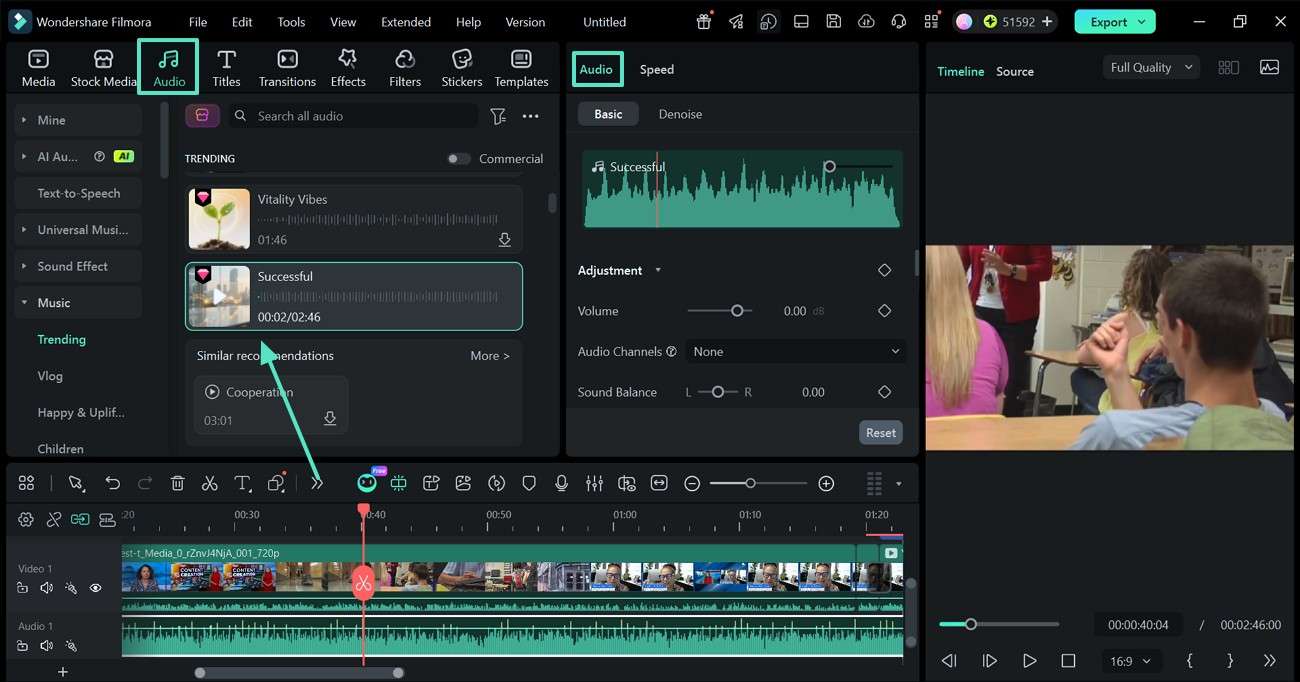
Step 4. Add Background Music to Set the Mood
Select the "Audio" option from the top and apply the music track that suits the content. This audio track can be refined using the "Audio" editing section on the right.
-
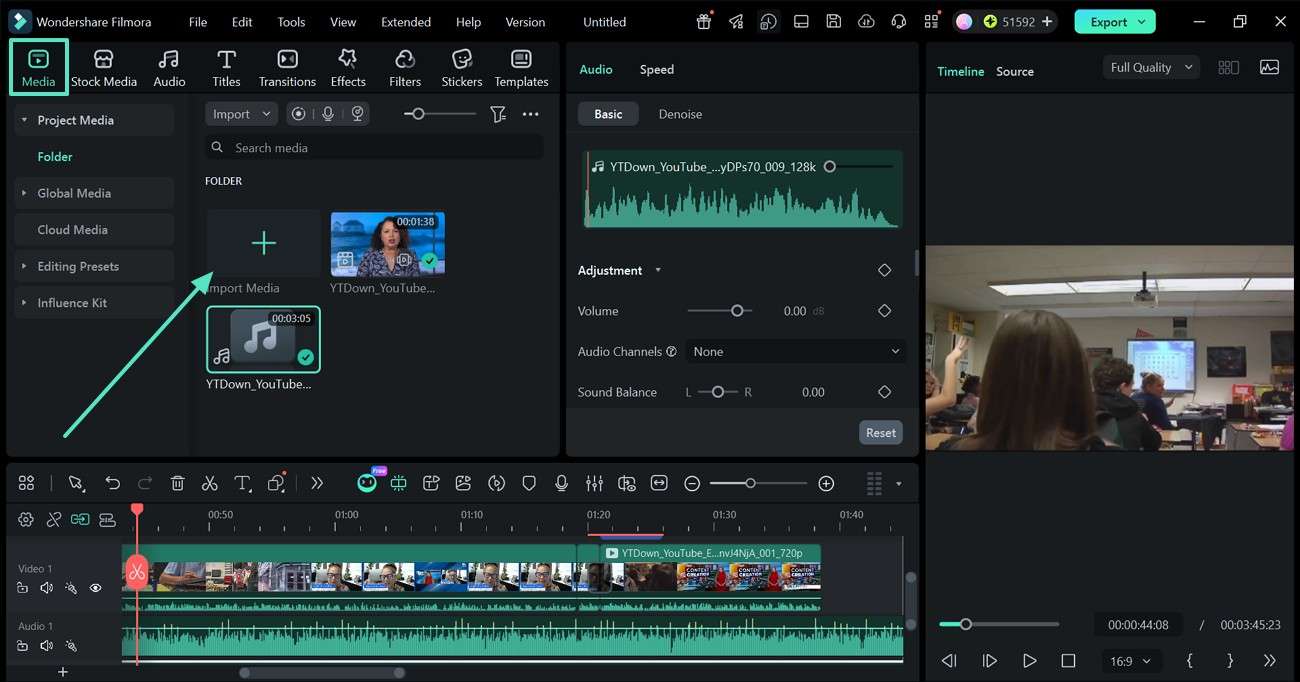
Step 5. Add a Narration Across the Video
To communicate with the viewers, click on the "Media" tab at the top left and select the "Import Media" button to fetch an audio voiceover file. Once the file is imported, it can be edited using the "Audio" panel on the right.
-
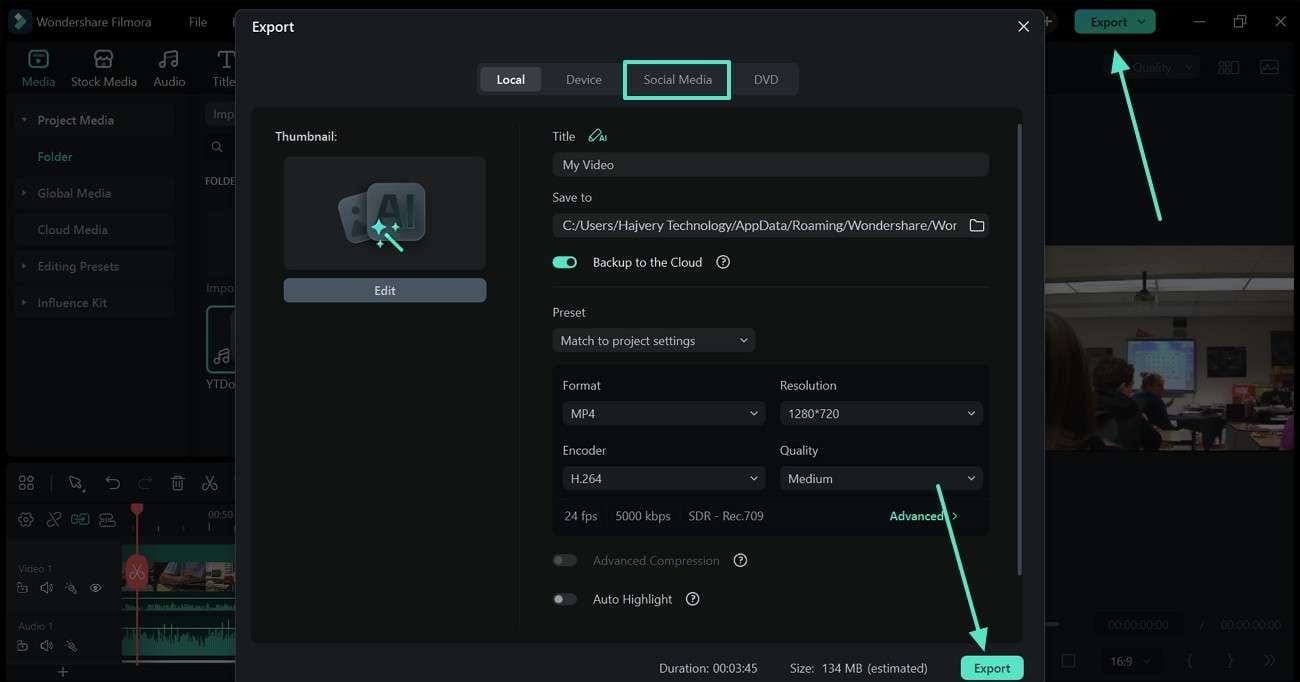
Step 6. Export the Video or Share on Social Media
To save the video, click the "Export" button at the top right and wait for the next window. Click "Export" to save it to the device or enter the "Social Media" tab to share it directly online.
secure download Part 7. Final Verdict
There are advantages and disadvantages of each of the free video editing software for students as mentioned above. Filmora is a realistic choice for students who desire to edit quickly and easily. If you would like to produce a design-oriented video, you can look at the creative elements of Canva to develop your content. For a free offline option, OpenShot serves as a better option in video editing.
Frequently Asked Questions
-
1. What is the easiest video editor for students?
The easiest video editor for students is one that is user-friendly, has drag-and-drop features, and offers a range of pre-designed templates. Fortunately, Filmora comes with its user-friendliness and pre-made assets for a streamlined workflow. -
2. Which free video editor is best for college projects?
The most effective free video editor for college projects is one that features no learning curve and includes text and transitions along with basic effects. While free software can be effective for basic tasks, Filmora is also a great choice for more advanced editing if students are looking for a trial version. -
3. Can students use Filmora for free?
Wondershare Filmora is a free software that can be used on a student's trial version, and it offers most of the editing functions. -
4. Which video editor works on low-end student laptops?
Lightweight, optimized, and not resource-intensive video editors are ideal for low-end student laptops. Some advanced tools will need more specs, but Filmora can be used on many low-budget systems.
