


 TL;DR:
Runway's Aleph 2.0 is a prompt-based AI video editing model exclusively for paid subscribers that alters specific elements, backgrounds, or styles in existing footage rather than generating new clips from scratch.
● Upgraded from the previous version, Aleph 2.0 now handles multi-shot videos up to 30 seconds at 1080p resolution, performing optimally with 24fps or 30fps footage processed individually since batch editing is unsupported.
● The web-based workflow relies on generating a preview reference image from a selected subject frame to ensure consistency before rendering, but it completely lacks a free trial and requires a minimum $12 monthly Runway subscription to access.
● While Aleph 2.0 strictly modifies existing files and Runway relies on Gen 3.0 or Gen 4.5 for actual video creation, creators needing a unified platform for both AI generation and editing can utilize Wondershare Filmora, which integrates Veo 3.1, Sora 2, and Seedance 2.0 models.
Ask AI for a summary
 ChatGPT
 Perplexity
 Gemini
 Claude
 Grok
Grok
According to Market Reports, 58% of video editors now use AI-assisted editing. That makes sense because creating footage from scratch isn't always the best option. Sometimes you already have the video but want to change the background, lighting, product, or even the weather.
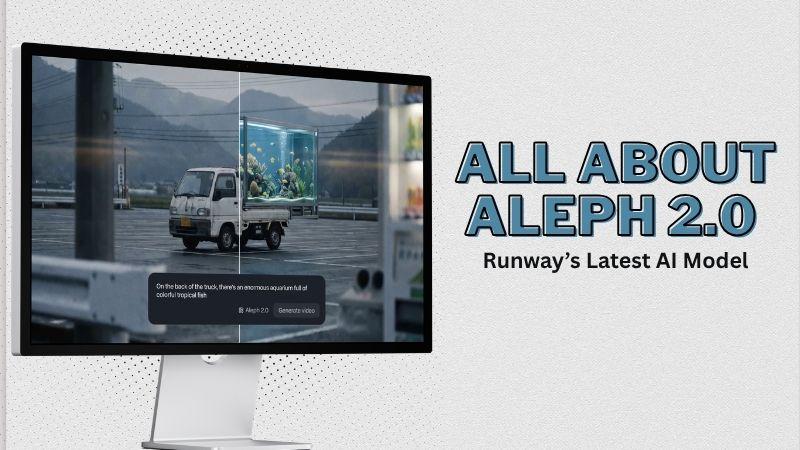
One tool that handles this is Aleph 2.0, Runway's latest AI model that focuses on video editing rather than video generation. Instead of creating an entirely new clip, Aleph 2.0 lets you modify specific parts of existing footage using simple prompts.
So, how does Aleph 2.0 work, what can it actually do, and is it worth the subscription cost? Let's break everything down.
Part 1. What Is Aleph 2.0 and What Can You Do With It?
Aleph 2.0 is Runway's AI video editing model. Unlike AI tools that generate videos from scratch, Aleph 2.0 works with footage you already have. Just describe the change you want to make, and the AI updates that part of the video. Here are some of the things you can do with Aleph 2.0.
Transform the Scene

Let's say you have old footage of someone walking in a city. If you want to change the setting, you can ask Aleph 2.0 to replace the background with a beach, forest, or futuristic city. You can also change the weather, turning a sunny afternoon into heavy rain, snowfall, or thick fog.
If you want a different vibe, adjust the lighting and visual effects to create a warmer, darker, or more cinematic look. For a bigger transformation, you can restyle the entire scene, such as changing it from a realistic video into an anime or cyberpunk aesthetic.
Edit Objects and Characters
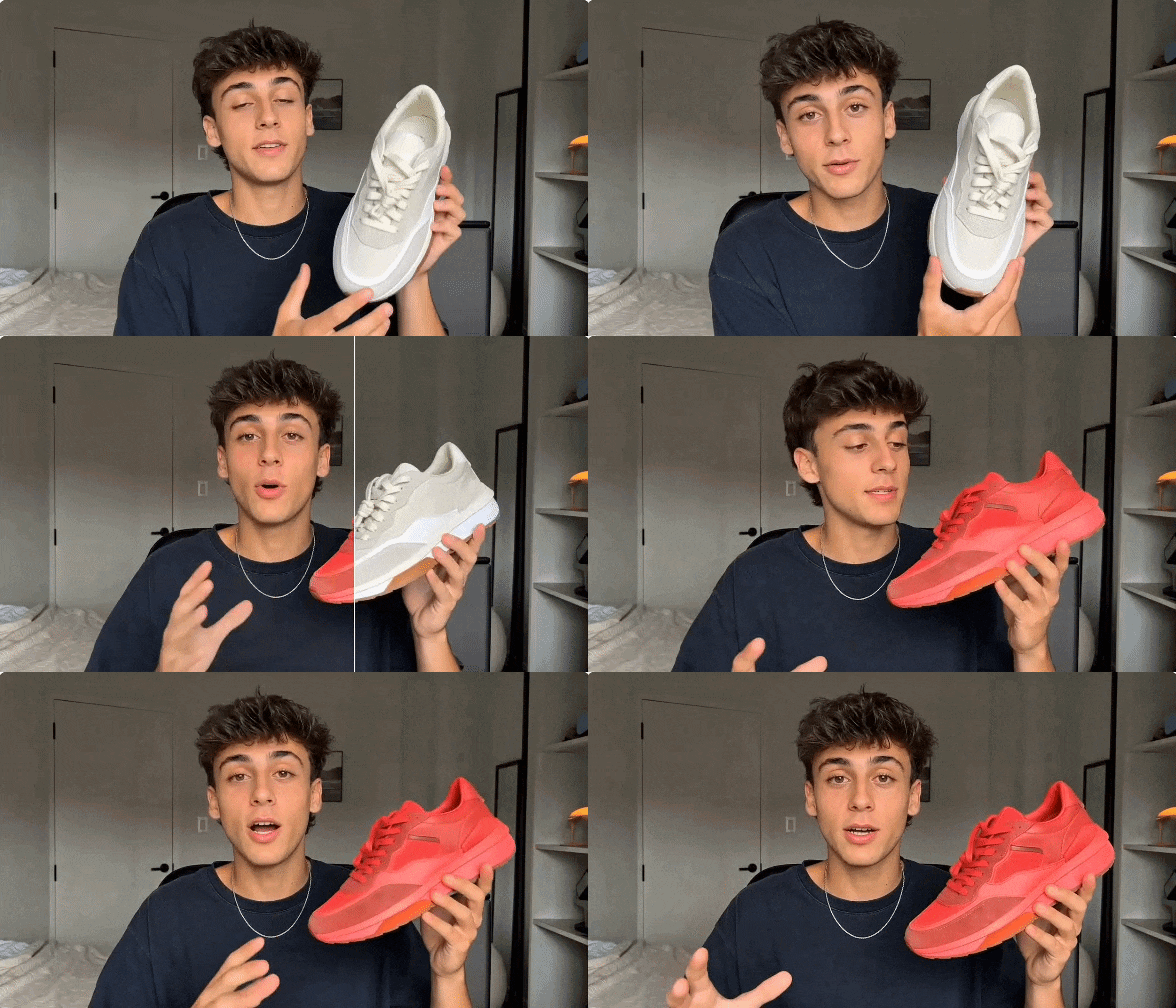
You can also use Aleph 2.0 to modify the objects and people inside a scene. For example, you can change a product's color, replace it with a different product, or add new objects to the footage. If there are unwanted objects in the background, you can remove them to make the video look cleaner.
The same goes for characters. You can change outfit colors, swap clothing styles, or give the character a completely different look. For example, you can turn a casual outfit into formal wear or change modern clothing into a futuristic costume. Just write a prompt, and Aleph 2.0 handles the rest.
Part 2. Where to Access Aleph 2.0 and What It Costs
Since Aleph 2.0 is built directly into Runway, you don't need to install any additional software to use it. Everything runs through Runway's web platform, so you can access the tool from your browser.
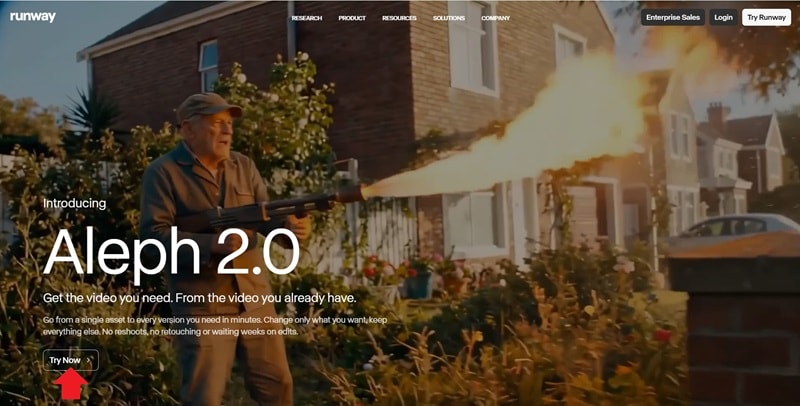
Simply visit the Aleph 2.0 page on Runway's website and click Try Now. After signing up and logging into your account, you can access the tool.
Aleph 1.0 vs Aleph 2.0: What’s New?
Aleph 2.0 isn't just a small update. Runway has improved several areas that users struggled with in the first version, especially when editing longer videos or clips with multiple cuts. Here's what changed.
| Aspect | Aleph 1.0 | Aleph 2.0 |
| Video Length | Up to 5 seconds | Up to 30 seconds |
| Best For | Single-shot clips | Single-shot & multi-shot clips |
| Handling Scene Changes | Limited | Improved |
| Reference Editing | Not Available | Edit one frame and apply the changes throughout the video |
| Visual Consistency | Good | Better consistency across scenes |
| Resolution | Up to 720p | Up to 1080p |
Is Aleph 2.0 Free?
One thing to note before getting too excited: Aleph 2.0 isn't available for free. The model is currently limited to paid Runway subscribers, so free accounts can't access it. For the Runway itself, it offers three plans for individual users: Standard, Pro, and Max.
| Standard | Pro | Max | |
| Pricing | $12/mo or $144/yr | $28/mo or $336/yr | $76/mo or $912/yr |
| Monthly Credits | 625 credits | 2,250 credits | 9,500 credits |
| Asset Storage | 100GB | 500GB | 500GB |
Part 3. Step-by-Step: Edit a Video with Aleph 2.0
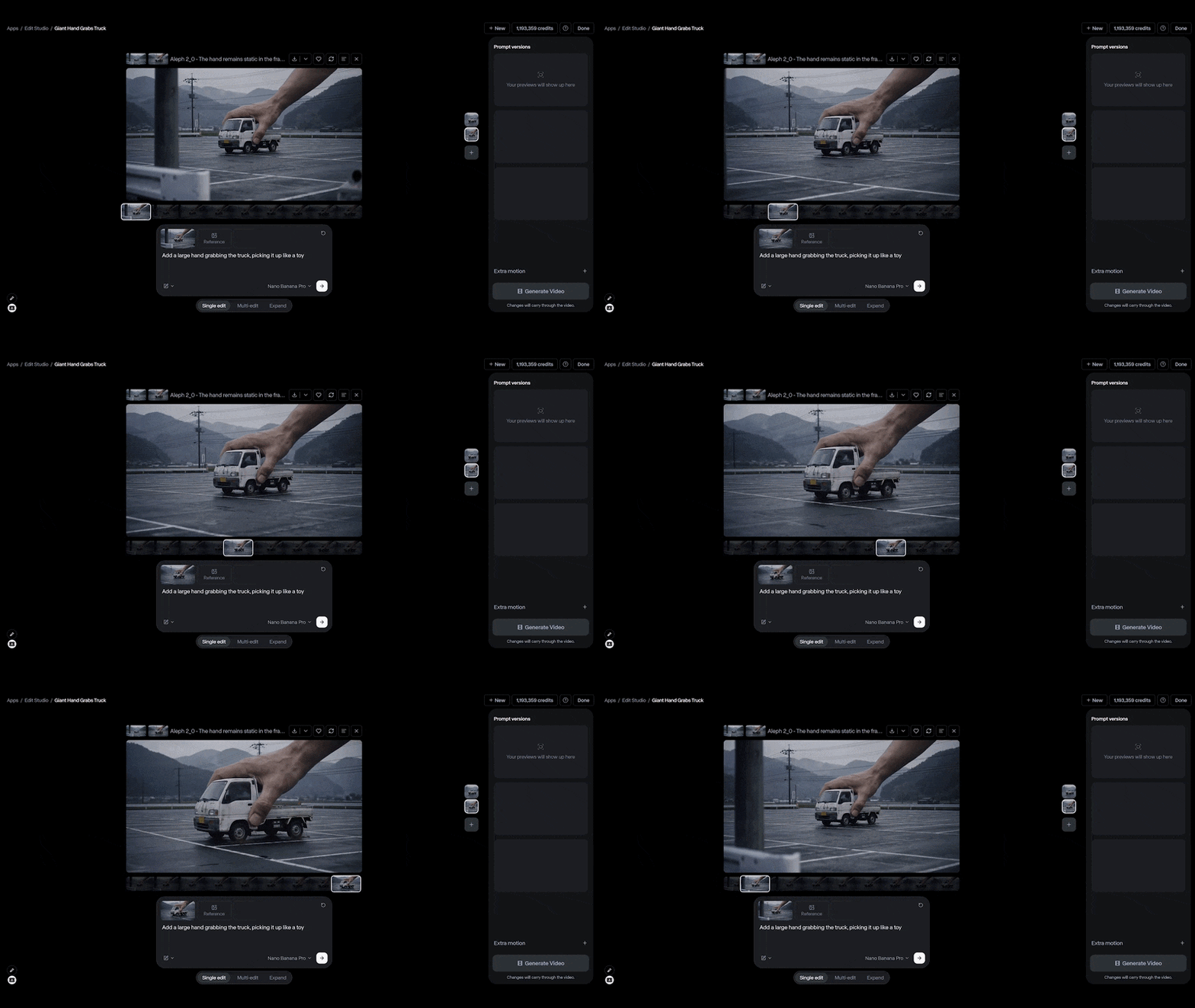
Now, it's time to put Aleph 2.0 to the test. Let's follow a tutorial from the Runway team and see how the editing process works.
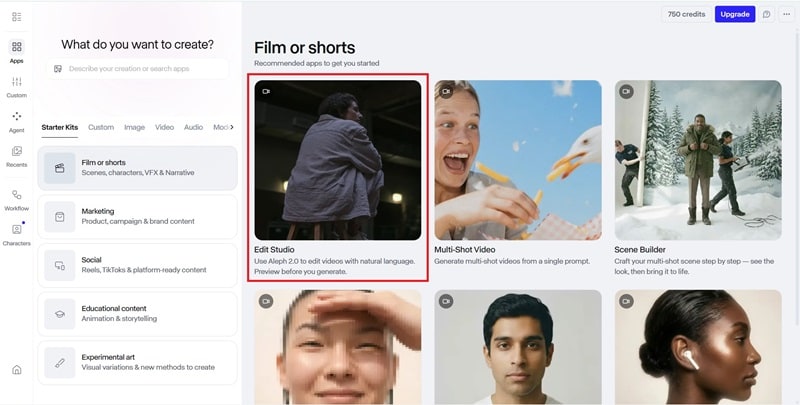
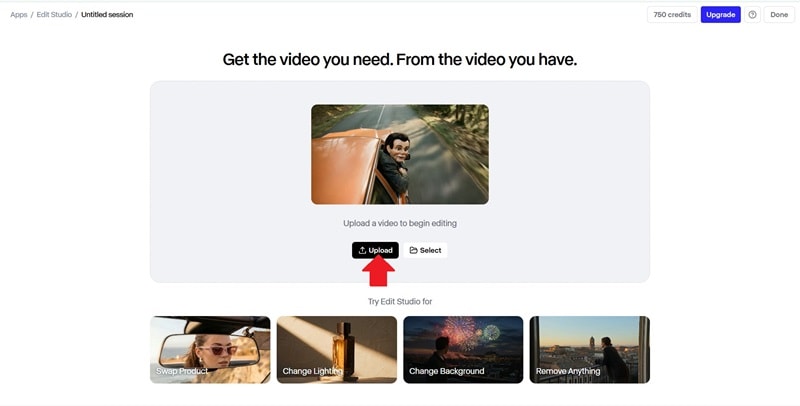
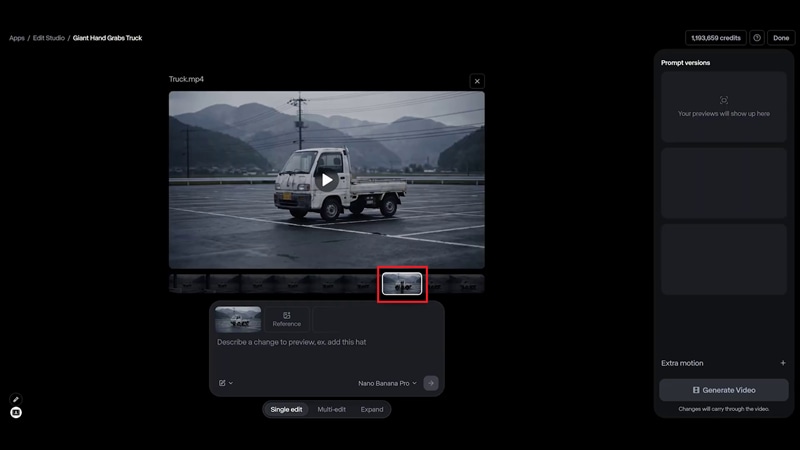
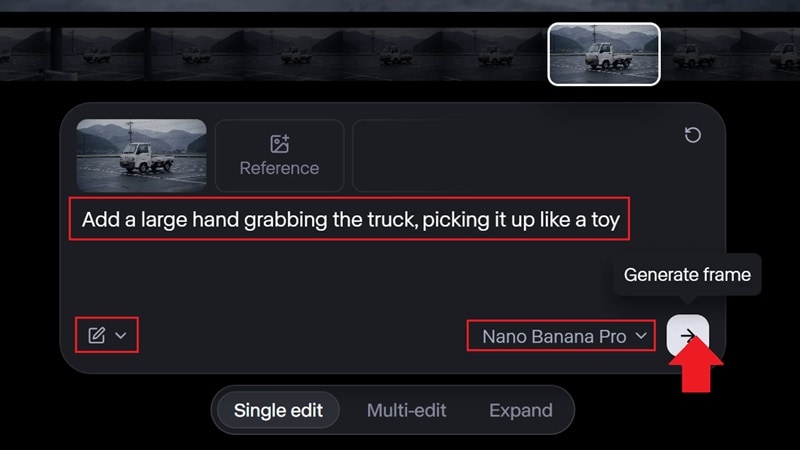
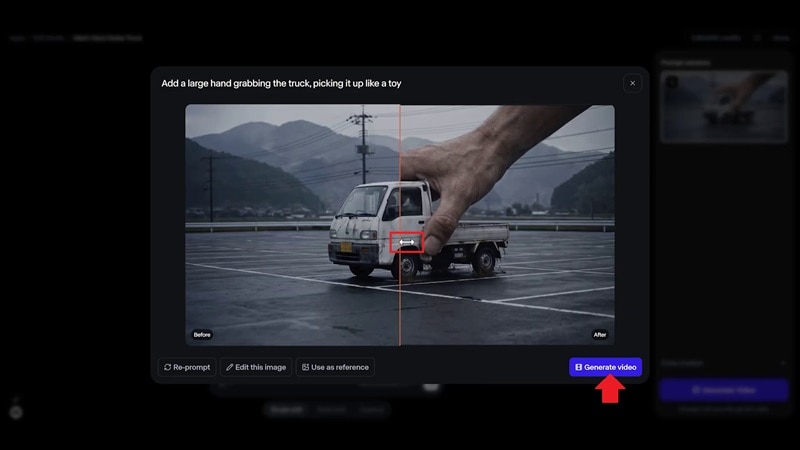
As you can see, Aleph 2.0 did a good job translating the prompt into the final video. The overall look is very similar to the reference image used as the preview. After this, you can add more movement to the scene or export the video directly to your device.
Part 4. Aleph 2.0: Where It Excels and Where It Falls Short
Aleph 2.0 introduces a different way of editing videos with AI. Instead of generating entirely new footage, it focuses on modifying existing videos through prompts. However, like any tool, it comes with both advantages and limitations worth considering.

- Fast processing time.
- Makes complex video edits much easier with prompts.
- Maintains the overall structure of the original footage.
- There's no free way to test Aleph 2.0 before subscribing.
- Not every video is suitable for editing with Aleph 2.0.
- Some edits may require a few regeneration attempts to get the desired result.
Part 5. Who Is Aleph 2.0 Best For?
Whether you're creating ads, social media content, or professional video productions, Aleph 2.0 can be useful in different ways. It's best suited for:
- Marketing Teams: Create multiple versions of the same campaign without producing new footage each time. Aleph 2.0 can quickly change product colors, seasonal themes, or promotional elements from a single video asset.
- Filmmakers & Video Editors: Change lighting, update character appearances, or fix scene details without having to reshoot the scene.
- Small Business Owners: Update existing promo videos when products, branding, or campaign themes change without filming again.
- Content Creators: Experiment with different styles, themes, and visual concepts using the same footage.

Bonus: Explore More AI Models with Wondershare Filmora
Runway's Aleph 2.0 is a solid option for editing existing footage with AI. It can help refresh old clips, add new elements, or change parts of a scene without having to start over.
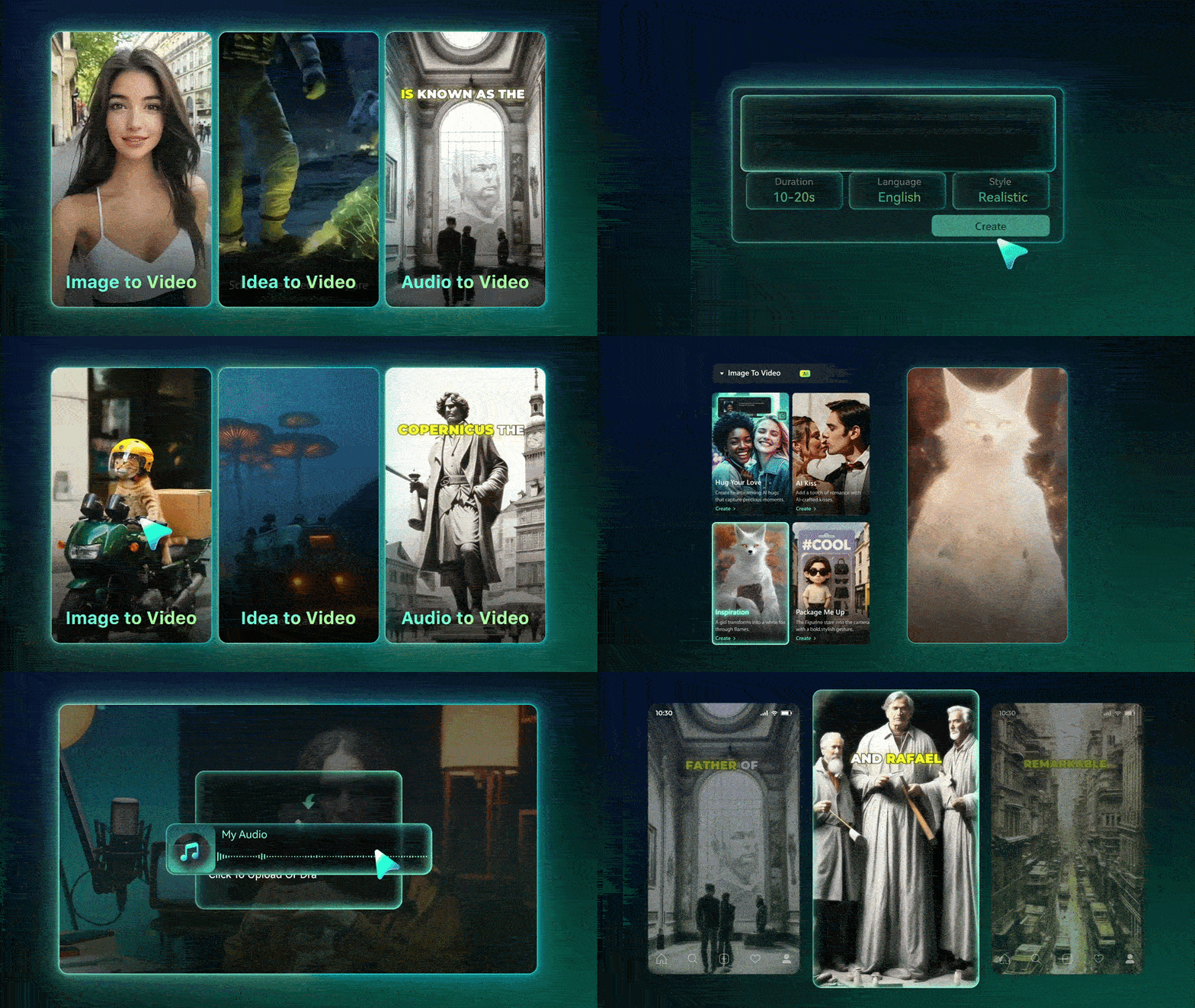
However, if you're looking for a tool that can both generate and edit videos, Wondershare Filmora is worth checking out. Besides its built-in video editor, Filmora supports AI models such as Veo 3.1, Sora 2, and Seedance 2.0, giving you more creative options throughout the entire video creation process.
Let’s take a closer look at Filmora’s powerful AI models.
1. Veo 3.1 for Realistic Video Generation
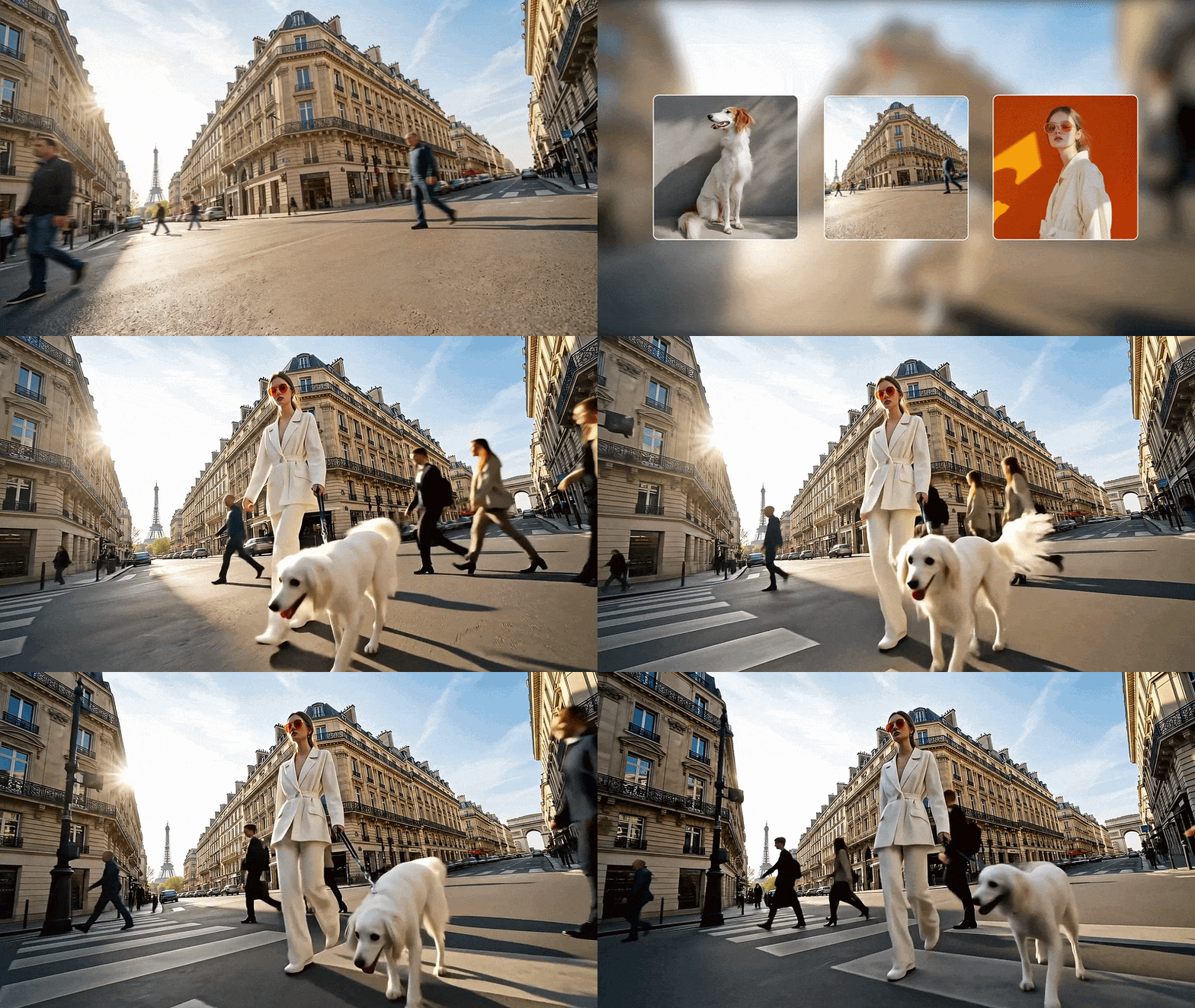
With Veo 3.1, you can generate videos from text prompts and images. The results come with realistic motion, natural lighting, and audio that fits the scene. If a scene doesn't look right, you can easily swap it with the generated version.
2. Sora 2 for Cinematic Videos
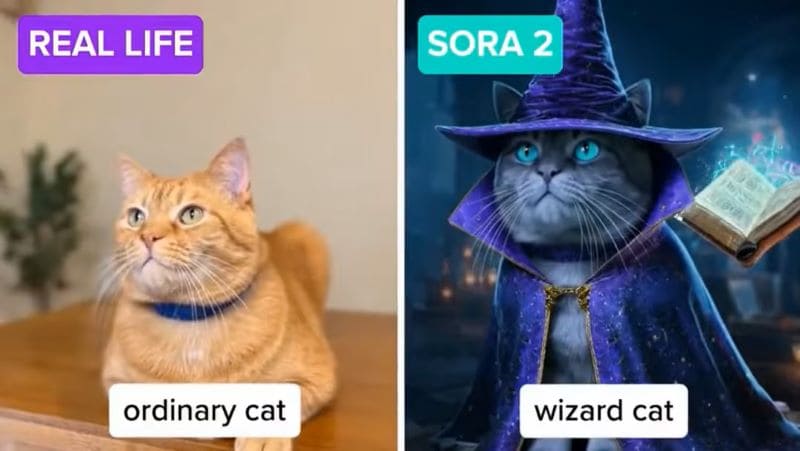
Sora 2 is designed to generate videos with detailed scenes and natural motion. It can handle more complex actions while keeping the visuals consistent. This makes it useful for cinematic and storytelling videos.
3. Seedance 2.0 for Creative Storytelling

Seedance 2.0 helps turn a single idea into a video with multiple connected scenes. The AI manages the transitions and pacing automatically, making it useful for short dramas, social content, and product ads.
 Secure Download
Conclusion
Runway's Aleph 2.0 makes it much easier to refresh existing footage. Whether you want to swap objects, replace backgrounds, change the mood of a scene, or try a completely different style, it gives you plenty of room to experiment.
If you're looking for a tool that can also generate videos with AI, Filmora is a solid alternative. With Veo 3.1, Sora 2, and Seedance 2.0, you can create videos from prompts and continue refining them inside the built-in editor. This makes the videos feel more complete and properly edited rather than looking like raw AI generations.
FAQ
-
Can Aleph 2.0 edits be used for commercial purposes?
Yes. However, you need a paid subscription to access Aleph 2.0. -
What makes Aleph 2.0 different from other Runway models (Gen 3.0 and Gen 4.5)?
Aleph 2.0 and Runway's Gen models serve different purposes.
-Gen 3.0 and Gen 4.5: Generate new videos from prompts or images.
-Aleph 2.0: Modify your existing video. You can change specific elements inside a video with prompts. -
Can I use Aleph 2.0 on AI-generated videos?
Yes. Aleph 2.0 works with any videos, including videos generated by other AI models. -
Does Aleph 2.0 support batch editing?
No, you need to edit each video separately. -
Is Aleph 2.0 available through an API?
Yes. Aleph 2.0 can be accessed through the Runway API for custom integrations and automated workflows.
