


 TL;DR:
Buzzy Now is a browser-based AI visual editor that manipulates video elements through conversational text prompts, but it must be paired with a comprehensive timeline editor like Wondershare Filmora to add audio, captions, and finalize 4K exports.
● It utilizes models like Seedance 2.0 and Kling AI to execute targeted local edits such as background changes, camera movements, or human face swaps without requiring a full clip regeneration.
● After exhausting the 50 free trial credits, users must purchase subscriptions ranging from $19 to $199 per month, though the interface complicates budget tracking by not always displaying the exact credit cost prior to generation.
● The platform operates strictly without a mobile app and caps all outputs at 1080p, forcing users to export their raw AI clips into external post-production software for high-resolution upscaling and multi-track arranging.
Ask AI for a summary
 ChatGPT
 Perplexity
 Gemini
 Claude
 Grok
Grok
AI video market is only getting bigger. Grand View Research estimates the global AI video generator market will grow at a 20.3% CAGR from 2026 to 2033. So, there’s a good chance you missed some smaller or newer names. One of them is Buzzy, also known as Buzzy Now, a browser-based AI video editor that calls itself a "Vibe Video Photoshop."
The problem is, even if you want to learn more about Buzzy AI, there are still not many detailed reviews explaining what it does, how its credits work, and whether it is actually useful. So, this guide breaks down everything you need to know about the Buzzy AI video editor.
Part 1. Meet the New Kid: What exactly is Buzzy Now?
If you've been keeping an eye on AI lately, you might have heard of Creati Gen AI Inc. They are the brains behind Creati Studio, and according to a PR Newswire release republished by Tirto, Creati Studio serves more than 20 million users globally, and Buzzy Now is positioned as its newer conversational video-editing tool.
Buzzy takes a completely different approach to content creation. Instead of staring at a complex, overwhelming editing timeline with hundreds of cutting points, audio tracks, and keyframes, Buzzy simplifies the entire process into a chat box.
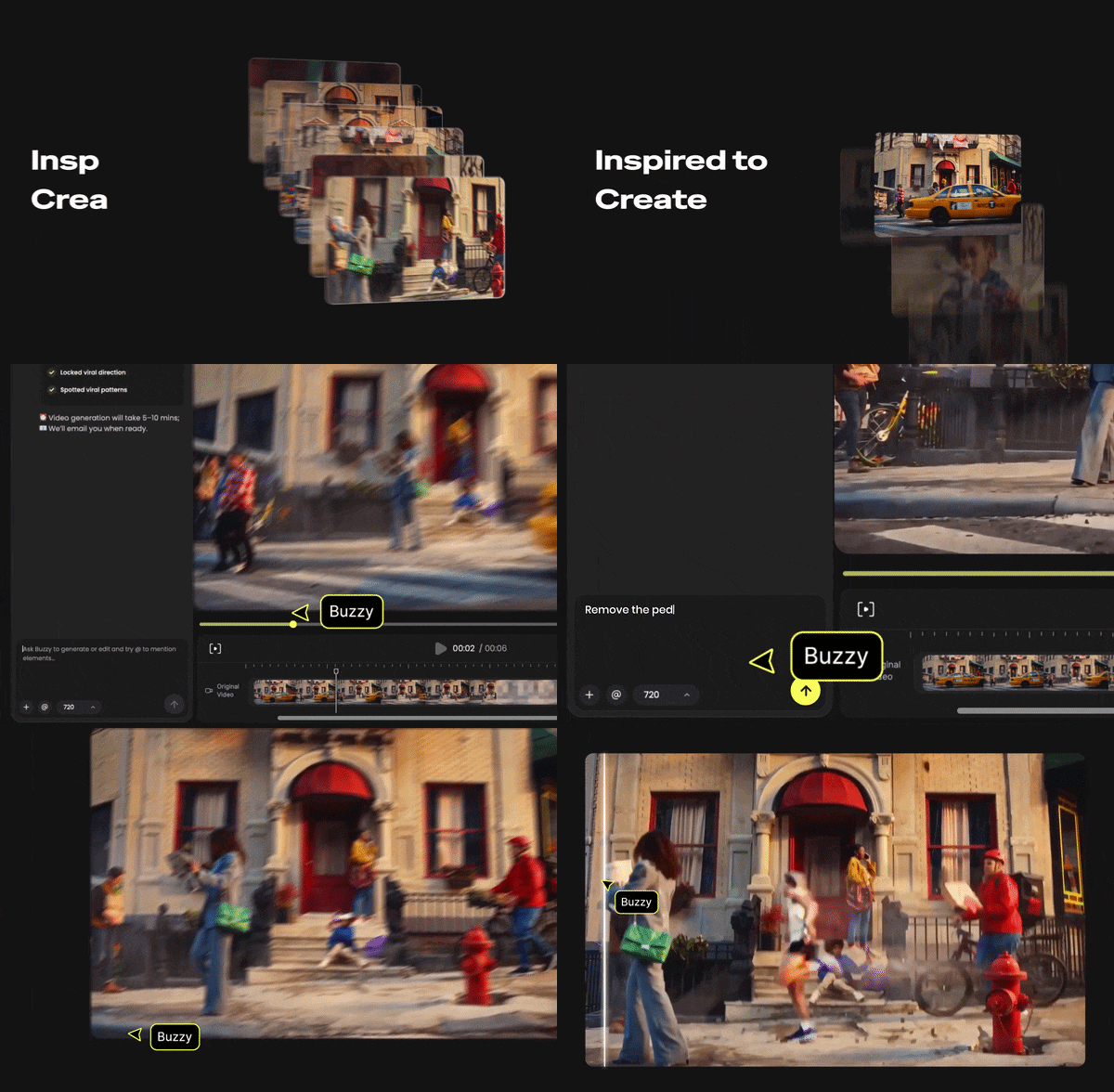
Want to swap a background? Change a character's shirt? Adjust the lighting from noon to sunset? You just ask. It’s built from the ground up to be a conversational platform where your words directly manipulate the pixels on screen.
Part 2. Buzzy AI Pricing Guide: How Its Credit System Works
Buzzy AI pricing works through a credit system. That means you do not just pay for access. You spend credits whenever you generate or edit content. And once you log in, Buzzy gives you 50 free credits. That is useful for testing the tool, but it disappears quickly if you start experimenting with multiple videos, models, and edits.
So, if you want to use it for actual projects, you'll need to look at their paid plans. Here is exactly how the monthly tiers shake out:
| Category | Basic | Pro | Ultra | Infinite |
| Price | $19/month | $39/month | $99/month | $199/month |
| Monthly Credits | 2,000 credits | 4,000 credits | 10,000 credits | 20,000 credits |
| Parallel Generations | Up to 2 videos | Up to 4 videos | Up to 6 videos | Up to 8 videos |
| Human Face Upload Tech | No | Yes (Unlocked) | Yes (Unlocked) | Yes (Unlocked) |
| Best For | Solo creators & hobbyists | Regular content creators | Agencies & power users | Studios & teams |
Part 3. Exploring Buzzy AI Main Features
For now, Buzzy is only available through the Buzzy website (https://www.buzzy.now/). And it organizes its creative tools into five main areas. Each one is worth knowing before you start burning credits, because some are far more polished than others, and understanding which tool to reach for will save you a lot of frustration.
1. AI Video Generator
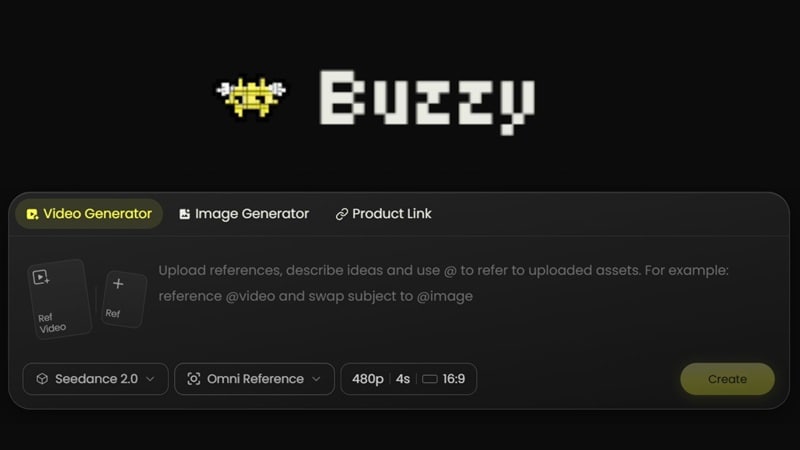
Buzzy’s AI video generator lets users create videos using a text prompt, reference video, or visual input. It uses models such as Seedance 2.0 and Kling AI, with Kling access positioned for Pro users. This gives the tool more flexibility because different AI video models can produce different motion styles, realism levels, and scene results.
Best For:
- Short-form video ideas.
- Social media concepts.
- Product scene tests.
- AI ad visuals.
- Moodboard-style clips.
- Quick creative experiments before a full edit.
2. AI Image Generator
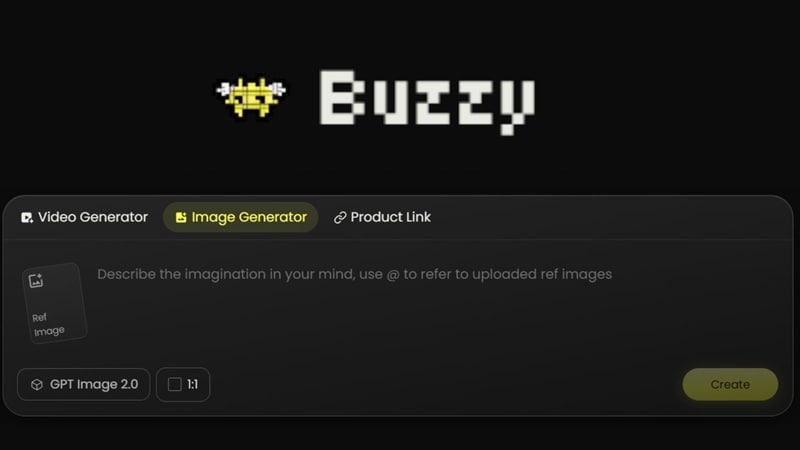
Buzzy also includes an AI image generator. Users can generate images from prompts or upload a reference image to guide the result. The tool uses GPT Image 2.0 for image generation. This is helpful when you need a still visual first before turning it into a video.
Best For:
- Thumbnails.
- Character references.
- Product mockups.
- Background concepts.
- Style frames.
3. AI Edit Video

This is where the "Photoshop for Video" nickname comes from. Instead of regenerating a whole clip from scratch, the Buzzy AI editing features allow you to highlight a specific area or give a text command to fix local issues.
Take a look at the table to see what’s available:
| AI Edit Feature | What It Helps With | Example Use Case |
| Background change | Replace or restyle the scene | Turn a plain room into a studio-style background |
| Camera movement | Add or adjust motion | Make a static clip feel more dynamic |
| Character swap | Replace the subject or visual identity | Create a new version of a character-led video |
| Style transformation | Apply a different look | Try Lego-style or stylized visual effects |
4. Creative Templates
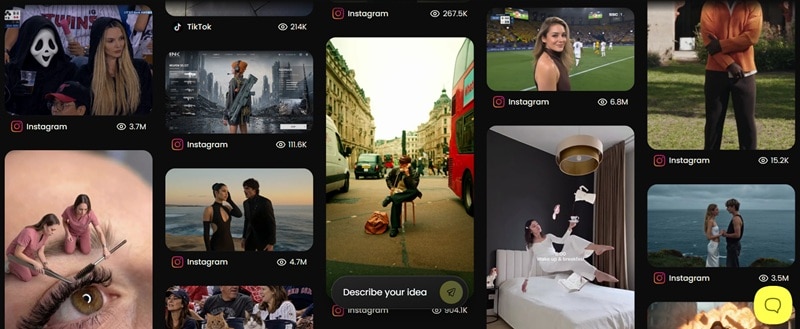
Buzzy also includes creative templates. These are preset video concepts where you upload your photo, and Buzzy applies it to a ready-made style.
This is useful for users who do not want to write long prompts from scratch. Instead of thinking about camera angles, styling, and motion, you can choose a template and let the tool generate a video around your uploaded image.
5. Proactive Video Agent
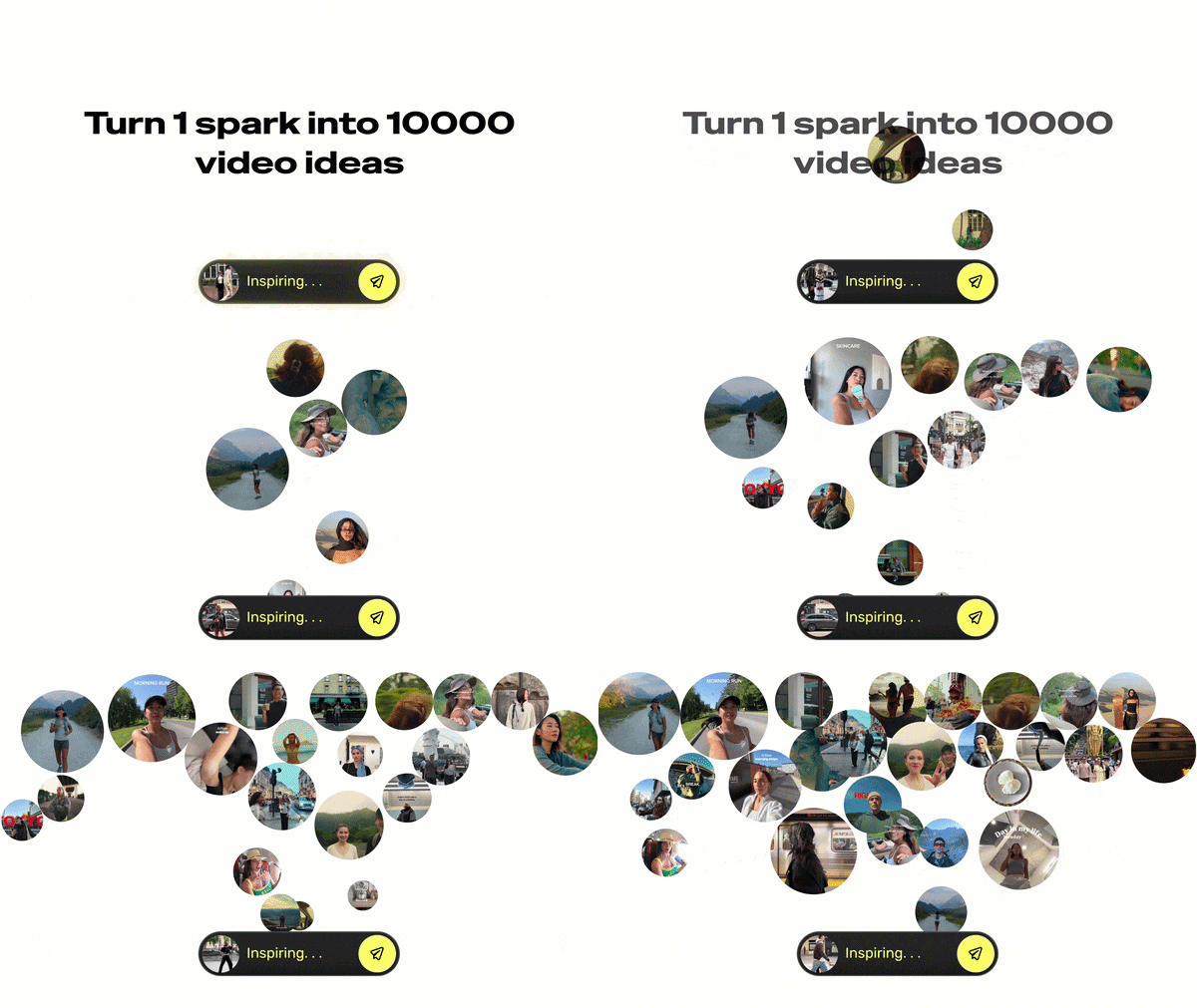
Buzzy AI also has a Proactive Video Agent feature. The idea is that the agent searches for inspiration, learns your taste, and helps recreate viral videos. This can easily reduce the research step when making TikTok, Instagram Reels, YouTube Shorts, or ad variations.
Part 4. Buzzy Pros and Cons: Honest Review
Every AI tool promises the world in its marketing videos, but working with them day-to-day always reveals a few quirks. And after going through Buzzy's AI edit features and watching real outputs, here's the honest picture.
- Targeted Edits Without a Full Redo: Being able to tell the AI 'change the jacket color' or 'shift the camera left' without regenerating the whole clip from scratch is a real time saver when it works.
- Real Face Upload Capabilities: The ability to upload a real human face for character-consistent video generation puts Buzzy in creator territory that a lot of simpler tools can't touch.
- The Trend Agent Adds a Fresh Angle: The Proactive Video Agent scanning 50,000+ videos per day means Buzzy can surface trending concepts you can then recreate.
- Genuinely Unique Templates: The templates provided are genuinely creative and wide range from different niches.
- No Mobile App: There's no iOS or Android app, and the mobile browser experience isn't optimized for editing.
- Credit Usage Isn't Shown Upfront: Before you hit generate, Buzzy doesn't always tell you how many credits that action will cost. For someone on a tight plan, that's an uncomfortable way to work through a budget.
- No Traditional Timeline Editor: Once you generate a clip, your post-production options inside Buzzy are limited. No trimming, no audio mixing, no caption tools, no transitions.
- Max Export is 1080p: Even on the Infinite plan, Buzzy AI video tops out at 1080p. If you're producing YouTube content at 4K or creating for large-format displays, you'll hit that ceiling quickly.
Part 5. The Perfect Pairing to Buzzy: Wondershare Filmora
Let’s be completely real for a second: Buzzy is a powerhouse for creating mind-bending AI visual shifts, but it isn’t a complete, standalone video editor. No timeline to trim it. No audio controls to add music. No caption layer for accessibility. No way to arrange multiple clips into a coherent video. You get a great-looking asset and then... you're on your own.
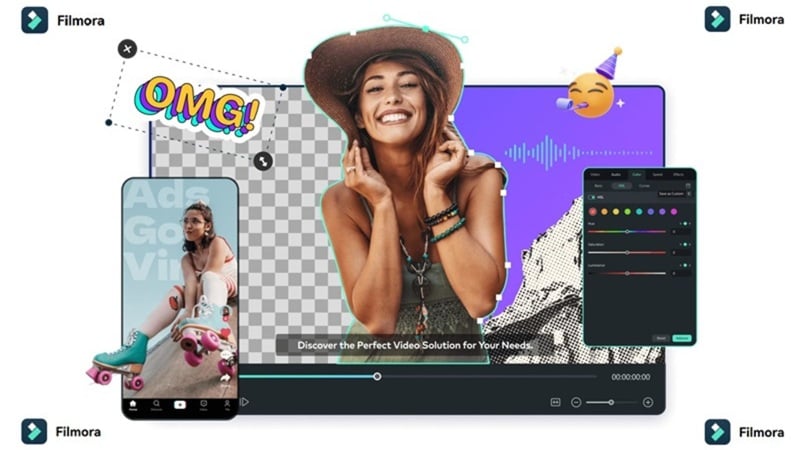
That is exactly why pairing Buzzy with a traditional, robust editor like Wondershare Filmora changes the entire game. This AI video editor got a full creative timeline, built-in AI generation, auto captions, audio tools, and platform-ready export.
 Secure Download
What Filmora Fills In After Buzzy
Once your Buzzy video clip lands in Filmora, here's the full toolkit you get to finish the job:
1. 🎚️ Multi-Track Timeline
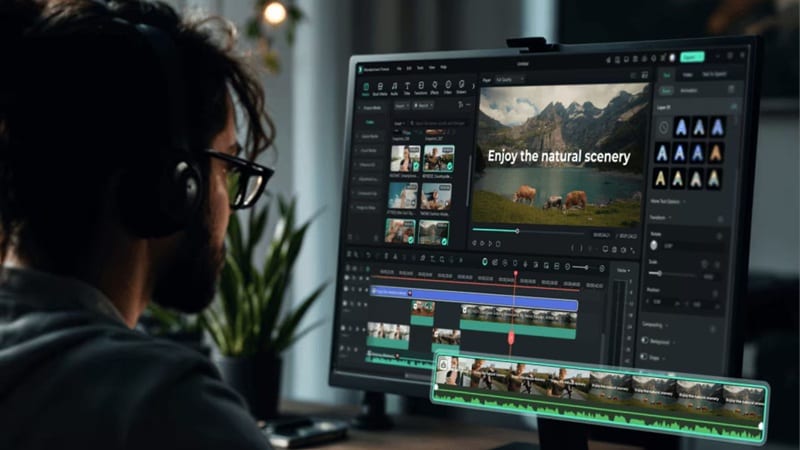
Arrange multiple clips, audio tracks, and effects layers in a single project. Trim, split, rearrange, and sync everything without losing the Buzzy AI-generated visual you just created.
2. 📝 AI Auto Captions

Filmora can auto-generate captions synced to speech, and they animate. No manual timing, no subtitle file juggling. This is essential for any video going to Reels, TikTok, or Shorts.
3. 🎵 Music, Voiceover & Sound FX
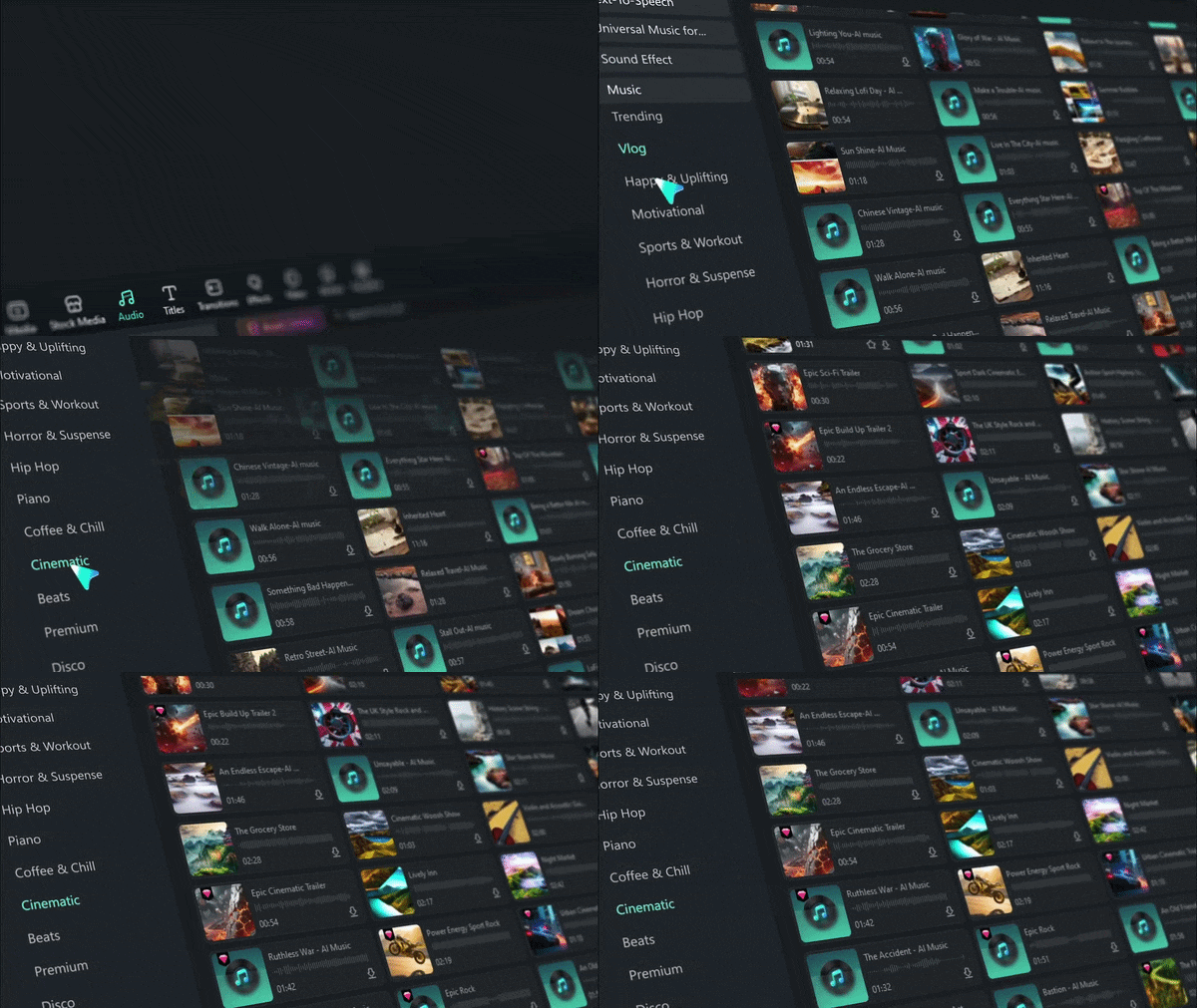
Buzzy Now can generate visuals, but Filmora makes them sound as good as they look. Inside their audio library, you can layer a royalty-free music track, record a voiceover directly inside Filmora, or generate custom music and sound effects.
4. 🖌️ Branding & Templates
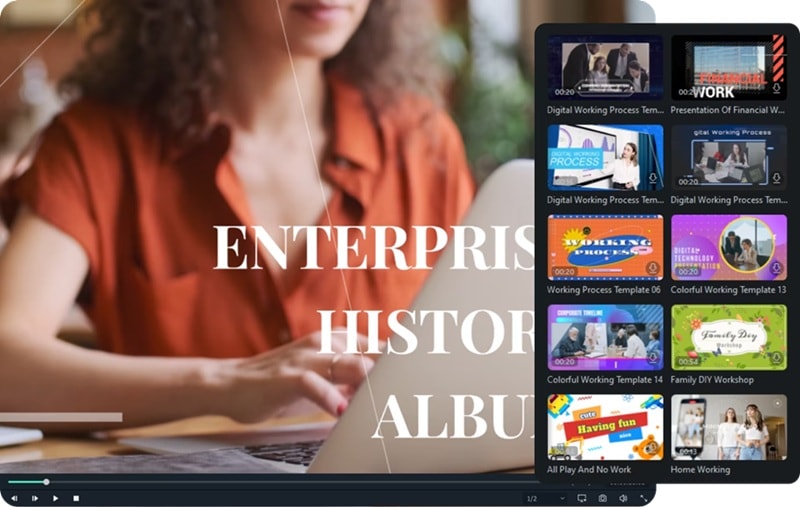
For business videos, ads, or client work, brand consistency is non-negotiable, and Filmora handles it. You can add your logo, consistent fonts, color overlays, intro animations, and outro screens.
5. 📤 Platform-Ready Export Presets
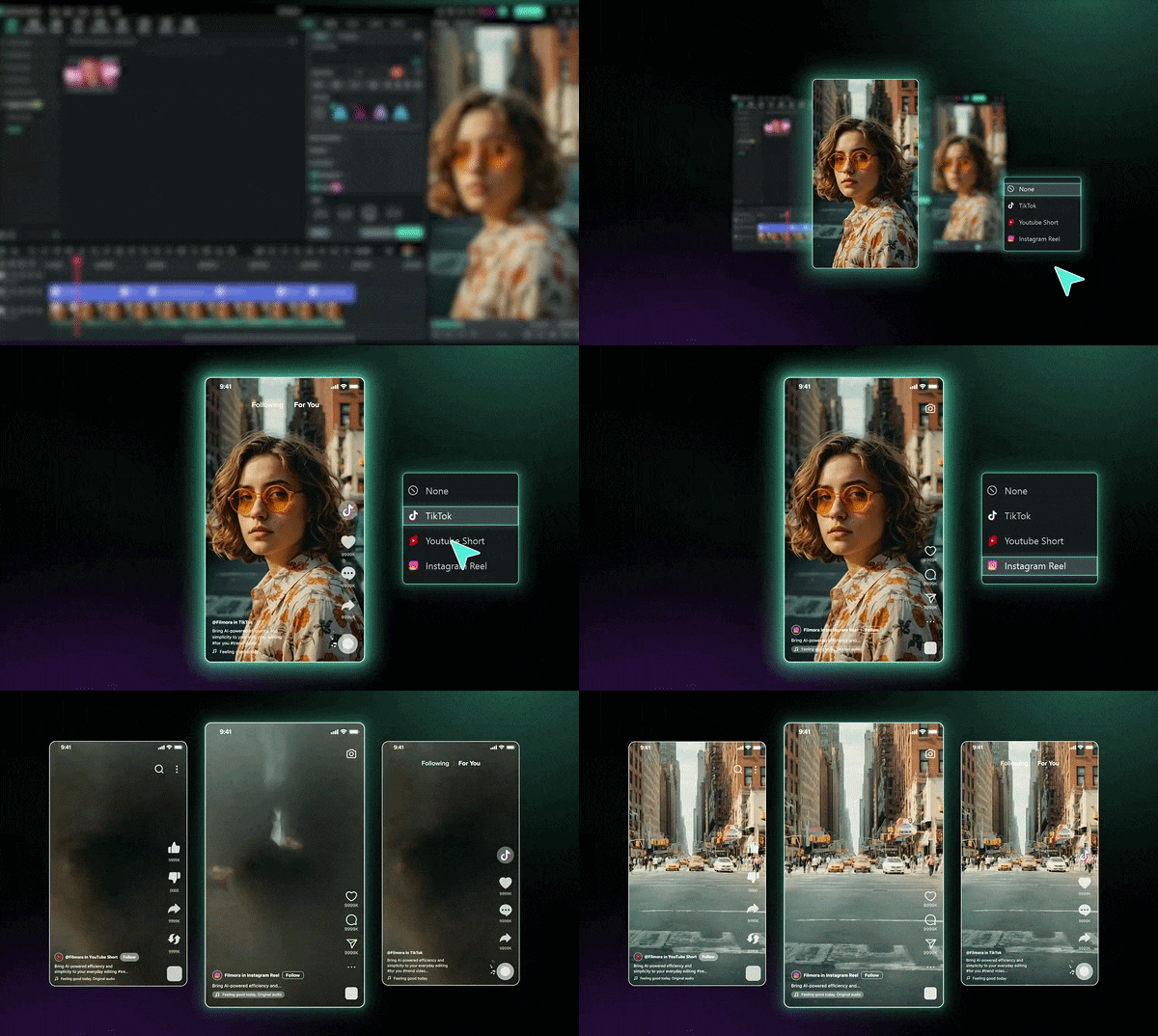
Filmora's preset library handles the formatting so you don't need to manually set resolution and bitrate every time. You can export directly to 16:9 for YouTube, 9:16 for TikTok/Reels, 1:1 for LinkedIn, or 4:5 for Instagram Feed.
The Buzzy-to-Filmora Workflow
Basically, you can think of Buzzy AI as the creative generator and Filmora as the finishing table. Buzzy helps you create or fix the raw AI clip. Filmora helps you trim it, pace it, add sound, add captions, polish the color, and export it properly.
Here's exactly how the two tools work together in practice:
| Step | Tool | What You Do | Why It Helps |
| 1 | Buzzy | Generate the main AI clip | Create the hard visual part quickly |
| 2 | Buzzy | Try AI editing like background change, character swap, or camera movement | Fix the big visual issue before editing |
| 3 | Filmora | Import the exported Buzzy clip | Move from AI generation to real editing |
| 4 | Filmora | Trim awkward frames and arrange clips | Improve pacing and flow |
| 5 | Filmora | Add captions, music, voiceover, stickers, and transitions | Make the video feel complete |
| 6 | Filmora | Add branding, logo, CTA, and platform aspect ratio | Prepare the video for publishing |
| 7 | Filmora | Export for TikTok, Reels, Shorts, YouTube, or ads | Finish with the right format |
Secure DownloadConclusion
Buzzy Now is an incredibly fun and innovative tool if you want to escape the tedious nature of traditional keyframing and manipulate video files using plain, conversational English. That said, Buzzy works best as the first step in a workflow, not the whole thing. Once your Buzzy AI video is generated, you still need a proper editor to trim, arrange, add audio, caption, brand, and export it ready for the platform you're publishing on.
For the best workflow, use Buzzy to create or transform the clip, then bring the result into Filmora for the final edit. Filmora gives you the timeline, captions, music, transitions, branding, and export control that Buzzy does not fully cover. Together, they make more sense than using either tool alone.
FAQs about Buzzy Now
-
Is Buzzy the same as Buzzy.buzz?
No. Buzzy Now at https://www.buzzy.now/ is an AI video editing platform. Buzzy.buzz is a different product focused on no-code app building. Search results can mix them together, so make sure you are checking the right Buzzy website. -
Can I use Buzzy Now on my iPhone?
Right now, the platform is optimized as a web-only browser experience. While you can technically log into the Buzzy website via a mobile browser, you will get the most stable performance, best screen real estate, and easiest editing control by using a desktop computer. -
Does Buzzy support 4K video?
No, there's no 4K export option available right now. If you need crisp 4K outputs for a professional project, your best bet is to bring your completed Buzzy export into an editor like Wondershare Filmora to utilize its smart upscaling and high-bitrate export tools.
