

 TL;DR:
Genmo AI's Mochi 1 is a highly capable open-source video generator under an Apache 2.0 license that excels in motion smoothness for developers, though its 480p resolution limit and 6-second silent outputs require external post-production software to become production-ready.
● The free tier restricts users to the lower-quality Replay model, requiring paid subscriptions starting at $10 per month to cover the 100-credit-per-generation cost of the flagship Mochi 1 model.
● Mochi 1 is best suited for developers building commercial applications, whereas Runway Gen-4.5 delivers sharper temporal consistency, Kling 3.0 handles multi-shot realistic physics better, and Sora remains the photorealism benchmark despite restricted access.
● Users must keep text prompts under 150 tokens to avoid generation failures and manually specify lighting and camera movements, as the model still struggles with accurate real-life physics simulations like fabric and joint movements.
Ask AI for a summary
 ChatGPT
 Perplexity
 Gemini
 Claude
 Grok
Grok
Genmo AI has revolutionized the industry with Mochi 1, a powerful open-source AI video generator. Whether you are a developer looking for model weights or a creator seeking a Runway alternative, this Genmo AI review explores its performance, features, and how to integrate it into your Filmora video editing workflow.
Part 1. What is Genmo AI?
Genmo AI is a research-driven AI video generation platform founded in 2022 by Ajay and Paras Jain. The company's stated mission is to "unlock the right brain of artificial general intelligence." It’s basically building AI that can creatively simulate anything in the form of video content.
Like other top-tier AI video generators, Genmo AI excels at text-to-video and image-to-video creation. By utilizing the Mochi 1 model, users can transform descriptive text prompts into high-quality cinematic AI videos in seconds The platform uses its own flagship model, Mochi 1, which brings yet another contender into the AI video generation space.

Meet Mochi 1: Genmo's Flagship Model
Mochi 1 is built on a 10-billion parameter diffusion architecture using a proprietary design called the Asymmetric Diffusion Transformer (AsymmDiT). The "asymmetric" part means the model dedicates roughly four times the parameters to processing video data than to text, which is why it tends to handle motion better than most tools.
Part 2. Core Features of Genmo AI: What Makes Mochi 1 Unique?
Genmo AI is entirely web-based. Its current feature set covers the full range of what most creators need to start generating AI video.
1. Text-to-video
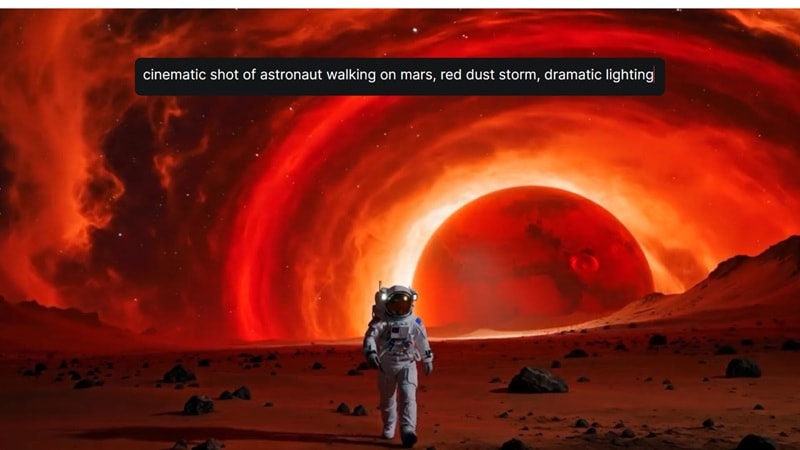
First and foremost, you can generate clips from written prompts. Genmo AI text-to-video feature is simple and straightforward, just like any other tool. Type what you want to make, select the AI model, and start creating. Besides Mochi, Genmo also offers Replay as an alternative model. It costs fewer credits, but the output quality doesn't match Mochi.
2. Image-to-video
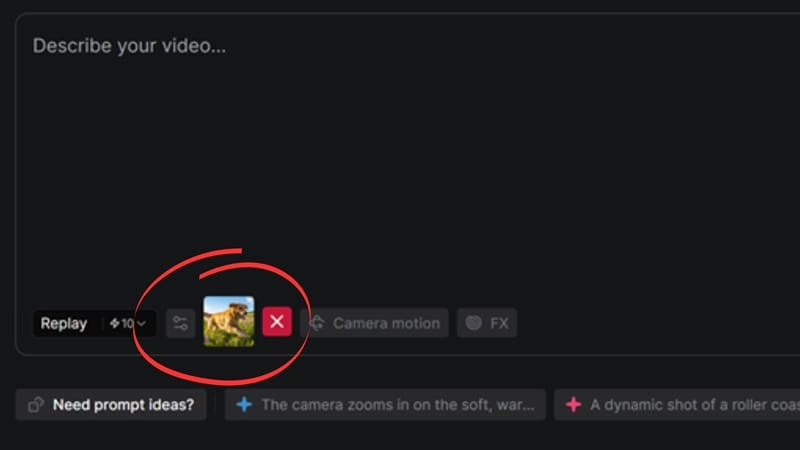
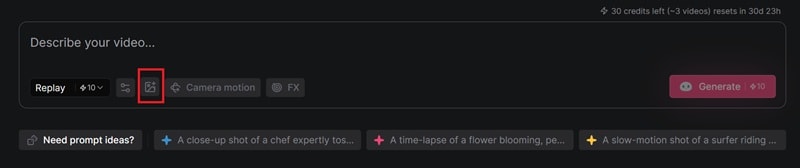
When creating a video using the Replay model, you can upload an image and animate it into a moving clip. So, Genmo AI image-to-video feature doesn't have its own dedicated tab. It's tucked into the main creation interface. There are also no AI effects or templates to help you get started faster. You're working from a blank slate.
3. Camera motion and FX controls
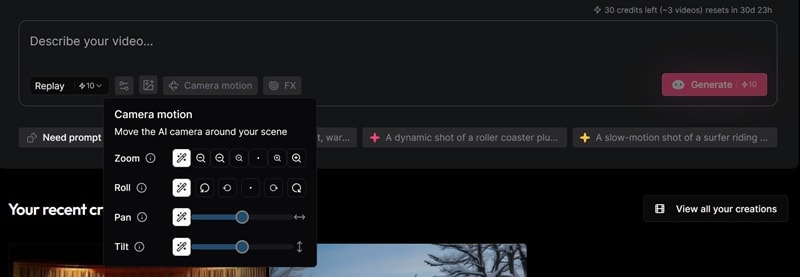
Most tools make you set camera motion through the prompt, which sounds simple until you're staring at a blank text box with no idea what to write. That’s why beginners usually just skip it. But Genmo solves this with a dedicated camera motion and FX control through its Replay model, which includes pans, zooms, tilts, and rolls. The FX presets library includes:
- Flower
- Ninja
- Star Spin
- Spiral, and more
4. Community hub
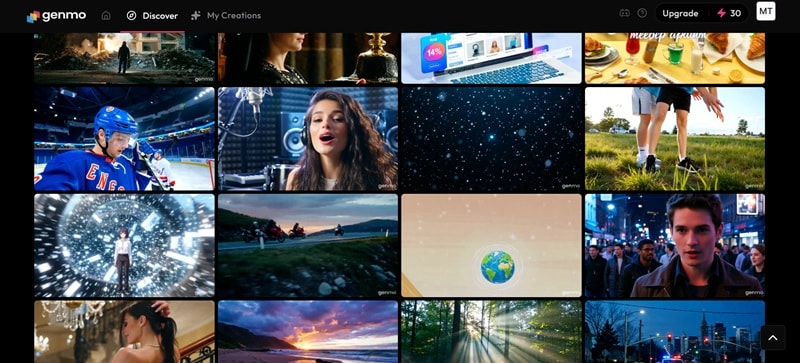
Genmo AI not only lets you generate videos. You can also see what other people are making and how they prompted it inside the community hub. Remix their work, save anything worth revisiting, or just browse what's trending when you need inspiration.
Open Source AI Video Generation Model
Mochi 1 was released under the Apache 2.0 license, where anyone can download the weights, fine-tune the model, and even use it commercially without paying royalties. The company is backed by a $28.4 million Series A led by American venture capital firm NEA, which gives them "runway" to keep developing the model.
Part 3. Step-by-Step: How to Use Genmo AI for Your Projects
Is Genmo AI free? Creating AI videos on Genmo AI Playground requires an account and credits per generation. The pricing plans can be checked below.
|
Free |
Lite |
Standard |
|
|
Price |
$0 |
$10/mo or $96/yr |
$30/mo or $300/yr |
|
Monthly Credits |
50 |
1,200 |
5,000 |
|
Watermark |
|||
|
Commercial Usage |
|||
|
Speed |
Standard |
Fast |
Priority |
|
Show More
Show Less
|
|||
For the record, using the Mochi AI video generation model takes 100 credits per generation. If you are using Genmo AI for free, you can only use its Replay model, since it runs at 10 credits per generation.
How to Use Genmo AI Video Generator
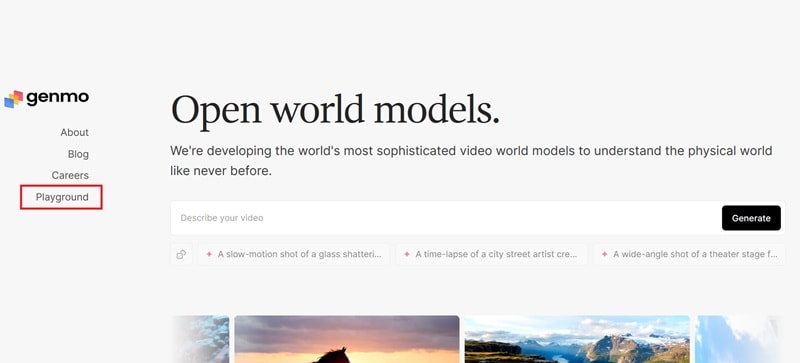
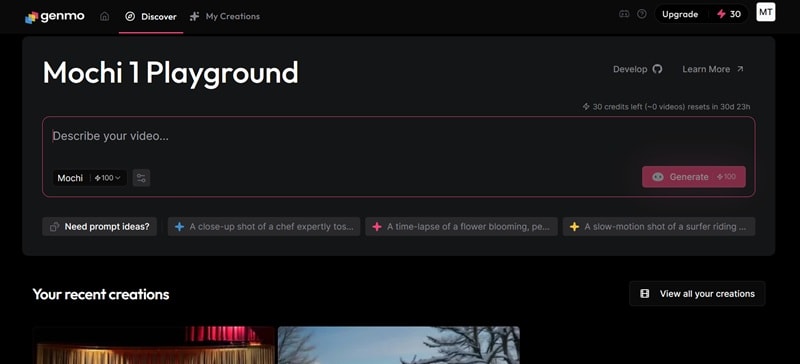
Note: To use Genmo AI image-to-video generator and add an image as a reference, set the model to Replay and click the upload button to add your reference image.
Prompting Tips for Better Results
If the video doesn't turn out right, check and refine your prompt. The quality of your output is heavily dependent on how specific you are. Some tips that tend to make a real difference are:
- Describe lighting. Use terms like "golden hour lighting," "overcast diffused light," and "neon-lit alleyway" to give the model useful context.
- Mention the subject's action clearly. Don't just say "a woman walking." Say, "a woman in a red coat walking slowly through a foggy street, looking down."
- Keep prompts under 150 tokens. Prompts over this length have a higher rate of generation failures. Around 12% failure in stress tests with overloaded prompts.
Part 4. Genmo AI Review: Pros & Cons
So, how does Genmo AI video generator actually perform? The platform on paper is often quite different from what it delivers in practice, and vice versa. We put it to the test, and here's what we found.
The Motion Quality Is Good, but Not Perfect
Mochi 1 produces results that are pretty good for what it costs, especially for photorealism. The motion is smooth with decent camera work. The clips also hold together well enough for most use cases. Replay, on the other hand, is hard to recommend for anything beyond a quick test.

Mochi 1’s limitation worth noting is that physics and real-life simulations can still feel off. Fabric moving against the wind, stiff body movement, hands not quite bending the right way—that sort of thing. The lack of audio is hard to overlook as well, and you'll need to add sound separately in post-production.
The visual style also tends to sit on the over-polished side, which is usually the first thing that gives it away as AI-generated. On the other hand, stylized or animated content tends to come out looking off, too. If that's your use case, this may not be the right model for it.

Prompt Adherence & Output Quality
Mochi 1 follows detailed prompts more reliably than most open-source alternatives, as long as you specify camera movement, lighting, and subject behavior clearly. The 480p resolution limit and occasional morphing issues hold it back from being production-ready. You may need to upscale the video first before you can post it on platforms like YouTube.
Pros and Cons of Genmo AI
To put it all together, here's a quick summary of what Genmo AI video gets right and where it still falls short.
- Strong motion quality and temporal coherence compared to most open-source models
- Dedicated camera motion controls
- Mochi 1 is fully open-source under Apache 2.0, with commercial usage rights
- Free plan available with free monthly credit
- Community hub lets you learn directly from other users' prompts
- Video resolution capped at 480p
- No audio; the generated clips are completely silent
- Free plan limits you to the Replay model on Genmo Playground; Mochi 1 requires more credits
- Physics accuracy can still break down in specific scenarios
- No native integration with major editing software
- Text rendering in video is still weak
- Clips are short, which is currently maxing out around 6 seconds per generation
- Not designed for stylized work
Part 5. Genmo AI vs. Competitors: How Does it Stack Up?
Before Genmo AI, we're already familiar with tools like Runway, Kling, and Sora. Since Mochi 1 is said to compete with these premium AI generation models, let's see how that claim holds up in practice.
|
Genmo AI |
Runway |
Kling |
Sora |
|
|
Resolution |
480p |
1080p |
1080p |
720p–1080p |
|
Max Clip Length |
6 seconds |
16 seconds |
15 seconds |
25 seconds (Pro users) |
|
Free Tier |
||||
|
Pricing |
$10 – $30/month |
$15 – $95/month |
Starts from $9.79 for 100 units |
Via ChatGPT Plus ($20/month) or Pro ($200/month) |
|
Native Audio |
||||
|
Best for |
Developers, experiment |
Professional production, brand content |
Multi-shot storytelling with character consistency |
Cinematic videos |
|
Show More
Show Less
|
||||
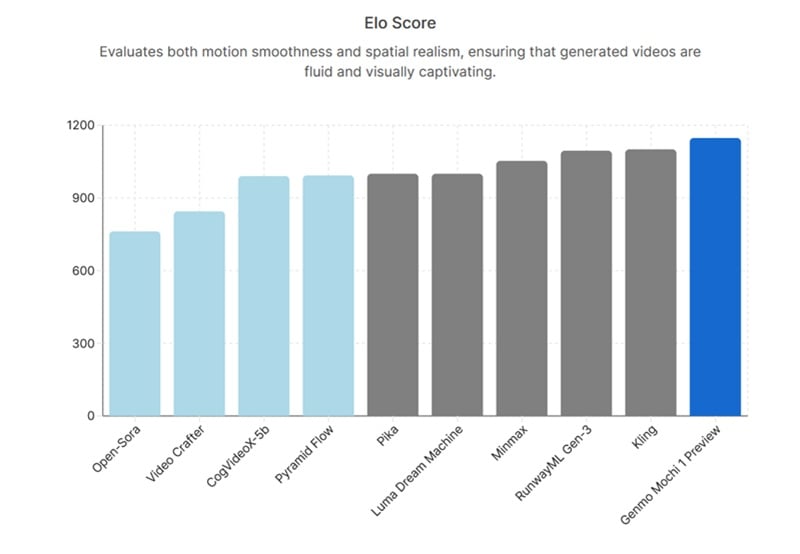
Based on ELO score, Mochi 1 can compete with these established tools, with a score that puts it at the top of the benchmark. It ranked highest among all models evaluated for motion smoothness and spatial realism.
But from what we've tested and observed, we can conclude that:
- Genmo AI is good for developers who want a capable open-source model and build it commercially. Its motion quality holds up well, but the short clip length and low resolution still makes it not quite production-ready on its own.
- Runway Gen-4.5 delivers sharper detail, stronger temporal consistency, and better prompt adherence. The trade-off is cost. Your credits run out fast and it's fully proprietary.
- Kling 3.0’s video output is still among the best in the consumer AI video category, with realistic physics and character consistency that works best for multi-shot projects.
- Sora is still the benchmark for photorealism and cinematic AI videos, but access remains the problem. Sora 2 is still restricted to a handful of countries, which puts it out of reach for most creators globally.
When comparing with other advanced AI models, there are still areas that Genmo AI’s Mochi 1 needs to improve on. But given how early the model is, there's reasonable room for optimism as development continues.
Part 6. Bringing It Together: The Genmo AI + Filmora Workflow
A 6-second clip you generated in Genmo AI is barely enough for a real project on its own. The clips are silent, the resolution needs upscaling, and the color grading is flat. You need to work on the post-production to complete the full video.
Since Genmo lacks a native editor, the best workflow is to import your clips into Wondershare Filmora. As a professional AI video editor, Filmora can upscale Genmo videos, add AI-generated music, and apply pro-level color grading to make your AI clips production-ready.
Filmora is an AI video editor capable of both generating AI videos and editing them in a multi-track timeline, so you don’t need to switch between five more tools to finish one project.
 Secure Download
Generate and Stitch Your Clips in a Timeline
Filmora also includes built-in text-to-video and image-to-video tools powered by models like Sora 2 and Veo 3.1. When you need more footage, you can generate additional clips directly inside Filmora and combine everything in its multi-track timeline.
Extend Your AI Clips
Your Genmo AI videos ending too abruptly? Filmora's AI Extend feature can analyze your clip and generate the previous or next scene so it blends in naturally. For the sound, you can use AI Audio Stretch to match the audio length to your video.
Add Audio and Narration
Since Genmo AI outputs silent clips, you can add sound directly in Filmora using its Text-to-Speech feature. There are plenty of natural-sounding voices to choose from for narration. For background music, browse the built-in Audio library or generate a custom track using the AI music generator.
Enhance Your Clips with Effects, Filters, and Color Grading
Flat-looking AI footage is easy to fix in Filmora. Apply filters or dial in the color grading manually to get the look you're after. If you want to add visual effects on top of your clips, you can browse, download, and use Filmora's effects library without relying on external platforms.
Conclusion
Genmo AI presents itself as a research-driven platform pushing the boundaries of open-source video generation. For the most part, it delivers on that promise. But since the model is also still relatively new, there are limitations you should know before using it.
For now, the best way to use Genmo AI video generator is as one piece of a larger workflow. Pair it with a full-featured editor like Filmora to handle upscaling, audio, color grading, and timeline editing, and the clips you generated with Genmo AI can become something you can actually ship.

FAQs
-
What file formats does Genmo AI export to?
Genmo AI exports generated videos in MP4 format, which is compatible with most editing software and social media platforms.
-
How long does it take to generate a video on Genmo AI?
It varies. The waiting time is usually not long to generate one Genmo AI video, unless you have an unstable internet connection.
-
Does Genmo AI work on mobile?
Genmo AI is entirely web-based, so you can access it from a mobile browser without downloading an app.
