


 TL;DR:
Kaltura is an enterprise-grade video management platform optimized for adding interactive elements like quizzes and hotspots, but due to its limited built-in editor, complex multi-track or audio editing must be done externally before uploading.
● Designed specifically for institutions and businesses handling videos at scale, meaning pricing is not public and requires a custom quote based on storage, bandwidth, and specific product bundles.
● The web-based editor acts primarily as a cleanup tool that requires account authorization to access, allowing timeline trimming and interactive additions but strictly lacking the ability to layer, replace, or edit audio tracks.
● For optimal results, users should finalize visual effects, B-roll, and audio mixing in a comprehensive tool like Wondershare Filmora, utilizing Kaltura solely for post-upload engagement features like branching viewer paths and AI-extracted highlight clips.
Ask AI for a summary
 ChatGPT
 Perplexity
 Gemini
 Claude
 Grok
Grok
Most video platforms let you upload and share. Kaltura video platform lets you turn a plain video into something your audience actually interacts with. Built for businesses, universities, and training teams, Kaltura functions like a private YouTube where you control everything from storage to playback.
Quizzes, clickable chapters, and branching paths are a few things you can build directly inside the editor. Yahoo Finance even named Kaltura in the WealthTech 100 list. If you’re evaluating it for your team or organization, this guide will do a comprehensive review of Kaltura Video Editor, focusing on its editing tools and interactive features.
Part 1. What is Kaltura?
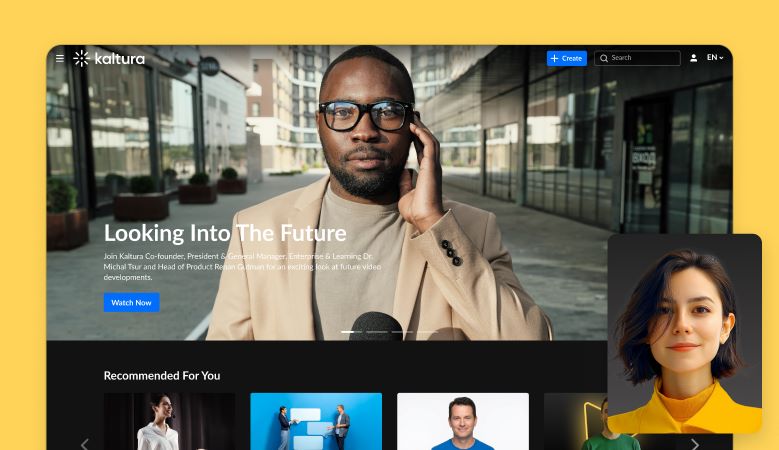
Kaltura is a cloud-based video management and streaming platform that lets you upload, manage, and share videos within your organization or with a wider audience. You get full control over who sees your content, how it's organized, and where it gets published.
If you’re wondering about downloading Kaltura, it’s actually quite flexible. You can open it through a web browser, download Kaltura software on iOS or Android, or install Kaltura for Mac and Windows. It even works on Smart TVs like Samsung Tizen, LG WebOS, and Google TV.
What You Can Do with Kaltura
One of the most popular features is Kaltura video recording, which is practical and easy to use. You just have to select the part you want to capture, edit the result if needed, and publish right away.
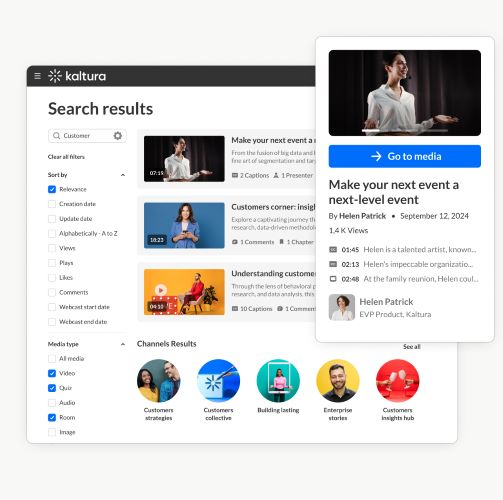
Aside from Kaltura recording, the platform includes many helpful tools, where you can:
- Upload and Host Videos at Scale: Kaltura video cloud allows you to store large video libraries with flexible hosting options.
- Record screen, camera, or audio: With Kaltura screen recording feature “Capture,” you can record your screen, webcam, audio, or any combination based on your setup.
- Create Interactive Video Experiences: Add interactive layers, such as quizzes or clickable sections, to your videos.
- Content Management: Organize videos into folders, categories, and playlists so everything stays easy to find.
- Video Publishing & Streaming: Publish videos on internal portals or external sites, and share them through links or embeds with stable playback.
- Track Performance and Engagement: Access detailed analytics to measure viewer behavior and content performance.
- Integrate with LMS and Business Tools: Connect Kaltura with platforms like Moodle, Blackboard, Teams, or Zoom.
Where to Find Kaltura’s Built-In Video Editor
Kaltura’s video editor is accessible inside the My Media page. Click the pencil icon on the video you want to edit.
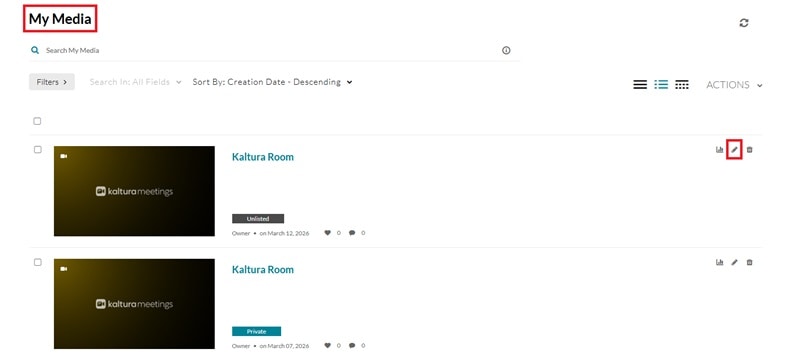
Then, click Launch Editor on the video page.
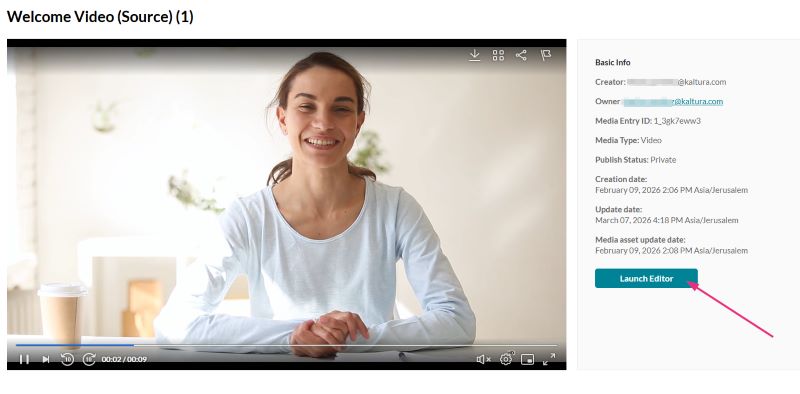
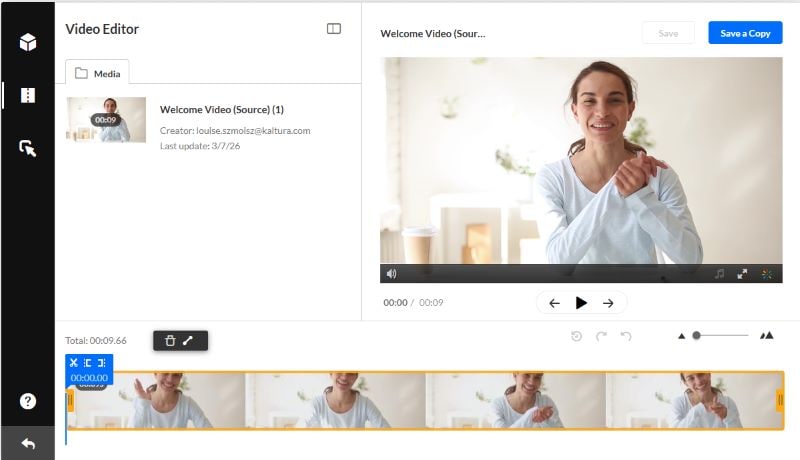
You will be directed to Kaltura’s editing page and see your video on a single track. From here, you can trim unwanted parts and republish the updated video.
Who Kaltura Works Best For
Since Kaltura’s features are built for more than just casual sharing, it is mostly used by businesses, schools, and institutions that need a secure and structured way to manage video content. Kaltura isn’t really designed for casual creators, but more for users who handle videos at scale.
Some professions that will benefit the most from using the Kaltura platform are:
- Instructors: Teachers and professors can use Kaltura Video Recording to record lessons, create interactive videos, and organize course content.
- Students: Kaltura for students makes it easy to access videos, rewatch lessons, and stay on track with learning.
- Trainers: Create training videos and onboarding materials. It also integrates with Zoom for meetings and training sessions.
- Content managers: Manage large video libraries, control access, and track performance through built-in analytics to improve content over time.
Part 2. Core Editing Features of Kaltura Video Editor
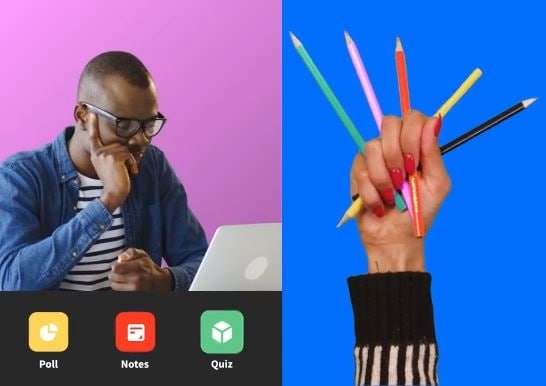
Within the Kaltura ecosystem, the Kaltura Video Editor is available as a tool to refine and adjust your media, whether it has been published or not. Inside the editor, you can access three main tabs: Quiz, Editor, and Hotspots.
Now, let’s go through each feature and see how they work.
Interactive Video Paths
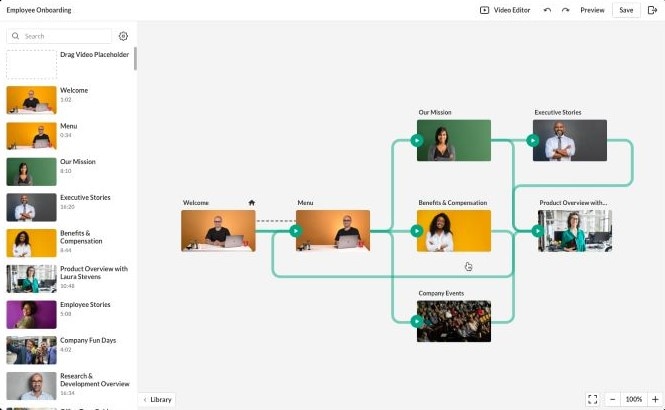
Kaltura interactive videos let you create “Choose Your Own Adventure” style videos, where viewers can pick what happens next. Instead of watching in a fixed order, they can click options and move to different parts of the video.
For example, in a company introduction video, you can give viewers options such as “About Us,” “Our Products,” or “Our Team,” so they can explore based on their interests.
Editing Tools
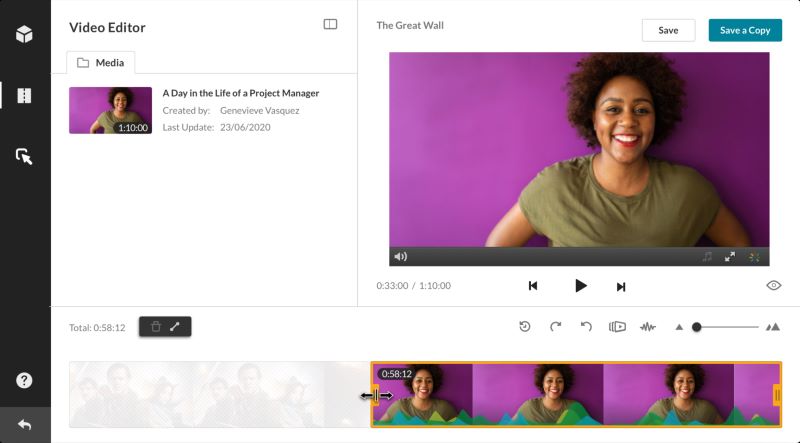
You can remove unnecessary parts from your Kaltura videos to make them cleaner and more focused. Inside the editor, there is a single timeline with timestamps, making it easier to split or trim clips. You can set the start and end points to control where the video begins and ends.
If you cut parts in the middle, the remaining clips will automatically connect smoothly. There are also simple fade-in and fade-out options to make transitions between segments feel more natural.
Interactive Video Quiz
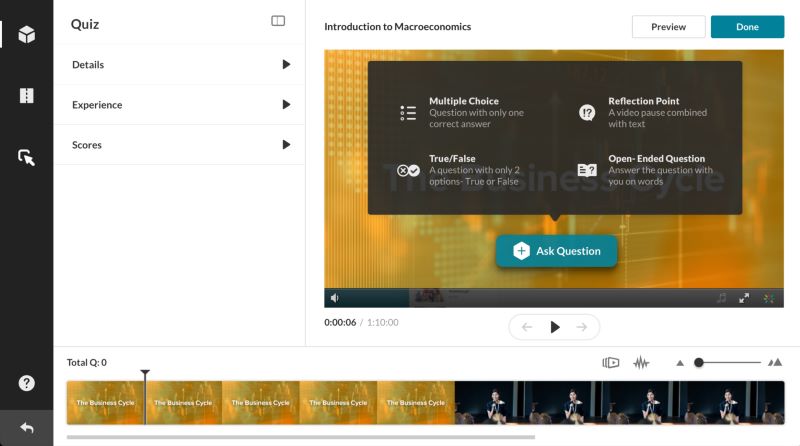
To make your Kaltura videos more engaging, you can add interactive questions or quizzes directly into them. There are four types available: multiple-choice, yes-or-no, true-or-false, and open-ended.
You also have control over how the quiz works. For example, you can decide if viewers can skip questions, replay certain sections, see hints or answers, or try the quiz again. This feature is very useful for learning content, quick ice breakers, or simple self-assessment.
Hotspot (Clickable Overlays)
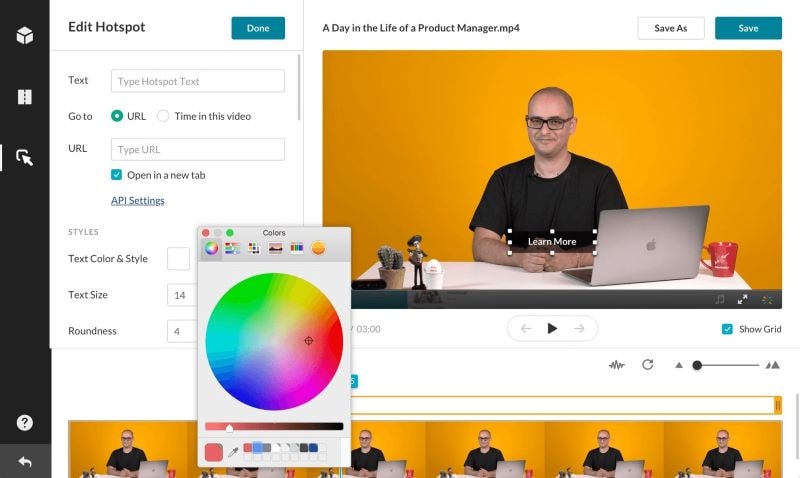
Another useful feature of Kaltura interactive video is hotspots, which are clickable elements added to your video. You can use them as a call to action, to show extra information, or to let viewers jump to another part of the video. Hotspots appear as labels or notes at specific points in the video and can include links if needed.
Caption & Enrichment Services
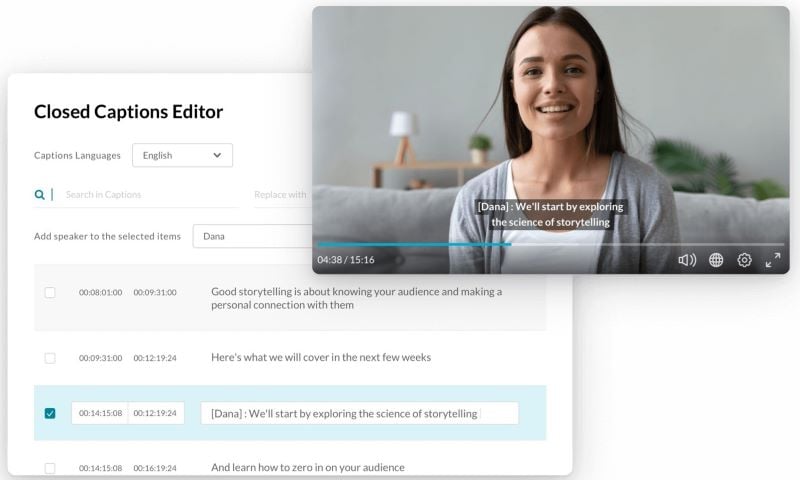
Kaltura also lets you add captions and translations to your videos. You can easily edit captions, transcripts, or translations, whether they were created in Kaltura or imported from your device.
The editor includes helpful tools like auto-scroll, timestamp adjustments, and find-and-replace, making it easier to review and improve caption quality. This feature helps make your videos more accessible and easier to understand, while also helping more people discover your content.
Content Lab
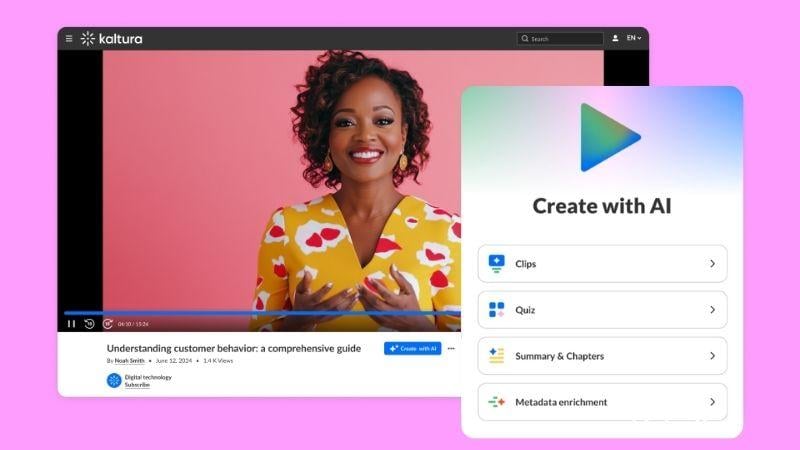
Kaltura is also powered by AI that helps you get more out of your existing videos. Instead of starting from scratch, you can turn one video into multiple pieces of content. Here’s what Content Lab offers:
- Highlight Clips: Automatically find and extract the most engaging parts of your video.
- Create Quizzes: AI adds questions at the right moments to make videos more interactive.
- Summaries and Chapters: Creates a short overview and breaks videos into chapters for easier navigation.
- Enrich Metadata: Automatically create titles, tags, and descriptions.
Part 3. Kaltura’s Pricing and Free Trial Availability
After exploring the features, you might be wondering how much Kaltura actually costs. Unfortunately, Kaltura does not show a fixed pricing list on its website. Since the platform is customizable, you need to reach out to their team to get a quote.
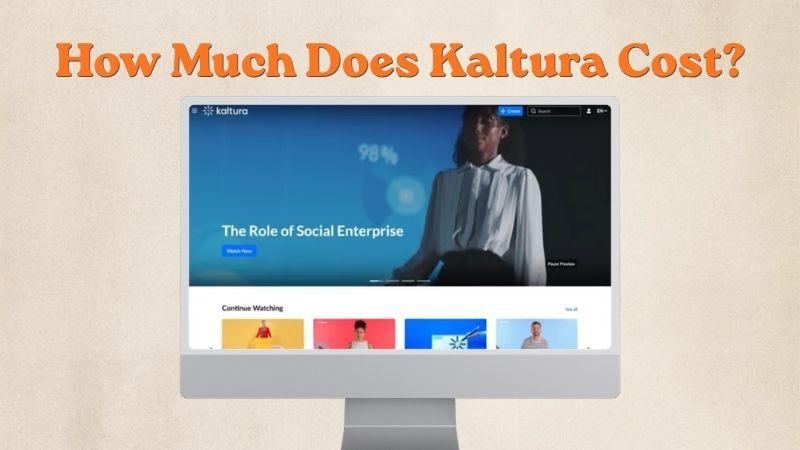
Kaltura pricing is usually based on:
- Custom quotes depending on your needs.
- Usage, such as storage, bandwidth, and number of users.
- Product bundles, like education, enterprise, or webinar solutions.
Why is Kaltura Pricing Not Public?
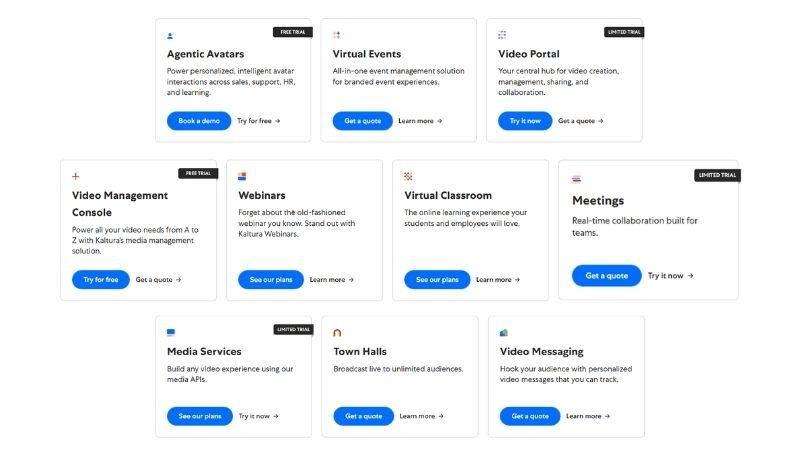
Kaltura doesn’t show its pricing publicly because it is built for enterprises, not individual users. Every organization uses it differently, so the pricing depends on what you actually need. For example, schools may use Kaltura Virtual Classroom and Video Portal, while companies may rely more on Meetings or Town Halls.
That’s why the pricing is flexible and not one-size-fits-all. Some features come with free trials. There are also limited trials starting from around $1 for 14 to 30 days, depending on the feature. However, most products require a demo, and you need to contact the sales team to get exact pricing.
Part 4. The Pros and Cons of Kaltura Video Editor (Review)
Now that we’ve seen what Kaltura can do, let’s review how it actually feels to use the Kaltura Video Editor.
| Category | What We Think |
| Editing Capabilities | Enough for basic edits, but limited for detailed or creative work. |
| User Interface | Simple and functional. Easy to understand, but not very flexible. |
| Workflow | Works well for quick edits directly after recording, but not ideal for complex editing. |
| Performance | Runs smoothly, but depends on internet stability. |
To give you a full picture, here are the main strengths of Kaltura Video Editor, along with a few limitations to keep in mind.
- Easy Learning: Kaltura offers tutorials and even avatar guides to help you get started quickly.
- All-in-One Workflow: You can record and edit videos in the same place without switching tools.
- Interactive Features: Adding quizzes, captions, and hotspots is simple and built right into the editor.
- Lack of Project Depth: Not designed for high-end, multi-layer professional video production.
- Audio Limitation: Lacks the ability to fully edit, replace, or layer audio tracks inside the platform.
- Editing Scope: Functions primarily as a cleanup tool rather than a full-scale creative suite.
Part 5. Recommendation: Edit Your Videos Before Uploading to Kaltura
Overall, Kaltura does a solid job as a video platform, but its editor feels more like a quick fix than a place to fully shape your video. If you want something that looks clean, engaging, and actually finished, it makes more sense to handle the editing before you upload.
To bridge that gap, try a dedicated powerhouse like Wondershare Filmora. You can fine-tune your clips, clean up visuals, and add more creative touches before sending them to the Kaltura video platform.
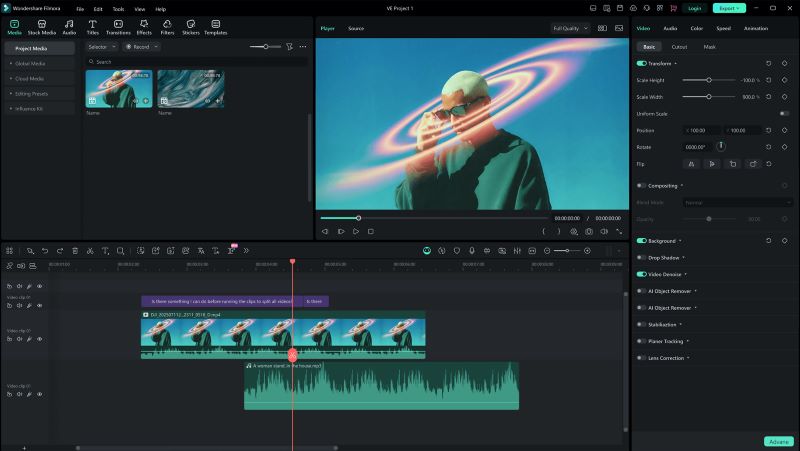
With built-in AI tools and a much deeper editing setup, it helps you get your video right the first time. Plus, you can work on a desktop or a mobile, depending on what feels easiest.
Why You Should Edit in Filmora First
1. Wide Variety of Effects and Transitions
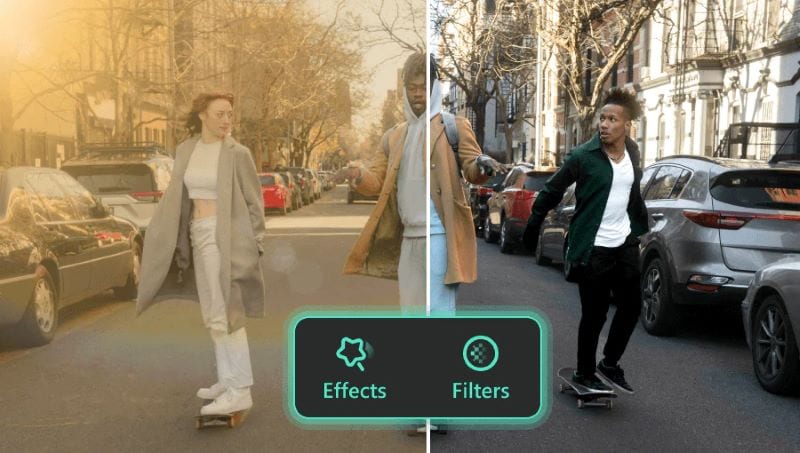
Filmora comes with thousands of video effects and transitions that you can apply to your projects. From basic to fun to professional styles, it covers everything you need, whether you are creating learning videos or work presentations. Small details like these make your videos look more polished.
2. Intuitive Multi-Track Timeline
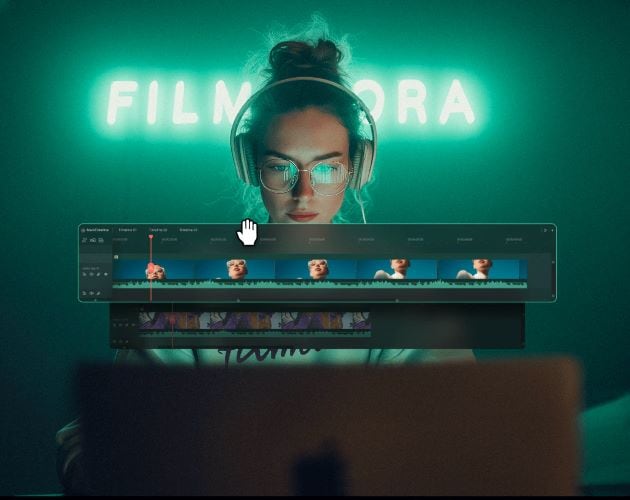
With Filmora, you can add multiple video, audio, and text layers to the editing timeline. This makes it easy to combine clips, include voice-overs and sound effects, and add titles so your video feels more complete before uploading it to the Kaltura platform.
3. Extensive Stock Library
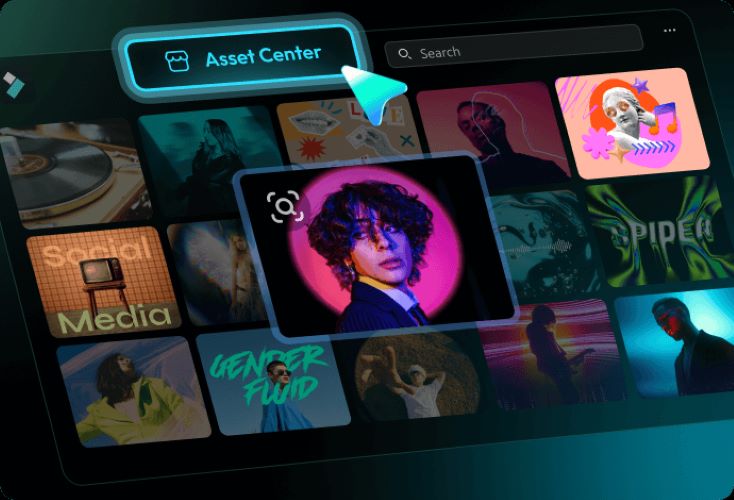
When creating videos, whether tutorials, explanations, or digital ads, it helps to add relevant B-roll, music, and sound effects that match the topic. Filmora provides a large stock library, so you don’t need to search for extra assets from other platforms.
4. Stylish Titles and Accurate Auto Captions
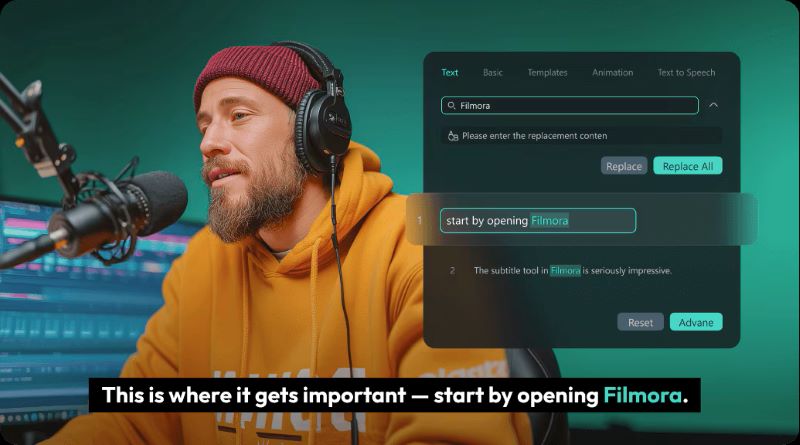
Give your video the final touch by adding subtitles and clear titles so viewers know what the content is about. Filmora’s Automatic Subtitle Generator helps you save time since you don’t need to type everything manually. After that, choose a title animation from Filmora’s library to make the intro more appealing.
Filmora completes the workflow. After editing, you can bring the polished video into the Kaltura video player and editor to add interactive elements such as quizzes, hotspots, and structured playback. This way, you get full creative control during editing while still using Kaltura for delivery and engagement.
 Secure Download
Conclusion
Kaltura is a reliable platform for video management and streaming. It does a great job organizing videos and tracking performance through its built-in analytics. It also stands in creating interactive videos, with features like quizzes and hotspots that help keep viewers engaged.
However, the Kaltura video editor feels limited when it comes to advanced editing. If you need more control or want a more polished result, it’s better to edit your videos in Filmora first. You can access effects, transitions, B-roll, and music to make your videos feel more complete. Plus, features like auto captions can save you a lot of time.
FAQs
-
1. Do you need a Kaltura account to edit videos?
Yes. The editor is web-based and only accessible to content owners or authorized users. That’s why you need to log in to your Kaltura account, usually through platforms like MediaSpace, Canvas, or Moodle. -
2. Can you replace audio in Kaltura Video Editor?
No, the Kaltura video editor doesn’t support replacing or adding audio. You can upload alternative audio tracks, like another language or audio description, but this is managed through a separate feature called KMC Flavors. If you want to add voice-overs, background music, or sound effects during editing, you will need to use another tool like Filmora. -
3. What video formats does Kaltura support?
Kaltura supports a broad range of formats, including MP4, MOV, QT, WMV, WMA, AVI, FLV, F4V, MKV, WEBM, 3GP, RM, and MPEG. -
4. Can you add clickable links inside Kaltura videos?
Yes. You can add clickable elements directly on top of Kaltura interactive videos. You can adjust the text, colors, size, how long it appears, and where it links to.
