


 TL;DR:
Mosaic operates as a browser-based, automation-first editing workflow designed for teams scaling high-volume content, while Wondershare Filmora remains the recommended choice for solo creators requiring traditional creative control.
● Mosaic utilizes a node-based Canvas to autonomously execute repetitive tasks like AI captioning, culling, and voice translation, but it lacks offline capabilities, offers no free trial, and starts at $50 per month for the Creator plan with a 120-minute upload limit per video.
● The agentic Mosaic platform is best suited for agencies, newsrooms, and performance marketers automating scalable workflows via API, whereas Wondershare Filmora is ideal for beginners and independent producers who need cross-platform native apps across Windows, macOS, iOS, and Android.
● Because Mosaic lacks detailed color grading and 3D effects, it functions primarily as a pre-processing layer that exports formatted rough cuts and timelines directly to Adobe Premiere Pro, Final Cut Pro, DaVinci Resolve, or MAM platforms for final artistic finishing.
Ask AI for a summary
 ChatGPT
 Perplexity
 Gemini
 Claude
 Grok
Grok
AI is clearly reshaping video editing. From auto captions to full video generation, the shift is happening fast. Recently, Mosaic pushed things further by introducing a system that doesn’t just assist editing, it tries to run it for you.
And it’s not just hype. Mosaic has already raised $3.8M in seed funding to build these video editing agents, signaling real demand for faster production pipelines. But what does this actually mean for creators today? And more importantly, is Mosaic agentic AI video editing something you’ll realistically use, or just another overcomplicated tool?
Part 1. What Makes Mosaic Different? Agentic Video Editing Explained
The thing is, Mosaic is not your typical video editor. It’s built around the idea of automation-first editing, where instead of editing one video manually, you create systems that can edit many videos automatically.
That's what 'agentic' means here. These are automated workflows that handle repetitive tasks like cutting clips, formatting videos, or generating captions. So, instead of dragging clips on a timeline, you’re building a process that runs those edits for you.
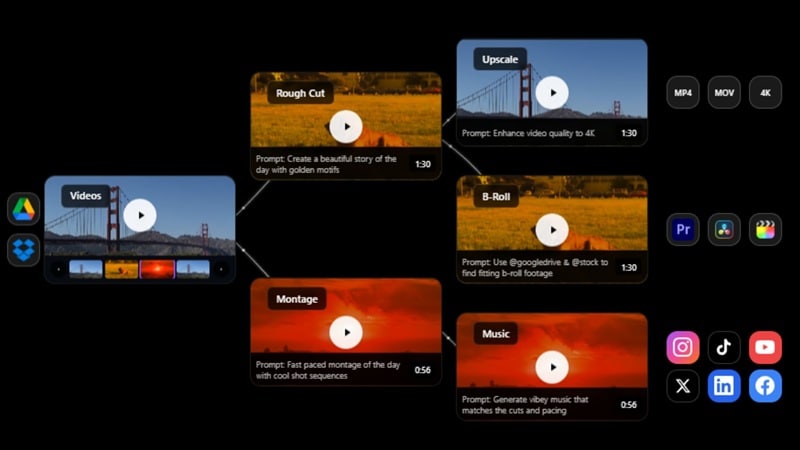
See the table below to understand more about the Mosaic video editing concept:
| The Agentic Concept | How This Actually Helps |
| You design the workflow once; trimming, captioning, formatting | Saves massive time on repetitive edits |
| The system applies it across multiple videos | Scales content production without hiring a massive team |
| AI handles tasks like culling and trimming | Keeps output consistent across TikTok, Reels, and YouTube |
| You step in only for the final creative polish | Frees up creative energy for strategy instead of execution |
|
Show More
Show Less
|
|
Mosaic Compatibility (Where It Fits in Your Workflow)
Mosaic is best viewed as a workflow tool, not a standalone editor replacement. It works right in your web browser, so there's no need to download or install any software previously.
Check out the table below to see how it fits in a real workflow:
| Workflow Context | Mosaic's Role | What It Replaces |
| Browser-based platform | Primary editing environment | Traditional desktop editing software |
| Adobe Premiere pipelines | Pre-processing & automation layer | Manual rough-cut and formatting steps |
| Social media content pipelines | Automated clip formatting & captioning | Manual reformatting per platform |
| Marketing automation systems | A/B variant generation from raw footage | Multiple manual edit passes |
| Agency/newsroom | Scalable multi-video processing | Human editors doing repetitive cuts |
|
Show More
Show Less
|
||
Part 2. Inside Mosaic: Feature Breakdown That Actually Matters
When it comes to features, Mosaic focuses less on flashy effects and more on workflow efficiency. So, every feature is built to reduce repetitive editing work and help teams move faster. Let's break it down!
Canvas (The Core Engine)
This is the heart of Mosaic. Instead of a flat timeline, you get a node-based interface. You build your edit like a flowchart, connecting steps like trimming, captioning, and formatting.
Key Features:
- Each node is an action: trim, caption, reformat, export, linked in sequence.
- Once built, the canvas runs your entire edit automatically.
- Supports API triggers, so workflows can fire programmatically from external systems,
Clips (Smart Content Handling)
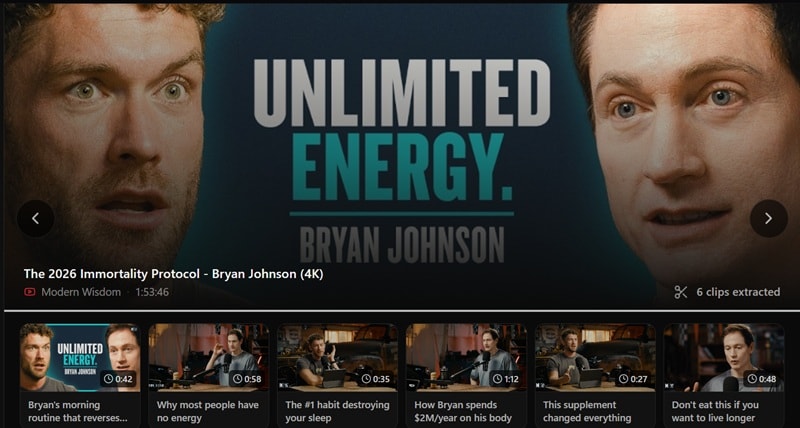
This tool scans your raw footage and automatically picks out the best bits. It’s a lifesaver for turning a 20-minute raw vlog into snappy short-form clips.
Key Features:
- Surfaces the most relevant clips based on content and context.
- Feeds prepared clips directly into your Canvas workflows.
- Designed to cut the 'scrubbing hours' out of long-form content production.
AI Captions
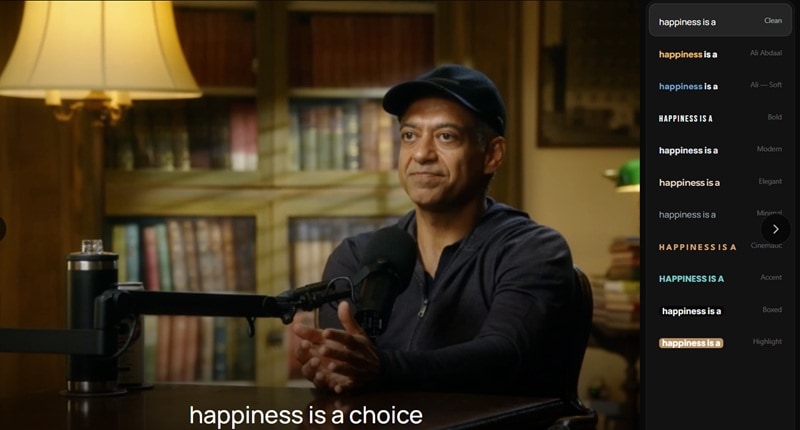
This Mosaic video editing AI feature generates subtitles and syncs them perfectly. It removes one of the most tedious manual tasks from the editing process, which is a big win.
Key Features:
- Automatically transcribes speech and generates synced subtitles.
- Formats captions for social media standards (style, size, placement).
- Plugs directly into the Canvas as a node.
Voice Translation
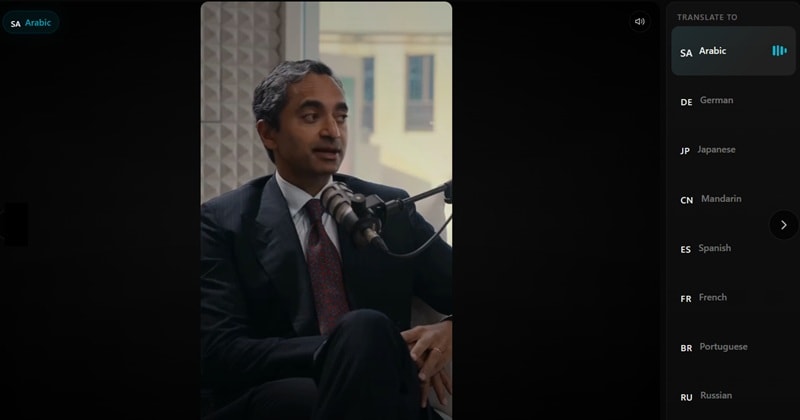
Other than generating captions automatically, Mosaic can also translate your voice into other languages. This makes it easy to go global without hiring a translator.
Key Features:
- Adapts video content for global audiences without re-recording.
- Pluggable into Canvas as part of a broader localization workflow.
- Useful for agencies and publishers expanding into non-English markets.
Motion Graphics
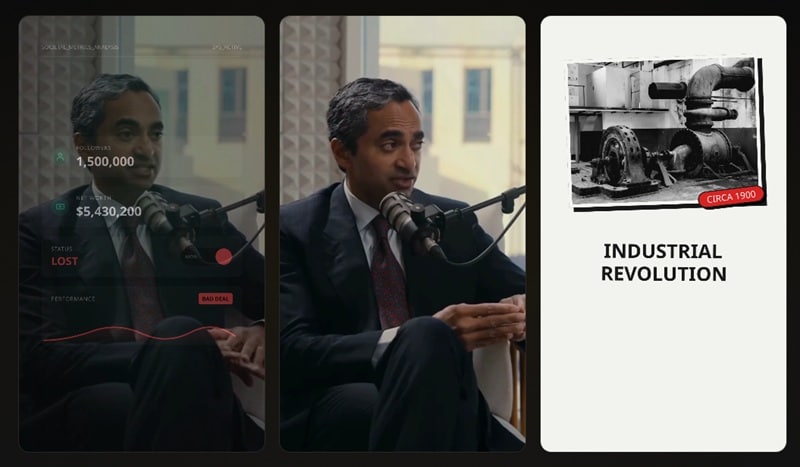
You can add visual elements and brand colors automatically. It ensures every video looks like it came from the same brand, even if the AI built it.
Key Features:
- Keeps output style consistent across high-volume content batches.
- Reduces manual animation work for recurring elements like lower-thirds or intros.
- Focus is on workflow efficiency, not deep custom animation tooling.
Mosaic Templates
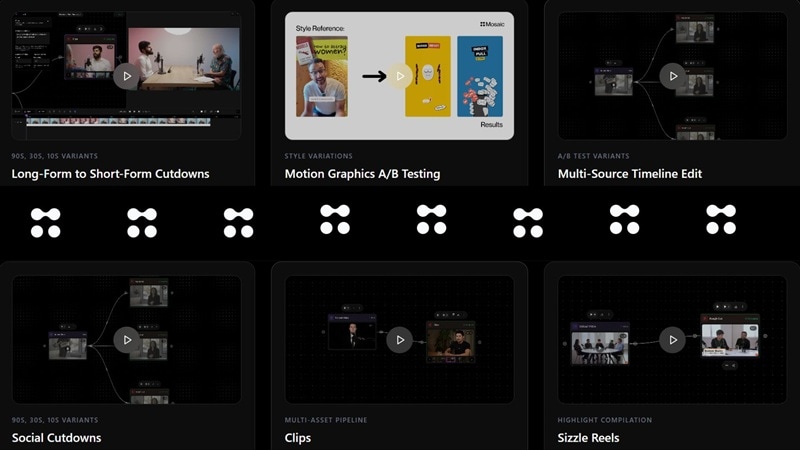
If you don't want to build a "Canvas" from scratch, Mosaic also offers pre-built workflows for common tasks. This helps beginners get started faster, and it saves time for users who have consistent, repeatable content formats.
Key Features:
- Lets new users start automating without building from scratch.
- Community and team-shareable agencies can standardize output across editors.
Timeline Editor
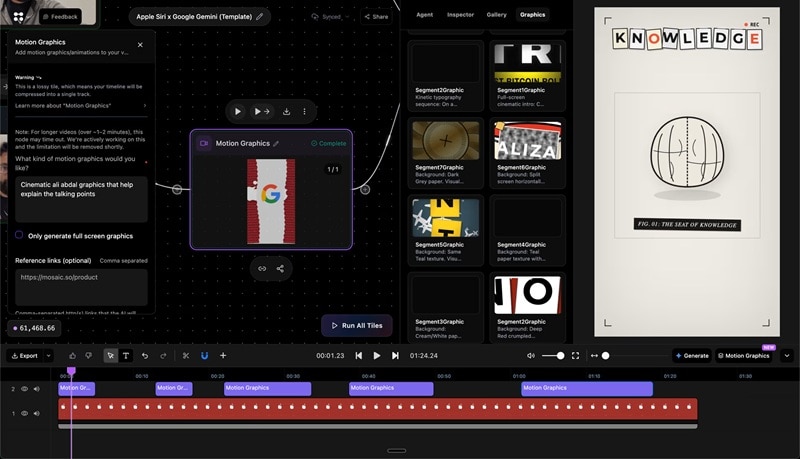
A traditional timeline editor is also available on Mosaic for hands-on fine-tuning. It seamlessly exports timelines to Premiere Pro, Final Cut, or DaVinci Resolve. Plus, it also exports to popular Media Asset Management (MAM) platforms.
Motion
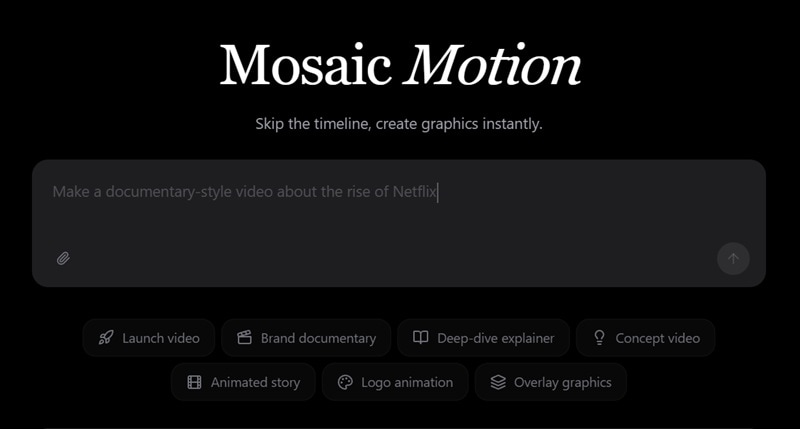
To reach a step toward more creative automation, Mosaic introduced Motion. This is the latest tool inside Mosaic that focuses on automating motion design and cinematic styling. And it works pretty much like a text-to-video feature, where you use prompts to describe what kind of video you'd like to make.
Part 3. Mosaic Pricing: No Free Ride Here
Let's get this out of the way up front: Mosaic does not offer a free plan. There's no 'sign up and get 100 free credits' situation here. The platform is designed for professional and team use from day one, and the pricing reflects that.
And for the paid plans, there are three tiers: Creator, Pro, and Enterprise. See the table below to see the differences:
| Feature | Creator | Pro | Enterprise |
| Monthly Price | $50 / month | $150 / month | Custom |
| Monthly Credits | 2,500 credits/month | 10,000 credits/month | Custom |
| Upload Length | 120mins (10 GB max) per video | 300mins (20 GB max) per video | Custom |
| Core Unlocks | Canvas access, AI Captions, Clips, basic Templates, standard export | Everything in Starter + Voice Translation, Motion Graphics, A/B variant generation, API access, team collaboration | Everything in Pro + custom integrations, dedicated support, SLA, and custom workflow build-out |
| Best For | Solo creators | Small agencies and social media teams | Newsrooms, publishers, and large agencies |
|
Show More
Show Less
|
|||
If you're a casual or occasional creator, Mosaic's cost-to-value system may not work in your favor. That's because the tool's ROI kicks in when you're processing a high volume of videos consistently.
Part 4. Who Mosaic Is Really For (And Who Should Skip It)
So, Mosaic is a well-built tool solving a real problem. But 'well-built' doesn't mean 'right for everyone.' The Mosaic agentic video editing approach is genuinely powerful for specific use cases and actively counterproductive for others. The fastest way to be disappointed by Mosaic is to use it for a workflow it wasn't designed for.
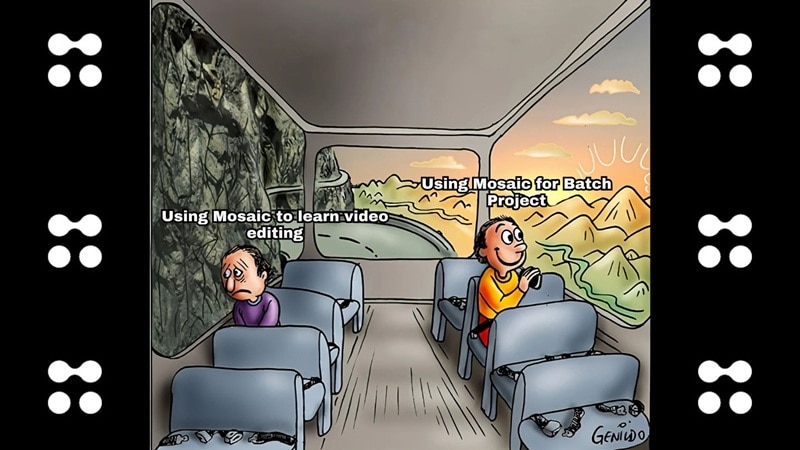
✅ Use Mosaic If You Are...
- An agency managing multiple client video accounts simultaneously.
- A social media team pushing high volumes of short-form content regularly.
- A publisher or newsroom repurposing long-form content into clips at scale.
- A performance marketer generating multiple ad variants from the same raw footage.
- A developer who wants to trigger video editing workflows via API.
- A team where editing consistency across editors is a persistent problem.
👉 Main Benefit: Speed + scalability.
❌ Skip Mosaic If You Are...
- A beginner still learning the fundamentals of video editing.
- A solo creator making occasional videos for personal or small audience use.
- Someone who prefers hands-on creative control over a traditional timeline.
- A filmmaker or storyteller focused on cinematic craft over content volume.
- A creator on a tight budget who needs free tools to get started.
- Anyone who needs offline editing capability.
👉 Main Issue: Too complex for simple needs.
The Honest Truth of Mosaic: Pros and Cons
- Super Fast Editing: Mosaic AI can cut, caption, and prep your video while you do other things. Huge time saver if you’re handling lots of content.
- Unified Workflow: You don’t have to jump between tools. Clips, captions, translation, all connected in one Canvas.
- Go Global Instantly: Translating your video into other languages or adding captions is built right into the workflow. It's built for scale.
- Keeps Your Brand on Point: Templates help keep your captions, graphics, and style the same across every video. You won't accidentally use the wrong font again.
- No Free Trial: You have to pay just to see if you like it. There’s no "try before you buy," which is a huge bummer for solo creators.
- Takes Time to Learn: If you’re used to a normal timeline, the "Canvas" feels weird. It takes a minute to unlearn how you usually edit.
- Credits Disappear Fast: Since the AI is doing the heavy lifting, your monthly credits can vanish quickly if you aren't paying attention.
- Not Great for Detailed Editing: It’s great for social media, but it doesn't have fancy color grading or 3D effects. You'll still need a "real" editor for the shiny stuff.
Part 5. A More Beginner-Friendly Route: Try Wondershare Filmora
Alright, Mosaic is powerful, but it’s clearly designed for automation-heavy workflows. If your goal is to edit videos easily while still having creative control, the experience can feel a bit too technical.
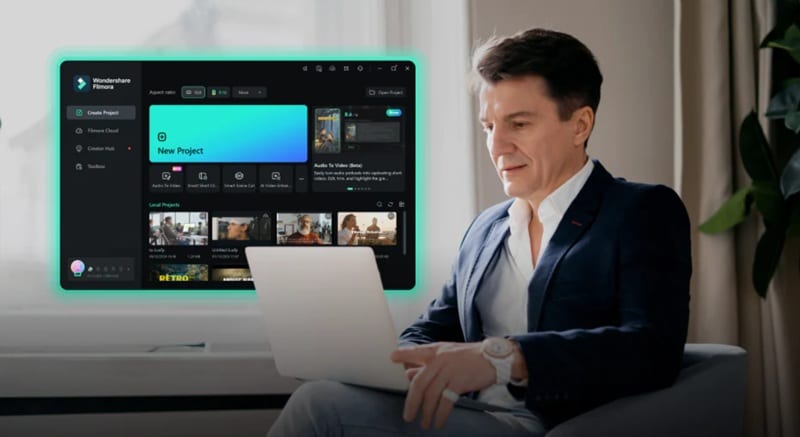
If you want to actually feel the edit and have creative control without a headache, Wondershare Filmora is the go-to for most of us. That’s because Filmora approaches the same AI-assisted editing problem from the opposite direction: powerful enough for serious work, approachable enough for beginners, and creative enough that you actually want to use it.
 Secure Download
Why Filmora Works Better for Most Creators
1. A True All-Rounder
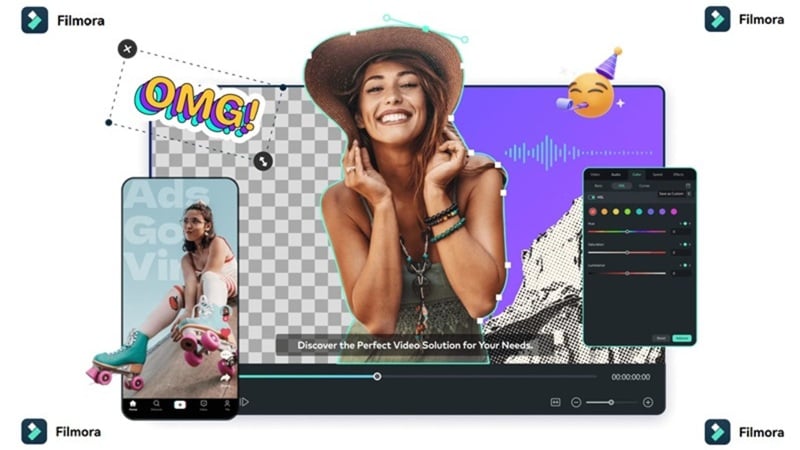
Mosaic's strength is narrow, it's built for automated, high-volume workflows. Filmora handles everything from casual TikTok edits to high-end product videos to polished YouTube content, without asking you to rewire how you think about editing. Whether you're putting together a quick Reel or a 20-minute documentary-style video, Filmora doesn't force you to choose between depth and ease.
2. Creative Freedom vs. Automation
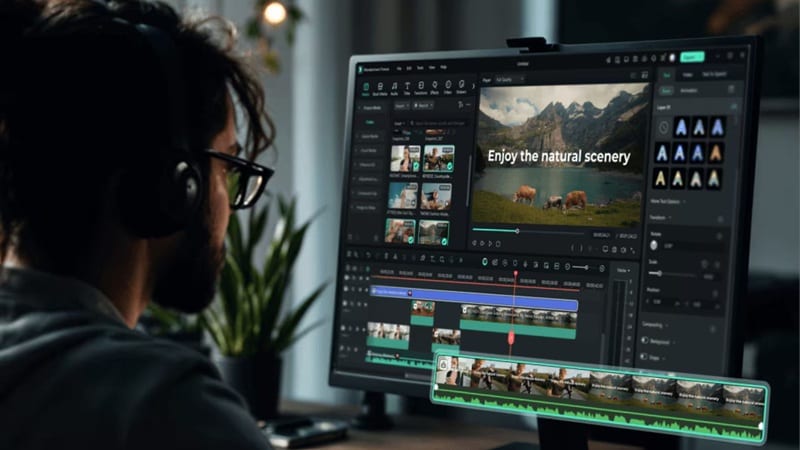
In Mosaic, an agent makes the decisions. In Filmora, you make the decisions, with AI assisting at every step. The multi-track timeline gives you frame-level control over every cut, transition, and effect. When you want AI to handle something (like removing a background or generating a caption), it steps in. That balance is something Mosaic's agentic model fundamentally can't offer.
3. A Massive Built-In Asset Library

For creators who want to move fast without sourcing everything themselves, Filmora's built-in library cuts hours of asset-hunting from the production process. That’s because Filmora ships with thousands of licensed stickers, filters, templates, effects, and royalty-free music tracks, all accessible without leaving the editor.
4. AI That Assists Without Taking Over
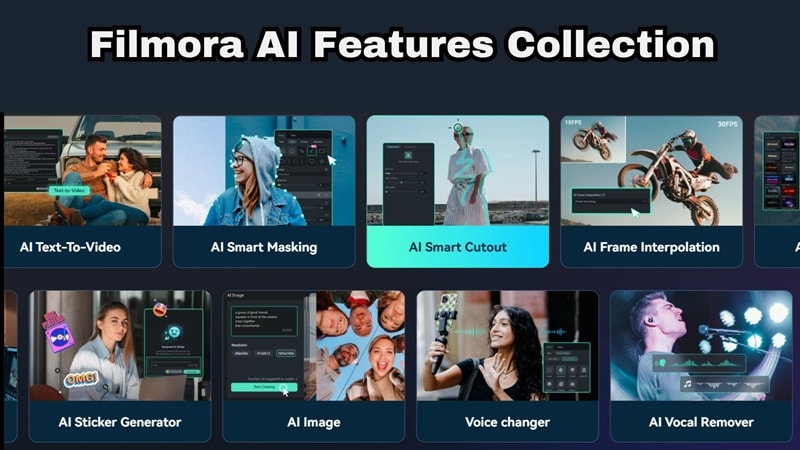
Filmora's AI toolkit; including AI Smart Cutout, AI Image Upscaling, AI Video Translation, AI Captions, and AI Noise Removal, gives you the benefits of AI-assisted editing without losing the "human touch" of traditional editing. The AI does the tedious lifting; you make the interesting decisions.
5. Better for Beginners
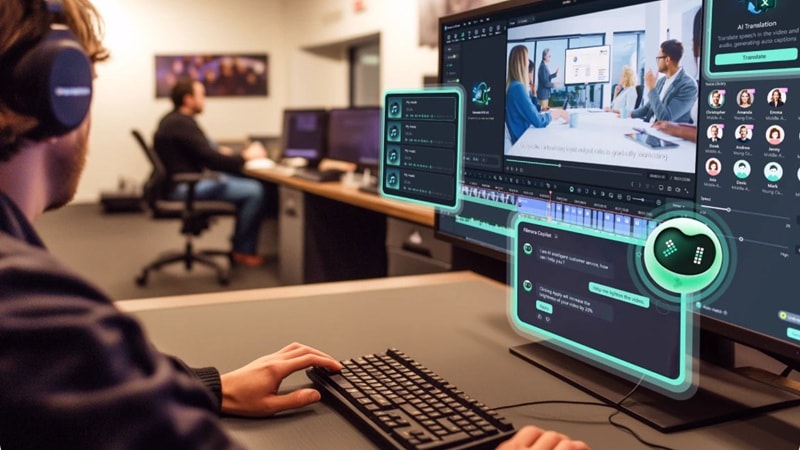
Mosaic requires a genuine mindset shift around node-based workflows that can take weeks to feel natural. For anyone new to video editing, that's a barrier that Filmora simply doesn't have. Filmora's interface is widely described as 'pick up and play'. That’s because the timeline is familiar, the tools are logically placed, and the learning path from beginner to advanced is clear and supported by tutorials, templates, and a large user community.
6. Mobile + Desktop Sync
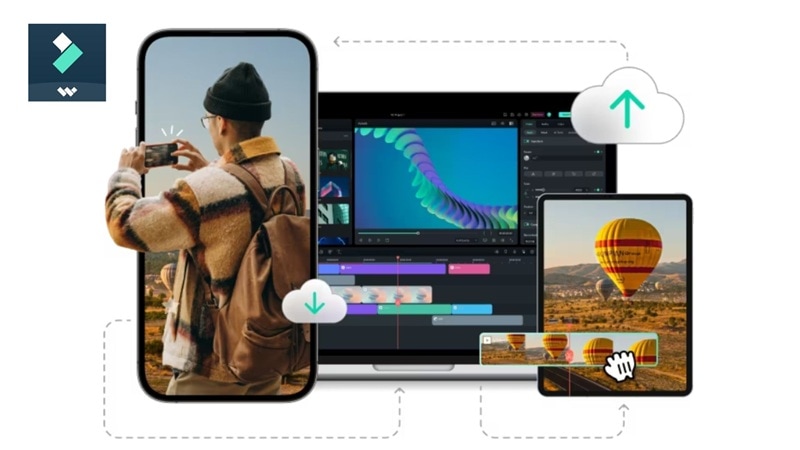
Mosaic is browser-based and technically device-agnostic, but it lacks dedicated mobile apps and the offline flexibility of native device editing. Meanwhile, Filmora operates across Windows, macOS, iOS, and Android, with cloud sync between devices. You can rough-cut on your phone during a commute and refine on your desktop later. For creators whose production process spans multiple environments, Filmora's cross-platform continuity is a practical daily advantage.
Head-to-Head: Mosaic vs. Filmora
| Criteria | Mosaic | Filmora |
| Core Approach | Agentic automation: AI runs the edit | AI-assisted: You run the edit with AI help |
| Learning Curve | Node-based canvas requires mental reset | Familiar timeline interface |
| Timeline Editing | Available but secondary to Canvas | Full multi-track professional timeline |
| Offline Editing | No | Yes |
| Mobile App | No | iOS & Android |
| Plugin Ecosystem | No | BorisFX, NewBlueFX |
| Export Destinations | Premiere, Final Cut, DaVinci, MAM platforms | All major formats and social platforms |
| Best For | Agencies, publishers, high-volume automation | Solo creators, small teams, creative projects |
|
Show More
Show Less
|
||
Secure DownloadConclusion
Mosaic introduces a fresh idea with Mosaic agentic video editing, and it’s genuinely useful for teams handling large volumes of content. For agencies, publishers, and high-volume social media teams, the ROI is real and the tool is ready. However, for the everyday creator, the lack of a free trial and the technical "Canvas" workflow might feel like a bit much.
Thankfully, Wondershare Filmora offers the perfect middle ground, giving you powerful AI shortcuts without taking away the fun and "human touch" of being an editor. So, for the majority of creators; solo producers, small teams, and anyone still developing their editing instincts, Filmora is the more practical choice today.
FAQs About Mosaic Video Editing AI
-
Does Mosaic replace traditional video editing software?
Not exactly. It’s more of a "pre-editor" or a "workflow engine." It’s great for the first 80% of the work (sorting, rough cuts, captions), but you might still want Premiere or Filmora for the final artistic touches. -
Can Mosaic create videos from scratch?
Generally, Mosaic works with footage you provide, not footage it generates. You bring the raw video, images, or clips, and Mosaic's Canvas workflows handle the editing, formatting, captioning, and distribution steps. But the latest motion feature allows for AI video graphic generation from text prompts. -
Can I export my Mosaic projects to other software?
Yes. You can export your Timeline directly to Adobe Premiere Pro, Final Cut Pro, and DaVinci Resolve from within Mosaic. It also exports to popular Media Asset Management (MAM) platforms used by professional broadcast and publishing operations. -
Do I need to know how to code to use Mosaic Agents?
Nope. While it looks a bit technical, it’s all visual. If you can draw a flowchart, you can build a Mosaic agent.
