


 TL;DR:
NVIDIA Eye Contact AI is a highly effective, real-time gaze redirection tool for online presentations and live streams, but creators must weigh its heavy hardware demands and occasional visual glitches against their specific production needs.
● Running this live filter strictly requires Windows 10 or 11, NVIDIA Broadcast v1.4 or later, and at least an NVIDIA GeForce RTX 2060 GPU, which completely excludes Mac users and can drain GPU resources enough to hurt frame rates during simultaneous PC gaming.
● The real-time correction excels at masking script reading or side-monitor glancing, but it is prone to producing an intense, uncanny stare and jittery visual glitches during rapid head movements, making it inappropriate for casual, emotional vlogs or 4K cinematic production.
● Wondershare Filmora serves as the recommended alternative for macOS users and pre-recorded video editors, utilizing cloud processing to fix eye contact on clips under three minutes without requiring a high-end local graphics card.
Ask AI for a summary
 ChatGPT
 Perplexity
 Gemini
 Claude
 Grok
Grok
NVIDIA is one of the most well-known tech giants in the world, practically owning the market when it comes to high-end processing. In fact, according to Yahoo Finance, NVIDIA held a staggering 94% market share in the discrete GPU market as of late 2025.
Back in 2023, they leveraged that power to release a unique feature called NVIDIA Eye Contact AI. It promises to use deep learning to digitally redirect your eyes toward the lens, but how good is NVIDIA eye contact really? Today we’ll find out! Let’s break down what the NVIDIA eye contact tool really does and whether it’s worth using.
Part 1. What NVIDIA Eye Contact AI Actually Does
Before we get into setup and performance, it helps to understand what AI eye contact by NVIDIA is actually doing. At its core, this feature is an AI-powered system tucked inside the NVIDIA Broadcast app. It uses the heavy-lifting capabilities of the company's Maxine SDK to perform specific tasks:
- ✅ Tracks face position and eye direction.
- ✅ Estimates where your gaze should go.
- ✅ Redirects eyes toward the camera view.
- ✅ Keeps blinking and eye color intact.
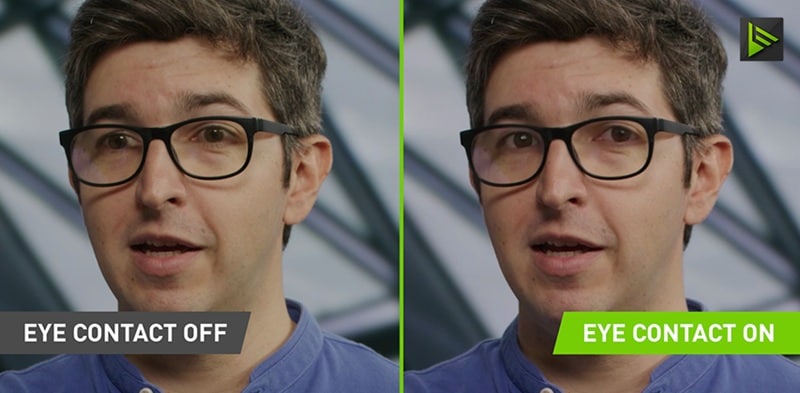
The goal is simple: improve communication on camera without forcing you to stare at a tiny webcam lens the entire time.
Why It Actually Matters
For common people, this may not seem like a big deal. But when it works, the NVIDIA AI eye contact feature can boost your confidence on screen, as well as adress other problems, such as:
| Problem | How NVIDIA Tries to Fix It |
| Reading scripts | Keeps eyes near lens |
| Looking at slides | Maintains engagement |
| Multiple monitors | Reduces side-looking |
| Webcam anxiety | Less pressure to stare directly |
Requirements Needed: Can Your Rig Handle It?
Before you run out to find an NVIDIA eye contact AI download link, you need to make sure your computer has the muscle to support it. And unfortunately, the system requirements to run NVIDIA eye contact software are pretty strict and non-negotiable:
| Component | What You Need |
| GPU | NVIDIA GeForce RTX 2060, Quadro RTX 3000, TITAN RTX, or higher (20-series through 50-series) |
| RAM | Minimum 8GB RAM |
| CPU | Intel Core i5-8600 (8th Gen) or AMD Ryzen R5 2600 or higher |
| Driver | NVIDIA Studio Driver 462.46, Game Ready Driver 465.89, or RTX Enterprise Driver 462.59 |
| Operating System | Windows 10 (64-bit) or Windows 11 |
| App | NVIDIA Broadcast v1.4 or later |
As you can see, you can't run NVIDIA Eye software on any old PC. Plus, there is no NVIDIA Eye Contact for Mac. This is the part that trips a lot of people up. So, be sure that you check out all these requirements before clicking any eye contact NVIDIA download button.
Part 2. Getting Started: How to Use NVIDIA Eye Contact AI
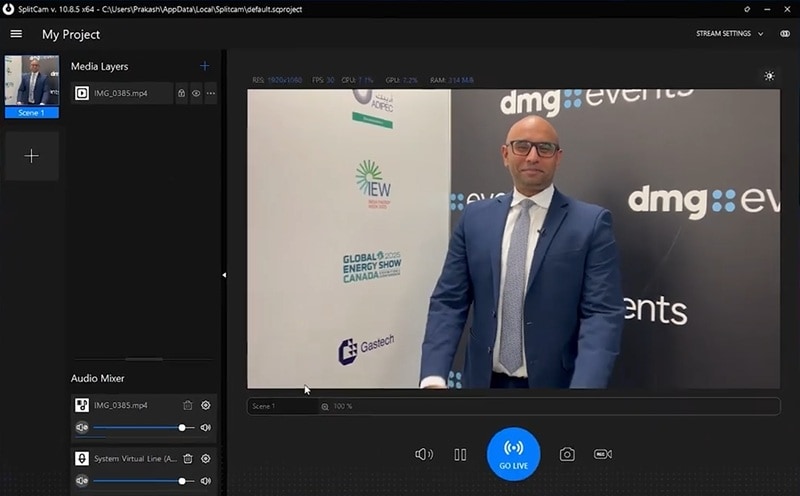
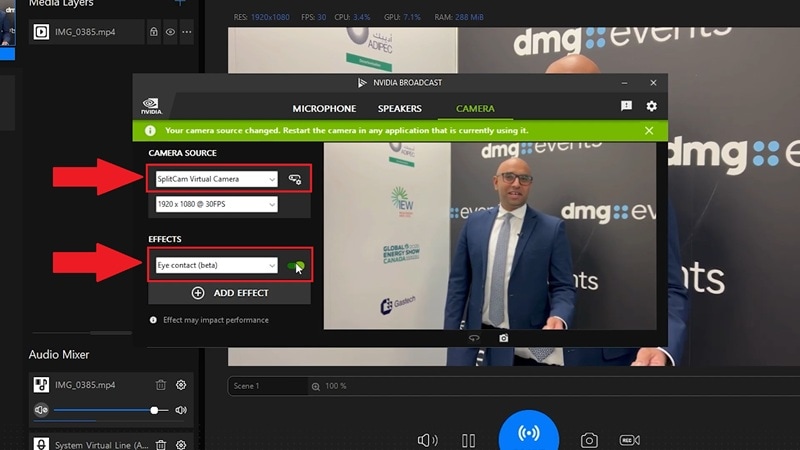
Once you've confirmed your rig meets the requirements, the actual setup process of the NVIDIA AI camera eye contact is quick. NVIDIA Broadcast is designed to be plug-and-play rather than technical, so you don't need to be a streaming veteran to get this running.
Here's the exact process of how to use NVIDIA eye contact, as guided by UC Shorts on YouTube:
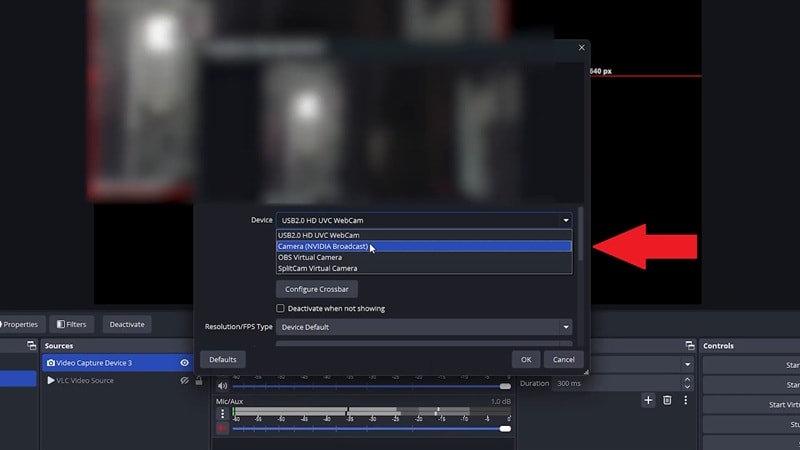
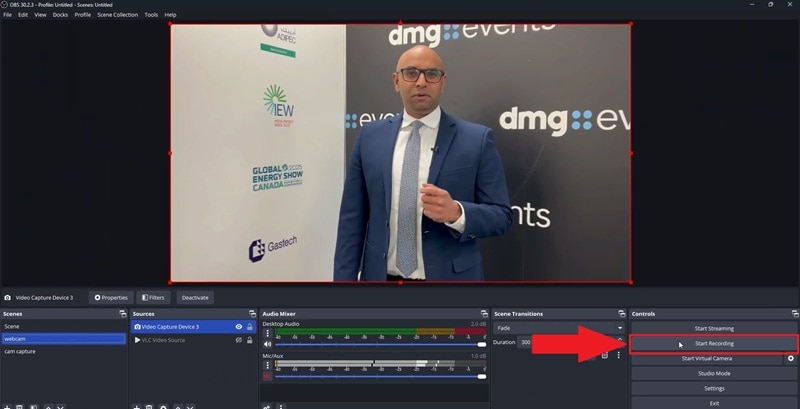
Part 3. The Internet’s Verdict: What Users Are Saying About NVIDIA Eye Contact
When NVIDIA AI eye contact was released in January 2023, the internet had a lot of feelings about it. Reddit threads on r/nvidia and r/PartneredYoutube both blew up with reactions. The feedback is quite a mixed bag. Some people consider it an absolute lifesaver, while others find the results incredibly unsettling.

Here's the honest breakdown of what real users found:
- Ultimate Multitasking: You can read a long script or look directly at a live stream chat without ever losing eye contact with your viewers.
- Zero Extra Costs: If you already have a compatible RTX card, you download NVIDIA Broadcast and you're done.
- Real-Time Processing: The correction happens live as you stream or call. You don't need to export footage, upload to a website, or wait for a render.
- Smart Auto-Disconnect Feature: When you look too far away from the camera, Broadcast smoothly transitions back to your real eyes rather than freezing the synthetic ones in place.
- The Uncanny Valley: The NVIDIA eye AI can sometimes lock you into an intense, unblinking stare that feels unnatural.
- Visual Glitches on Rapid Blinking: Fast blinks or sudden head movements can cause the AI eyes to 'pop,' jitter, or briefly show mismatched positioning between the real eye area and the synthesized gaze.
- Heavy Resource Drain: Running this live takes up substantial GPU power, which can hurt your frame rates if you are attempting to stream a demanding PC game at the exact same time.
- Strictly Windows-Only: There is no official NVIDIA eye contact for Mac, leaving the entire Apple creative community out in the cold.
Part 4. Who Should Actually Use This?
Because the eye contact NVIDIA effect can feel incredibly intense, it isn't the perfect fit for every type of video production. And using it in the wrong context can actually make your video content worse, not better.
So, we put the tech through its paces across different scenarios to see where it truly shines and where you should leave it completely turned off.
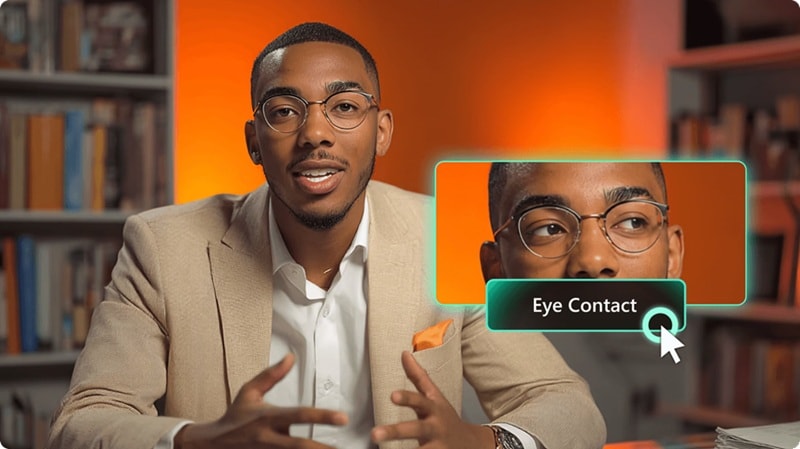
Works well for:
- Online Presentation Creators: Perfect for teachers or corporate professionals who need to look closely at slides or notes while presenting to a remote audience.
- Scripted Tutorials: Excellent for solo content creators who don't have the budget or space for a physical glass teleprompter setup.
- Remote Job Interviews: Helps convey confidence and focus, though you'll want to make sure your lighting is bright so the AI tracks cleanly.
Not ideal for:
- Emotional or Casual Vlogs: If you are trying to have a genuine, heart-to-heart talk with your audience, the rigid AI stare can break down that authentic trust.
- High-End 4K Film Production: Cinematic video editors will notice the digital overlay quickly, meaning a traditional teleprompter is still the way to go for premium projects.
Our Ratings (After Testing & Research)
Throughout our review, we put NVIDIA eye contact through practical testing scenarios across different use cases and hardware tiers. Here's the full scorecard:
| Category | Score | Reasoning |
| Ease of Setup | 9 / 10 | Once you meet the requirements, you're literally three clicks away from eye contact correction. |
| Accessibility | 4 / 10 | Requiring an expensive NVIDIA RTX card and a Windows PC locks out a massive number of creators. |
| Natural Look | 6.5 / 10 | The lack of natural micro-movements can make the gaze feel slightly robotic or intense. |
| Gaze Accuracy | 8 / 10 | It pins your eyes to the lens perfectly, though sometimes a bit too perfectly. |
| Real-time Speed | 9 / 10 | There is almost no perceivable lag between your real movements and the AI update. |
| Feature Depth | 6 / 10 | Eye Contact does one thing. There's no post-production control, no timeline editing, no caption tools, no audio editing suite. |
| Overall Score | 7.5 / 10 | A genuinely useful, free tool for RTX users who stream or do live calls. The natural-looking results are the main caveat — it's better than nothing, but it's not magic. |
Part 5. The Best NVIDIA Eye Contact Alternative: Wondershare Filmora
NVIDIA's eye contact AI tool earns its place for live streaming and real-time calls, but for post-production, it can be quite a hassle, as you need three different apps to begin with. Additionally, Mac users are unable to use it at all; anyone without an RTX GPU is locked out.
Fortunately, you aren't out of luck. There's a perfect NVIDIA eye contact alternative that can be your solution: Wondershare Filmora.

This AI video editor features an excellent built-in AI Eye Contact tool that tackles the exact same problem from a different angle. Instead of running as a live camera filter, Filmora fixes your gaze directly inside your editing timeline.
Why Choose Filmora's AI Eye Contact?
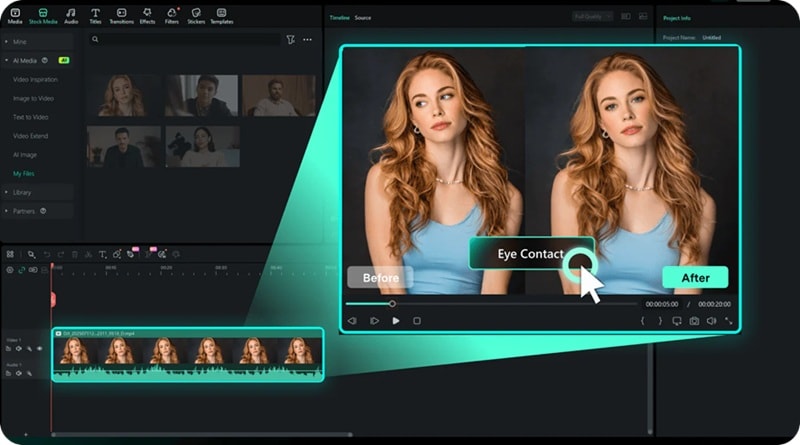
- Platform Freedom: If you've been frustrated by the lack of NVIDIA Eye Contact for Mac, Filmora is the direct answer. Filmora works natively on both Windows and macOS; including Apple M1, M2, M3, and M4 chips.
- All-in-One Workflow: Filmora includes an AI Eye Contact feature, as well as Screen Recorder capabilities. This allows you to record and apply eye contact correction without switching between different apps.
- Post-Production Control: You record your performance freely, then apply the correction in editing. That separation lets you focus on delivery during the shoot without thinking about your gaze at all.
- Smart Triggers: The Eye Contact feature only activates on appropriate clips (≤ 3 minutes, single person, proper face orientation). This prevents awkward misapplications to clips that don't actually need it.
- No 'Dead Stare' Problem: Because Filmora applies correction after the fact with full frame context, it aims to produce a more naturally integrated result than a live filter, making real-time guesses.
- Lower Hardware Bar: The correction is processed using Filmora's cloud AI pipeline — your machine doesn't need to be a high-end rig to get a professional-looking result.
 Secure Download
Filmora vs. NVIDIA: Comparison Table
Here's how both tools compare across every factor that actually matters for most creators:
| Feature | Filmora | NVIDIA |
| Platform | Windows + macOS (Mac fully supported) | Windows 10/11 only — no Mac support |
| GPU Requirement | Standard Desktop or Laptop | NVIDIA RTX 20-Series GPU or Higher |
| Naturalness of Correction | Designed to blend with facial lighting and expressions | Can produce 'dead stare' on extreme angles |
| Clip Limit | Best optimized for clips under 3 minutes | Unlimited (Runs live) |
| Editing Tools Included | Full timeline editor, multi-track audio, AI features | No editing tools — enhancement only |
| Best For | Produced YouTube Videos, TikToks, Reels | Live Webinars, Zoom Meetings, Twitch |
What More Do You Get From Using Filmora
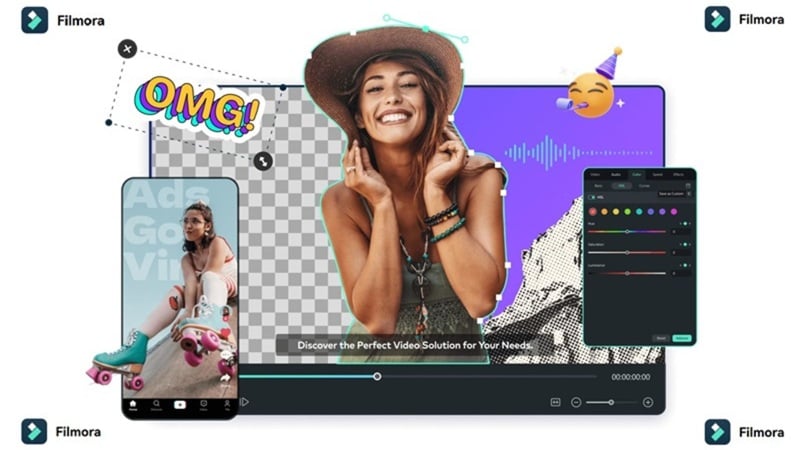
Choosing Filmora means you aren't just getting a single-purpose utility app. You gain access to a complete creative suite packed with features to level up your short-form vertical videos or long-form content:
AI Video Generation
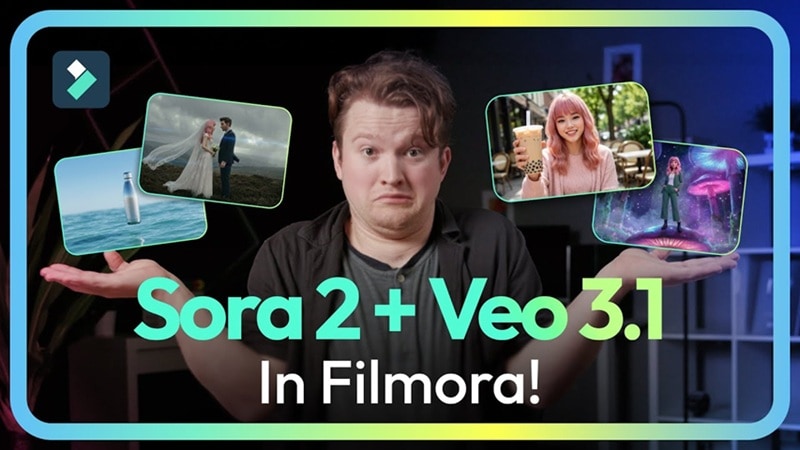
You're not just correcting eye contact; you can build entirely new scenes from scratch without leaving Filmora. Simply type a prompt, pick a style, and Filmora generates footage using models like Veo 3.1, Seedance 2.0, and Sora 2, directly inside your editing project.
Social Media Ready
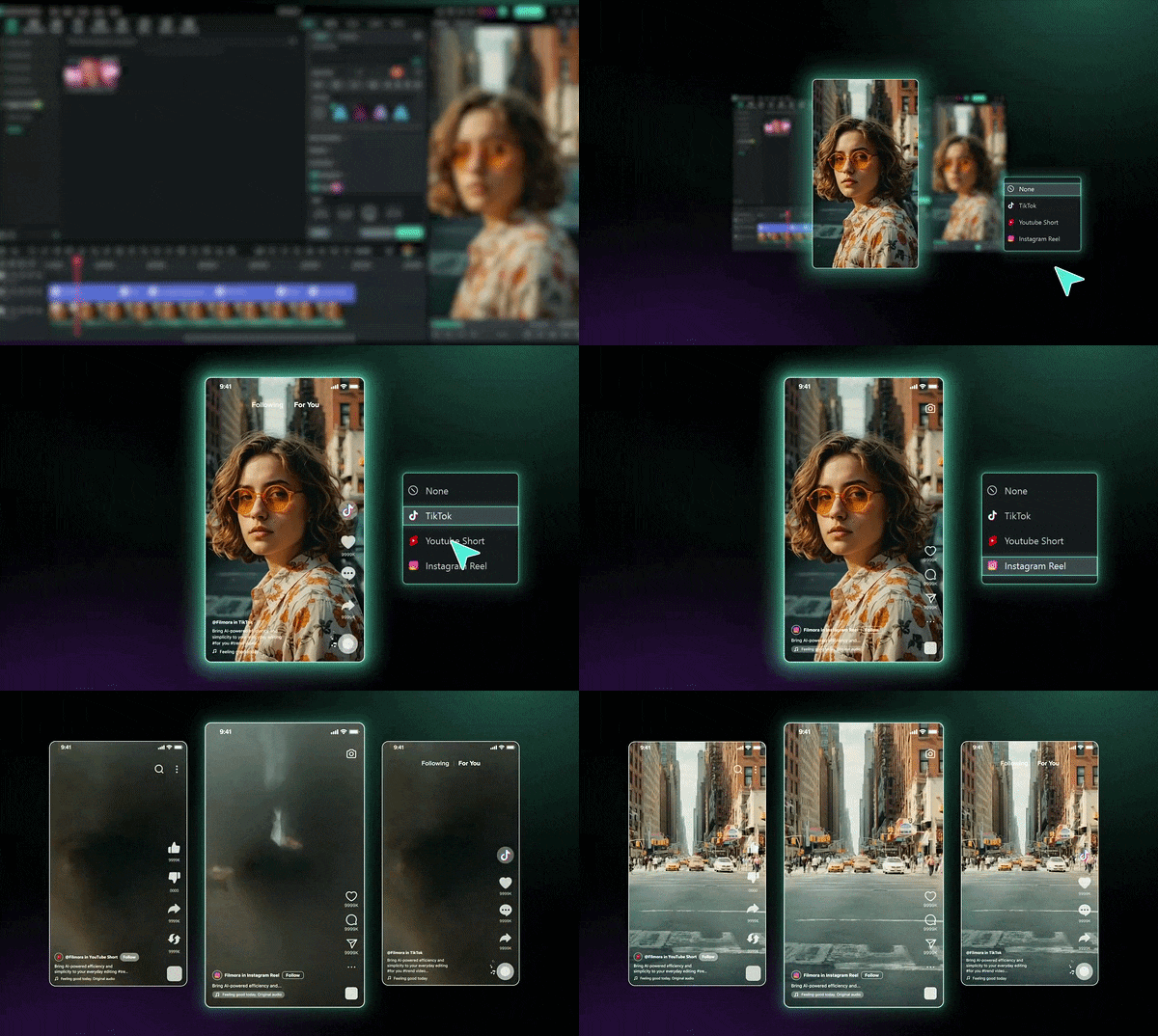
Built-in templates, aspect ratio presets, and trend-aligned hooks for TikTok, Instagram Reels, and YouTube Shorts. You can go from a raw clip to a publish-ready short video without touching a second app.
Millions of Stock Assets
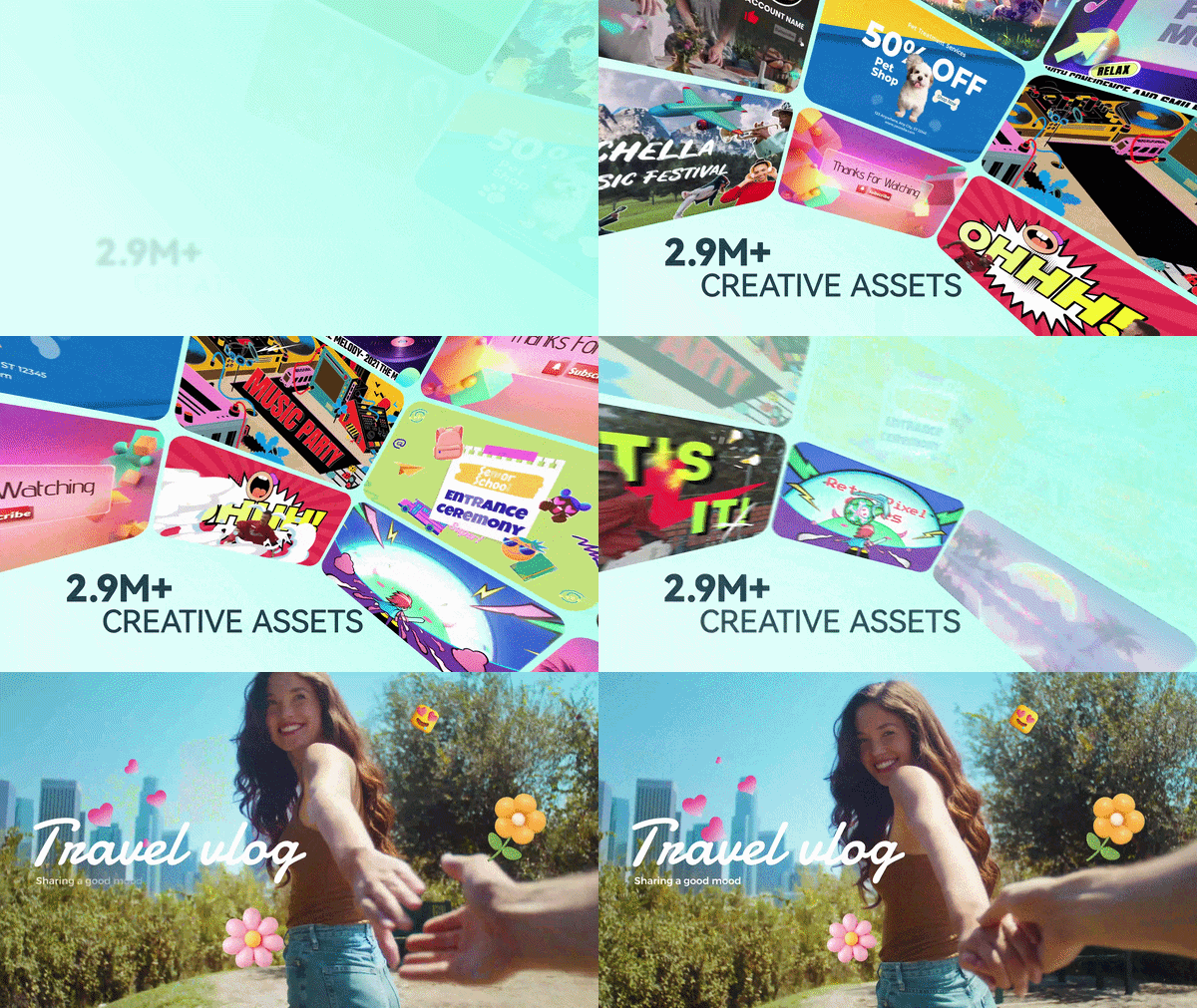
You get access to 2.9M + creative assets, including video clips, music, sound effects, overlays, and more, all searchable directly from inside the editor. No third-party subscriptions or site-hopping required!
Multi-Track Timeline Editing
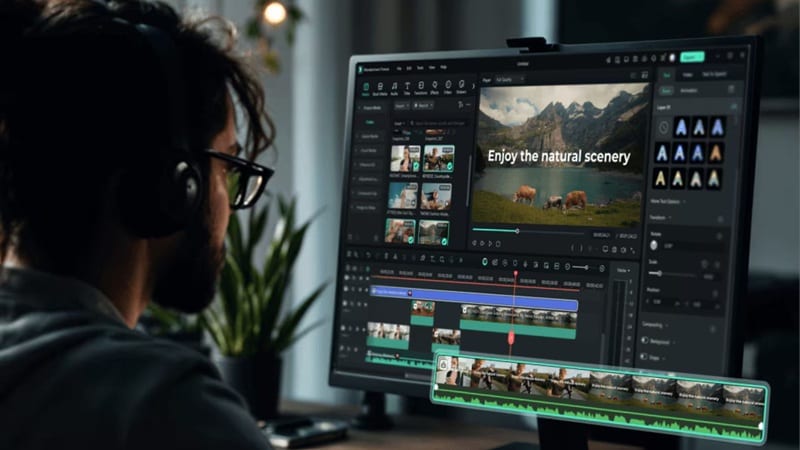
You can layer video, audio, effects, and text across multiple independent tracks. And of course, you have full timeline control, including trim, split, rearrange, and fine-tune every element of your project. This is something NVIDIA Broadcast can't offer at all.
Secure DownloadConclusion
For what it's designed to do, NVIDIA Eye Contact AI is genuinely solid. The ability to redirect gaze in real time is impressive, especially for teachers, presenters, streamers, and anyone who constantly reads notes while talking. Still, it isn’t perfect. The occasional uncanny look, heavy hardware requirements, and Windows-only support keep it from being a universal solution.
If NVIDIA Eye Contact doesn't fit your setup, Wondershare Filmora is the cleanest alternative. It brings AI Eye Contact into a complete post-production environment that works on both Windows and Mac. Plus, Filmora doesn't need an RTX GPU, and pairs the gaze fix with everything else you need to finish a polished video.
FAQs About NVIDIA Eye Contact AI
-
Does NVIDIA Eye Contact AI work with all webcams?
Yes, it works with almost any standard USB webcam or virtual camera setup. Because the software intercepts your video feed after it leaves the camera, the brand or model of your webcam doesn't matter as long as your face is well-lit and clear. -
Is there a way to adjust how strong the eye correction looks?
Right now, the intensity slider for the Eye Contact AI NVIDIA is a simple on-and-off toggle. What you can control is your own setup: how far off-camera you actually look, your lighting, and your camera resolution. -
How do I fix the "creepy" look in my videos?
A few things help: keep your actual gaze closer to the lens (so the AI correction is smaller and more subtle), make sure your eyes are well-lit (shadowy or low-contrast eye areas are harder for the AI to handle naturally), and avoid extreme head angles. If the look is still bothering you after optimizing your setup, switching to a post-production tool like Filmora's AI Eye Contact gives you more control.
