


 TL;DR:
Vidnoz AI is a web-based video generation platform best suited for creators needing to quickly produce faceless content using over 1,900 AI avatars, voice cloning, and multi-language translation tools.
● The platform lacks an official mobile app and full precision editing capabilities, and users cannot fully preview an avatar’s gestures or movement until the video is already generated.
● The free plan restricts exports to 3-minute, 720p watermarked videos without commercial rights, requiring a paid subscription starting at $26.99/month for 1080p resolution, 60-minute video durations, and commercial usage.
● Wondershare Filmora serves as a recommended alternative for users who require cross-platform access on PC and mobile, precise timeline control over individual scenes, and traditional video editing tools paired with AI generation.
Ask AI for a summary
 ChatGPT
 Perplexity
 Gemini
 Claude
 Grok
Grok
AI tools have made video creation faster and easier than before. Instead of handling every step manually, creators can now rely on platforms like Vidnoz AI to speed up the process. With AI avatars and AI voices, you can create videos without needing to show yourself on camera.
Vidnoz AI is already used by many creators and businesses. According to PR Newswire, the platform received ISO/IEC 27001:2022 certification, a recognized standard for information security, which adds more credibility to the service. But how good is Vidnoz AI when you actually use it?
We will look at what Vidnoz AI offers, how much it costs, and its pros and cons.
Part 1. What Is Vidnoz AI?
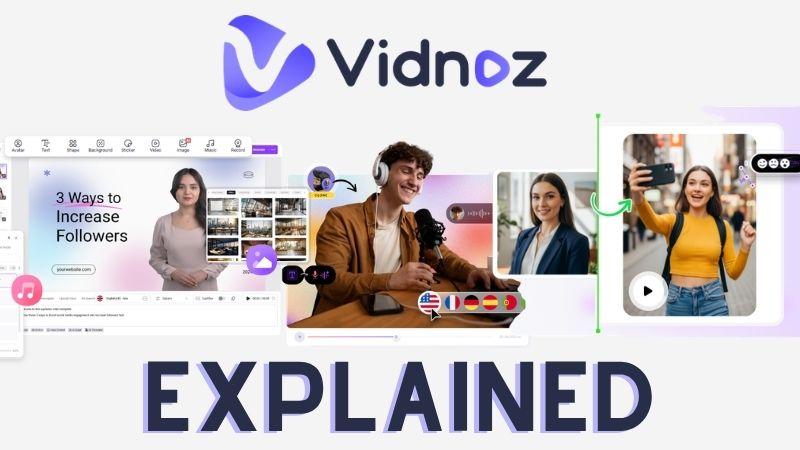
Vidnoz, often referred to as Vidnoz AI, is a platform that brings together multiple AI tools for video creation. You can generate content for personal projects, business needs, or marketing campaigns from one dashboard. The platform also holds high ratings, with 4.8/5 on Product Hunt and 4.9/5 on G2.
How Can We Use Vidnoz AI?
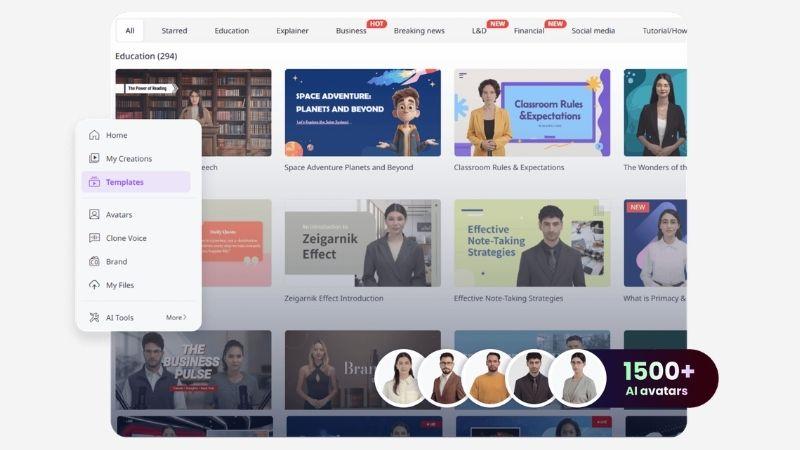
Vidnoz AI is widely known for creating faceless talking videos using realistic avatars. This makes it useful when you want to present information without appearing on camera yourself.
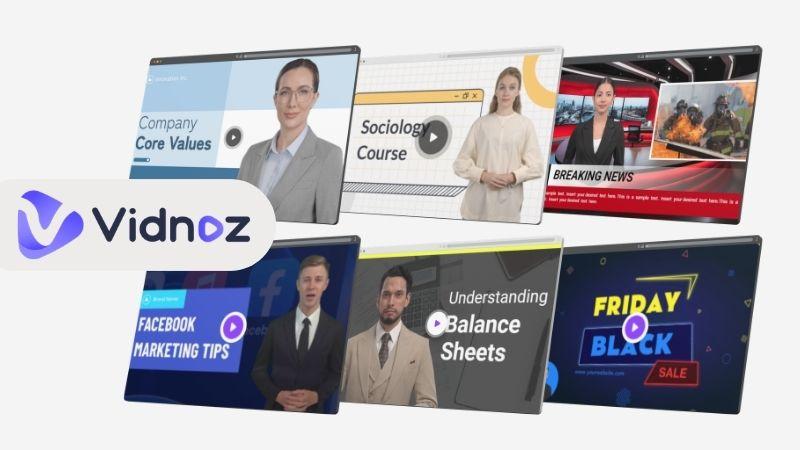
Here are some common ways to use Vidnoz AI Video Generator:
- Training and Onboarding Videos: Create onboarding materials, internal training videos, or learning content for employees and teams.
- Educational and Explainer Content: Produce educational lessons, tutorials, or simple explainer videos for audiences.
- Promotional and Sales Videos: Make promotional videos, product showcases, or sales content to attract customers.
- Business and Team Communication: Share announcements, updates, presentations, or messages in video format.
Where to Use Vidnoz AI?
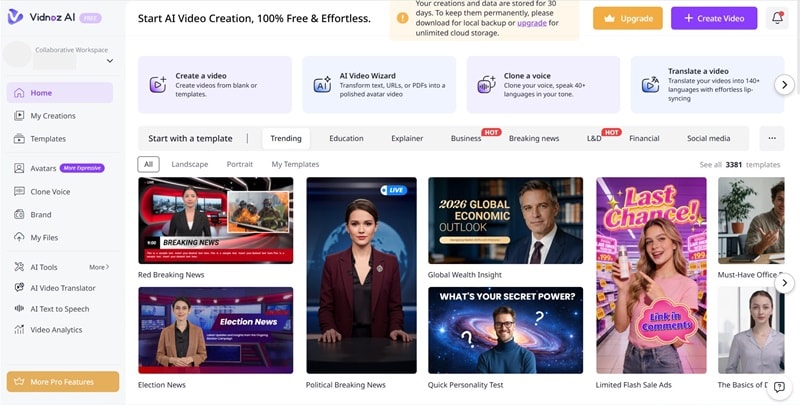
If you are wondering how to access Vidnoz AI, the platform is currently web-based. There is no official mobile app yet, but you can use it easily through a browser on your PC or laptop.
Part 2. Core Features of Vidnoz AI
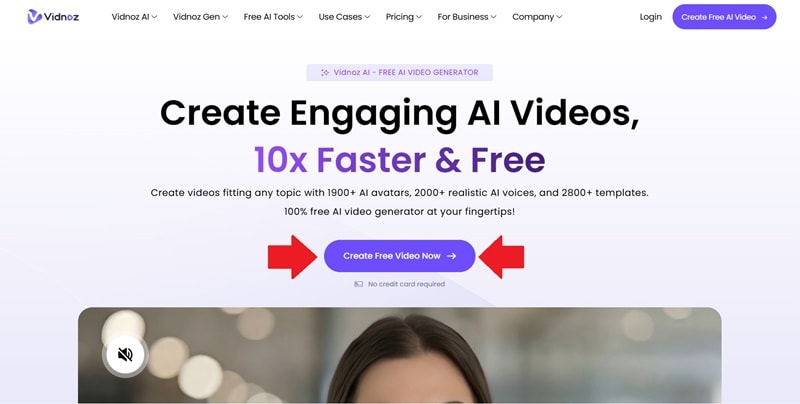
Vidnoz AI comes with many features, which can feel overwhelming at first glance. Instead of covering everything, we will focus on the core tools that attract the most attention and are most useful for everyday creators. Let’s get into it.
Use AI Avatars for Video Content
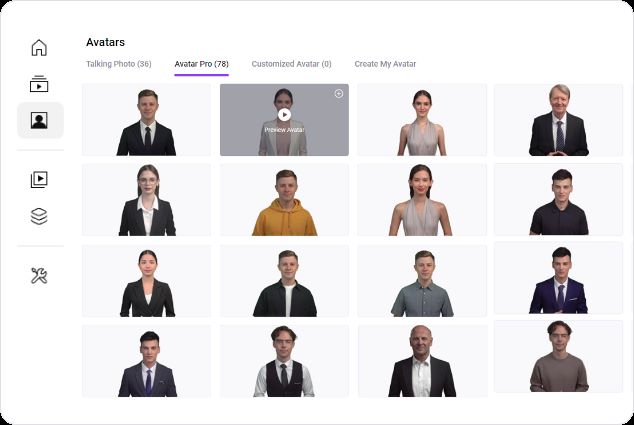
A major appeal of Vidnoz AI is that it allows you to create faceless videos without appearing on camera. For formal presentations or business use, you can choose from over 1,900 realistic AI avatars with different looks and angles. If you want more personality, there are also motion and expressive avatars for gaming, news, ads, or even anime-style content.
Vidnoz AI also offers Interactive Avatars for brands and businesses. They can help answer customer questions and guide users at any time. If none of the built-in avatars feel right, you can also create a custom avatar tailored to your own needs.
Create Videos for Any Purpose
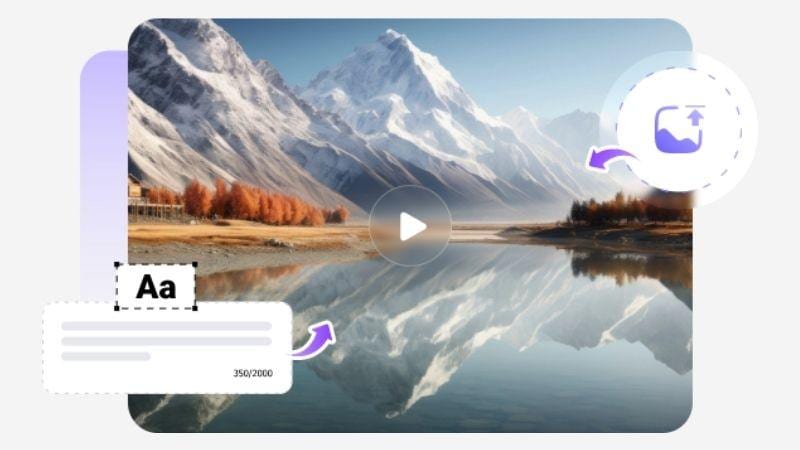
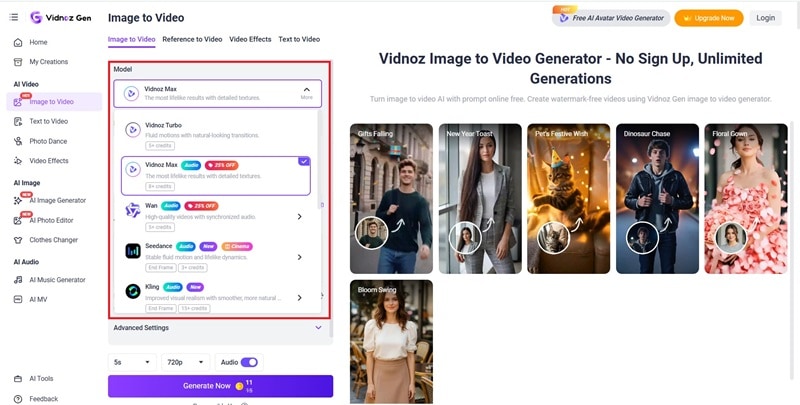
If you want to make short videos for social media, try Vidnoz AI Image to Video or Text to Video. These features are powered by different AI models, including:
- Vidnoz
- Wan
- Seedance
- Kling
- Google Veo
- Hailuo
- Vidu
- Pixverse
- Luma Ray 2
There are also trendy templates to help when you run out of ideas.
Clone Voices and Translate with AI
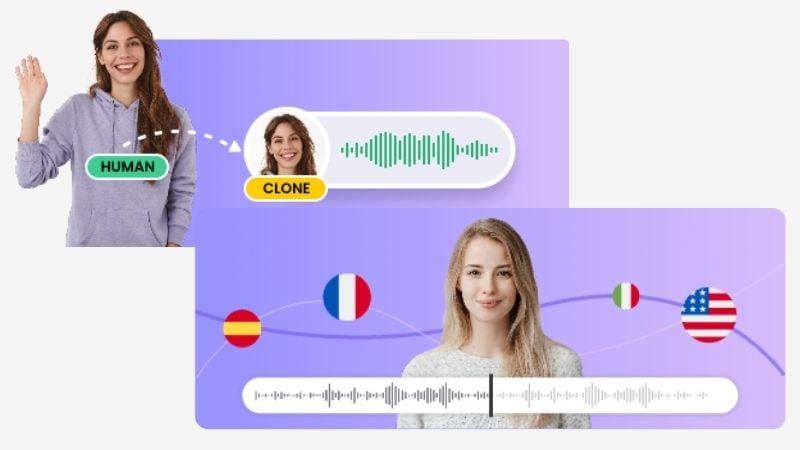
Vidnoz AI is not only focused on visuals but also offers useful voice and language tools. Here are some tools worth trying.
- Vidnoz AI Music Generator: Create background instrumentals or full songs with lyrics. You can even start from an image and customize genre, mood, and vocals.
- Vidnoz AI Voice Clone: With only 10 to 20 seconds of voice input, Vidnoz AI can replicate your voice or turn another audio sample into a cloned voice. You can also adjust the emotions and speaking speed.
- Vidnoz AI Text to Speech: Convert text into voiceovers using more than 1,200 realistic voices in different styles and themes.
- Vidnoz AI Video Translator: To reach a wider audience, you can translate videos into 140+ languages with multi-speaker detection. It also supports subtitles and lip-syncing for more natural results.
Extra Creative Features to Try
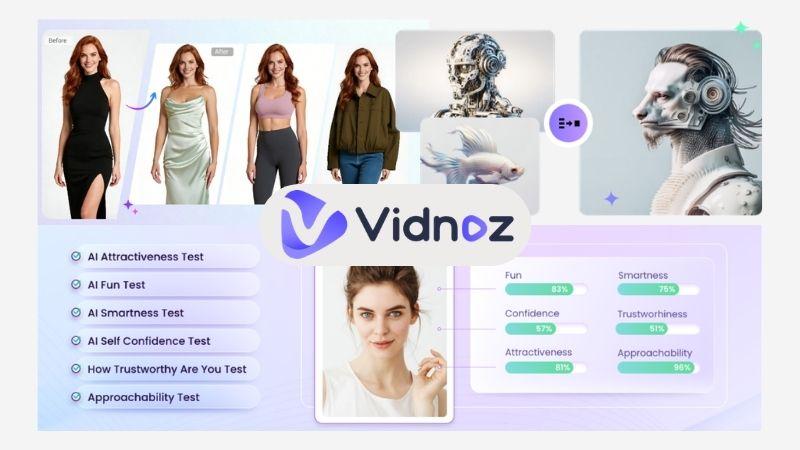
Besides professional video tools, Vidnoz AI also includes some lighter and more entertaining features. These can be fun to test when you want to experiment with images or social content.
- Vidnoz AI Image to Talking Video: You can animate a photo so it looks like the person is speaking.
- Vidnoz AI Image Combiner: Merge two or more images into one new visual. It can be a fun way to bring unusual ideas to life or create scenes that would be difficult to make normally.
- Vidnoz AI Attractiveness Test: Upload a photo and get an AI score on different trait categories.
- Vidnoz AI Clothes Changer: Change outfits in photos and try different virtual styles. You can switch the full outfit or only replace certain clothing items.
Part 3. The Pricing Plan of Vidnoz AI
One of the most common questions is: Is Vidnoz AI free? The short answer is yes. Vidnoz AI offers a free plan, so you can explore the platform and test its main features before upgrading.
With the free plan, you get:
- Use the Text to Video tools.
- Up to 2,000 characters are allowed in each scene.
- Access to a large content library with 1,800+ avatars, 3,400+ video templates, and 890 voices.
- Create videos up to 3 minutes long.
- Video exports in 720p quality.
If you want longer videos, better quality, or plan to earn money from your content, a paid plan will be more suitable. Here is the main pricing plan from Vidnoz AI.
| Feature | Starter | Business | Enterprise |
| Price | $26.99/month | $74.99/month | Contact for Pricing |
| Credits | 450 - 1800 | 900 - 2700 | Customizable |
| Video Duration | 60 min/video | 60 min/video | Customizable |
| Creative Assets | 1.900+ AI Avatars, 3.400+ Templates, 2.680 Voices | Same as Starter | Same as Starter |
| Video Quality | 1080p | 1080p | 1080p |
| Avatar Usage Limits | 100 motion avatars/month, 100 photo avatars/day | Unlimited | Unlimited |
| Text to Video | Yes | Yes | Yes |
| Voice Clone & Translation | No | Yes | Yes |
| Brand Kit | No | Yes | Yes |
| Branded Video Page with CTA | No | Yes | Yes |
| Team Collaboration | No | Yes | Yes |
| Video Analytics | No | Yes | Yes |
| Dedicated Data Center | No | No | Yes |
| Dedicated Account Manager | No | No | Yes |
|
Show More
Show Less
|
|||
There are also extra Vidnoz AI pricing plans focused on specific needs, such as video generation, translation, or speech and text tools. So, if you only need one category of features, there may be a more suitable option. Let’s check the differences.
| Feature | Vidnoz Gen Plan | Vidnoz AI Video Translation Plan | Vidnoz Voice Plan |
| Price | $12.99 - $57.73 / month | $27 - $1440 / month or $180 - $1600 one-time payment | $8.99 - $44.95 / month |
| Credits | 180 - 800 credits/month | 450 - 24.000 monthly credits or 3.000 - 30.000 credits valid for 6-12 months | 200 - 1.000 credits/month |
| Main Features | Full access to 17 generation tools for AI video, image, audio, and premium features | Access to video translation tools and automatic subtitle features | Access to speech generation, voice, and text creation tools |
Now that you’ve seen the differences, choosing a Vidnoz AI plan becomes much easier. Instead of paying for features you may not use often, you can pick the option that best matches your main workflow and budget.
Part 4. How to Create Videos in Vidnoz AI
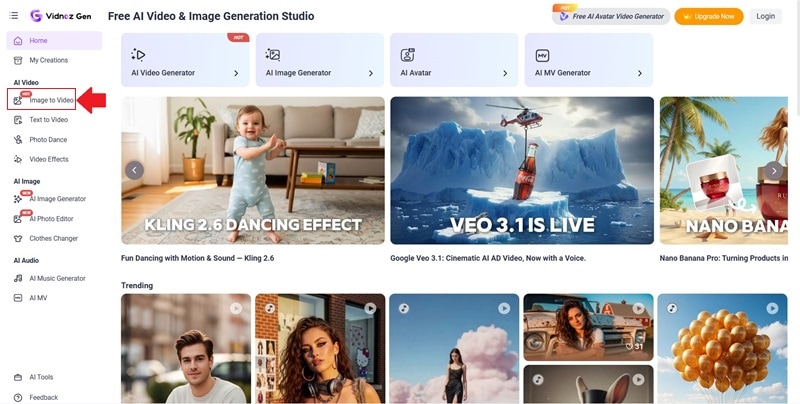
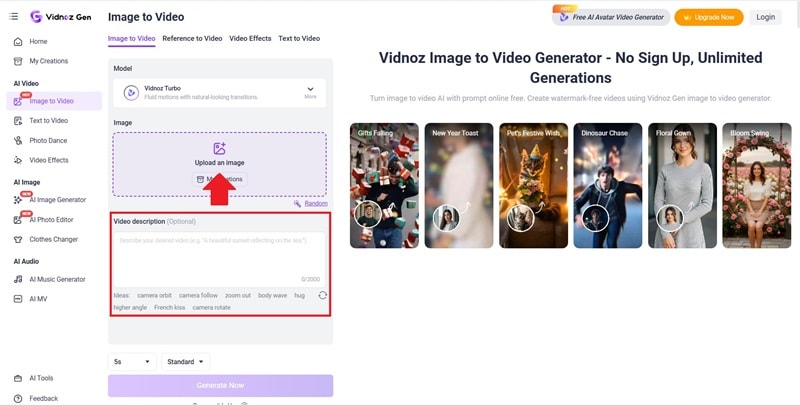
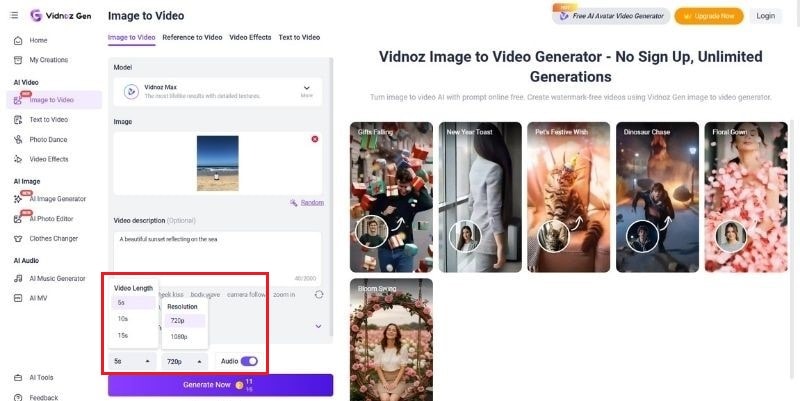
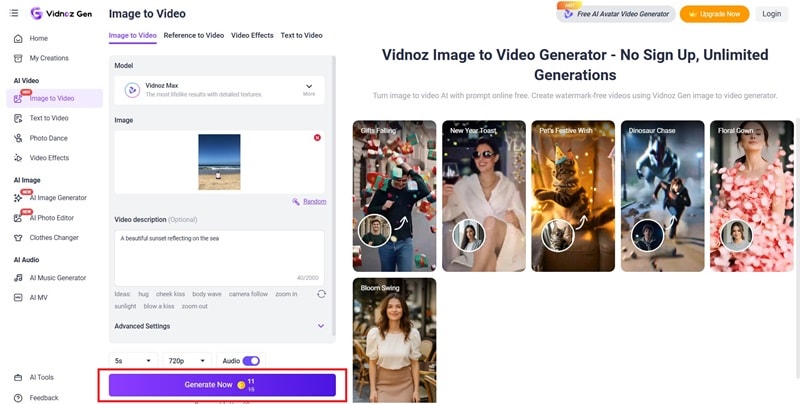
Now it’s time to see how Vidnoz AI works in practice. We will try one of its most popular features, Vidnoz Image to Video with AI. With this tool, you can turn a photo into a short video ranging from 4 to 16 seconds.
Part 5. Vidnoz AI: What Works and What Doesn’t
Vidnoz AI makes video creation fast and convenient, but no tool is perfect. Based on everything we’ve explored, the platform has clear strengths, along with a few weaknesses worth considering.
- Vidnoz AI is easy to use, even for first-time users. Its features are clearly organized, and the video creation steps are simple to follow.
- Videos can be generated quickly, which is helpful when you need content on a tight schedule.
- Easier to produce multiple videos in a similar format without restarting the process each time.
- Some avatars may still look slightly artificial, especially in close-up or highly detailed scenes.
- You cannot fully preview the avatar’s gestures, movement, and speaking style until the video is generated.
- Vidnoz AI does not provide full precision editing, so detailed adjustments for each scene are limited.
Part 6. Filmora: A Desktop & Mobile Alternative with Powerful AI
Since Vidnoz AI only works online, Wondershare Filmora can be another option if you prefer working on both PC and phone.
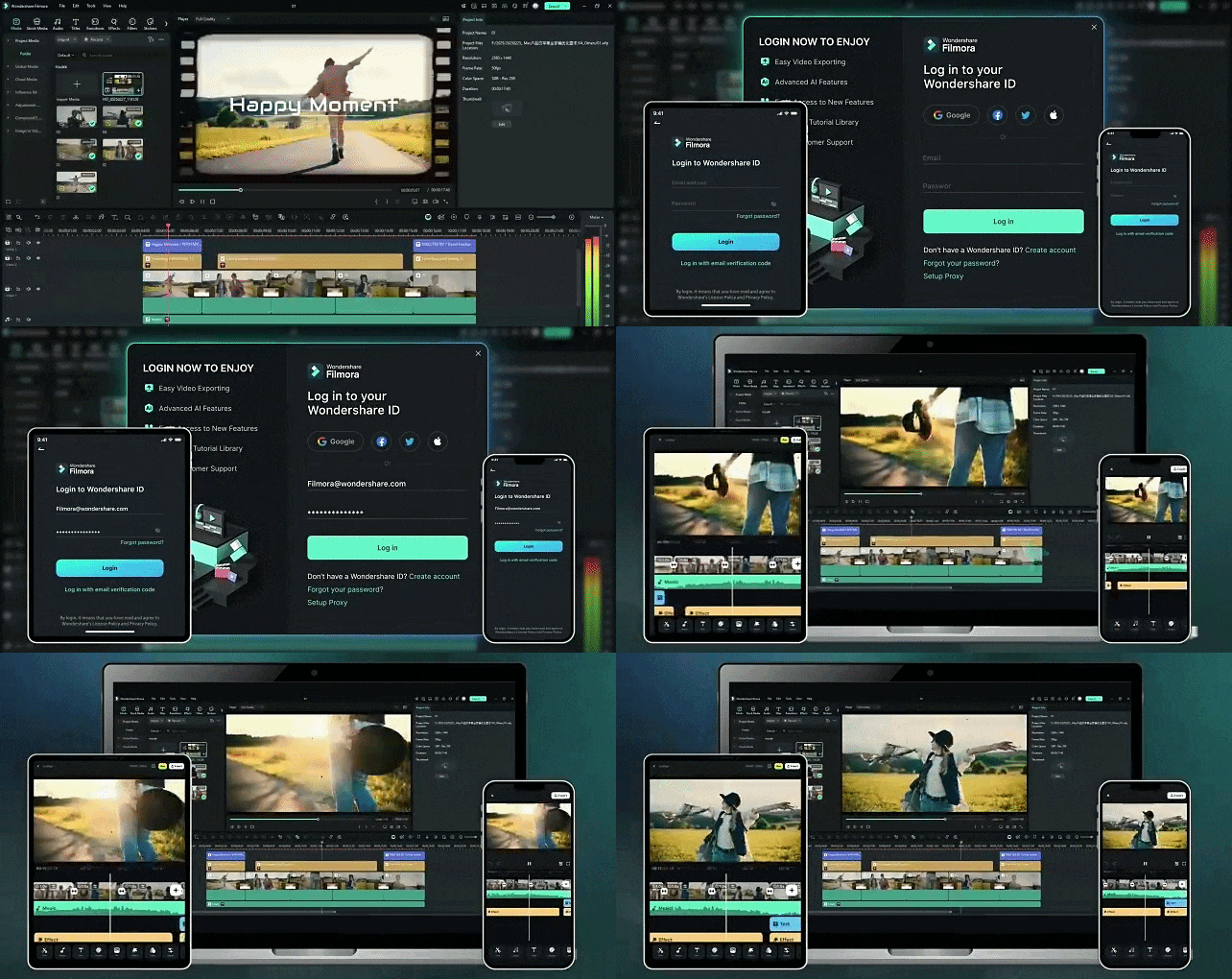
Filmora comes with powerful AI tools for video and audio creation. It also includes a full video editor, giving you more control over every scene and detail. You can also access stock videos, filters, transitions, and animation assets in one place. This makes it useful for creating polished content for personal, social, or commercial needs.
Still curious? Here are some Filmora features that feel similar to Vidnoz AI.
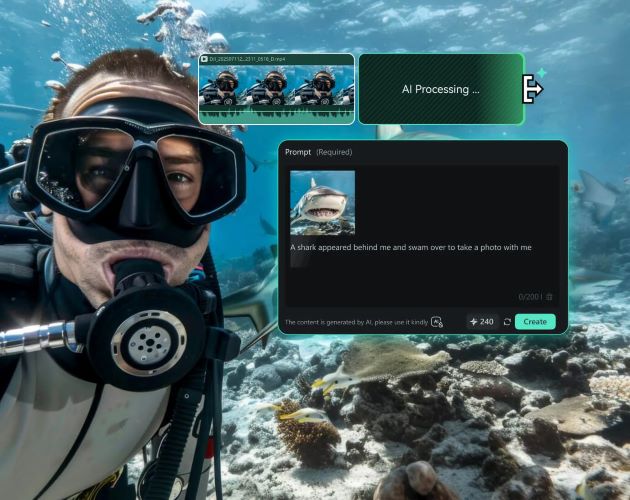
1. Create Videos from Almost Any Input
One standout feature in Filmora is its video generator. You can start with a simple prompt, a photo, or even audio, then turn it into a video. It also supports multiple AI models like Veo 3.1, Seedance 2.0, Sora 2, and more. In just a few clicks, your idea can become a finished video.
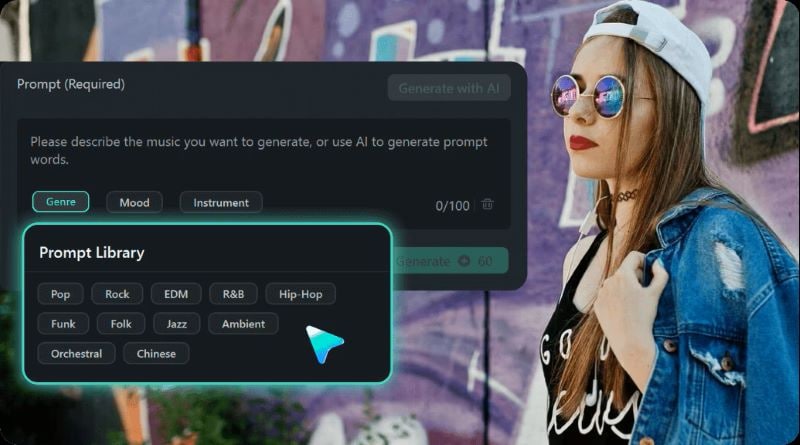
2. Generate Your Own Audio with AI
Videos can feel more engaging when paired with the right audio. Filmora includes a library of over 300,000+ royalty-free sound assets. If you cannot find one that fits, you can also generate your own music and sound effects with AI. Just choose the mood you want, and the AI will generate audio that matches your video.
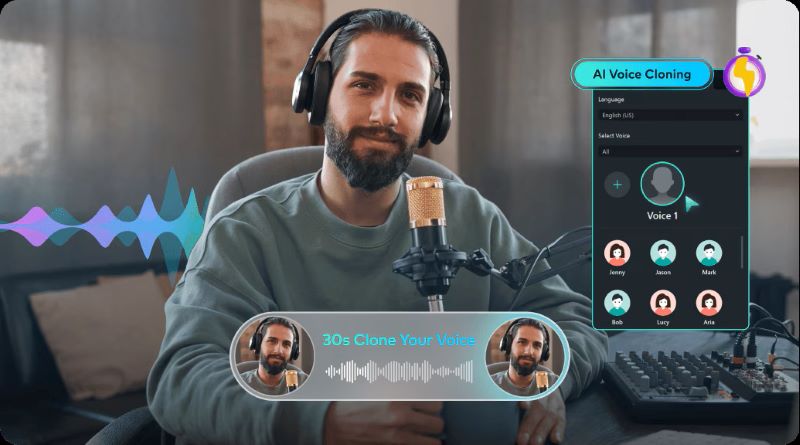
3. Create Voiceovers Faster with Voice Clone
Similar to Vidnoz AI Voice Clone, Filmora lets you recreate your own voice and generate it in up to 16 languages. For more natural results, it can also capture your speaking style, tone, and emotional delivery. This can save time during editing since you don’t need to keep recording new voice-overs for every video.
4. Auto Captions for Faster Editing
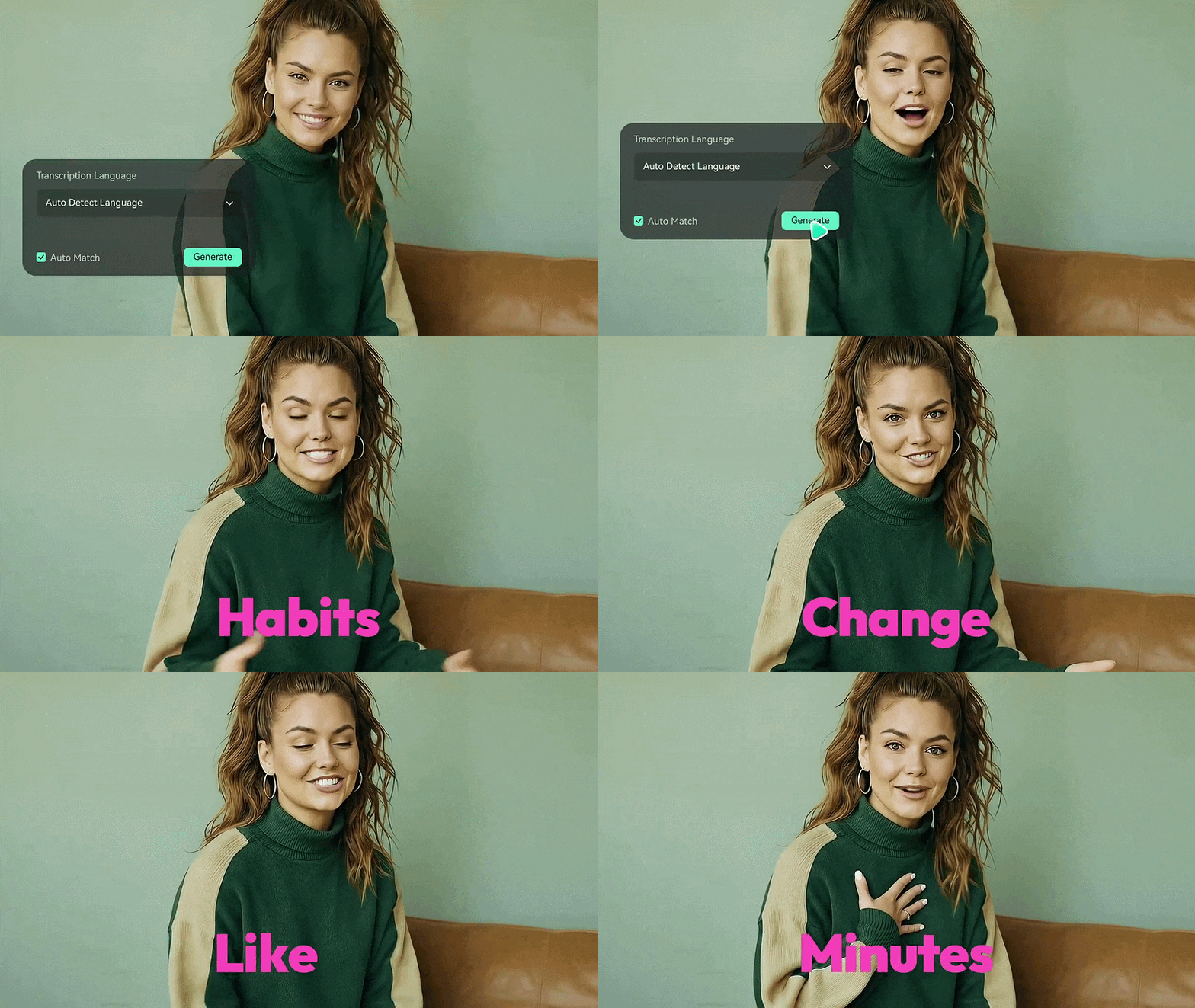
Instead of manually typing captions line by line, Filmora can generate subtitles automatically from speech in your video. It delivers high recognition accuracy, helps save editing time, and can also translate subtitles into more than 20 languages with just a few clicks.
5. Translate Your Videos for Wider Reach
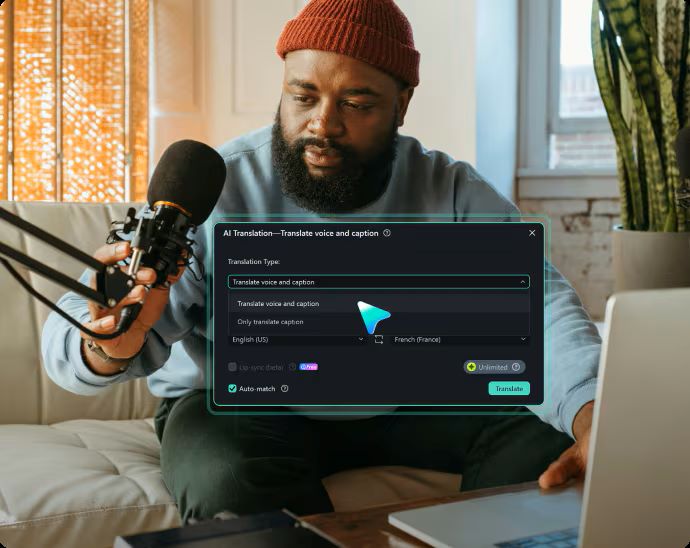
If you want to reach viewers in different regions, Filmora offers AI Translation for up to 23 languages. It also features lip-sync support that matches facial mouth movements with the translated audio, so the speaker appears to talk naturally.
 Secure Download
Conclusion
Vidnoz AI has become a favorite for many people who want to create faceless content for social media or commercial use. It offers a wide range of AI tools that help turn ideas into polished content in less time. There are also extra creative features you can use for fun photos and entertaining videos.
On the other hand, Wondershare Filmora is a strong alternative when you want to edit across both PC and mobile devices more smoothly. You can continue projects on different devices easily. It also includes similar AI features, plus a full editor for finer control and more refined results.
FAQs
-
1. Where can I download the Vidnoz AI app for mobile?
Currently, there is no official Vidnoz AI app for mobile devices. It is currently available through its website browser version at https://www.vidnoz.com/. -
2. Can I use my own photos as avatars?
Yes, you can upload your own photo and use it as an avatar. With the Vidnoz AI Talking Photo feature, you can upload a portrait image, select a voice, and turn the photo into a speaking video based on your script. -
3. Does the free plan include a watermark?
Yes, videos created under the free plan include a watermark. -
4. Can I use Vidnoz AI videos for commercial projects?
Yes, but you'll need to upgrade to a paid plan first. The Vidnoz free version doesn’t include commercial rights.
