


 TL;DR:
Viyou AI provides a fast, prompt-based solution for generating unwatermarked social media visuals, but its expensive coin-based system and HD-only export limitations make Wondershare Filmora a more practical alternative for users requiring manual editing control and 4K resolution.
● The Viyou AI platform is accessible online or via an iOS app requiring iOS 16 or iPadOS 16 and above, utilizing a pay-per-generation economy where a single 10-second video can cost 500 coins, rapidly depleting the 600-coin weekly limit of the $7.99 Lite plan.
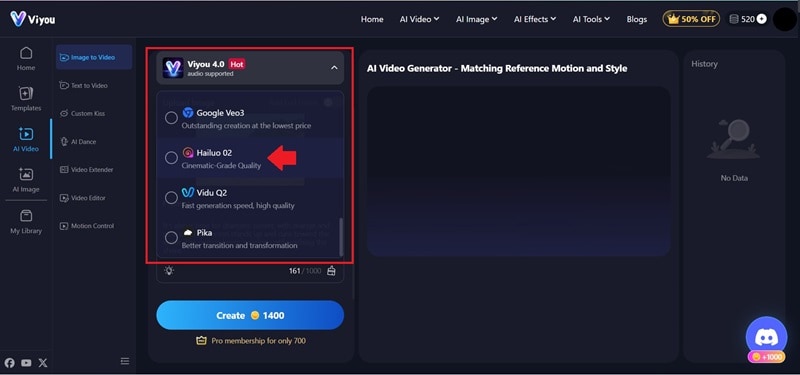
● Since Viyou AI lacks direct manual editing capabilities and requires users to spend extra coins to fix errors by regenerating prompts, it is strictly recommended for straightforward aesthetic generation using built-in engines like Viyou 2.0, Viyou 3.0, and Hailuo 02.
● Wondershare Filmora serves as the recommended alternative for complex projects, offering unlimited manual timeline adjustments, up to 4K multi-platform exports, and broader generation capabilities powered by Seedance 2.0, Sora 2, and Google Veo 3.1.
Ask AI for a summary
 ChatGPT
 Perplexity
 Gemini
 Claude
 Grok
Grok
You no longer need advanced editing skills to create images or videos. These days, many people rely on AI tools to help them produce content for social media. In fact, Adobe reported that 86% of global creators now use creative generative AI in their workflows.
Viyou AI is one of the tools that can generate images and videos. You just need to enter text or upload an image, and Viyou AI will create new visuals for you. It can even transform still images into animated videos.
But the question now: is it any good? See our guide where we’ll explore what the Viyou AI generator can do, how much it costs, and its pros and cons!
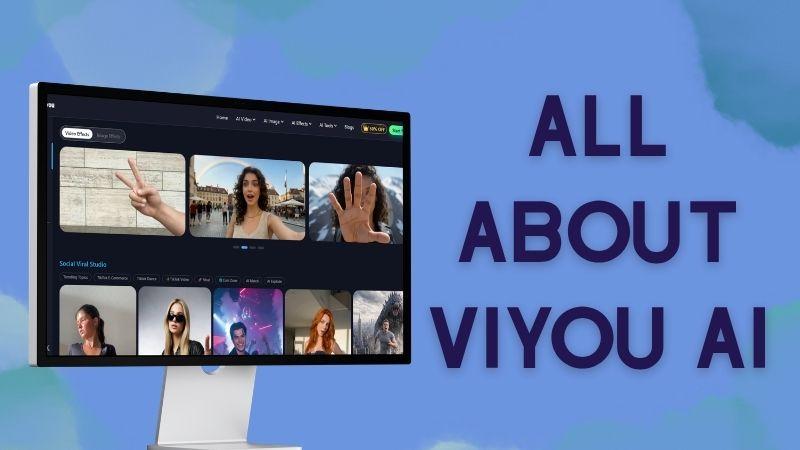
Part 1. Get to Know Viyou AI and the Core Features
Viyou AI is built to help users create images and videos with minimal effort. It is commonly used by creators who need quick content for social media without going through a complex editing process.
Instead of starting from scratch, you can rely on its features to generate visuals and speed up production. This makes it a practical option for those who want fast results with simple steps.
To understand it better, let’s take a closer look at the main features of Viyou AI.
Create Videos in Just a Few Clicks
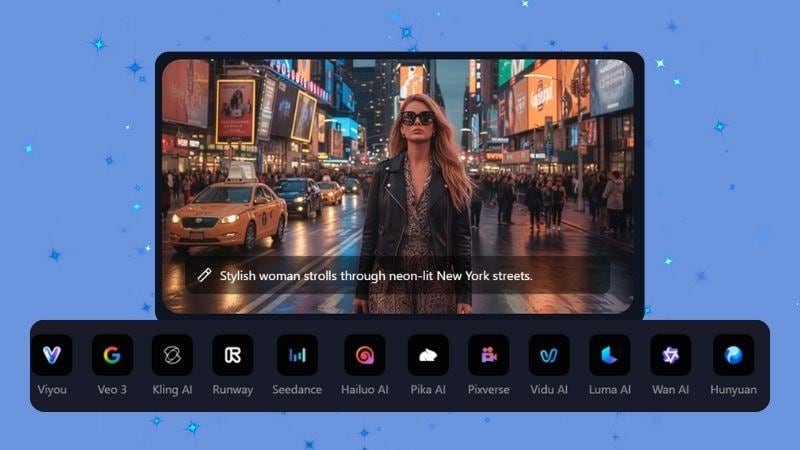
As a video creator, Viyou AI can easily convert text prompts and images to video. You can choose from a variety of AI models, including newer options, to get results that look more realistic and closer to what you have in mind.
On top of that, Viyou AI also offers additional video tools you can explore.
Turn Any Movement Into Your Own Video
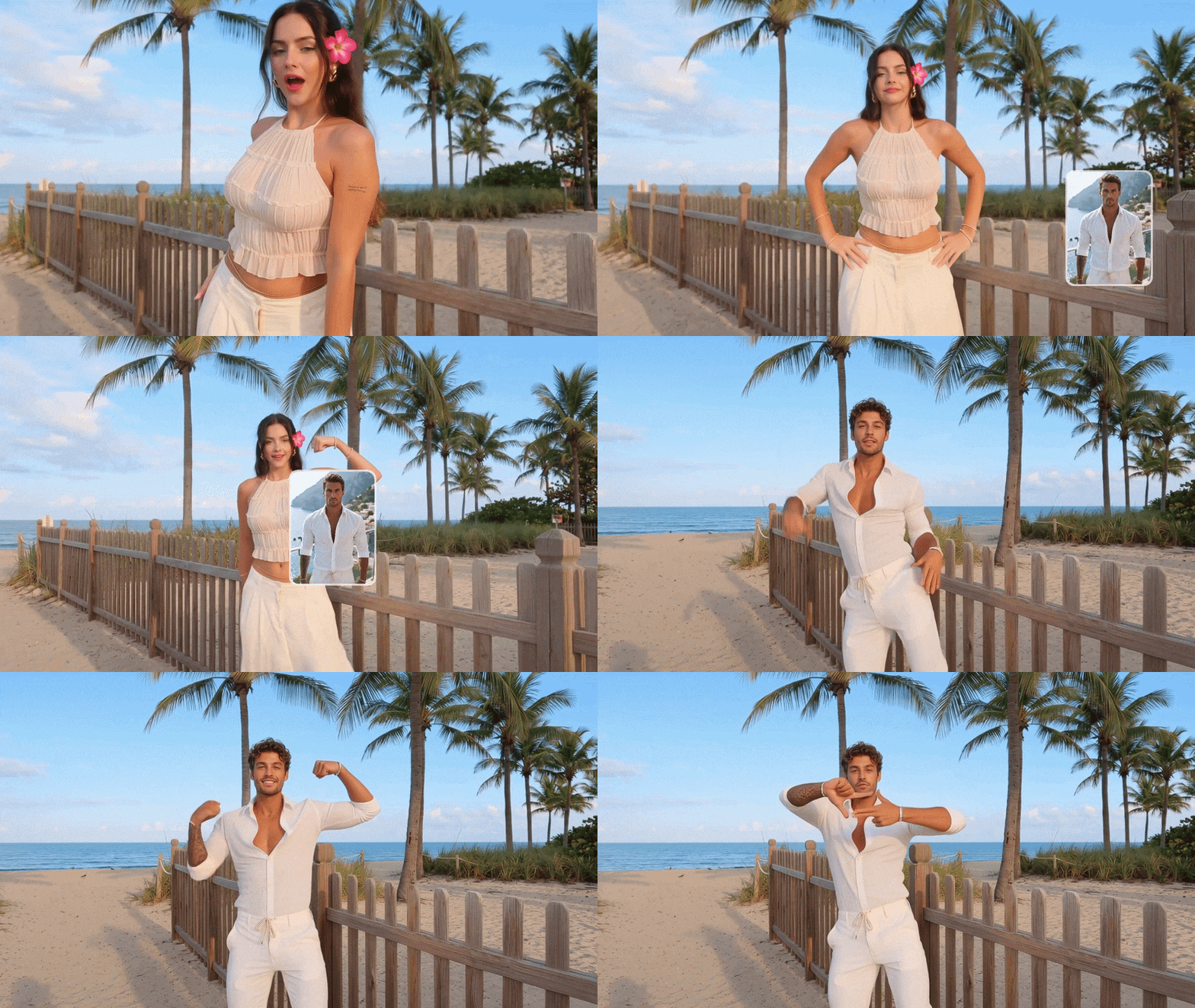
Since dance content is popular on TikTok and Instagram, Viyou AI offers an AI Dance Generator. You can swap the original dancer with your own image while keeping the same movements and style. This makes it easier to keep up with trends.
Viyou AI also includes AI Motion Control, which works beyond dance. It allows you to replicate movements from another video and apply them to your own footage. It’s suitable for detailed and complex actions.
Edit Videos Easily with AI Prompts
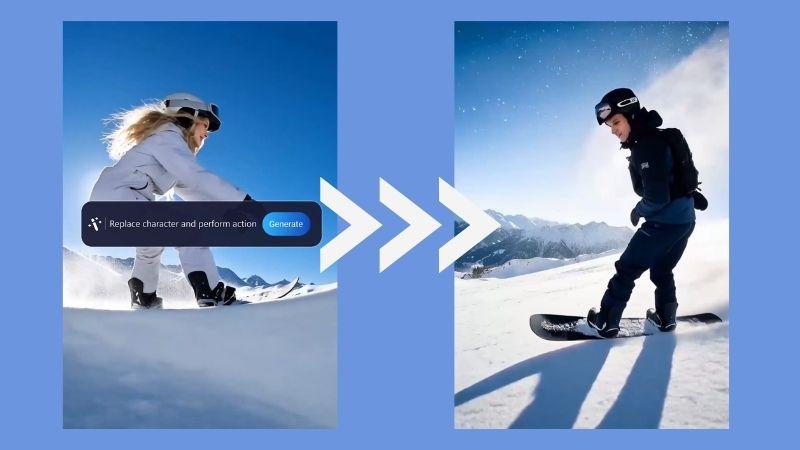
For easier editing, try Viyou AI Video Editor, which is a prompt-based video editor. You can make changes by simply describing what you want, such as replacing characters or adjusting the background.
It also features an AI Video Extender, which can expand short videos without reducing quality. You only need to describe how you want the video to continue, whether by extending the background or continuing a subject’s movement.
Create Images in Just a Few Steps
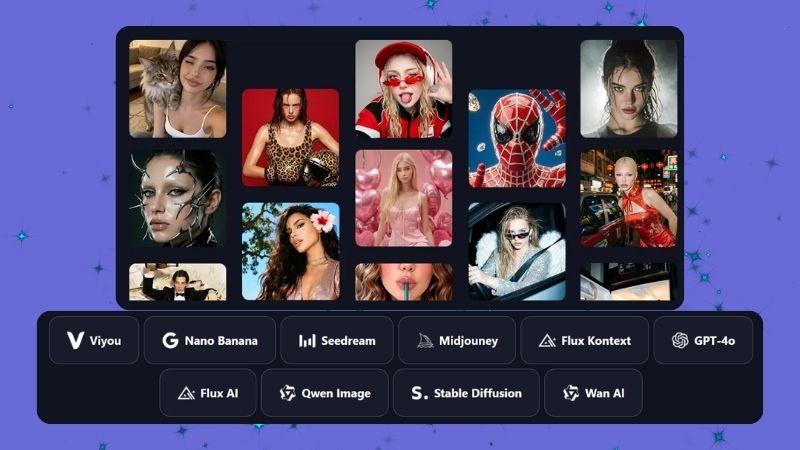
Viyou AI generator also works to create images. Using Text-to-Image, you can enter a prompt, and the AI will generate an image that matches your description.
There is also an Image-to-Image feature that lets you modify existing images. You can adjust colors, refine details, or change the overall style. It also supports working with multiple images, so you can combine several visuals into one.
On top of that, there are additional image tools to make things easier for you.
Try Different Outfits Without Changing Clothes

The AI Outfit Generator, powered by Viyou 2.0 and 3.0, allows you to change clothing in your images. You can take outfit ideas from other photos and apply them to your own.
This makes it easy to preview different styles, from everyday outfits to more unique looks, without needing to try them in real life.
Change Your Photo Background in One Click
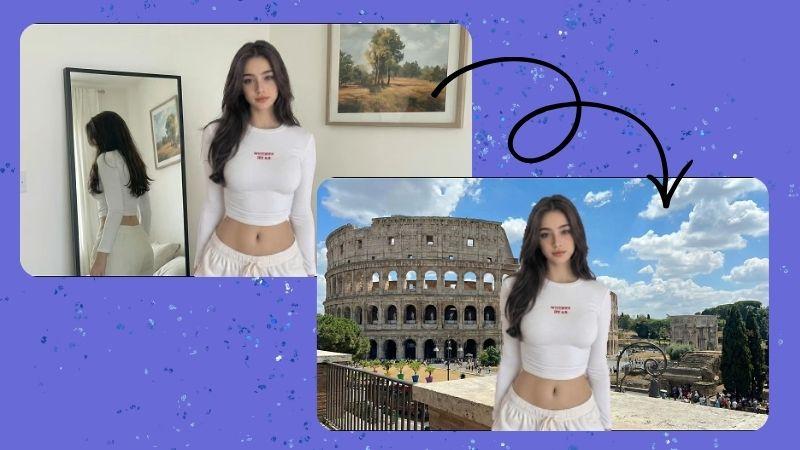
With Viyou AI Background Remover, you can replace your photo background with anything you want. The process is simple. Just upload your image, choose a new background, and the result is ready instantly.
Library of Trendy Effects Templates
If you are looking for inspiration or want to see what is currently trending, you can explore Viyou AI’s template library. It offers a wide range of options, from fun effects like transitions and animations to more polished and professional styles.
Here are some of the templates available in Viyou AI.
Social Viral Studio
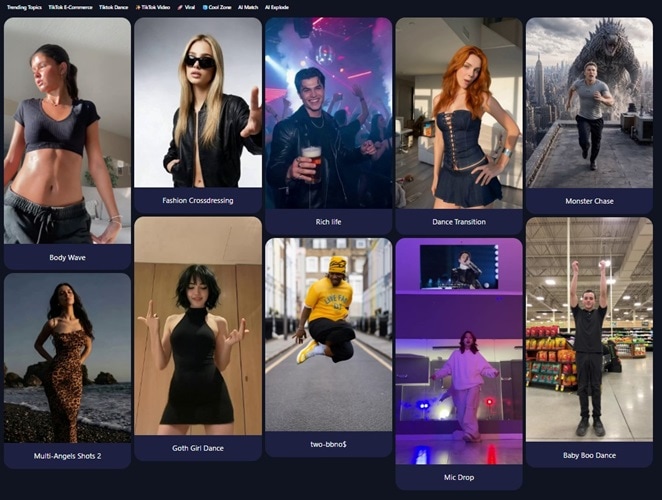
This category focuses on trending content. You can find a variety of styles, from dance and lifestyle to aesthetic content. It works well for TikTok, Instagram Reels, and YouTube Shorts.
Professional Video Transition
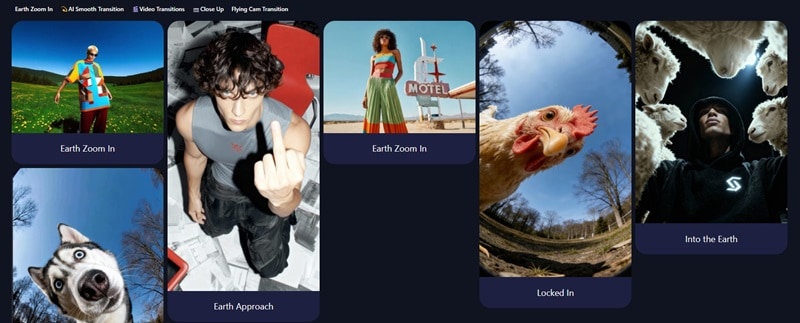
Viyou AI also offers templates that help improve the flow of your videos and make them look more professional. You can choose from smooth and stylish transitions, from simple fades to zoom and motion effects.
AI Video Model
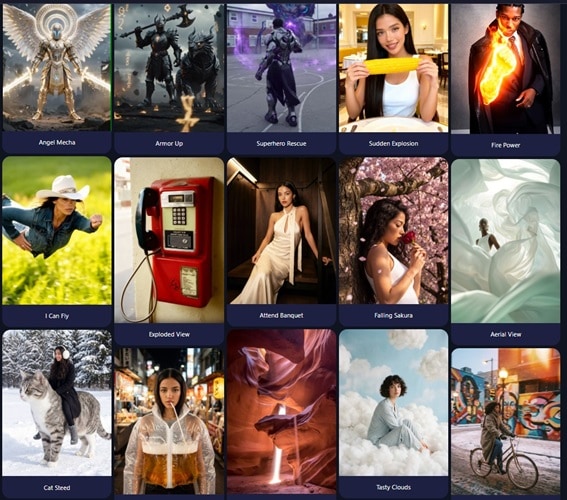
Viyou AI also includes advanced video styles templates that let you create visuals that would normally be difficult to shoot or edit yourself. This includes cinematic scenes, action-style effects, or even creative concepts that go beyond everyday videos.
Ophelia Image Effect
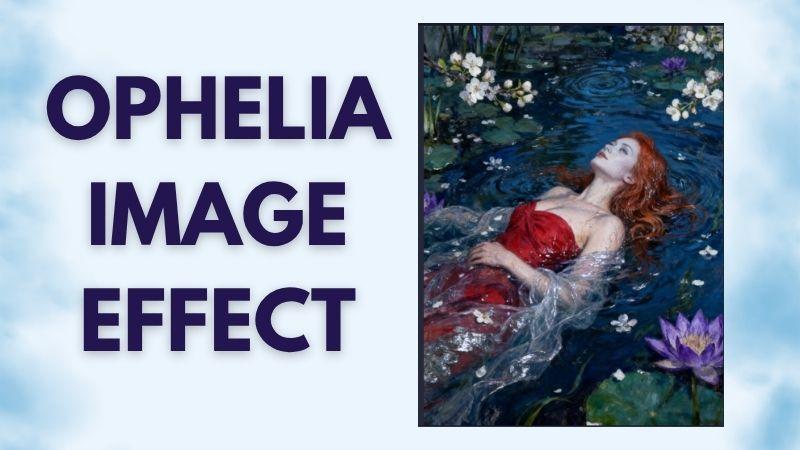
If you want a more artistic and aesthetic look, you can try this one. This effect turns your photo into a soft, dreamy scene inspired by classic paintings. The result shows the subject surrounded by water and flowers, creating a calm and slightly melancholic mood.
Beach Grid Photo
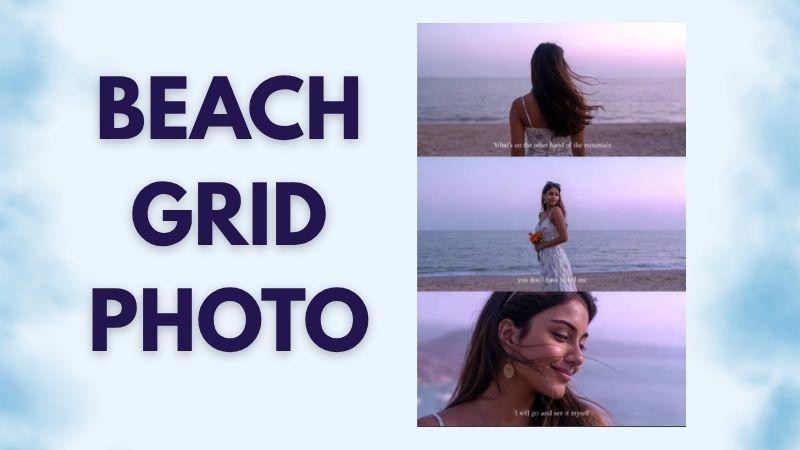
Content with short quotes often gets more engagement because it feels relatable. And this effect from Viyou AI helps you create this style by turning your image into a grid layout with text.
Part 2. Where to Access Viyou AI
Next, let’s see where you can access Viyou AI. The platform is available online and can also be used on mobile devices. You can choose whichever works best for your needs and comfort. It also syncs across devices, so you can continue your work easily.
To get started, visit the official Viyou AI website and sign up or log in to access all features. Once you are in, you can start exploring the tools and creating content right away.
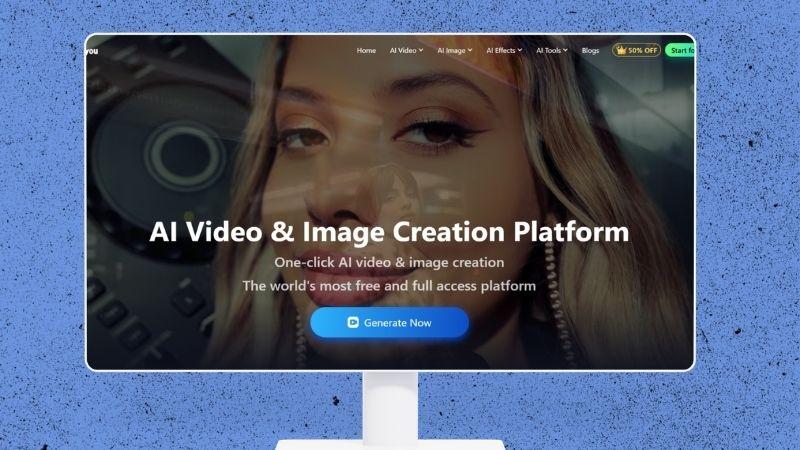
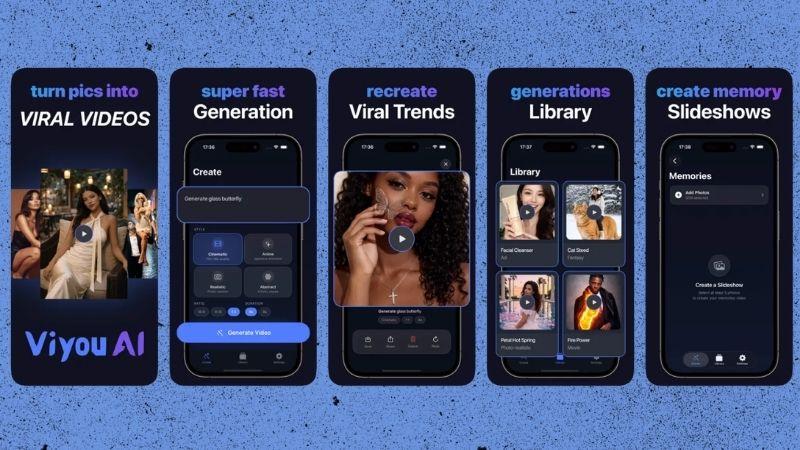
As for the Viyou AI app, it is currently only available for iOS users. You can download Viyou AI from the App Store and use it on iPhone or iPad. Note that it requires iOS 16 or iPadOS 16 and above.
Part 3. Viyou AI Pricing Explained
Viyou AI uses a coin system. Every feature costs a different number of coins, depending on what you want to do and which AI model you use. More complex features usually require more coins.
When you first sign up, you will get 200 free coins. It is enough to try one text-to-image generation. You can also earn more coins by:
- Checking in daily, with rewards between 60 and 180 coins.
- Referring friends, where both of you will receive 1,000 coins.
- Joining the Viyou AI Discord for an extra 300 coins.
When you run out of coins and want to try more features, Viyou AI offers three subscription plans: Lite, Pro, and Max. Check the table below for a full comparison.
| Aspect | Lite | Pro | Max |
| Price | $7.99 / week or $39.99 / year | $9.99 / week or $69.99 / year | $29.99 / week or $199.99 / year |
| Coins | 600 coins/week or 4000 coins/year | 1200 coins/week or 8000 coins/year | 3500 coins/week or 35000 coins/year |
| AI Models | 20+ | 40+ | 60+ |
| Generation Speed | 1x | 1.5x | 2x |
| Concurrent Task | 5 | 10 | 20 |
| Video Features (Coins Usage) | Use 30% fewer coins | Use 50% fewer coins | Use 70% fewer coins |
| Image Features (Coins Usage) | Use 30% fewer coins | Use 50% fewer coins | Mostly free, up to 70% lower coin usage |
| Full Access to Image Generation and Templates | |||
| Video Quality | HD | HD | HD |
| Customer Support | Standard | Priority | Priority |
| Private Creation Space | |||
|
Show More
Show Less
|
|||
In the end, whether Viyou AI is worth it depends on your needs. Since it offers both weekly and yearly plans, you can choose based on how long you plan to use it.
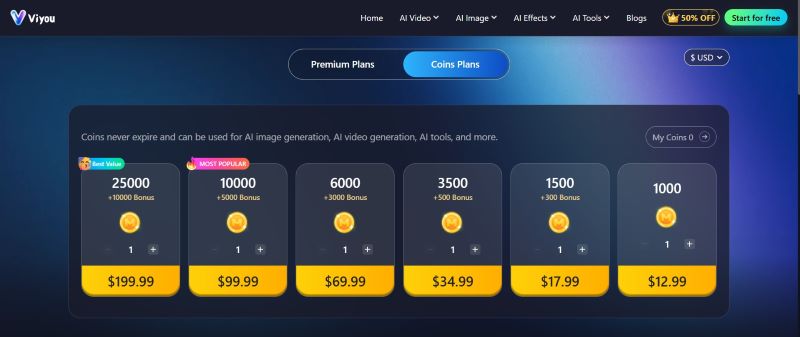
If you just want to add more coins, Viyou AI also provides coin packages. The coins don’t expire and can be used for different features like generating images, videos, and more.
Part 4. How to Use Viyou AI Video Generator
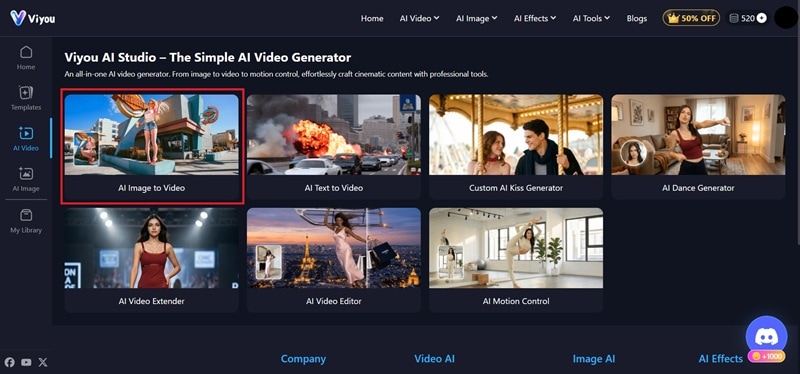
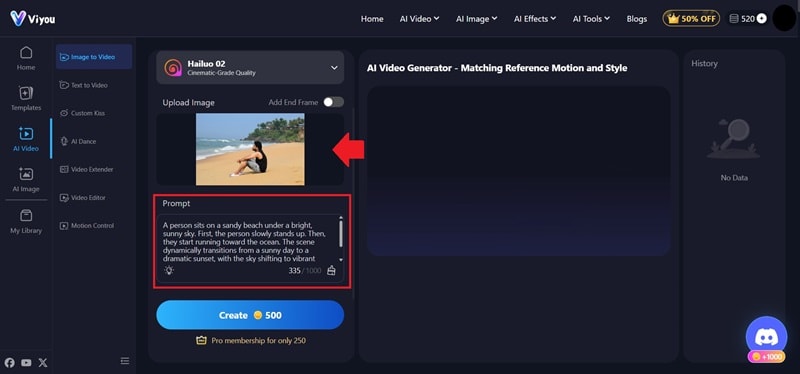
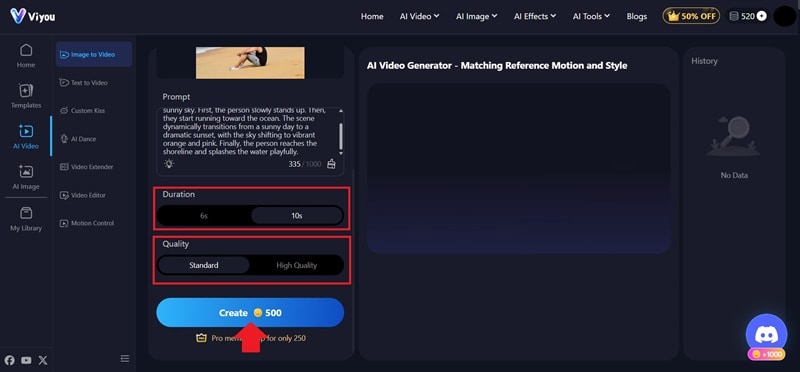
Now, let’s test the Viyou AI Video Generator and see how it turns a single image into a video. In this example, we’ll use an image of a person sitting on the sand and turn it into a scene where he runs toward the beach.
Here is the final look.
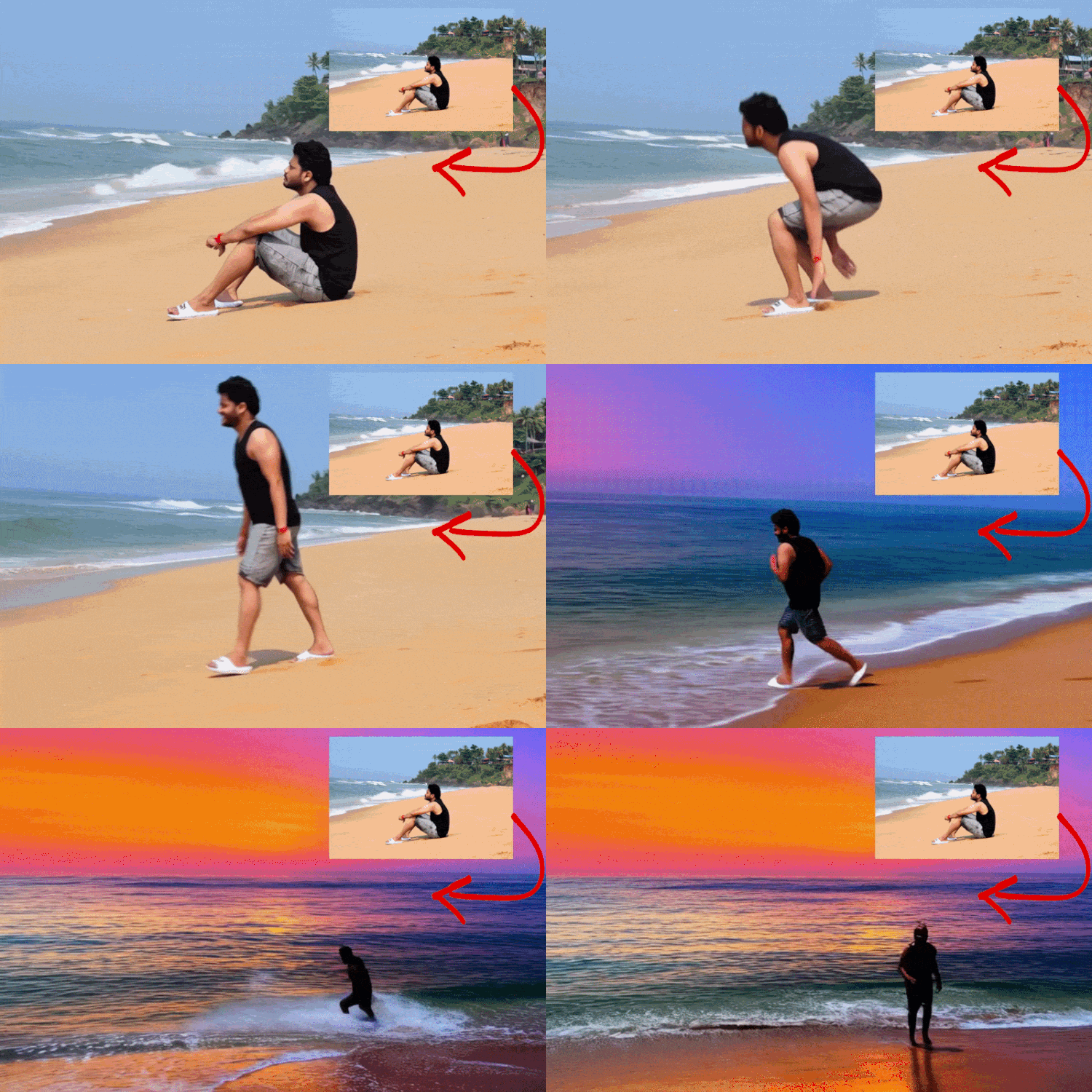
Overall, Viyou AI handles the prompt quite well. The transition from daytime to sunset is a bit noticeable and not very smooth, but the main actions are delivered as requested.
For better results, try writing a more detailed prompt so the visuals come out closer to what you have in mind.
Part 5. Viyou AI Strengths and Drawbacks
We’ve explored Viyou AI features and tested its image-to-video tool. From this, it becomes clearer what the platform does well and where it still needs improvement.
- There are plenty of AI models to choose from, and they are regularly updated.
- The generation process for images and videos is relatively fast.
- There is an active Discord community for support and sharing ideas.
- The export quality is limited to HD, with no option for 2K or 4K output.
- Viyou AI is only suitable for quick and simple projects, as editing is limited and mostly relies on prompts and templates.
- Coin pricing feels expensive. For example, a Lite plan gives 600 coins/week, but generating one video often needs more coins than that.
Part 6. Use AI with More Editing Control: Wondershare Filmora
Viyou AI is useful for generating images, videos, and quick edits through prompts. However, if the output doesn’t fully match what you want, repeated generations can use up coins quickly.
For users who still want AI tools but also need full editing control, Wondershare Filmora is a strong alternative. It combines AI generators with a complete video editor, broader export options, and tools for social media content creation.
 Secure Download
Explore Filmora’s AI Video Generation Tools
Filmora offers a range of AI tools that let you create videos from different types of input. You are not limited to one method, so you can choose what works best for you.
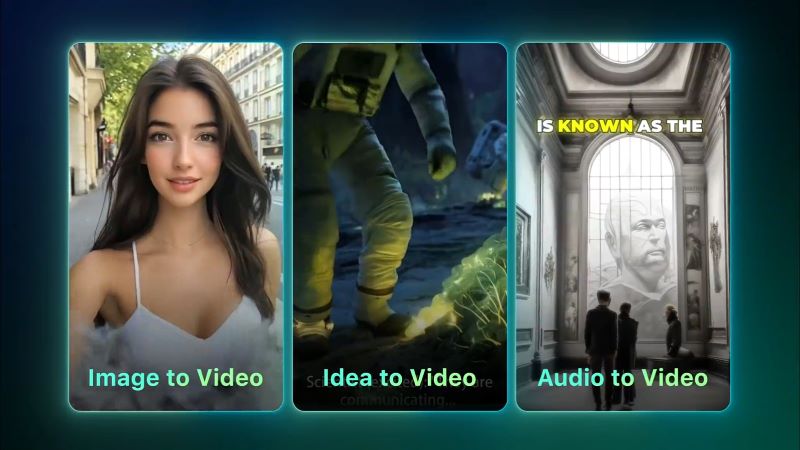
- Idea to Video: Even if you only have a rough idea, you can type it in, and Filmora will turn it into a script. It can then convert that into a video.
- Text to Video: You can also write a more detailed prompt, and Filmora will generate a video based on your description using AI models like Seedance 2.0, Sora 2, or Google Veo 3.1.
- Image to Video: You can also create videos from images, whether it is a portrait, artwork, or product photo. Simply choose the AI model that fits the style and movement you want.
- Audio to Video: Upload an audio file, and the AI will identify key parts and generate visuals that match the content.
Other AI Tools That Support Video Creation
While Viyou AI mainly focuses on image and video generation, Filmora offers a wider range of AI tools for both video and audio editing.
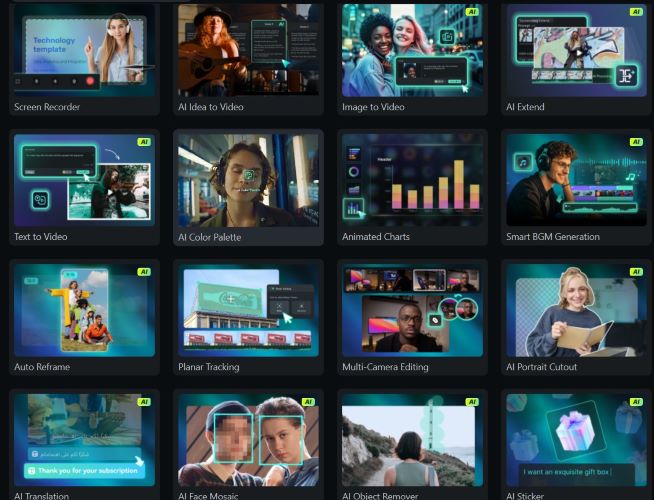
- Audio: Filmora not only provides a large built-in library but also includes an AI Music and Sound Effect Generator, so you can create your own sound to match your video.
- Visuals: Tools like AI Color Palette and AI Sticker Generator help you add styles and small details to make your video more engaging.
- Content: Filmora also offers a Social Content Planner, allowing you to schedule uploads and track your video performance over time.
Supports Multiple Social Media Platforms
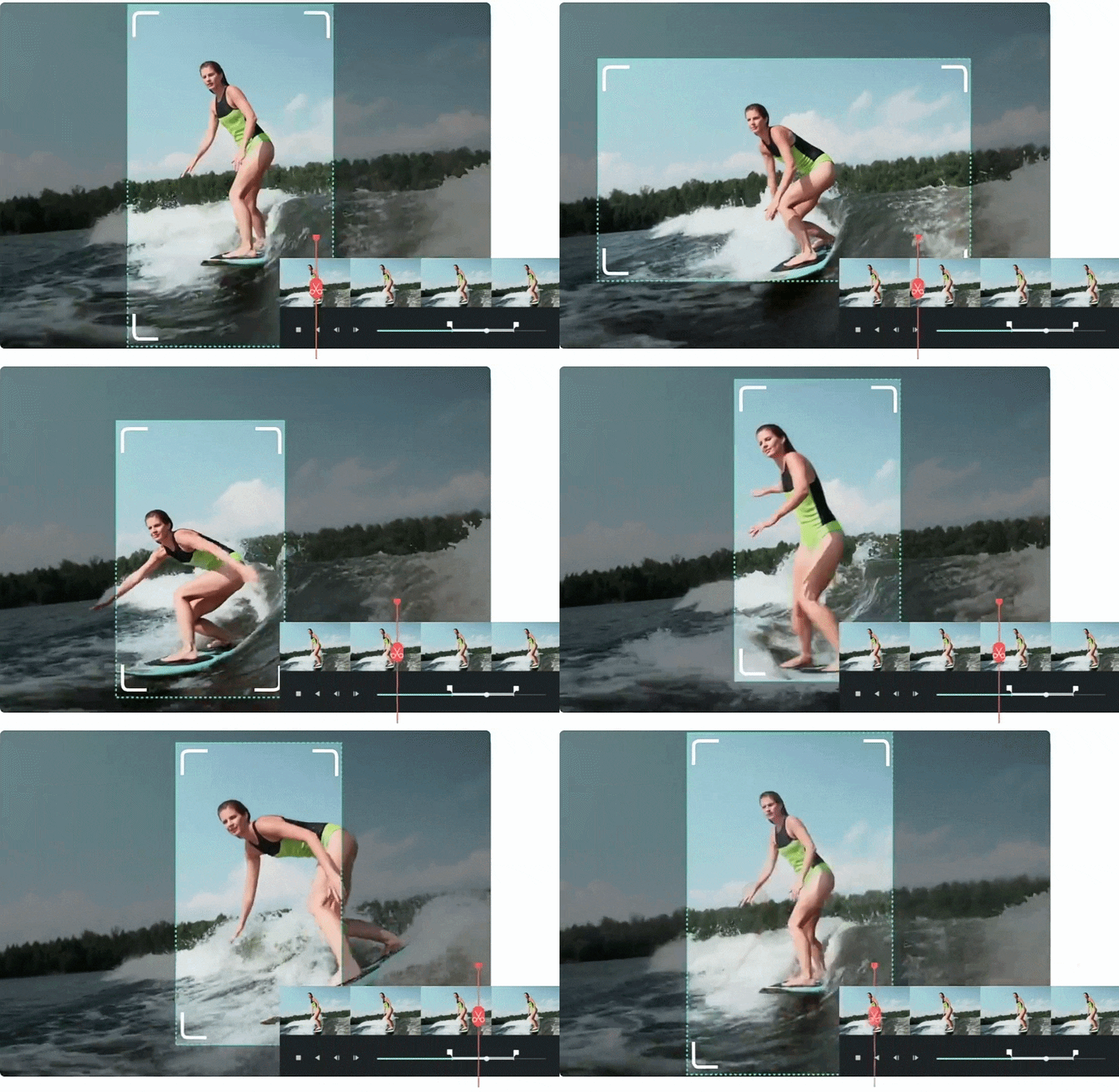
With Filmora, you don’t have to make a new video for every platform. It supports different aspect ratios, so your content can easily fit TikTok, Instagram, or YouTube. The Auto Reframe feature also helps keep the main subject in focus when adjusting the video format.
More Flexible Export Options
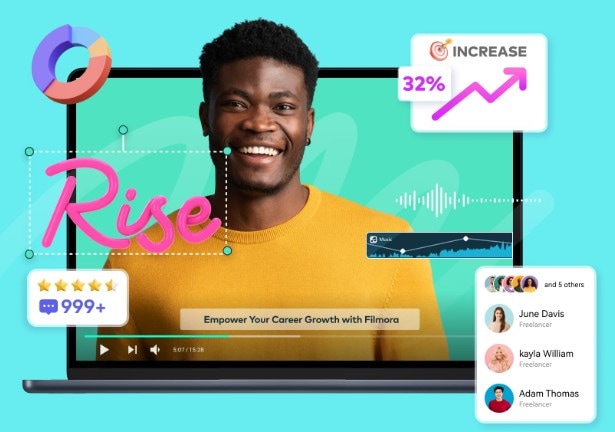
While Viyou AI is limited to HD export, Filmora gives you more flexibility. You can export up to 4K and choose from different formats like MP4, MOV, or even GIF. It also lets you adjust export settings to match your needs.
Secure DownloadConclusion
Viyou AI is a practical choice for creating social media content. It focuses on generating images and videos, with plenty of AI models and trendy templates to choose from. That said, it doesn’t offer much control over the final result. If the output isn’t right, you’ll need to regenerate it, which can quickly drain your coins.
As an alternative, Filmora offers similar generative tools, along with additional AI features for both audio and video. This makes it a more flexible option for creating polished and higher-quality content.
FAQs
-
Do the images and videos exported from Viyou AI include watermarks?
No. Viyou AI doesn’t add watermarks to exported images or videos. -
Can I edit generated results inside Viyou AI?
No, detailed editing is not supported. If the result isn’t what you expected, you’ll need to adjust the prompt and regenerate it. However, it does offer features like a prompt-based editor and video extender, though control is still limited.
