


 TL;DR:
WayinVideo AI is a specialized cloud-based tool built for rapidly repurposing long-form recordings into short social clips, while Wondershare Filmora serves as the better alternative for creators who need a full non-linear editor.
● WayinVideo operates on a credit-based pricing model via web browsers or a Windows-only desktop app, limiting free-tier users by blocking local video file uploads and capping export resolution at 720p.
● The platform relies on its AI Video Clipper and Auto Reframe features to automatically detect engaging highlights, generate multi-language summaries, and format videos for platforms like TikTok or Instagram without manual timeline adjustments.
● Wondershare Filmora is recommended for full creative video production, combining similar AI extraction tools with multi-track editing, exclusive AI audio-to-video generation capabilities, and complete device compatibility across Windows, macOS, Android, and iOS.
Ask AI for a summary
 ChatGPT
 Perplexity
 Gemini
 Claude
 Grok
Grok
Video editing is still one of the most time-consuming parts of content creation, especially when working with long-form videos. A creator, Emily Olson, shared that most editors spend nearly 60% of their time simply analyzing and tagging footage before a single cut is even made. This massive bottleneck is exactly what WayinVideo aims to destroy.
Also, according to Wyzowl, 91% of businesses use video as a marketing tool, which means the demand for faster editing workflows is only growing. By acting as a high-speed "Video Assistant," WayinVideo AI promises to digest hours of content in seconds. But does it actually deliver real-time savings, or is it just another AI tool that sounds better than it works? Let’s break it down.
Part 1. Getting to Know WayinVideo AI: Who is This For?
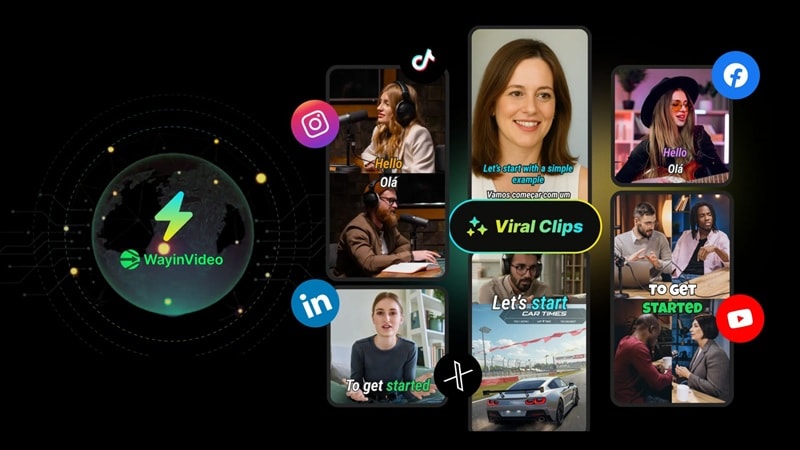
Essentially, WayinVideo is a specialized AI-powered video assistant designed to help you analyze, summarize, and extract content from videos without manually editing everything yourself.
The platform focuses heavily on:
- Video Understanding: Deep semantic analysis of your content.
- Highlight Detection: Automatically finding the most engaging moments.
- Content Repurposing: Turning long videos into short, platform-ready clips.
Because of those capabilities, WayinVideo AI is built for creators who deal with long videos like podcasts, interviews, or lectures and want to turn them into shorter, usable content fast.
Accessing WayinVideo AI
One thing you need to know right off the bat: WayinVideo lives entirely in the cloud. Though there is a desktop version, it’s only on Windows, not macOS. Plus, there is no official WayinVideo app on the app stores just yet.
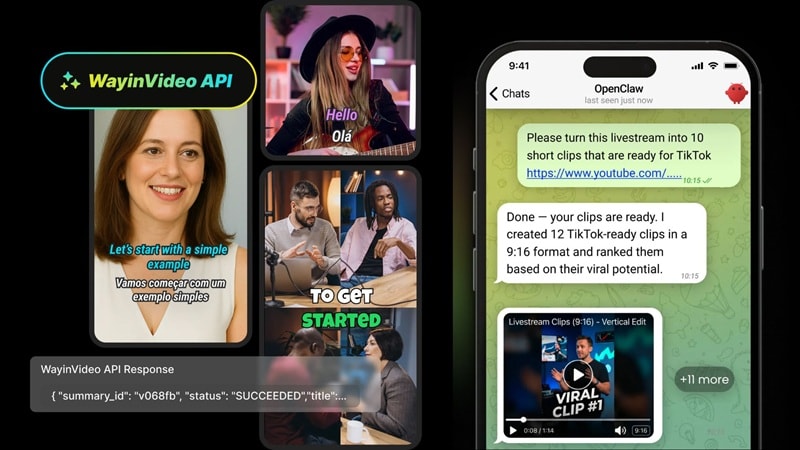
That said, WayinVideo does offer an API, but it’s designed for developers, not everyday users, so they can plug WayinVideo’s AI into their own apps and automate video processing.
⚠️ Pro Tip: If you see a WayinVideo APK floating around on third-party sites, run the other way. The official platform is purely browser-based, and those 'APKs' are often security risks or outdated clones. Always stick to the official web portal to keep your footage and data safe.
Part 2. Pricing Breakdown: How WayinVideo Actually Charges You
WayinVideo's pricing model is a little different from what you might expect, so it's worth taking a close look before hitting 'Subscribe.' WayinVideo uses a credit-based system, meaning every action (summarizing, clipping, exporting) consumes a specific amount of credits from your monthly balance.
To get you started, you get 200 free credits just for creating an account, which is surprisingly generous for a Wayin AI free tier. Below is a full breakdown of all available plans:
| Feature | Free | Standard | Pro | Pro+ |
| Monthly Price | $0 | $13.99 | $26.99 | $139.99 |
| Monthly Credits | 200 (once) | 1500 | 3500 | 2000 |
| Max Upload Size | N/A | 10 GB | 30 GB | 30 GB |
| Export Quality | Up to 720P | Up to 1080P | Up to 2K | Up to 4K |
| Speed | Regular | Faster | Faster+ | Fastest |
| Social Accounts | - | 3 | 10 | 50 |
|
Show More
Show Less
|
||||
The Business Plan (Custom Setup)
For teams and companies, WayinVideo also offers a Business plan, which includes:
- API access
- Priority processing
- Custom credit allocation
- Enterprise support
👉 Basically, it’s designed for agencies or large-scale video production.
Part 3. Feature Deep Dive: What Can WayinVideo Actually Do?
Now to the part that actually matters: features. As we mentioned, WayinVideo AI is built to reduce the most soul-crushing part of editing: finding and extracting content.
Here’s a closer look at the heavy hitters in the toolkit.
AI Video Clipper: Find the Best Moments Automatically
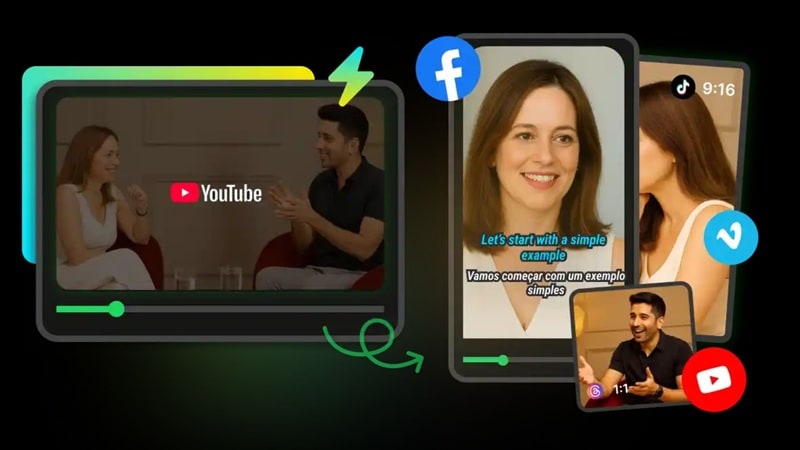
This is WayinVideo's flagship feature and the one it does best. The AI Video Clipper scans your footage and intelligently detects highlights, identifies the most engaging segments based on pacing and speaker changes, and automatically creates short clips optimized for social platforms.
👉 Ideal For:
- Turning podcasts into YouTube Shorts.
- Converting long interviews into punchy TikTok clips.
- Repurposing webinars into digestible social bites.
AI Video Summarizer: Skip the Full Watch
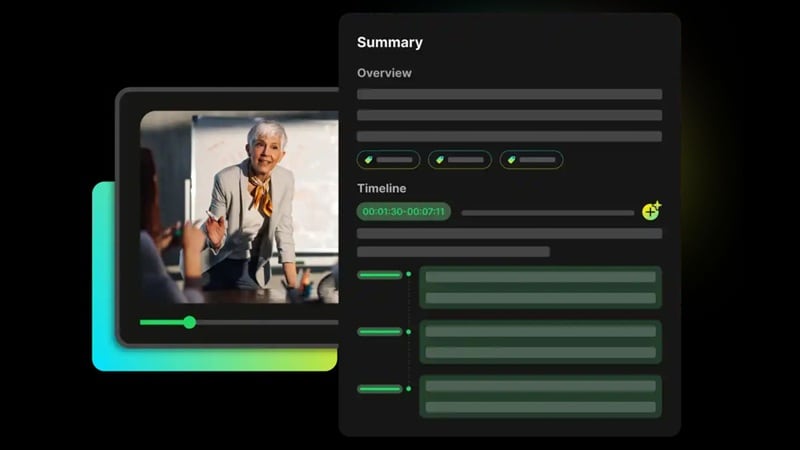
The WayinVideo AI video summarizer is a game-changer for anyone who needs to consume content quickly. Rather than watching a full 2-hour interview, you get a one-paragraph overview plus a timestamped outline of key moments. The summarizer supports over 100 languages, making cross-language research and learning effortless.
👉 Useful For:
- Reviewing long lectures.
- Catching up on recorded webinars.
- Doing research without watching hours of footage.
AI Video Transcription & AI Caption Generator: Turn Speech Into Text
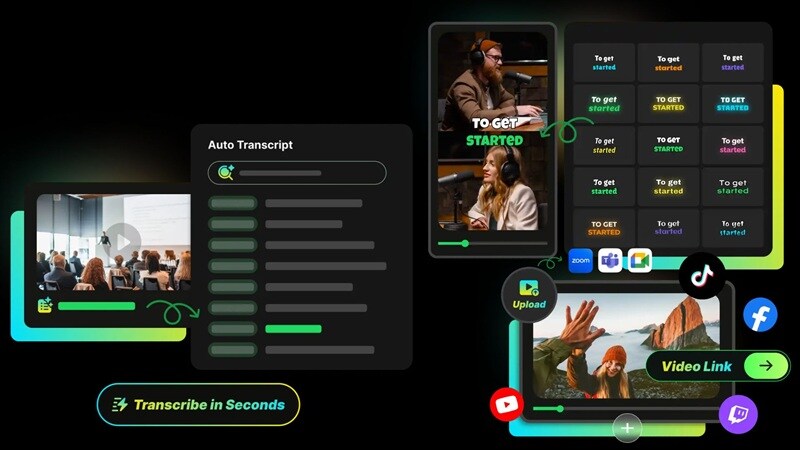
WayinVideo can convert audio to accurate, punctuated text with full timestamps and speaker labels. Once the text is ready, the AI Caption Generator auto-subtitles your video, syncing perfectly with speech to keep users engaged even when their volume is muted.
👉 Key Features:
- Speaker detection and labeling (e.g., Speaker A, Speaker B).
- Syncs captions precisely with speech rhythm.
- Multi-language export available.
AI Thumbnail Maker: Quick Visual Hooks
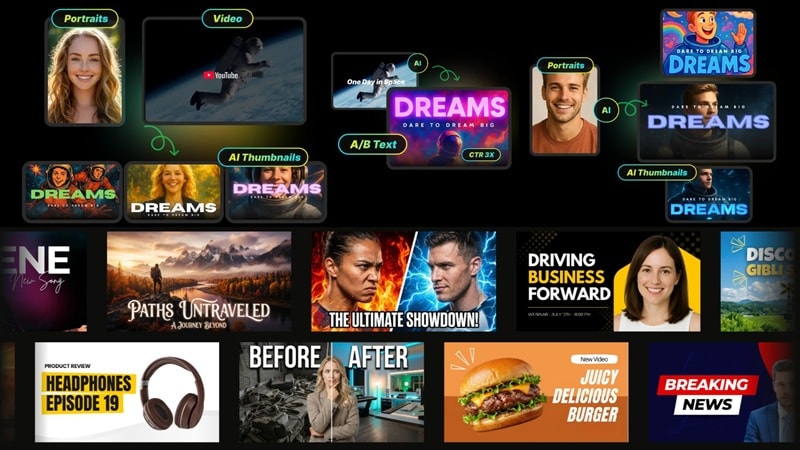
First impressions matter, and thumbnails are your first impression. Because of that, the WayinVideo AI thumbnail maker automatically generates thumbnail ideas from your video's key frames, creates multiple variations to test, and lets you quickly choose the one most likely to drive clicks.
👉 Key Features:
- Automatically surfaces the most visually striking frames.
- Generates multiple thumbnail variations for A/B testing.
- Useful for YouTube, blogs, and course platforms.
AI Reframe: Optimize for Every Platform
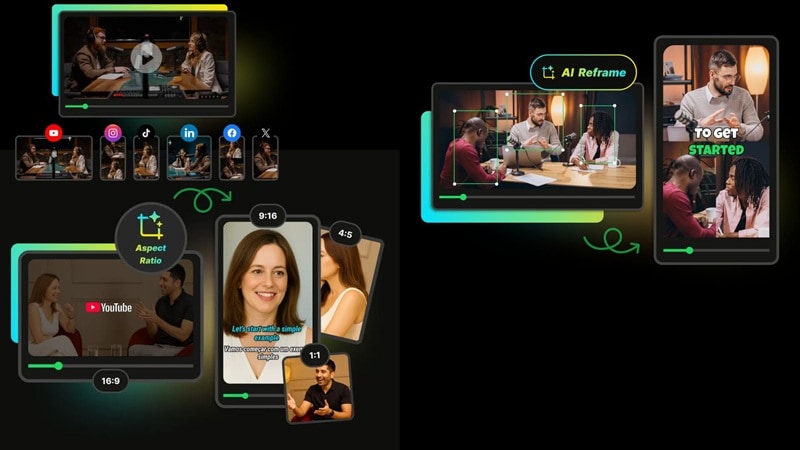
Different platforms demand different aspect ratios. WayinVideo's AI Reframe feature tracks faces and key objects to keep your subject perfectly centered whether you're converting from 16:9 to 9:16 for TikTok, 1:1 for Instagram, or any other format. Instead of manually re-editing your video for every platform, one click does the work.
👉 Key Features:
- Automatically adjusts aspect ratio (9:16, 1:1, 16:9, and more).
- Smart subject tracking keeps speakers/objects centered.
- Perfect for converting YouTube videos into Reels or Shorts.
Built-in Video Editor: Basic Adjustments Only
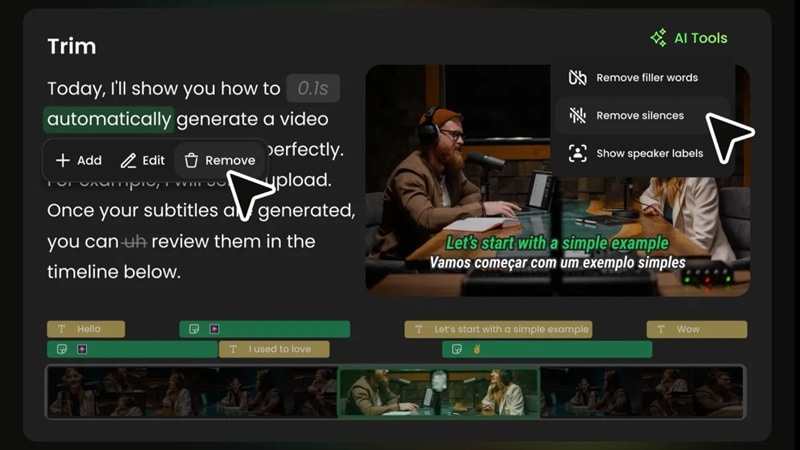
WayinVideo includes a built-in editor for basic clip adjustments. It is intentionally lightweight, so don't expect advanced effects, deep multi-track timeline editing, or cinematic color grading here.
👉 Useful For:
- Trim clips and adjust timing.
- Preview outputs before exporting.
- Simple text and caption overlays.
AI Video Generator: Create Videos From Scratch
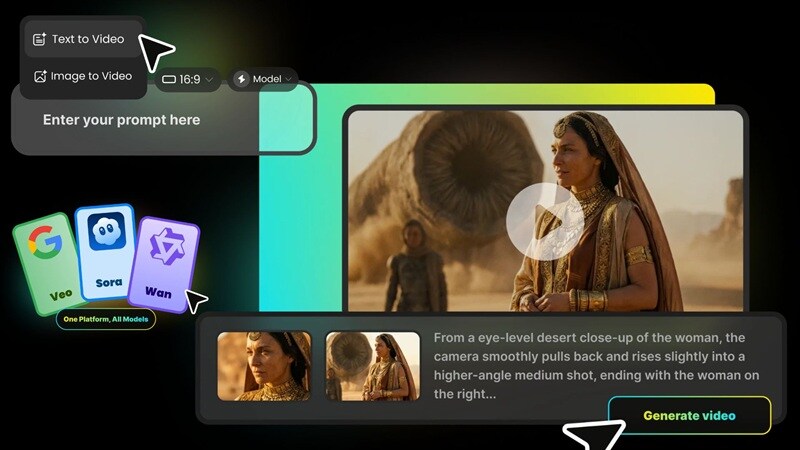
WayinVideo AI doesn’t just analyze footage; it also lets you generate videos from scratch using text prompts or images. Since prompt quality plays a big role here, WayinVideo includes an Auto Prompt feature to help you refine your input.
Available AI Models:
- Kling.
- Veo 3.
- Seedance 2.0.
- Sora.
- HappyHorse.
- Wan.
Part 4. The Real Talk: Pros and Cons of WayinVideo AI
Like any tool, WayinVideo has its strengths and limitations, and knowing both sides will help you decide whether it's the right fit for your workflow. So, after putting WayinVideo AI through its paces, here's the unfiltered truth about where it shines and where it stumbles.
- Intuitive Interface: The browser-based interface is intuitive enough that anyone can start producing clips. You don't need a degree in film editing to figure out where the buttons are.
- Massive Time Saver: The AI Video Clipper reliably surfaces the most engaging segments of long recordings. Turning a 60-minute video into 10 clips takes minutes, not hours.
- Excellent Multilingual Support: With 100+ languages supported across transcription, summarization, and captions, WayinVideo is a great fit for global creators.
- Can’t Upload Freely: Free users cannot upload local video files. Though you get free credits, most tools require upgrading just to consistently upload and process your own clips.
- Limited Creative Control: WayinVideo is not a full video editor. You won't find multi-track timelines, advanced transitions, color grading, or motion effects here.
- Credit System Can Add Up: If you're processing long videos regularly, credits evaporate quickly. Power users will hit plan limits sooner than expected.
Part 5. A Strong Alternative: Wondershare Filmora
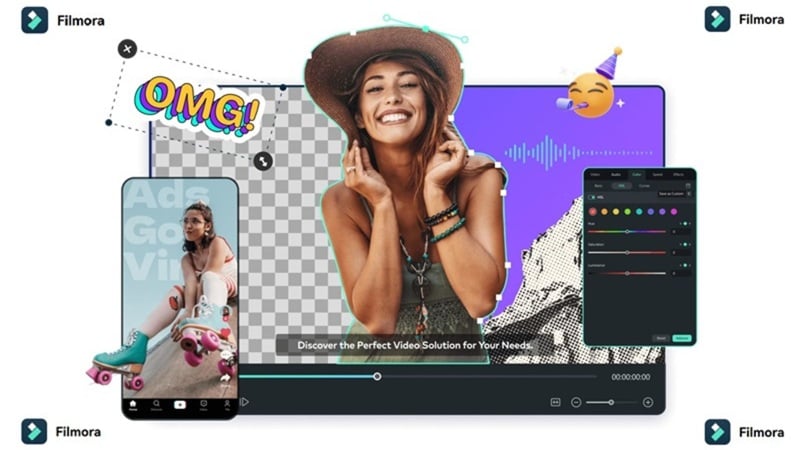
WayinVideo is a fantastic repurposing machine, but it's not the only AI player in town. If you want a tool that handles both the 'summarizing and extracting' and the 'cinematic creation' sides of video production, Wondershare Filmora is the industry standard for good reason.
Filmora isn't just a capable WayinVideo alternative; it's a full-featured AI video editor that lets you go from raw ideas to polished, publish-ready content without switching apps.
 Secure Download
Why Choose Filmora?
1. Similar AI Features, More Control
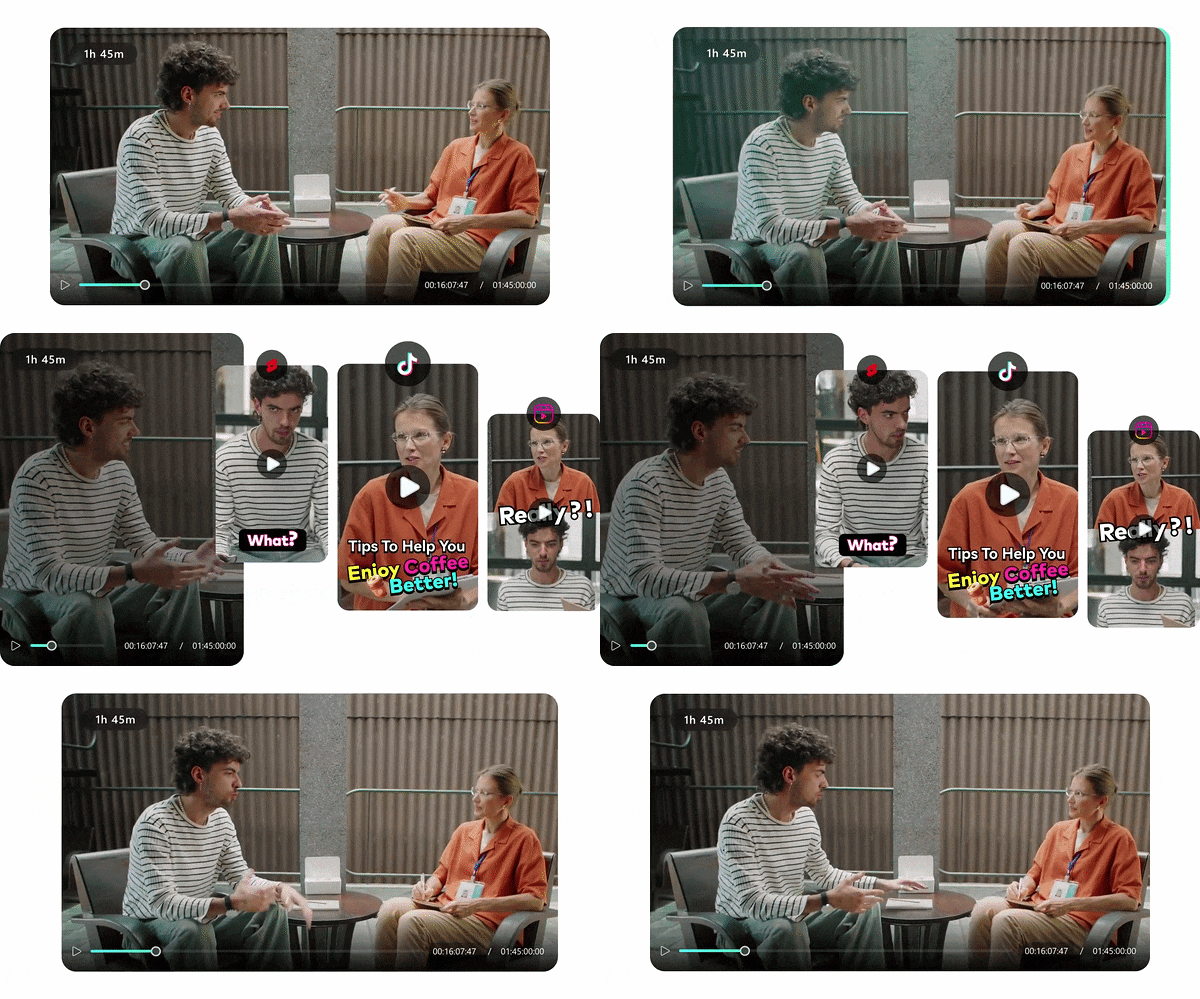
Filmora packs many of the same AI-powered tools you'd find in WayinVideo, including AI Smart Short Clips, AI Auto Reframe, AI Captions, and an AI Thumbnail generator, but wraps them inside a full non-linear video editor. That means you're not stuck with AI-generated clips you can't customize. Every AI output becomes a fully editable layer in your timeline, giving you the power to refine, rearrange, and perfect the final cut.
2. Create Content From Audio

This is where Filmora genuinely outpaces WayinVideo. While WayinVideo AI has AI text-to-video and image-to-video capabilities, Filmora went a step ahead. Apart from using text and images, you can also create quick AI clips from your recording thanks to Filmora’s AI audio-to-video. From now on, you can make content from your podcasts and even voice notes!
3. Broader AI Toolkit
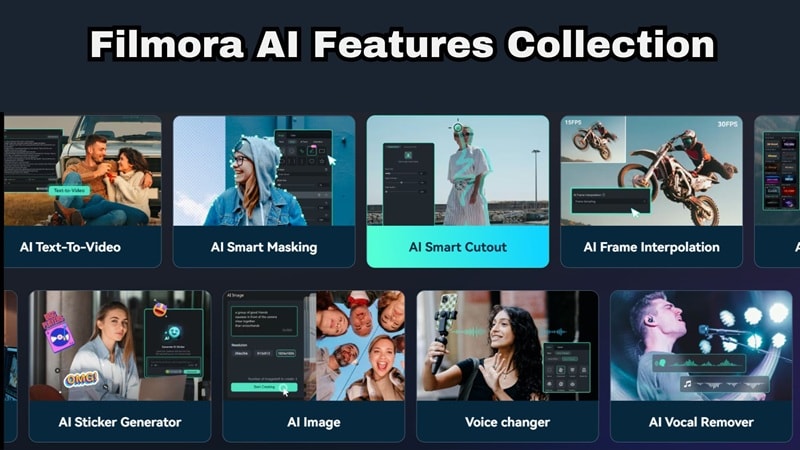
Beyond clipping and captioning, Filmora's AI toolkit extends into serious production territory. It includes:
- AI Smart Cutout removes backgrounds instantly.
- Motion tracking keeps graphics glued to moving subjects.
- AI audio tools denoise recordings and balance levels.
- AI Color Palette tools let you match your visual style frame by frame.
This deeper toolkit means more control over what your final video actually looks, sounds, and feels like.
4. Built for Content Planning

Filmora's AI tools don't just help you edit, they help you think. The social content planning features help you structure your video narrative, organize your publishing schedule, and optimize your content for maximum engagement before it even goes live. It's the kind of feature that transforms Filmora from an editing tool into a full content creation partner.
5. Works Across Devices
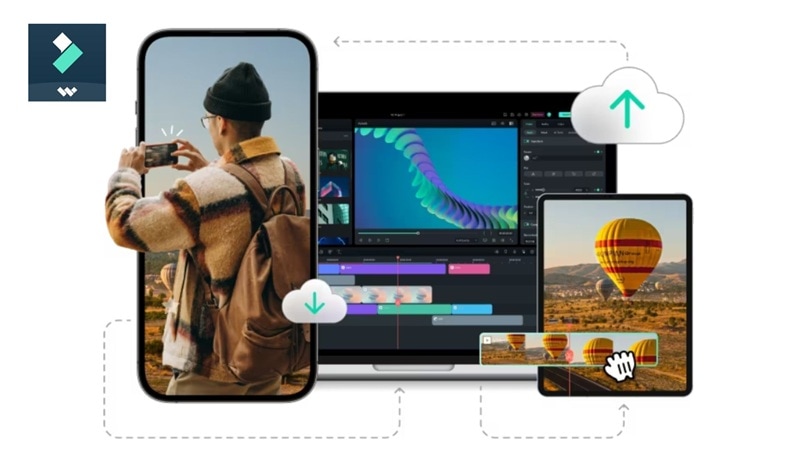
One of WayinVideo's biggest limitations is that the desktop access is Windows-only. Filmora eliminates that constraint entirely. Available on Windows, macOS, Android, and iOS, Filmora lets you start a project on your desktop, pick it up on your tablet, and finish touches on your phone. No internet dependency. No platform lock-in. Just editing, wherever you are.
WayinVideo vs Filmora: Quick Comparison
| Feature | WayinVideo | Filmora |
| Platform | Online, Windows | Windows, macOS, Android, iOS |
| AI Clipping | (AI Smart Short Clips) | |
| AI Video Generator | Text-to-Video, Image-to-Video | Text-to-Video, Image-to-Video, Audio-to-Video |
| Video Editor | ⚠️ Basic only | Full timeline editor |
| Creative Control | Low | High |
| Best For | Repurposing long content | Full creative video production |
|
Show More
Show Less
|
||
Secure DownloadConclusion
If your primary goal is to repurpose long-form video content into short, WayinVideo AI is genuinely impressive. The AI clipping, summarization, and caption tools work well, the free credit tier is generous for testing, and the multilingual support is excellent.
However, if you need full creative control, WayinVideo hits a ceiling fast. In that case, Wondershare Filmora is the more complete solution, combining AI smarts with real production power. The best choice depends on your workflow: WayinVideo for repurposing, Filmora for creating.
FAQs About WayinVideo AI
-
How accurate is the WayinVideo AI video summarizer?
The WayinVideo AI video summarizer is generally quite accurate for clear, well-paced speech content like podcasts and interviews. It produces a concise paragraph overview plus timestamped key points. Accuracy can dip with heavy accents, technical jargon, or background noise, but for standard spoken content, it's reliable enough for real research and production workflows. -
Can WayinVideo replace video editing software?
Not entirely. WayinVideo is a powerful extraction and repurposing tool, but it's not a replacement for a full video editor. It lacks advanced effects, color grading, and creative production features. You still need a proper editor like Filmora for the final polish. -
Can I export in 4K?
Yes, but only on the Pro+ plan. Free users are capped at 720p, Standard plan users can export up to 1080p, Pro users up to 2K, and Pro+ unlocks full 4K exports. If 4K output is a requirement for your workflow, budget accordingly for the Pro+ tier. -
Does it work with private YouTube links?
WayinVideo primarily processes publicly accessible video links and locally uploaded files (on paid plans). Private YouTube links require authentication that WayinVideo does not support directly. For private content, you would need to download the video first and then upload it as a local file using a Standard plan or higher.
