

 100% Security Verified | No Subscription Required | No Malware


 ChatGPT
 Perplexity
 Gemini
 Claude
 Grok
Grok
A video can have great footage and still feel a little flat if every shot, photo, and title sits completely still. The fix usually isn't better footage, it's motion, and the right video animation effects can turn the exact same assets into something that feels alive.
From a subtle fade animation to playful text animation and eye-catching 3D movement, each animated video effect serves a different purpose. That's what this guide is for: we'll cover some simple yet effective animation effects that professional editors often use to make videos more visually interesting. Every effect featured here is available in Wondershare Filmora.
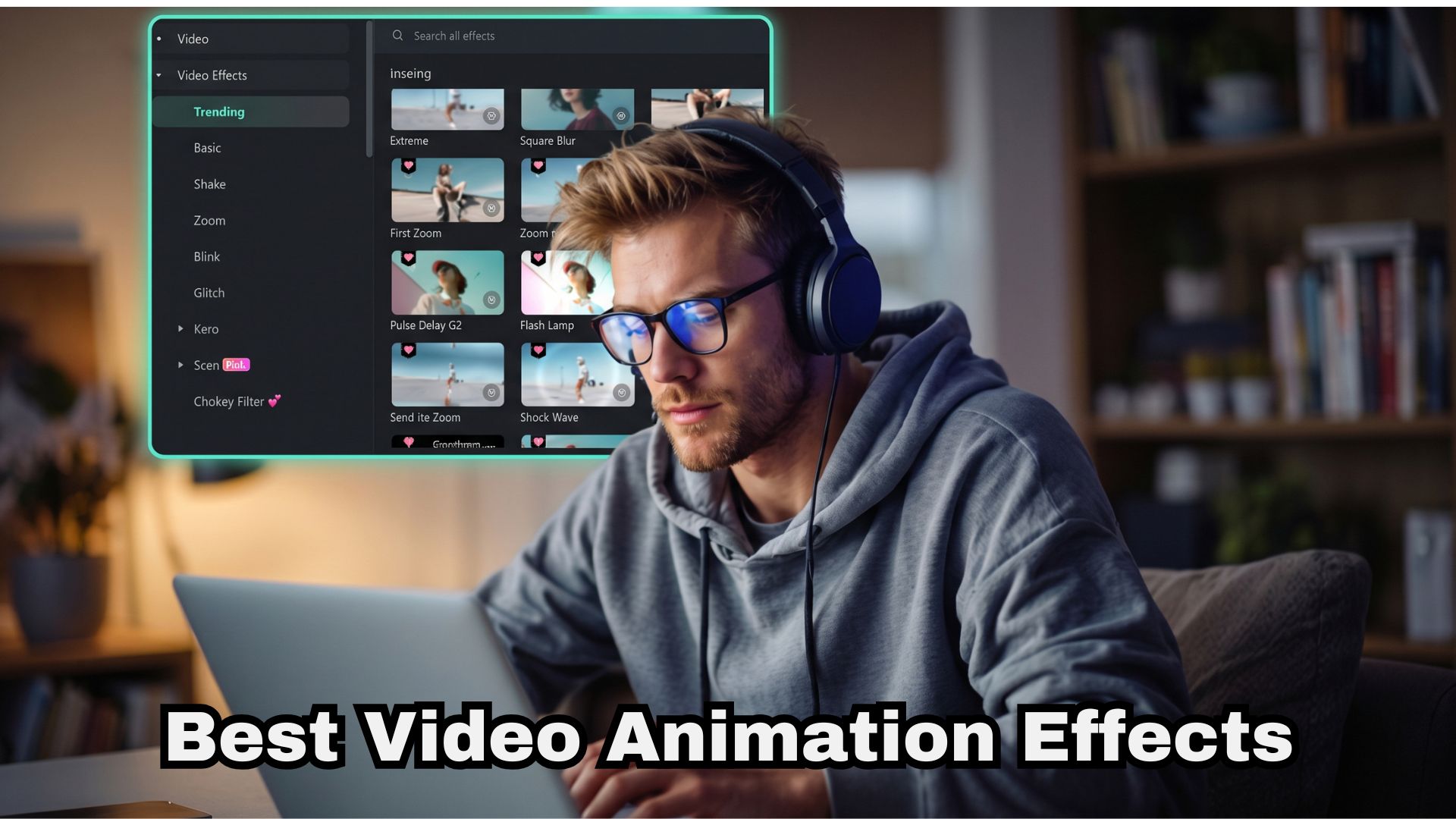
Part 1. Basic Entrance and Exit Animation Effects
Traditionally, video animation effects were quite limited. Most of them had one job: get something onto the screen, and get it off again, without a jarring cut. That sounds basic, but these are still the effects you'll use in most of your edits, because they work. Let's have a look:
1. Fade Animation

A fade animation changes how see-through something is. It starts invisible and melts into view (fade in), or it slowly disappears (fade out). It's the most forgiving effect out there, and the best compliment it can get is that nobody noticed it. It softens sharp cuts, creating a gentle visual bridge between scenes or graphics.
Best For:
- Introductory titles and opening visual cards.
- Scene transitions representing time passing or mood shifts.
- Photo slideshows and memory videos with a soft, nostalgic vibe.
2. Zoom Animation
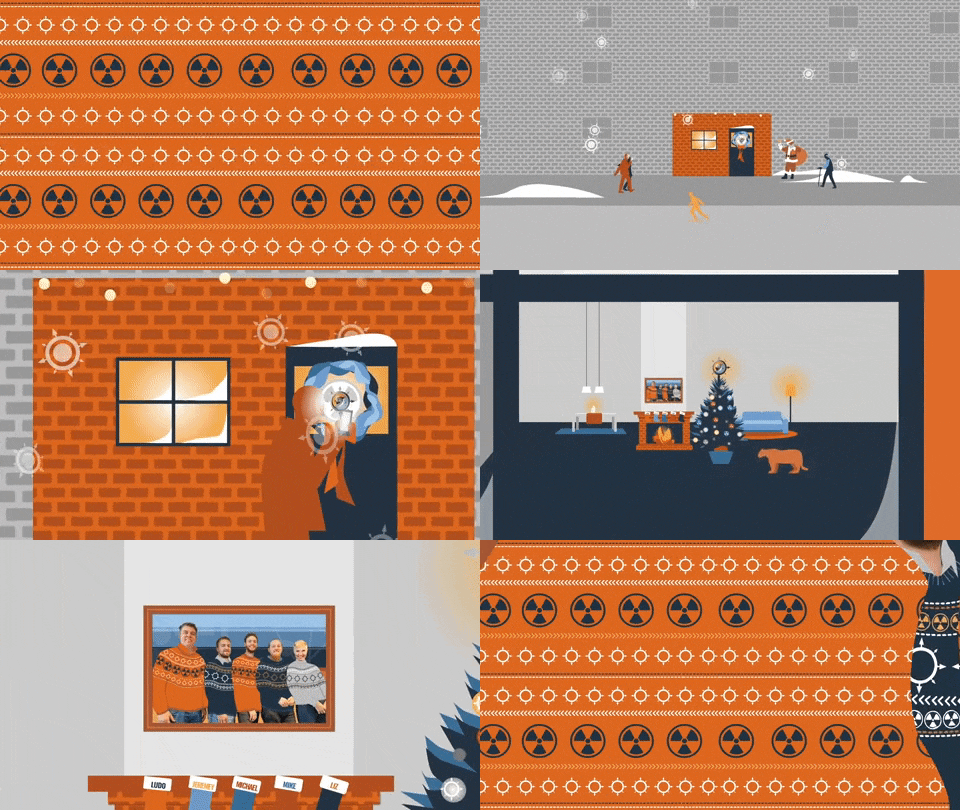
A zoom animation grows or shrinks your clip, photo, or text. Pushing in feels intimate and dramatic, pulling out reveals the bigger picture. And go easy: a zoom on every shot makes a video feel restless, so save it for the moments that matter.
Best For:
- Emphasizing important details on screen (like product close-ups).
- Adding dramatic tension or surprise reactions in vlogs.
- Reaction and punchline moments.
3. Slide Animation

As its name suggests, slide animation glides an element into the frame from the side, the top, or the bottom. It feels tidy and intentional, a bit like a presenter walking onto a stage.
Best For:
- Social media call-to-action pops (e.g., "Subscribe" buttons).
- Side-panel information cards and list points.
- Lower-third banners showing speaker names.
4. In Animation
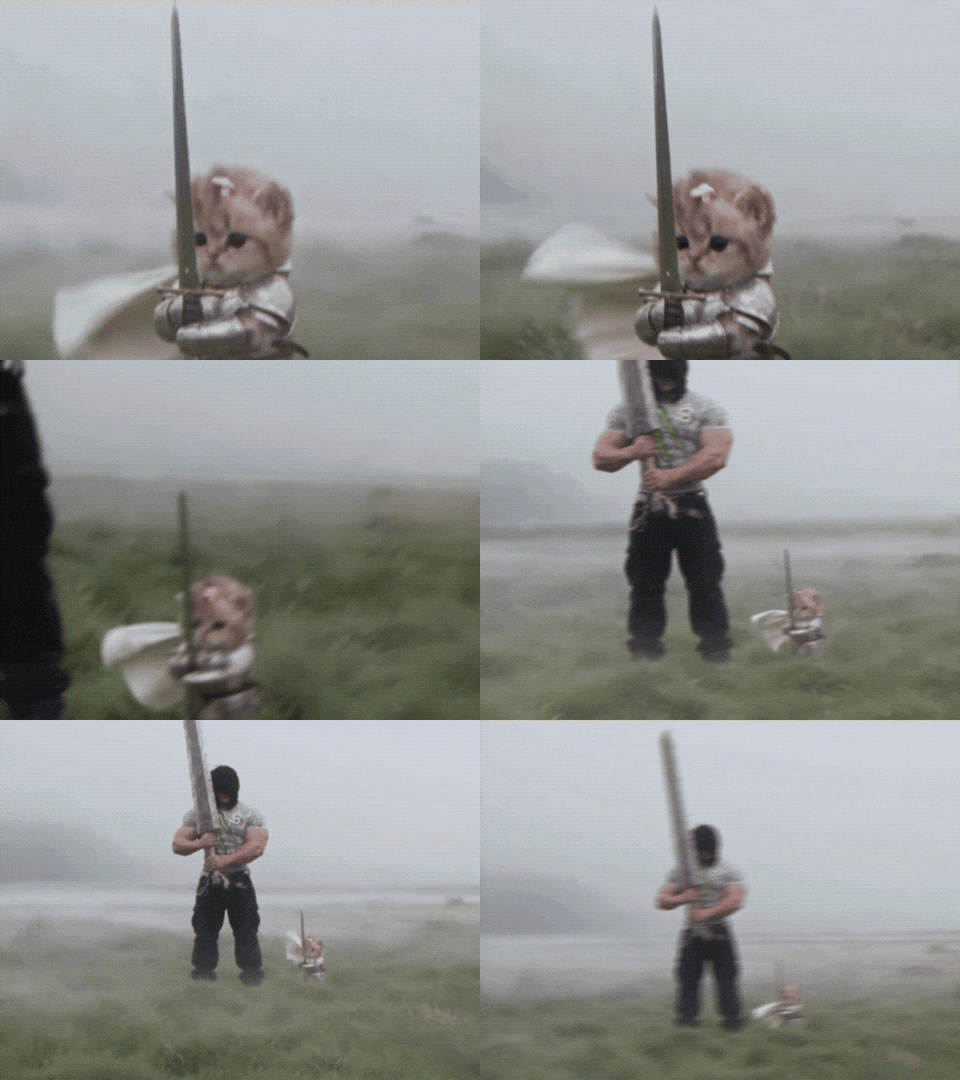
"In animation" isn't one effect, it's a category: anything that controls how an element first appears. It can fade in, slide into position, grow from a small size, rotate into view, or use another movement style. So, rather than popping up abruptly, your element arrives with natural momentum.
Best For:
- Introducing new elements or overlays without cluttering the screen.
- Revealing infographics and supporting media elements.
- Starting a scene with dynamic flair.
5. Out Animation
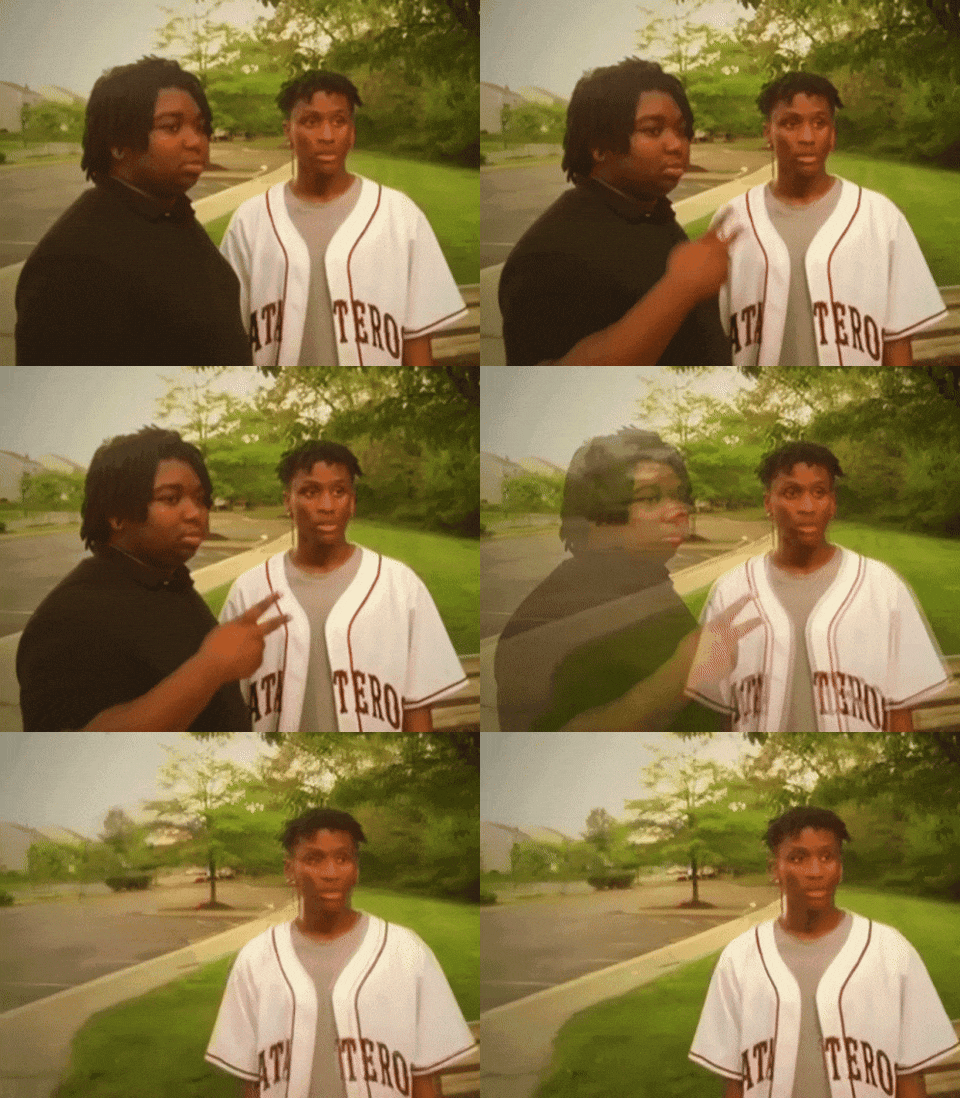
Meanwhile, an out animation is the exact reverse of an entry motion. A Fade Out, Zoom Out or Vortex Out lets an element leave on purpose. Pair it with a matching in animation and everything feels designed.
Best For:
- Clearing away title overlays before a major scene transition.
- Removing pop-up stickers and graphics cleanly.
- Ending promo videos with stylish logo departures.
Part 2. Dynamic and Motion-Driven Effects
As editing software evolved, basic directional slides made way for dynamic movement patterns. So, once you're comfortable with basic entrances and exits, you can experiment with video animation effects that have a little more personality.
1. Spin Animation
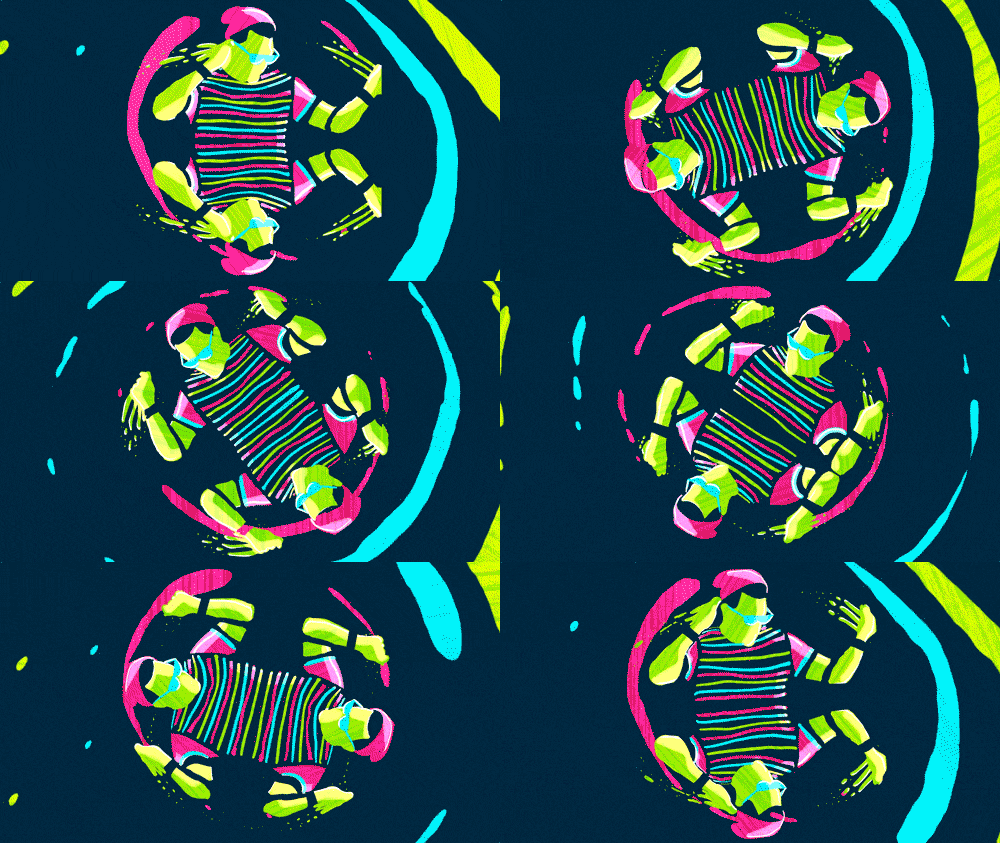
The spin animation rotates elements around a central point on a 2D axis. A spin can be a full rotation or just a partial turn. Whether it's a slow, elegant turn or a rapid vortex spin, this effect captures instant attention.
Best For:
- Animating circular icons, badges, and stickers.
- Transitioning between stylized photo cards.
- Gamified countdown timers or playful sticker effects.
2. Bounce Animation

The bounce animation uses simulated physical elasticity. As elements land on screen, they snap slightly past their final scale or position before settling into place, adding a fun, tactile feel. For example, a title can drop into the frame, overshoot its final position slightly, and settle back into place.
Best For:
- Casual vlogs, comedy edits, and gaming highlights.
- Pop-up text highlights and emoji overlays.
- Catchy promotional offers or sale alerts.
3. Shake Animation
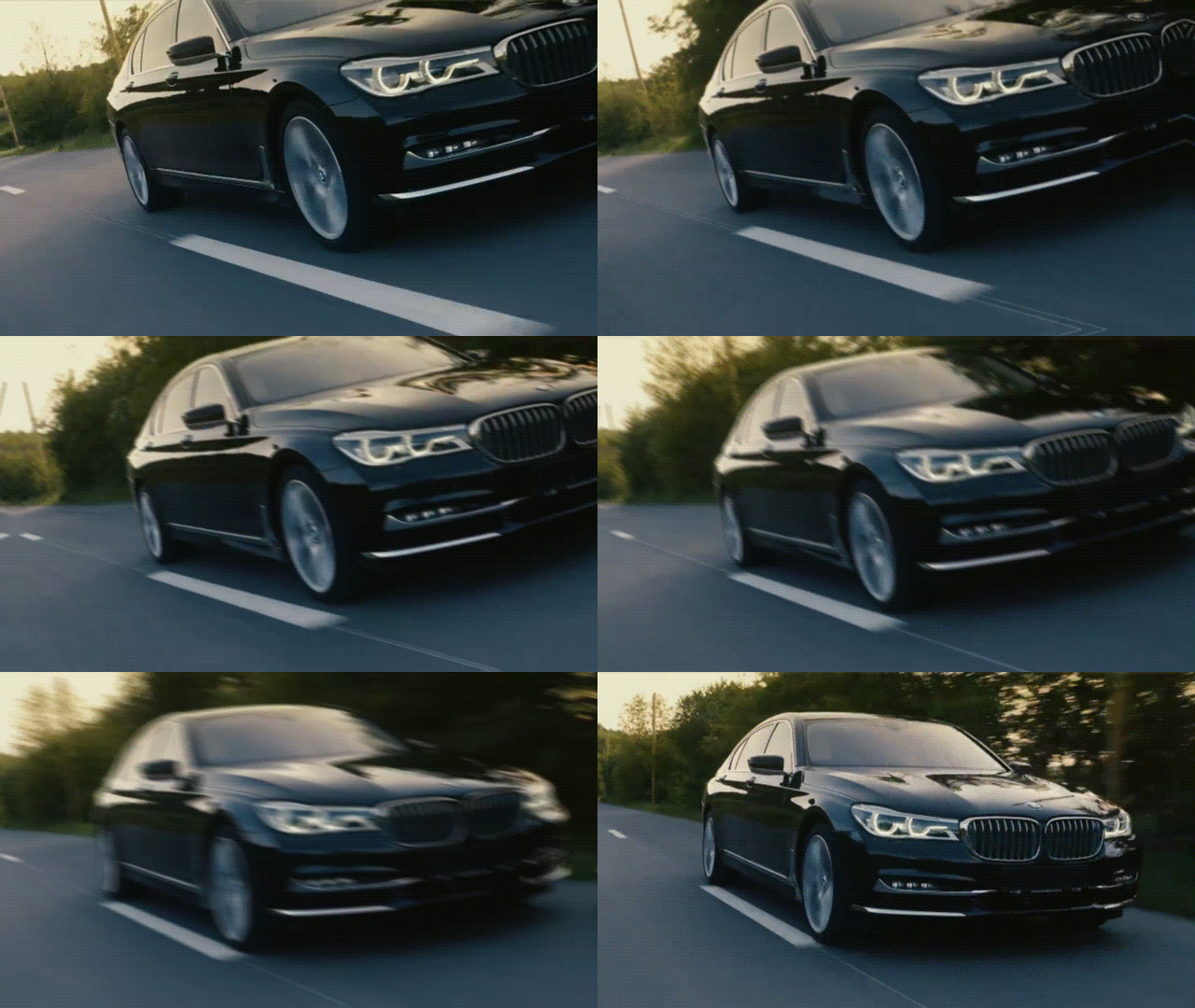
A shake animation moves an element rapidly back and forth over a short period. Depending on how it's applied, the movement can affect the entire frame, a smaller graphic, or an individual title. For instance, a video editor might add a short shake when a game character takes damage or when a dramatic beat hits.
Best For:
- Simulating action scene impacts, hits, or explosions.
- Emphasizing sudden shock, humor, or dramatic reactions.
- Syncing visual beats with bass drops in music videos.
Part 3. 3D Animation Effects
Everything so far lives on a flat surface: things move left, right, up, down, or spin in place. Meanwhile, 3D animation adds depth, so elements seem to turn toward you, away from you, or flip like a card.
Here's how the two compare at a glance:
| 2D Animation | 3D Animation | |
| How Things Move | Across a flat plane: slide, fade, spin on screen | Toward, away and around an axis, so there's a sense of depth |
| The Feeling | Clean, quick, easy to read | Cinematic, dimensional, a little more "wow" |
| Main Limitations | Can feel plain if it's all you use | Can get cheesy or hard to read if overdone |
| Best For | Everyday edits, captions, graphics | Hero moments: intros, reveals, product shots |
So now, let's have a closer look at 3D animation effects that are mostly used by editors:
1. 3D Rotation
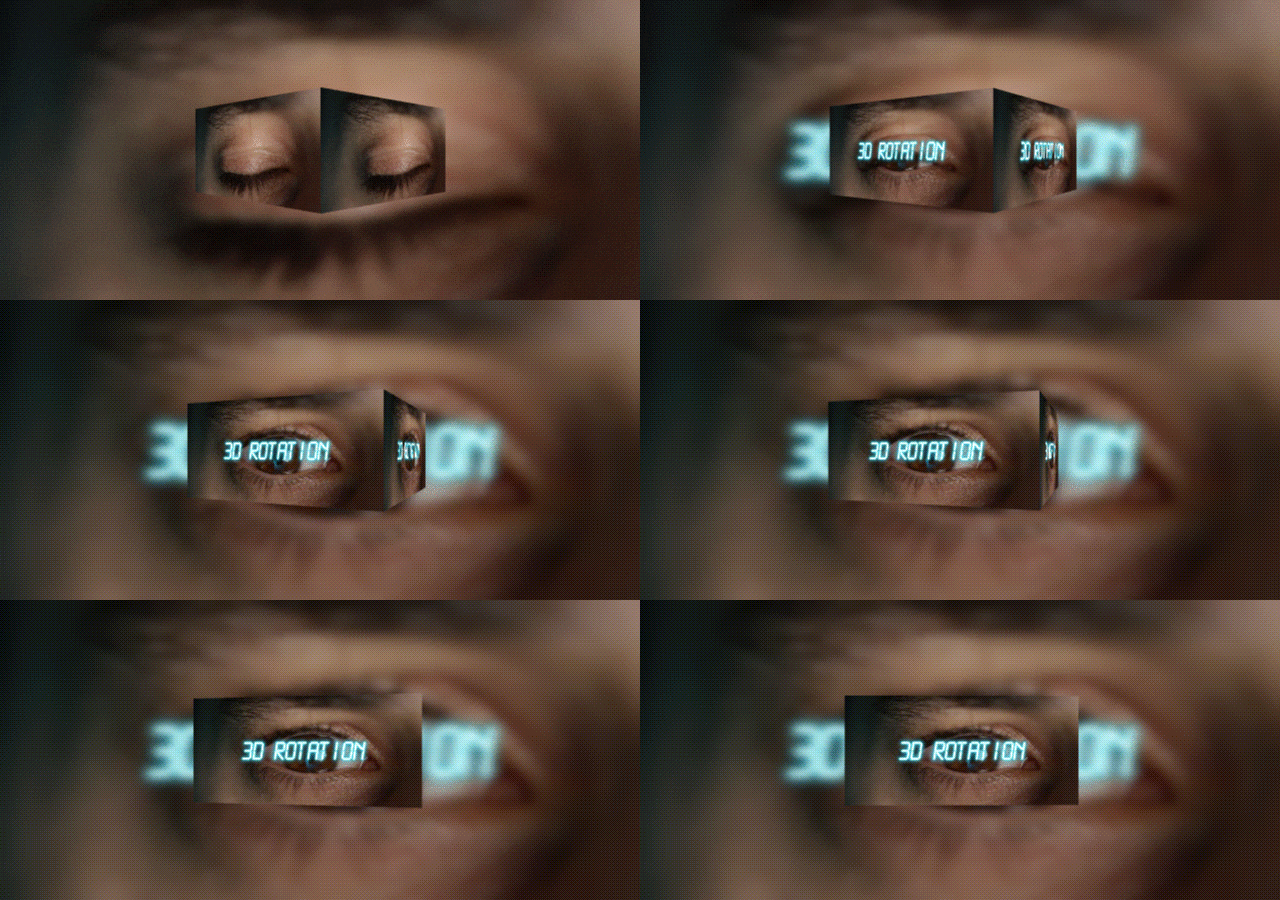
Unlike 2D spinning, 3D rotation flips elements along their horizontal (X) or vertical (Y) axes in three-dimensional space, revealing the tilt and plane of the visual layer. So, if you show a title card turning from a front-facing position to a slight side angle before settling into place, the edges should appear to recede to suggest depth.
Best For:
- Creating turning card reveals or photo flip-book effects.
- Displaying simulated tech interfaces or digital displays.
- Presenting professional portfolio showcases.
2. 3D Zoom / Perspective Animation
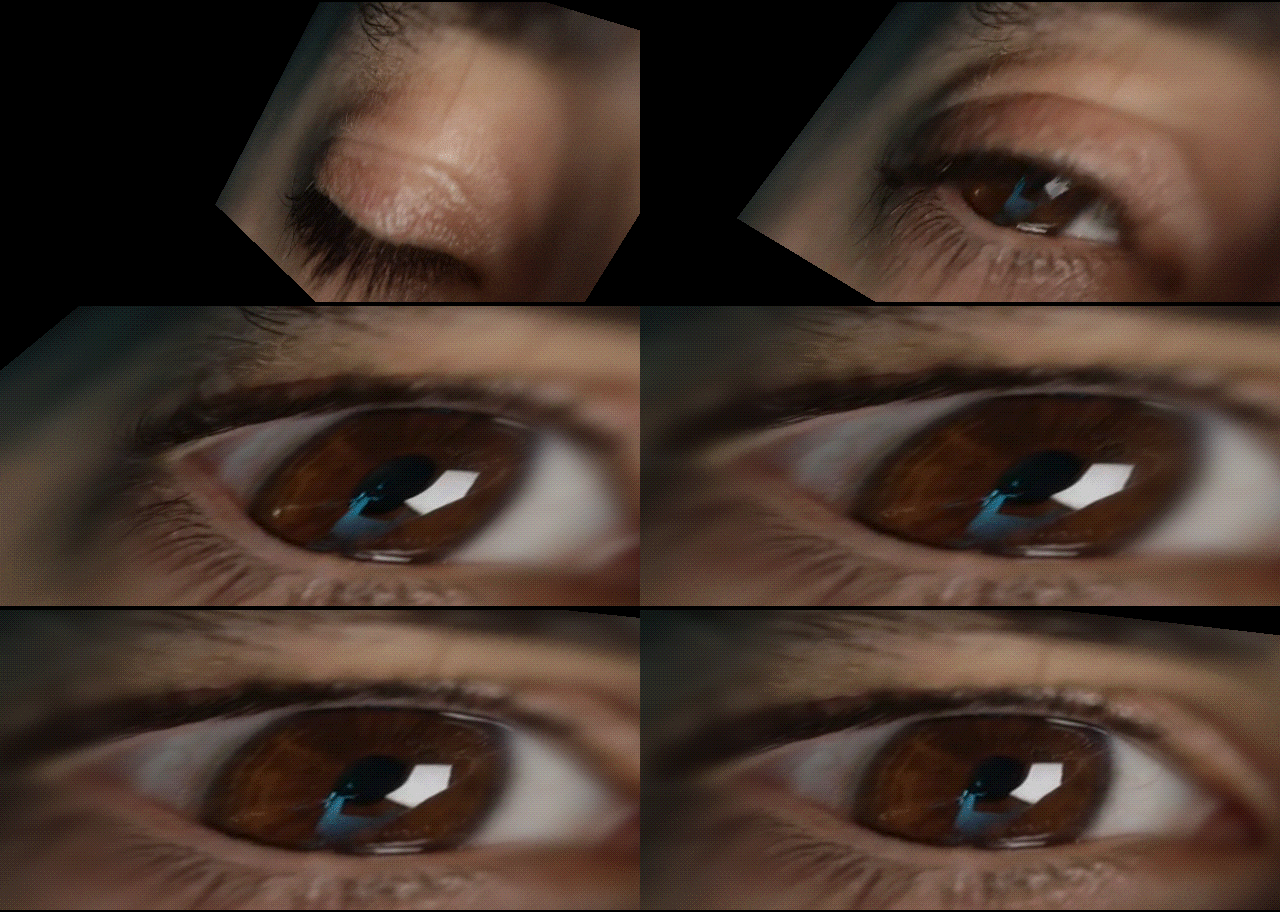
This is Zoom with extra drama. A standard zoom mainly changes size, while a perspective effect changes the apparent depth or angle of the element. By growing an element while nudging its rotation or position, you create the feeling that it's flying toward the camera, like the title crawl in a space movie.
Best For:
- Cinematic intros and trailer-style graphics.
- Immersive photo slideshow transitions.
- Deep-space graphics and futuristic presentation overlays.
Part 4. Text Animation Effects
Motion graphics aren't just for images and footage, your typography deserves love too! Since people often read before they listen, text animation is where a lot of videos win or lose attention. The key is readability. Think about what the viewer needs to read and how the movement can help communicate that message. Let's dig deeper!
1. Animated Title Effects
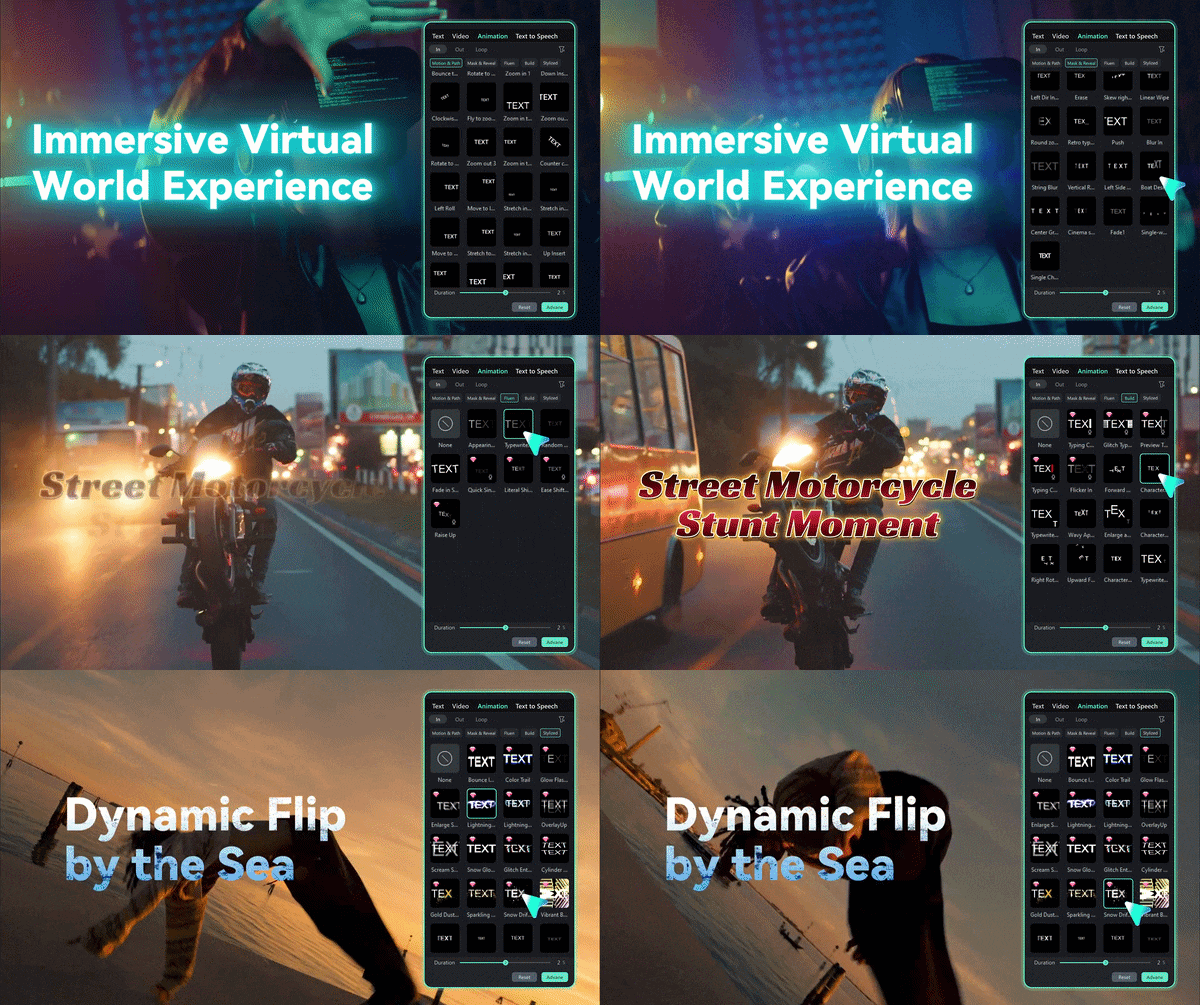
These are your ready-made title looks, where letters or lines slide, fade or pop into place. A well-designed title text animation introduces information without taking over the whole video. For a travel vlog, a location name might appear gently over the opening shot. For a product promo, a bold headline might use a quicker entrance to match the video's pace.
Best For:
- YouTube video main intros and episode titles.
- Documentary segment chapter headers.
- High-impact marketing announcements.
2. Kinetic Text Animation

Kinetic text animation means words that move, scale and rotate along with the audio. Each word hits as it's spoken, and the sentence builds like a little performance. It takes more setup, but it's the thing that makes a quote or a lyric look professionally designed.
Best For:
- Fast-paced social media reels and TikTok clips.
- Lyric videos and music visualizers.
- Explainer videos without on-camera hosts.
3. Word-by-Word / Highlight Animation
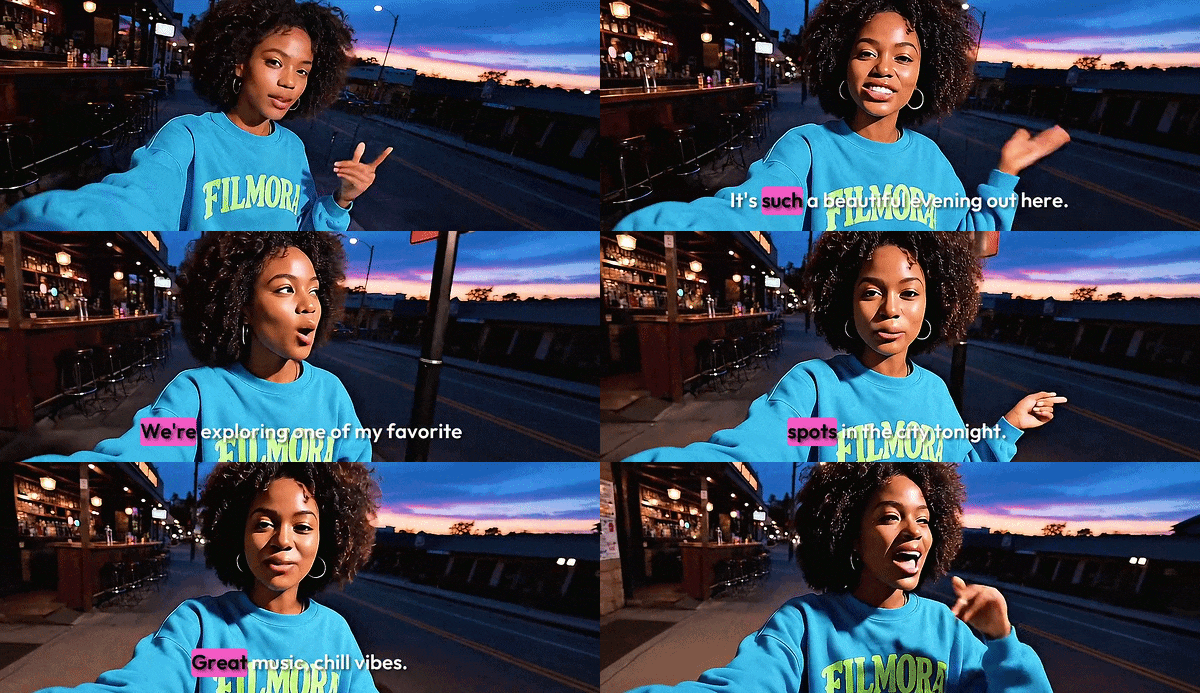
If you use this type of text animation, words appear one at a time, or the current word lights up in a different color, so viewers can follow along with the speech. It keeps eyes on the screen, which is gold for short-form content where most people watch with the sound off.
Best For:
- Opening a vlog or travel video.
- Voiceover-driven tutorials and educational clips.
- Short-form motivational reels.
4. Text Combo Animation
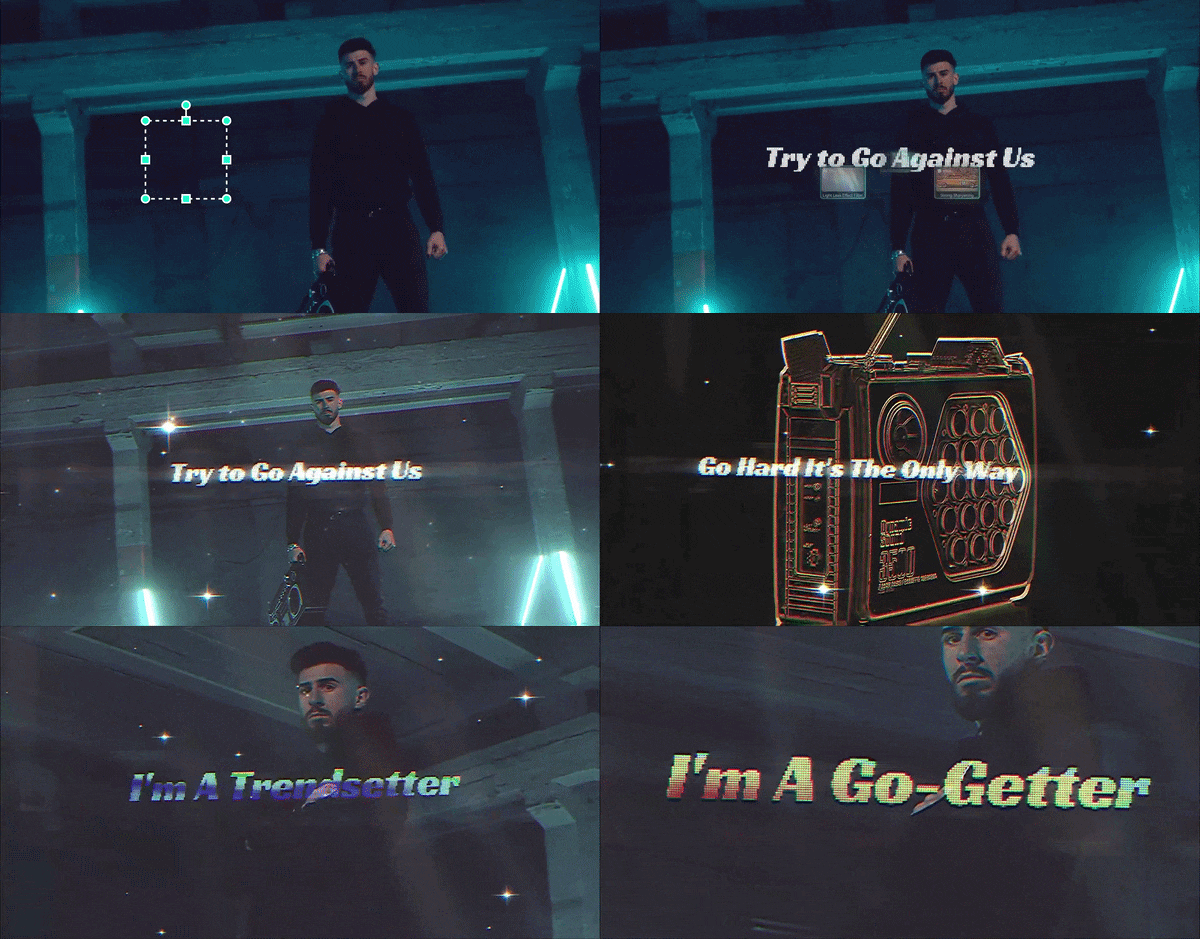
Combo animation bundles several movements into one sequence. Words might bounce on screen, gently hover in mid-air, and then spin away when the line ends. It's the shortcut when you want something polished without building every move yourself.
Best For:
- Building energetic social media intros.
- Combining movement with a music beat.
- Playful gaming commentary pop-ups.
Part 5. How to Apply and Combine Video Animation Effects in Filmora
Now that you've seen the different types of video animation effects, it's time to try them on your own footage. For that, you need an editor that makes it painless, and Wondershare Filmora is a great pick. It's an all-in-one editor with a big library of customizable animation presets you can drag, drop, and tweak in seconds.
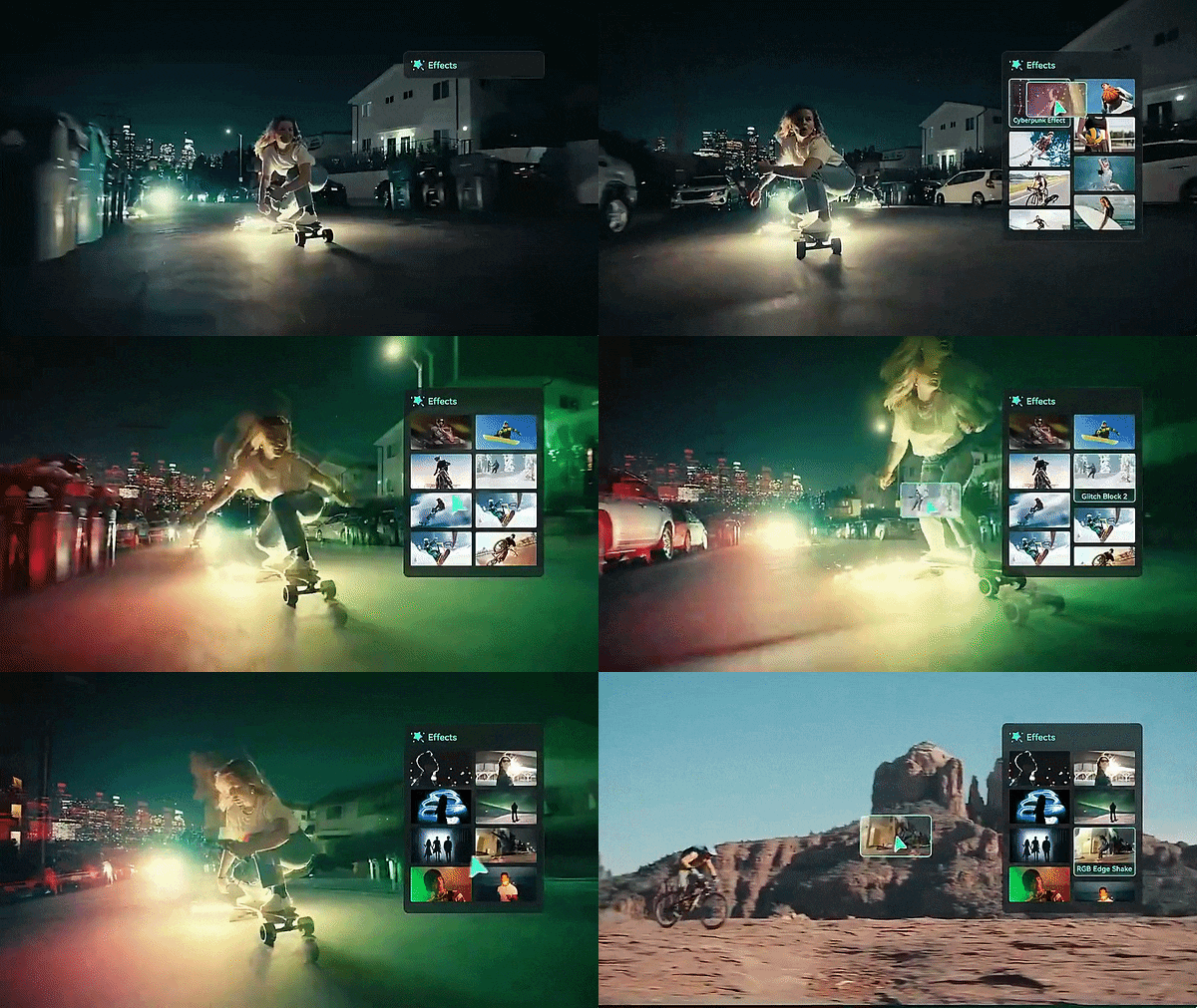


The best approach is to start with one effect, check how it looks in context, and then add another only if it improves the result. Here is how you can quickly apply and combine effects inside Filmora:
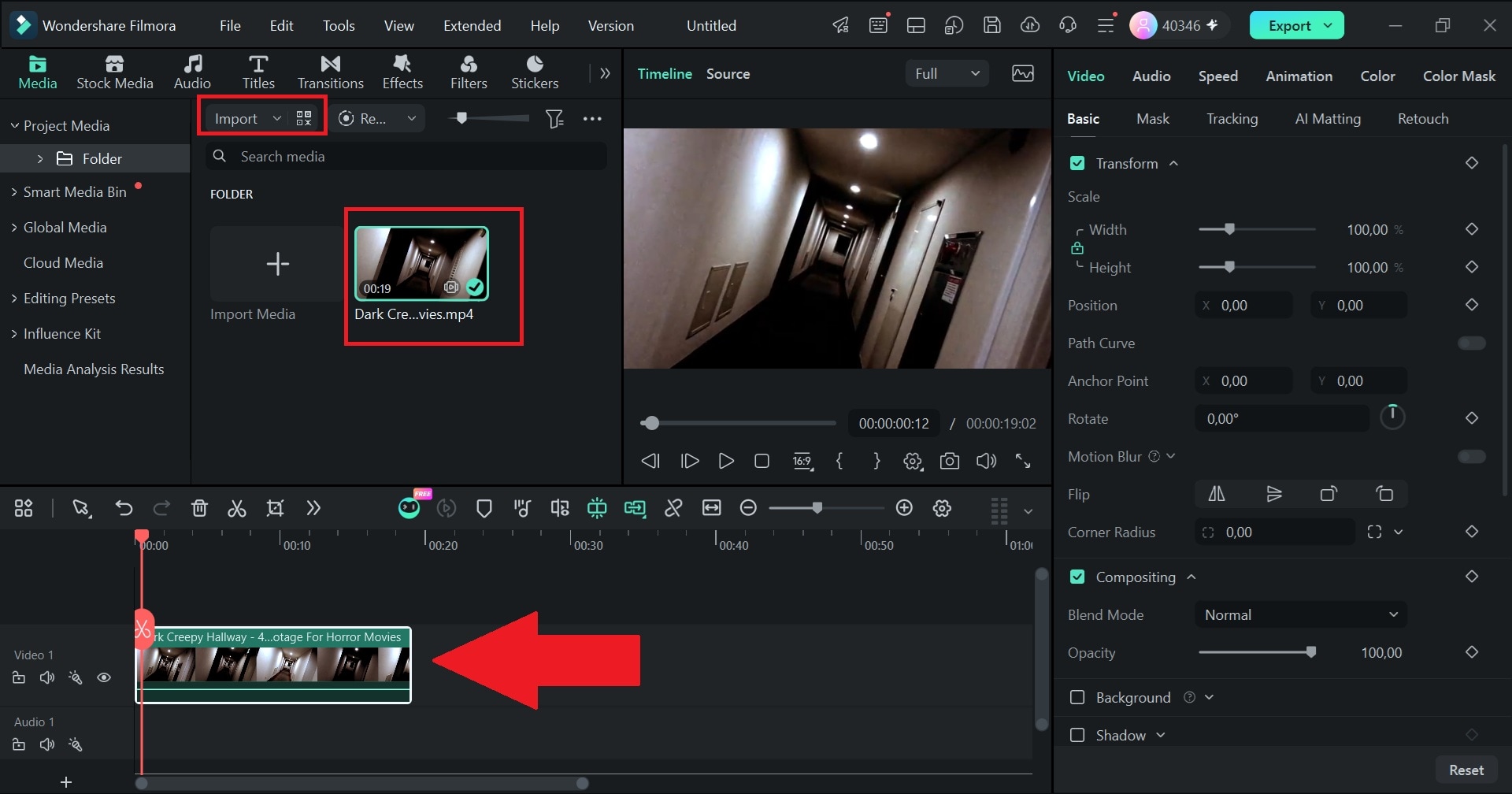
Step1Import Your Media & Add to Timeline
Open Wondershare Filmora and start a new project. Click Import to upload your video clips, photos, or text overlays into the main media panel. Drag your assets down onto the editing timeline below.
Step2Access the Animation Preset Menu
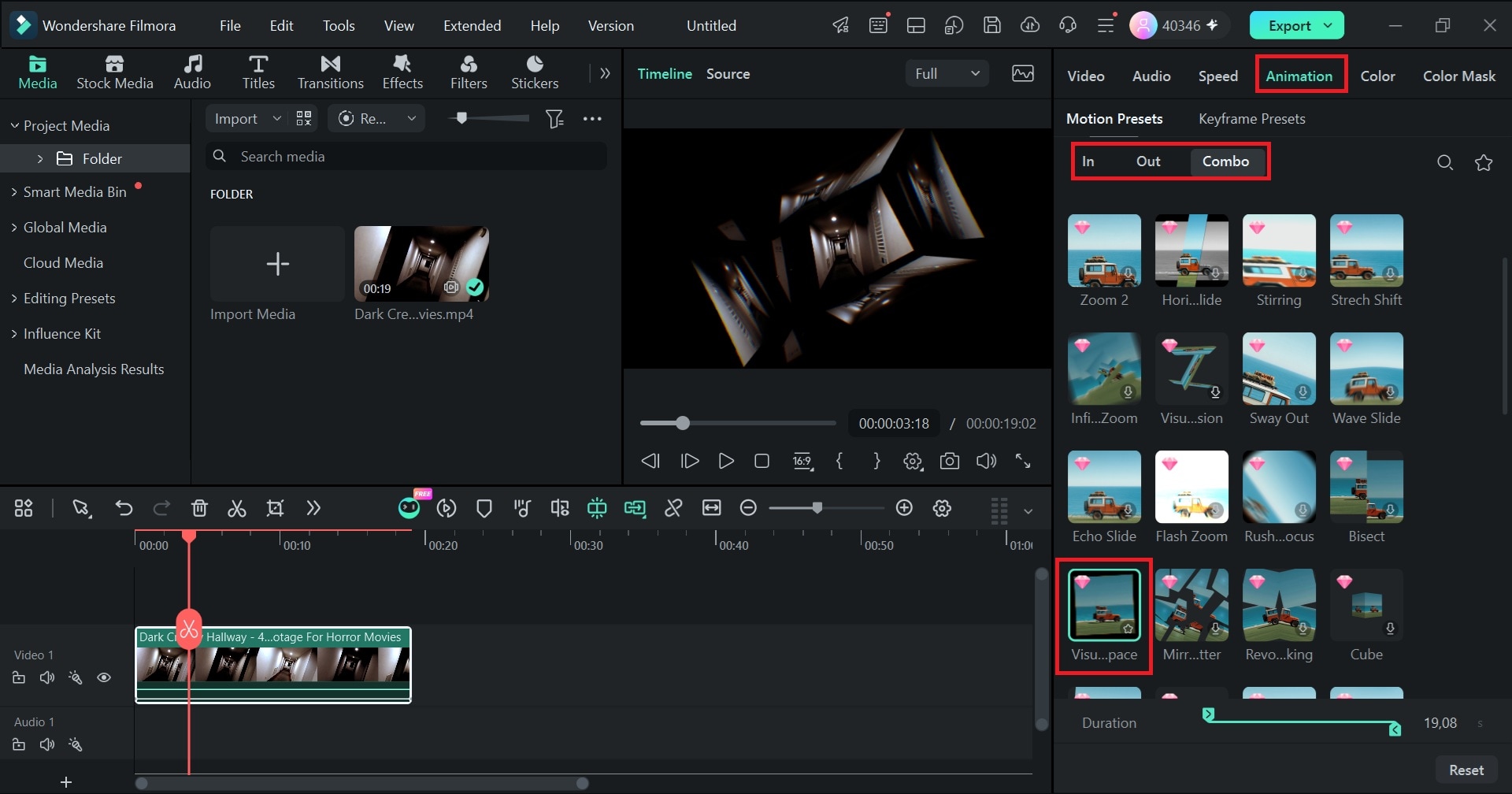
Double-click on the clip or text layer in your timeline to open the editing properties panel. Head over to the Animation tab, and you'll find there are In, Out, and Combo presets available in Filmora. Double-click any animation preset (such as visual space) to preview it on your media instantly.
Step3Add Other Effects
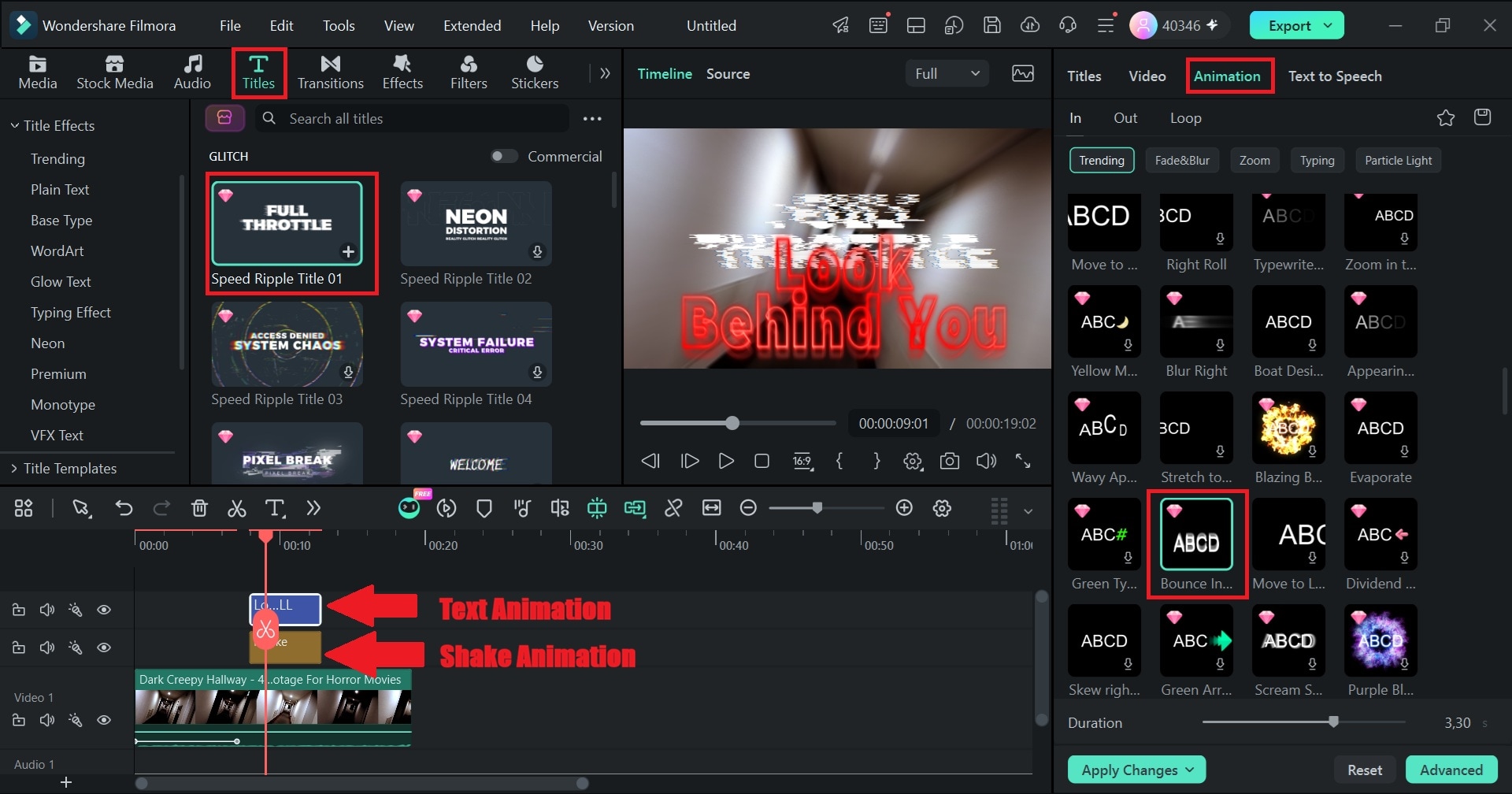
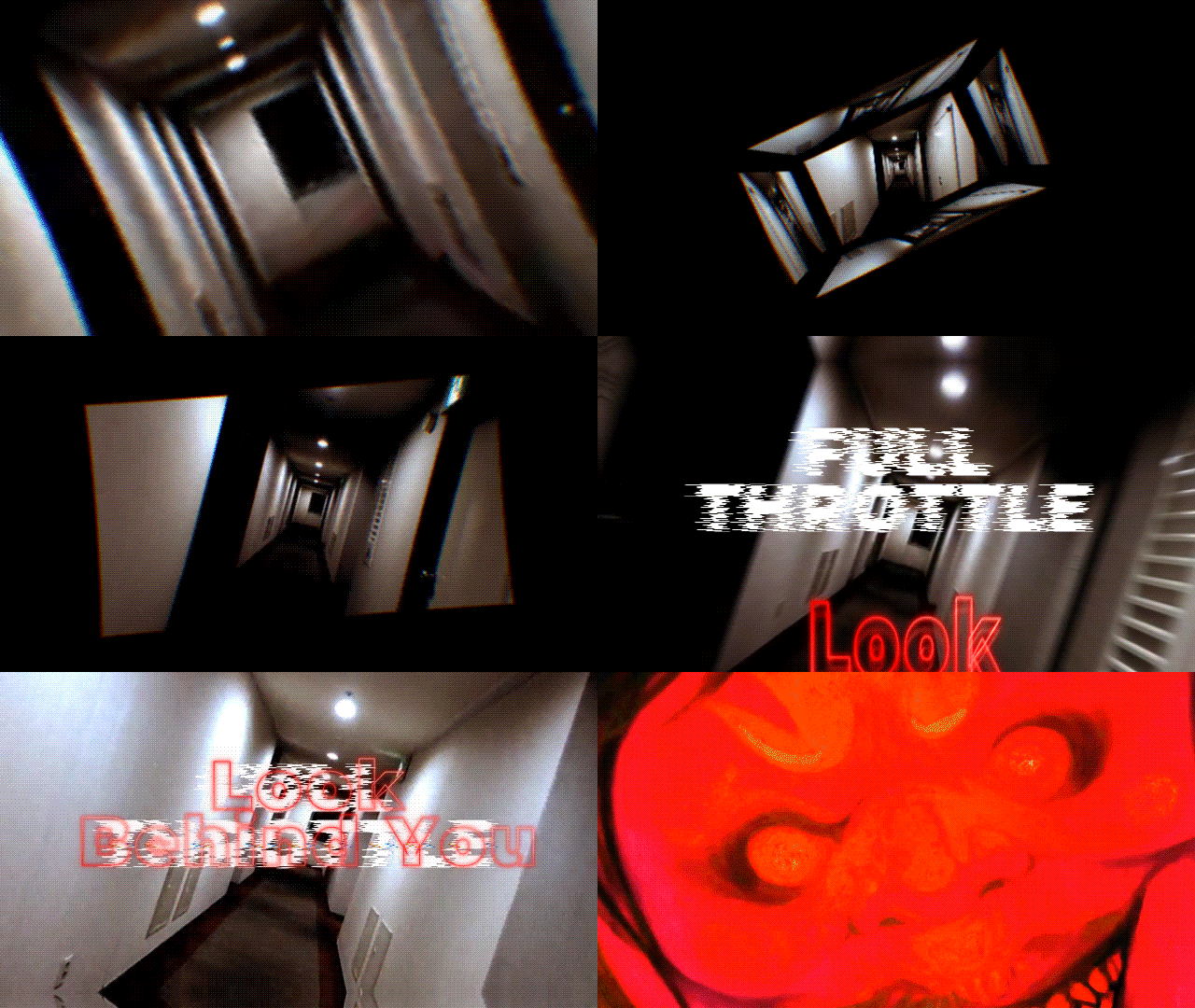
Now, your clip is becoming creepier thanks to the animation effects. You can make it more immersive by adding a camera shake animation on your background clip with a text animation overlay on top!
Step4Preview and Export
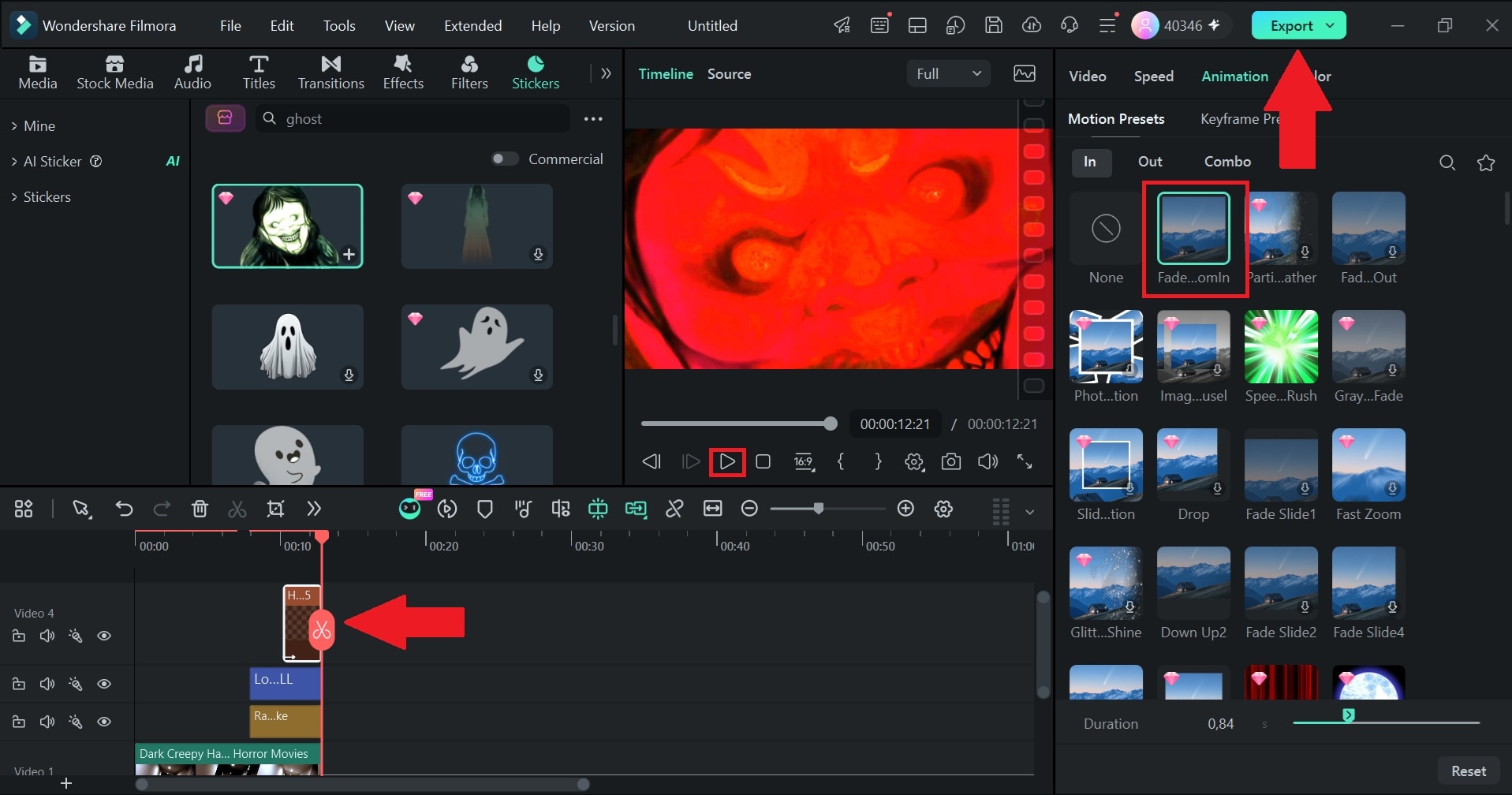
You can finish it by adding a jump scare as the cherry on top. Click play to see the full result, and when you're done, select Export to save the video to your device.
And that's pretty much all the steps! As you can see, adding video animation effects is super simple. The presets make the workflow even easier for total beginners to follow. There are even Combo animation presets, which make your animations more creative. Now, see the clip you just improved with animation effects below:
 secure download
 Conclusion
Video animation effects can turn ordinary footage, photos, and titles into something more engaging without requiring complicated animation skills. The best video animation effects aren't necessarily the flashiest ones; they're the ones that help viewers follow the story and notice what matters.
When you're ready to test out the best video animation effects without getting bogged down in tricky keyframe settings, give Wondershare Filmora a try. Its drag-and-drop animations, intuitive preset tools, and massive library give you everything you need to create polished, high-quality videos in no time.
secure download FAQs
-
Can you customize the timing of video animation effects?
Yes! In modern video editors like Wondershare Filmora, you can easily adjust how long an animation lasts. Simply double-click the animated element on your timeline and drag the animation keyframe markers left or right to make the movement faster or slower. -
How do you make an image or video move?
You can make static elements move by applying built-in animation presets (like Pan & Zoom, Slide, or Bounce) or by setting manual keyframes for scale, position, and rotation properties. Applying presets is usually the quickest way to get natural movement. -
How do you animate a logo in a video?
Import your logo image file (preferably a transparent PNG) onto a track above your main video clip. Double-click the logo asset, head to the Animation tab, and apply an entrance preset like 3D Spin, Zoom, or Slide to give your brand mark a clean introduction.
