


 TL;DR:
While standalone tools like NanoBanana.im and Image to Prompt generate platform-specific text prompts from uploaded pictures, Wondershare Filmora offers an integrated workspace that uses a built-in multimodal model to natively analyze static images and export consistent dynamic videos.
● Zemith produces highly detailed descriptions but cannot format prompts for specific AI models, whereas NanoBanana.im provides precise control over word counts and formats tailored directly for DALL-E, Flux, and Midjourney.
● Image-to-prompt generators perform optimally with realistic photos; analyzing highly abstract or heavily stylized digital art frequently omits visual style details and requires manual text adjustments before generating.
● When using Filmora to generate static visuals from your prompt, you must add the generated media to the editing timeline and manually use the Snapshot button to export the final result as a PNG or JPG file.
Ask AI for a summary
 ChatGPT
 Perplexity
 Gemini
 Claude
 Grok
Grok
Coming up with a good AI prompt when generating an AI image is not as easy as it seems, especially if you are starting from a blank page. But writing everything from scratch is not your only option. You can also use images and turn them into text prompts with an image to prompt generator.
This tool analyzes a picture and describes it in words, so you can reuse the style, lighting, and other details and take it as an inspiration for your next AI image generation. Below are some of the best image prompt generators, along with our quick review, that you can try today.
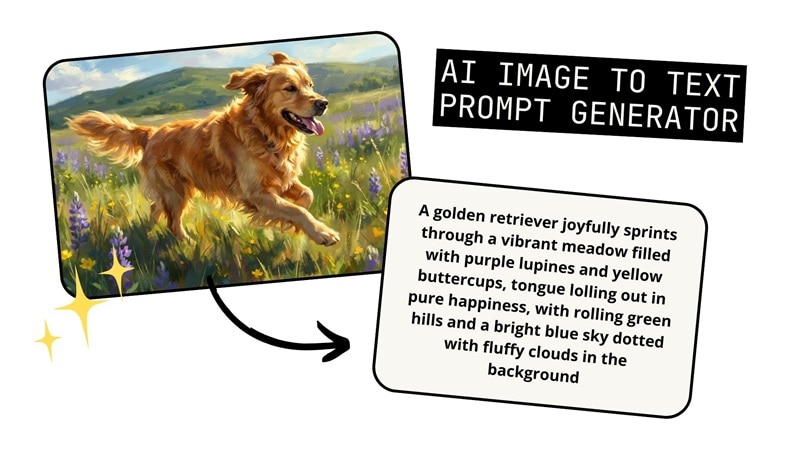
With so many options of image-to-prompt generators out there, we tested each tool using the same image to compare the results and selected the most reliable ones, focusing on:
- How closely the generated image matches the original when using the prompt
- The level of detail and overall quality of the generated prompt
- Limitations in the free version
- Support for different AI models or prompt formats
- How accurately the tool describes objects, lighting, and composition
Our Top 3 Picks of Image Prompt Generators
Compare the Best Image to Prompt Generators
Although these AI image-to-prompt generators work in similar ways, they don’t offer the same level of control, output quality, or flexibility. We’ll start with a quick comparison so you can see how they stack up at a glance, then break down each tool in more detail in the following section.
| Platforms | Supported AI Models | Free Plan | Direct URL Support | Best for | |
| ImagePrompt.org | Web | General, Flux, Midjourney, Stable Diffusion | Free for 5 generations/day | Prompt generation with different model selection | |
| Image to Prompt | Web | General, Nano Banana, Flux, Midjourney, Stable Diffusion | Free with ads | Free and fast image-to-prompt generation | |
| Zemith | Web, iOS, Android | General | Free for 5 generations/day | Highly detailed, general-purpose prompts | |
| PromptPix | iOS, Android | General | Free with ads | Prompt inspiration from trending images | |
| Image to Prompt Generator | Android | General | Free with ads | Generate a prompt from an image on mobile (Android) | |
| NanoBanana.im | Web | General, Nano Banana, Midjourney, DALL-E, Stable Diffusion, Flux | Free | Advanced prompt generations with more control and customization | |
| Poe | Web | General | Free | Simple chat-based image prompts | |
|
Show More
Show Less
|
|||||
Best Image to Prompt Generators (Reviewed in Detail)
If the comparison table helped narrow down your options, this section will walk you through each AI image to text prompt generator in more detail.
1. ImagePrompt.org
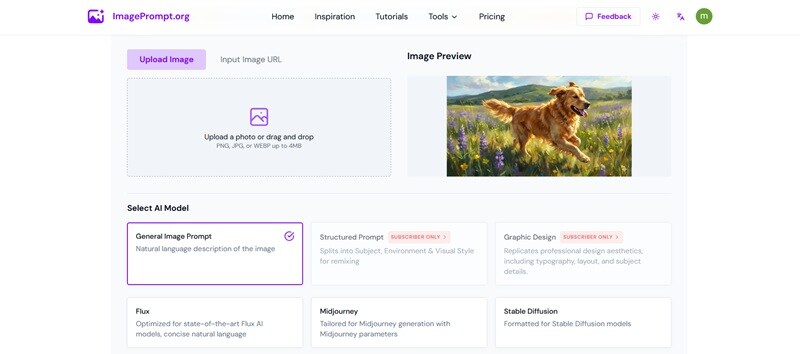
ImagePrompt.org gives you two ways to generate text prompts for AI images: using an image you upload or starting from a brief idea you already have. For the image to text generator, you can upload an image file or simply paste an image URL.
After that, you can choose the AI model you want to target or generate a general image prompt. Some models are free to use with limited attempts, while a more structured option and a graphic design style require a subscription.
2. Image to Prompt
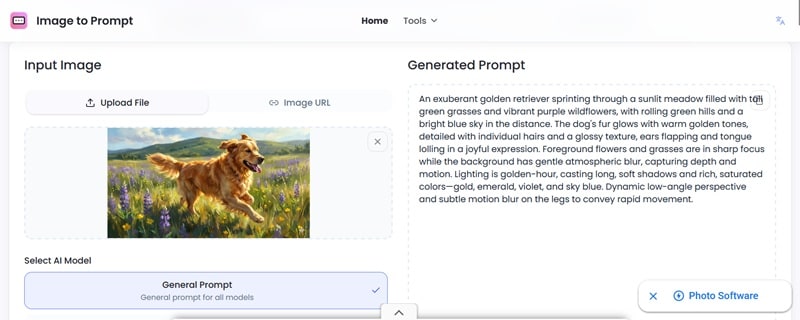
Similar to ImagePrompt.org, Image to Prompt lets you upload an image or paste a direct image URL to turn it into a prompt for your next image generation. You can choose between two modes: Fast or Advanced, which affect how detailed the generated prompt is and the output quality.
This AI image prompt generator is free to use and doesn’t require sign-in. However, the constant ads on the site can be a nuisance. It works best with photos or realistic images, since the generated prompt often skips style details when you use more stylized visuals.
3. Zemith
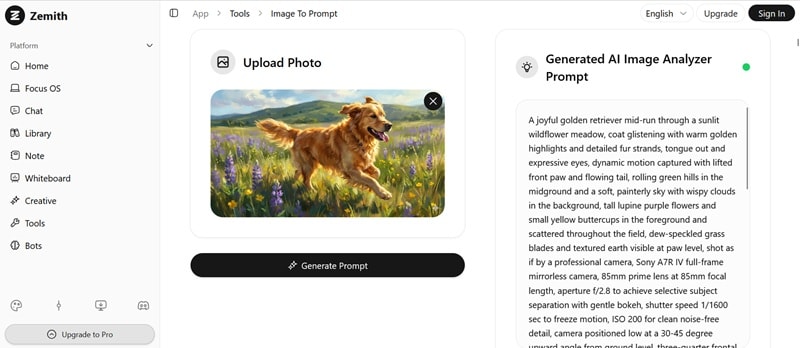
Zemith AI image-to-text prompt is one of the few tools that delivers highly detailed prompt results, even when you’re using the free version. However, it doesn’t let you target specific AI models, so the output stays in a general format and isn’t optimized for platforms like Stable Diffusion or Midjourney. After generating, you can revisit your previous results from the prompt history.
4. PromptPix
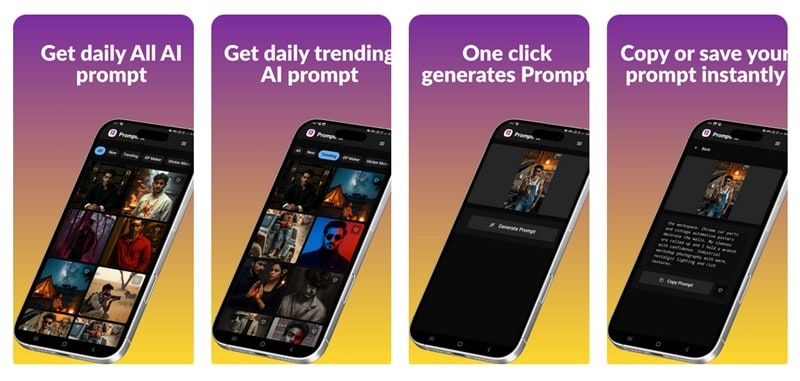
If you like starting with inspiration instead of uploading your own images, PromptPix might be right up your alley. Unlike the AI image to prompt generators we’ve covered so far, where you upload your own image or paste a URL, PromptPix works more like a discovery platform. You browse a collection of trending AI images, pick one that catches your eye, and get a prompt you can copy and use right away.
5. Image to Prompt Generator
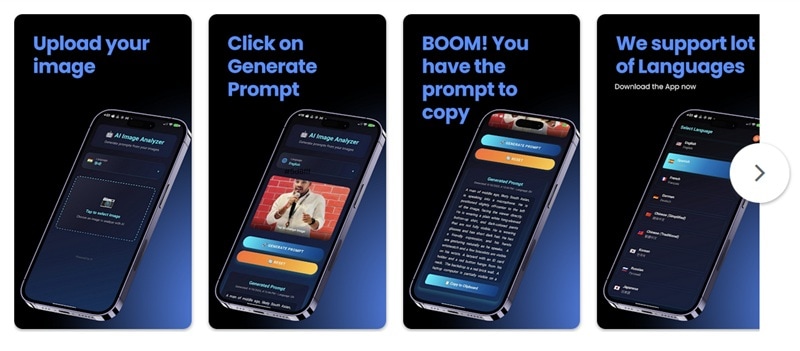
If you’re looking for a mobile image prompt generator that lets you upload your own image and turn it into a prompt instead, you can use Image to Prompt Generator. It supports languages beyond English. However, the app is only available on Android.
6. NanoBanana.im
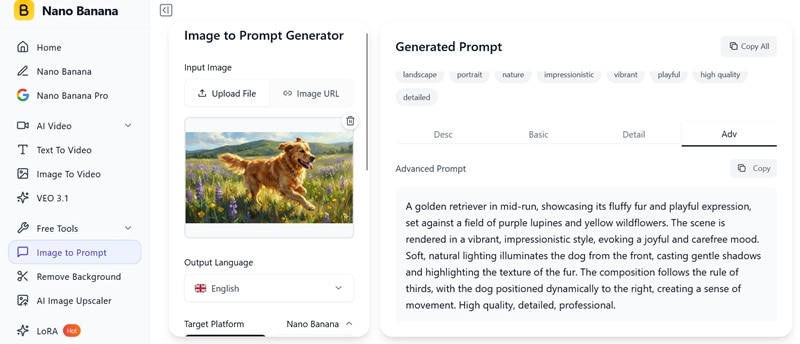
NanoBanana.im gives you more control over your prompt settings before generating than most image prompt generators AI. In addition to choosing the target platform, you can also set the maximum word count and define the scene or image style you want to generate.
After generating the prompt, you’ll get a detailed description of the uploaded image, including its aspect ratio, dimensions, and categories. Then, you can also choose how detailed you want the prompt to be (description, basic, detailed, or advanced).
7. Poe
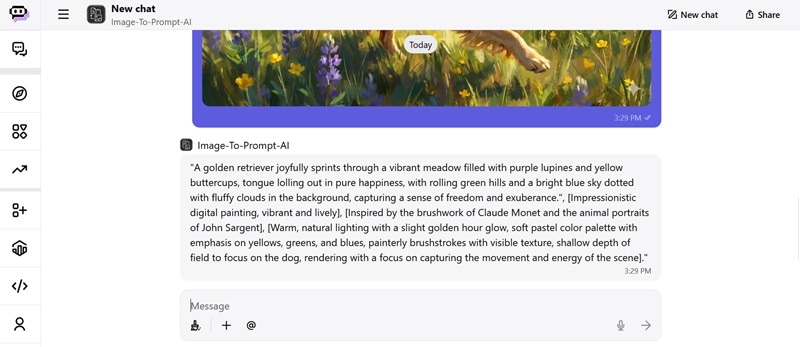
Poe’s AI picture prompt generator works in a chat-based interface. You can just upload the image, and it will respond with a prompt based on its analysis. It’s straightforward and free to use, but you can barely do anything with the prompt or access any additional options.
Best AI Tool to Generate Images From Prompts
After you have a solid text prompt from an image-to-text prompt AI you selected, you can experiment with that prompt to create your own AI image. In this case, Wondershare Filmora is a recommended tool for creators who want more flexibility than basic image generation.
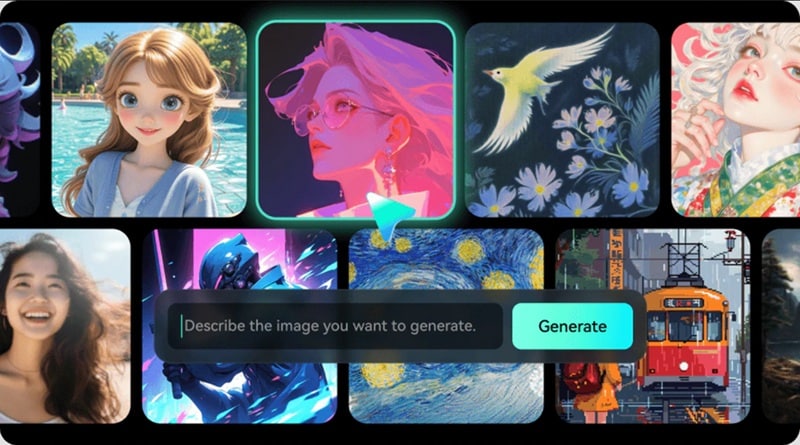
Unlike many AI image generators that stop at producing a single image, Filmora gives you a complete creative workspace to keep refining what you’ve made. You can even animate the images you generate and turn them into short videos.
Now Filmora goes a step further with its native Image to Prompt feature. You can upload a static image, and the built-in multimodal model automatically analyzes the scene, style, composition, and atmosphere to generate a detailed text prompt. This prompt can then be used to generate dynamic videos that stay visually consistent with the original image.
Why Use Filmora to Generate AI Images from Prompts
- High-quality AI image generator powered by models like GPT image 2, Nano Banana 2, Nano Banana Pro
- All-in-one creative setup for image generation, editing, and exporting in different formats
- Turn AI images into short videos or animations with its image-to-video in the same app
- Built-in tools to upscale images and enhance visual quality before exporting
 Secure Download
How to Generate Images from Prompts
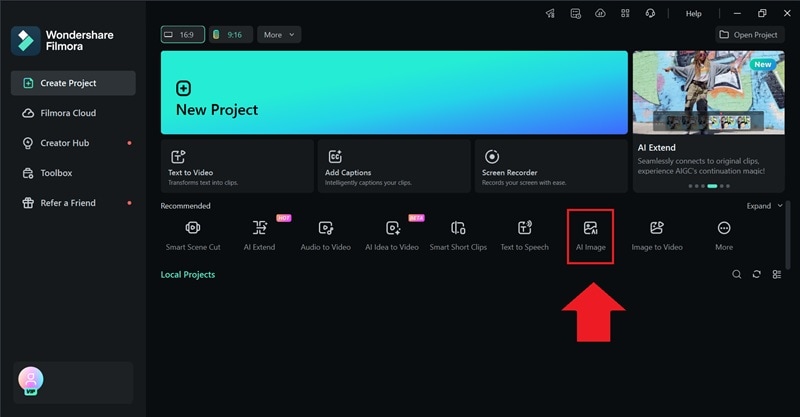
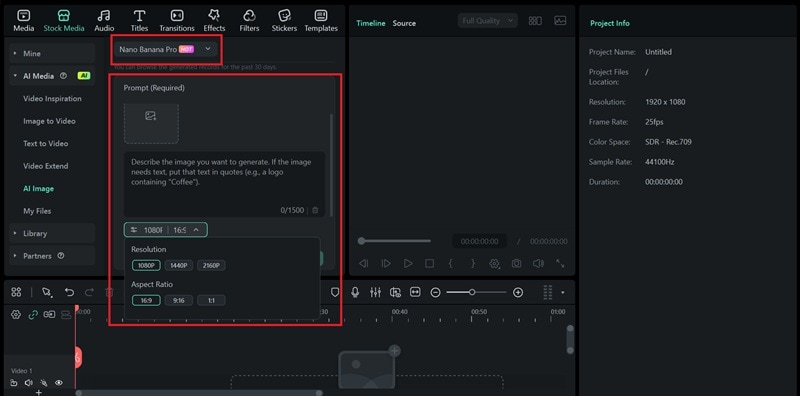
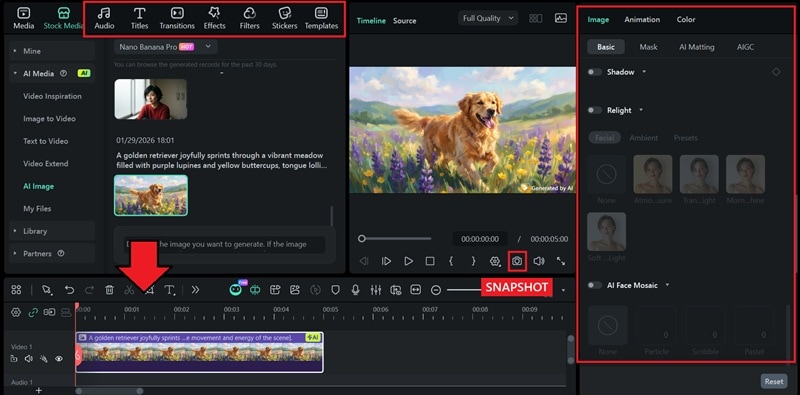 Secure Download
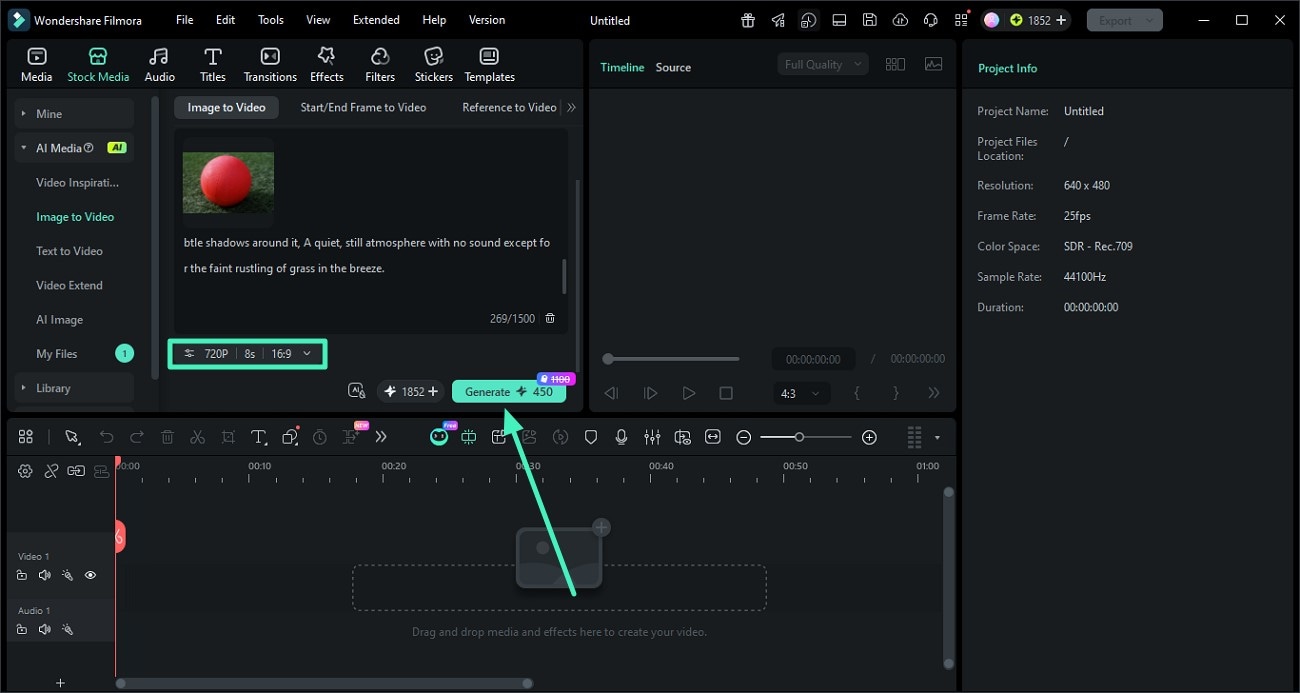
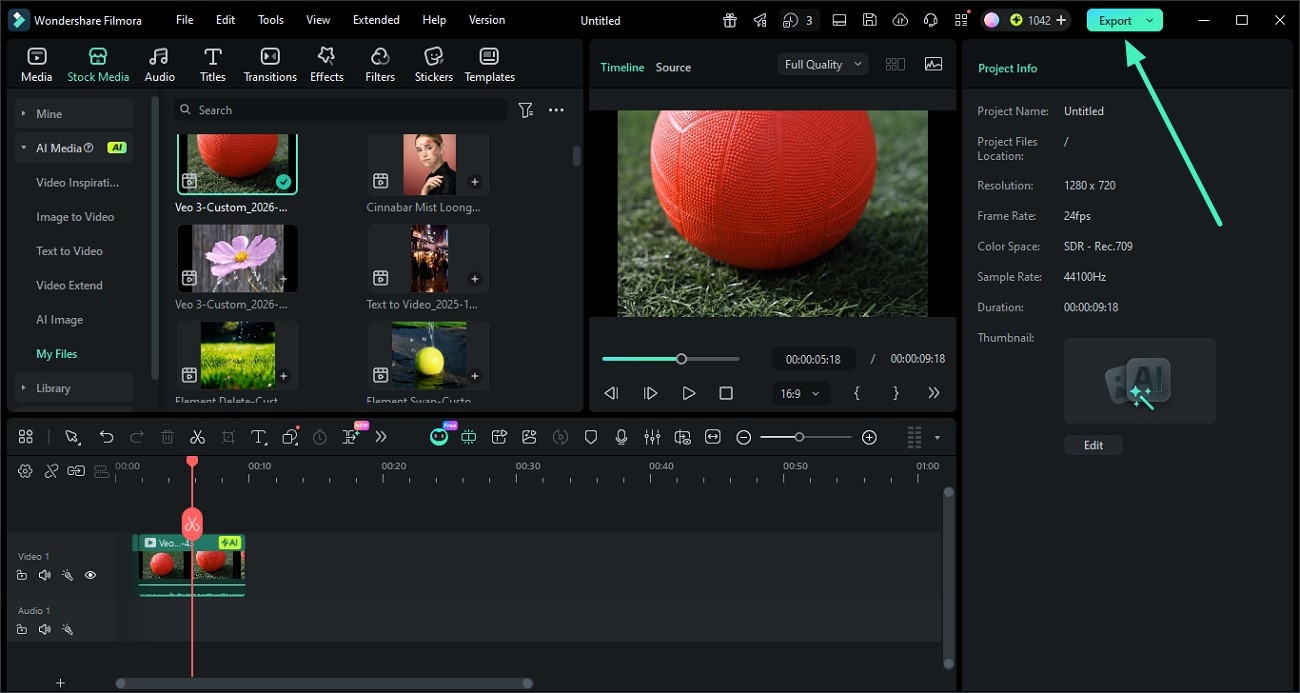
How to Use the Image to Prompt in Filmora
With Filmora’s built-in Image to Prompt feature, you can skip the blank page and start from an image you already like. The AI analyzes the scene, style, and composition, then generates a ready-to-use prompt. Here’s how it works in just a few steps.
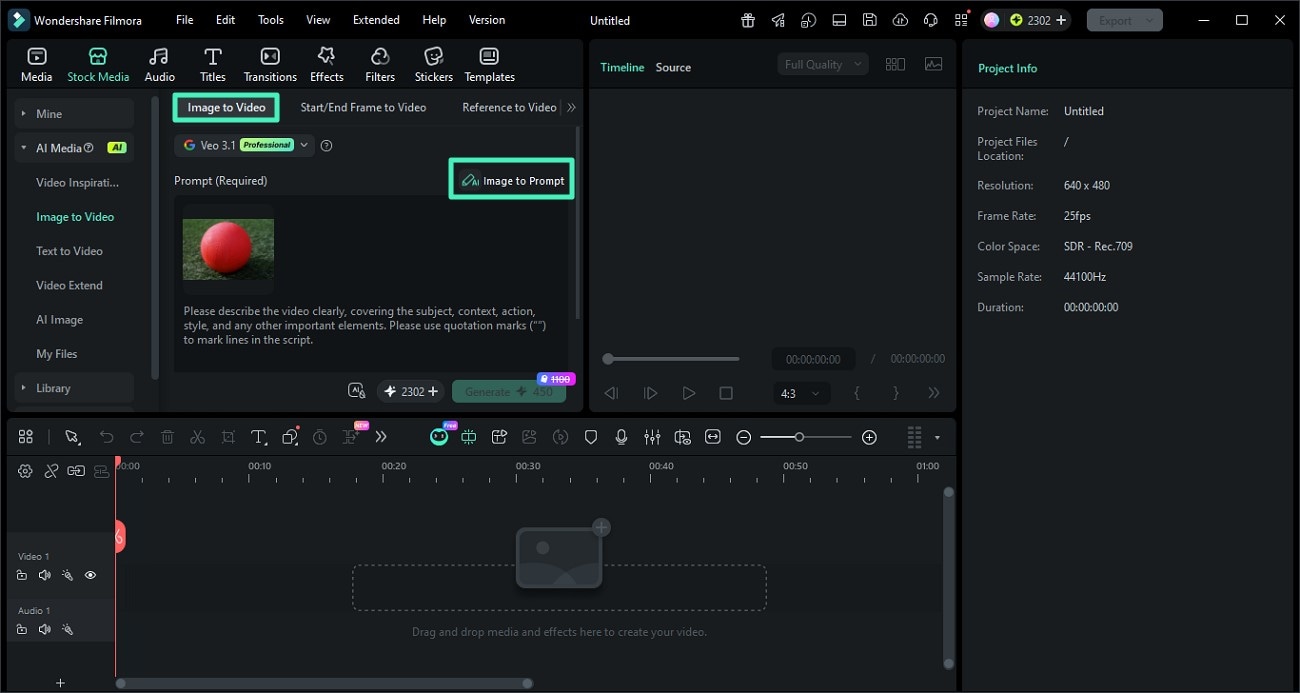
 Secure Download
Conclusion
When you’re stuck starting from a blank prompt, you can take inspiration from images you like and use an image-to-prompt generator to translate the style, lighting, and composition into text prompt.
From there, refine the prompt and use Filmora to create your own version of the images. With Filmora’s AI Image generator built into the editor, you don’t need to worry when you want to make edits afterward.
FAQs
-
1. Why do different tools generate different prompts from the same image?
Just like AI image generators that can produce different results from the same prompt, each image prompt generator is trained on different data and follows its own way of interpreting the visual data . Some focus more on objects while others emphasize style, lighting, or mood. This explains why the generated prompts don’t always look the same. -
2. Do I need to edit the generated prompt?
Yes, if you want the result to better match what you had in mind. Editing the prompt helps you refine the details or style. But if you’re just creating a similar variation, you may not need to change anything. -
3. Can an image prompt generator recreate an art style?
This can vary by tool. Most image-to-prompt generators can describe an art style in words, such as painterly or oil painting, and some may even reference famous artists. However, how closely that style appears in the final image depends on how the AI image generator interprets and applies those descriptions. -
4. Do image to prompt generators work for digital art?
They do, but results can differ. Some AI image prompt generators tend to work best with photo-like visuals that clearly show subjects, lighting, and composition. If you are referencing a highly abstract or heavily stylized digital art, you may need extra manual prompt adjustments. -
5. What’s the best image to prompt generator for Midjourney?
From our list, ImagePrompt.org, Image to Prompt, and NanoBanana.im support tailoring prompts for Midjourney. You just need to choose the one you prefer, but we recommend Image to Prompt for the level of detail and prompt quality it delivers.
