


For a long time, Insta360 Studio has been the undisputed go-to software for anyone looking to reframe and edit their immersive action camera footage. Because of its popularity, it is no surprise that so many creators are constantly searching for an Insta360 Studio download to get full control over their keyframing and exports.
But now that more editing tools support 360° footage, is Insta360 Studio still worth using? So, let's take a closer look at what it can do, how Insta360 Studio editing works, and where it stands today.
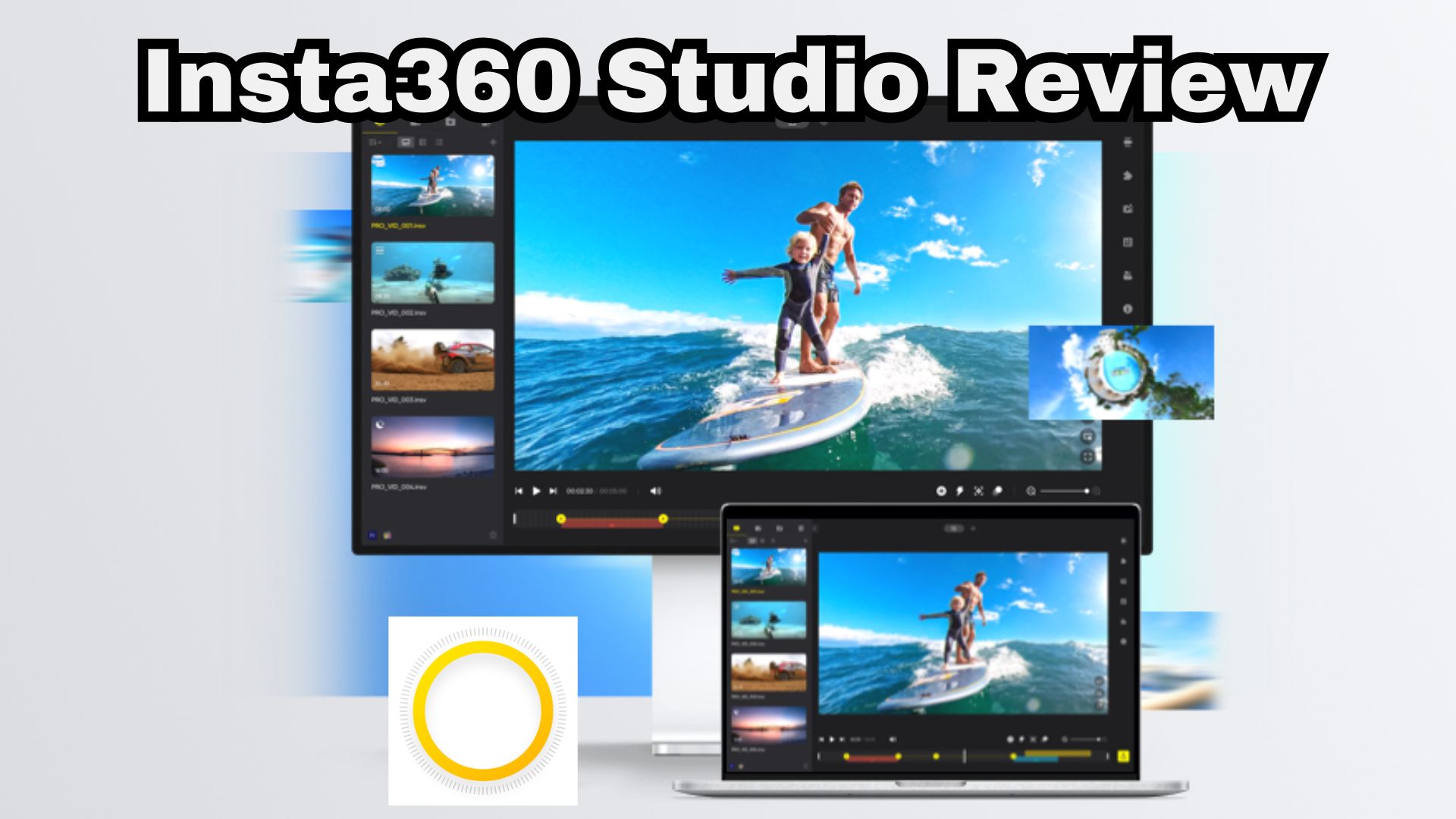
Part 1. Insta360 Studio Explained: What It Is and Who It’s For
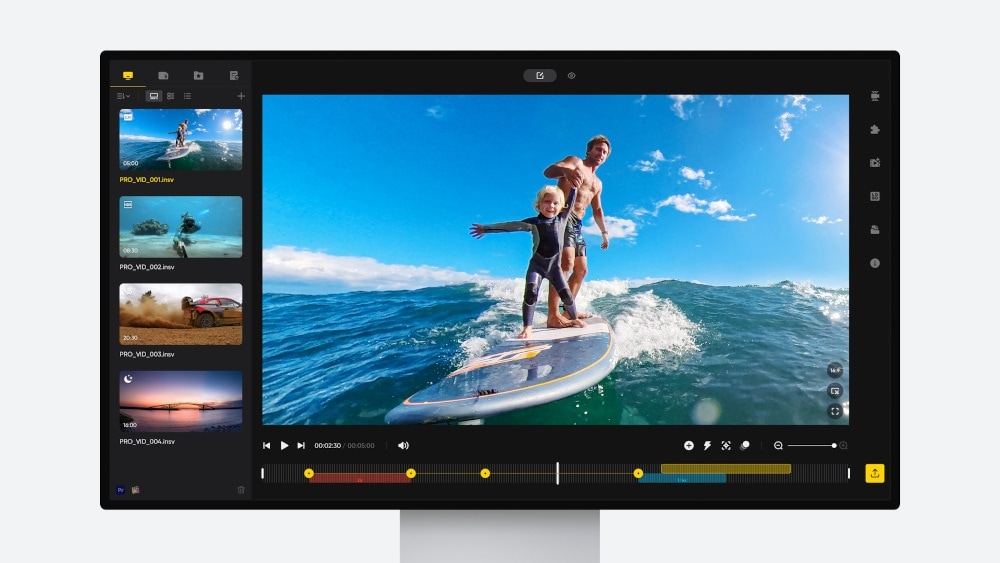
If you shoot on cameras like the Insta360 X3, X4, or the flagship X5 series, Insta360 Studio app is basically the software the company built specifically around your footage. Its whole job is turning raw, distorted spherical files (the .insv and .insp formats your camera actually records) into something you can watch normally and can actually upload to YouTube or TikTok.
When it comes to accessibility, Insta360 keeps things flexible across platforms:
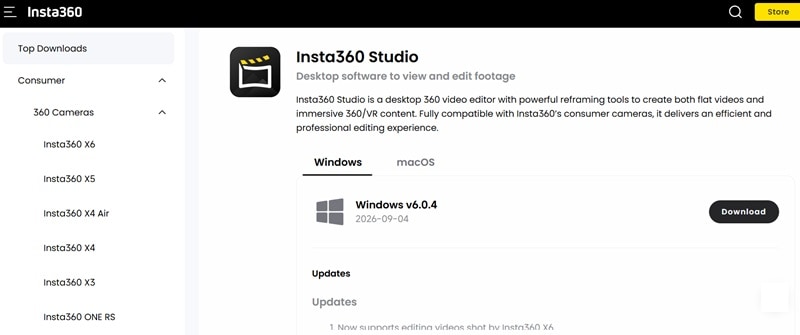
- Desktop Platforms: You can grab Insta360 Studio for PC (running Windows 10/11) or get Insta360 Studio for Mac (built natively for both Apple Silicon M-series chips and Intel Macs).
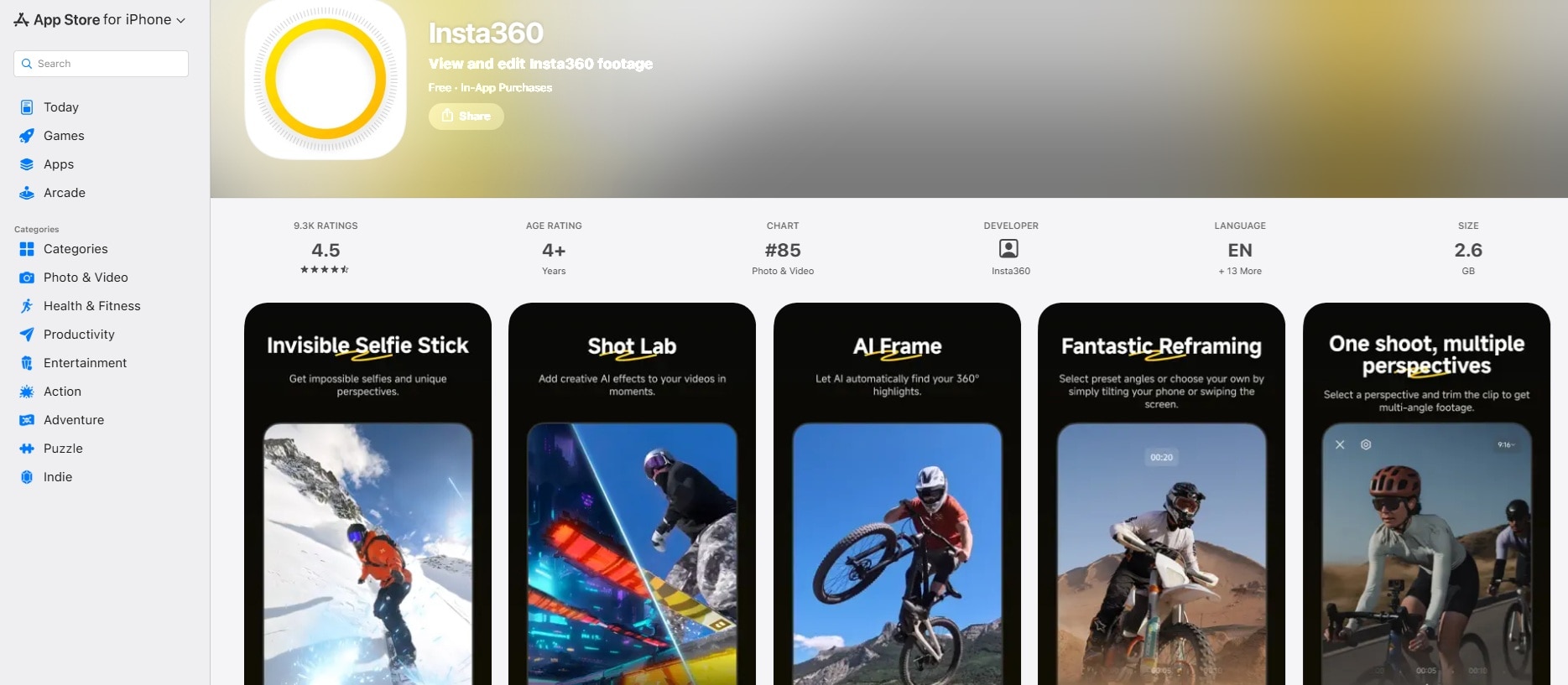
- Mobile Companion Apps: If you want fast, casual edits on the go, the Insta360 Studio for Android and iOS are free to download on the Google Play Store and Apple App Store.
How to Download & Install Insta360 Studio on Windows & Mac
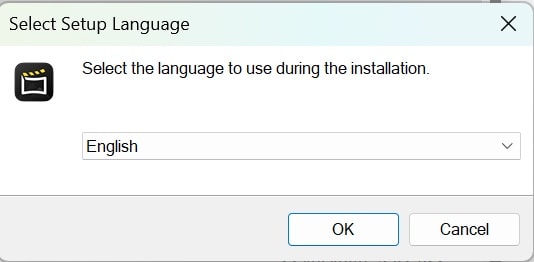
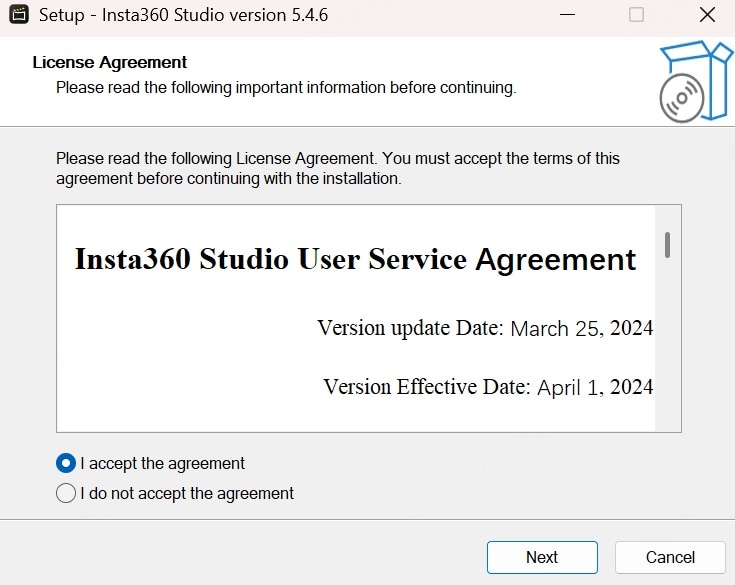
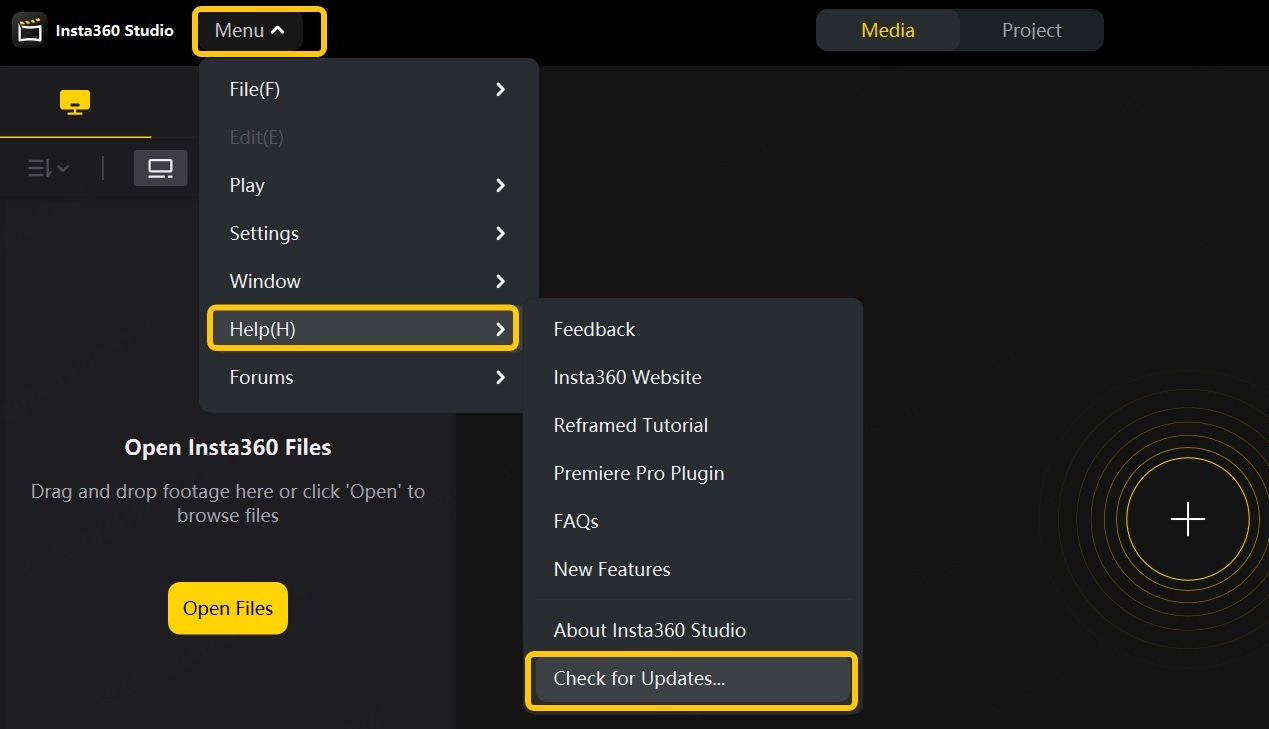
Setting up the Insta360 Studio desktop software takes just a couple of minutes. Here is how to install it smoothly on either operating system:
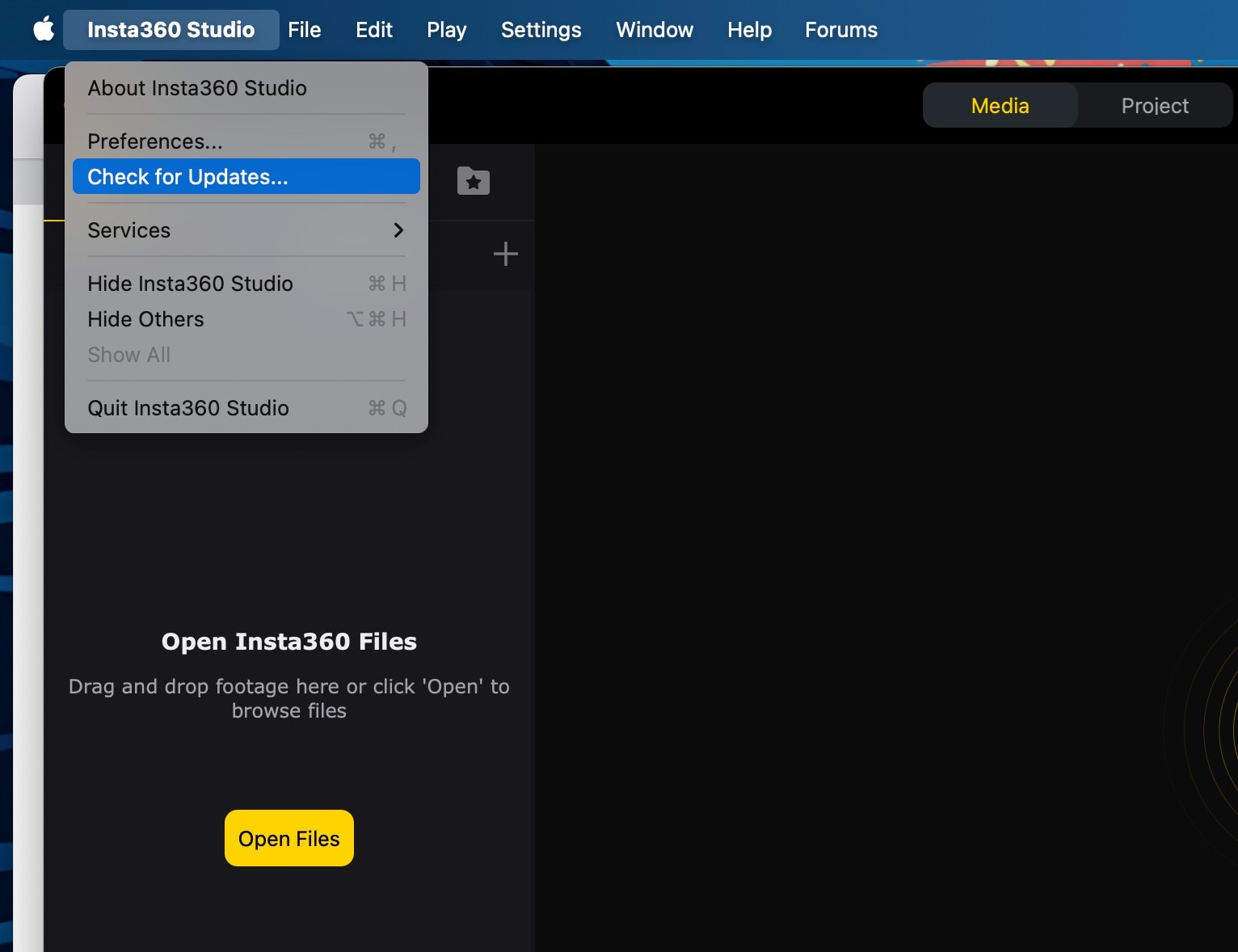
If you download Insta360 Studio for Mac, select Insta360 > Check for Updates to see if you’re using the latest version.
Part 2. Insta360 Studio Main Capabilities: What Can It Do?
Once you open Insta 360 desktop Studio, you'll find that it isn't just a place to dump camera files and press Export. It has several tools built around the quirks of 360° footage, especially the ability to choose the viewing angle after recording.
Let’s break down some of its most useful features:
Reframe 360° Footage
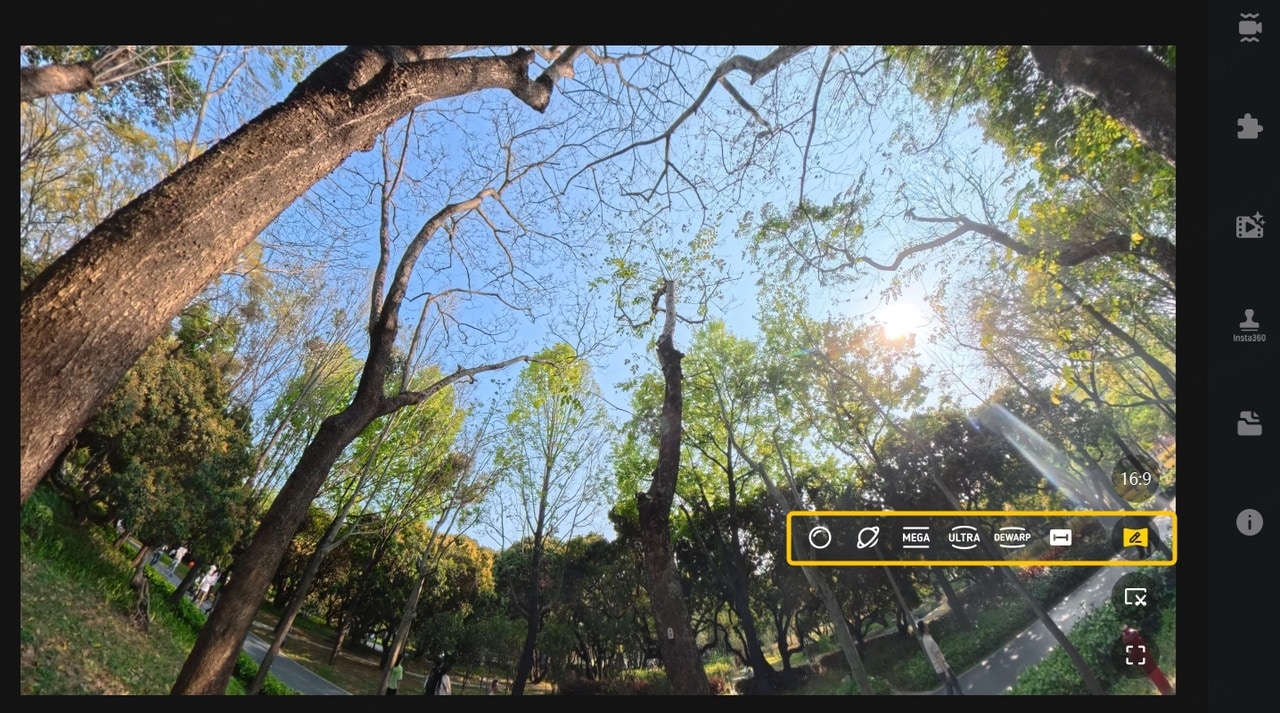
This is still the main reason to use Insta360 Studio desktop. A 360° camera captures the scene around you rather than locking you into one conventional frame. Studio lets you turn that spherical footage into a normal-looking shot by choosing the section of the scene you want viewers to see.
Studio currently provides several FOV presets for compatible 360° media, including:
- Crystal Ball.
- Tiny Planet.
- MegaView.
- UltraWide.
- Dewarp.
- Linear.
AI Deep Tracking
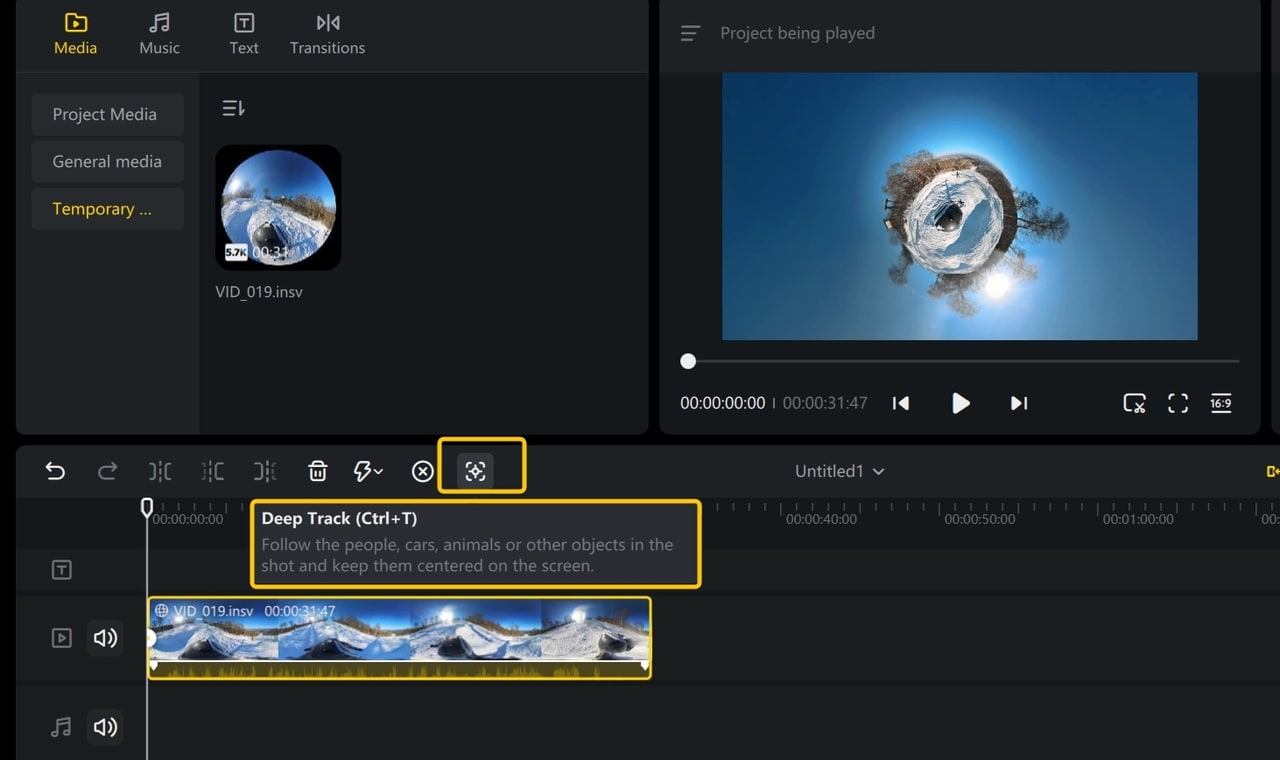
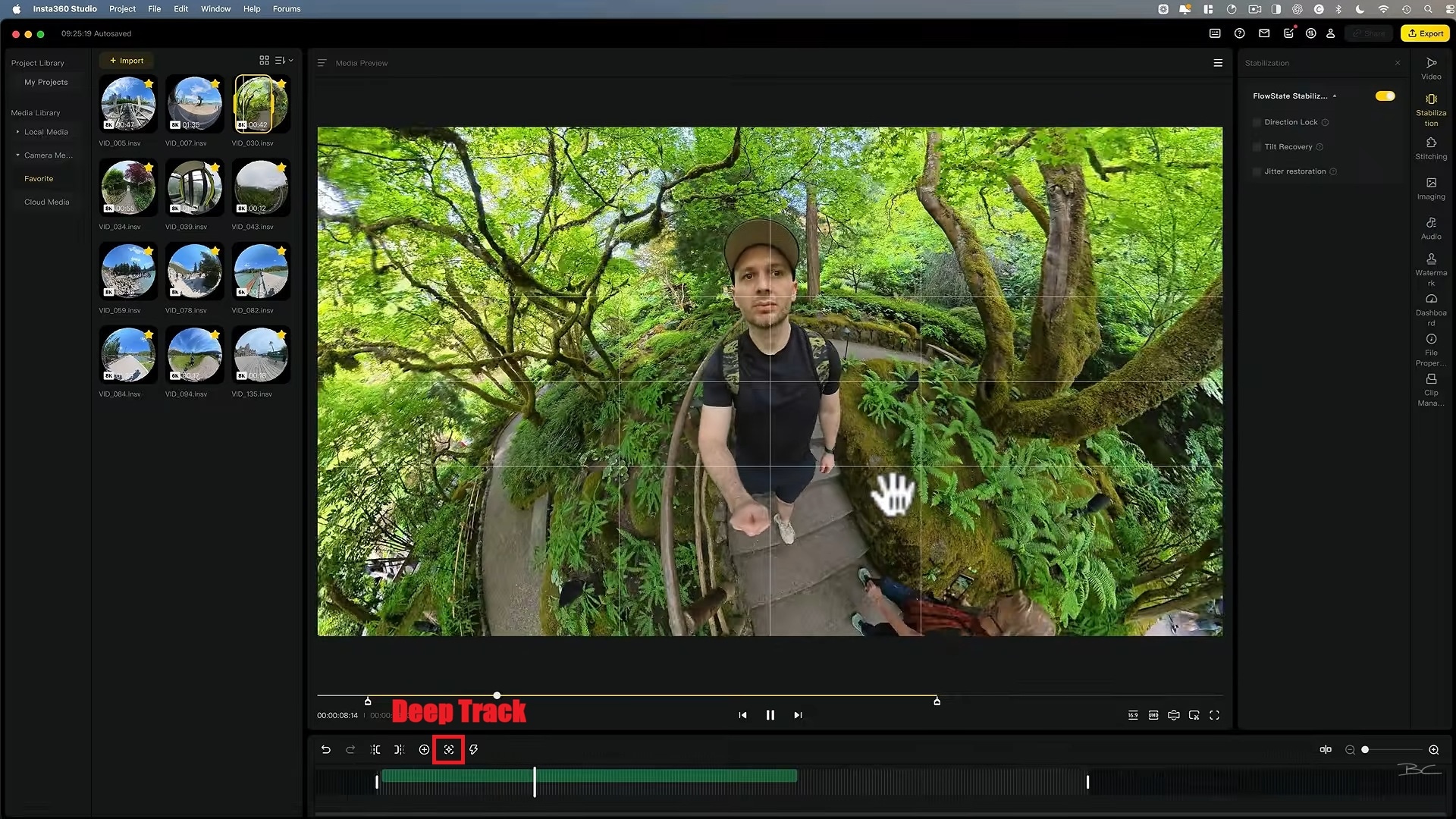
If your subject refuses to stay in one place, you can rely on the Deep Track feature. The Insta360 AI editing algorithm will automatically keep them centered in frame throughout the scene, so you're not manually chasing them with keyframes.
Auto Frame
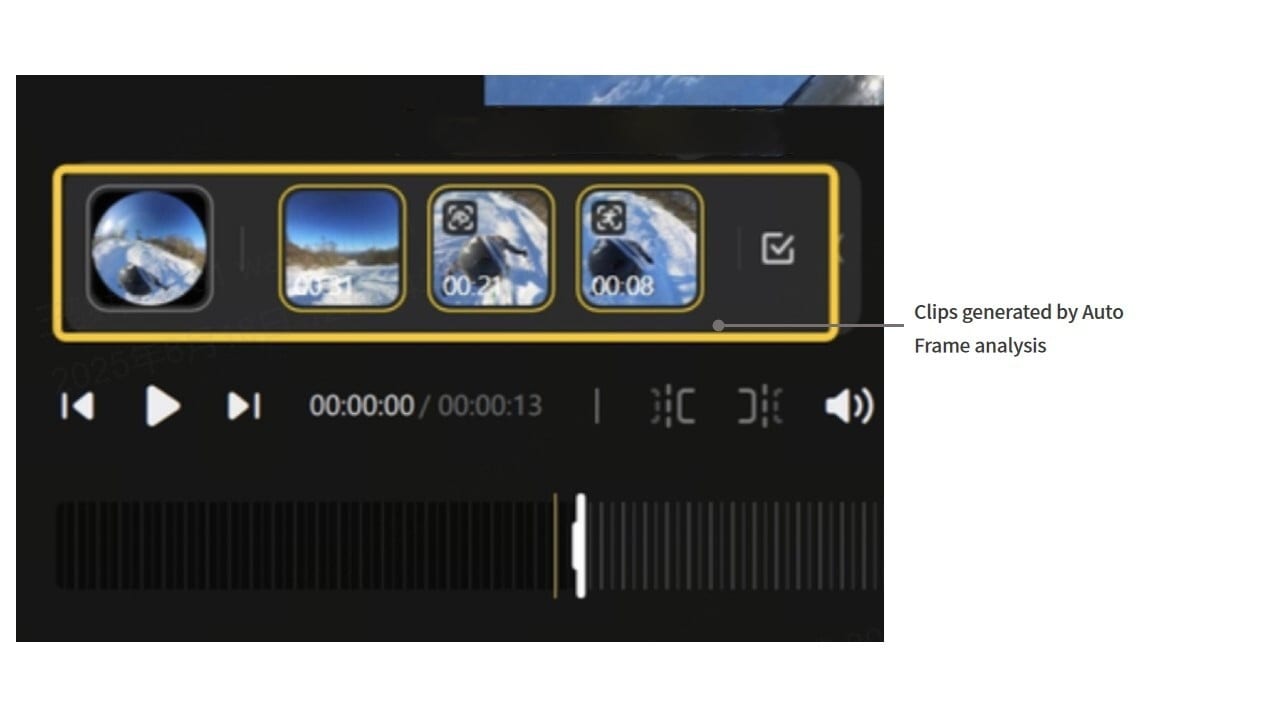
If you don't feel like manually sifting through minutes of 360 footage to find the best angles, Insta360 software Studio also offers Auto Frame. It uses AI to scan your clip and automatically pick out highlight perspectives like people, pets, or action subjects so you can export key moments fast.
Adding Live Stats
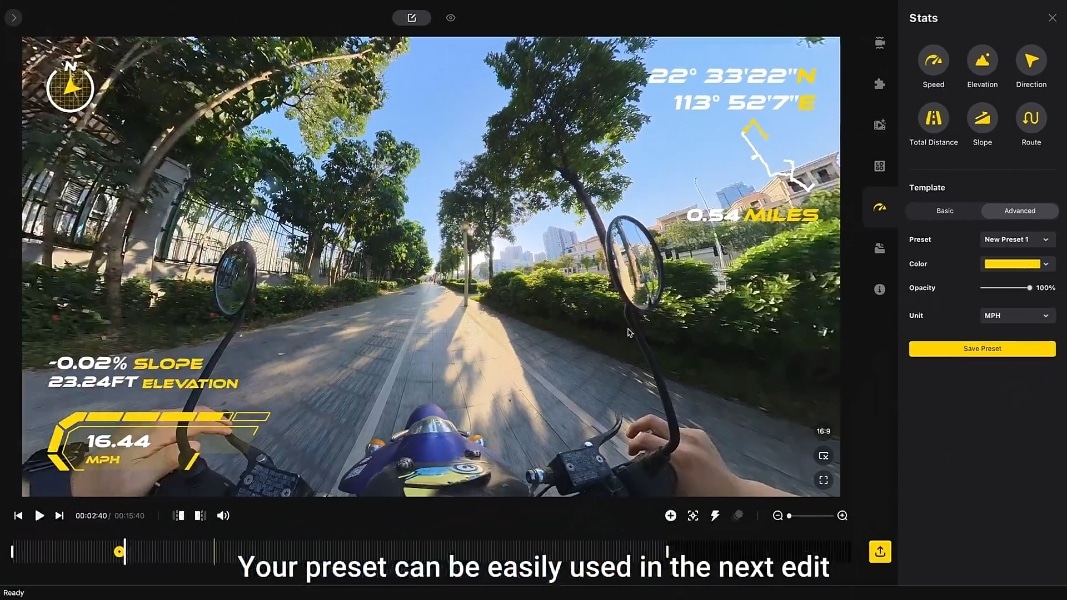
For cycling, motorcycling, skiing, or racing clips, you can overlay live telemetric data onto your video. By syncing GPS data from your phone, an Insta360 Studio app remote, or imported GPX/FIT files from devices like Garmin or Apple Health, Studio displays real-time speed, elevation, distance, and route overlays directly on your screen.
Pro Export 360°
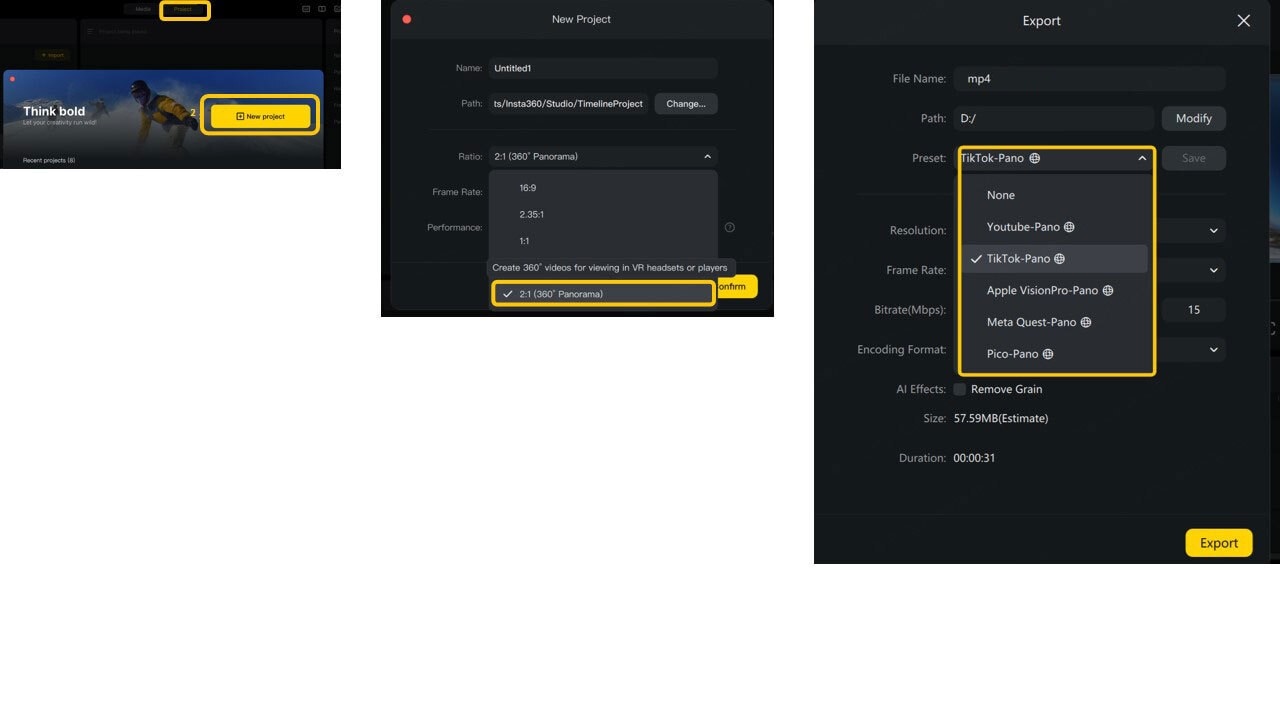
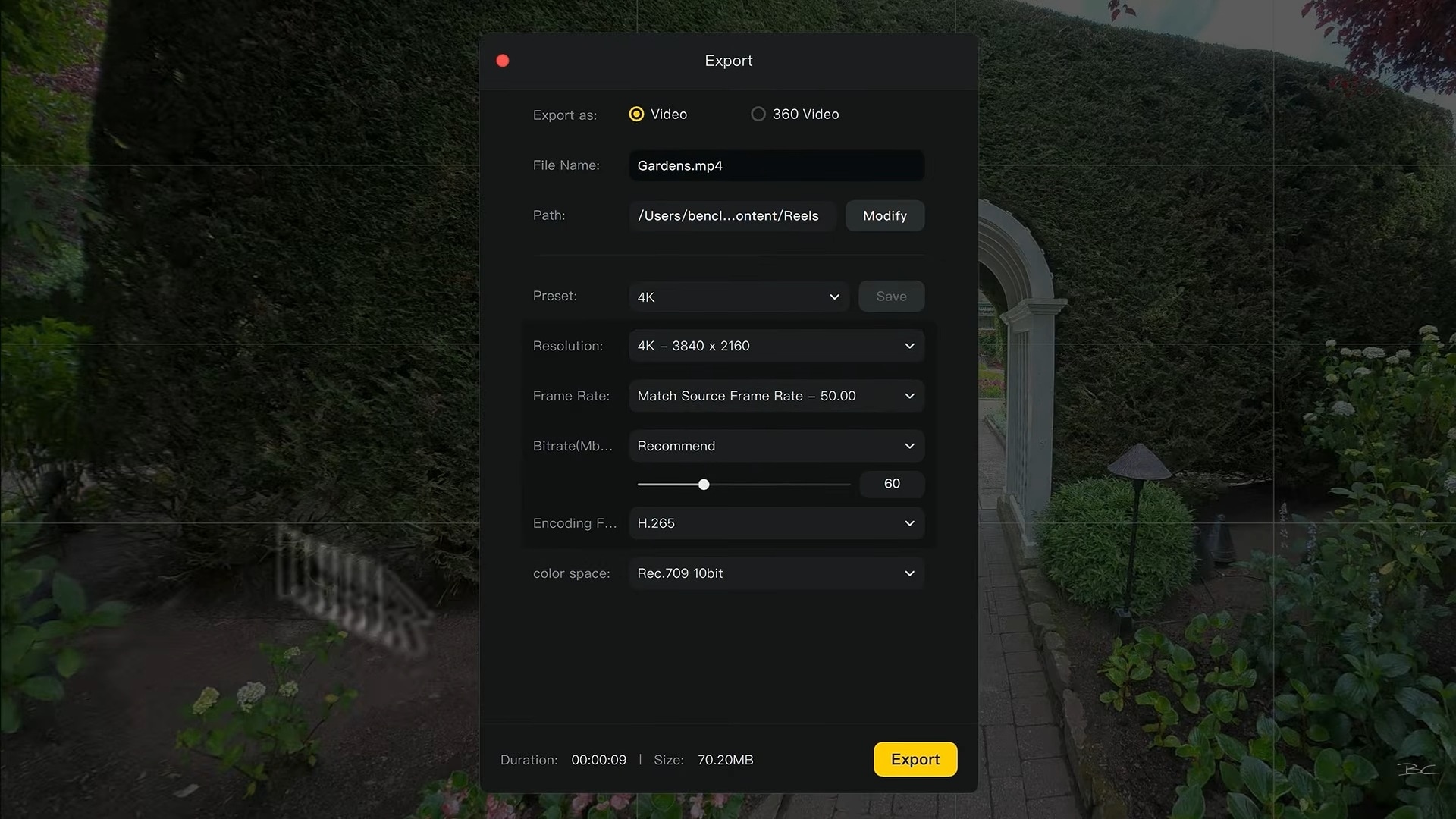
Learning how to export 360° video from Insta360 Studio is very easy. You can open the export panel, adjust the available settings, and send the file to your chosen location. And for serious videographers, Studio lets you apply LUT color profiles to flat LOG footage and export pristine 4K or 8K files using ProRes or high-bitrate codecs.
Part 3. Insta360 Studio Tutorial: Step-by-Step Guide
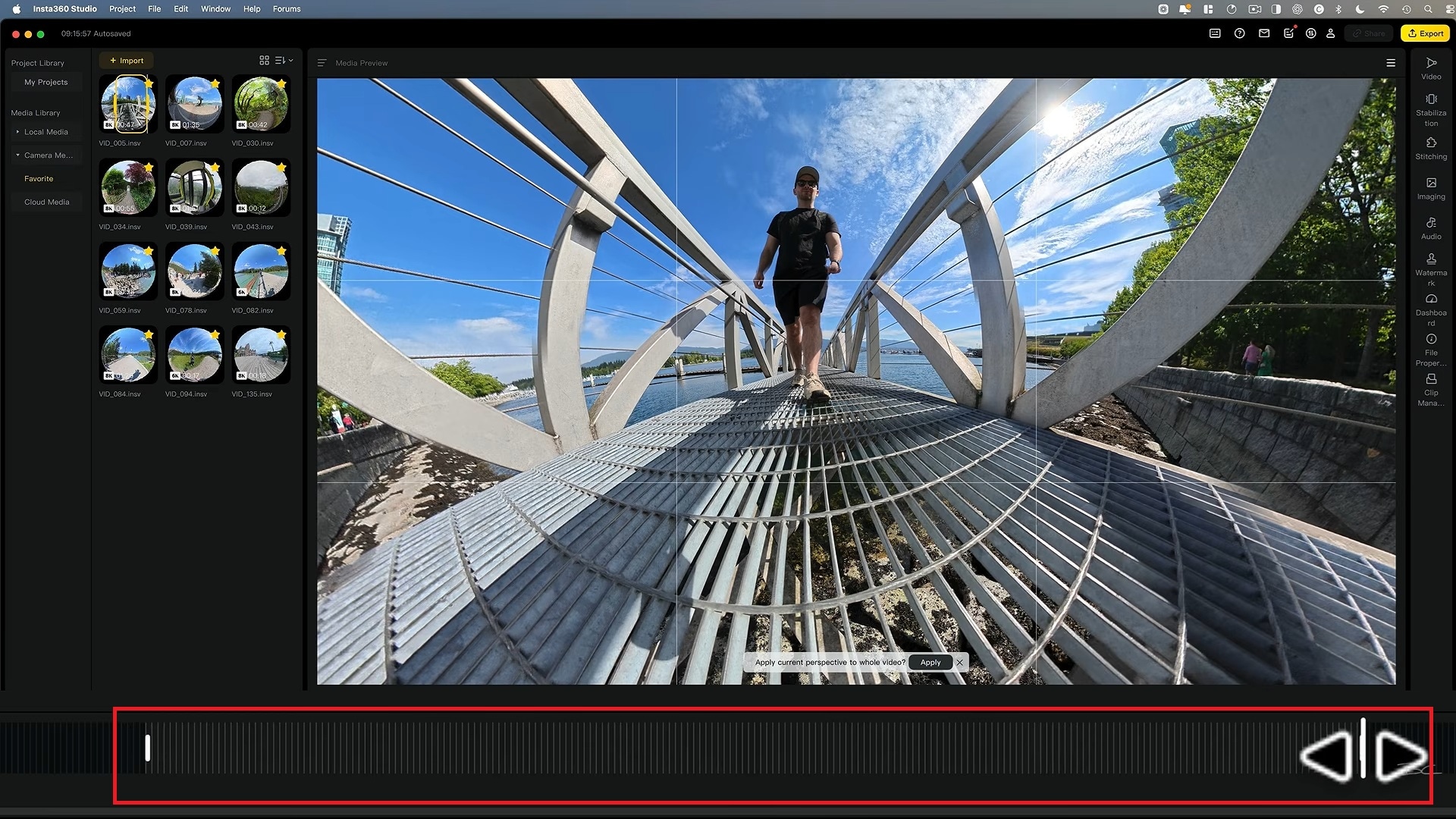
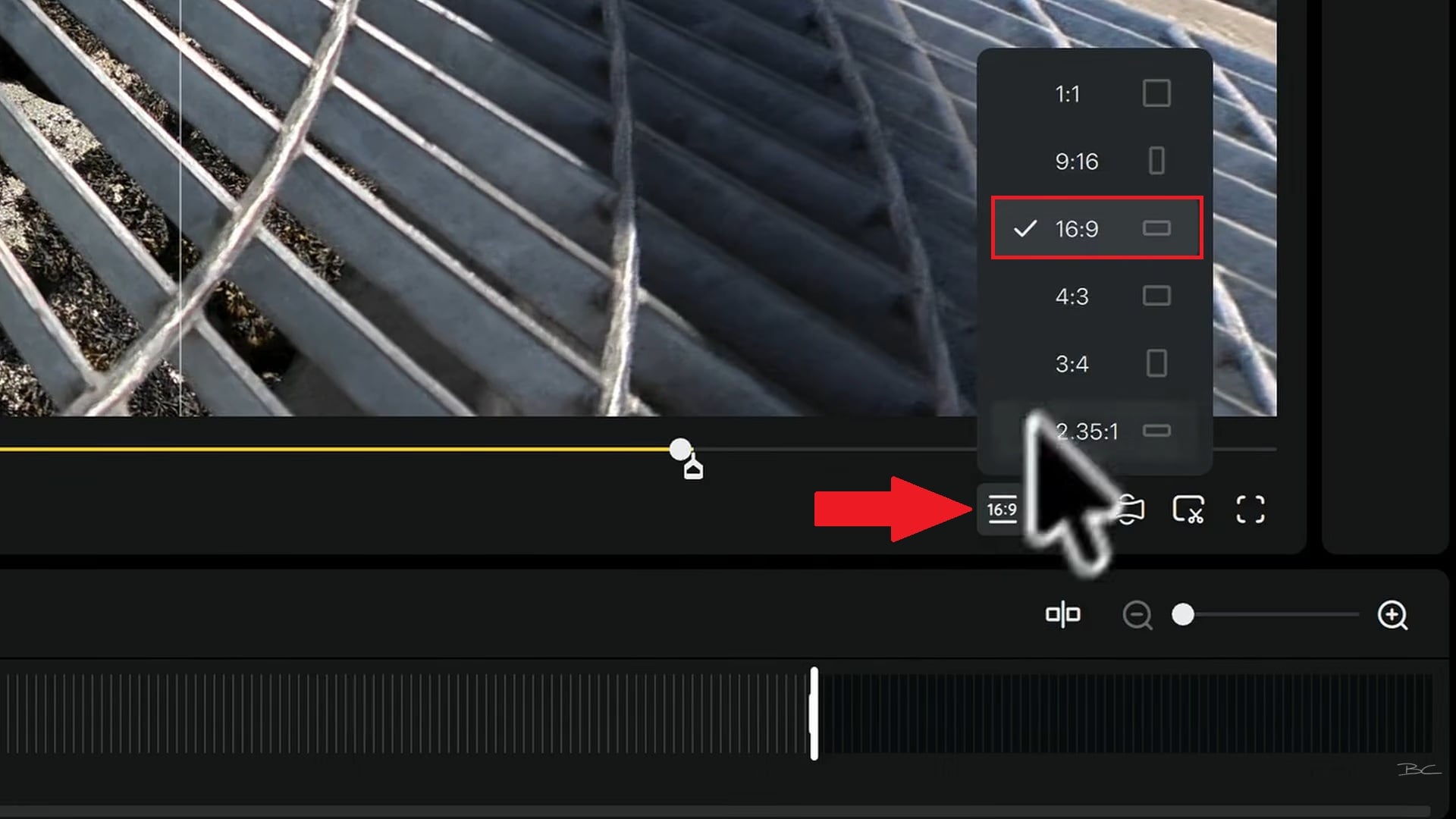
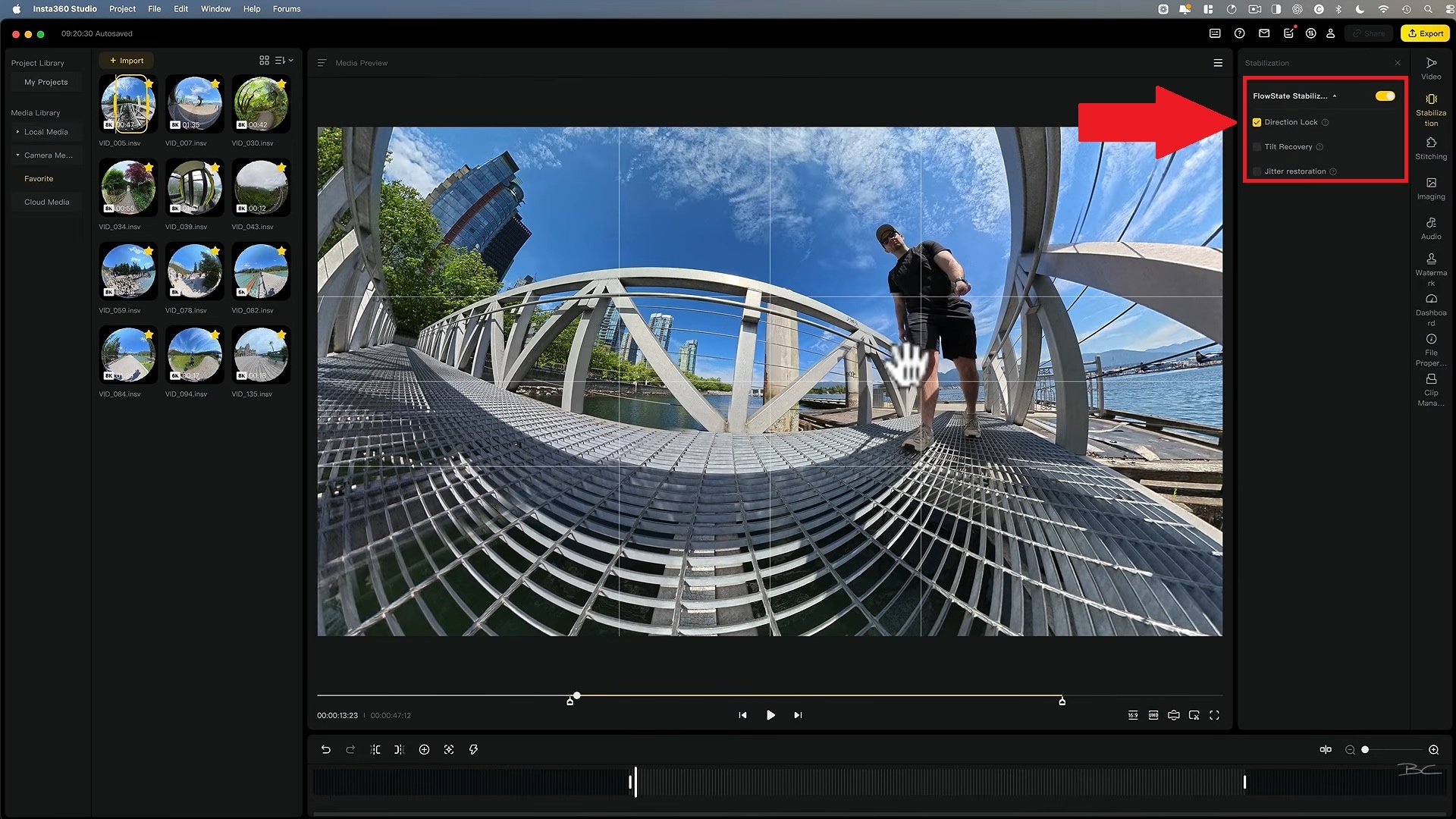
Now that you know a bit more about Insta360 PC editing software, it's time to put it to work. Fortunately, learning how to use Insta360 Studio isn't too complicated, especially once you understand how reframing and keyframes work together.
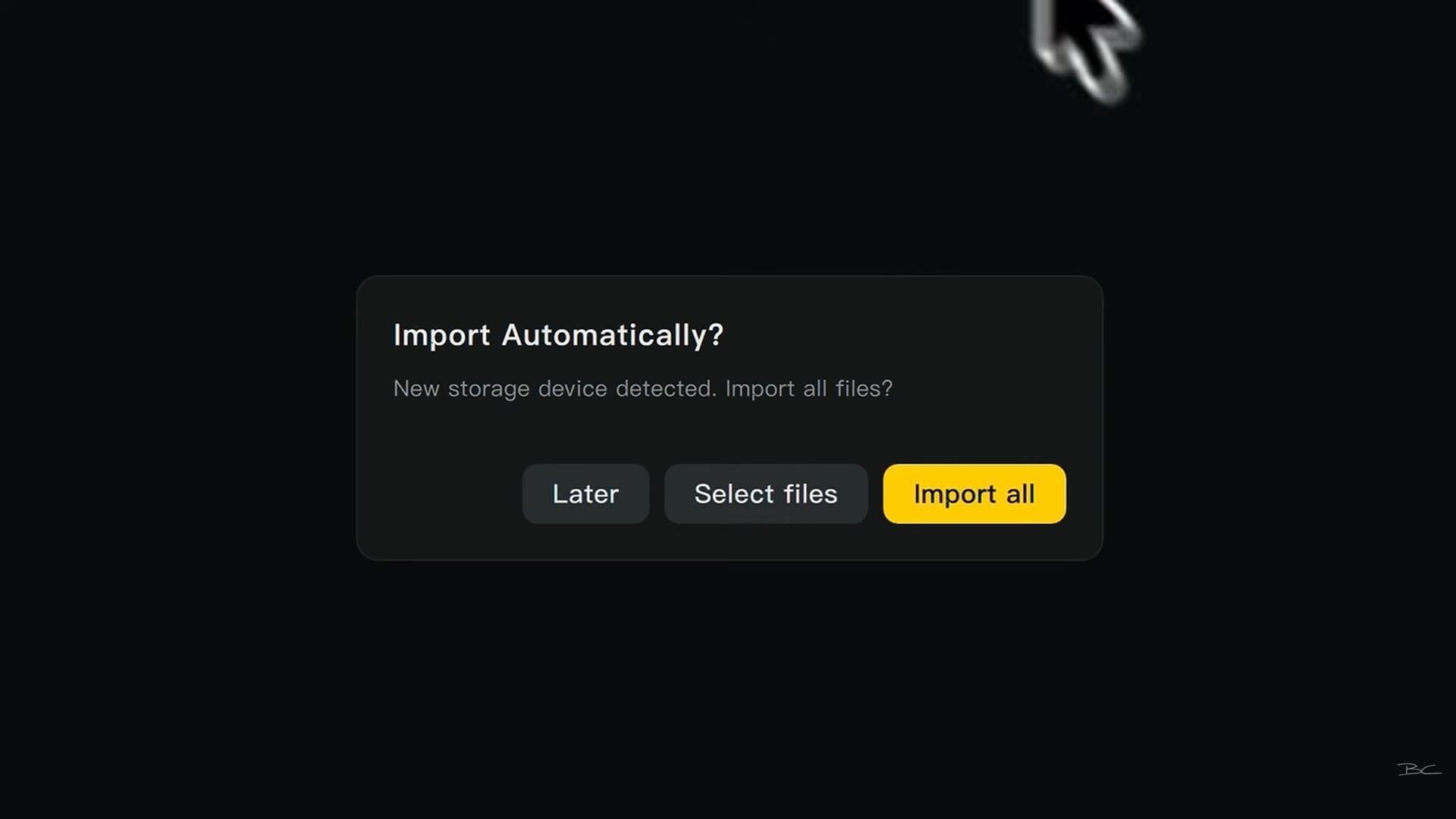
Guided by Ben Claremont on YouTube, follow this simple Insta360 Studio tutorial for a typical 360° video.
Part 4. Insta360 Studio Pros & Cons: Is It Worth Using?
After looking at the actual workflow, it's clear the Insta360 PC Studio has some genuinely strong things going for it, but it isn't perfect either. And if you're deciding whether to stick with it or move over to another editor, weighing both sides actually matters.
- Completely free to use with no hidden paywalls or watermarks.
- Deep Track makes subject tracking easier.
- The 2026 overhaul added a combined timeline, music, text, and transitions on top of the core tools.
- Includes native plugins for Adobe Premiere Pro and Final Cut Pro if you prefer working inside a traditional NLE environment.
- Large 360° files can be demanding on your computer.
- Less useful if you use cameras outside the Insta360 ecosystem.
- Lacks a full multi-track timeline for comprehensive story editing (adding titles, complex sound design, multi-clip transitions).
- Limited manual control over speed/easing curves between keyframes.
Part 5. A Modern Insta360 Studio Alternative: Wondershare Filmora
Insta360 Studio makes a lot of sense if your entire workflow revolves around Insta360 footage. But having to process files in one program and then move them to another just to add titles, transitions, or background music can slow down your creative flow.
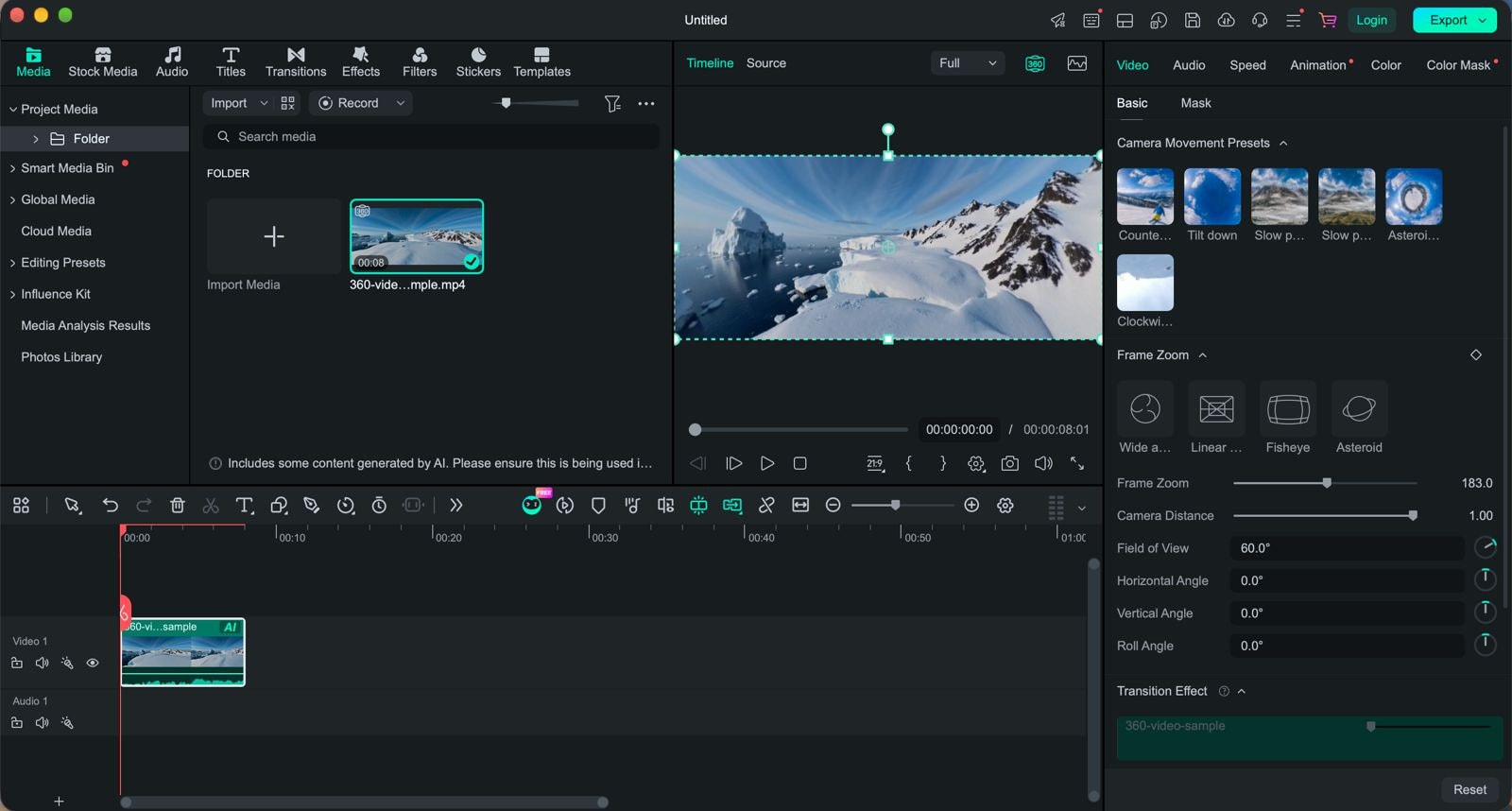
Today, more video editors are starting to support 360° editing directly. One worth keeping an eye on is Wondershare Filmora, which introduces native 360° Video Editing in its version 16 release.
Key Advantages of Editing 360° Video Directly in Wondershare Filmora
- Unified All-in-One Workflow: Import raw 360° clips, reframe, apply titles, add audio tracks, grade color, and export, all on a single timeline without switching programs.
- Shoot First, Frame Later Freedom: Adjust view angles (yaw, pitch, roll) and field of view directly in Filmora’s main preview window while listening to your audio track in real time.
- 1-Click Perspective Presets: Instantly apply popular looks like Tiny Planet, Fisheye, and camera motion presets (Orbit, Sky Flip) without calculating complex keyframe paths.
- Full Standard Editing Suite Access: Once reframed, your 360 clips behave like any other video clip. Meaning, you get Filmora's AI motion tracking, speed ramping, transitions, and effects right alongside your regular footage.
 Secure Download
Conclusion
Insta360 Studio remains an indispensable, high-performance desktop utility for action camera creators. Its unmatched stabilization, sharp stitching, and free price tag make it a must-have tool for extracting maximum quality from your raw 360 shots.
But the Insta360 Studio app isn't necessarily the best choice for everyone. If juggling separate reframing and editing apps feels tedious, switching to a unified timeline editor like Wondershare Filmora gives you the best of both worlds. You get flexible 360 reframing alongside a full suite of creative editing tools, letting you polish your video projects faster than ever.
FAQs
-
What is Motion ND in Insta360 Studio?
Motion ND is a built-in software feature in Insta360 Studio that adds realistic motion blur to fast-moving backgrounds in your video. It recreates the look of using a physical Neutral Density (ND) camera filter, making action shots like biking, driving, or skiing look smoother and more cinematic without needing physical lens glass. -
Does Insta360 Studio support 360 footage shot on GoPro or DJI cameras?
Only indirectly. Insta360 Studio isn't built around those cameras' native file types, but it can open standard equirectangular 360 footage in regular MP4 or JPG format. That means GoPro or DJI 360 footage usually needs to be exported into that standard equirectangular format first. -
Can Insta360 Studio edit 360° photos?
Yes. Alongside video, Studio handles 360° photos from supported Insta360 cameras, including batch-processing RAW image sequences into stitched files that you can then fine-tune further in a dedicated photo editor if you want to. -
Is Insta360 free?
Yes. Insta360 Studio is free desktop software for processing and editing compatible Insta360 media. The separate Insta360 mobile app is also free to download, although the app has optional in-app purchases and services. -
Is there an Insta360 Studio online version?
No. Insta360 Studio is desktop software and a mobile app rather than a browser-based editor.
