
Face swapping might be Supawork AI’s main draw, but it's only one part of the platform. Alongside separate face swap tools for photos and videos, Supawork offers AI video generation, image editing, professional headshot creation, and productivity tools. These features are all available on its website, with some using a coin-based credit system.
This review covers Supawork AI's main features, tests selected tools, and evaluates their results. It also discusses free access, coin-based pricing, and the limitations to consider before using the tool.
Part 1. What Is Supawork AI?
Supawork AI is a website offering tools for video creation, image editing, job applications, and studying. Supawork AI face swapping is one of its highlights, with options for both photos and videos. The platform also includes video generation, professional headshots, writing assistance, and other everyday tools.
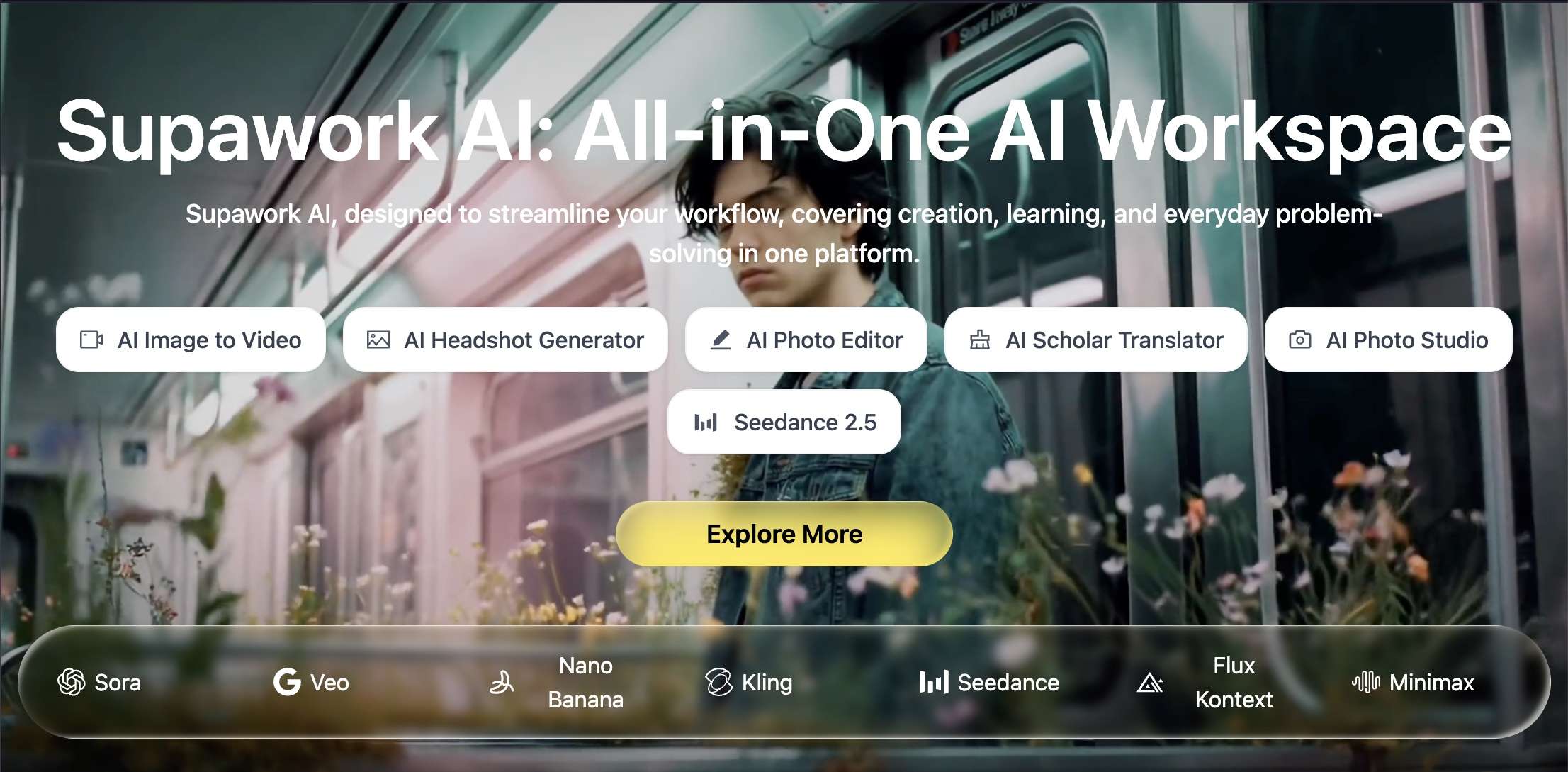
With creative and productivity tools on the same website, Supawork AI caters to social media creators, video makers, students, and job seekers. You can access the tools at supawork.ai without installing desktop software. Each tool has its own instructions, and some require coins to use.
Part 2. Supawork AI Tools Worth Checking Out
Supawork AI has a fairly broad selection of creative tools. Some work with existing photos and videos, such as face swapping and background removal. Others generate new content from prompts or uploaded images. The platform also includes tools for resumes, academic documents, and studying.
2.1. Video AI
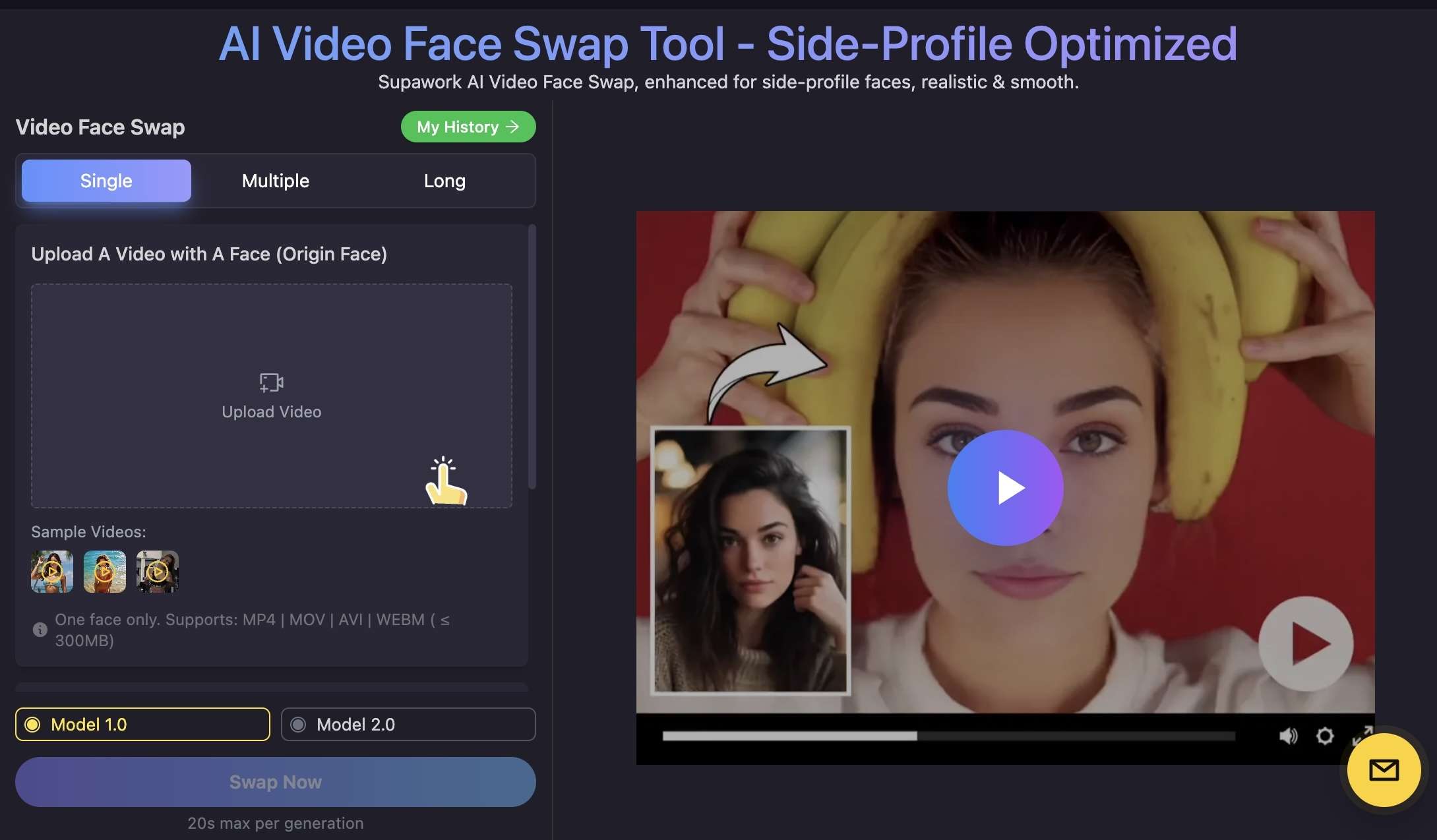
The Video AI section includes tools for creating clips and modifying existing footage. Its main features include prompt-based video generation, face replacement, and lip syncing
- Supawork Video Face Swap creates videos from written prompts. Its current interface lists LTX 2 Distilled Turbo, with landscape (16:9), portrait (9:16), and square (1:1) output options. You can enter a description of the scene, up to 1,500 characters, before generating a clip.
- AI Text-to-Video starts with a still image, not just a text description. Upload a JPG, PNG, WEBP, or HEIC image (up to 20 MB), then describe the movement you want. The page also lists Standard, Subject, and Live modes, which are designed for different image types, including photographs and illustrations.
- AI Image-to-Video replaces faces in uploaded footage using a reference photo. The interface has Single, Multiple, and Long modes. The standard upload interface accepts MP4, MOV, AVI, and WEBM files and displays a 20-second generation limit. Long mode has separate upload and duration allowances.
- AI Lip Sync synchronizes a video's mouth movements with a separate audio recording. Upload an MP4 or MOV clip between 2 and 10 seconds long, then add an MP3, WAV, M4A, or AAC file. The current interface sets upload limits of 100 MB for video and 10 MB for audio.
- AI Motion offers preset effects instead of a conventional video-editing timeline. Options include effects such as Bullet Time, Earth Zoom Out, Disintegration, Eyes Glow, and Fire Element. It also offers camera movements and action effects, including 3D Rotation, Levitation, and Fast Running.
2.2. Image AI
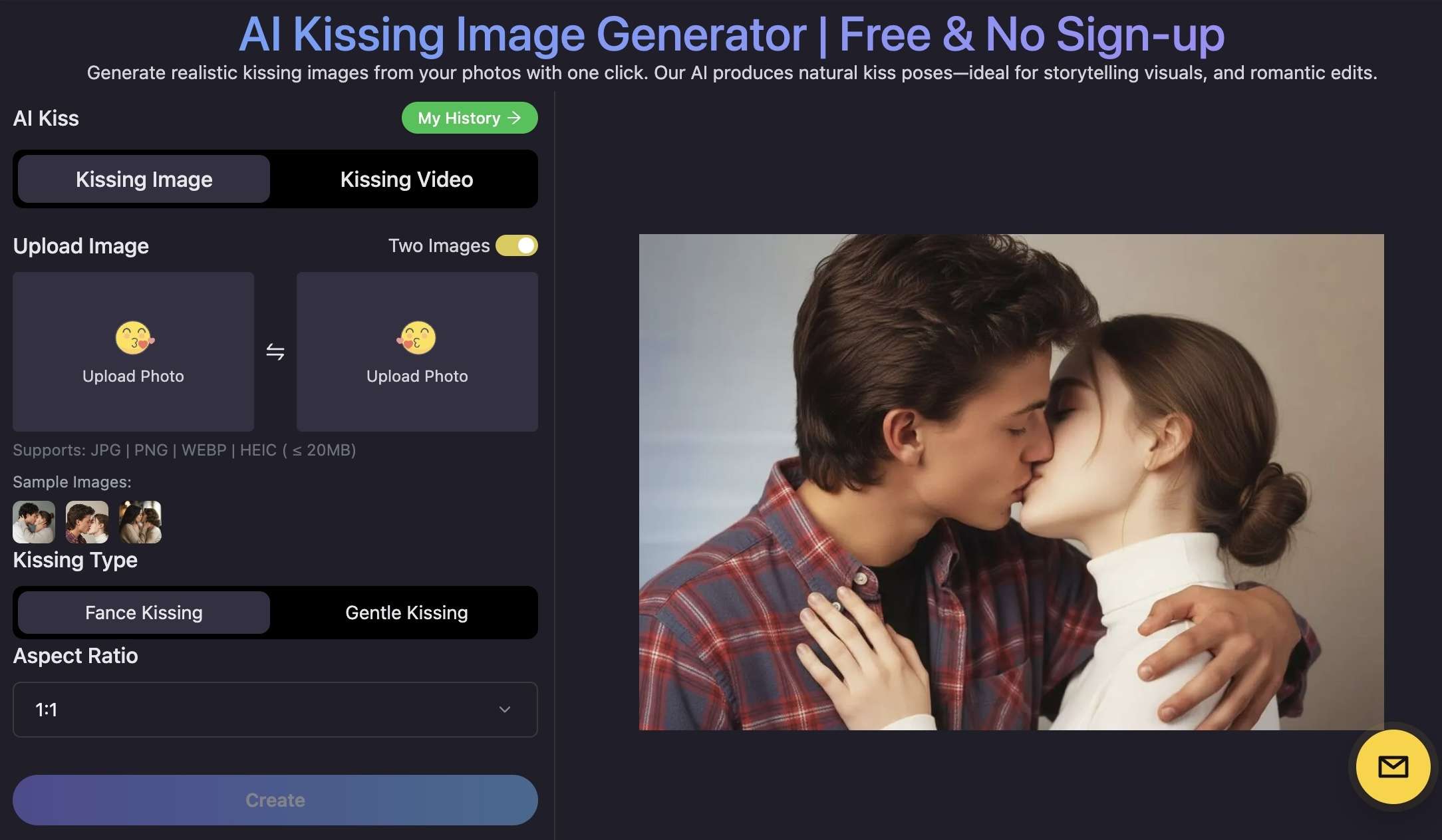
Supawork's image tools cover portrait creation, face swapping, and background editing. There are also options for generating images with specific themes.
- Supawork Face Swap replaces a face in a photo using a second image as the reference. You can choose Single, Multiple, or Batch mode. Batch mode can process up to 10 original images in one session, while Model 1.0 and Model 2.0 provide two generation options.
- Supawork AI Headshot Generator turns an uploaded selfie into a professional-style portrait. Supawork offers up to 30 preset styles, including formal business and modern professional looks. The tool recommends a clear, well-lit selfie with the face visible.
- AI Image Background Remover separates the main subject from the background. You can use the resulting transparent image or choose a white or custom-color background. It accepts JPG, PNG, WEBP, and HEIC files up to 20 MB.
- AI Kissing Image Generator combines two uploaded portraits into a kissing scene. The available choices include Gentle Kissing and French Kissing, with square and widescreen output formats. Supawork's terms require consent from identifiable people and limit this feature to non-explicit depictions of consenting adults.
2.3 Productivity AI Tools

The platform also features a separate collection of tools for writing, job applications, and academic work. These are more specialized than a general chatbot:
- Writer AI: Includes an AI Detector, PDF Checker, Humanizer, and Paraphraser for checking and revising text.
- Resume AI: Provides resume-related tools, including a Resume Builder, Resume Checker, and job application features.
- Scholar AI: Includes academic PDF translation and other research-related tools.
- Study AI: Offers learning tools, including subject-specific solvers for mathematics, physics, and chemistry.
Part 3. Testing Supawork AI Output Quality
To see what Supawork AI can produce, the tests range across video generation, image creation, and resume analysis. Each test involved a different task, from creating a short beauty clip to comparing a resume with a job description.
3.1. Testing Supawork Video AI
The Supawork AI Text-to-Video test used Kling V3 to generate a short beauty clip of a woman applying lipstick. The result features a red outfit, matching makeup, and a red backdrop, creating a cohesive beauty-commercial look.
- Scene details: The close-up framing keeps the woman's face and lipstick application in focus. The matching red elements also give the clip a polished appearance.
- Movement: The woman lowers the lipstick, briefly closes her eyes, and turns her face to the side. These movements look fairly smooth, and her facial features remain consistent throughout the shot.
- Video quality: The output is 1280 × 720 resolution and runs for 8 seconds. The image is clear, though the short duration leaves little room for more complex actions.
3.2. Testing Supawork Image AI

For this test, Nano Banana generated an astronaut wearing a white spacesuit and helmet decorated with daisies. The background features a bright blue sky, with soft daylight and a photorealistic, cinematic style. The generated image got most of the details right.
- Following the prompt: Daisies appear around the astronaut's helmet, shoulders, and chest. They stand out clearly without hiding too much of the spacesuit.
- Image details: The flowers have visible petals and centers, while a few smaller blooms appear in the foreground.
- Lighting and setting: The blue sky and soft lighting match the requested setting. The white spacesuit also stands out between the yellow-and-white flowers.
- Final appearance: The image captures the unusual idea quite well. Some flowers look almost a little too neatly arranged on the suit, but the overall result still looks convincing.
3.3. Exploring Supawork Productivity AI Tools
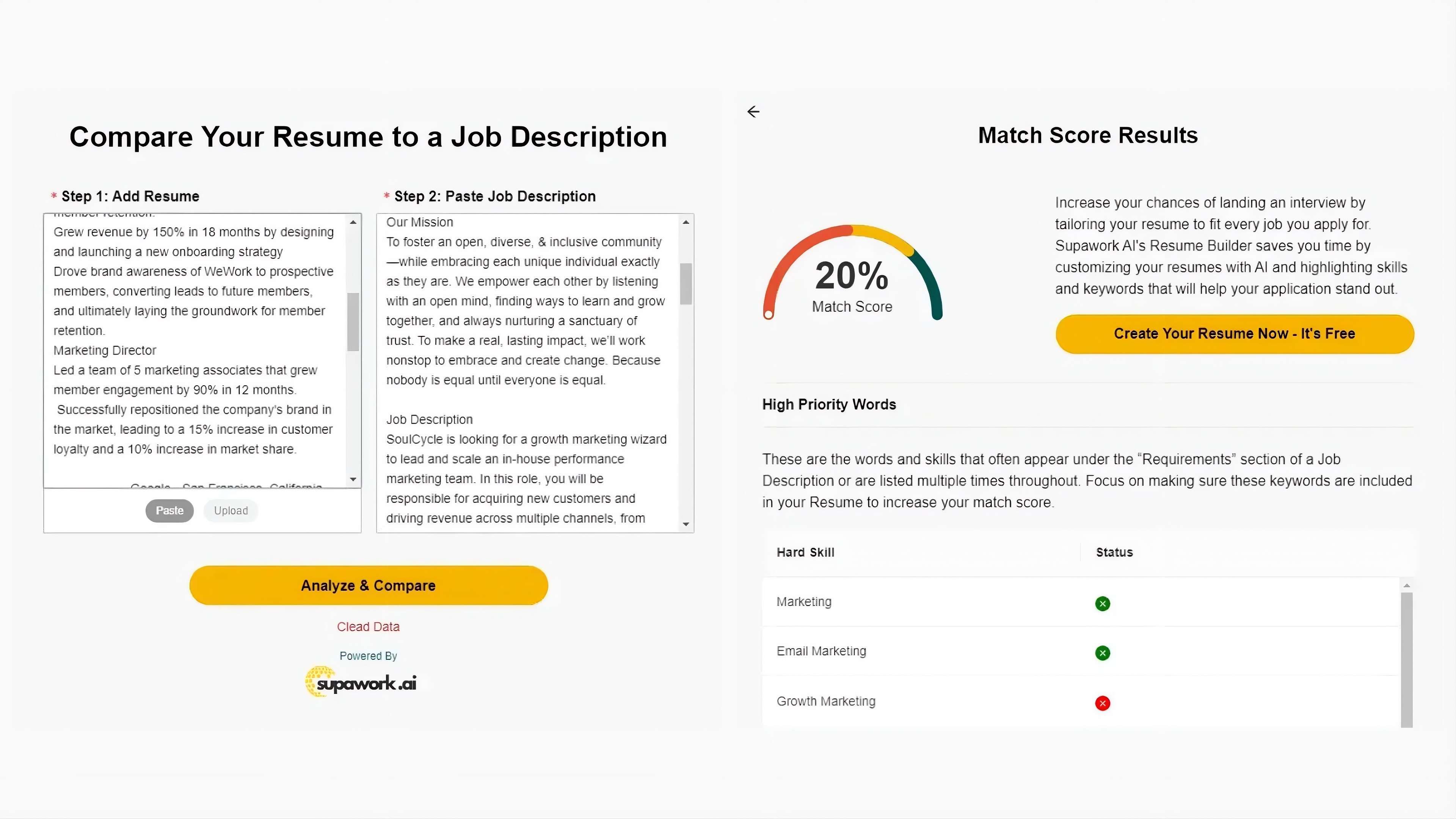
For productivity tools, Supawork's Resume tool compared an existing resume with a job description. After uploading the resume and pasting the job description into the text field, the tool displayed the following results:
- Resume match score: The tool returned a score of 20%, indicating limited overlap between the uploaded resume and the selected job requirements.
- High Priority Words: Supawork highlights skills and keywords that frequently appear in the job description, particularly in its requirements section. This makes it easier to spot terms that may be missing from the resume.
- Resume improvement: These keywords offer a useful starting point for revising the document. Applicants can work relevant terms into the appropriate sections and refine existing descriptions to highlight their suitability for the role.
The keyword list gives applicants specific points to check, rather than leaving them to guess why their resume scored low. However, these suggestions need to match their actual qualifications and experience. The 20% match score is best used as a guide for improving the resume, rather than a measure of the applicant's overall suitability for the role.
Part 4. Supawork AI Pricing and Free Plan
Supawork AI pricing uses a pay-as-you-go coin system. You purchase coins in advance and spend them when using AI tools. The number required varies depending on the feature and computing resources needed.
| Price | Coins | Cost per Coin |
| $9.99 | 400 | $0.0249 |
| $14.99 | 800 | $0.0187 |
| $37.99 | 3,000 | $0.0126 |
| $89.99 | 8,000 | $0.0112 |
|
Show More
Show Less
|
||
Larger packages offer a lower cost per coin, and purchased coins never expire.
Can you use Supawork AI for free?
Yes. New users receive 60 free Silver Coins, followed by 30 free Silver Coins daily. These can be used for certain features, including video face swapping, but not text-to-video generation. Other tools may have their own free usage limits, while paid generations require Gold Coins. Check the coin requirements before using a feature, as costs vary across tools.
Part 5. Supawork AI Review: Pros and Cons
Supawork AI covers a wide range of needs, from swapping faces in videos to generating images and checking resumes. Having these tools on one website is convenient, and the hands-on tests showed promising results for both image and video creation.
However, free access is limited, coin costs differ across features, and the platform lacks a full video editing workspace.
- It combines creative tools and career-related features, so users can work on visuals, face swaps, headshots, and resumes in one place.
- Provides several ways to create short videos, including text-to-video, image-to-video, lip sync, and motion effects.
- Captures the main details of a prompt without losing the overall composition.
- Offers resume keyword suggestions that can help applicants identify relevant terms missing from their documents.
- Keeps purchased coins available without an expiration date, making them usable across future sessions.
- Daily free Silver Coins only cover selected features, excluding text-to-video generation.
- Coin costs vary by tool and settings, so users may need to check each feature before starting a project.
- Text-to-video outputs can be very short, meaning longer sequences require multiple generations.
- Does not include a multitrack timeline for combining clips, adjusting audio, or adding transitions.
- Resume match scores don’t tell the whole story, and suggested keywords require review to ensure they align with actual skills and experience.
Bonus: Turning Supawork AI Clips into a Finished Video with Filmora
Supawork AI generates individual clips, but those clips may not be ready to publish right away. For example, a product video might need several scenes in a specific order, shorter cuts, subtitles, and background music. You can handle these edits in Wondershare Filmora, which provides a multitrack timeline for working with video, images, text, and audio.
Some edits you can make in Filmora are:
- Arrange and trim clips: Place your Supawork AI videos on the timeline, change their order, and trim out unnecessary frames or awkward pauses.
- Add captions and text: Use Auto Caption to create subtitles from dialogue, then add product names, promotional details, or a closing message.
- Adjust the audio: Add background music or a voiceover, lower the music volume when someone speaks, and fine-tune the sound levels.
- Refine the visuals: Apply color adjustments, filters, and transitions to make cuts between separately generated clips less noticeable.
For example, if you've generated several beauty product clips with Supawork AI, you can arrange them into a simple promotional sequence in Filmora.
Start with the product, follow with a demonstration, and finish with a short offer or call to action. Trim each shot to the right length, add subtitles or text, and choose background music that suits the video. You can then export the finished edit for social media.
 Secure Download
Conclusion
Supawork AI is useful for trying face swaps, creating images, and making short video clips without switching between different websites. In testing, its video and image tools delivered good results, and the resume checker highlighted keywords worth reviewing before a job application. However, short video durations and limited free coins can get in the way if you plan to use it often.
Supawork AI is a good option for occasional creative tasks, but it may not cover everything you need for a larger project. If you want to combine several clips, add subtitles and music, or fine-tune individual cuts, Filmora offers more editing control.
FAQs
-
1. What is Supawork AI used for?
Supawork AI is an online platform for video creation, image editing, face swapping, writing, studying, and job applications. Its tools include text-to-video, image-to-video, photo and video face swaps, professional headshots, resume checks, and document translation. -
2. Can you use Supawork AI for free?
Yes. New users receive 60 free Silver Coins, followed by 30 daily. These credits work with selected tools, including video face swapping, but not text-to-video generation. Other features may have separate free limits. Paid Gold Coins start at $9.99 for 400 coins, and purchased coins do not expire. -
3. How do you swap faces in a video with Supawork AI?
If you want to swap faces in a video with Supawork AI, you can do it with Supawork AI video face swap:
1. Open the Video Face Swap tool.
2. Upload your video and a photo of the face you want to use.
3. Choose a model and click Swap Now.
4. Preview the result and download the video.
The standard Single mode supports MP4, MOV, AVI, and WEBM videos up to 300 MB, with a maximum duration of 20 seconds per generation. Multiple and Long modes have different limits. -
4. Can Supawork AI remove watermarks from videos?
Yes. You can remove watermarks using Supawork AI Watermark Remover. Upload an MP4 or WEBM video (up to 100 MB), mark the watermark with the selection brush, and click Remove. You can download the result after processing. Only remove watermarks from videos you own or have permission to edit.