


 TL;DR:
Alibaba’s Wan AI is a generative video platform powered by the Wan 2.7 model that excels at creating short, character-consistent clips from text and reference images, but it lacks full timeline capabilities for final video assembly.
● Platform access is currently optimized for web browsers and Android devices via Google Play, as there is no functional iOS application available for Apple users.
● Free users receive enough daily check-in credits for roughly one to two watermarked generations, while the Pro ($6.5/month) and Premium ($26/month) tiers remove watermarks and permit up to eight concurrent video renders.
● Because Wan AI caps exports at 1080p and cannot trim or stitch scenes together, creators must import generated assets into external software like Wondershare Filmora to fix pacing, add AI Auto Captions, and upscale outputs to 4K.
Ask AI for a summary
 ChatGPT
 Perplexity
 Gemini
 Claude
 Grok
Grok
Alibaba is certainly one of the biggest names in tech, and now it is moving deeper into AI creation with Wan AI. The official Wan app on Google Play already shows 100K+ downloads, which is a strong sign that more creators are starting to test this Wan AI video generator outside the usual AI tool circle.
But the real question is simple: how good is the Wan AI generator for everyday creators? So today, we will guide you through the breakdown of everything this tool offers, and where you may still need a proper editor.
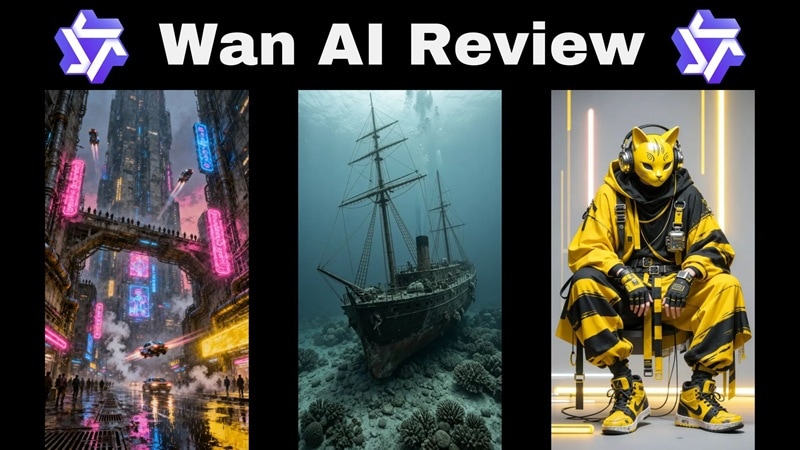
Part 1. Meet Wan AI: Alibaba’s Push Into AI Video Creation
Let's start our Wan AI review by understanding what it is. Basically, Wan AI helps you create short AI visuals from prompts, images, and references. You can use it to generate images, turn still photos into moving clips, create videos from text, edit visuals with prompts, and build scenes using reference material.
Recently, Wan has been getting even more attention because of Wan 2.7. This latest update allows users to recreate visuals, plots, and scenes using text prompts and multi-image guidance. That makes the platform more interesting for creators who want more control over the final video, not just a random AI clip.
The Evolution of Wan: From Wan 2.1 to Wan 2.7
To understand why everyone is talking about this tool, you have to look at how quickly it grew. It didn't just appear overnight out of nowhere; Wan video evolved through rapid developer iterations to fix common issues like warped faces and weird physics.
| Model Version | Primary Focus | Key Strength |
| Wan 2.1 Plus | Core Motion Foundations | Incredible text understanding and basic cinematic camera movements |
| Wan 2.2 Flash | Rapid Generation Speeds | Cuts down render times significantly for quick concept drafting |
| Wan 2.5 Preview | Photorealism Boost | Drastically improved skin textures, lighting, and environmental details |
| Wan 2.6 | Physics and Interaction | Better handling of complex movements like liquid splashes and clothing physics |
| Wan 2.7 | Extreme Clarity & Detail | High-fidelity outputs with massive improvements to text rendering and micro-expressions |
Part 2. Jumping In: How to Access Wan AI
Accessing Wan AI is pretty simple if you stick to the official channels. The main route is the web platform at https://wan.video/, where users can log in and start creating images or videos. The tool is mostly used through the site, so the basic flow is:
- Visit the platform.
- Sign in.
- Choose your creation mode.
- Enter a prompt or upload a file.
- Generate.
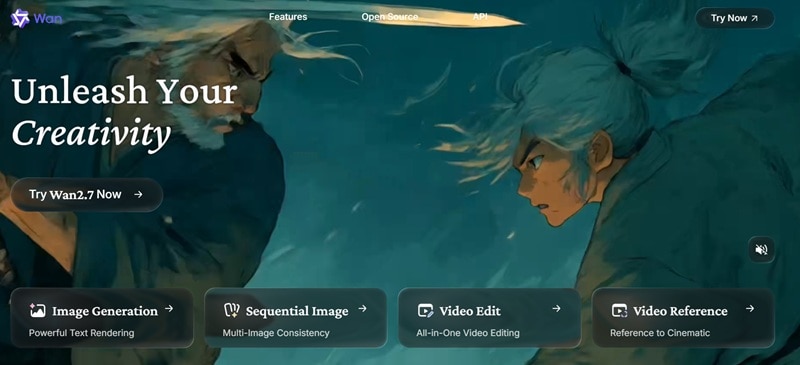
While the Wan AI official site mentions availability for both Android and iOS, the link that actually works right now is only for the Android version on the Google Play Store. If you are an iPhone user, sticking to the web platform on your browser is your best bet for now.
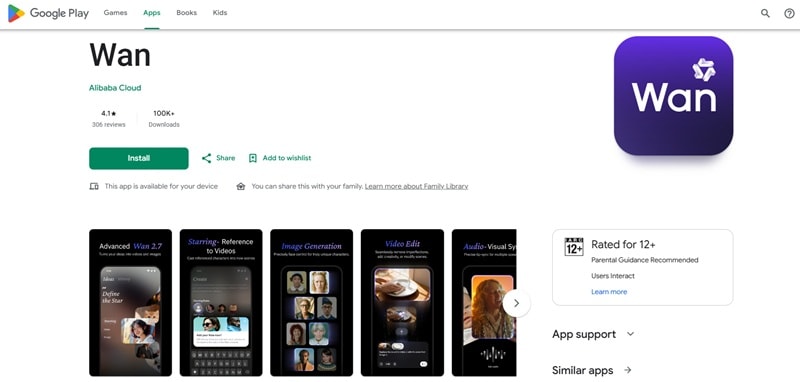
Part 3. Wan AI Pricing: Credits, Free Use, and Paid Plans
Wan AI pricing uses a credit system. That means every generation uses credits, and the amount can change depending on what you create. A simple image may cost fewer credits, while a longer or higher-quality Wan AI video can use more.
⭐ Free Credits
If you just log in and "check in" daily, you actually get Wan AI free credits! It’s usually enough for about 1-2 generations a day, which is perfect for testing things out without opening your wallet. When you are ready to upgrade for faster rendering and higher resolutions, they offer two straightforward premium tiers: Pro and Premium.
| Category | Pro | Premium |
| Price | $6.5 per month | $26 per month |
| Monthly Credits | 300 credits/month | 1,200 credits/month |
| Video Concurrency | Up to 3 videos at the same time | Up to 8 videos at the same time |
| Image Concurrency | Up to 3 images at the same time | Up to 5 images at the same time |
| Best For | Casual creators, light testing, short-form content | Frequent creators, heavier generation, more serious testing |
Part 4. Wan AI Feature Breakdown: What Can You Actually Make?
When it comes to AI capabilities, Wan AI has a full suite of features designed to take you from a blank page to a finished clip in minutes. Here is the core lineup of what you’ll be playing with:
1. Create AI Image
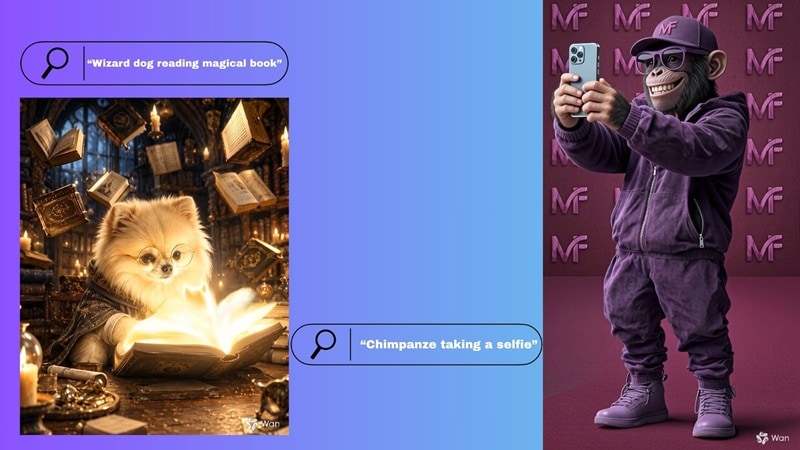
The Wan AI image generator lets you turn a sentence into an image. It handles complex design styles gracefully, and coherent prompt-following. This allows you to create all kinds of image content based on your imagination.
Best For:
- Concept art.
- Social media visuals.
- Product mockups.
- Thumbnail ideas.
- Character design.
- Style testing before making a video.
2. Create AI Video

This is the main reason most people search for Wan AI video generator. You can create videos in two main ways. First, you can use Text to Video. You type what you want, and Wan builds the scene from scratch. Second, you can use Wan AI Image to Video. This lets you upload a still image and animate it.
Best For:
- Short AI clips.
- Product motion videos.
- Character animation.
- Cinematic scene tests.
- Social media videos.
- AI ad drafts.
3. Edit Your AI Video
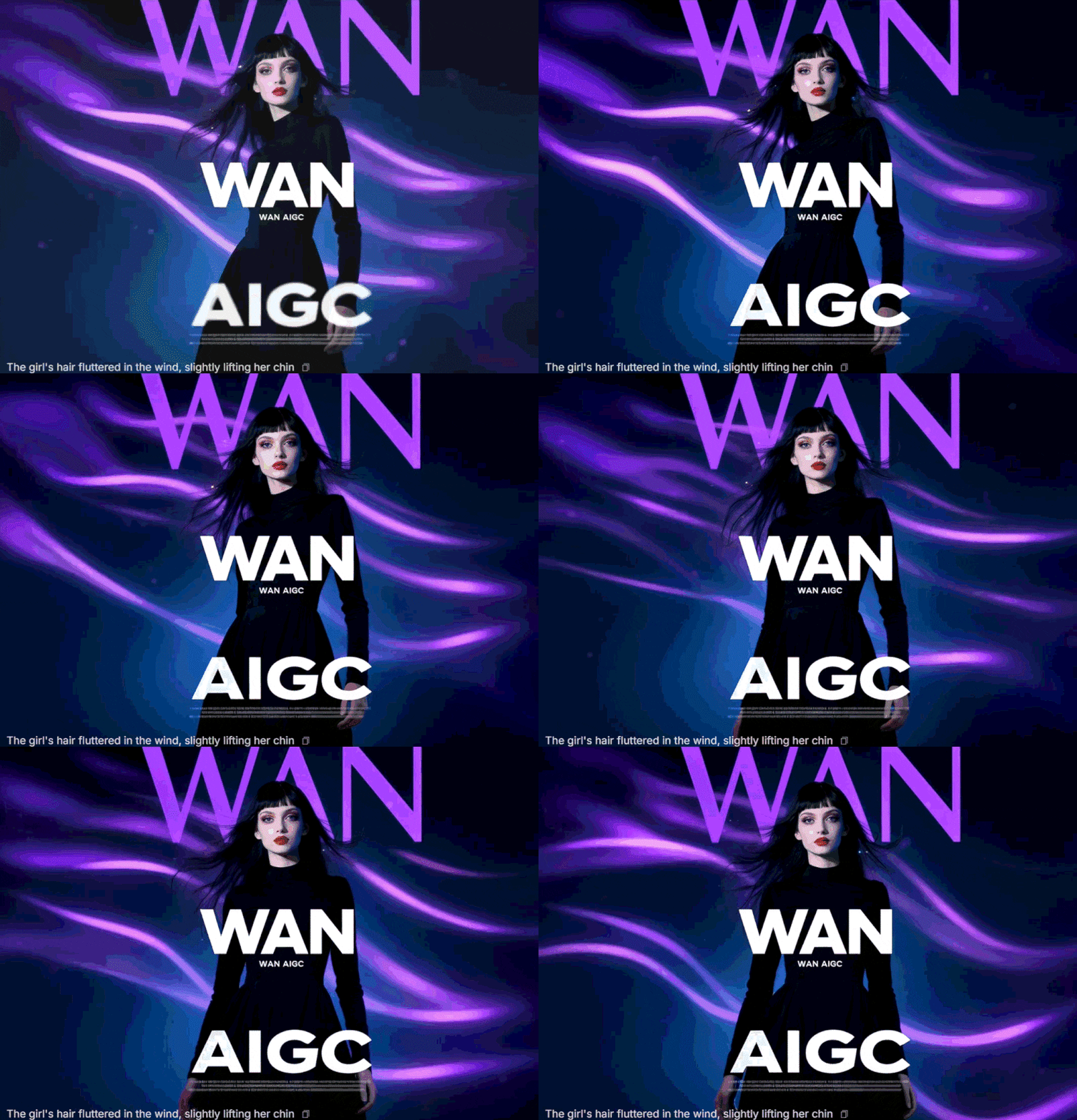
This is one of the more interesting parts of newer Wan AI workflows. Instead of opening a traditional editor and manually changing everything, you can describe the edit you want with a text prompt.
For example, you might ask the AI to change the background, adjust the style, modify a visual detail, or recreate part of the scene.
4. Reference to Video
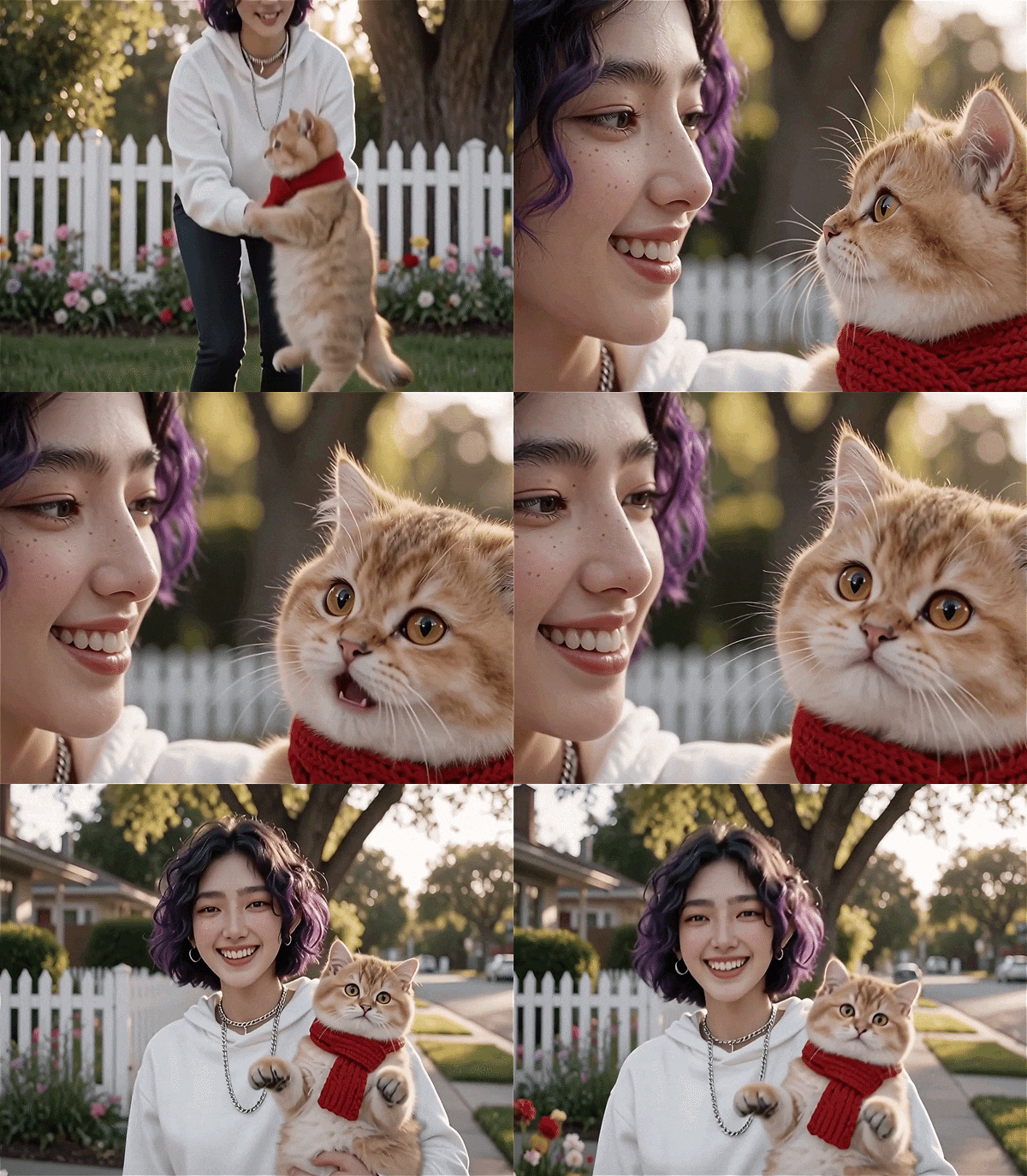
Character consistency is one of the biggest headaches in AI video. Without references, the same person can look slightly different from scene to scene. This is why Reference to Video is one of Wan’s strongest features. It supports human or human-like figures, multi-person scenes, human-object interactions, and appearance and voice consistency.
Best For:
- Character-based short videos.
- AI storytelling.
- Influencer-style clips.
- Human-object interaction scenes.
- Branded character visuals.
- Experimental ads.
Part 5. Wan AI Review: Where It Shines and Where It Still Feels Limited
It is easy to get caught up in the flashy online promos, but what happens when you actually try to build a real project? Because of that, our Wan AI review wouldn't be complete without actually testing the tool itself.
And since they offer free credits for logging in, we'll guide you to use that to your full benefit and see for yourself the good and bad of Wan AI video.
Quick Start: How to Make an AI Video Using Wan AI
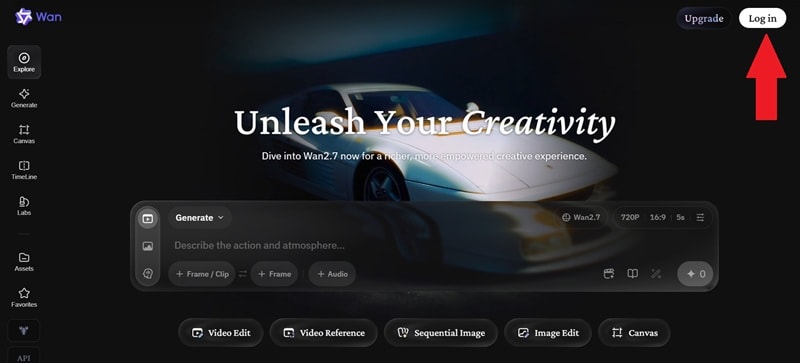
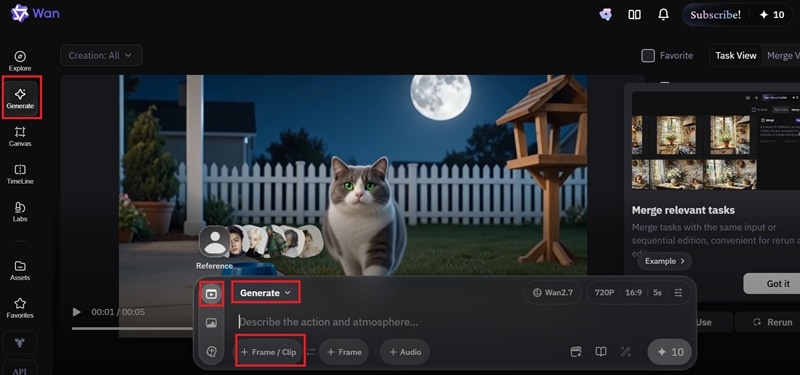
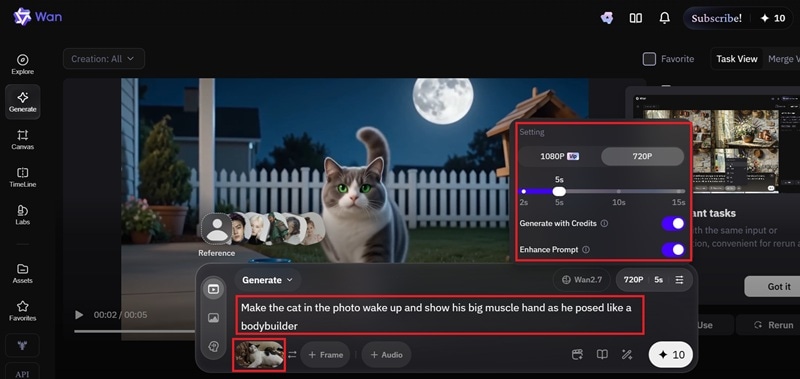
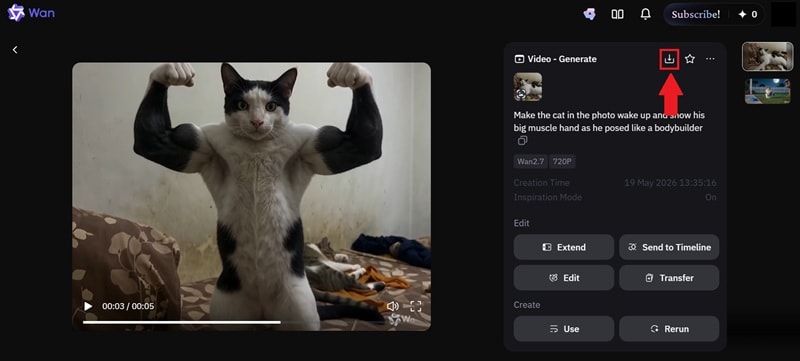
The steps are not too overcomplicated, and the Wan AI video actually follows the prompt quite well. Just take a look at the result below:
Pros and Cons of Wan AI
- Free Credits Make Testing Easier: Daily check-in credits give beginners a low-pressure way to try Wan AI free before paying.
- Wan 2.7 Looks More Control-Focused: The newer Wan 2.7 direction leans into instruction-based video editing and stronger scene control, which makes it more practical for creators.
- Works Across Image and Video: You can create still images first, then animate them into videos, which gives the workflow a natural creative flow.
- Long Waiting Time: After you hit generate, it actually takes a while until you can finally check out your Wan AI video.
- It Still Needs Post-Production: Wan can generate clips, but it does not give you the same control as a timeline editor for trimming, layering, pacing, and mixing.
- Credits Can Run Out Quietly: Wan AI video usually takes a few tries, so reruns can eat your credits faster than expected.
Part 6. Want More Control After Wan AI? Use Filmora for the Final Cut
Wan AI works well for generating short clips, but the lack of a full editing timeline can become a drag once you need more than a single AI shot. If you want to combine multiple Wan videos, add subtitles, fix pacing, layer music, apply effects, or prepare the final export for YouTube, TikTok, Instagram, or ads, you need a real editor after generation.
If you want more control, Wondershare Filmora makes a lot of sense as the next step. You can use Wan to generate raw AI clips, then bring those clips into Filmora to shape them into a finished video.
 Secure Download
Why Filmora Makes Sense After Wan AI
1. Multiple AI Models in One Place
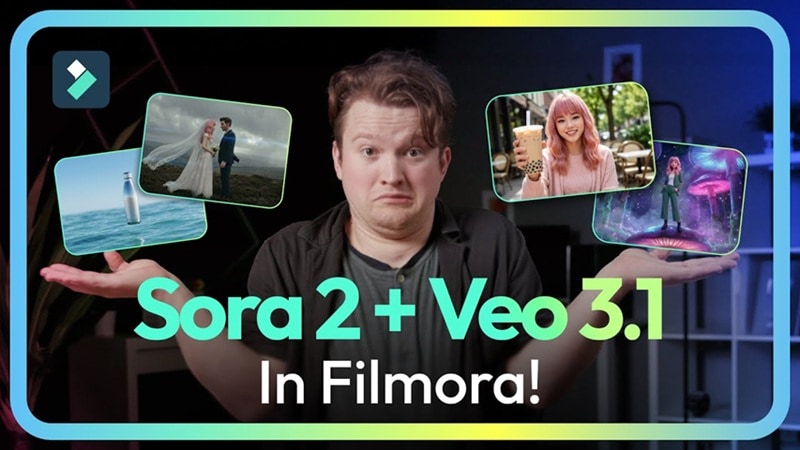
Wan AI mainly centers around its own model family. Filmora gives creators access to different AI generation options inside an editing workflow. Filmora lets you access a whole library of models like Veo 3.1, Sora 2, and Seedance 2.0 all in one app, letting you mix and match different generative styles seamlessly.
2. Professional Editing Timeline
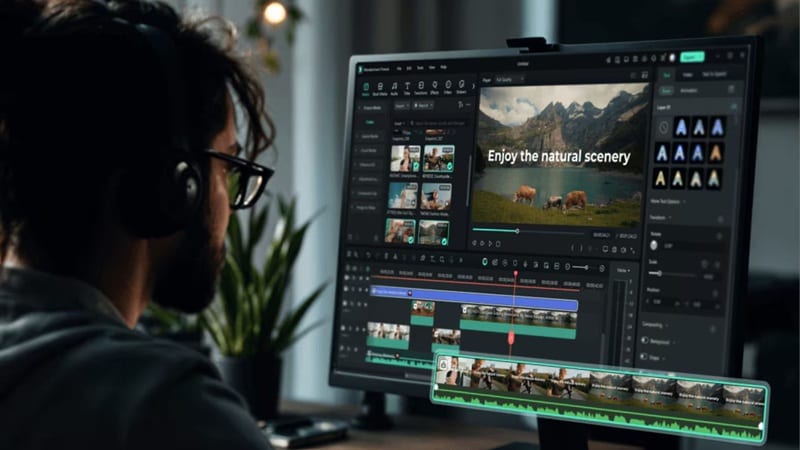
Wan AI video generator is good for generating clips, but Filmora gives you a proper timeline. That means you can cut, rearrange, layer, split, speed-ramp, add transitions, sync audio, and build a complete video instead of stopping at one generated clip.
For AI video, this is a big deal. You might love the first three seconds of a Wan clip but dislike the ending. In Filmora, you can simply cut the weak part and keep the good part.
3. Extensive Media Library

Filmora also gives users access to templates, effects, transitions, titles, stickers, music, sound effects, stock elements, and creative assets. This helps when a Wan AI video clip looks good but still feels too empty for final publishing.
For example, you can create a short product clip in Wan, then use Filmora to add animated text, music, logo animation, sound effects, and a call-to-action.
4. Wide Range of AI Features
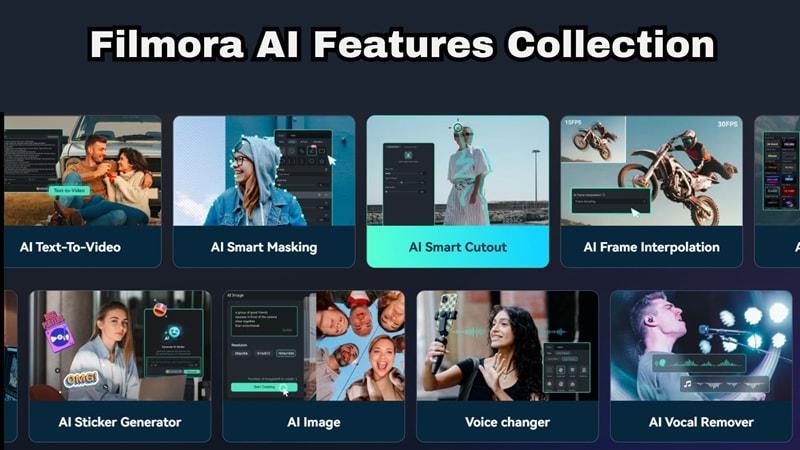
Filmora is more useful when you need to improve the whole video, not just generate one clip. There are plenty of advanced AI tools, including:
- AI Auto Captions: Transcribe speech into stylized on-screen text instantly.
- AI Translation: Break language barriers by translating your video project seamlessly.
- Text-to-Speech & Voice Cloning: Generate high-quality voiceovers or mimic a specific vocal tone.
- AI Smart Cutout: Isolate subjects or remove backgrounds with a single click.
- AI Video Enhancer: Clean up grain, fix compression artifacts, and sharpen blurry details.
- AI Eye Contact: Fix your gaze to look directly at the camera automatically.
5. Higher Export Flexibility
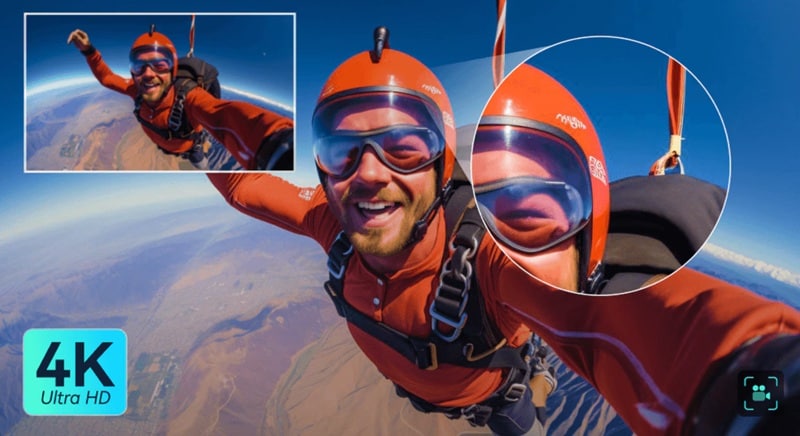
Wan only supports up to 1080p even on their highest tier, but Filmora actually supports up to 4K exports. This means you can take your favorite 1080p Wan video generations, drop them into Filmora, utilize the built-in AI video enhancement tools to upscale the clarity, and export an ultra-crisp 4K video that looks stunning on any platform.
Secure DownloadConclusion
Wan AI video generator is one of the more interesting AI video tools right now because it comes from Alibaba and supports more than basic prompt-to-video generation. You can create images, turn images into videos, generate short AI clips, edit visuals with prompts, and use references to keep characters more consistent.
Still, Wan AI works best as a generation tool, not the whole editing workflow. If you want to turn your Wan video clips into polished content, Filmora is a smart next step. You can import your AI clips, trim them on a timeline, add captions, music, effects, transitions, and export a cleaner final video without wasting credits on tiny changes.
FAQs About Wan AI
-
Does Wan AI support multiple languages for prompts?
Yes! Since it is backed by Alibaba’s advanced language models, Wan AI understands prompts in English and Chinese incredibly well, and it can parse several other major languages without missing a beat. -
Can I use Wan AI for commercial YouTube videos?
The open-source nature of the underlying models generally allows for broad usage, but you should always check the latest terms of service on the official web platform if you plan to monetize content directly using their cloud-rendered outputs. -
How do I remove the watermark from my videos?
Free tier accounts include a small digital watermark in the corner of exports. To get completely clean, watermark-free video files, you simply need to upgrade to either the Pro or Premium monthly subscription plans.
