100% Security Verified | No Subscription Required | No Malware


 ChatGPT
 Perplexity
 Gemini
 Claude
 Grok
Grok
When editing video projects, we often use multiple clips to display various scenes and segments. There’s no problem with that—add as many as you want. However, manually selecting each clip and arranging them in the timeline takes time and effort. Is there an easier way? Yes. You can try multicam editing in Final Cut Pro. This feature lets you sync camera angles and automatically switch between them.
In this article, we will explore the power of Final Cut Pro multicam editing and introduce an alternative application that offers the same capability. Continue reading below to learn more.
In this article
What Is Multicam Editing in Final Cut Pro?
Final Cut Pro is one of the most sophisticated video editing apps for Apple device users. Among its advanced features is multicam editing—a tool that automatically synchronizes multiple camera angles. You can create multi-angle content quickly and switch between views effortlessly.
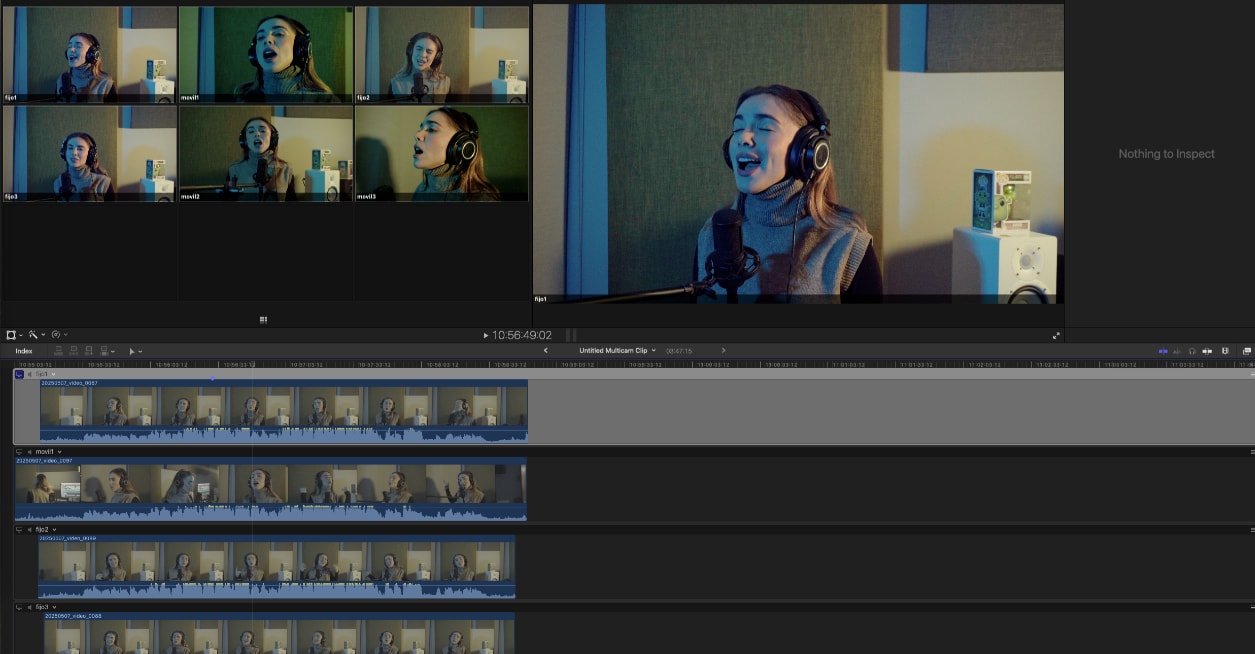
Advantages & Drawbacks
Advantages
- Simplifies your workflow by automating multi-angle arrangements.
- Easily switch between camera angles during editing.
- Ensures consistency, accuracy, and precision across edits.
- Allows simultaneous viewing of multiple angles.
- Rename, rearrange, or replace camera clips as needed.
- Supports up to 64 camera angles in a single project.
Drawbacks
- Tends to overwhelm beginners due to its complex interface.
- Requires powerful hardware, especially for 4K or higher resolutions.
- Exclusive to macOS—cannot be used on Windows or Linux.
- The one-time purchase cost may be too expensive for some users.
Filmora V15: Best Alternative to Final Cut Pro Multicam Editing
Multicam editing in Final Cut Pro is excellent, but it’s not ideal for everyone—especially beginners or those without Apple devices. If you want a more accessible option with a similar capability, Wondershare Filmora V15 is an excellent alternative.
 secure download

How to Create a Multi-Camera Clip in Filmora (Step-by-Step)
Follow this workflow to sync multiple camera angles, switch views in real time, and refine your multi-camera edit inside Filmora.
- Step 1: Create a New Project
Launch Filmora, sign in, and on the left panel click Create Project. In the main window, choose New Project to open a blank timeline for your multi-camera edit.
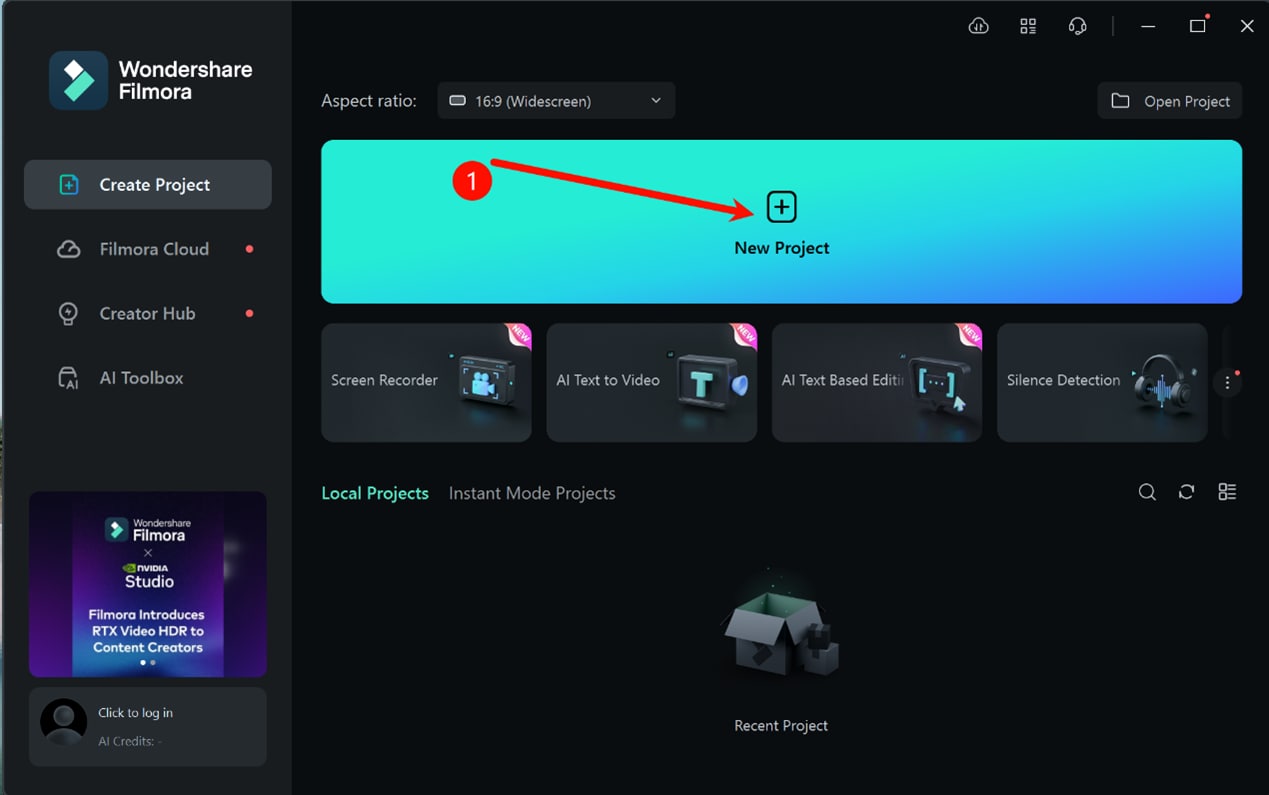
Create a new project before starting your multi-camera edit. - Step 2: Import Your Footage
Go to the Media tab in the top toolbar and click Import to bring in all video and audio clips from your cameras. Each angle should appear in the Media panel.
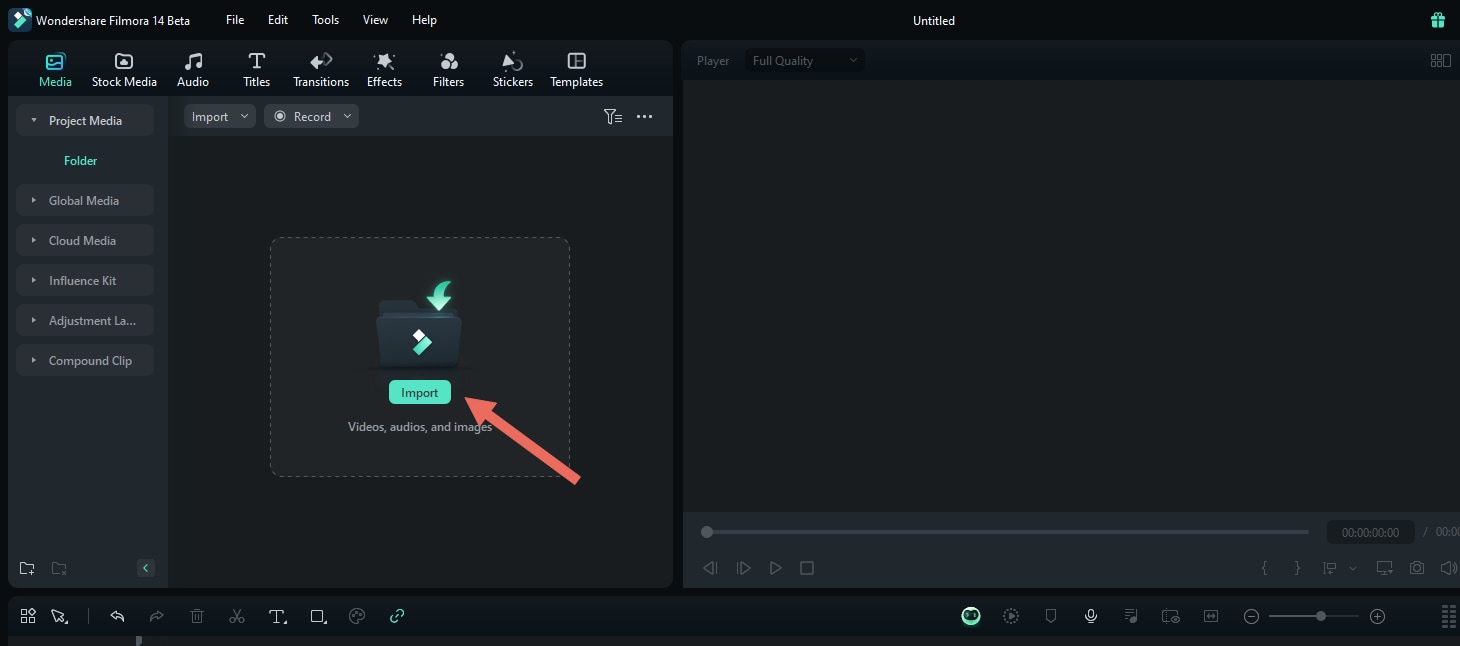
Import all camera angles into the Media panel. - Step 3: Create a Multi-Camera Clip
Combine your angles into a single multi-camera clip. You can do this from either the Media bin or the timeline:
Method 1 (Media bin): Select the clips in the Media panel, right-click, and choose Create Multi-Camera Clip.
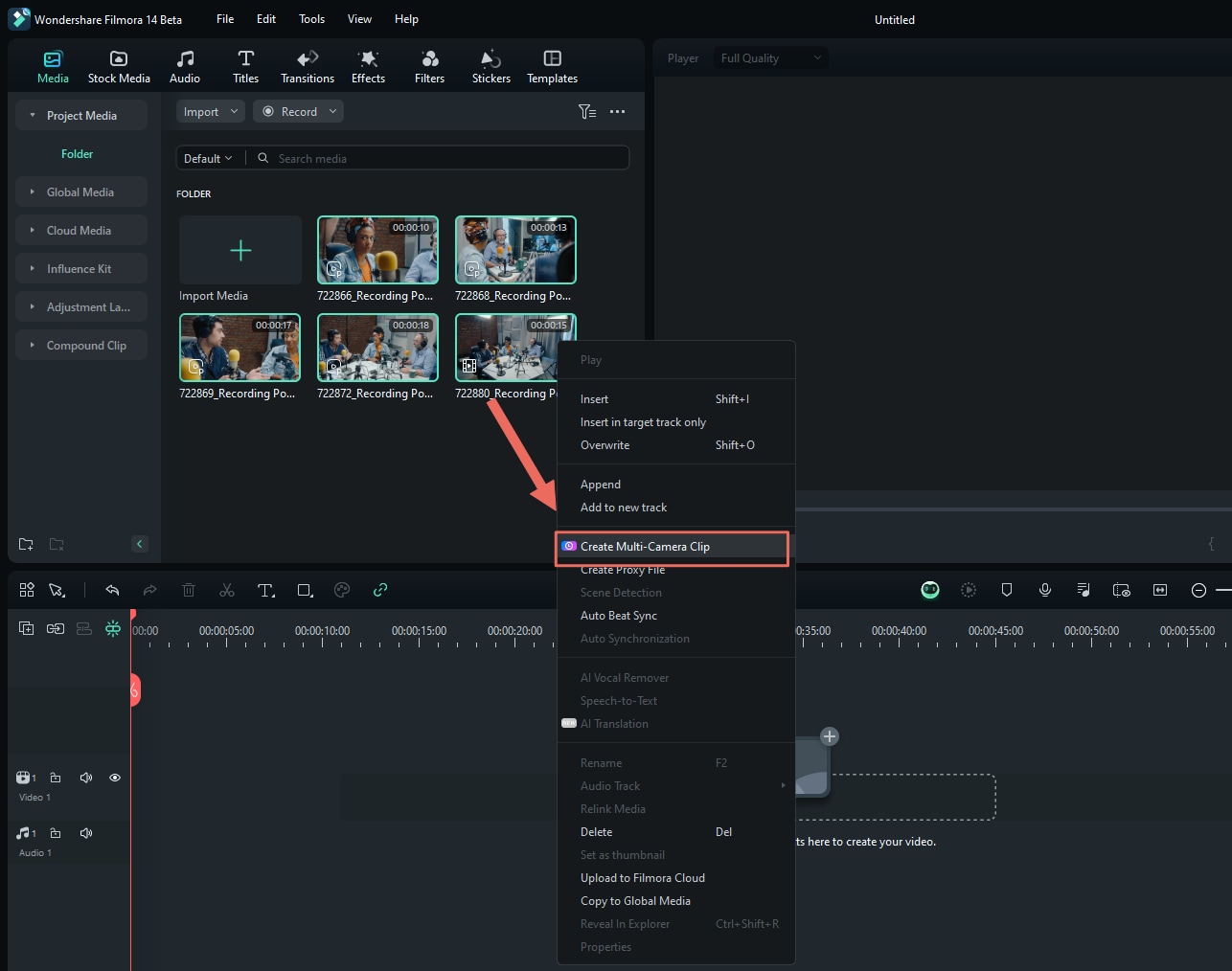
Create a multi-camera clip directly from the Media panel. Method 2 (Timeline): Place your angles on the timeline, select them, right-click, and choose Create Multi-Camera Clip.
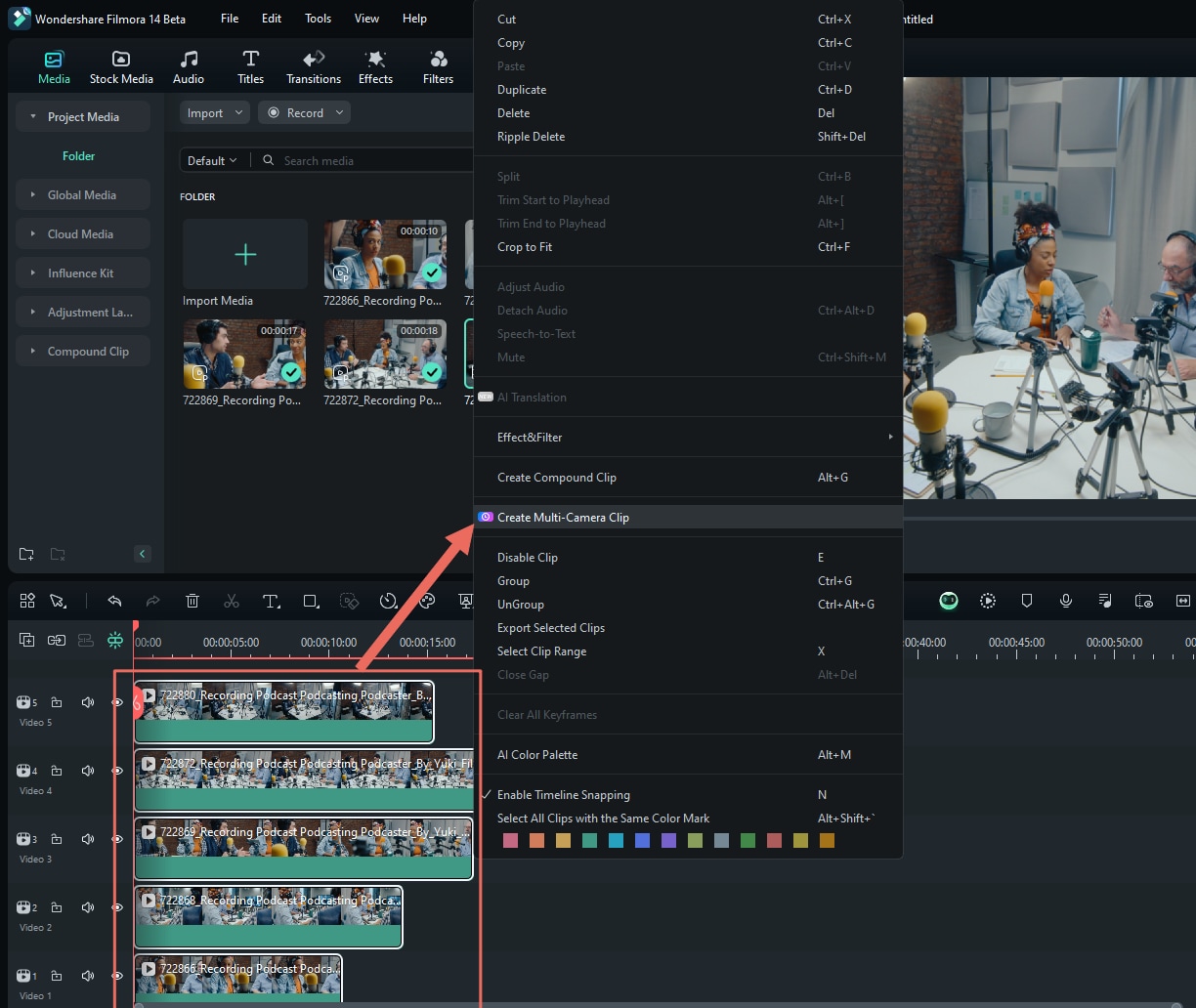
Create a multi-camera clip from clips already on the timeline. In the dialog that appears, name the multi-camera clip and choose a sync method:
- Audio – Aligns angles using their audio waveforms.
- First Frame – Syncs based on the first frame of each clip.
- First Marker – Uses the first marker on each clip as the sync point.
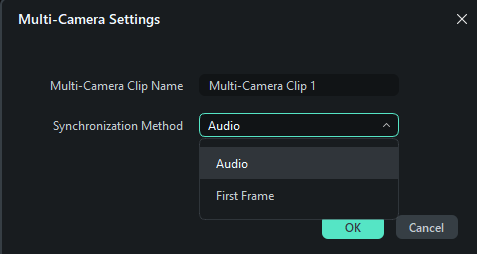
Choose how Filmora synchronizes your camera angles. 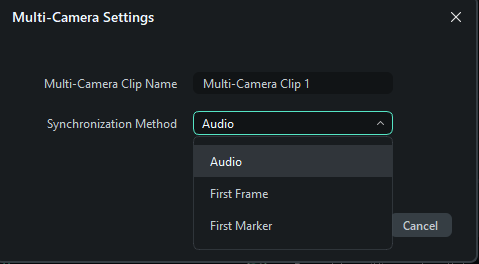
Confirm your sync settings to build the multi-camera clip. - Step 4: Enable Multi-Camera View
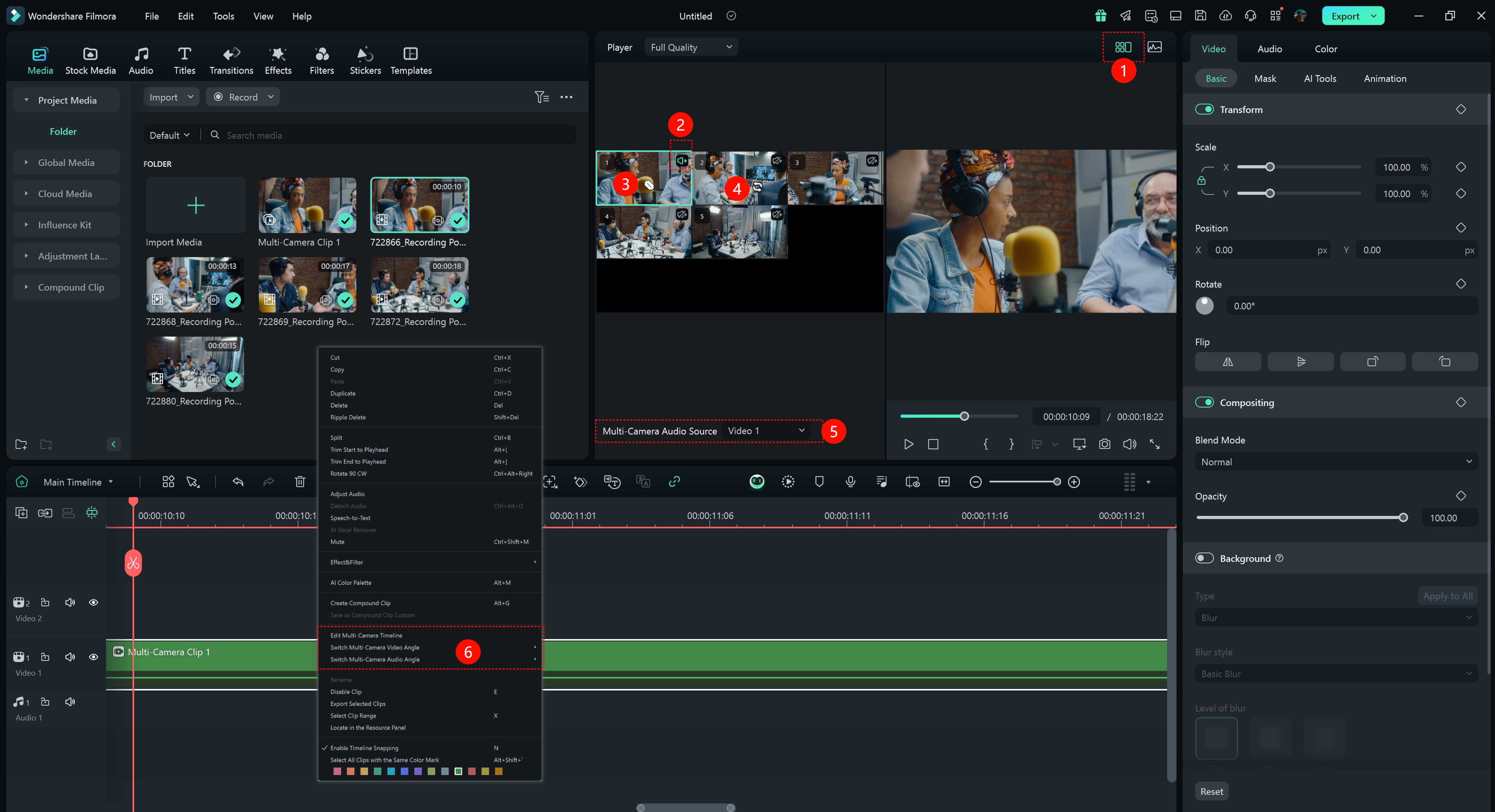
In the Player window, click the Switch Multi-Camera View button to turn on multi-camera view. All synced angles appear in a grid so you can monitor them at once.
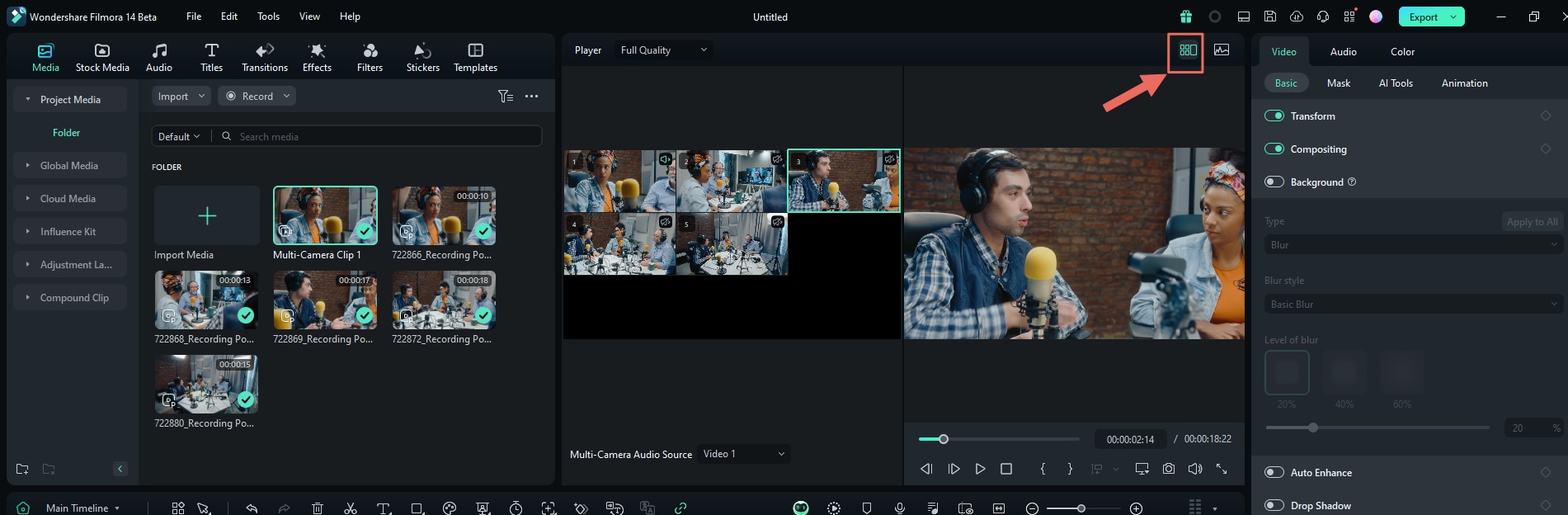
Enable multi-camera view to see all angles side by side. - Step 5: Live-Switch and Edit Multi-Camera Clips
Press the Spacebar or click Play to start playback. While the video plays, click on any camera window in the multi-camera view to cut to that angle on the timeline. Each click adds an edit point and switches the active camera.
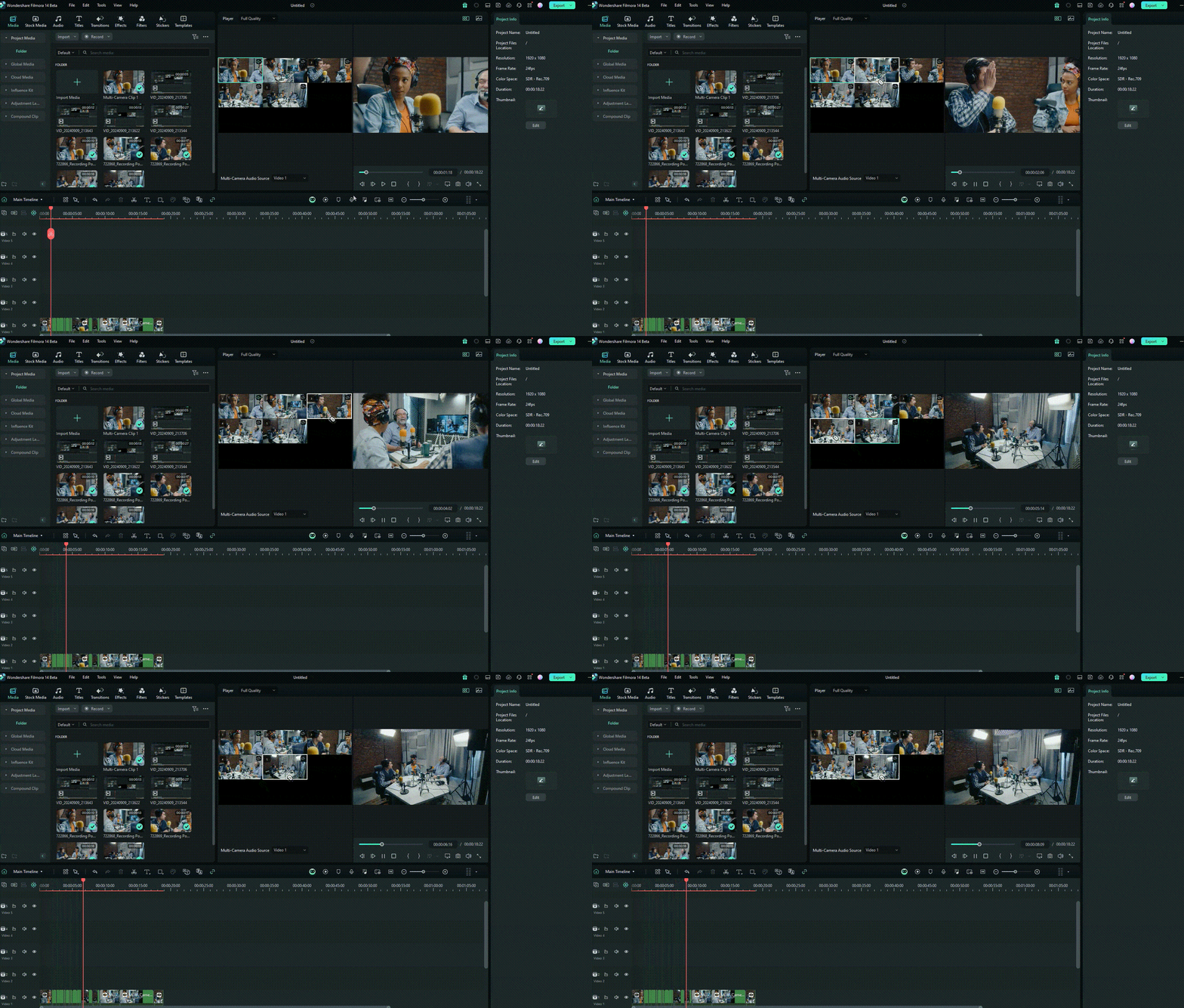
Click on different views during playback to switch camera angles. You can also map and use keyboard shortcuts (via File > Keyboard Shortcuts) to switch angles without clicking.
Use keyboard shortcuts to change angles even faster. - Step 6: Adjust and Refine Your Edit
After your first pass, refine the multi-camera sequence:
- Edit the multi-camera timeline: Double-click the multi-camera clip or right-click it (in the timeline or Media tab) to open and fine-tune the internal cuts.
- Replace camera angles: Select a segment on the timeline and click a different view in the multi-camera monitor to swap that section’s camera.
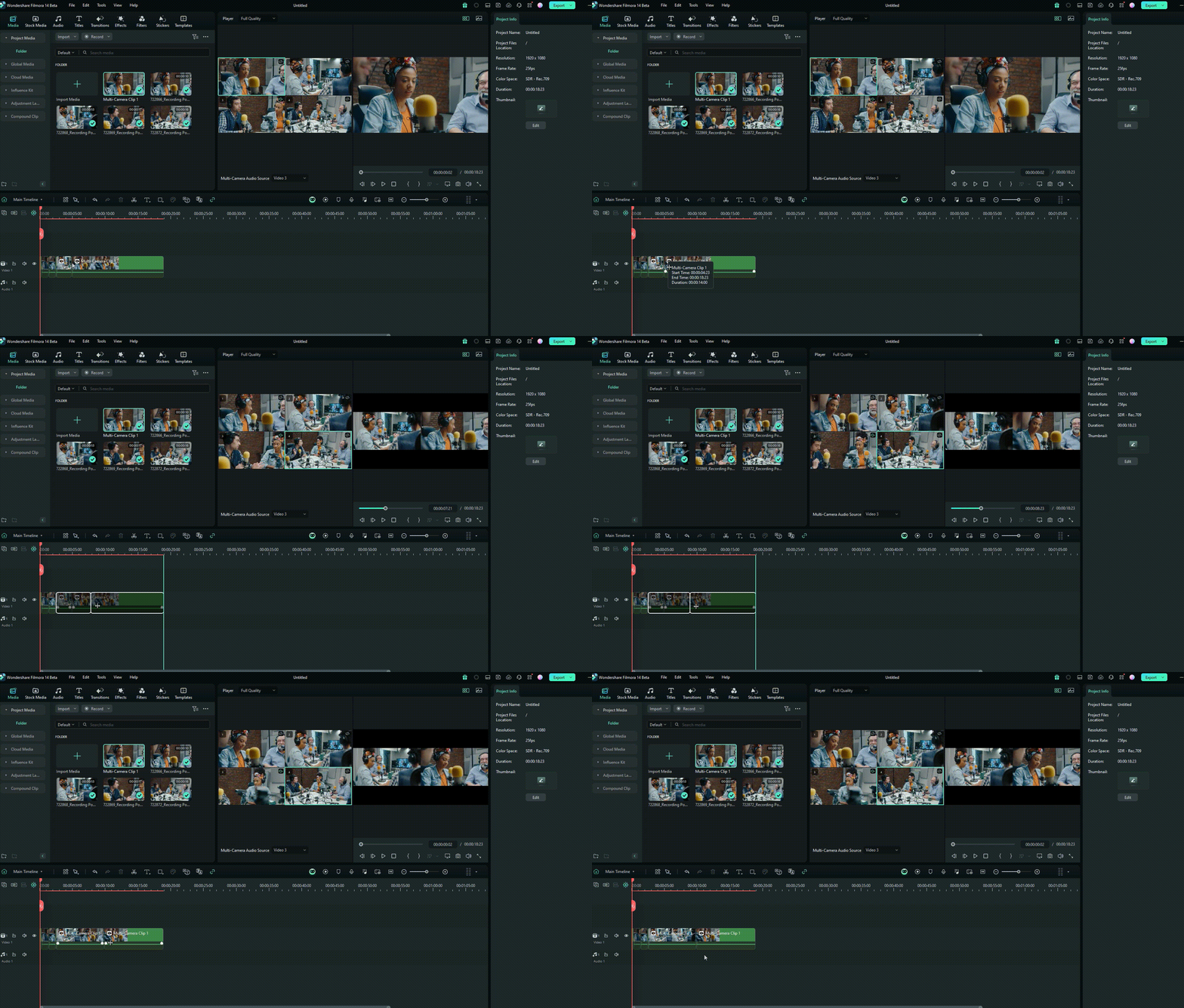
- Adjust cut points: Hover over a cut between angles until the bidirectional trim cursor appears, then drag to nudge the edit earlier or later.
Drag cut points to refine when each camera angle switches.
Other Features to Explore in Wondershare Filmora V15
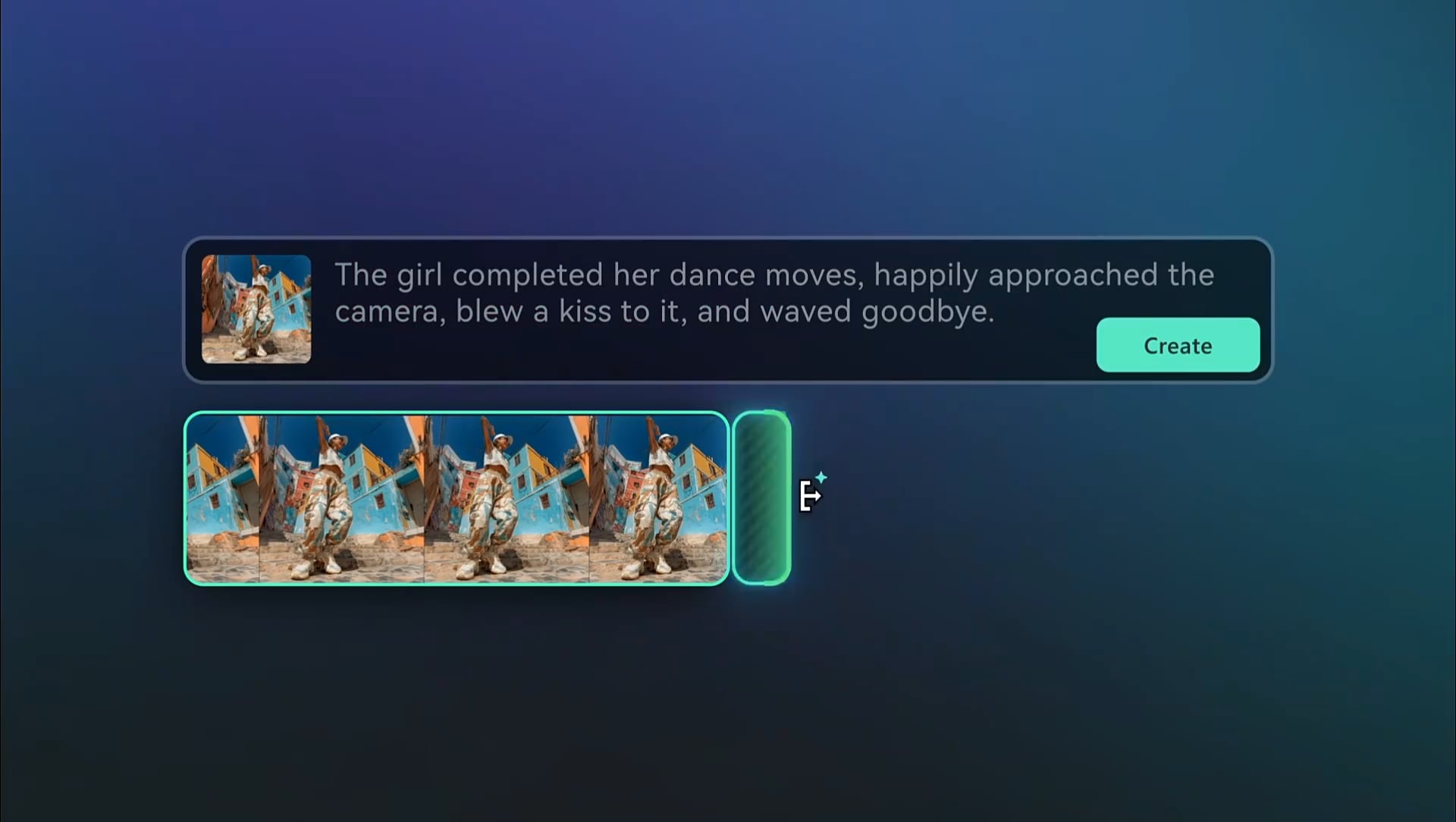
- AI Video Extender: Expands footage while keeping audio and visuals in sync.
- AI Video Enhancer: Instantly improves video quality.
- AI Video Object Remover: Removes unwanted elements from your clips.
- Video Stabilizer: Fixes shaky footage in seconds.
- AI Color Palette: Matches and applies color grading based on reference images.
Note: Filmora receives frequent upgrades. Update to new versions to access the latest tools and improvements.
Conclusion
Multicam editing in Final Cut Pro is incredibly powerful and can greatly speed up your editing workflow. However, it is not the only option available. For users seeking a simpler, more affordable, and cross-platform alternative, Wondershare Filmora V15 is an excellent choice. It supports multicam editing, offers a wide array of advanced tools, and remains easy to use—even for beginners.
secure download FAQs
-
Q1. Can you use a mid-range computer for Final Cut Pro multicam editing?
Yes, but performance may suffer. Multicam editing requires strong processing power and sufficient storage. -
Q2. Does Wondershare Filmora have a multicam editing tool?
Yes. Filmora offers multicamera editing similar to Final Cut Pro but with a simpler, more intuitive interface. -
Q3. What features can be combined with multicam editing in Filmora?
You can combine any Filmora tools with multicam editing, such as AI Audio Sync, Split Screen presets, and more.