

 100% Security Verified | No Subscription Required | No Malware


 ChatGPT
 Perplexity
 Gemini
 Claude
 Grok
Grok
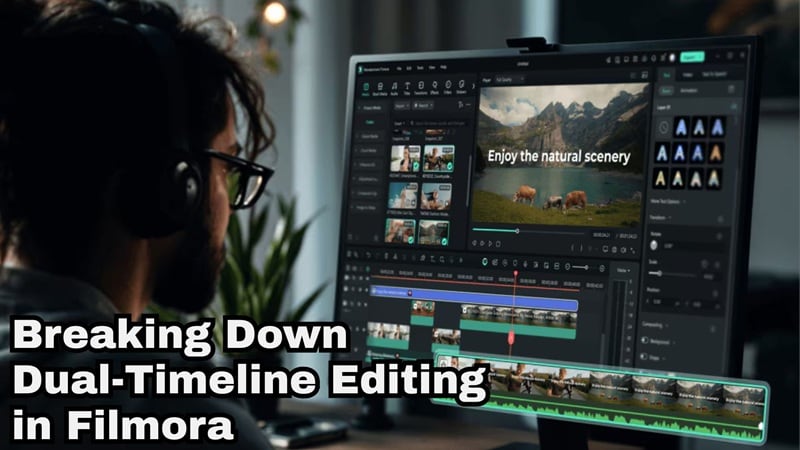
Managing a complex video project on a single timeline can quickly become crowded. Long-form videos, interviews, branded content, alternate cuts, and reusable sequences may contain dozens of video, audio, text, and effects layers that are difficult to manage in one view.
Filmora's Dual-Timeline Editing gives you more room to organize these projects. You can open Compound Clips in separate timeline tabs, switch between timelines, or display a main timeline and a secondary timeline at the same time.
This makes it easier to refine a complex section independently, move material between timelines, compare different parts of an edit, and keep the main project organized.
In this article
Part 1. Why Use Multiple Timelines in Video Editing?
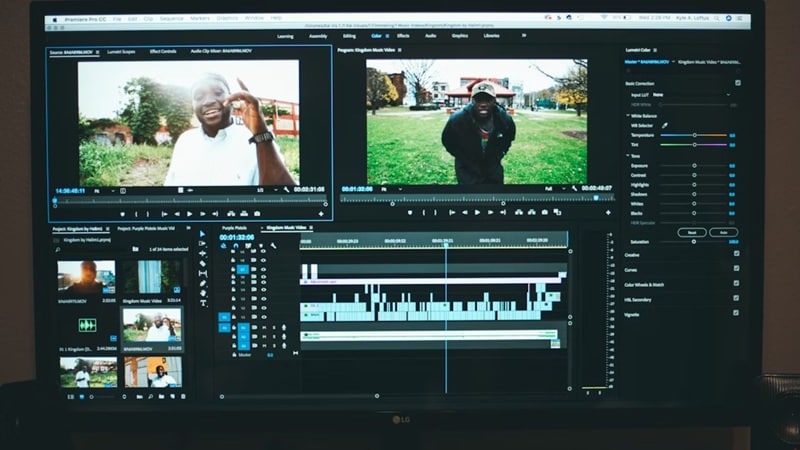
A traditional timeline works well for straightforward edits, but complex projects can become difficult to navigate as more clips, tracks, audio, titles, effects, and other elements are added.
Working with multiple timelines can make these projects easier to organize:
- Keep the Main Timeline Organized: Move complex groups of clips into Compound Clips so the main sequence remains easier to read and manage.
- Focus on Detailed Sections: Open a Compound Clip in its own timeline and refine the clips inside without constantly navigating through the full project.
- Work Across Two Timeline Views: Keep a primary timeline and secondary timeline visible at the same time when you need to review or move material between different sections.
- Reuse Structured Sequences: Compound Clips can group recurring elements such as intros, outros, branded sections, B-roll sequences, or other reusable content.
- Experiment Without Cluttering the Main Edit: Organize complex sequences separately before integrating them into the larger project.
- Navigate Long-Form Projects More Easily: Interviews, courses, podcasts, branded films, and other long edits become easier to manage when complex sections are separated into structured timelines.
How Other Editors Handle Multiple Timelines
Multiple timelines, nested sequences, and grouped editing structures are common in professional video editing workflows. Different editors implement them in different ways.
1. Premiere Pro
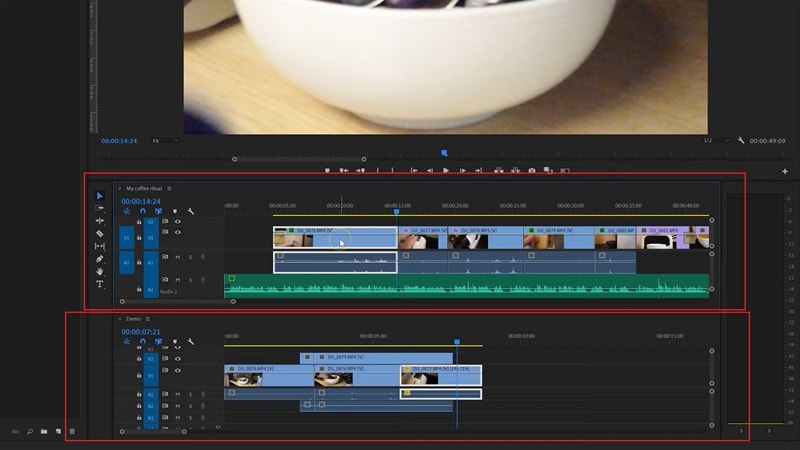
Premiere Pro uses sequences and nested sequences to organize complex edits and lets editors work with multiple sequences within a project.
2. Final Cut Pro

Final Cut Pro provides its own timeline organization tools, including Compound Clips for grouping and managing multiple elements as a single unit.
3. DaVinci Resolve

DaVinci Resolve supports multiple timelines within a project and provides timeline management tools for complex editing and post-production workflows.
Part 2. How to Use Filmora's Dual-Timeline Editing
Filmora combines Compound Clips with multiple Timeline tabs and a Dual-Timeline view. A Compound Clip groups multiple video, audio, image, text, or other timeline elements into a single manageable unit while keeping the elements inside editable.
When you open a Compound Clip, its contents appear in a separate Timeline tab. You can switch between tabs for focused editing or drag a Timeline tab into the Timeline panel to display two timelines simultaneously.
Step 1. Launch Filmora and Start a New Project
Open Filmora and create a New Project. Import the video, audio, images, and other media you need for your edit.

Step 2. Add Your Clips to the Timeline
Drag your imported media from Project Media to the Timeline and begin arranging the project.
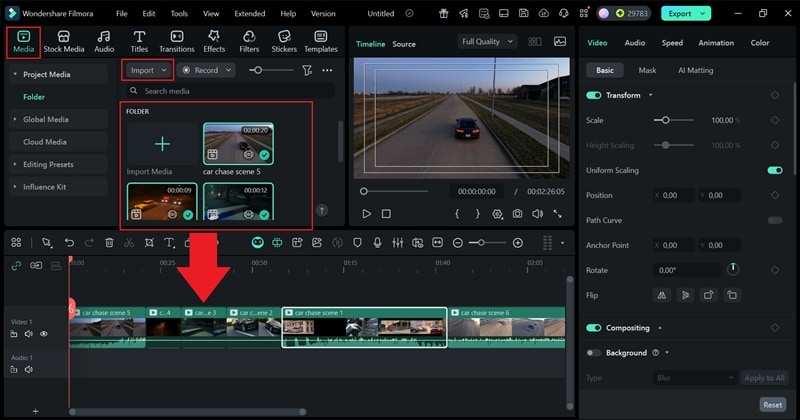
If your project requires additional tracks, drag media into an empty Timeline area to create another track. You can also use Manage Tracks > Open Track Manager to configure multiple tracks and adjust their placement.
Step 3. Create a Compound Clip
Select the related clips you want to manage together. Right-click the selected clips and choose Create Compound Clip, or access the same command through the Tools menu.

Name the Compound Clip and confirm the action. Filmora groups the selected elements into one unit on the main Timeline while preserving the individual clips inside it.

Step 4. Open the Compound Clip in a Separate Timeline
Open the Compound Clip to display its contents in a separate Timeline tab. This gives you access to the individual elements inside the Compound Clip while keeping the main project available in its own tab.

Step 5. Activate the Dual-Timeline View
To work with two timelines at the same time, drag the Compound Clip Timeline tab into the Timeline panel. Filmora displays the two Timeline views together, allowing you to work with the main sequence and secondary Timeline without repeatedly switching tabs.
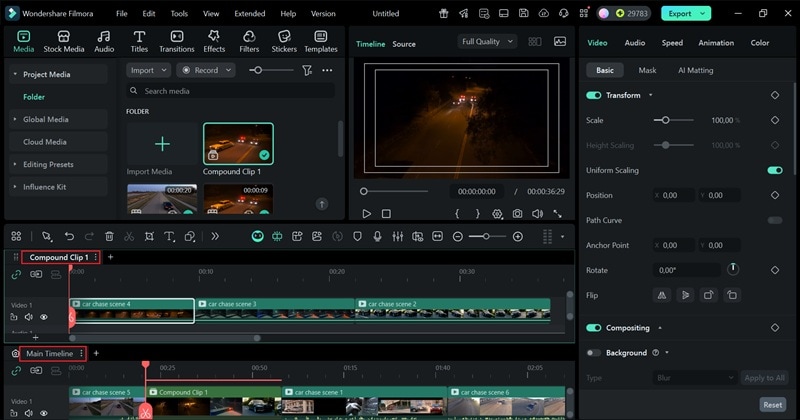
You can rearrange the Timeline tabs to control which Timeline appears in each view.
Step 6. Edit the Secondary Timeline
With both timelines visible, refine the clips inside the Compound Clip. You can adjust the individual video and audio elements while keeping the larger project structure visible.
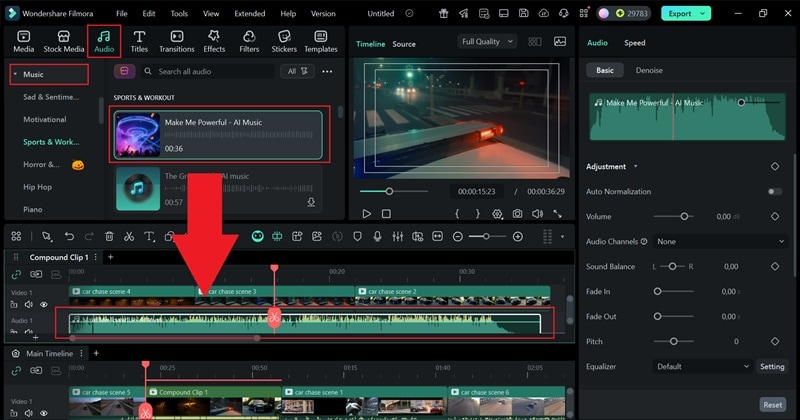
You can create multiple Compound Clips and open them as Timeline tabs. However, Filmora's Dual-Timeline workspace displays up to two timelines simultaneously.

Step 7. Switch, Organize, or Export Timelines
Filmora's Timeline management tools also let you switch between Timeline tabs as the project grows. When you need a specific sequence as a separate output, right-click the required Timeline tab or open its menu and choose Export Current Timeline.
You can also control whether newly created Compound Clips automatically open in Timeline tabs from File > Preferences > Editing.
Part 3. When to Use Dual-Timeline Editing in Filmora
 secure download

Dual-Timeline Editing becomes particularly useful when a single Timeline starts getting difficult to navigate. Here are several practical use cases.
1. Long Videos With Complex Sections
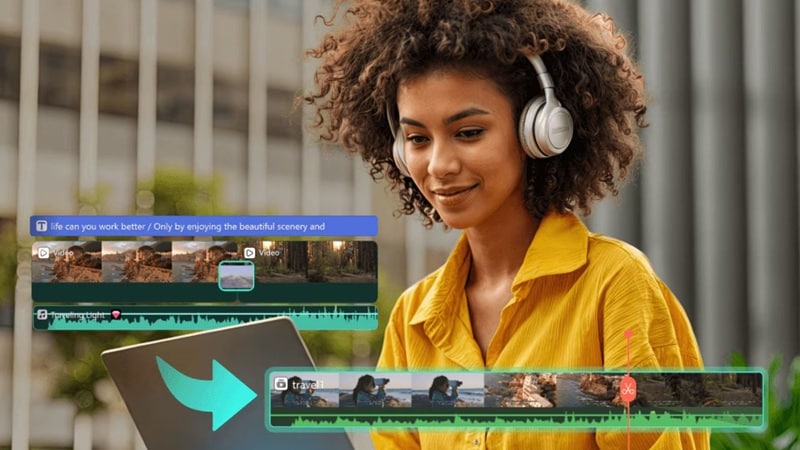
Long-form projects such as interviews, courses, documentaries, podcasts, and travel videos can contain many independent sections. Grouping a complex section into a Compound Clip lets you work on its details separately while keeping the main sequence cleaner.
2. Multi-Camera Projects

Multi-camera projects often involve several video and audio sources. Compound Clips and separate Timeline views can help organize complex groups of media while you refine individual sections.
For actual camera-angle synchronization and switching, use Filmora's dedicated Multi-Camera Editing workflow rather than treating Dual-Timeline Editing itself as a multicam synchronization tool.
3. Detailed Audio and Video Sections

If a section contains multiple dialogue, music, sound-effect, and video layers, turning it into a Compound Clip can make the main Timeline easier to manage. Open that Compound Clip separately when you need to fine-tune its internal structure.
If you need to synchronize separately recorded audio and video automatically, use Filmora's dedicated Auto Synchronization feature. Dual Timeline is primarily an organization and editing workspace.
4. Intros, Outros, Branded Segments, and Reusable Sequences
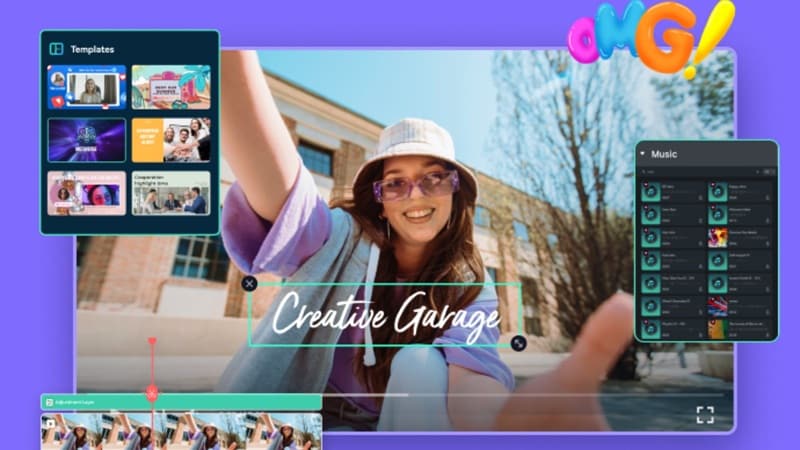
Compound Clips are useful for grouping recurring elements such as intros, outros, branded sections, B-roll sequences, or layered visual compositions. These sections can be edited independently while remaining manageable inside the main project.
5. Reviewing or Restructuring Complex Edits
Filmora's Dual-Timeline view is also useful when you want to keep the main sequence visible while restructuring a detailed secondary section. This is especially helpful when changes need to be evaluated in the context of the larger edit.
Part 4. Tips for Managing Complex Timelines
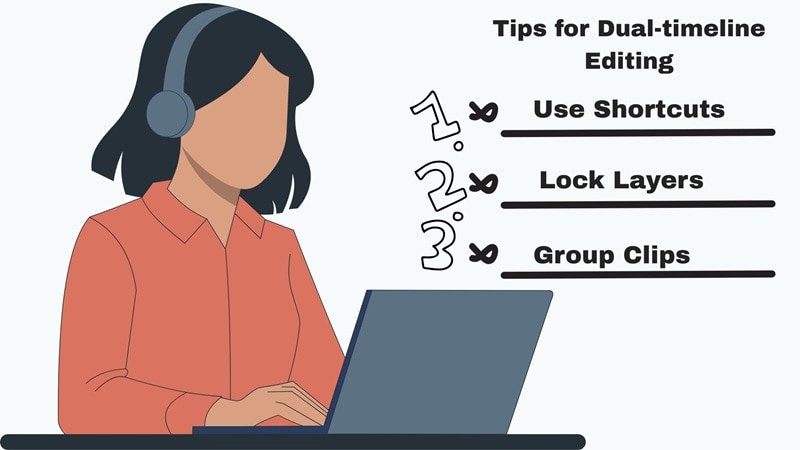
- Use Compound Clips Strategically: Group related elements when doing so makes the main Timeline easier to understand. Avoid turning every small group of clips into a separate Compound Clip.
- Use Timeline Markers: Place markers at important moments, then add a name, color, or comment so sections are easier to locate later.
- Lock Finished Tracks: Once a track no longer needs adjustment, use Lock to reduce the risk of accidentally moving or editing its clips.
- Mute or Hide Tracks When Needed: Temporarily disable track output when you need to focus on specific visual or audio layers.
- Adjust Timeline Zoom: Zoom in for detailed trimming and timing adjustments, or use Zoom to Fit Timeline when you need an overview of the entire project.
- Manage Track Height: Resize tracks when a project contains many layers so the elements you're actively editing remain easier to see.
- Use Magnetic Timeline for Sequential Edits: When appropriate, Filmora's Magnetic Timeline can automatically keep clips aligned and close gaps as clips are trimmed, moved, or deleted.
- Name Compound Clips Clearly: Names such as "Intro," "Interview A," "Product Demo," or "Outro" are much easier to navigate than generic clip names in a large project.
- Keep Dual Timeline Focused: Filmora can maintain multiple Timeline tabs, but only two are displayed simultaneously in the Dual-Timeline workspace. Keep the two most relevant sequences visible and switch tabs when necessary.
FAQs About Dual-Timeline Editing
Common Questions About Multiple Timelines in Filmora
-
Can Filmora display two timelines at the same time?
Yes. Open a Compound Clip in a separate Timeline tab and drag its tab into the Timeline panel to create a Dual-Timeline view. Filmora can display up to two timelines simultaneously.
-
What is the difference between a Compound Clip and Dual Timeline?
A Compound Clip groups multiple video, audio, image, text, or other timeline elements into one manageable unit. Dual Timeline is the workspace that lets you view and work with two timelines at the same time. Opening a Compound Clip in a separate Timeline tab is one way to use the Dual-Timeline workflow.
-
Can I have more than two timelines in Filmora?
You can work with multiple Compound Clips and Timeline tabs within a project, but the Dual-Timeline workspace displays a maximum of two timelines simultaneously. Switch between tabs when you need to work with additional timelines.
-
Can I export only one timeline in Filmora?
Yes. Filmora's current Timeline management workflow lets you right-click the required Timeline tab or open its menu and select Export Current Timeline.
-
Can I move clips between timelines?
Filmora's Dual-Timeline workflow is designed to make it easier to work across the main and secondary timelines, including reusing and moving material as you organize complex edits.
-
Is Dual-Timeline Editing the same as Multi-Camera Editing?
No. Dual-Timeline Editing helps you organize and work across separate Timeline views. Multi-Camera Editing is a dedicated workflow for synchronizing multiple camera sources and switching between camera angles.
-
Is Dual-Timeline Editing available on Windows and Mac?
Yes. Filmora's current Windows and Mac Timeline guides both document working with multiple Timeline tabs and displaying two timelines simultaneously.
Conclusion
Filmora's Dual-Timeline Editing gives complex projects more structure without forcing every element into one crowded workspace. By combining Compound Clips, Timeline tabs, track management, markers, and a two-Timeline view, you can keep the main sequence organized while still accessing detailed sections when you need them.
For simpler projects, Filmora's Timeline Video Editor also provides tools such as Magnetic Timeline, multi-track editing, Timeline zoom, track controls, and markers. As the project becomes more complex, Compound Clips and Dual Timeline provide another layer of organization without changing the core editing workflow.
secure download 