

 100% Security Verified | No Subscription Required | No Malware


 ChatGPT
 Perplexity
 Gemini
 Claude
 Grok
Grok
What makes the timeline in Final Cut Pro so important for editing? In any video editor, the timeline is the central workspace where you arrange video, audio, titles, effects, and other elements to shape the final story.
Final Cut Pro takes a distinctive approach with its Magnetic Timeline. Instead of relying entirely on fixed tracks, it uses a Primary Storyline and connected clips to keep related media together as you rearrange an edit.
This guide explains how the Final Cut Pro timeline works, how to add, move, and trim clips, and how to manage more advanced timeline structures. We'll also look at Filmora's timeline workflow, including Magnetic Timeline, multi-track editing, Compound Clips, and Dual-Timeline Editing.

In this article
Part 1. How Timeline in Final Cut Pro Differs from Other Editors
The timeline in Final Cut Pro works differently from conventional track-based editors such as Premiere Pro and DaVinci Resolve. In a traditional track-based layout, clips are placed on defined video and audio tracks, giving editors direct control over how elements are layered vertically.
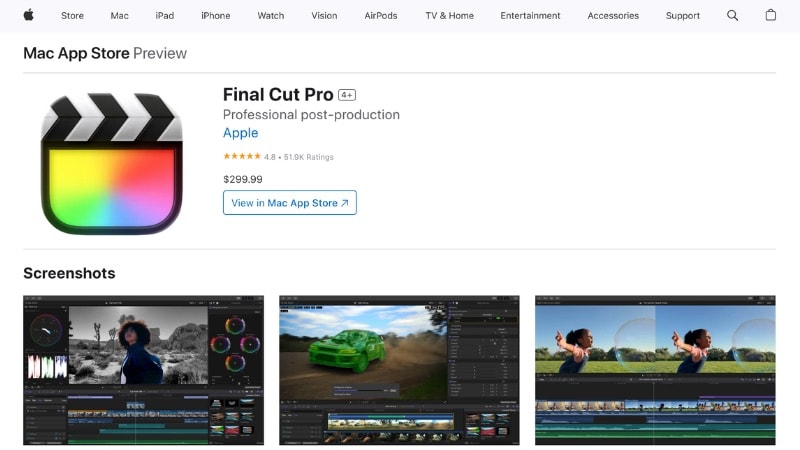
Final Cut Pro's Magnetic Timeline uses a different organizational model. The Primary Storyline provides the structural foundation of the edit, while other clips can be connected to specific points in that storyline.
As clips in the Primary Storyline are moved, inserted, or removed, surrounding material can automatically adjust its position. Connected clips maintain their relationship with the clips or points they are attached to, reducing the amount of manual repositioning required during many common editing operations.
| Feature | Traditional Track-Based Timeline | Final Cut Pro Magnetic Timeline |
|---|---|---|
| Layout | Media is organized across defined video and audio tracks | Primary Storyline with connected clips and secondary storylines |
| Clip Movement | Editors directly control clip positions across tracks | Surrounding clips can automatically adjust as the Primary Storyline changes |
| Clip Relationships | Depends on track position, linking, grouping, and other timeline controls | Connected clips maintain relationships with attachment points |
| Gaps | Editors can intentionally leave or remove empty timeline space | The Primary Storyline closes space magnetically; Gap Clips can be used when intentional space is needed |
| Editing Model | Track-oriented workflow | Storyline- and connection-oriented workflow |
Part 2. How to Use the Final Cut Pro Timeline
How to Add Clips
After importing your footage into Final Cut Pro, you can add clips to the Timeline in several ways.
Method 1. Drag and Drop
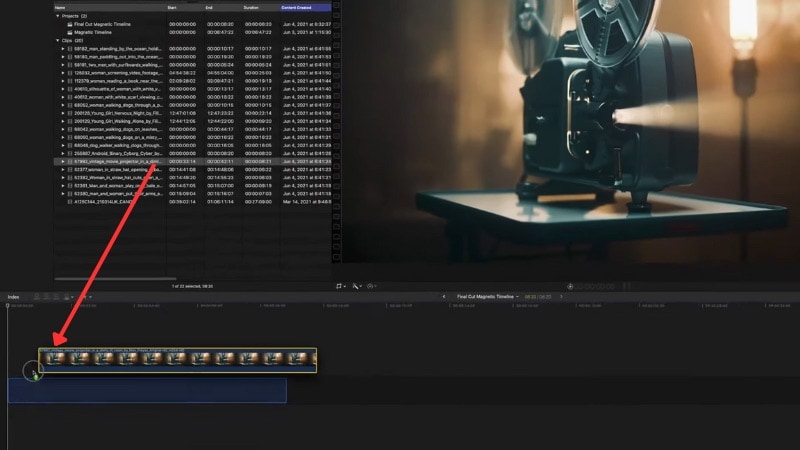
Select a clip in the Browser and drag it into the Timeline. Its placement determines whether it becomes part of the Primary Storyline or is connected to another clip.
Method 2. Use Editing Commands
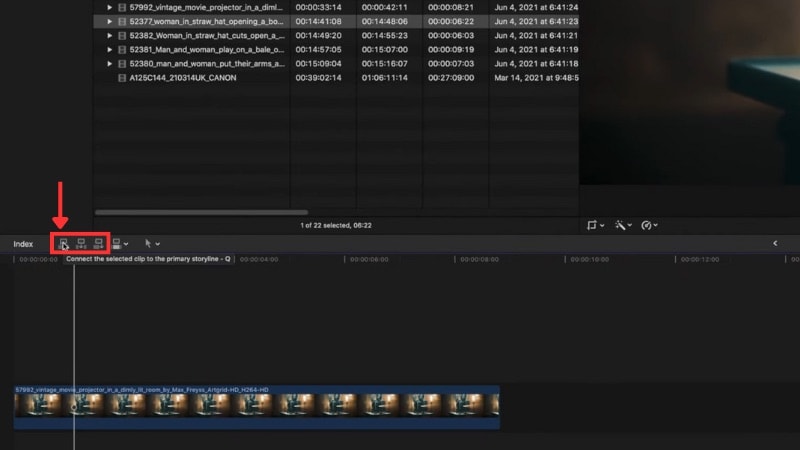
- Connect (Q) — Connects the selected clip to the Primary Storyline at the playhead or skimmer position.
- Insert (W) — Inserts the selected clip into the Primary Storyline and moves later clips forward.
- Append (E) — Adds the selected clip to the end of the storyline.
How to Move Clips
1. Select Tool (A)
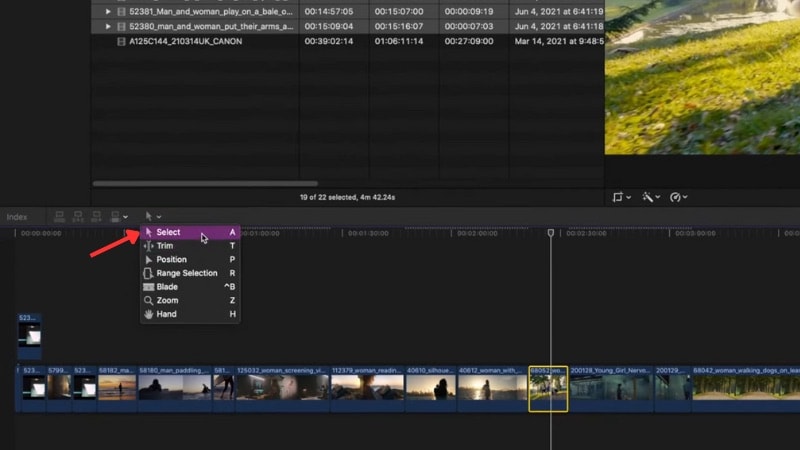
The Select tool is the standard tool for selecting and rearranging clips. Because the Magnetic Timeline responds to clip movement, neighboring clips may reposition automatically as you reorganize the storyline.
You can also lift a clip from the Primary Storyline and convert it into a connected clip when the editing structure requires it.
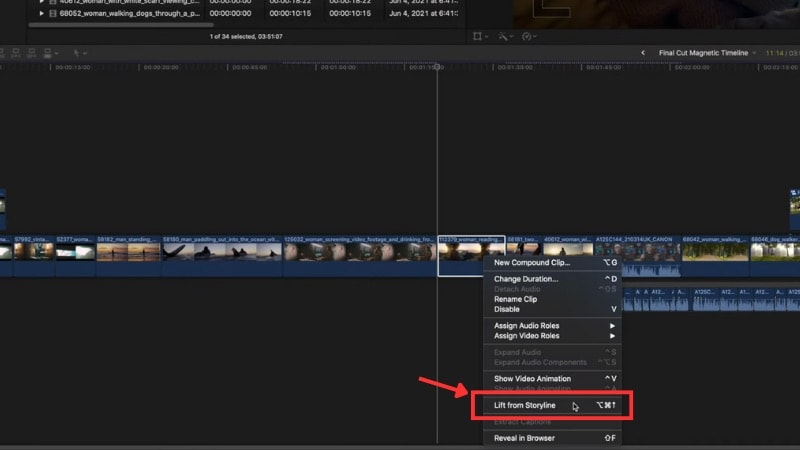
2. Position Tool (P)
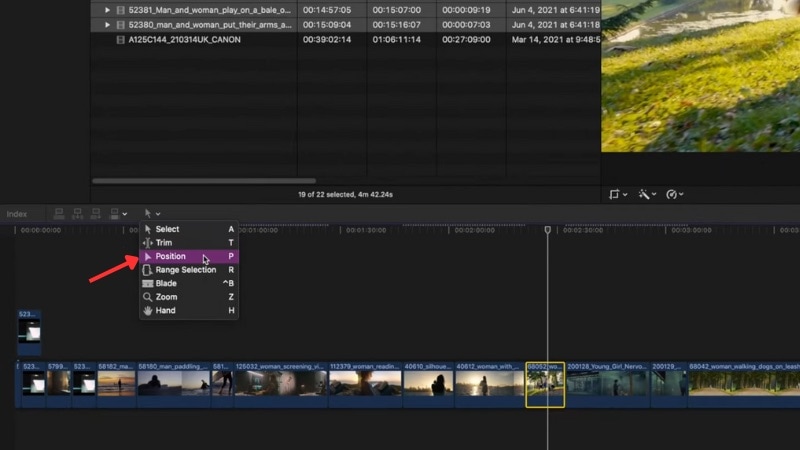
The Position Tool gives you more direct control over where clips are placed. Unlike normal magnetic rearrangement, positioning clips this way can create or work with Gap Clips when you intentionally need space in the storyline.
3. Trim Tool (T)
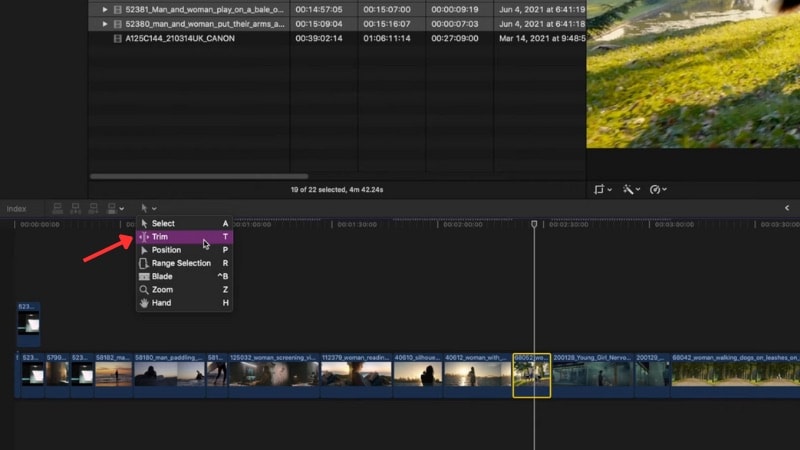
The Trim tool helps refine edit points without rebuilding the surrounding sequence. Common trim operations include:
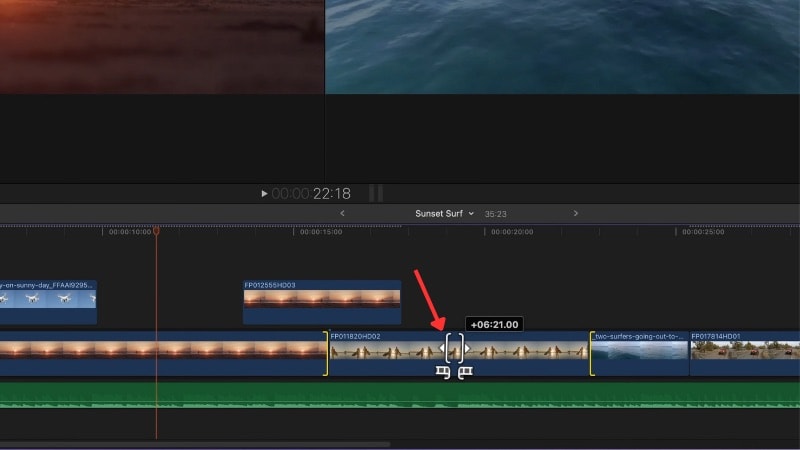
- Roll Edit — Adjusts the edit point between two adjacent clips while preserving their combined duration.
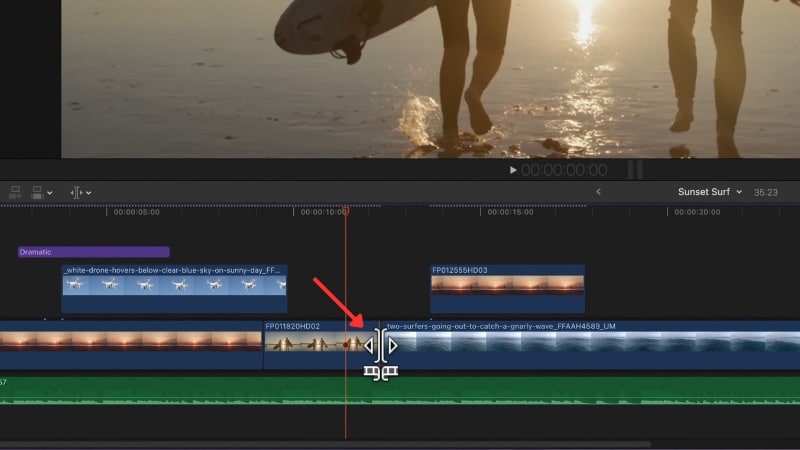
- Slip Edit — Changes which portion of the source media appears inside a clip while keeping the clip's Timeline position and duration.
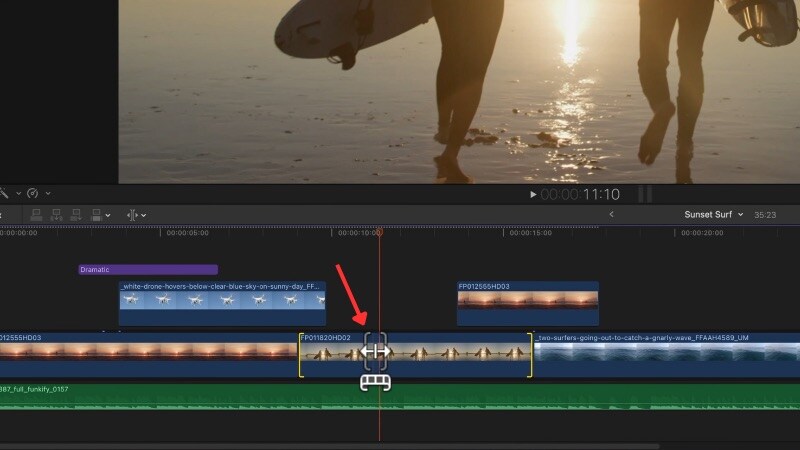
- Slide Edit — Moves a clip while adjusting the neighboring edit points to accommodate its new position.
How to Navigate, Scroll, and Customize the Timeline
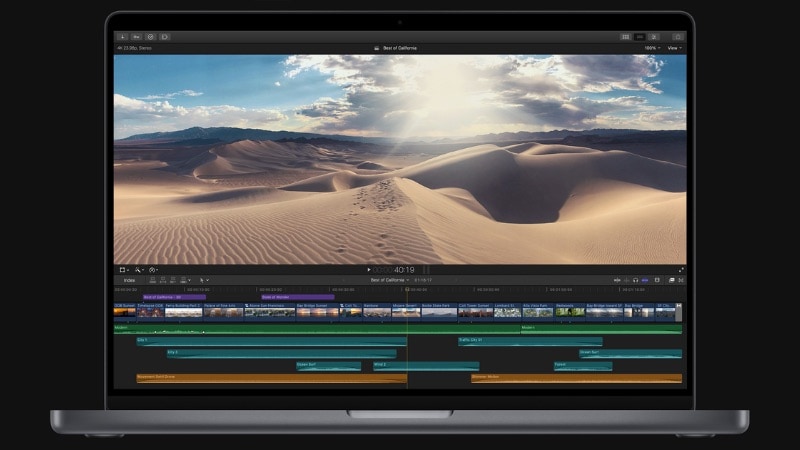
Long and complex edits require frequent movement between an overall project view and frame-level detail. Final Cut Pro provides several Timeline navigation controls for this purpose.
1. Scrolling
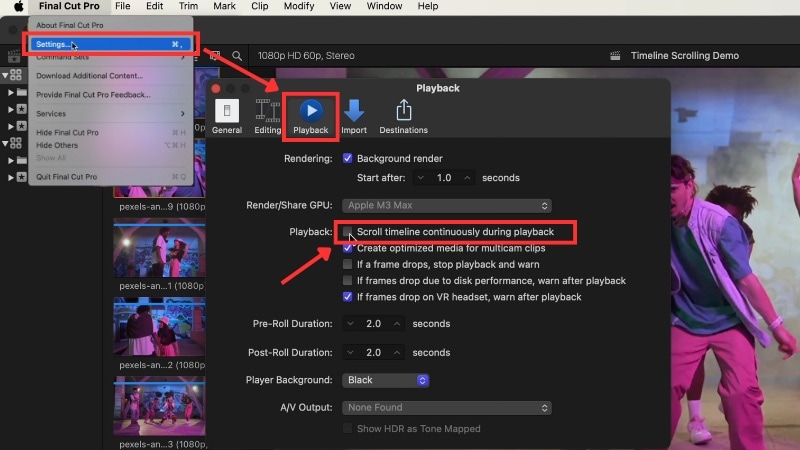
Scroll horizontally through the Timeline to move between different parts of a longer project.
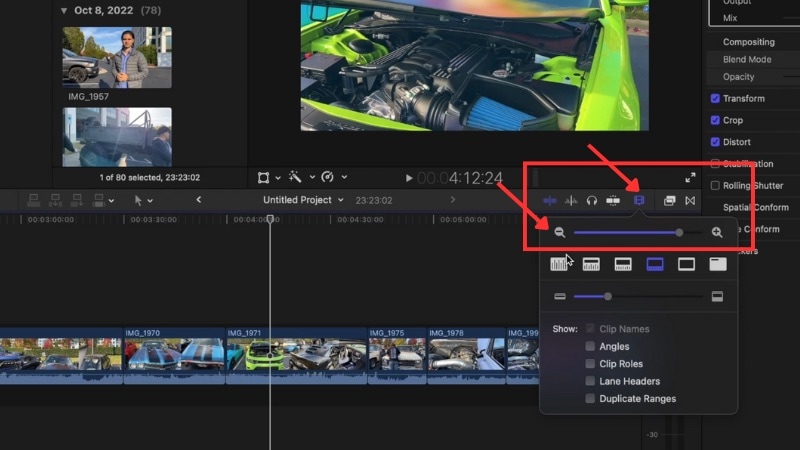
2. Zooming
Zoom in when you need to inspect edit points, audio, or individual frames more closely, and zoom out when you need a broader overview of the sequence.
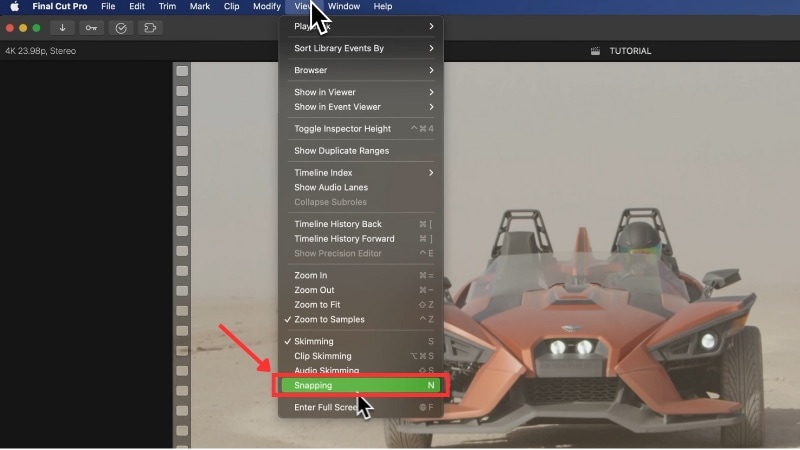
3. Snapping
Snapping helps align the playhead, skimmer, clips, markers, and other Timeline elements with nearby edit points or reference positions.
Part 3. Advanced Editing on the Final Cut Pro Timeline
Refine Sound With J-Cuts and L-Cuts
J-cuts and L-cuts let audio and video transition at different moments. For example, the audio from the next scene can begin before its picture appears, or the audio from the previous shot can continue after the video changes.
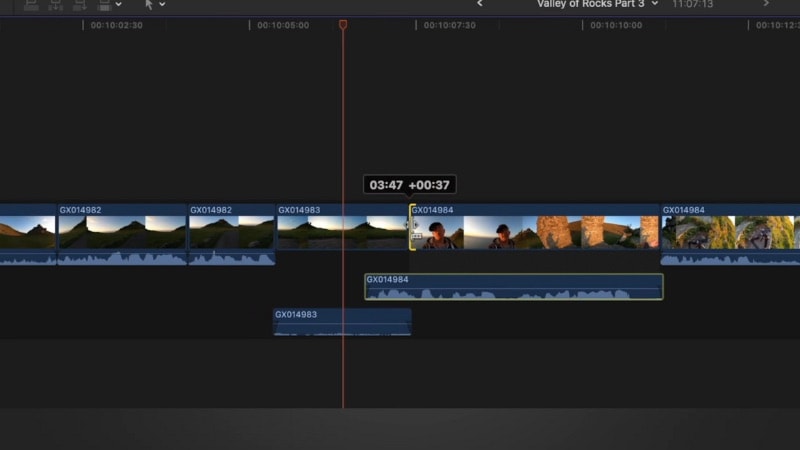
Expanding the audio components of a clip gives you more direct control over where its audio starts and ends relative to the picture.
Connected Clips and Secondary Storylines
Connected clips let you attach B-roll, titles, sound effects, graphics, and other media to a specific point in the Primary Storyline. If the associated storyline clip moves, the connected material can move with it.
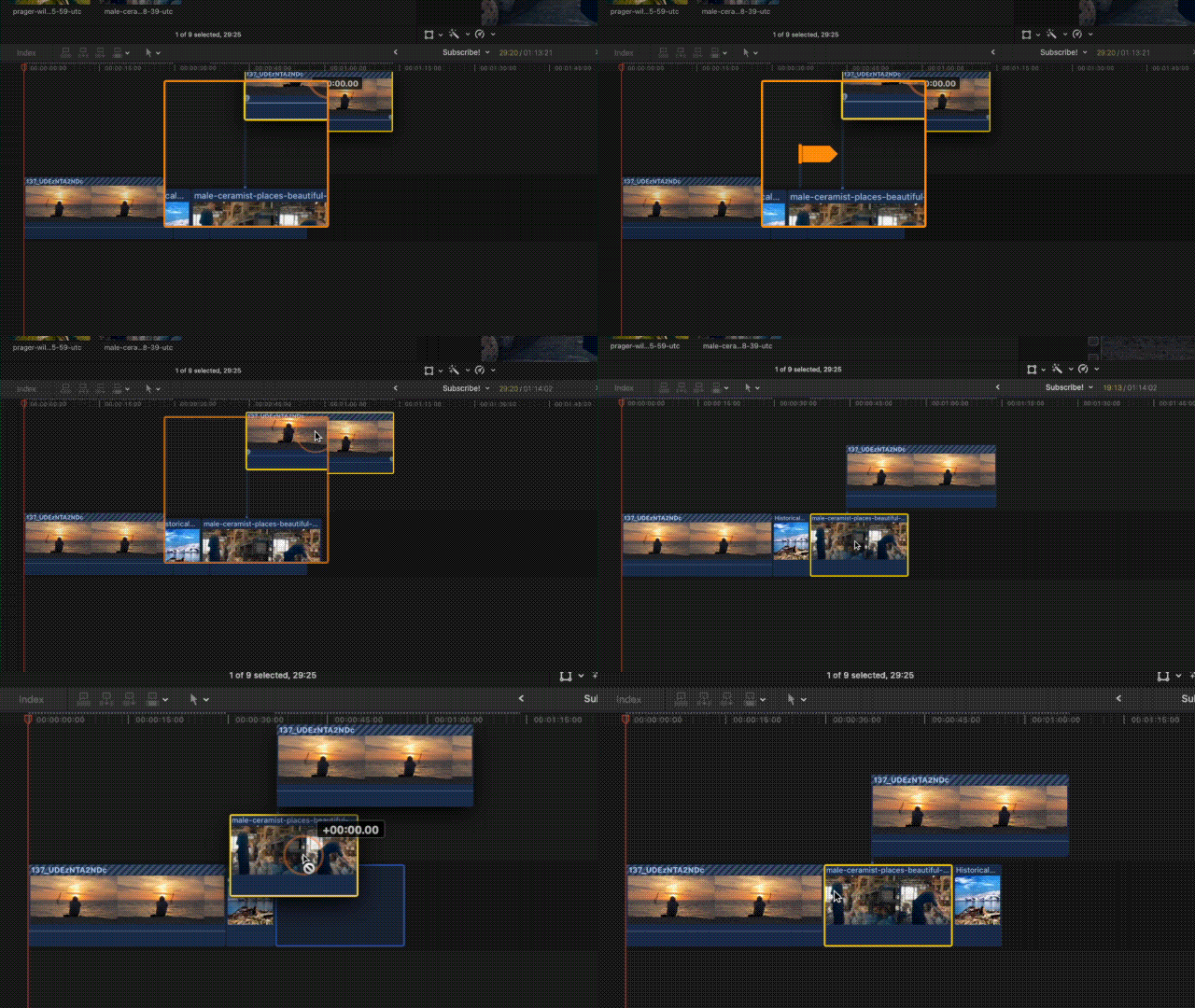
Related connected clips can also be organized into a Secondary Storyline, giving them their own storyline behavior while maintaining their relationship with the Primary Storyline.
Compound Clips
Compound Clips let you combine multiple Timeline elements into a single manageable clip. This is useful when a section contains several video, audio, graphics, or effects elements that you want to manage as one unit.
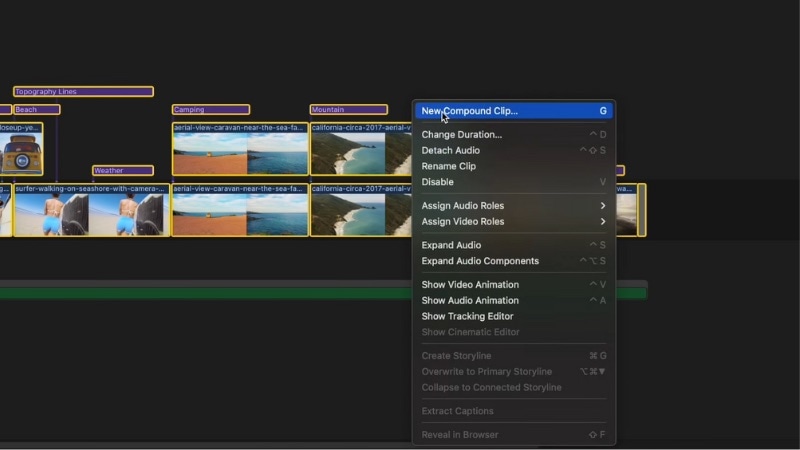
Compound Clips can simplify a crowded Timeline while keeping the underlying elements available for further editing.
Bonus: Filmora Timeline Editing for a Flexible Workflow
 secure download

Final Cut Pro isn't the only editor using timeline tools to reduce repetitive clip management. Filmora's Timeline Video Editor combines a familiar multi-track editing workspace with tools such as Magnetic Timeline, track management, markers, Compound Clips, and Dual-Timeline Editing.
The two editors use different timeline architectures, so their magnetic behavior shouldn't be treated as identical. Filmora maintains a multi-track editing environment while providing magnetic behavior to help clips stay organized during common Timeline operations.
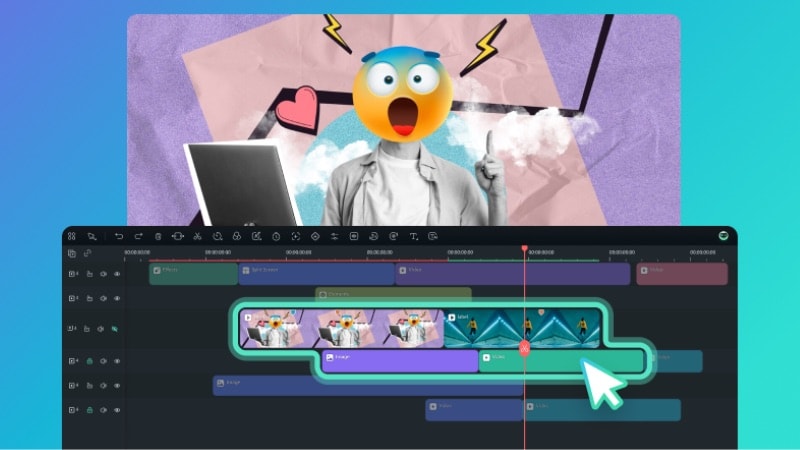
1. Use Filmora's Magnetic Timeline
Filmora's Magnetic Timeline can help keep sequential clips together while you edit. When enabled for the relevant workflow, clips can automatically close gaps as you rearrange or remove material, reducing repetitive Timeline cleanup.
This can be useful when assembling interviews, tutorials, vlogs, social videos, and other sequential edits where you frequently trim or rearrange clips.
2. Organize Video and Audio With Multi-Track Editing
Unlike Final Cut Pro's Primary Storyline model, Filmora provides a multi-track Timeline where video, audio, titles, effects, and other elements can be layered across separate tracks.
You can add additional tracks as a project grows and use Filmora's track-management controls to organize the Timeline. Timeline zoom controls also let you move between a full-project overview and more detailed edit points.
3. Use Markers to Navigate Important Moments
For longer edits, Timeline Markers provide visual reference points for important moments. Markers can help identify sections that need further editing, key dialogue, music cues, scene changes, or other points you want to revisit.
4. Create Compound Clips for Complex Sections
Like Final Cut Pro, Filmora supports Compound Clips. You can group multiple related Timeline elements into a single unit, helping reduce visual clutter in the main edit while preserving access to the individual elements inside.
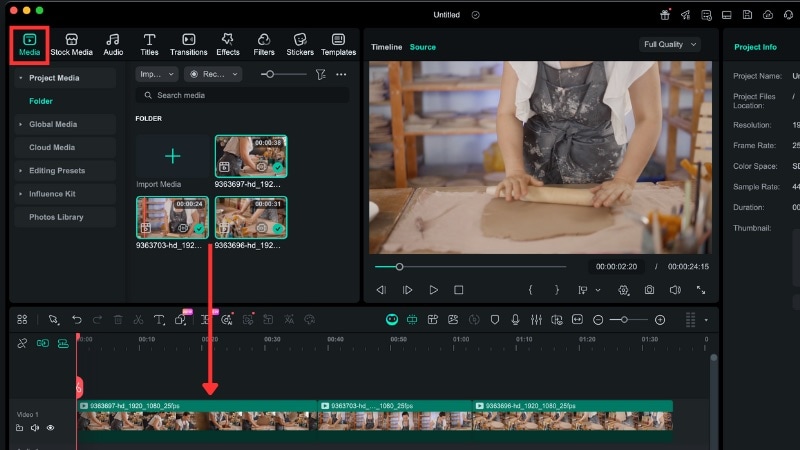
Step 1. Add Clips
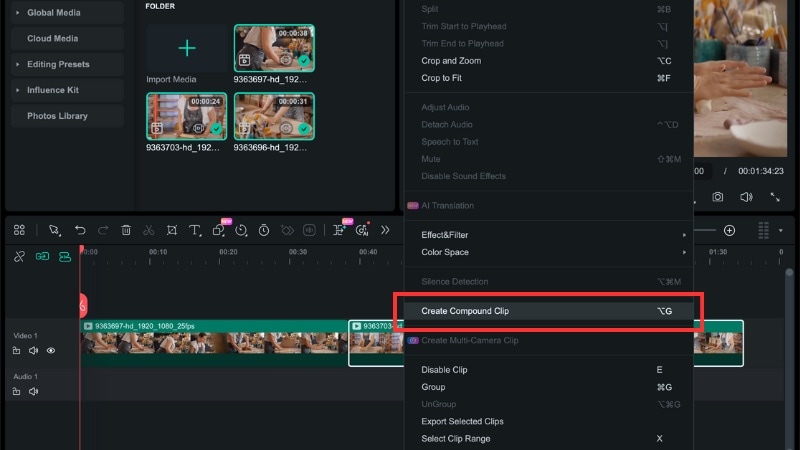
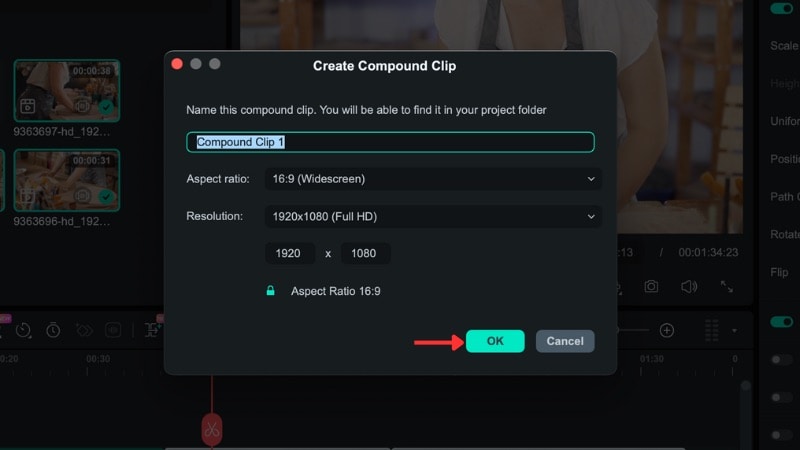
Step 2. Create a Compound Clip
Select the related Timeline elements, right-click them, and choose Create Compound Clip. Name the Compound Clip so it remains easy to identify as the project grows.
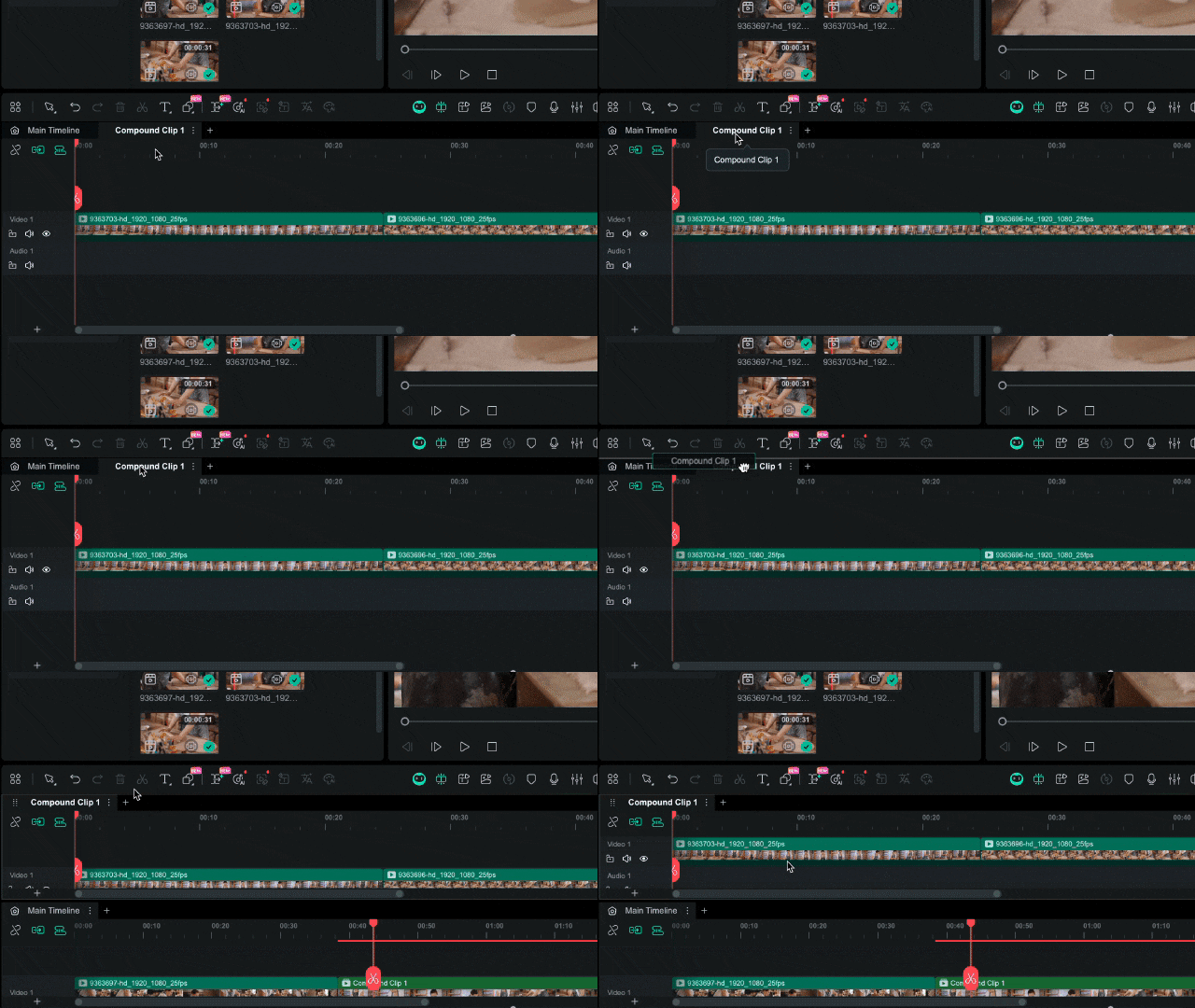
5. Open a Compound Clip in Filmora's Dual-Timeline View
Open the Compound Clip to display its contents in a separate Timeline tab. This lets you work on the individual clips inside without losing the structure of the main sequence.
When you need both views at the same time, drag the Compound Clip Timeline tab into the Timeline panel. Filmora can then display the main Timeline and secondary Timeline simultaneously.
6. Edit the Detailed Sequence While Keeping the Main Timeline Visible
With Dual Timeline active, you can refine the individual clips inside the Compound Clip while keeping the larger sequence visible. This can make complex sections easier to understand and reorganize without repeatedly opening and closing different parts of the project.
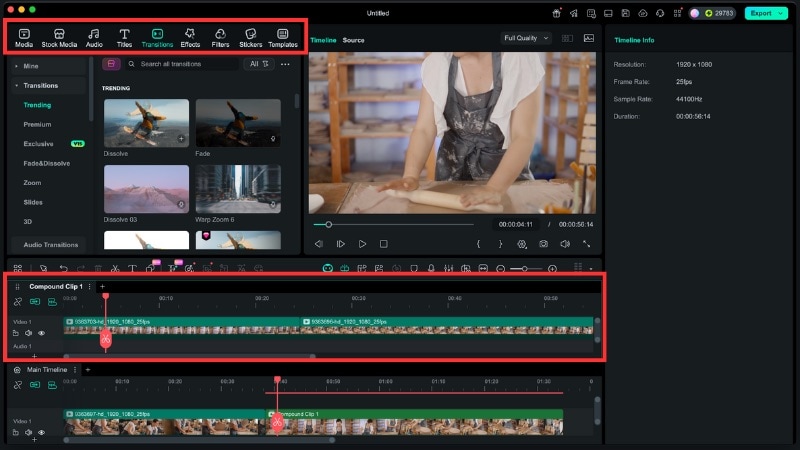
Filmora can maintain multiple Timeline tabs in a project, while the Dual-Timeline workspace displays up to two timelines at the same time.
Final Cut Pro vs Filmora Timeline: What's the Main Difference?
Final Cut Pro and Filmora both provide timeline tools for organizing complex edits, but their underlying editing structures are different. Here's a quick comparison:
Timeline Feature |
Final Cut Pro |
Filmora |
|---|---|---|
| Core Timeline Model | Primary Storyline with connected clips and secondary storylines | Multi-track timeline with separate video, audio, text, and effects tracks |
| Magnetic Editing | Built into the Primary Storyline architecture to automatically reposition related clips | Magnetic Timeline behavior helps keep sequential clips together and reduce unwanted gaps |
| Layered Media | Uses connected clips and secondary storylines around the Primary Storyline | Uses vertically stacked tracks for layered video, audio, titles, effects, and other media |
| Compound Clips | Supported for grouping multiple timeline elements | Supported for grouping complex sections and opening them in separate Timeline tabs |
| Multiple Timeline Workflow | Uses Projects, Storylines, and Compound Clips to organize complex edits | Supports multiple Timeline tabs plus a Dual-Timeline workspace |
| Two Timelines Visible at Once | Uses a different timeline organization model rather than Filmora's Dual-Timeline workspace | Can display the main Timeline and a secondary Timeline simultaneously |
| Best Workflow Fit | Editors who prefer Apple's storyline-based magnetic editing model | Editors who prefer a familiar multi-track workflow with magnetic and dual-timeline controls |
FAQs About Timeline Editing
Common Questions About Final Cut Pro and Filmora Timelines
-
What is the Magnetic Timeline in Final Cut Pro?
Final Cut Pro's Magnetic Timeline organizes the main edit around a Primary Storyline. As clips are inserted, removed, or rearranged, surrounding clips can automatically reposition, while connected clips maintain their relationships with attachment points in the storyline.
-
Can you turn off the Magnetic Timeline in Final Cut Pro?
The Magnetic Timeline is fundamental to Final Cut Pro's editing model rather than a conventional mode that you simply disable. However, tools such as the Position tool give you more direct control over clip placement, including the use of Gap Clips when intentional space is required.
-
Does Filmora have a Magnetic Timeline?
Yes. Filmora provides Magnetic Timeline behavior to help keep clips organized and reduce unwanted gaps during common Timeline editing operations. Filmora still uses a multi-track editing environment, so its Timeline architecture is different from Final Cut Pro's Primary Storyline model.
-
What is the difference between Filmora's Magnetic Timeline and Dual Timeline?
Magnetic Timeline affects how clips behave while you're arranging and editing a sequence. Dual Timeline is a workspace for viewing and working with two timelines simultaneously. They solve different Timeline editing needs.
-
What is a Compound Clip in Filmora?
A Compound Clip groups multiple Timeline elements into a single manageable unit. You can open the Compound Clip separately to access and edit the individual elements inside it.
-
How many timelines can Filmora display at once?
Filmora can maintain multiple Timeline tabs within a project, while its Dual-Timeline workspace displays up to two timelines simultaneously.
-
Is Filmora's Dual Timeline the same as Final Cut Pro's Magnetic Timeline?
No. They address different aspects of editing. Final Cut Pro's Magnetic Timeline defines how clips are structured and connected around the Primary Storyline. Filmora's Dual Timeline lets you view and work across two Timeline views simultaneously.
Conclusion
The Final Cut Pro timeline is built around a distinctive magnetic editing model. Its Primary Storyline, connected clips, secondary storylines, trimming tools, and Compound Clips provide a structured way to manage everything from simple edits to complex productions.
If you prefer a multi-track editing environment, Filmora's Timeline Video Editor provides another approach. Magnetic Timeline can simplify sequential editing, multi-track controls handle layered video and audio, markers help navigate longer projects, and Compound Clips with Dual-Timeline Editing provide additional organization as projects become more complex.
secure download 