

 TL;DR:
Sora 2 limits video generation to 15 seconds for standard users and 25 seconds for Pro users, but you can bypass these restrictions by manually stitching consecutive generations together or applying third-party AI extension tools.
● The maximum 25-second duration is exclusive to Pro plan subscribers ($200/mo) utilizing the web-based Storyboard feature, while all accounts are subject to a strict daily generation cap operating on a rolling 24-hour window.
● To manually chain scenes together, screenshot your clip's first or last frame to use as an image reference for the next generation, though this workaround is only recommended for dialogue-free videos to prevent audio inconsistencies and overlapping watermarks.
● For automated lengthening, Filmora's AI Extend feature analyzes a video's terminal frames to generate an additional 5 to 8 seconds without manual inputs, bypassing Sora 2's lack of a built-in timeline for merging clips.
Ask AI for a summary
 ChatGPT
 Perplexity
 Gemini
 Claude
 Grok
Grok
Sora 2's videos are impressive. But they are still short by design.
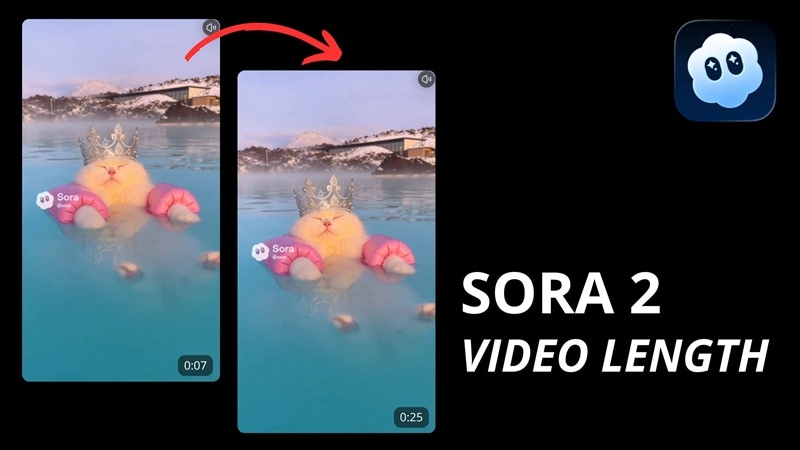
Currently, the Sora 2 video length is limited to 15 seconds for standard users, while Pro users can generate clips up to 25 seconds each. This is an improvement over the previous version, along with better scene continuity and smoother transitions between shots.
Even so, there are still important details you need to know to get the most out of it. How do you get the maximum video length? Why do some clips end early? Is it possible to make them longer? We'll break everything down in the next sections and share tips on how to make your Sora 2 videos longer.
Part 1. What You Should Know About Sora 2 Video Length
Sora 2 video duration gives you a bit more breathing room than the older version, but the limits still depend on your plan and where you generate the video. With the previous Sora, plus users were limited to 10 seconds per clip, while Pro users could go up to 20 seconds.
But now, users can generate videos up to 15 seconds with Sora 2. The 25-second option is available only to Pro users and only on the web through the Storyboard feature.
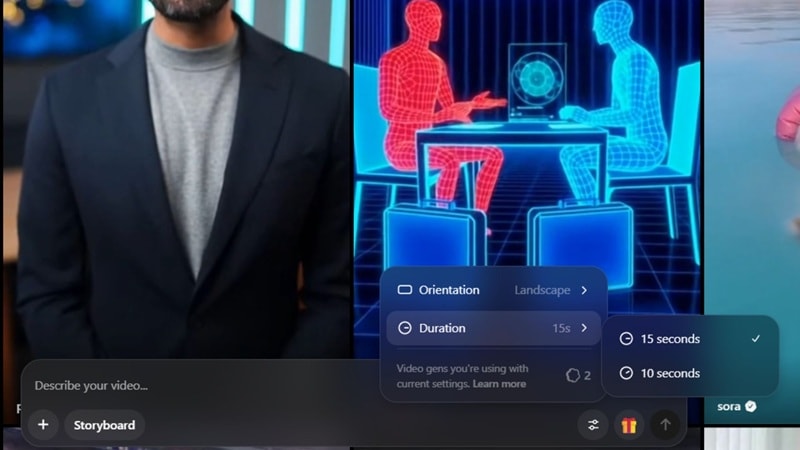
In short, this is how Sora 2 handles duration in different modes:
| Storyboard | Single-Prompt Video Generation | |
| Free (Invite only) | Max. 15 seconds | Max. 15 seconds |
| Pro ($200/mo) | Max. 25 seconds | Max. 15 seconds |
| Platform | Web | Web & App |
Note: Both Free and Plus users can generate videos up to 15 seconds. However, Free users can only access Sora 2 by invitation, while Plus users can use it if they already have access in their country.
Why Does Sora 2 Have a Video Length Limit?
As much as you may want to create longer videos, the Sora 2 video time limit is actually in place to ensure optimal performance and stability when we use it.
- Managing computing power: Sora 2 needs significant processing power to generate high-quality videos. Setting a video limit helps the system avoid being overloaded.
- Preventing misuse: Without a video limit, some users might try to push the system beyond its intended capabilities. It may lead to potential misuse.
- Optimizing system stability: The video length limit also helps to keep the platform stable. Long, resource-heavy videos could cause crashes, and limiting the length helps ensure everything runs smoothly for us.
And yet, even though Sora 2 has a video limit per generation, we will share a few workarounds you can use to make your clips longer.
Part 2. How to Make Sora 2 Videos Longer Than the 25-Second Limit
Even if you're just a standard user, you can still make longer videos with Sora 2. There are at least three ways to get beyond the Sora 2 video limit:
 Secure Download
Method 1: Stitch Multiple Sora 2 Videos
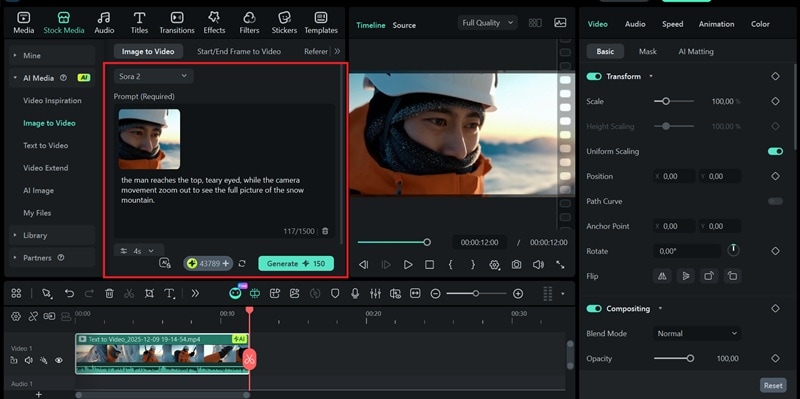
This method works by capturing the first or last frame of your clip as a reference to generate the next or previous scene. Then, you can combine all the clips into one using a video editor like Filmora, since Sora 2 doesn't offer a timeline for combining multiple clips.
How to Make Sora 2 Videos Longer by Merging Them
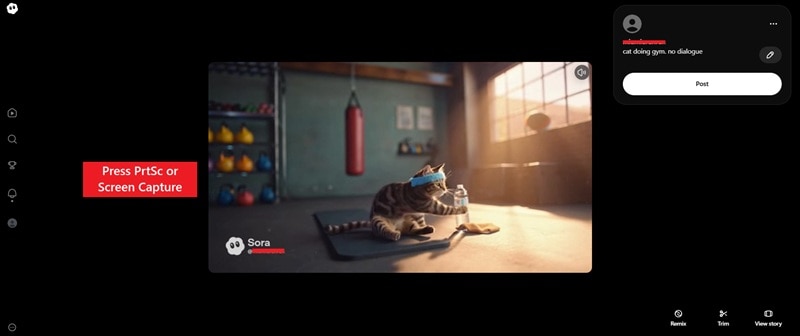
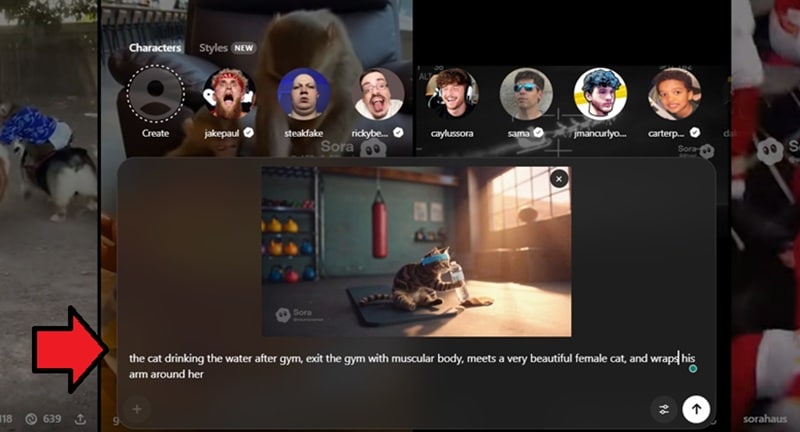
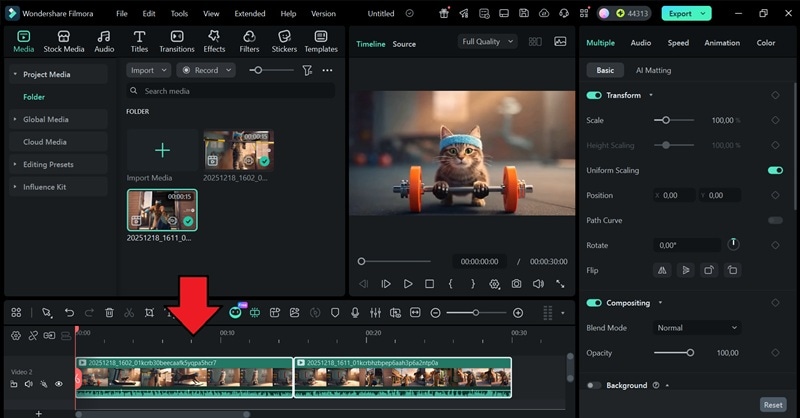
Another thing to note, though, this method works best for videos with no dialogue, as you may run into audio inconsistency issues when connecting separate clips. You may also encounter watermark issues, since each generated clip in Sora 2 can include a watermark.
Method 2: Make Sora 2 Videos Longer with AI Extend
If you only need to push a clip slightly beyond the Sora 2 max video length, Filmora's AI Extend can lengthen your clips by 5 to 8 seconds. It works by analyzing the first or last frame of your video and generating new content that continues the scene.
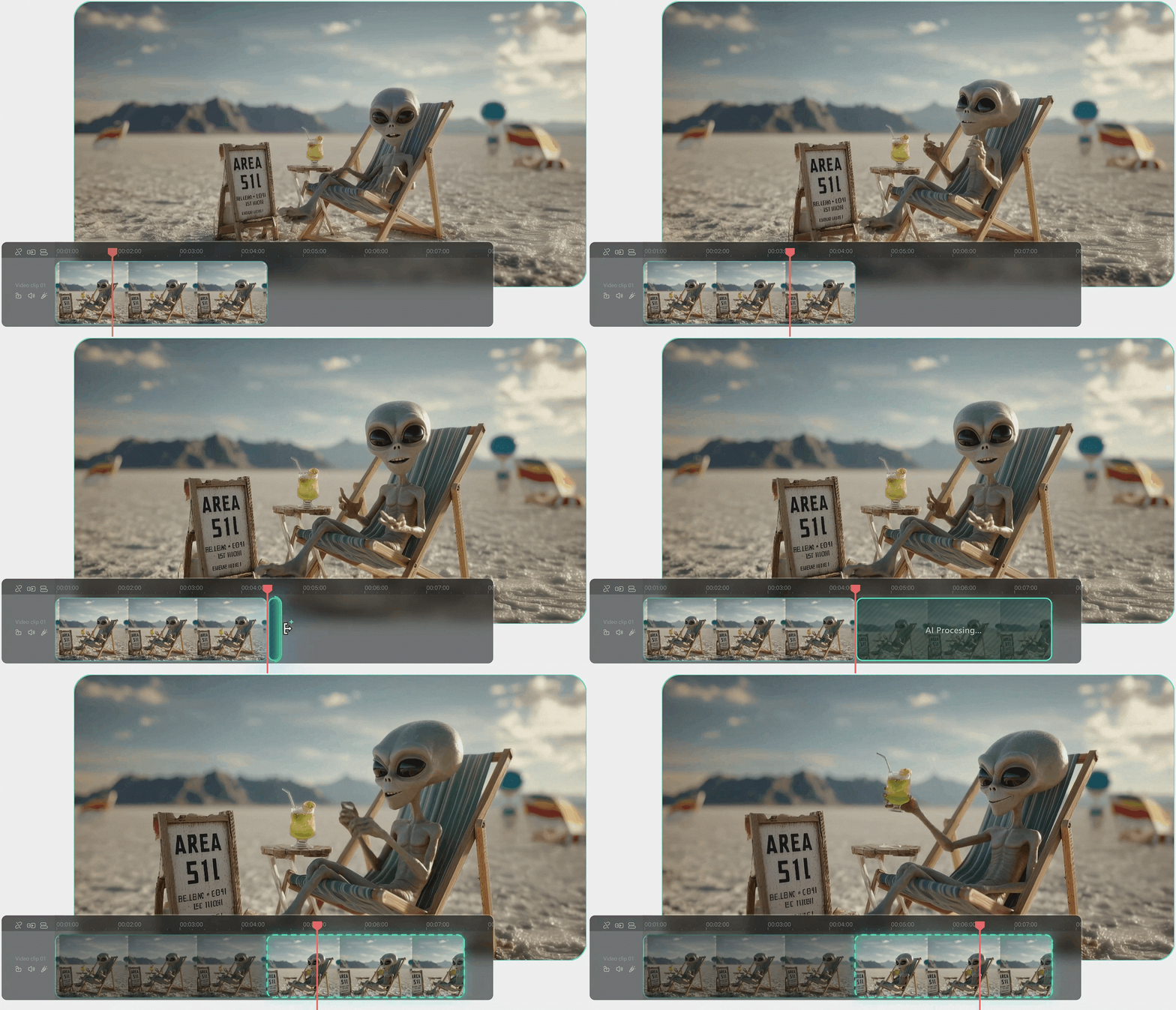
This means you don't need to manually input a reference frame like in the previous method. The process is fully automatic, which saves time and makes extending your video much easier.
Secure DownloadHow to Extend Sora 2 Videos with AI Extend
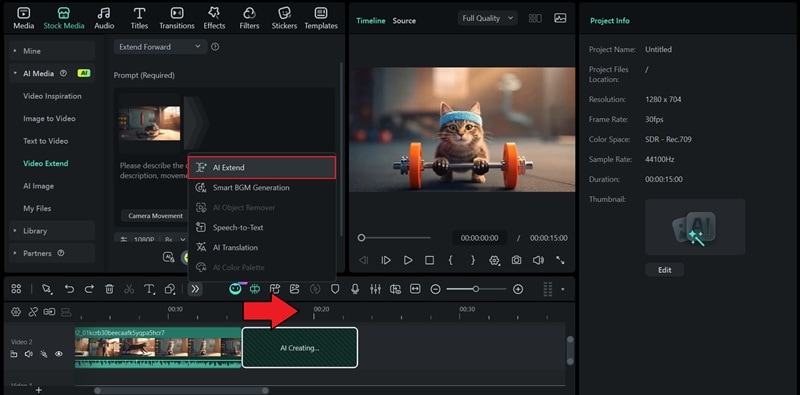
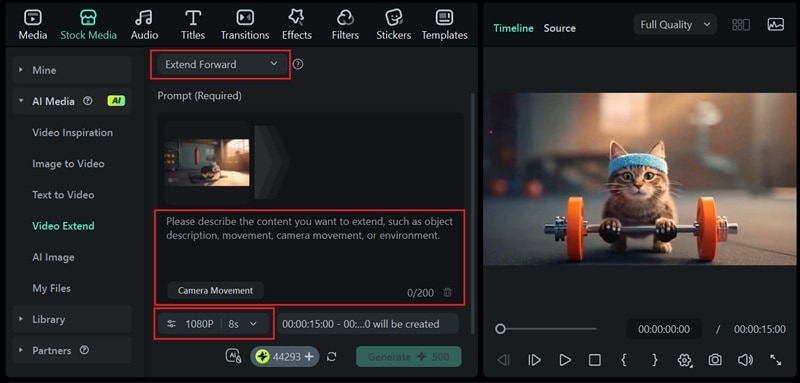
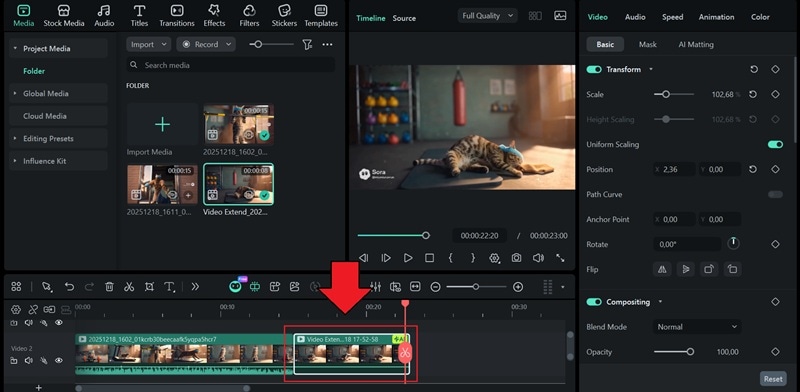
Tip: You can extend the audio using Audio Stretch to match the new length. Detach the audio first, open Audio Stretch from the toolbar, and then stretch the audio to fit the extended video.
Method 3: Generate Sora 2 Videos in Filmora and Merge Them
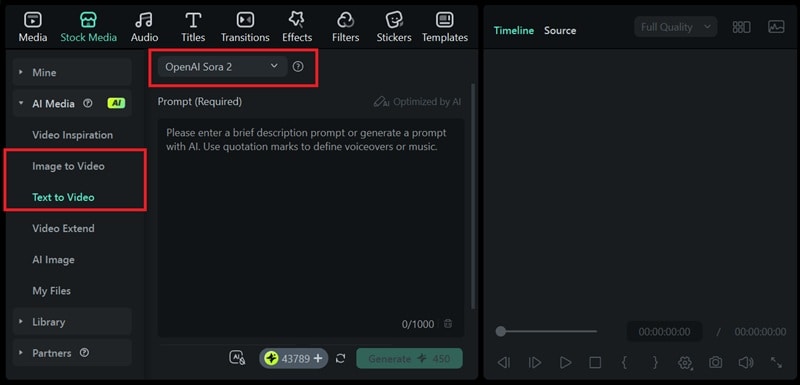
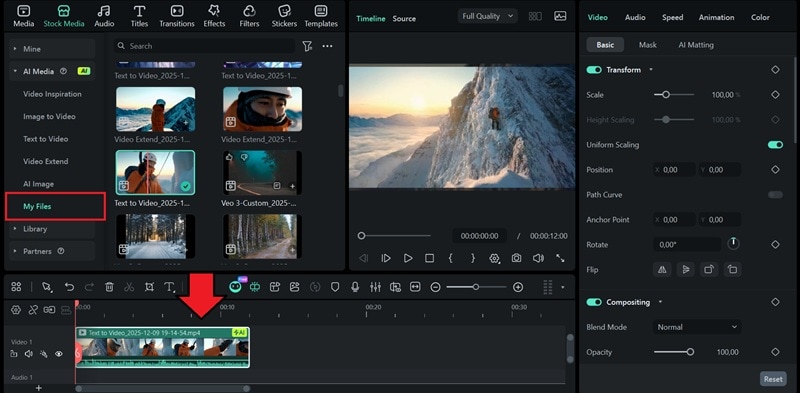
Besides combining videos with Filmora and using it to extend Sora 2 video duration, you can also use Filmora to generate videos directly in the editor. Filmora's AI tools, including Image to Video and Text to Video, run on advanced models like Sora 2, so you can create full scenes and edit them in one place.
How to Generate Multiple Sora 2 Videos in Filmora
Part 3. How to Manage Sora 2 Video Length
Although the Sora 2 video length limit is 15–25 seconds, the actual duration you get can still vary. Several factors can affect how long the final clip runs. To get the results you want, it's better to manage the video length intentionally.
You can improve control over Sora 2 video duration by following these tips:
- Specify duration in the prompt: Besides using Storyboard, which already has its own timing structure, you can also guide Sora 2 by directly stating the target length in your prompt, such as the exact number of seconds or how long each action should last.
- Check results on different devices: Based on our experience, the same prompt can behave differently on mobile and web. If timing is important, generate the clip on both platforms to see which one gives more consistent results.
- Refine clips with remix or re-cut tools: Instead of regenerating everything, start with a shorter clip and adjust it using remix or re-cut options. This method often makes it easier to stretch the video to the length you want without affecting visual quality.
Sora 2 video length limits each generation to around 15 to 25 seconds, depending on your plan. Even so, that shouldn't stop you from creating longer videos. You can use the methods above to extend your Sora 2 clips far beyond a single generation.
Whether you want to build a one-minute video with Sora 2 or just add a few extra seconds, you still have practical ways to make it work. The answer is to combine Sora 2 and Filmora workflow, which gives you more flexibility to shape short AI clips into a complete video.

FAQs
FAQ
-
Why does my Sora 2 video stop earlier than the duration I requested?
Several factors can affect how long your Sora 2 video is. One of the most common is prompt specification. If the prompt doesn't describe the timing, the video may end once the main action feels complete. Platform differences can also play a role. In some cases, system load can influence how the clip is processed. -
Can I preview timing before generating the full clip?
No. Sora 2 does not offer a timing preview before generation. The only way to check the duration is to generate the clip first, then review the result. If the timing feels off, you will need to adjust the prompt or regenerate the video using the Remix feature. -
Can I combine several Sora videos inside the app without external editors?
No. Sora 2 doesn't include a timeline for merging multiple clips. To combine several videos into one longer sequence, you will need a video editor such as Filmora. -
Does Sora 2 have a video limit per day?
Yes. Sora 2 has a daily usage limit based on a rolling 24-hour window. If you reach the limit, you will see an error message saying you have already generated the maximum number of videos in the past 24 hours.
FAQs
-
Why does my Sora 2 video stop earlier than the duration I requested?
Several factors can affect how long your Sora 2 video is. One of the most common is prompt specification. If the prompt doesn't describe the timing, the video may end once the main action feels complete. Platform differences can also play a role. In some cases, system load can influence how the clip is processed. -
Can I preview timing before generating the full clip?
No. Sora 2 does not offer a timing preview before generation. The only way to check the duration is to generate the clip first, then review the result. If the timing feels off, you will need to adjust the prompt or regenerate the video using the Remix feature. -
Can I combine several Sora videos inside the app without external editors?
No. Sora 2 doesn't include a timeline for merging multiple clips. To combine several videos into one longer sequence, you will need a video editor such as Filmora. -
Does Sora 2 have a video limit per day?
Yes. Sora 2 has a daily usage limit based on a rolling 24-hour window. If you reach the limit, you will see an error message saying you have already generated the maximum number of videos in the past 24 hours.
