Filmora
Filmora - AI Video Editor
Edit Faster, Smarter and Easier!
OPEN
banner

Why HappyHorse Stands Out

No gimmicks — the five things creators actually care about.

1080p Cinema-Grade

Cinema-Grade Quality

HappyHorse AI outputs up to 1080p native video at 3–15 second clip lengths — production-ready visual quality for ads, short drama, music visuals, and explainers, with joint audio–video synthesis and natural lip-sync built in.

Video & Audio, Generated Together

Video and audio are produced in a single pass, so lip-sync, sound effects, music, and motion stay naturally aligned — no separate audio pipeline needed.

Native Lip-Sync in 7 Languages

Native lip-sync across Mandarin, Cantonese, English, Japanese, Korean, German, and French — spin up multilingual content for global audiences in one pass.

Fast Turnaround

The team claims roughly 38 seconds for 1080p output on a single H100 — act on inspiration while it is fresh, and batch-produce with ease.

Text or Image Input

Go straight from a text to video, or upload a photo, product shot, or painting and animate it — a still moment becomes a moving story.

Model Choice

Always Up to Date. New Models Rolling In

Filmora V16 currently ships five leading AI video models — each tuned for a different creative goal. Switch and compare anytime to find your engine.

Filmora V16 AI video model comparison
Model Notable Strengths Best For
HappyHorse 1.1 Starring Here New Native lip-sync in 7 languages · A/V sync · text + image input Multilingual VO · global content
Standard 3.0 New Balanced performance · generalist tier Everyday creation · fast output
Seedance 2.0 Profressional New Multi-shot flow · ad structure Product promos · ad creatives
ToMoviee 2.5 Pro Profressional Cinematic narrative · multimodal input (text / image / audio / video ref) Short drama · story clips

What It Is Best For

Whether you run global content, sell online, or make short dramas and music videos — there is a
workflow for you.

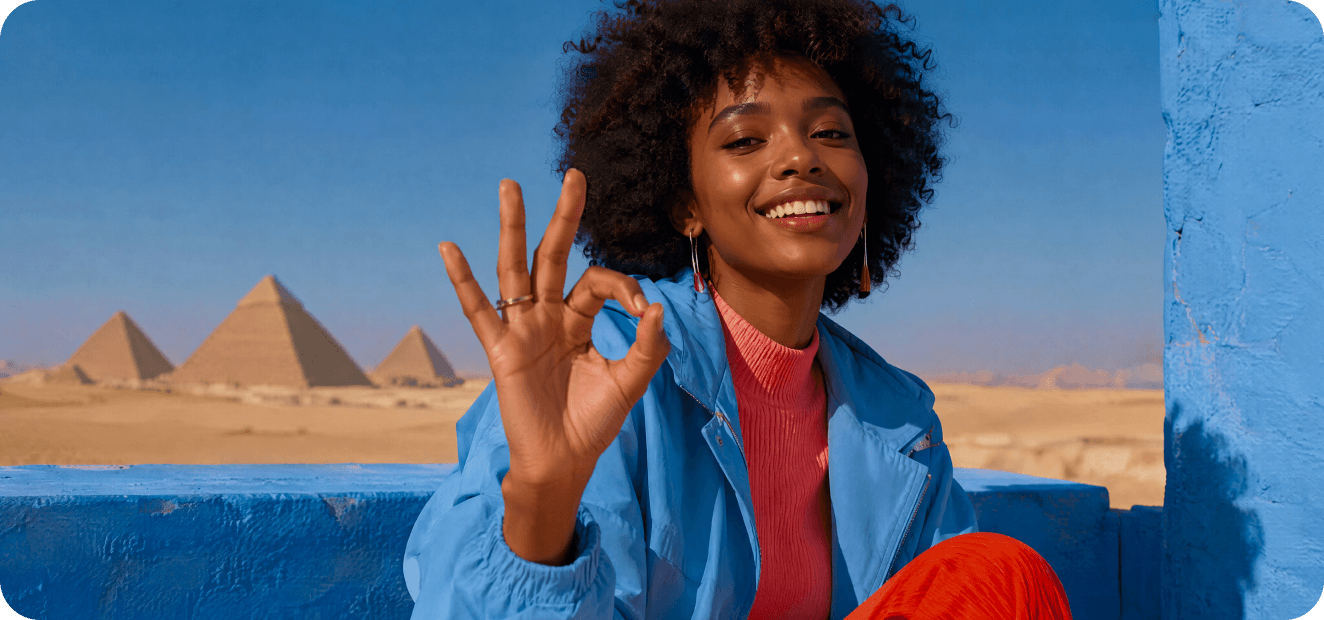
Creator filming in Egypt
Scenario 01

Going Global · Multilingual VO

Turn script into English, Japanese, and more in one click — lip-sync and captions align, doubling your global content output.

  • Cross-border teams
  • Educators
  • Multilingual channels
Creator filming in Egypt
Scenario 02

E-commerce · Ad Creatives

Give a product one sentence and get a voiced promo video; batch out variants for A/B testing across ad platforms.

  • E-commerce ops
  • Ad buyers
  • Brands
Creator filming in Egypt
Scenario 03

Animate the Still: Image to Video

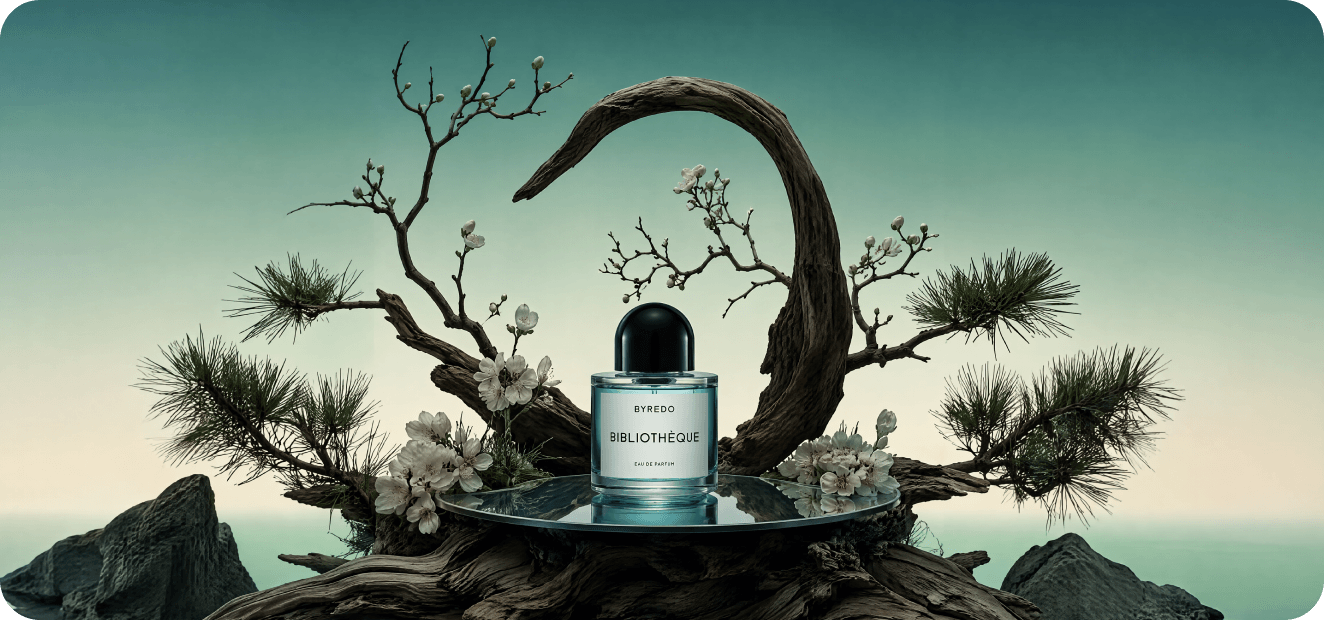
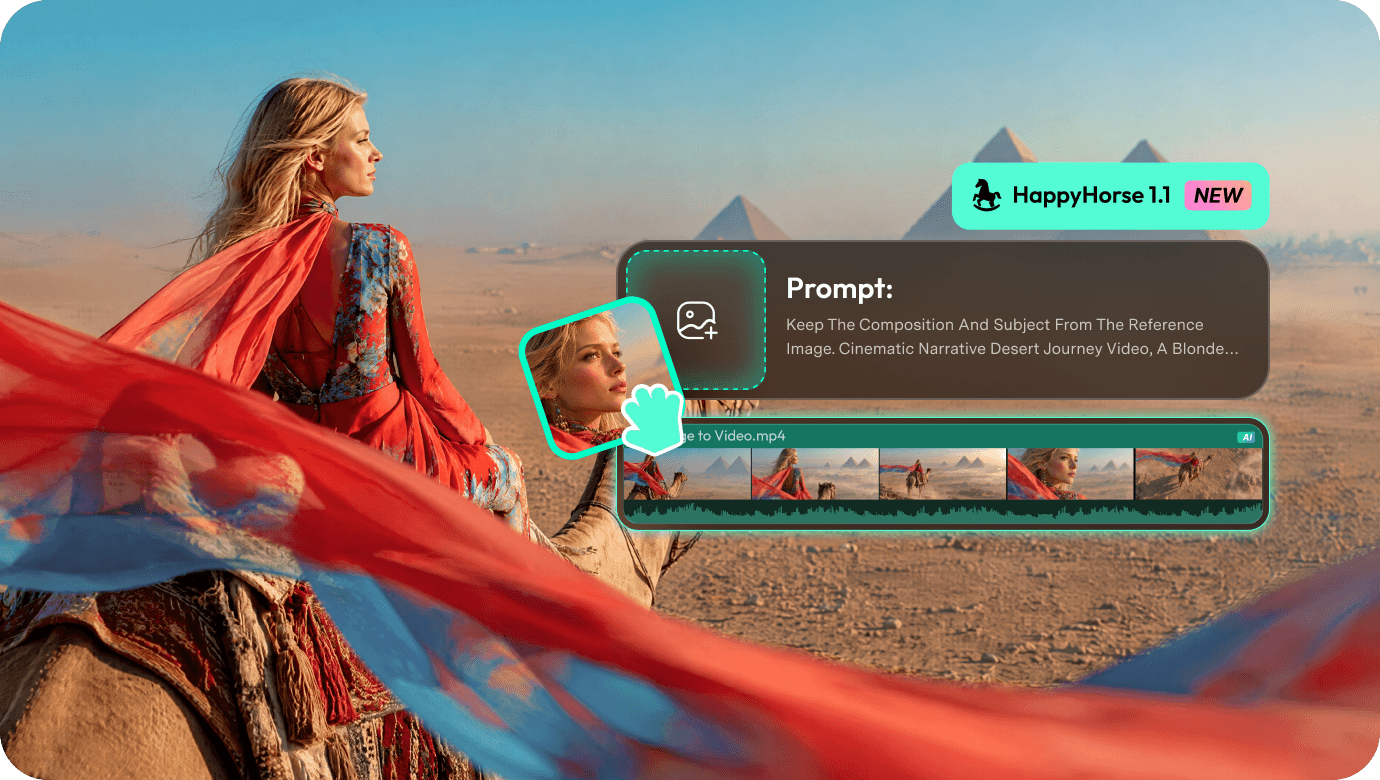
Upload a product shot, artwork, or photo, describe the motion you want, and generate a living video in one click. Static assets become moving ads, stories, or showcases — Image to Video is powered by HappyHorse too.

  • E-commerce ops
  • Creators
  • Brands
Creator filming in Egypt
Scenario 04

Short Drama · Story Clips

Describe a story and get a coherent multi-shot short; fine-tune pacing and transitions on the timeline — drama at a fraction of the production cost.

  • Short-drama creators
  • Story channels
Creator filming in Egypt
Scenario 05

Music Visuals · Beat-Sync Edits

A/V sync keeps visuals locked to the beat — no manual alignment, fast music visualizations.

  • Music accounts
  • Dance accounts
  • Entertainment

How to use HappyHorse Model to Create Video in Filmora

Follow these simple steps to use the HappyHorse AI Video Generator in Filmora to bring your ideas to a 1080p video in seconds,
complete with synced audio, natural lip-sync, and cinematic motion.

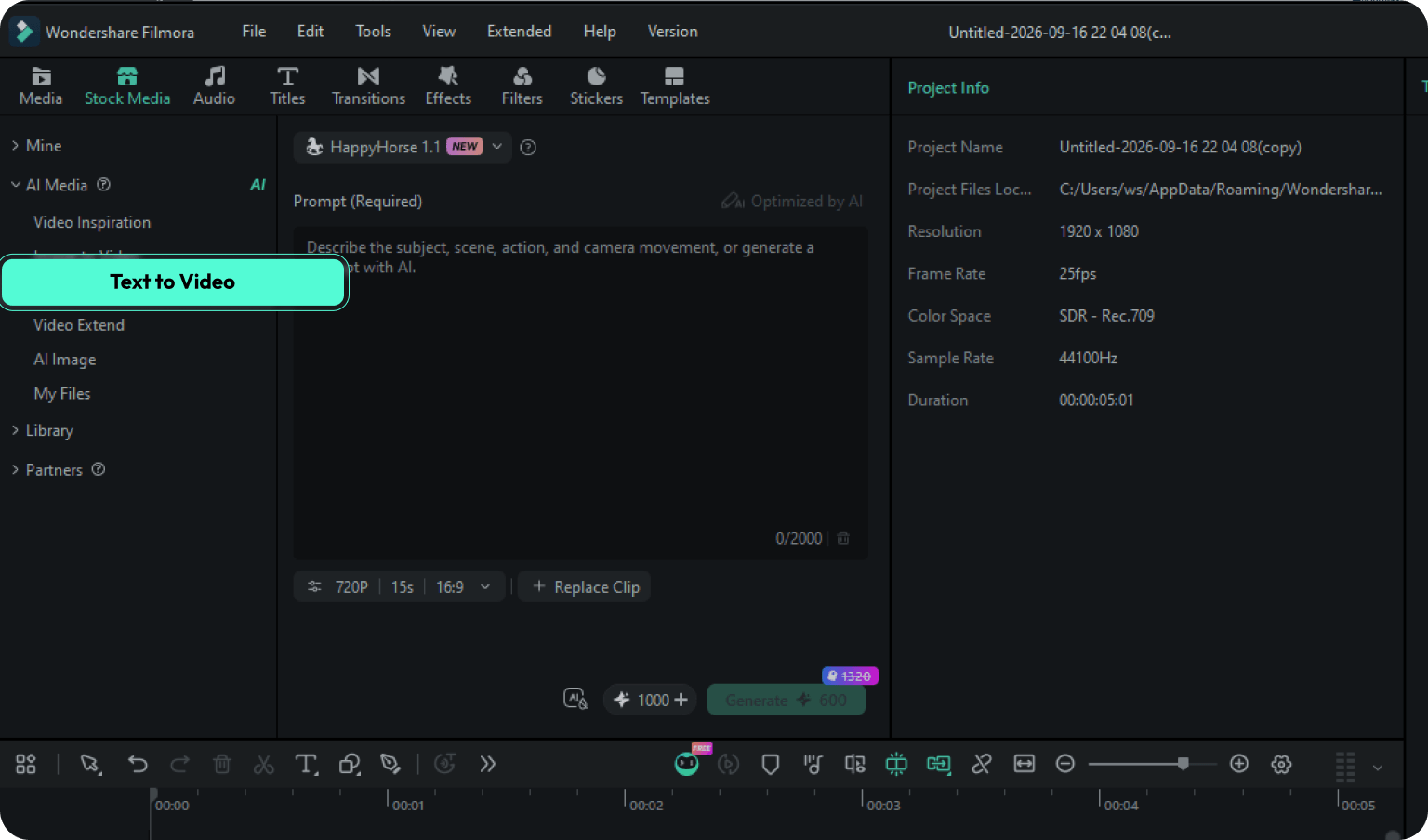
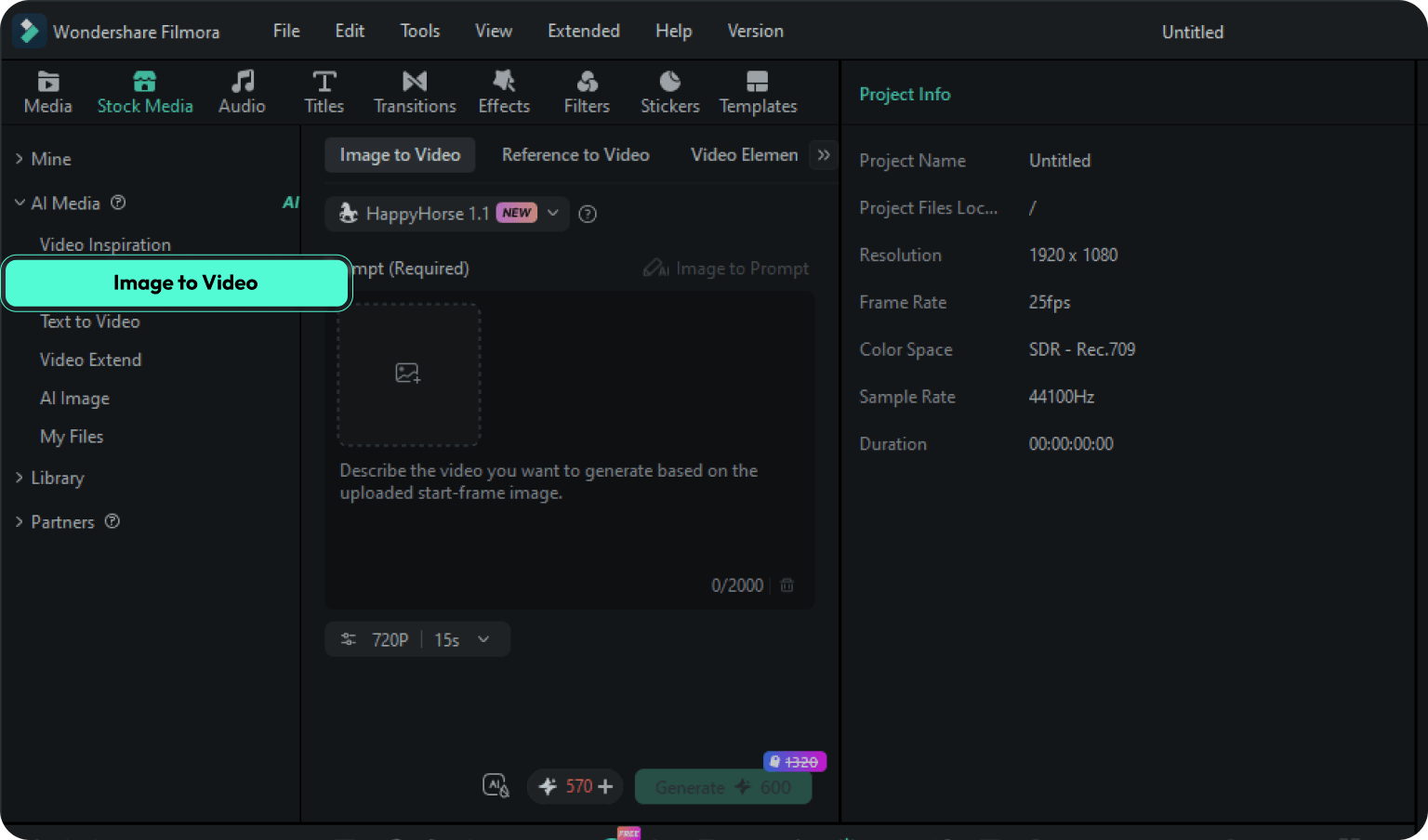
Step 1. Choose Text to Video as Your Starting Point

Launch Filmora on your computer, then head to the homepage and select the Text to Video feature.

Text-to-video step 1
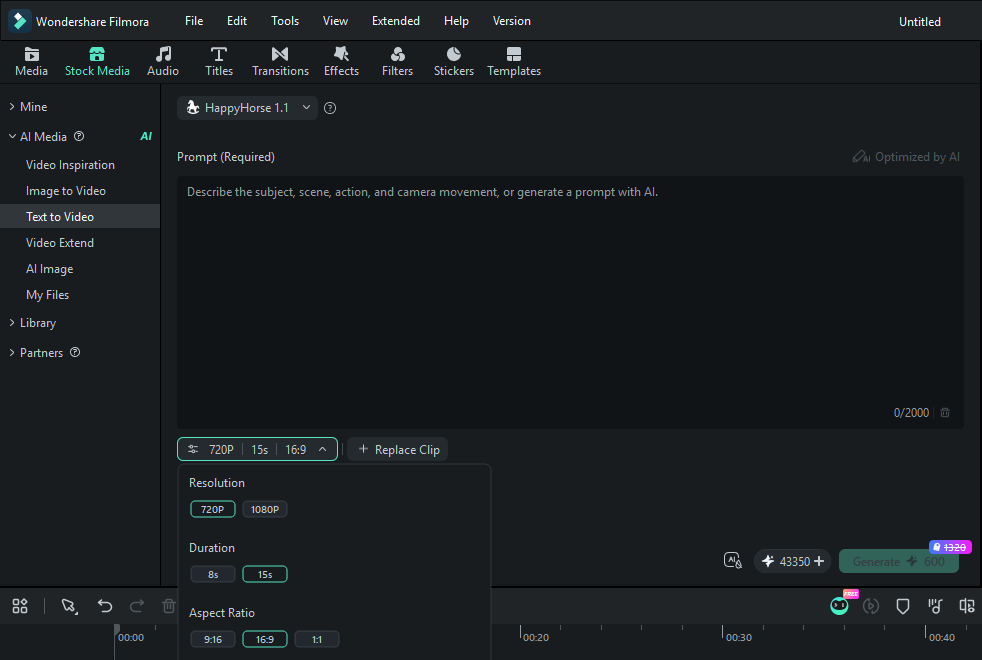
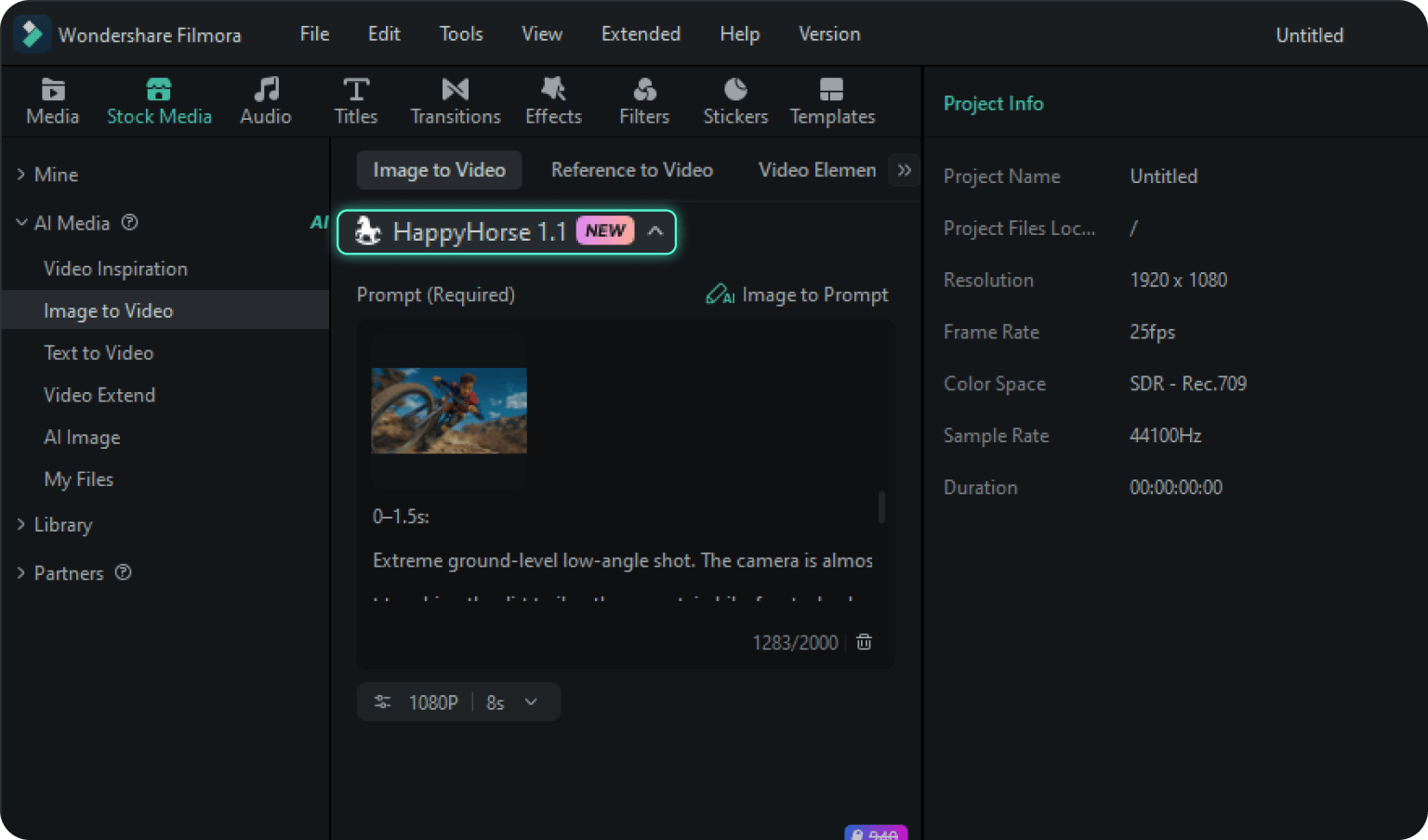
Step 2. Pick the HappyHorse Model and Enter Your Prompt

In the model selection drop-down menu, choose the HappyHorse model. Then type your prompt into the text field. Add a negative prompt if needed, adjust settings like Resolution, Duration, and Aspect Ratio, and click Generate.

Text-to-video step 2
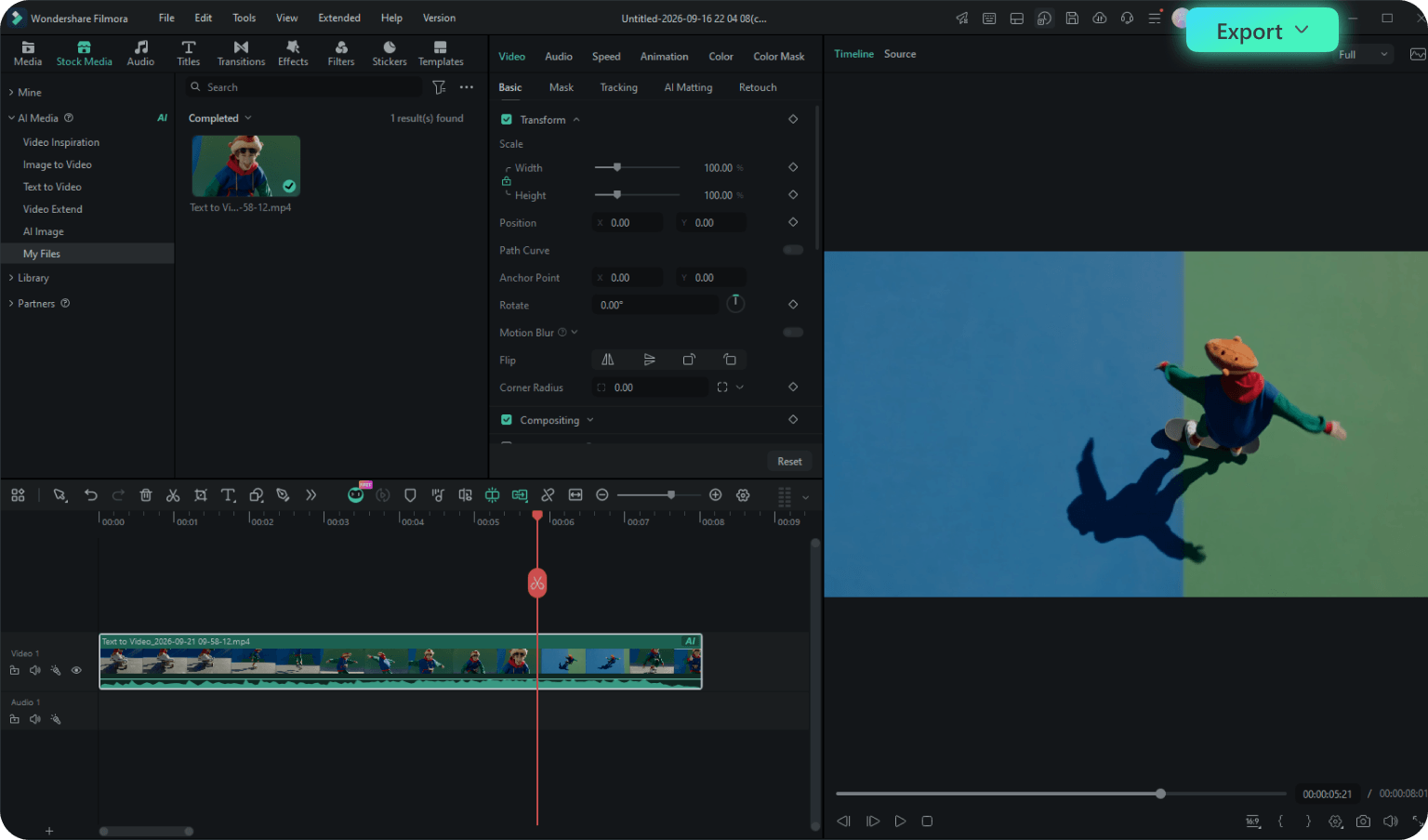
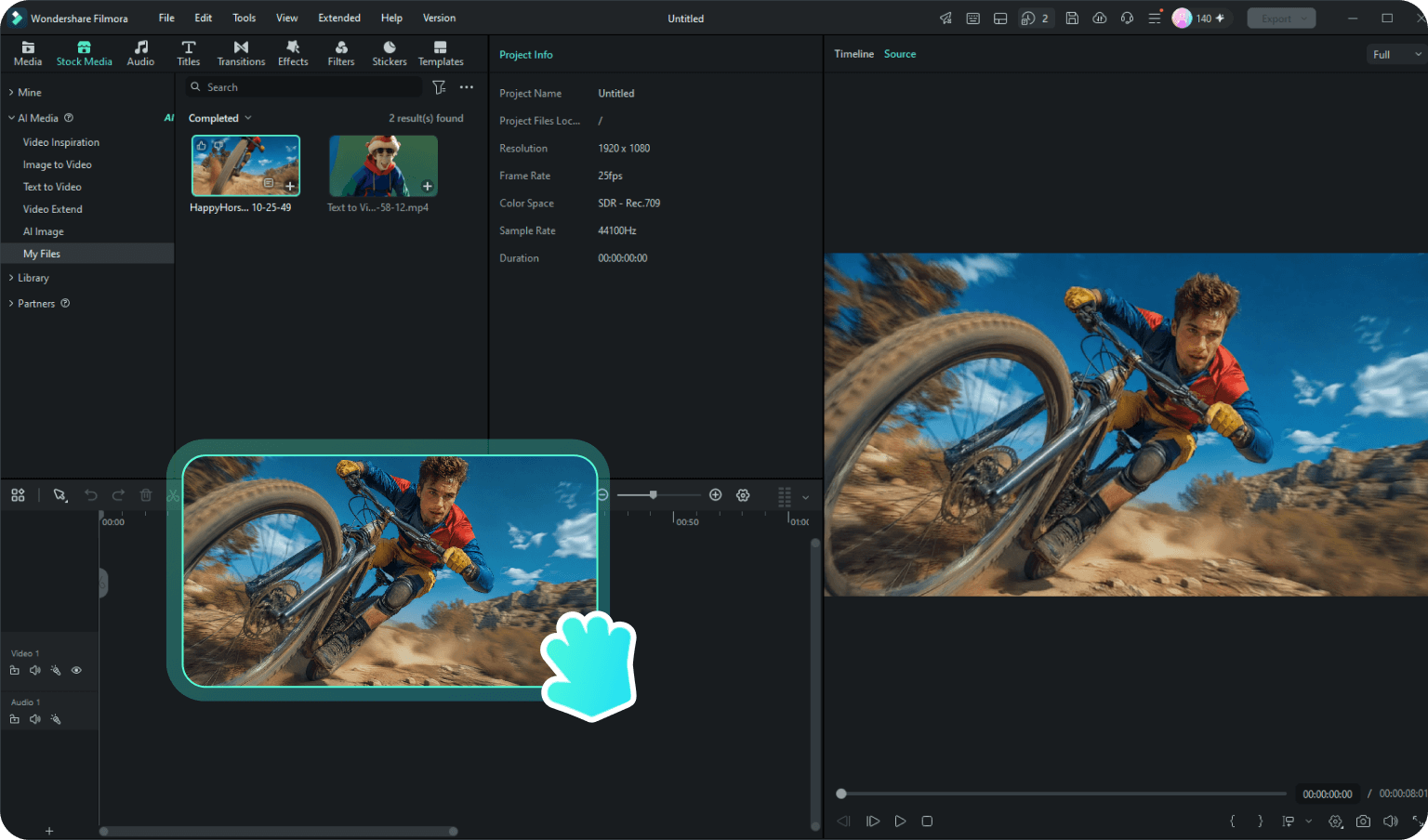
Step 3. Preview and Export the Video

Once the video is generated, drag it onto the timeline and hit Play to preview it. If you're satisfied, click Export to save it to your computer.

Text-to-video step 3
  • Step 1. Choose Text to Video as Your Starting Point

    Launch Filmora on your computer, then head to the homepage and select the Text to Video feature.

  • Step 2. Pick the HappyHorse Model and Enter Your Prompt

    In the model selection drop-down menu, choose the HappyHorse model. Then type your prompt into the text field. Add a negative prompt if needed, adjust settings like Resolution, Duration, and Aspect Ratio, and click Generate.

  • Step 3. Preview and Export the Video

    Once the video is generated, drag it onto the timeline and hit Play to preview it. If you're satisfied, click Export to save it to your computer.

See What Creators Made with HappyHorse AI

These videos come from HappyHorse community creators — make your own in Filmora V16, and yours
could be next.

See What Creators Made with HappyHorse AI

These videos come from HappyHorse community creators — make your own in Filmora V16, and yours could be next.

HappyHorse creator video
Text To Video

VO Video

00:15
@Ling.AI #HappyHorse
2.8K
HappyHorse creator video
Image to video

product AD

00:15
@NovaADs #HappyHorse
1.9K
HappyHorse creator video
Text To Video

short drama

00:15
@StoryKai #HappyHorse
4.2K
HappyHorse creator video
Text To Video

Music Video

00:30
@BeatMelo #HappyHorse
3.1K
HappyHorse creator video
Image to video

Image Animation

00:10
@PixelMomo #HappyHorse
2.2K
HappyHorse creator video
Text to video

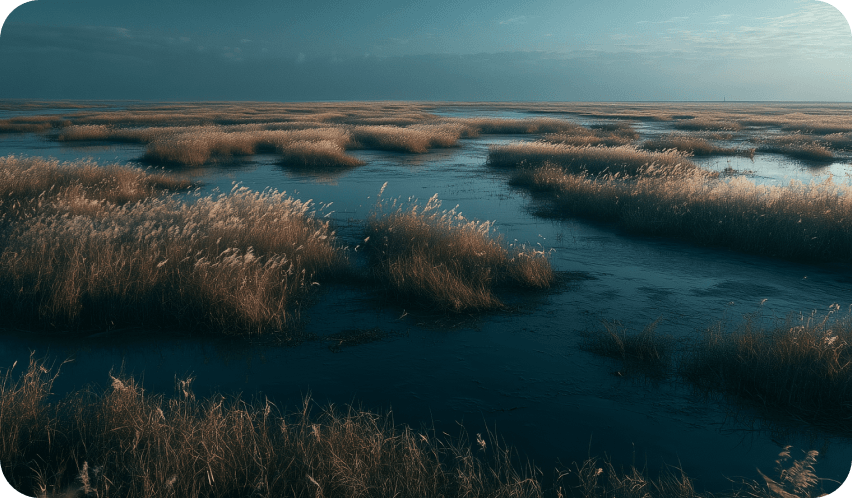
Cinematic Landscape

00:10
@VisionRE #HappyHorse
1.5K

FAQs on HappyHorse AI in Filmora

HappyHorse AI is Alibaba’s flagship video generation model, now built into the Text to Video and Image to Video features of Filmora V16. It outputs up to 1080p native video and synchronized audio in a single pass — with native lip-sync across 7 languages.

Inside Filmora, the HappyHorse AI video generator turns one sentence or one image into a cinematic clip in minutes — script, visuals, and audio are produced together, then edited right on the timeline. Create multilingual voiceovers, product ads, short drama, music visuals, image animation, and more.

No separate subscription. Each generation consumes AI credits (based on duration / resolution); your Filmora plan includes a monthly credit allowance — see the pricing page for details.

Native lip-sync across 7 languages, so HappyHorse AI can produce multilingual voiceover for global content in one pass.

Yes. Filmora V16’s Image to Video is powered by the HappyHorse AI video generator too — upload an image, describe the motion, and watch it come alive.

Yes. Every HappyHorse AI video lands directly on your timeline — add captions , music, transitions, and color grade, then export in any aspect ratio.

HappyHorse AI-generated visuals are safe to publish across platforms. Per Filmora policy, AI-generated content is clearly identified (may include a visible or invisible watermark).

Type One Sentence, Let
HappyHorse Do the Filming

Download Filmora V16 free and create your first video with the top-ranked AI video model.

bottom-right-pic