

 100% Security Verified | No Subscription Required | No Malware

If you’re a beginner trying to make a podcast or interview, you’ve probably wondered how to handle recording with two mics without ending up with messy or mixed-up audio. The thing is, actual professionals don't have to deal with that headache because they rely on simple multi-microphone recording tricks to keep every voice crisp and clear.
If you're ready to take your content seriously, it is about time you learn how to record multiple microphones and capture separate audio tracks. We're here to guide you through picking the right tools to make the whole process super easy.
In this article
Part 1. Why Separate Mics Matter for Podcasts and Interviews
Starting out in the content creation world usually means hitting a few unexpected speedbumps, and audio quality is almost always the first big one. When two people try to share a single microphone, one person naturally leans closer while the other sits farther away. Now one voice is loud, the other is quiet, and every time someone moves, the balance changes.
But if you record with 2 USB mics at the same time, each person gets their own audio source. You can raise one person's volume without touching the other, remove an unwanted section from one track, or clean up background noise more carefully.
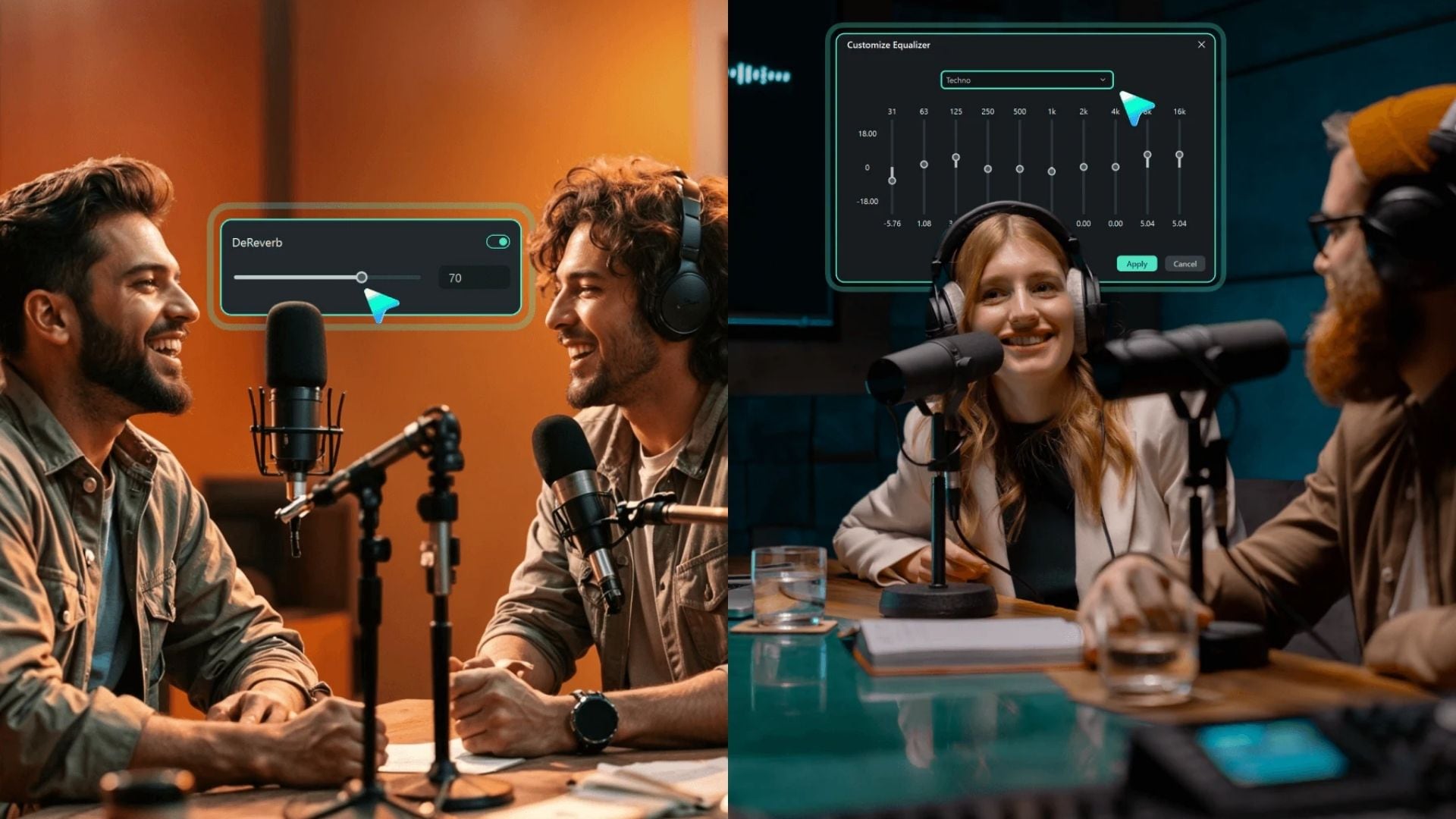
This matters even more for two-person shows and guest interviews where conversations are unpredictable. This is why actual professionals record podcasts with multiple microphones. Having separate tracks gives you a much better chance of fixing those little problems after the recording is finished.
See the table below to understand how important it is to use separate mics for this content:
|
Feature / Benefit |
Single Microphone Setup |
Multiple Microphone Setup |
|
Audio Isolation |
All voices and room noises bleed together into one audio track |
Every voice gets its own dedicated line, keeping background noise isolated |
|
Volume Control |
Raising the volume affects everyone's voice in the recording |
Each microphone can be adjusted independently |
|
Editing Flexibility |
Cutting one person's mistake may also affect the other speaker |
You can edit individual tracks without changing the other person's recording |
|
Post-Production Speed |
More time may be needed to fix uneven voices |
Quick, cleanup adjustments more straightforward |
Part 2. Record Multiple Microphones Made Easy with Filmora
Traditionally, multi-microphone recording could involve a separate recording application, audio routing, file transfers, and then an editing program for the next stage. That can work, but it also gives beginners plenty of places to get confused.
But thankfully, Wondershare Filmora is moving toward a more straightforward approach with its Screen Recorder upgrade.
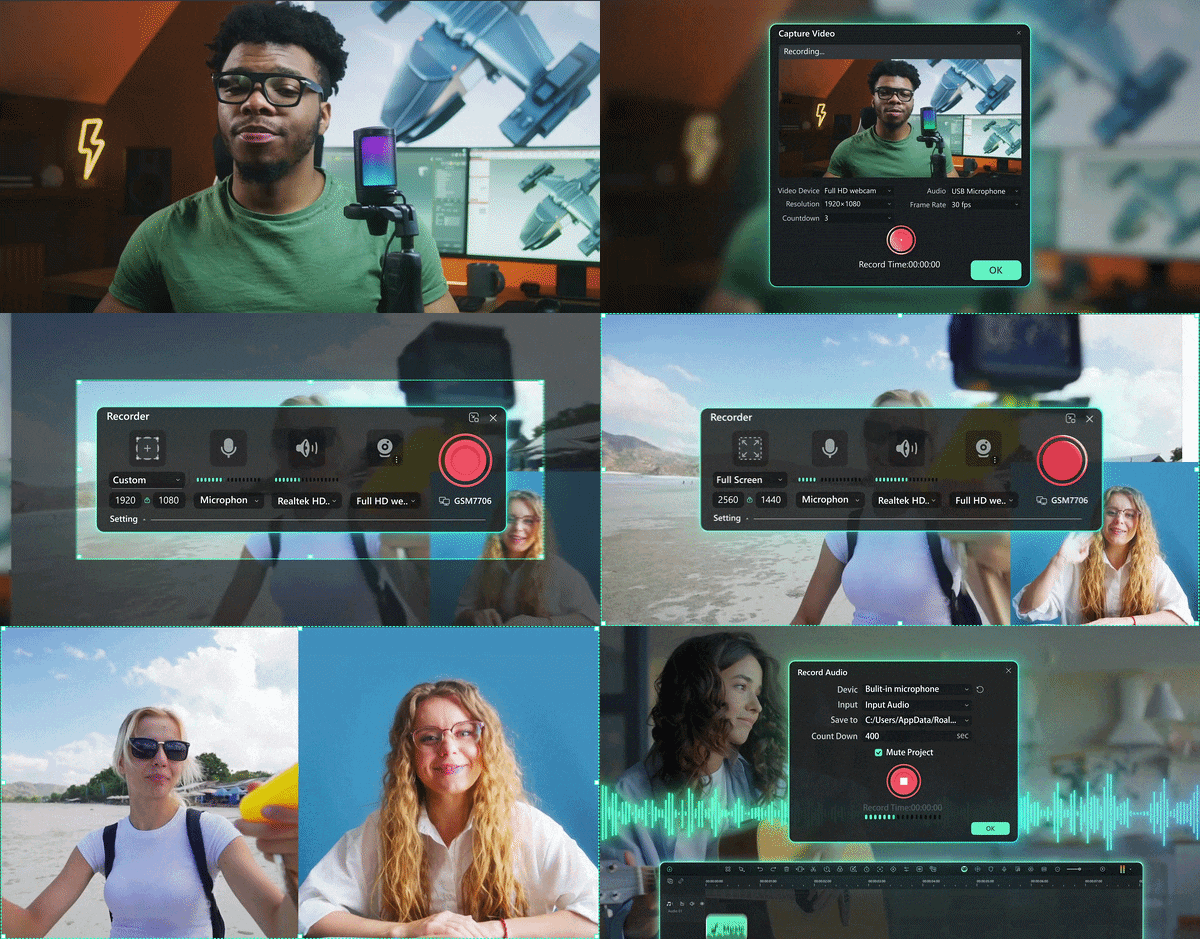
The upgraded recorder is designed to capture multiple audio sources independently, including microphones, system audio, and external inputs. That means you can plug in your equipment, hit records, and get completely isolated tracks without dealing with external routing apps.
Why Choose Filmora?
Finding software that handles multiple input sources while staying easy to use can be tricky. Here is why creators choose Filmora to record podcasts with multiple microphones:
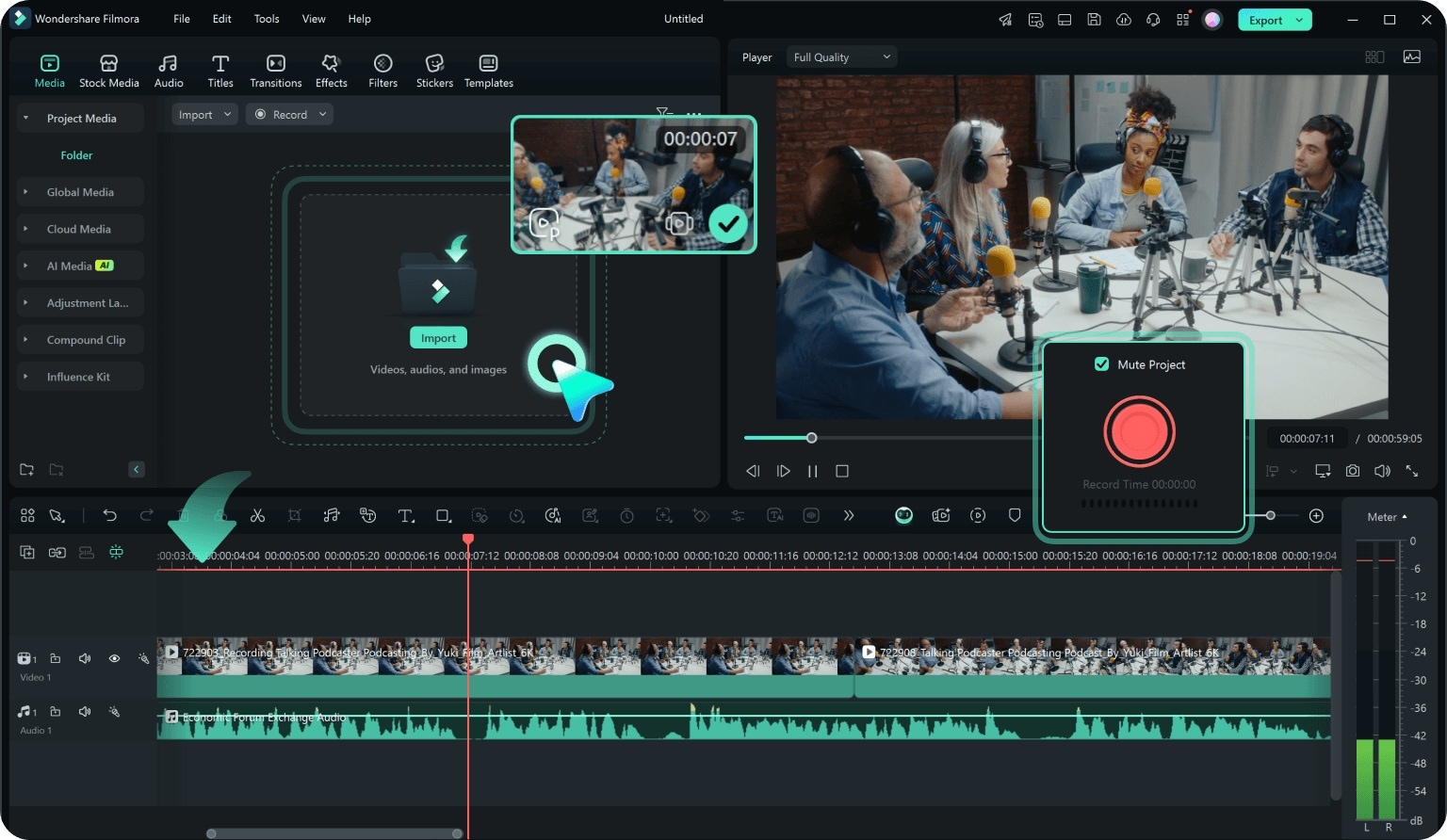
- Recording and Editing In the Same Place: You do not have to export massive audio files from a separate recorder and import them into an editor. Everything lands directly on your timeline the moment you finish speaking.
- Deep Audio Editing Tools: Clean up your clips using built-in background noise removal, equalization, and automatic audio ducking to make sure your voices sit perfectly over background music.
- Multiple Video Sources, Too: You are not limited to just sound. Capture your computer screens, specific app windows, webcams, or gameplay at the exact same time you record your mics.
- Auto Timecode Sync: Recorded video and separate audio streams line up automatically on your timeline, saving you from doing those awkward hand-claps to manually sync waveforms.
- Individual Track Volume Management: Tweak gain levels, mute inactive feeds, or adjust track balances independently before you record or while you edit.
- Low CPU Resource Usage: Keep your computer running smoothly without fan noise or lag, even when capturing high-definition video along with several audio channels at once.
- Vast video/audio effects and creative assets.
- Powerful AI for effortless content creation.
- Intuitive, professional yet beginner-friendly.
- Works on Mac, Windows, iOS, and Android.


Part 3. How to Record a Podcast With Multiple Microphones in Filmora
Now for the part most beginners actually want to try. Because Filmora handles both recording and editing under one roof, your workflow stays clean and straightforward. You connect your microphones, add your sources, record the conversation, and then work with the tracks in the editor.
Follow the simple step-by-step guide below to learn how to record a podcast with multiple microphones:
- Step 1. Connect Your Microphones
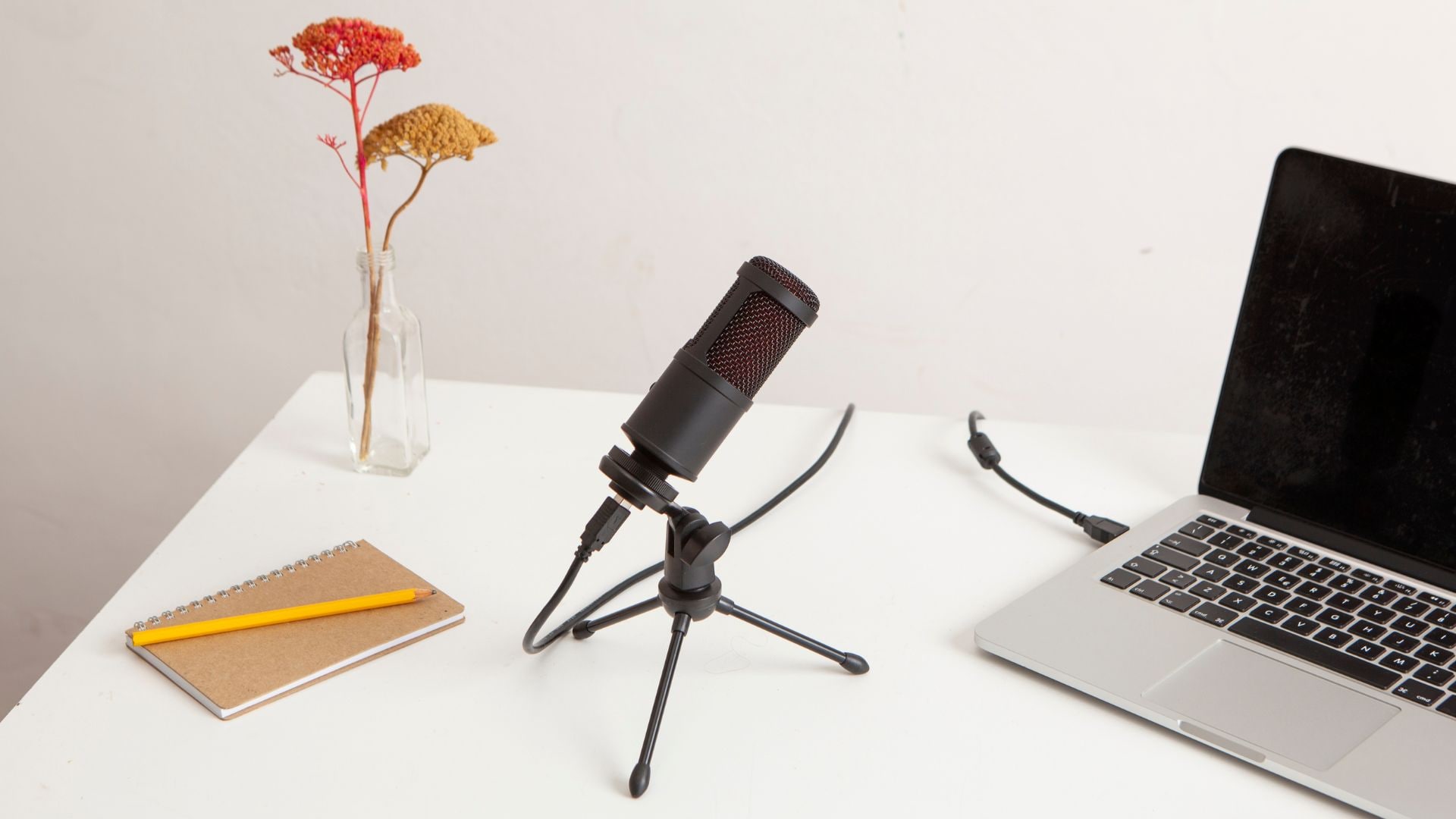
Plug your microphones into your computer's USB ports or audio interface. Make sure your operating system recognizes each mic as an active input device.
 secure download
 - Step 2. Launch Filmora and Open the Recorder
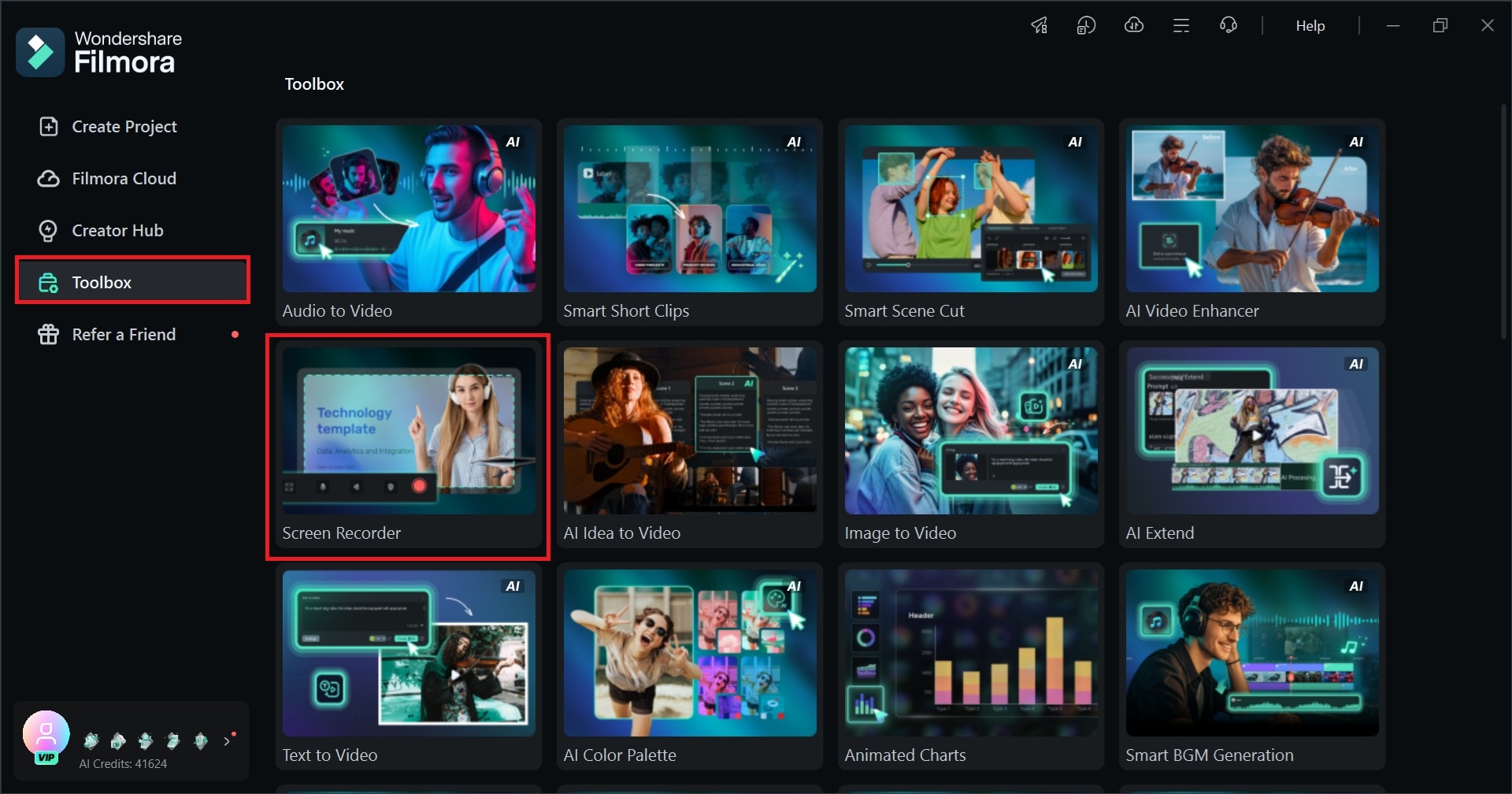
Install Filmora on your device. Open it and select Screen Recorder in the Toolbox menu.
- Step 3. Add Your Microphone Sources
In the Filmora’s Screen Recorder menu, click Settings or the gear icon.
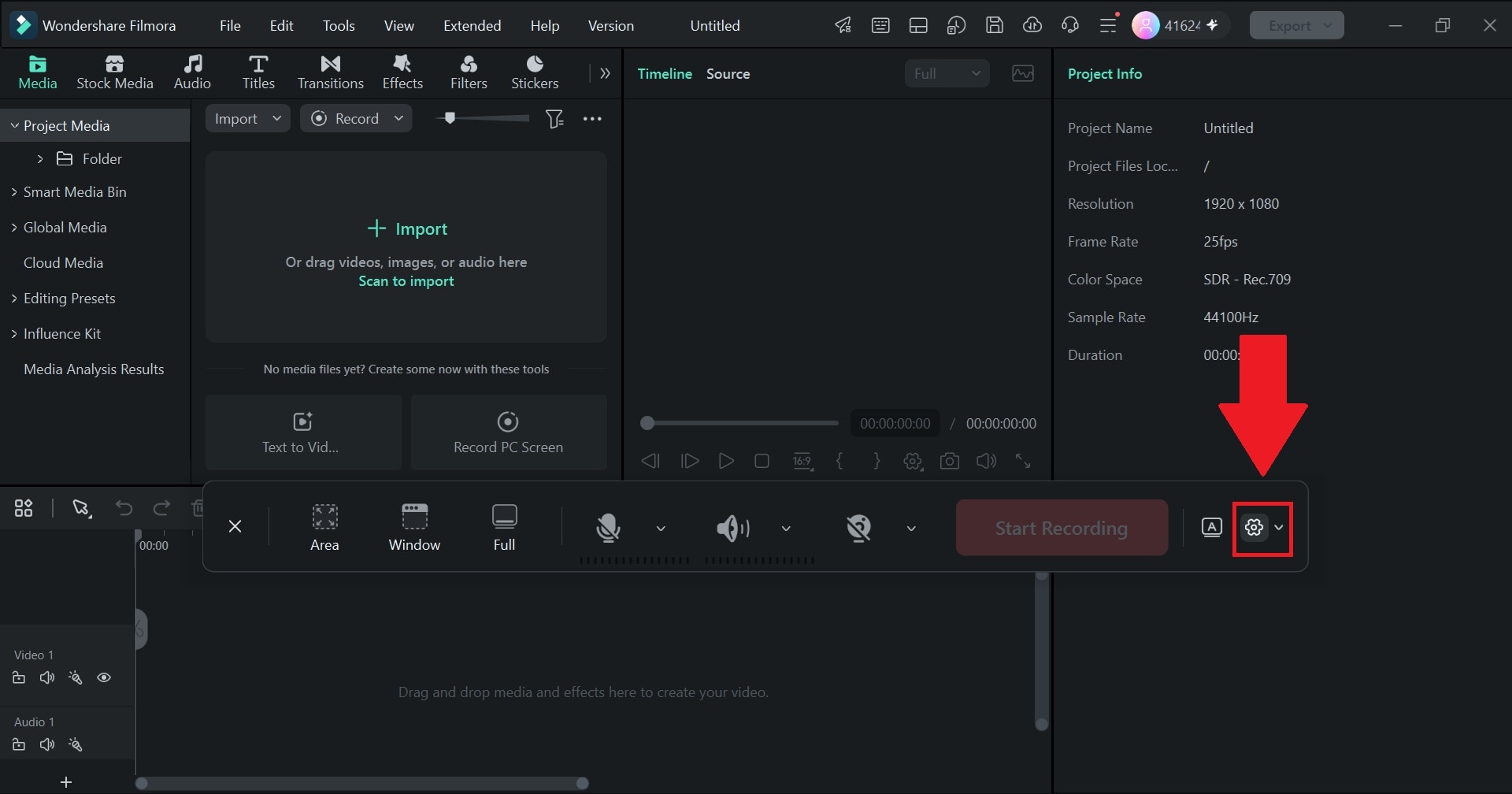
Next, toggle the Camera Screen Splitting option.
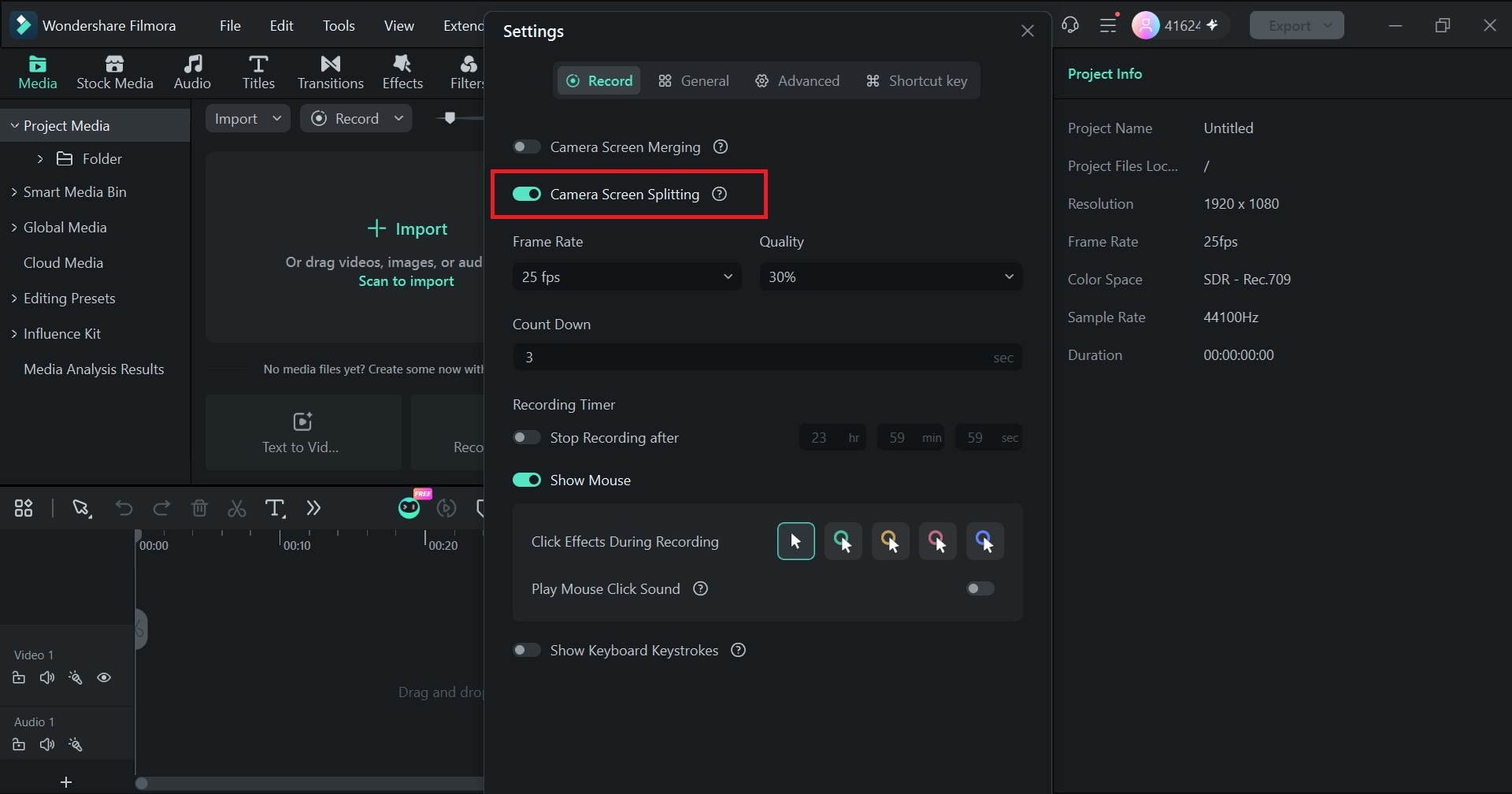
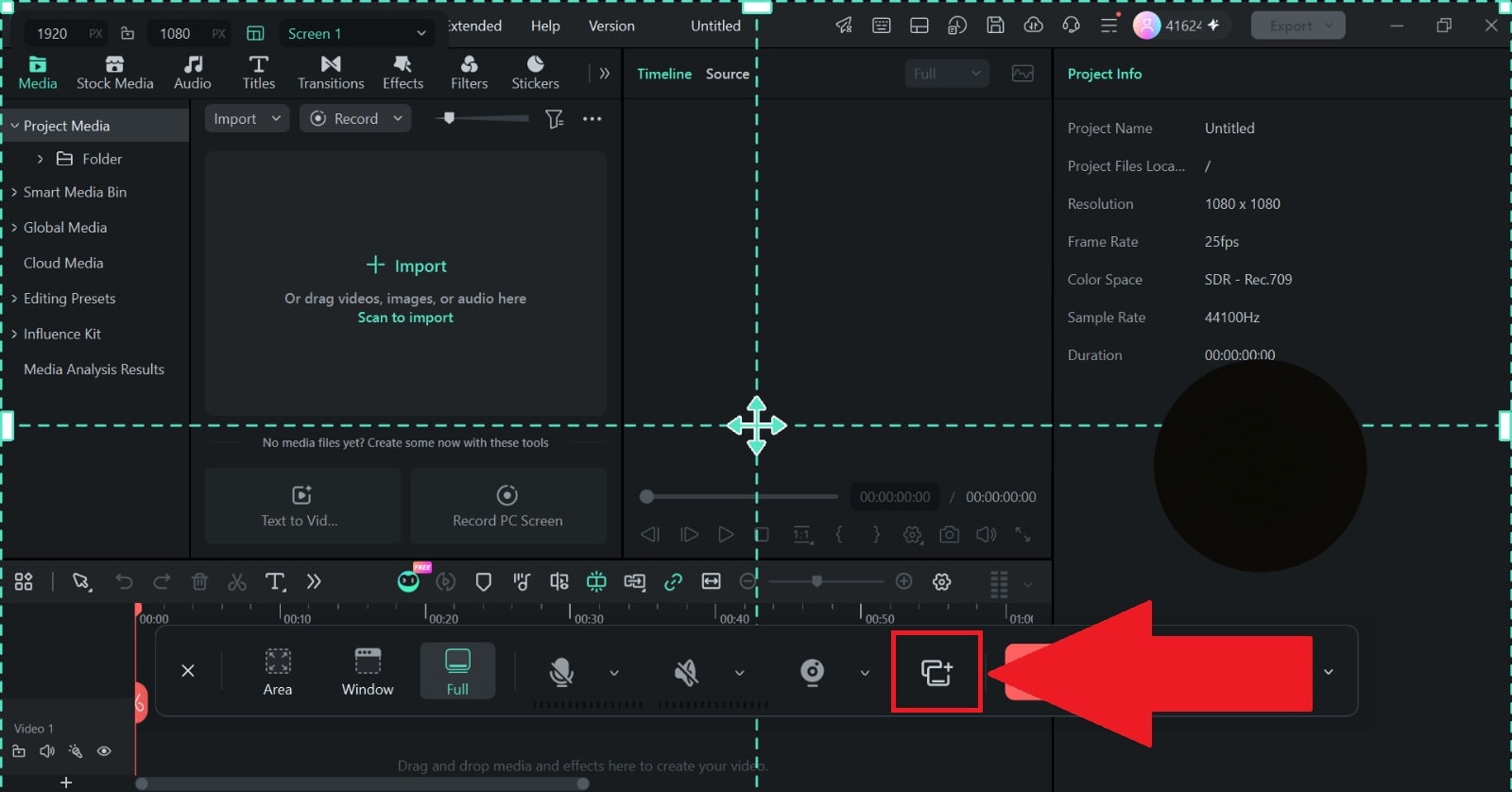
Now, the Multi-source recording feature will appear. Click it.
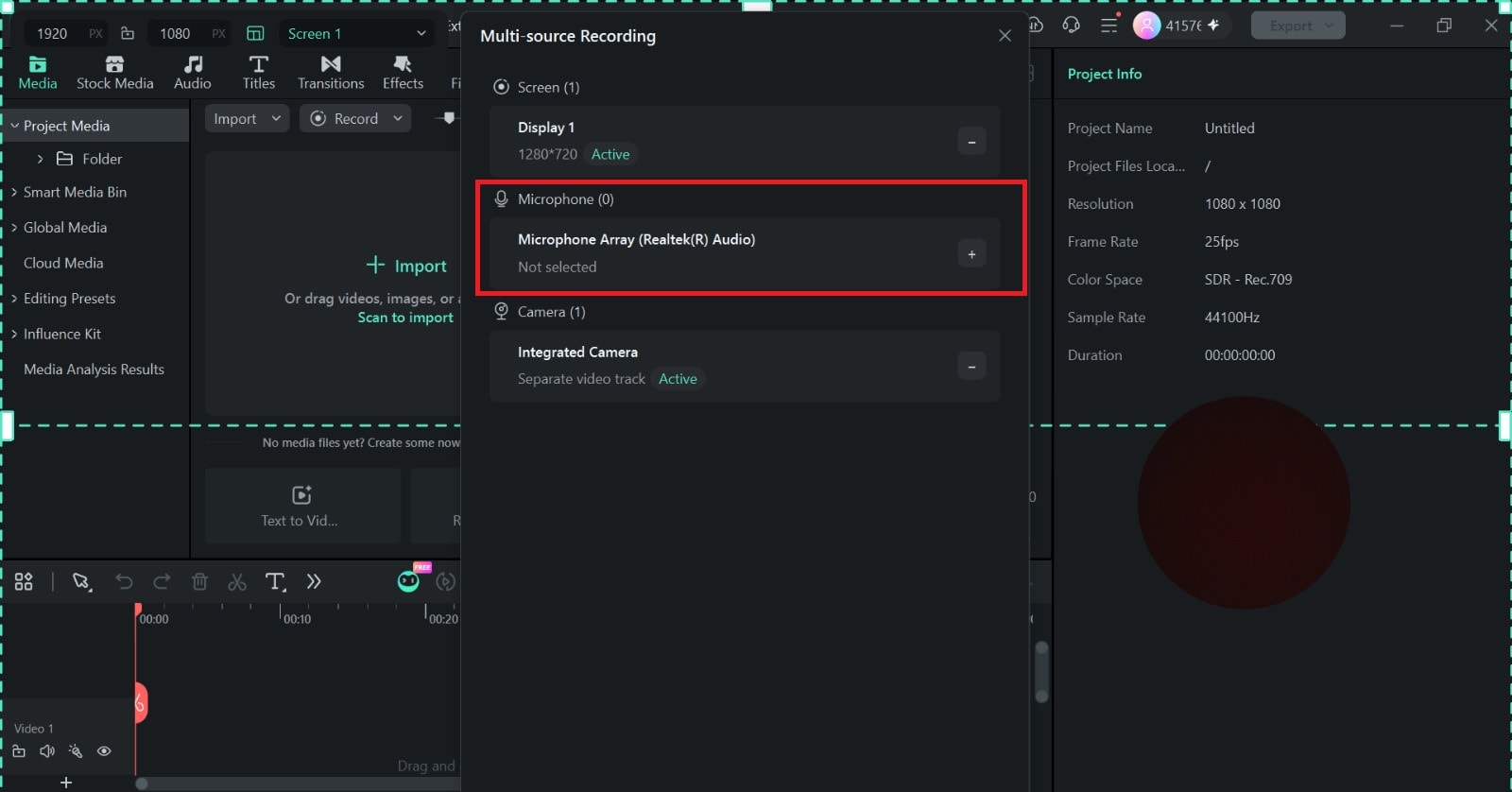
If you haven’t plugged any other mics into your laptop, the Microphone option will look just like this.
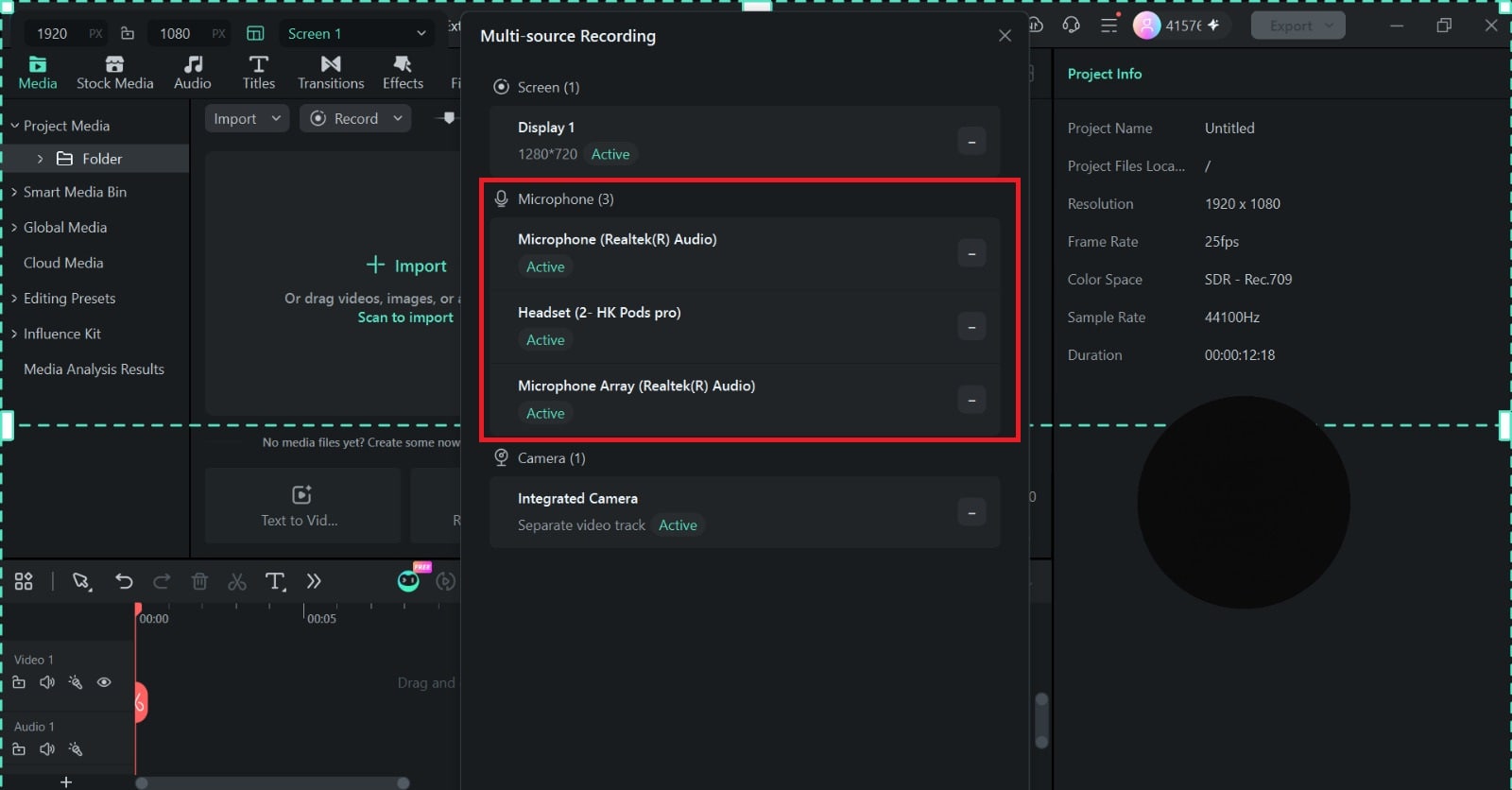
But once you plug the microphones into your computer’s USB ports like in Step 1, the Microphone option will look like this. Make sure all the microphones are all Active.
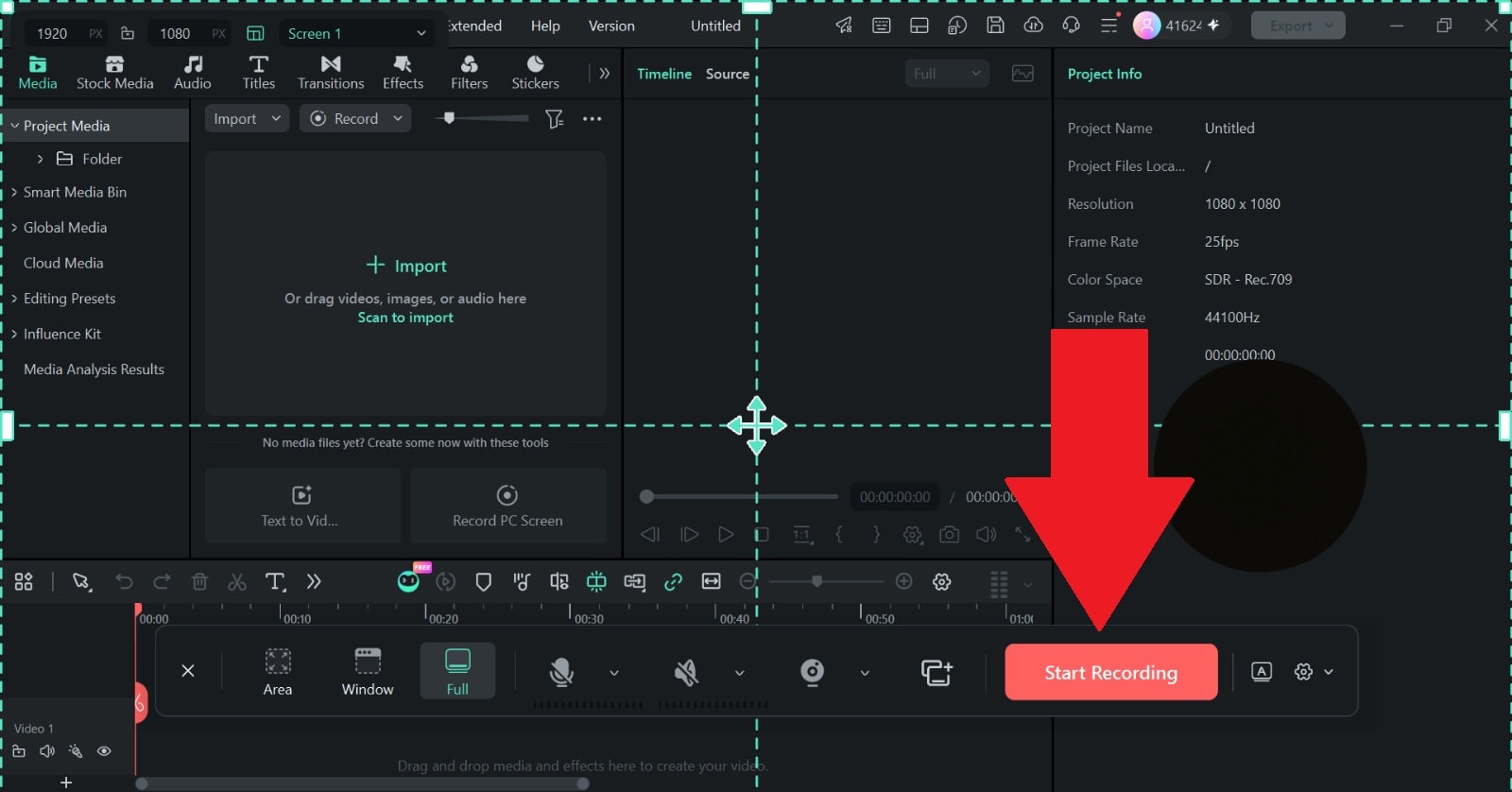
- Step 4. Start Recording
Click Start Recording to begin capturing your session. Speak naturally, knowing every voice is being sent to its own channel in real time.
- Step 5. Edit Your Recording and Export
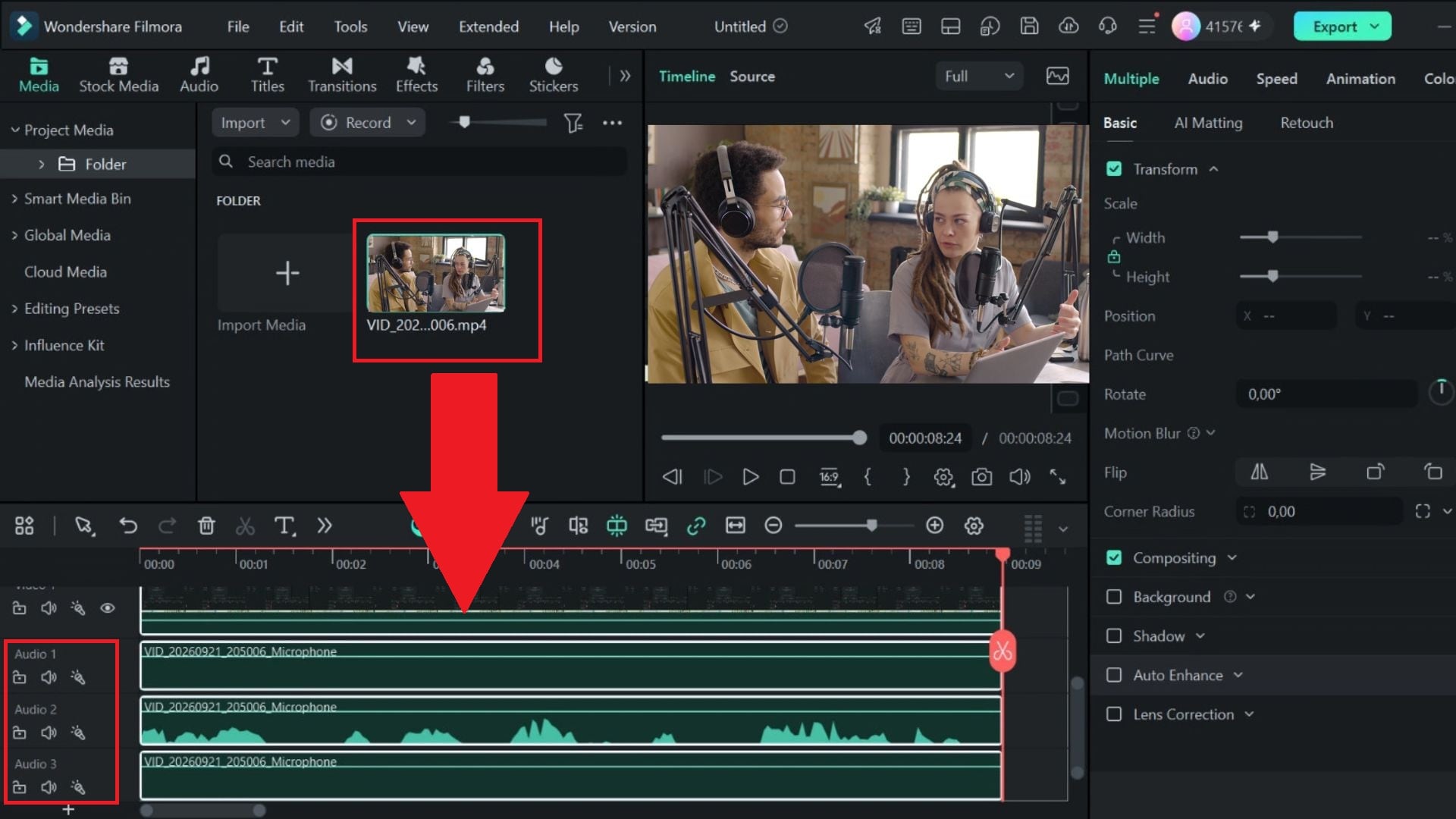
Once you stop recording, all your audio and video files will load directly onto your editing timeline, neatly arranged on separate tracks and completely in sync.
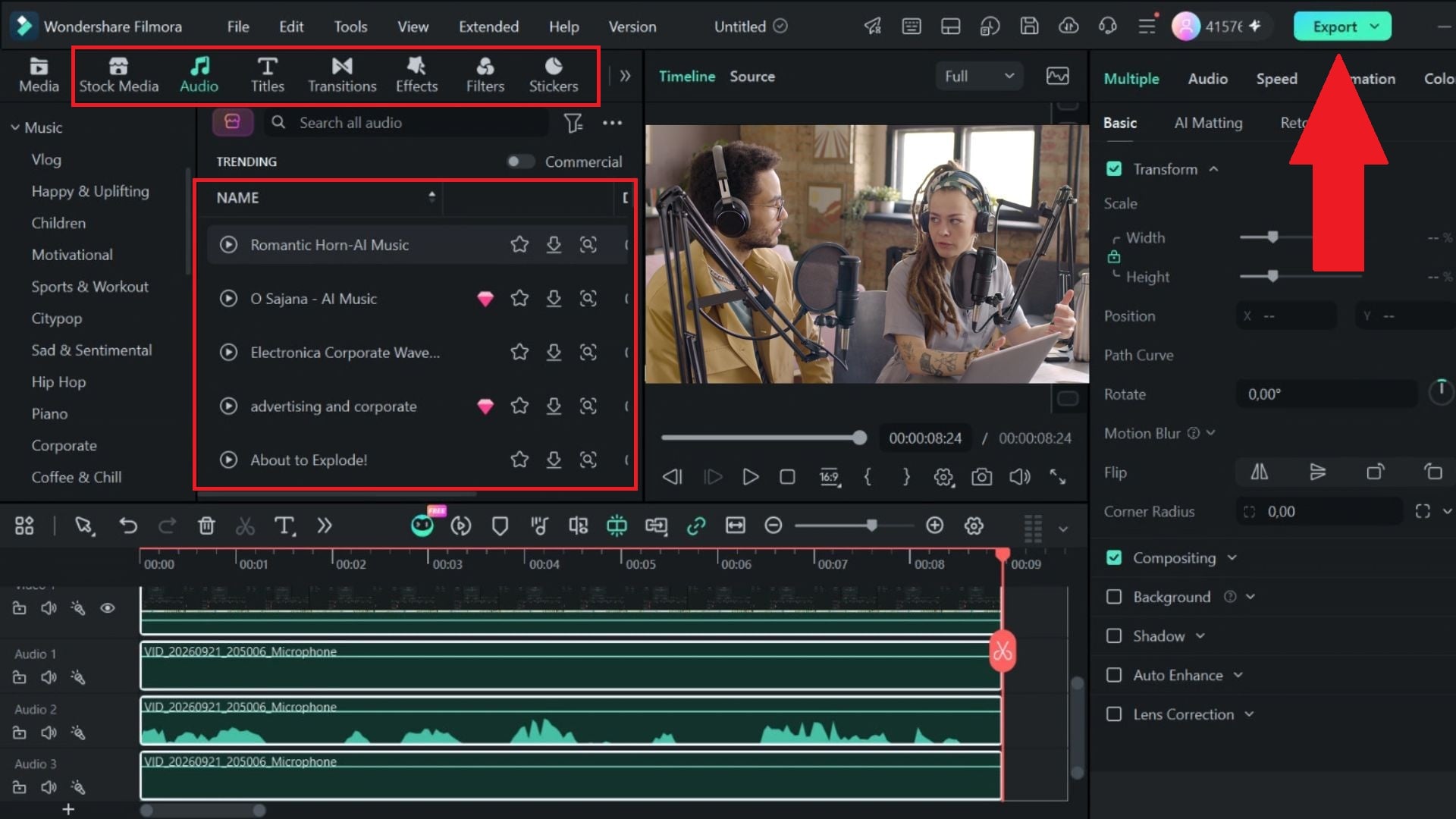
Feel free to make edits to your podcast recording. You can adjust volume, add filters, video effects, or even background music to make your clip more relaxing. Once you're happy with your edits, click Export in the top-right corner.
Part 4. Other Filmora Features That Help With Podcast Content
As you can see, Filmora makes the whole process of recording podcasts with multiple microphones super easy and doable. And the best part is, beyond its multi-track audio capabilities, Filmora packs a full suite of creation tools designed to speed up post-production.
So, let's take a look at several Filmora tools aimed at handling those jobs without requiring you to move the project into another editing program.
1. AI Smart Short Clips

Long podcast episodes often contain several moments that could work as short videos. So, you can use Filmora's AI Smart Short Clips to analyze a longer video and create shorter clips based on key moments, with options for captions, music, templates, and vertical formats. That can save you from manually scrubbing through a one-hour episode just to find a few good moments for Shorts, TikTok, or Reels.
2. Social Content Planner
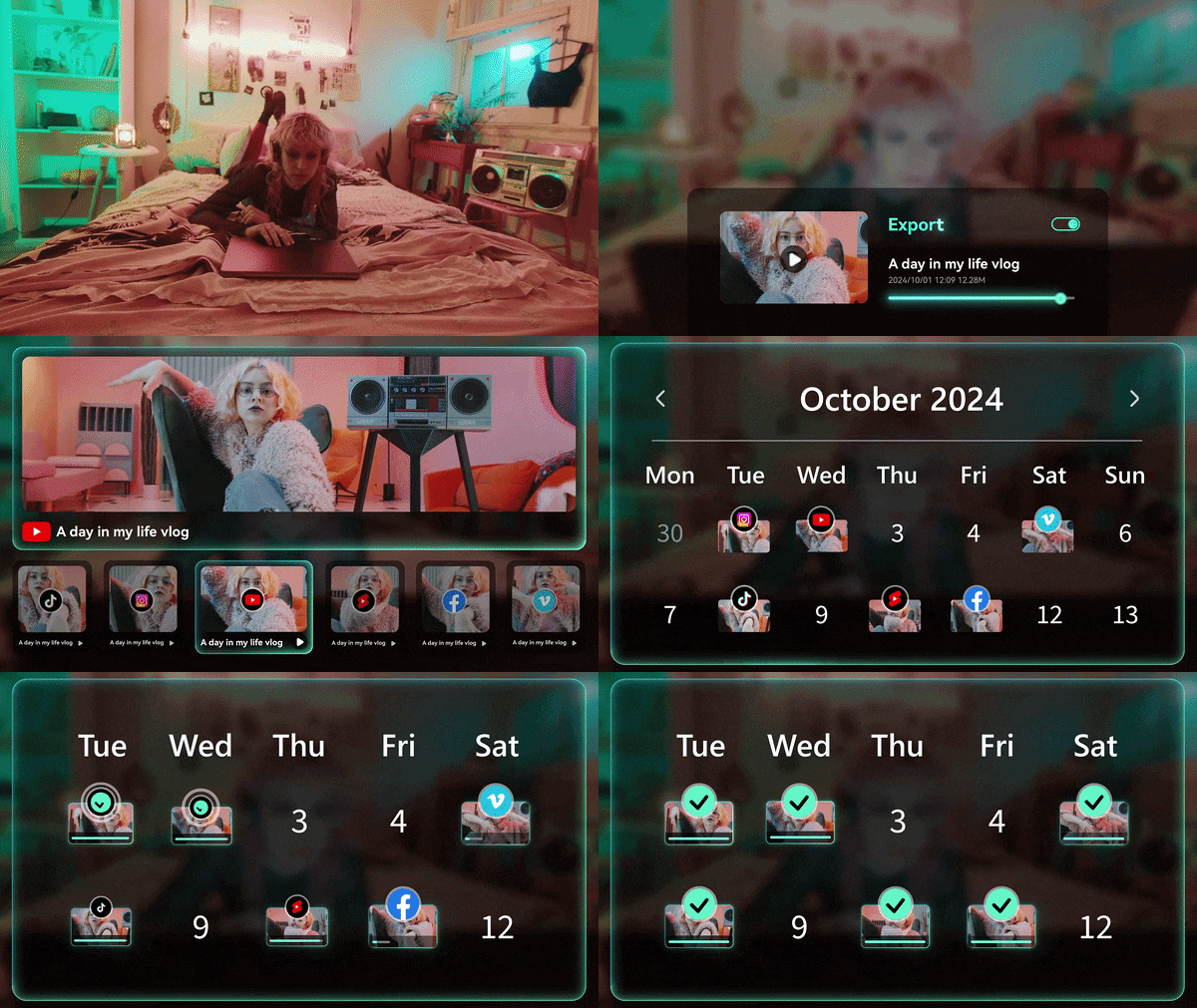
Once you have several clips ready, keeping track of them can become its own headache. Thankfully, Filmora's Social Content Planner lets you organize and schedule video posts across platforms such as YouTube, TikTok, Instagram, and Facebook. You can set publishing times and manage scheduled content from one place.
3. AI Caption
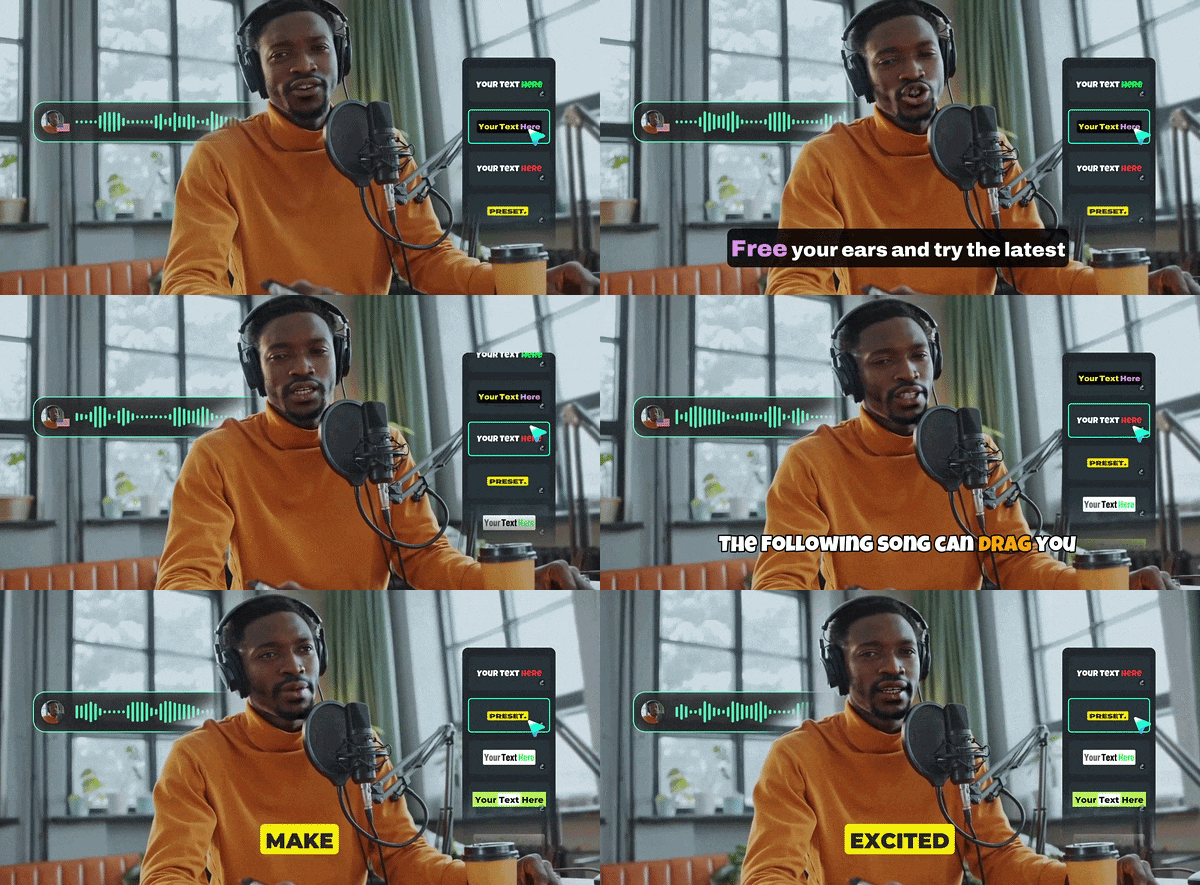
Podcast videos rely heavily on spoken dialogue, so captions are particularly useful. So, you can rely on Filmora's AI auto caption tools to automatically transcribe spoken content and turn it into subtitles that you can review and customize. But remember, you should still check the generated text before publishing, especially when guests use names, technical terms, slang, or unfamiliar words.
4. AI Thumbnail Creator
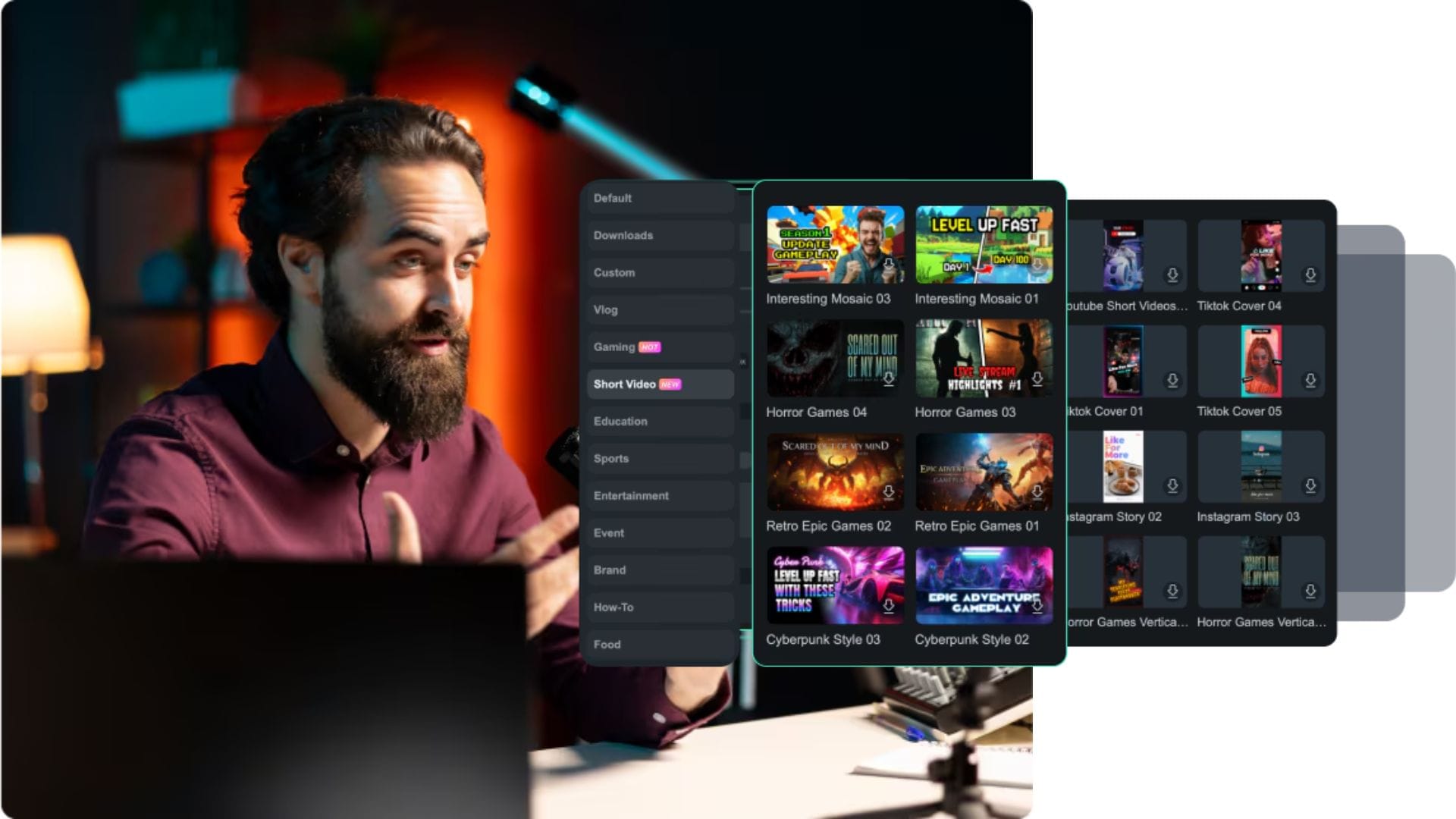
A good podcast episode also needs a thumbnail that makes sense at a glance. That's why Filmora's AI Thumbnail Creator can select useful frames from your video and provide editable thumbnail templates. It also includes options designed for different platforms and content types, including podcast videos.
5. AI Text-Based Editing
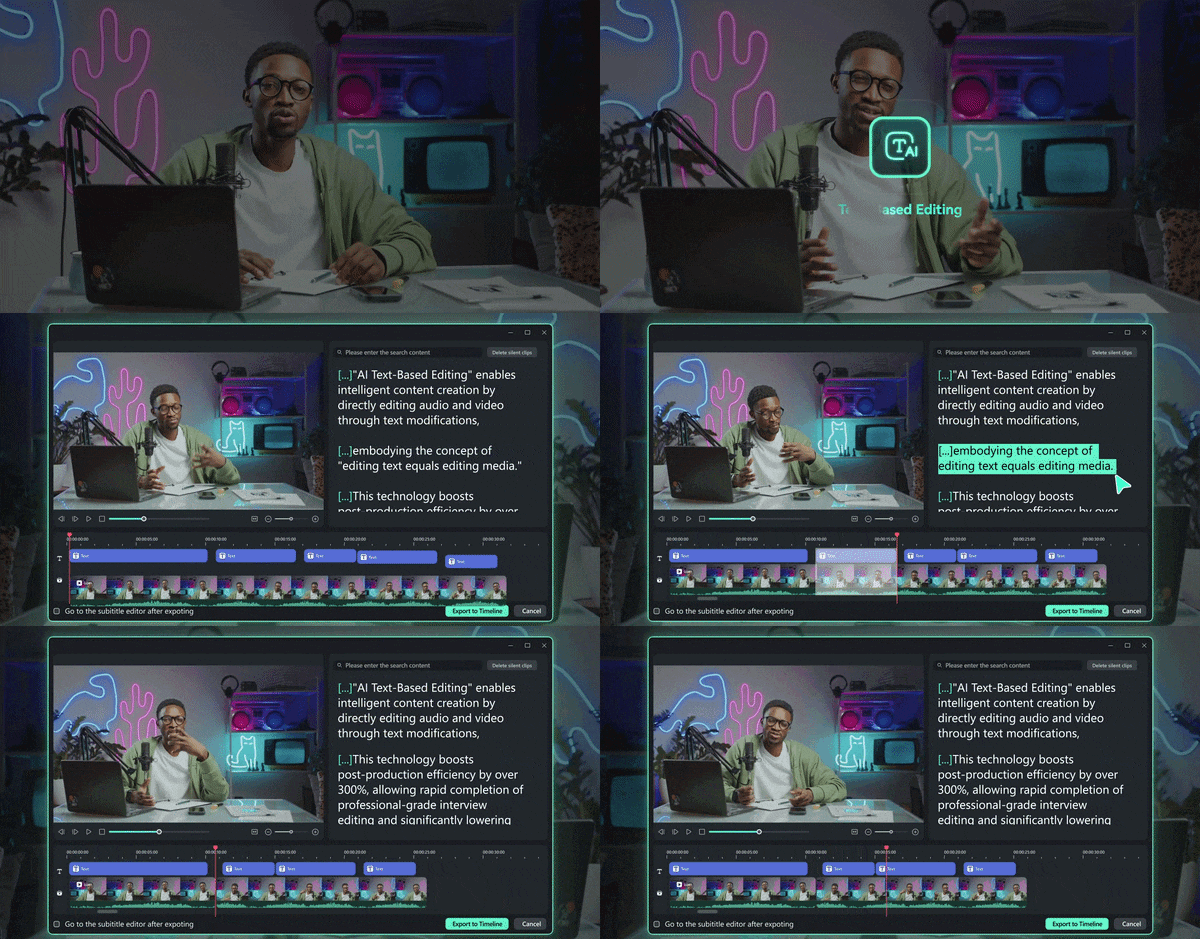
Podcasts contain a lot of spoken words, which makes text-based editing surprisingly useful. This feature can transcribe the spoken audio into editable text, letting you search through the transcript and remove unwanted sections by editing the corresponding text. It can also remove silent portions in supported workflows.
Conclusion
Recording a podcast with two microphones doesn't have to mean building a complicated audio setup. By setting up independent tracks from the start, you avoid messy sound overlaps and give yourself complete freedom to make every speaker sound fantastic.
If you are ready to streamline your workflow and focus on making great content instead of fixing audio issues, Filmora is highly recommended. Its upcoming V16 Screen Recorder upgrade is designed to handle multiple audio sources independently. Plus, Filmora's existing editing tools cover tasks such as synchronization, captions, text-based editing, audio cleanup, short clips, and thumbnails.
