Find an Effect That Supports the Product Story
Browse Black Friday video effects for product showcases, price reveals, social ads, and deadline reminders. Preview each asset over your own footage to check its motion, clear area, and visual balance before adding it to the edit.
Loading more Black Friday Effects...
 Category:
 Duration:
 Aspect Ratio:
Build a Clearer Retail Story Around Every Product
Use Black Friday overlay effects to add sale context while keeping the original footage visible. Filmora brings animated assets, titles, transitions, audio, color tools, and export settings together, helping each campaign element feel like part of one visual system.
Frame Products Without Covering Important Details
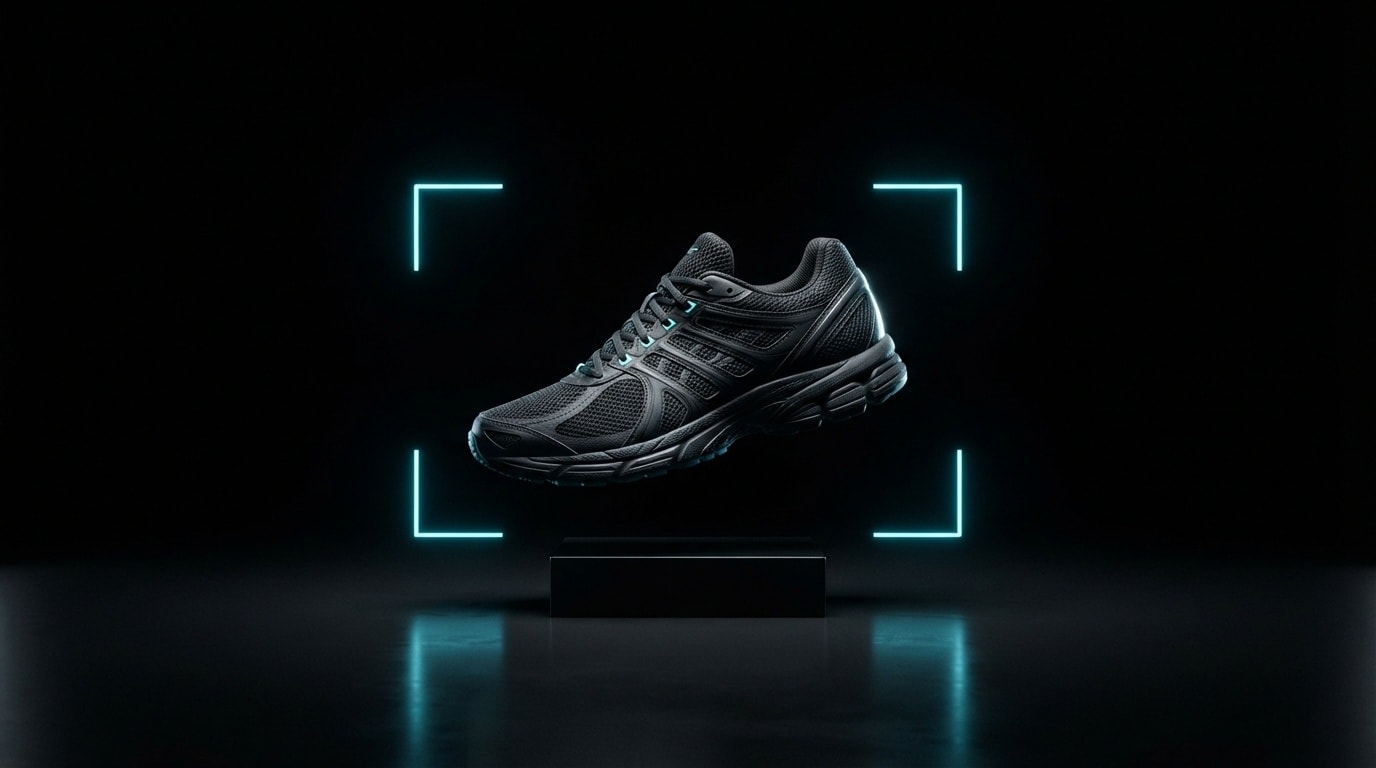
Frame Products Without Covering Important Details
Use 3D frames and Black Friday product effects to direct attention toward a featured item without hiding the details that make it valuable. Filmora's video effects workflow lets you position the overlay above footage and refine its size, timing, and opacity in context.
- Keep the product, price, and primary call to action inside the clear area of the frame.
- Add Black Friday promo effects when a campaign hook or featured offer needs a distinct visual moment.
- Use one visual hierarchy for product name, discount, deadline, and action.
Make Discounts and Deadlines Easy to Understand
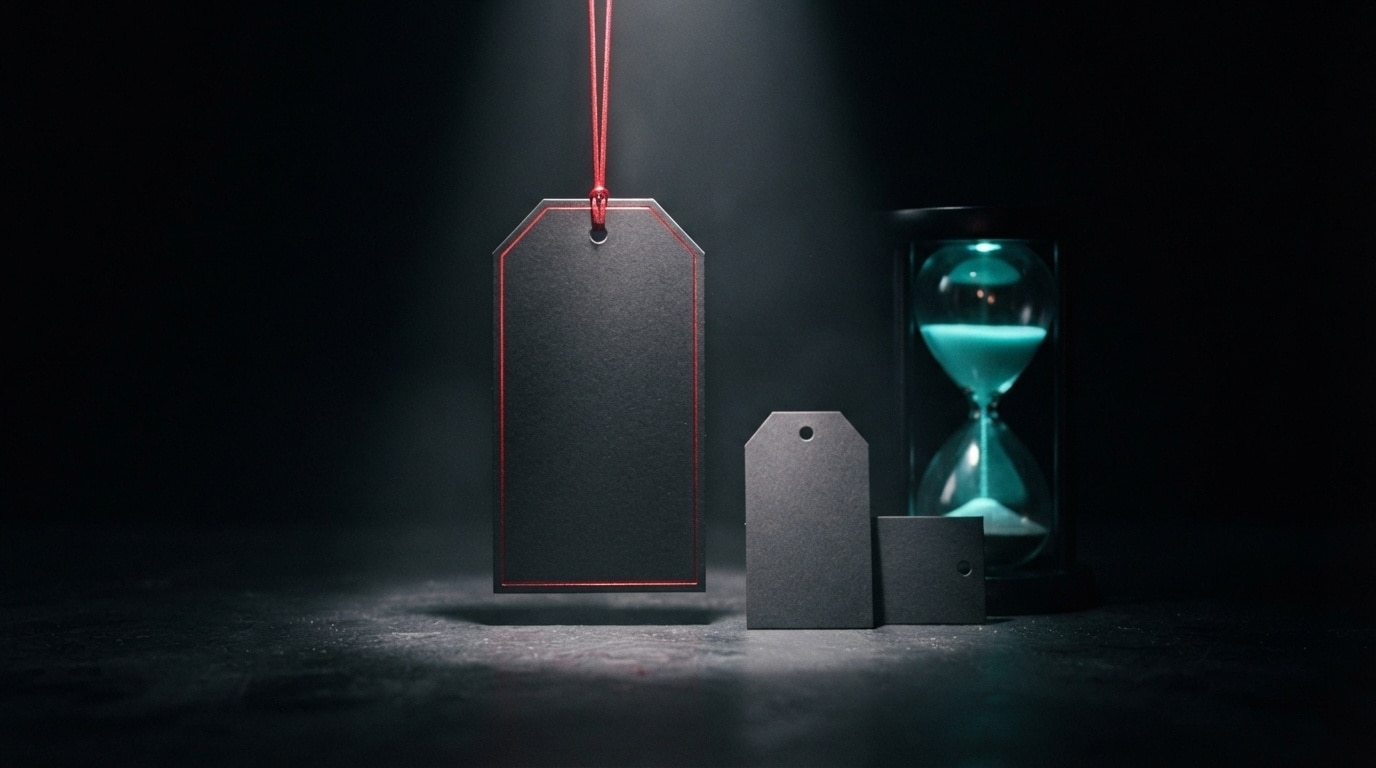
Make Discounts and Deadlines Easy to Understand
Use Black Friday discount effects when the saving is the central message, then support it with a simple price card. Filmora's text animation controls help coordinate the overlay with coupon codes, dates, and calls to action.
- Show the original price, discount, and final price in a predictable reading order.
- Keep coupon codes on screen long enough to pause, copy, or remember.
- Introduce Black Friday countdown effects near the deadline, but keep every number legible.
Use Neon and Glitch Motion With Restraint

Use Neon and Glitch Motion With Restraint
Apply Black Friday glitch effects to a flash offer, technology product, or final-hours alert instead of every shot. Then use Filmora's video editor to keep color and motion consistent across the campaign.
- Reserve the strongest motion for the offer or product that matters most.
- Use Black Friday shopping effects where a cart, checkout, or delivery cue adds useful context.
- Preview the full campaign with audio to catch distracting repetition.
Frequently Asked Questions About Black Friday Effects
How to Apply Black Friday Effects in Filmora
Preview the design with your footage, place it on the timeline, and refine it around the offer.
Step 1 Browse the Effects Library
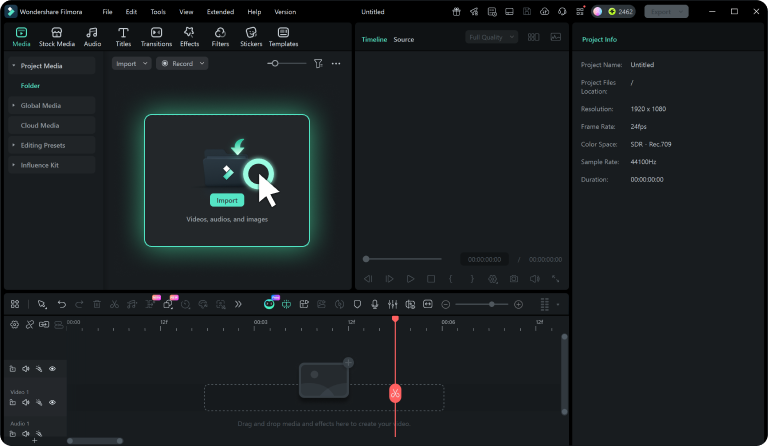
Step 2 Download the Selected Effect
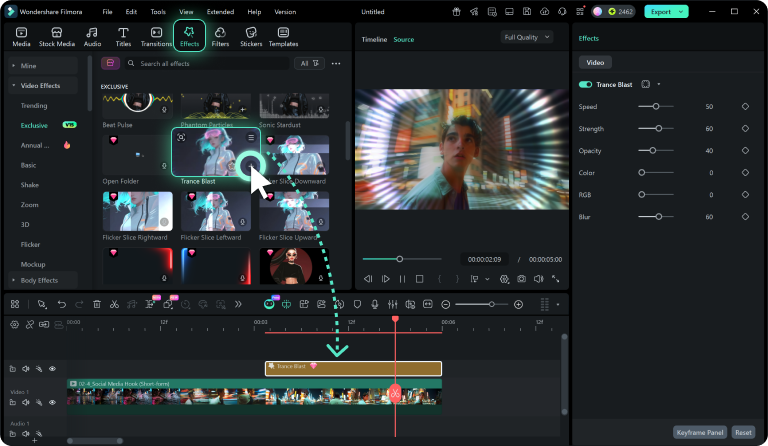
Step 3 Apply and Refine It
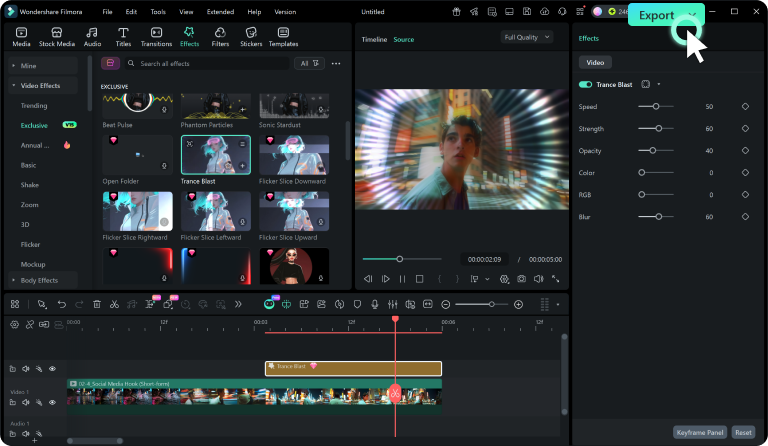
-
1: Browse the Effects Library
Import your footage, open Filmora's Effects library, and preview several options over the actual clip to see which one supports the product and message. -
2: Download the Selected Effect
Once the motion and clear area suit the shot, click the download icon to add the resource to your local Filmora asset library. -
3: Apply and Refine It
Drag the effect onto a track above the footage, adjust its size, position, opacity, and duration, then preview the full sequence before export.