


Google just upgraded its game in the AI image editor space by launching the newest Google Pics. If you're tired of using clumsy design tools or rolling the dice with random prompt-and-pray generators, this fresh tool promises precise, object-based editing directly inside your daily workflow.
Now, it all sounds pretty great on paper, but does it actually deliver on its promises? Read along to our Google Pics review where we're going to dig deep into the features, performance, and everything else you need to know about Google Pics AI.
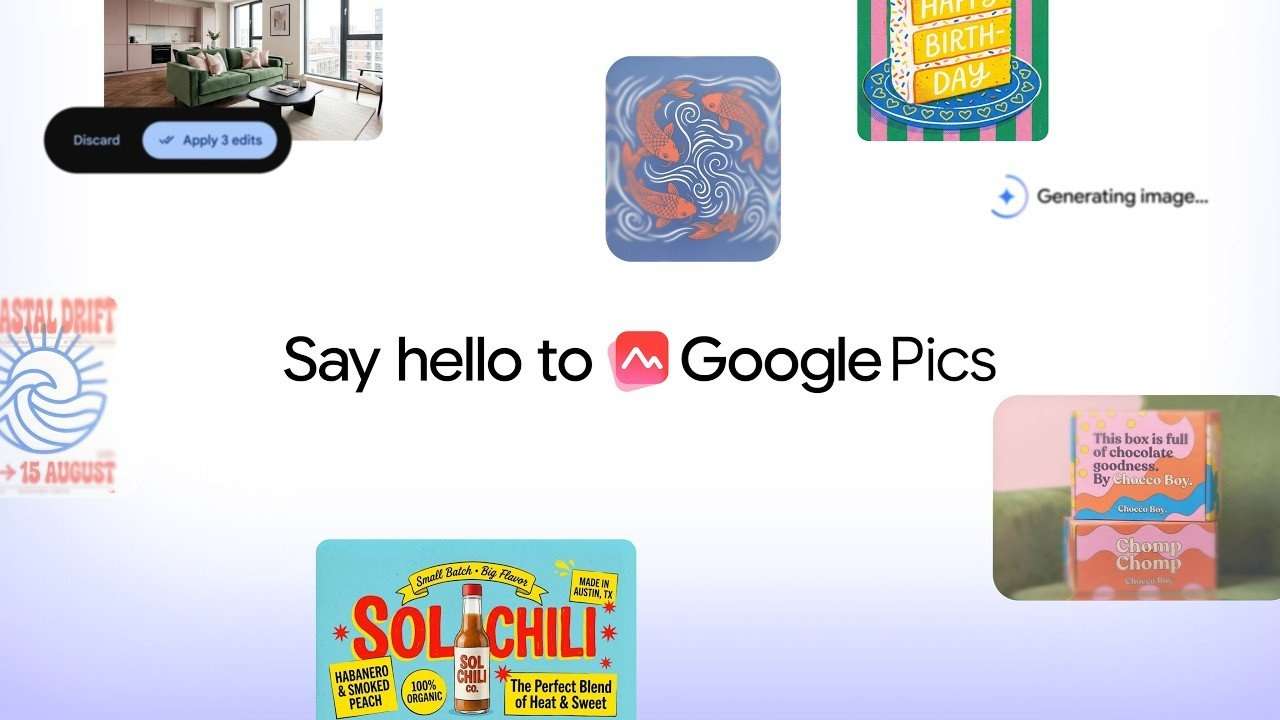
Part 1. Meet Google Pics: Google’s AI Image Generator and Editor
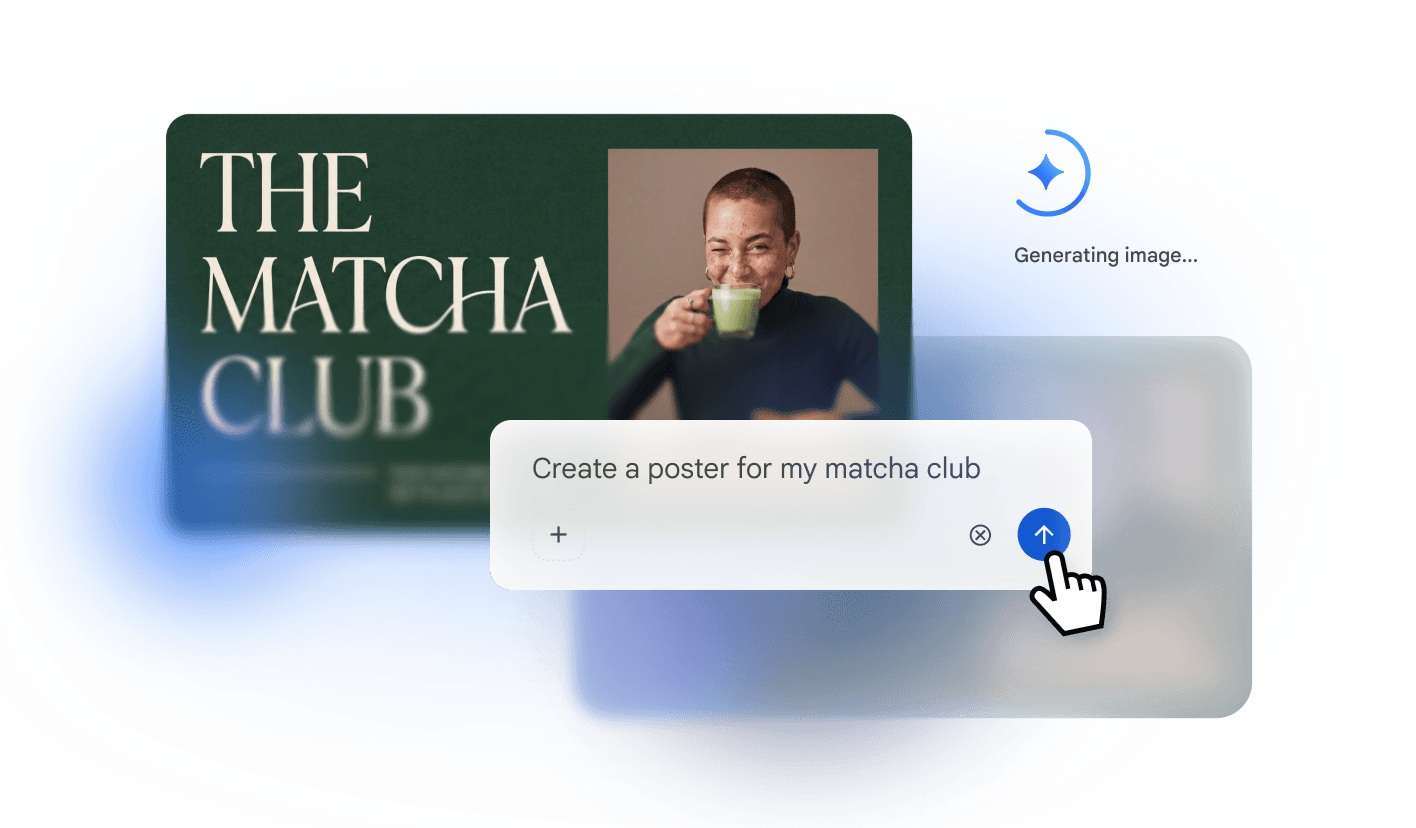
Google Pics is Google's newest entry into the AI image space. It started rolling out on September 1, 2026, and it's built to do two jobs at once: generate brand-new images from a text description, and make targeted, object-based edits to images you already have.
Google Pics: AI Image Generator and Editor is powered by Google's Nano Banana image model, and it plugs directly into Docs and Slides, with Drive support rolling out afterward. In short, it's less a standalone generator and more a creative assistant that's baked straight into the Workspace ecosystem you already use for work.
Pricing & Availability: Can You Access Google Pics?
Here's the slightly confusing part. There isn't a separate Google Pics price that you can pay just for Pics. Instead, access is included with certain Google Workspace and Google AI plans:
- Google Workspace customers on Business Standard and higher.
- Google AI Pro subscribers.
- Google AI Ultra subscribers.
Here is a quick view of where access sits across current Google subscription tiers:
| Plan | Price | Google Pics Access |
| Workspace Business Starter | $8.40/user/month | |
| Workspace Business Standard | $16.80/user/month | |
| Workspace Business Plus | $26.40/user/month | |
| Workspace Enterprise | Custom Pricing | |
| Google AI Pro Subscriber | $19.99/month | |
| Google AI Ultra Subscriber | Premium Tier Pricing | |
|
Show More
Show Less
|
||
Part 2. Google Pics AI Features: Generation, Editing, and Workspace Tools
Google didn't enter the AI image space just to add another prompt box. With so many AI image generators competing for attention, Google Pics needs to offer something beyond simply generating an image from a description. Its combination of generation, detailed editing, and Workspace integration is where it tries to stand out.
Let’s have a look at its standout features:
Precision Object-Based Editing
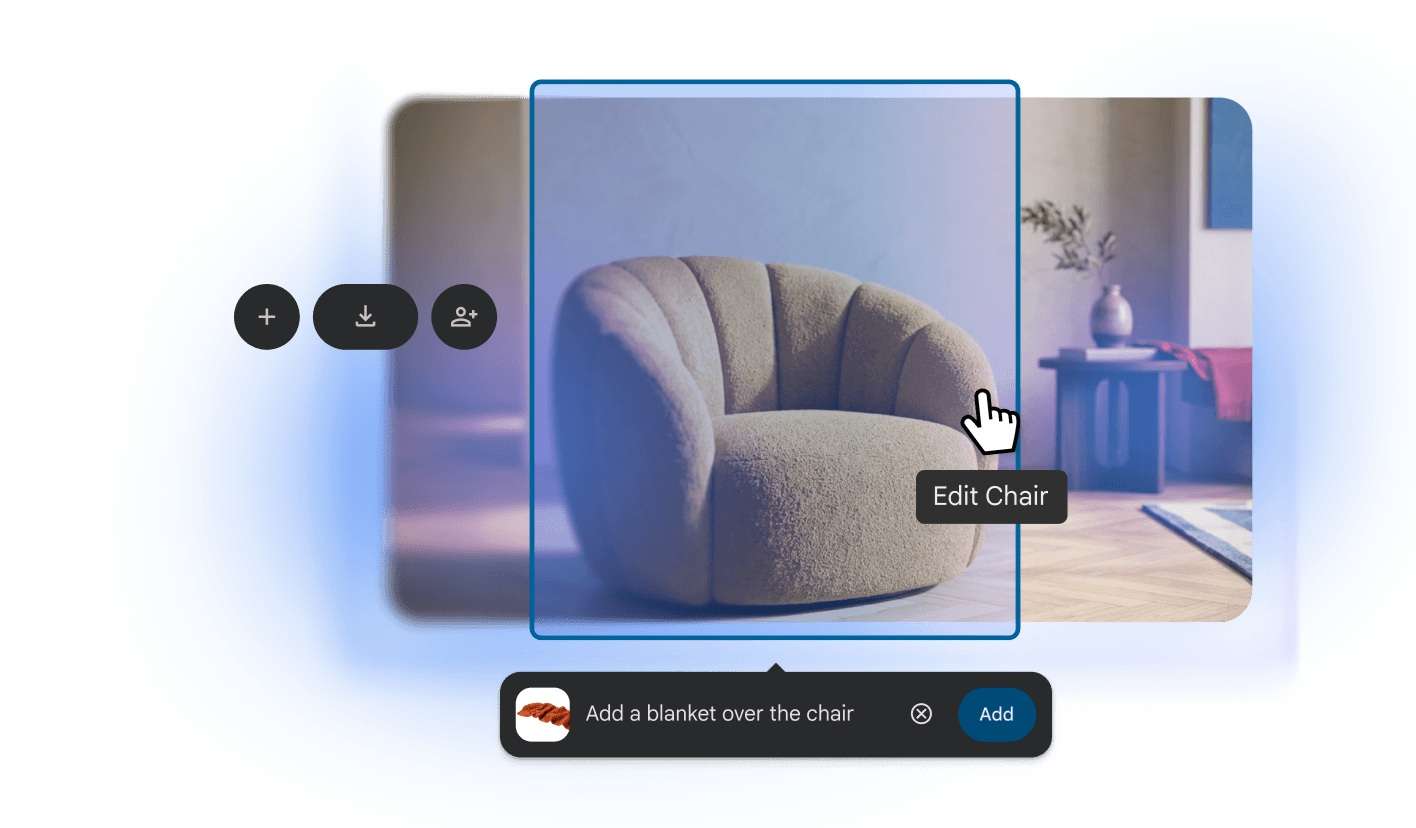
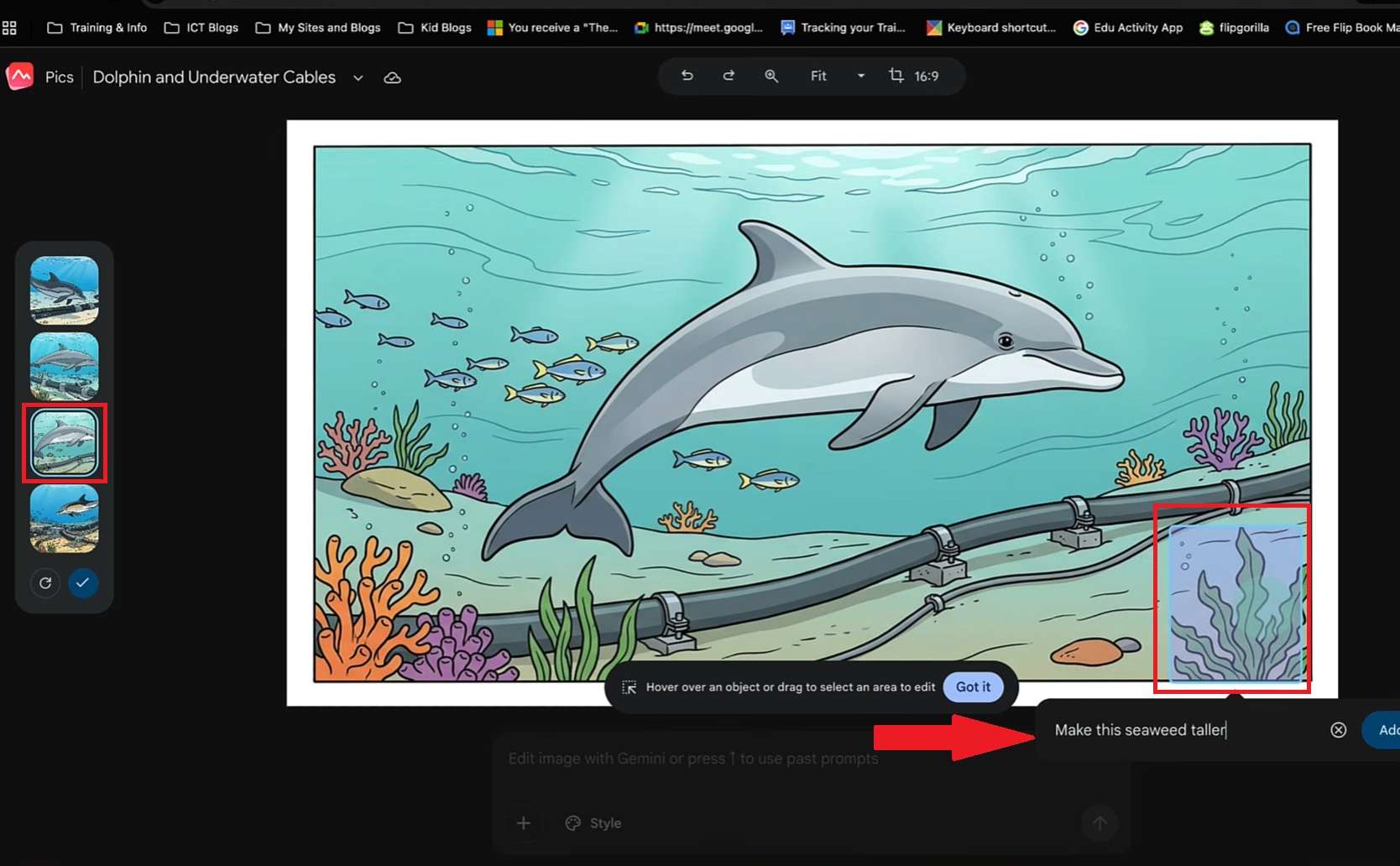
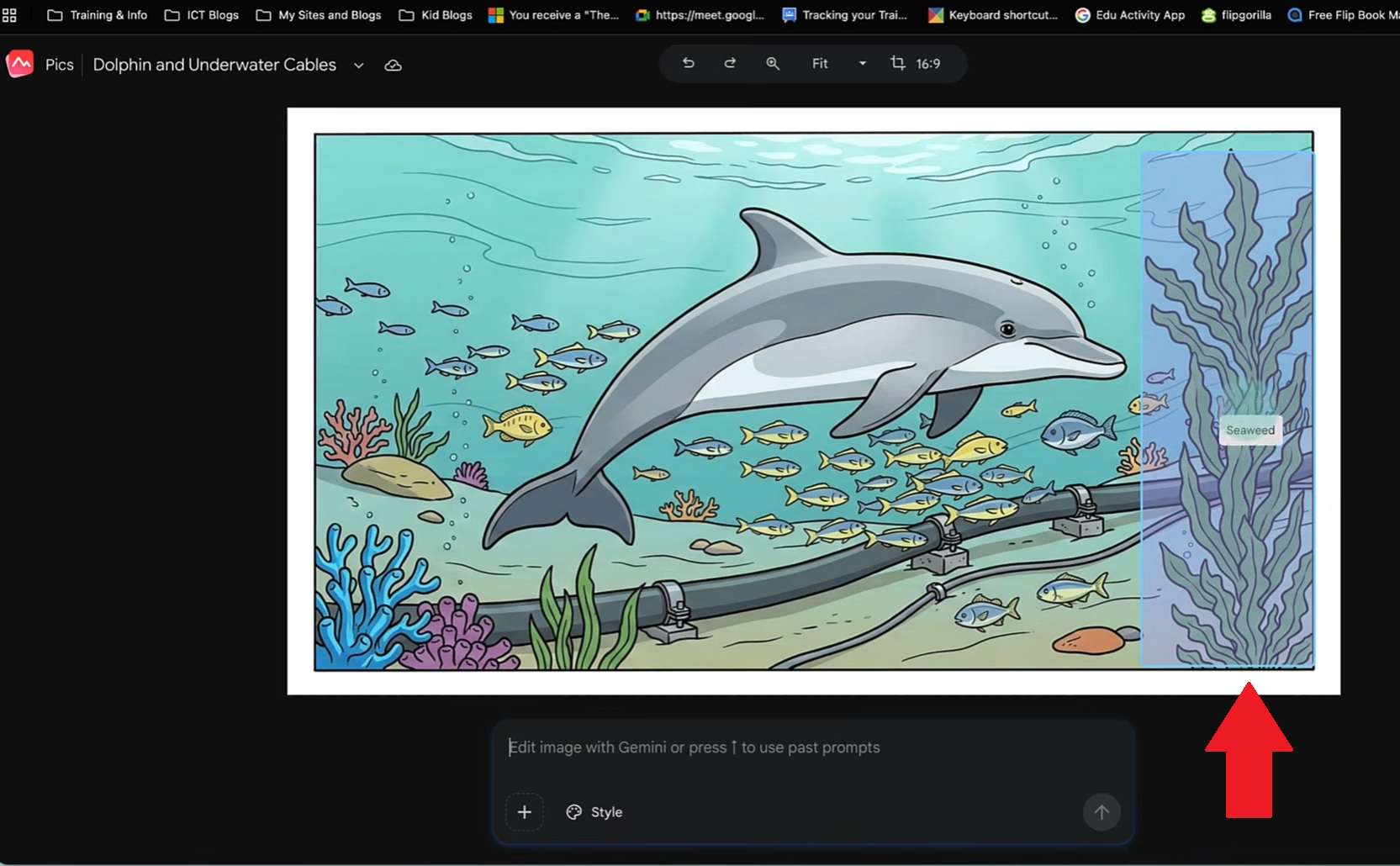
Hover your cursor over an image, and Gemini automatically detects individual items like a chair, shirt, or background plant. You can select specific elements and prompt changes to just those items without ruining the rest of the picture.
Edit Text Directly in Images
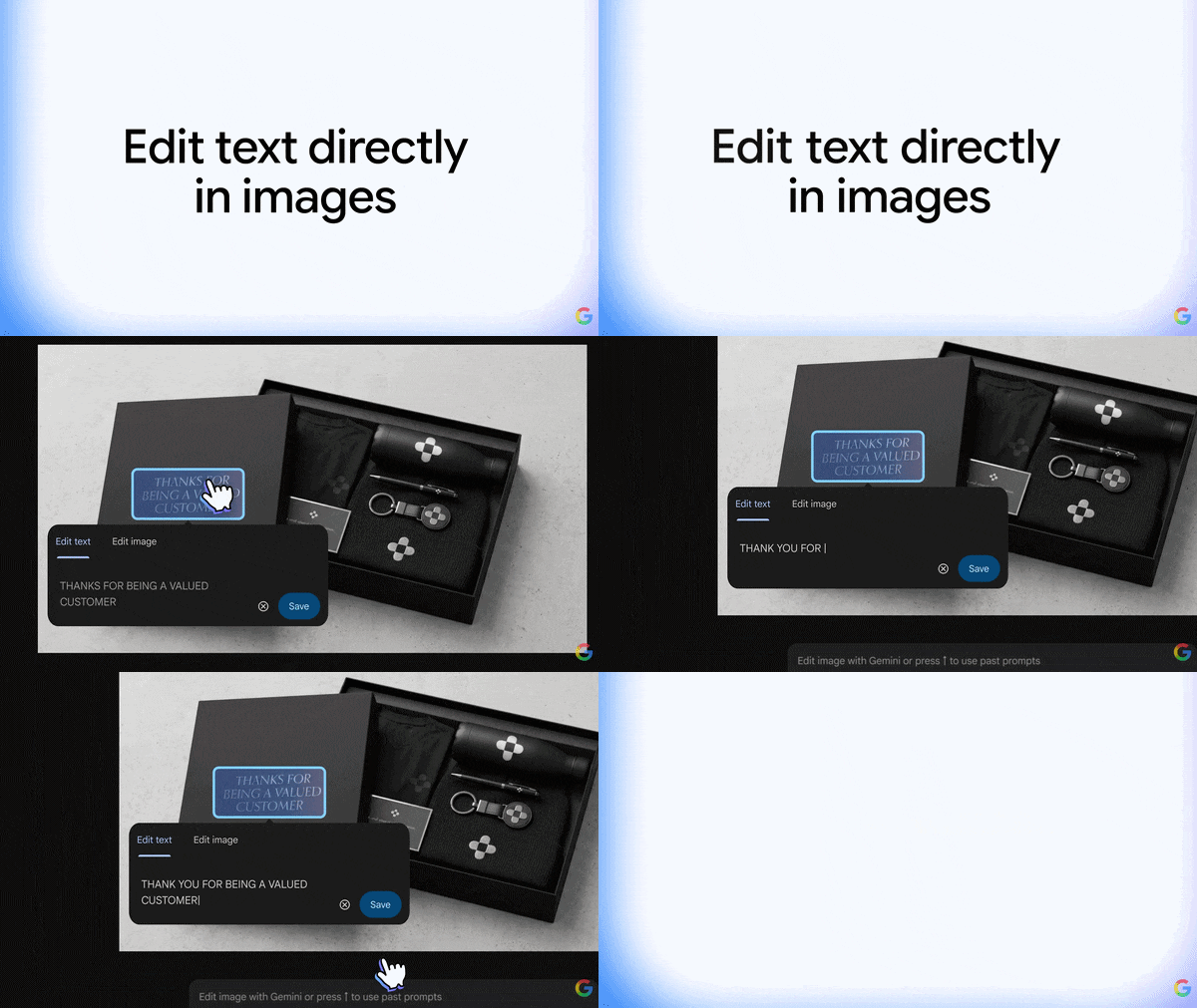
Need to change a word on a poster mockup or swap out dummy text inside an infographic? Select the text block inside the picture, type your correction, and let the tool re-render the letters cleanly.
Translate Pics with One Click
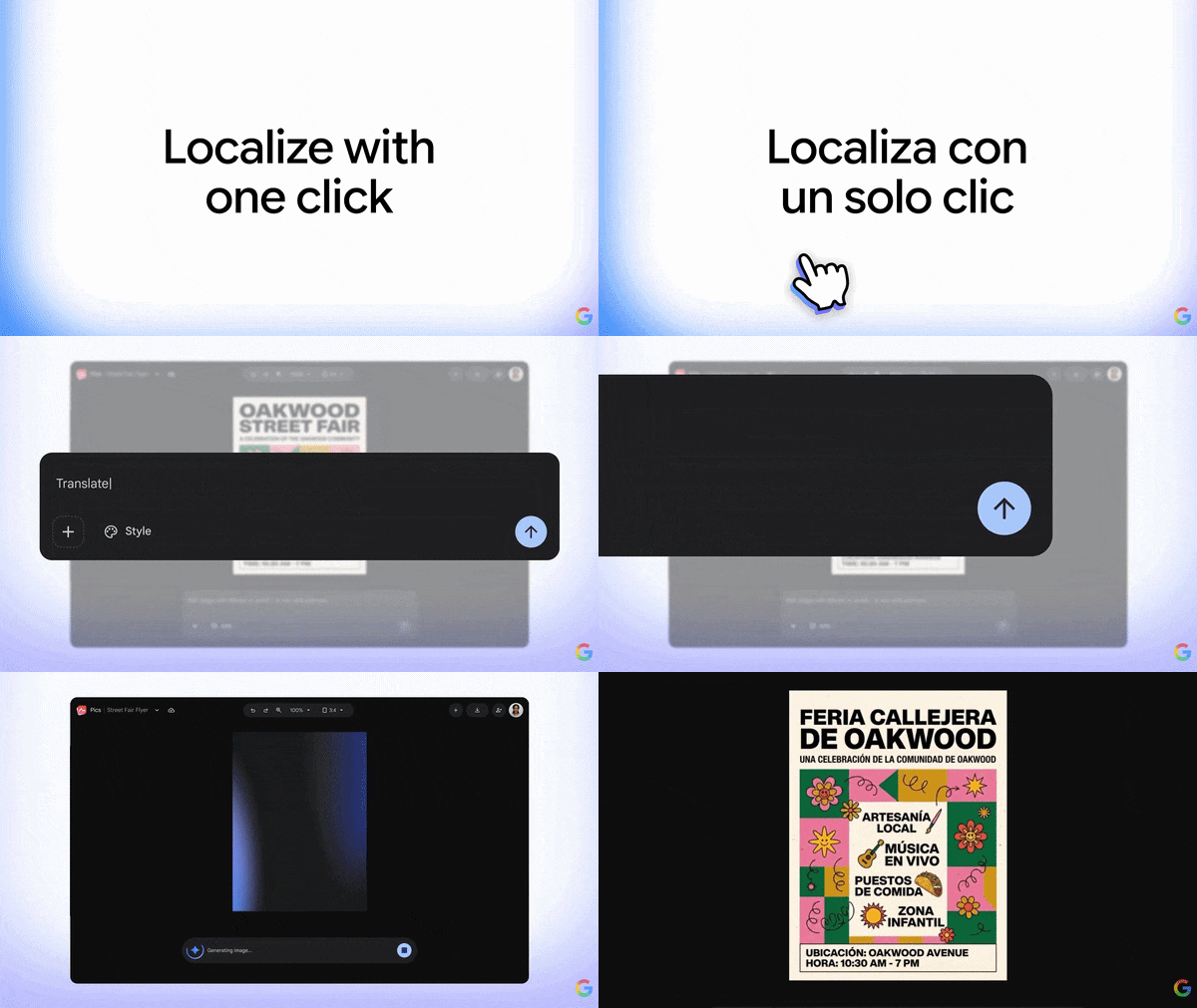
Need a graphic in another language for a global team or campaign? Google Pics can translate embedded text across roughly 29 languages without you rebuilding the design. This really saves hours of manual layout tweaking for global marketing materials or international team slides.
Native Workspace Integration
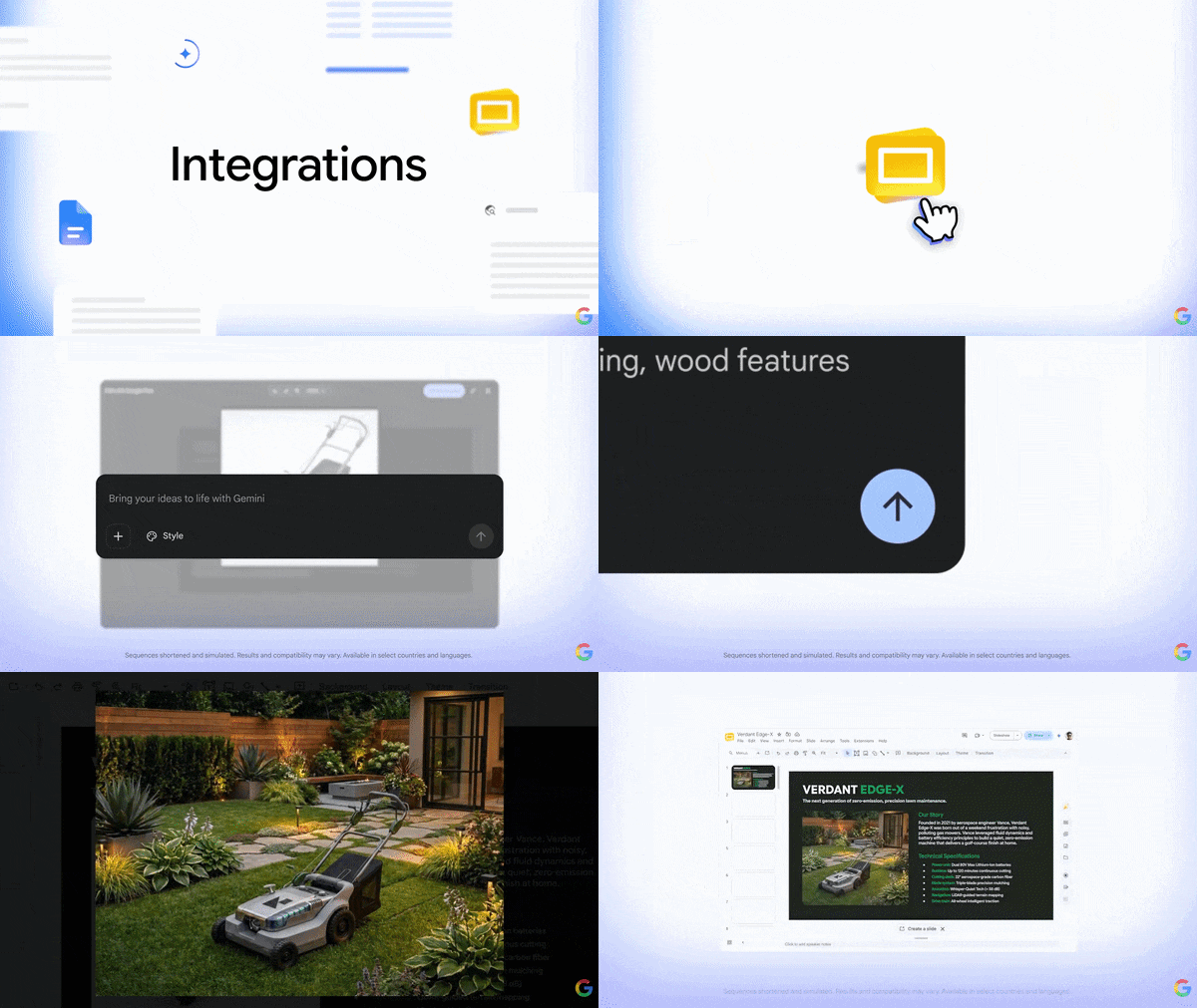
You can use Google Pics as a standalone web app, but its editing tools also work with Google Docs and Slides. Google says you can select an image in Docs or Slides and edit it with Pics without switching to another tab. Pics files are also managed through Google Drive.
Real-Time Collaboration
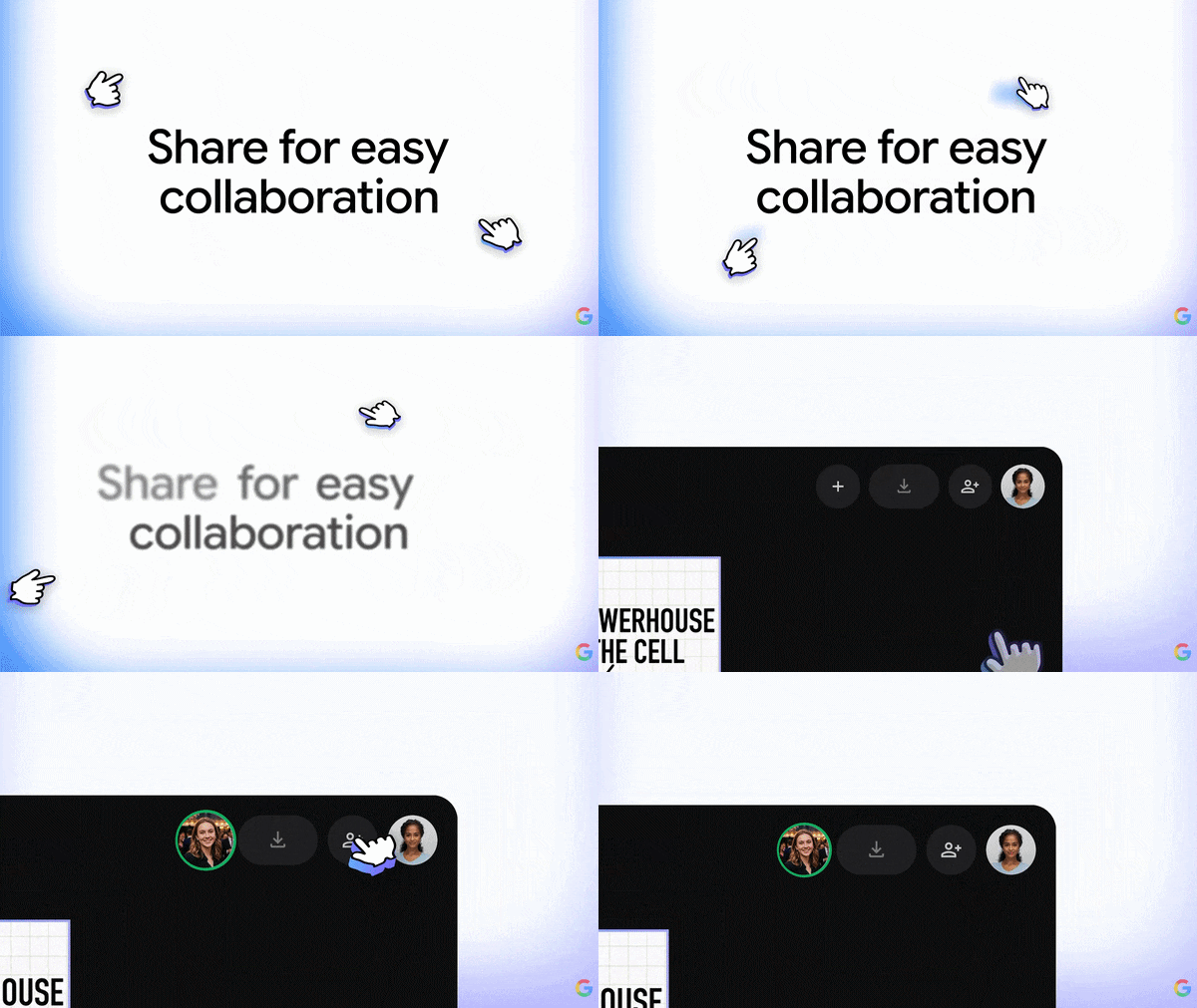
Google Pics also takes advantage of the sharing system that Google Workspace users already know. You can invite teammates to collaborate, share an image through a link, and create or open Pics images through Google Drive. That's a useful touch for teams working on things like presentation graphics, product concepts, flyers, or marketing materials.
Total Control of the Whole Image
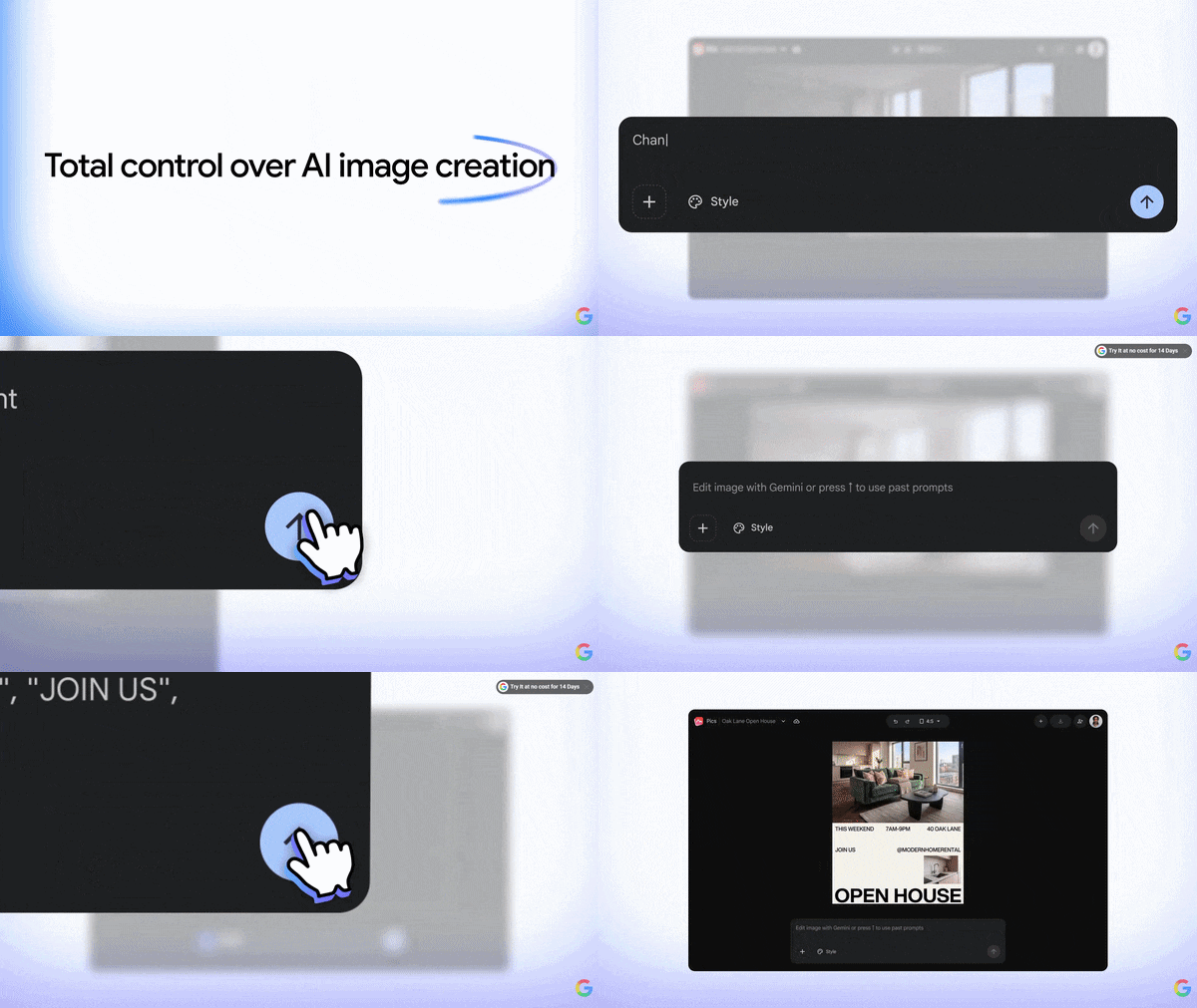
This part is easy to overlook, but it can make experimentation much less annoying. Beyond single objects, you can also adjust overall composition, swap backgrounds, tweak lighting, change aspect ratio, apply style filters, and upscale to 2K or 4K.
Part 3. How to Create and Edit Images With Google Pics
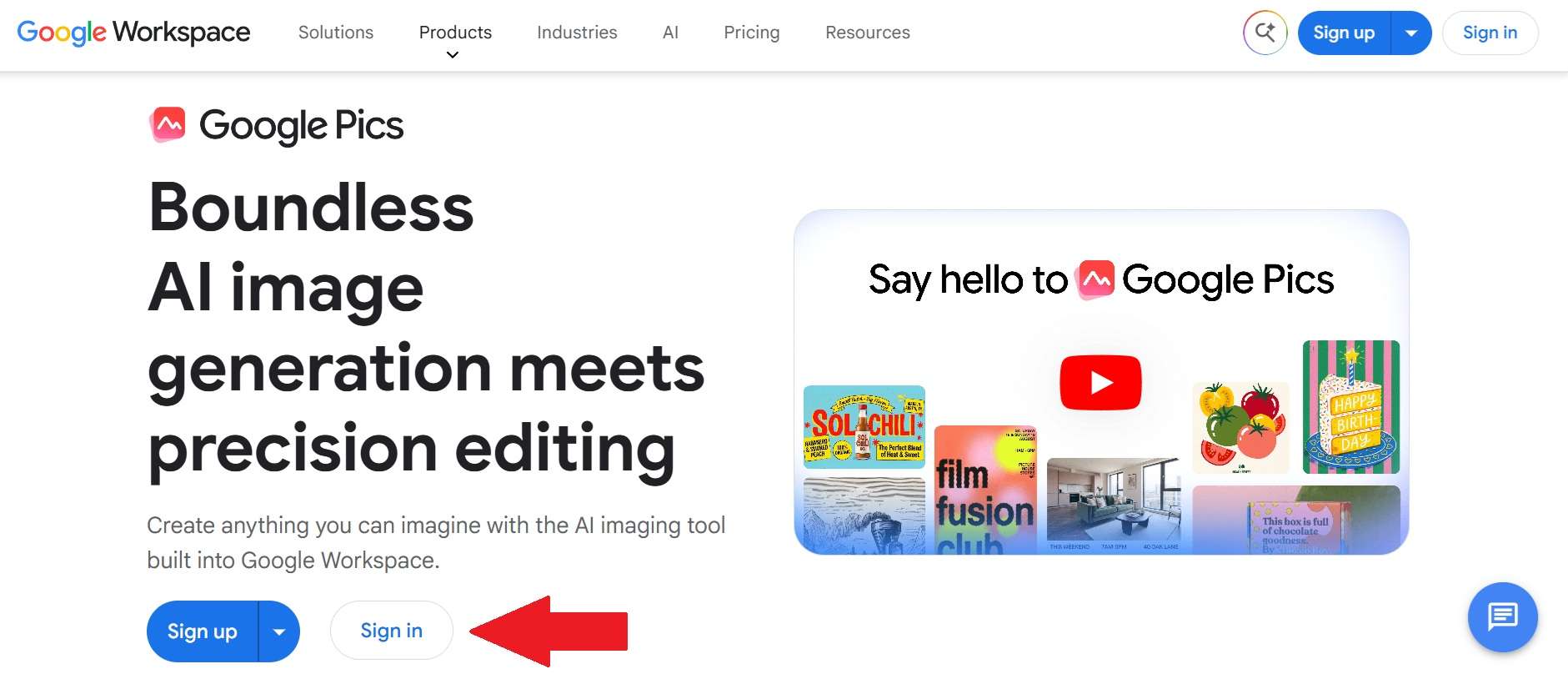
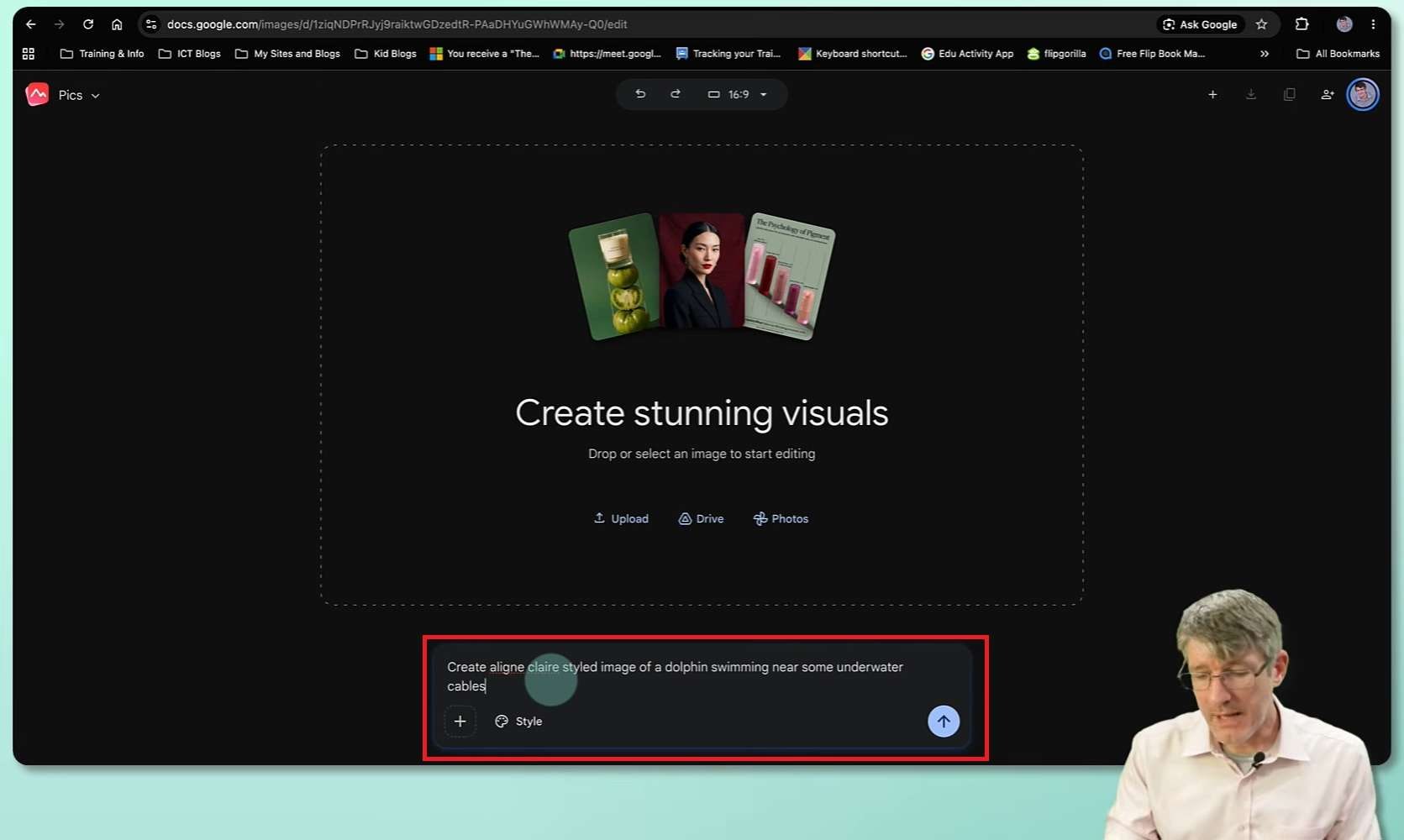
If your account already has access, actually getting started with Google Pics is actually simple. It follows a Create > Edit > Refine kind of rhythm, so even users familiar with other AI image tools shouldn't have much trouble finding their way around.
Guided by Flipped Classroom Tutorials on YouTube, see the steps below to learn how to use Google Pics:
Part 4. Google Pics Review: Weighing the Strengths and Weaknesses
A few weeks out from launch, Google Pics has a lot going for it, but let's be real, no AI tool nails everything right out of the gate. Looking honestly at both sides gives you a much more useful picture than just repeating Google's own marketing copy back at you.
- No Added Cost for Eligible Tiers: If your organization already pays for Business Standard or AI subscriptions, there are no extra add-on fees.
- Seamless Team Sharing: Built-in Workspace link protocols mean colleagues can co-edit visuals instantly.
- Native Drive Syncing: Automatically organizes, saves, and versions every generated visual inside standard Google Drive folders.
- In-image Text Editing and Translation are Useful: Swapping a headline or translating a graphic into another language (Google says 29 languages are supported) used to mean redoing the whole design in Photoshop or Canva.
- No Free Tier Availability: Free Google personal accounts are completely locked out of the feature.
- Missing Graphic Design Layers: Lacks traditional manual editing controls like vector pen tools, raster brushes, or timeline layers.
- Still a Young Product: A few weeks after launch, expect some rough patches. Google itself flags that faces, logos, and spacing should be double-checked before an image ships.
- Its Biggest Advantage Depends on Using Google: The Drive, Docs, and Slides connections are great if you're already in Google's ecosystem. They aren't nearly as compelling if your projects live somewhere else.
Part 5. Take Your Google Pics Creations Further With Filmora
Look, Google Pics is genuinely solid for what it does. But here's the thing: if you're a creator trying to actually grow an audience, a single still image just doesn't pull the same weight as video does anymore. Feeds are built around motion now, and that's simply where the attention goes.
The good news is you don't have to overthink the next step or start hunting for a whole new app, because Wondershare Filmora already covers it. Filmora has its own AI image generator built right into the timeline, powered by advanced models like GPT Image 2 and Nano Banana Pro, so it plays nicely with whatever style you're already going for.
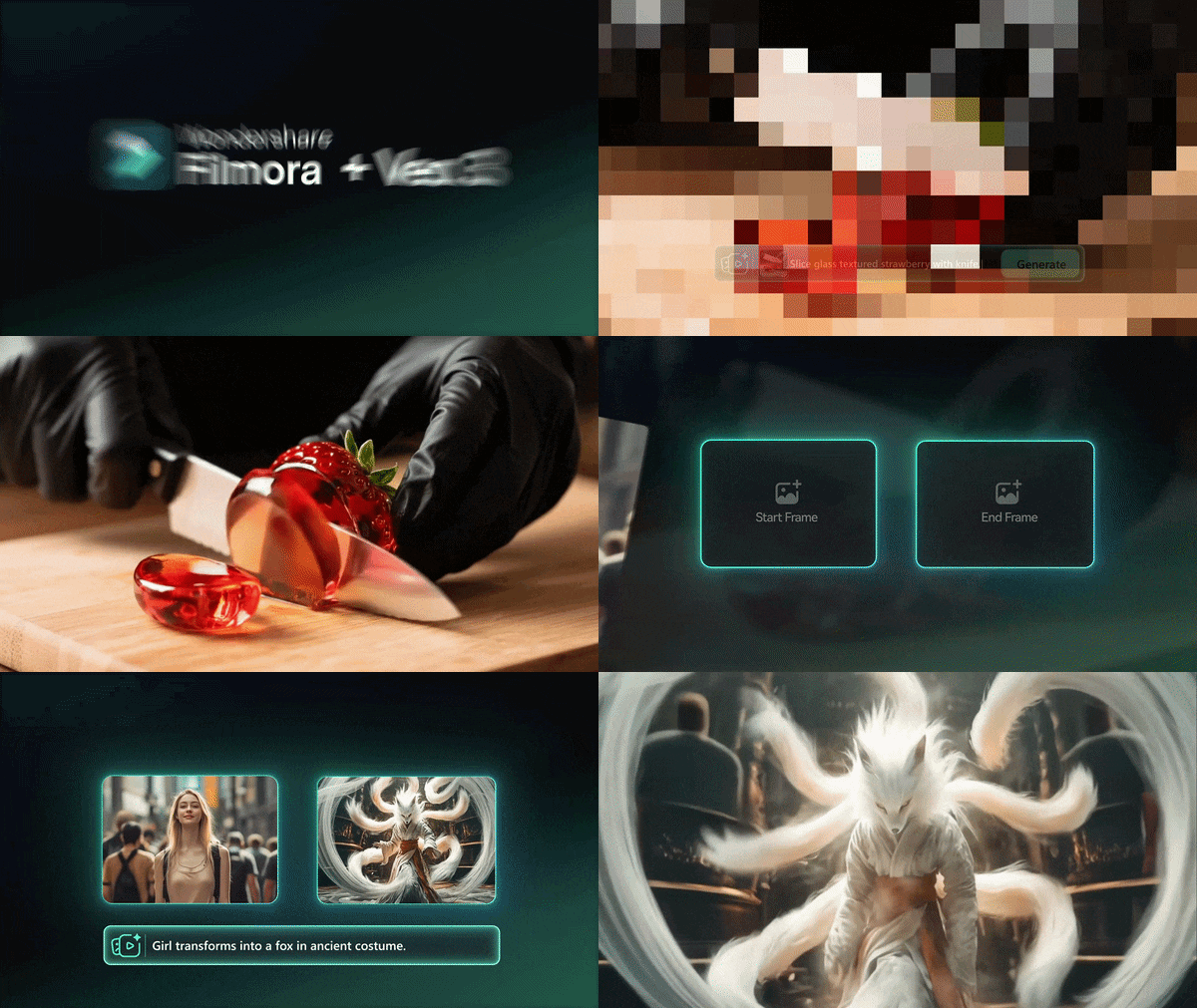
But the feature that really matters here is Filmora's AI Image-to-Video tool. With it, you can take a flat, static picture (like something you just made in Google Pics) and turn it into a moving clip, complete with natural motion, camera-style pans, and even subtle facial animation, without touching a camera at all.
Here's the workflow we'd recommend if you want the best of both worlds:
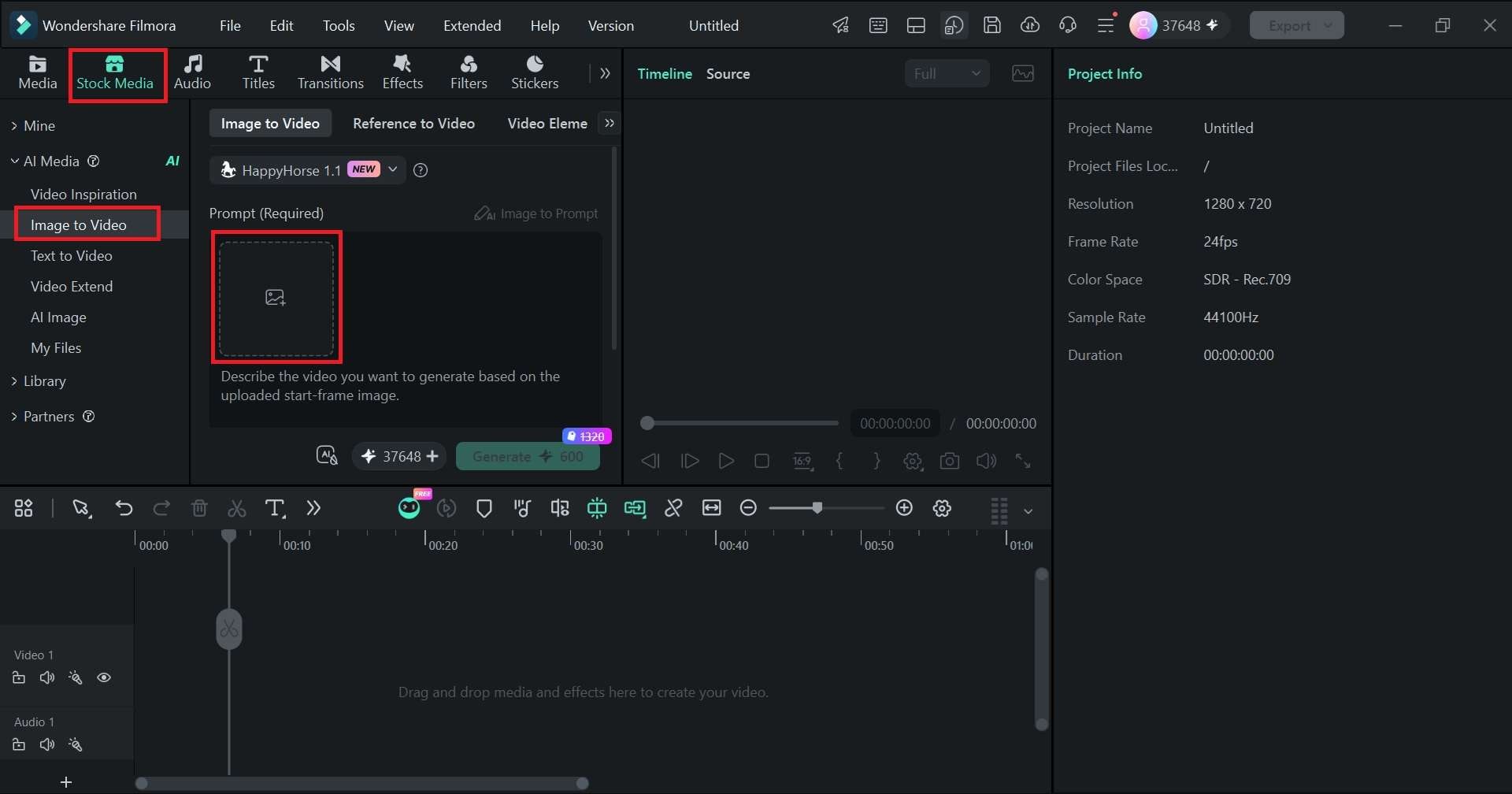
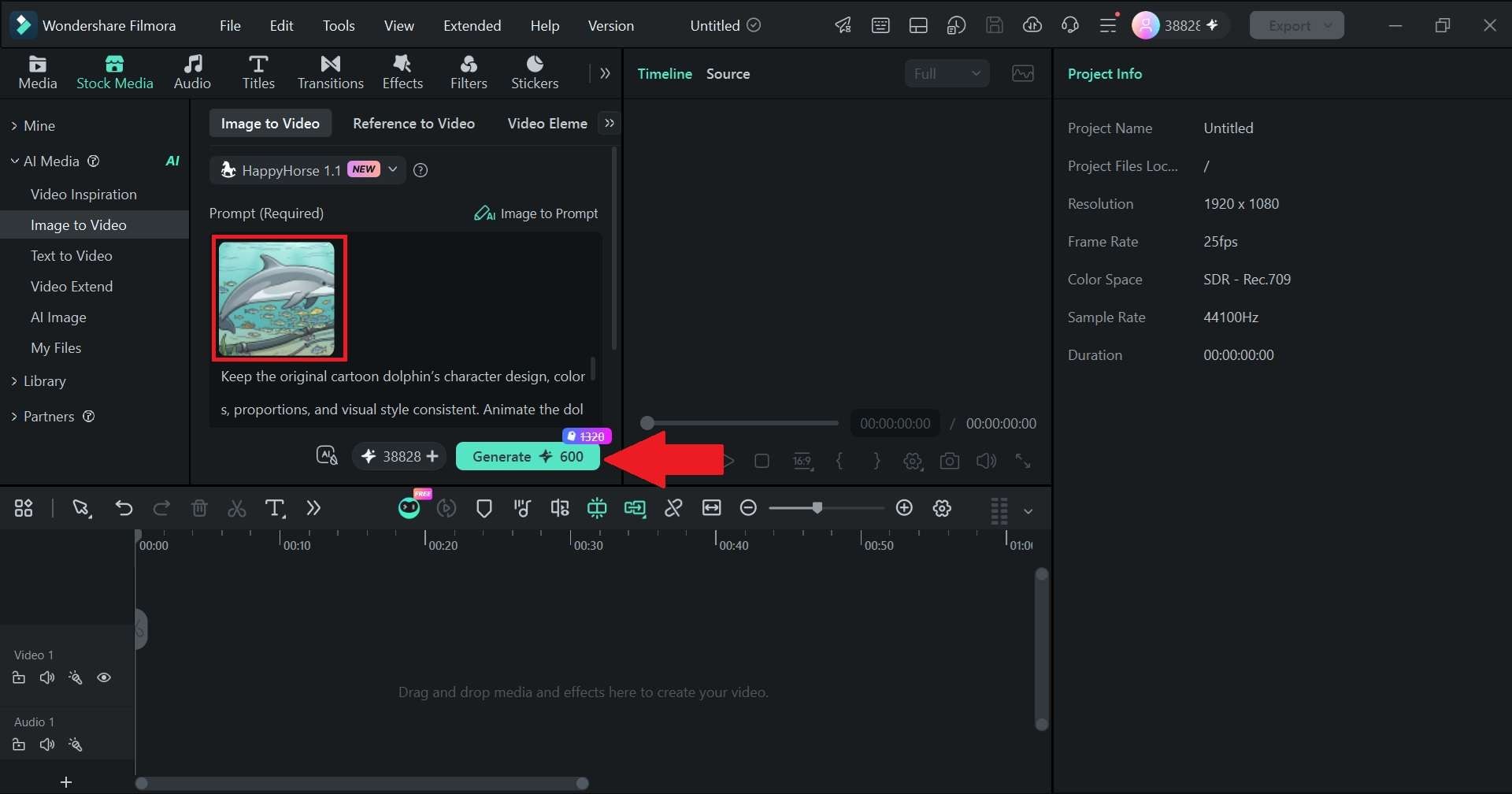
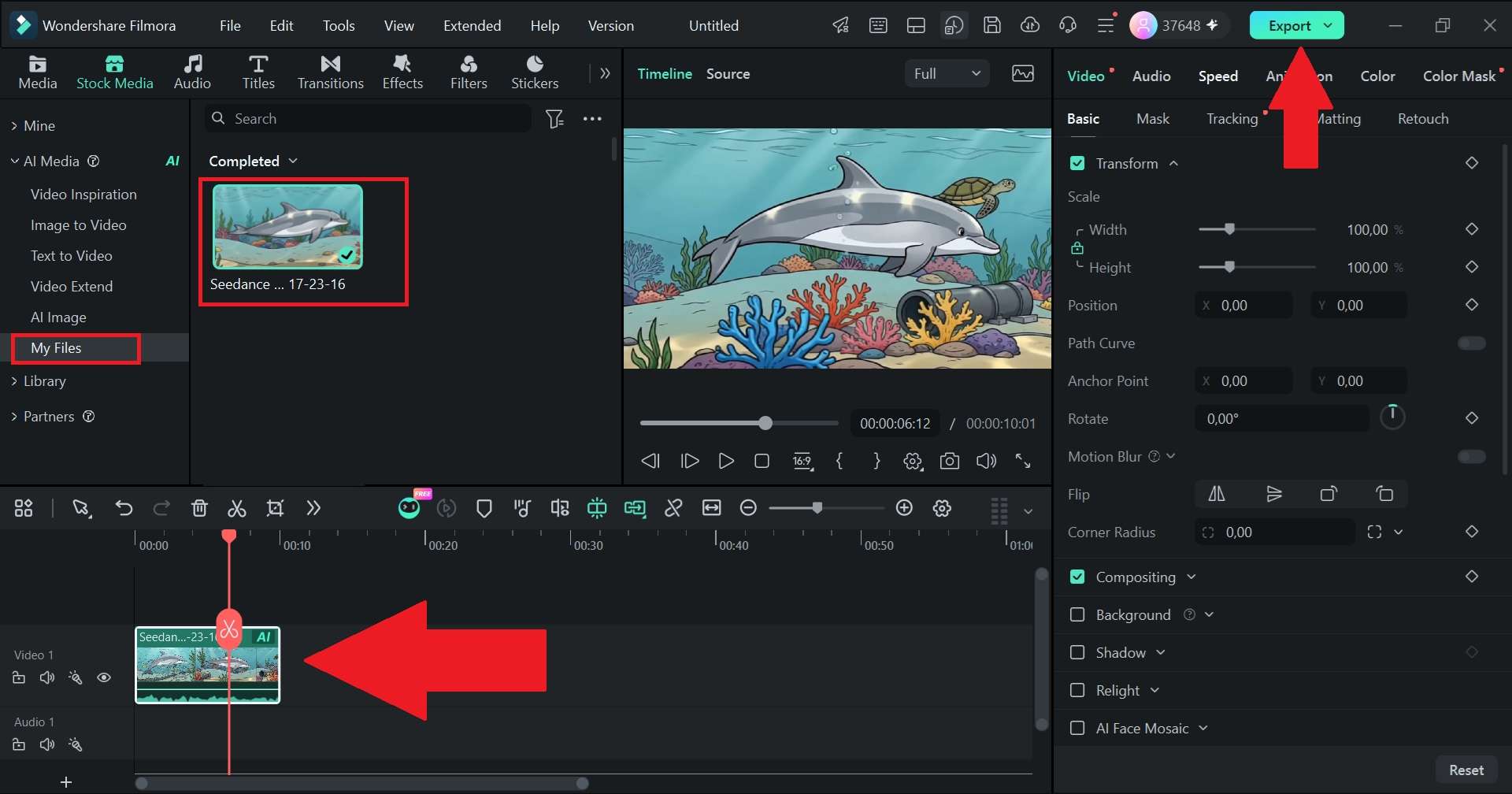
And that’s pretty much all it takes. In only a few steps, Filmora turns your Google Pics AI image into something more than a static image. See the result below.
 Secure Download
Conclusion
So, is Google Pics AI image generator and editor worth it? For anyone already paying for Workspace Business Standard or higher, or subscribed to Google AI Pro or Ultra, the answer leans toward yes. It's not perfect, but the object-level editing and the fact that it lives right inside Docs and Slides make it genuinely useful for everyday work, not just a fun toy to play with at once.
That said, a single image can only take your content so far. If you want your Google Pics creations to actually reach people, pairing them with Filmora's AI Image to Video feature is a natural next move; it turns a flat picture into something people actually stop scrolling for, and it takes just a few extra clicks to get there.
FAQs
-
Can I use Google Pics on mobile devices?
There isn't a dedicated Google Pics mobile app just yet. While mobile browsers can open Workspace files, the full object-selection editing canvas works best on desktop browser layouts. -
How does Google Pics differ from Google Photos?
They're built for different jobs. Google Photos is mainly about storing, organizing, and lightly touching up your personal photo library. Google Pics, on the other hand, is a creative tool meant for generating and precisely editing images for projects at work, school, or home, and it's tied into Workspace rather than your camera roll. -
Does Google Pics add a watermark to AI-generated images?
Yes, visuals created or modified through Google Pics include digital watermarks using Google’s SynthID technology. This embeds an imperceptible, tamper-resistant watermark into the image pixels to help identify AI-generated media responsibly.
