


If you’ve ever seen those layered fan edits with perfectly timed beats, animated clips, and effects that seem to move with the music, there’s a good chance Video Star was involved. The app is popular among creators who want more control over keyframes, layers, transitions, and music-synced edits than many mobile editors offer.
The problem is that Video Star is made for an iOS app. There’s no Video Star app for Mac or Windows, nor a desktop version for editors who wish to edit on a bigger screen. The only workaround is to use an emulator, or better yet, use dedicated PC or Mac editing apps if you want to keep making layered, effect-heavy edits with the same kind of creative control Video Star offers.
To find the best Video Star alternatives for PC, we focused on the features people usually look for when searching for Video Star on PC, Mac, or Windows. Each editor was tested based on:
- Platform support: whether it works on Windows, Mac, or both
- Layered editing: how easily you can stack video, images, text, and effects
- Video effects: filters, transitions, overlays, and other creative effects
- Keyframe animation: how much control you get over movement and timing
- Speed control: including speed changes and speed ramping
- Ease of use: how quickly a Video Star user can get used to the editor
- Price: free plans, trials, and paid options
Our Top 3 Picks


Part 1. Can You Download Video Star on PC?
Since Video Star is designed exclusively for iPhone and iPad, there’s no official Video Star PC download for Windows or MacBook. You can’t install the app directly on a computer as you would with a regular desktop editor.
One feasible workaround is to use an emulator. It runs a separate device environment on your computer, which allows you to use apps that aren’t typically designed for your operating system.
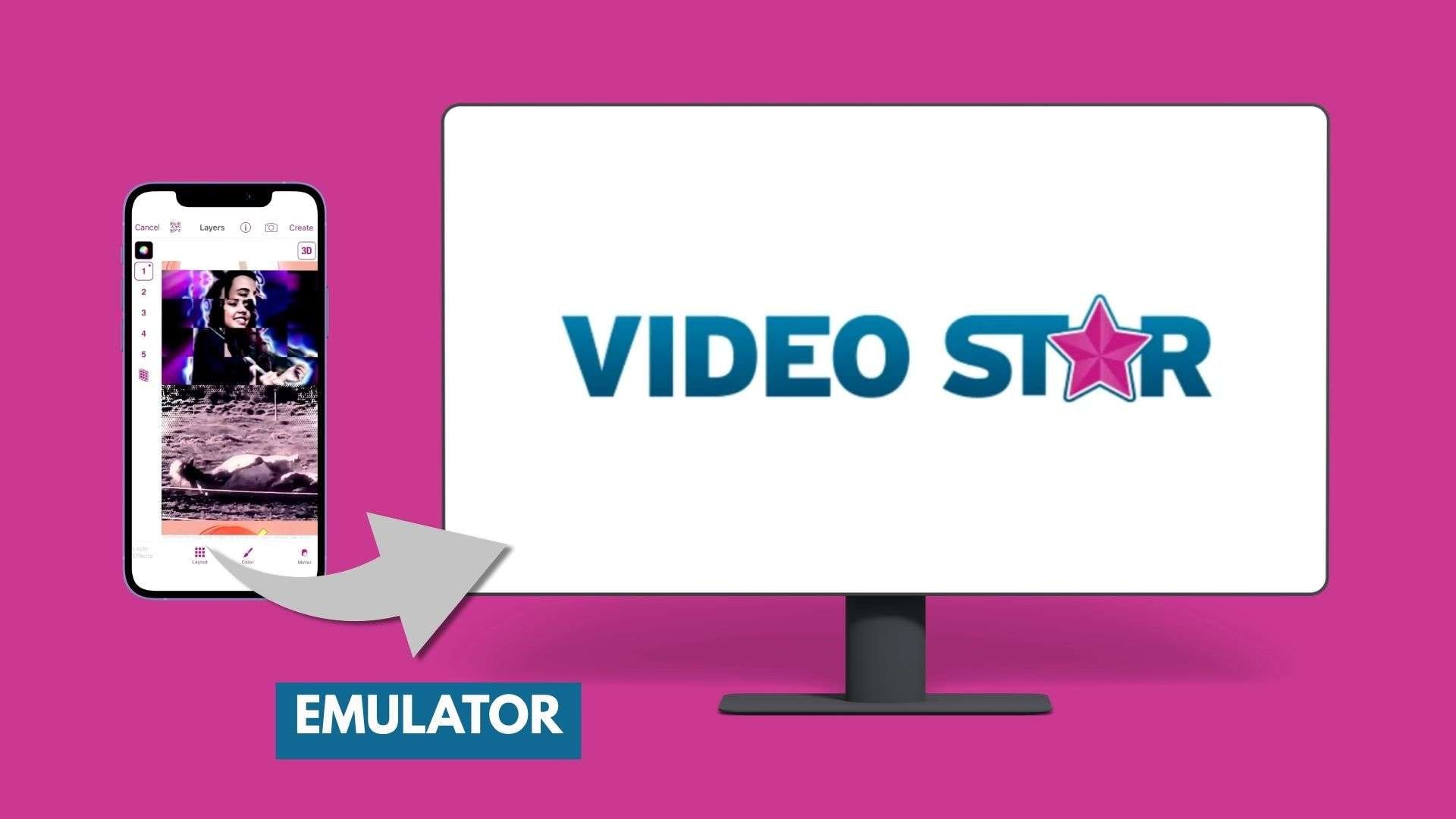
How to Use an Emulator for Video Star
- Choose and install a reputable emulator that supports the required environment.
- Complete the setup and sign in if needed.
- Look for Video Star through the supported app source.
- Install the app and launch it from the emulator.
- Try a short edit first to check how well it runs.
However, running Video Star on PC this way can be hit-or-miss, and the experience won't be the same as using it on an iPhone or iPad. A few downsides include:
- ❌ Performance may vary, especially with layered edits and effects.
- ❌ Touch controls may feel awkward with a mouse and keyboard.
- ❌ Some features may not work properly in an emulated environment.
Be careful with websites offering Video Star Pro PC, Video Star Pro APK PC, or modified downloads. They aren't official desktop versions. If you want to edit regularly on a larger screen, a dedicated Video Star alternative for PC or Mac will usually be less hassle.
Part 2. Video Star Alternatives for PC/Mac (Comparison Chart)
Switching from Video Star to a desktop editor gives you more flexibility to work with layers, effects, keyframes, and timing. The five alternatives to Video Star for PC or Mac listed below offer varying levels of control, so you can choose the one that best suits the type of editing you want to do.
| Platform | Free Trial | Video Effects | Speed Ramping | Keyframe Animation | |
| Filmora | Windows, macOS, iOS, Android | Free version available (watermark) | |||
| After Effects | Windows, Mac | 7-day free trial | |||
| Clipchamp | Windows, Web | Free plan | Limited | ||
| VN | Windows, macOS, iOS, Android | Free | |||
| Premiere Elements | Windows, Mac | 7-day free trial | |||
|
Show More
Show Less
|
|||||
Part 3. Best Video Star PC and Mac Alternatives (Reviewed)
Video Star is popular because it provides mobile editing tools for creating layered edits, beat-synced videos, animated effects, and stylized transitions. Since there is no official Video Star PC or Video Star Mac version, these alternatives focus on bringing similar editing capabilities to Windows and macOS.
1. Wondershare Filmora
Filmora is one of the closest alternatives for users looking for a Video Star PC version. It offers a timeline-based workflow with multiple video and audio layers, keyframe animation, speed ramping, masking, transitions, filters, and effects.
For creators who use Video Star for fan edits or music videos, Filmora provides more space to organize clips, sync edits with audio, and adjust effects across a longer timeline. The desktop interface also offers more efficient project management, which can be difficult to do on a phone screen.
- AI Image Generator for creating visuals from text prompts
- Auto Beat Sync helps you make beat-synced fan edits quickly by detecting beat markers in a track automatically and snapping your cuts to them
- Video Effects and Templates give you a large preset library covering the effect-pack style similar to what Video Star's community is built on
- AI Video Generator for generating video content
- AI Image-to-Video for animating still images
- AI Music & Sound Effects for generating audio assets
- Keyframe Animation for controlling movement and effects
- Speed Ramping for custom fast-to-slow or slow-to-fast changes
- Motion Tracking and Masking for attaching or restricting effects to specific areas
Windows, macOS, iOS, Android
Filmora offers a free version, but exported videos include a watermark. For watermark-free exports, users can choose from several paid plans. Check out Filmora’s pricing for more details.
- Video Star users moving from mobile to desktop
- Fan-made edits that use multiple clips and effects
- Music videos with beat-based timing
- Creators looking for a Video Star for MacBook or Windows alternative
- Keyframe animation for clip movement and effects
- Speed ramping with custom speed changes
- Multi-layer timeline for complex edits
- Extensive collection of transitions, filters, and effects
- Exports from the free version include a watermark
- Less advanced for complex visual effects compared with After Effects
Filmora covers the main reasons people use Video Star: stacking layers, adding effects, syncing clips with music, and animating elements. It is a convenient choice for users who want a Video Star desktop alternative without the need to learn a professional motion graphics tool first.
2. After Effects
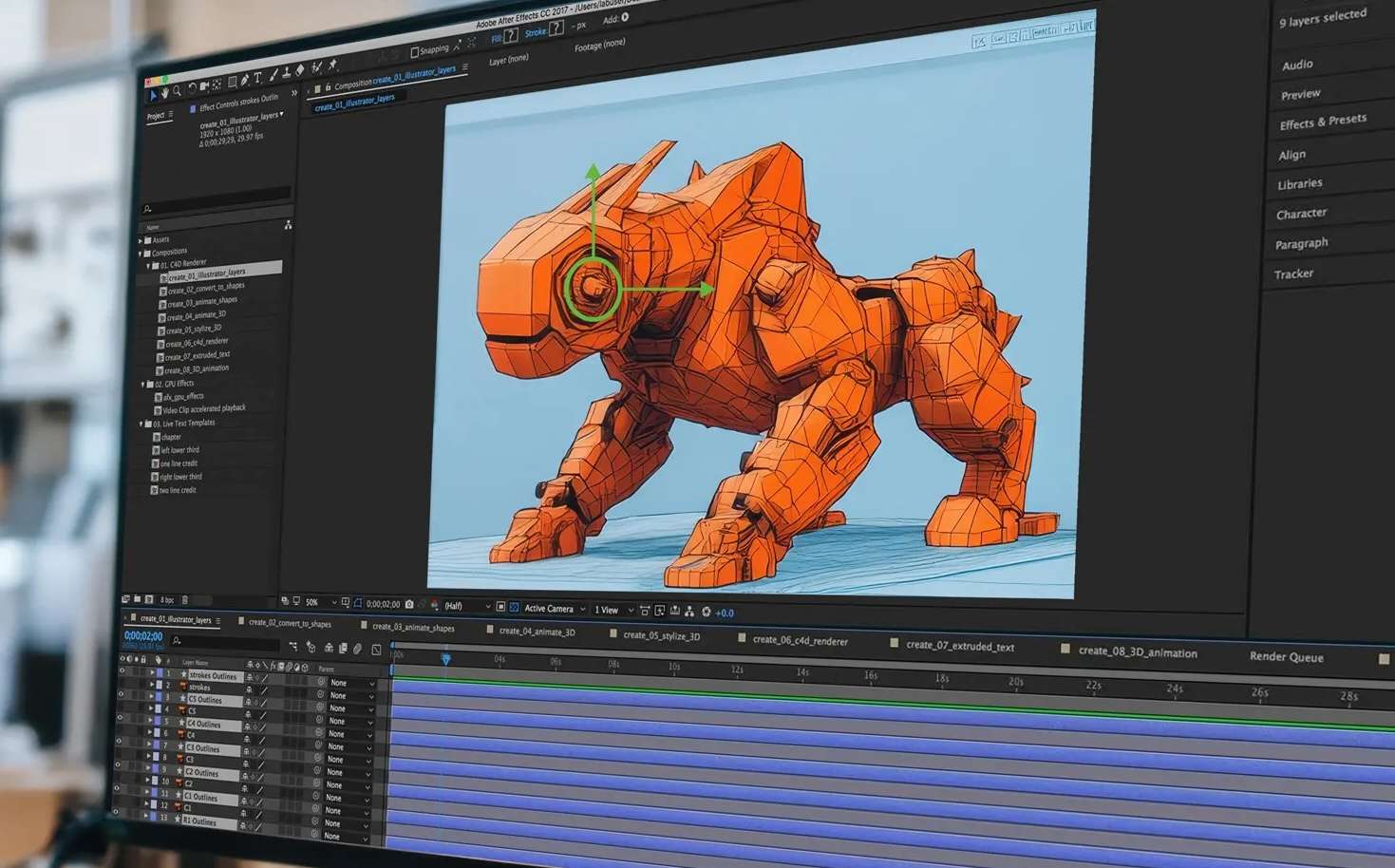
For Video Star users who mainly enjoy creating advanced effects and animations, After Effects is a good Video Star Mac and Windows alternative. It’s an industry-standard motion graphics and visual effects software that specializes in compositing, animation, and detailed visual effects rather than quick timeline editing.
With this, you can create custom transitions, animated text, camera movements, glowing effects, and complex layer interactions that go beyond what a mobile editor can handle.
- Advanced Keyframes for animating motion, effects, and other layer properties
- Graph Editor for fine-tuning animation speed and timing
- 3D Animation for working with 3D layers and scenes
- Motion Graphics for creating animated text and graphic elements
- Compositing and Visual Effects for combining multiple visual elements
Windows, macOS
After Effects is available through Adobe Creative Cloud for $54.99–$69.99/month, or a single app for $22.99/month; a 7-day free trial is available.
- Advanced fan edits
- Motion graphics
- Custom visual effects
- Editors who want detailed animation control
- Advanced keyframe and layer controls
- Large effects and plugin ecosystem
- Professional compositing tools
- Requires more time to learn
- Needs stronger computer hardware
- Not designed for quick mobile-style editing
If you are searching for a Video Star Pro PC experience and want more control over effects, After Effects offers deeper animation tools. It is the better choice for editors who want to recreate complex transitions and visual effects from scratch.
3. Clipchamp
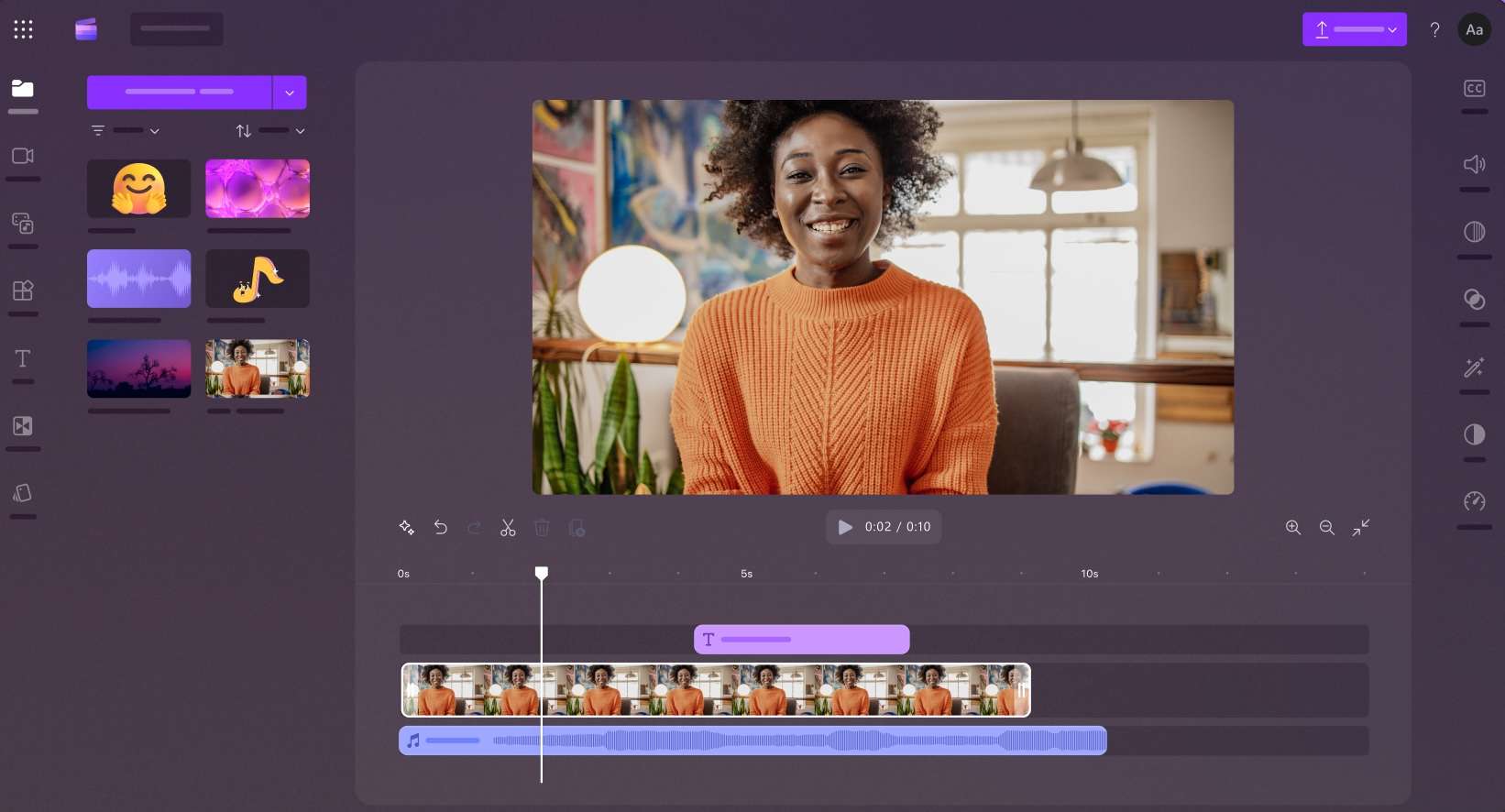
Clipchamp is a lighter alternative to Video Star for Windows. This app focuses on everyday editing tasks such as trimming clips, adding text, applying transitions, using templates, and creating social media videos.
Unlike Video Star, Clipchamp is not built around highly customized fan edits with multiple animated effects. It works better for users who want a quick editor already available on Windows.
- AI Auto Captions for automatically transcribing spoken audio
- Screen, Camera, and Voice Recording directly in the editor
- Templates for quickly building social and other short-form videos
- Green Screen for replacing backgrounds
- AI video editing features and built-in stock media
Windows, Web
Clipchamp offers a free plan that includes 1080p exports with no watermark and basic editing features. Premium features and higher resolution exports are available through Microsoft 365 Personal and Family plans, starting at $9.99/month.
- Windows users who need quick edits
- Simple social media videos
- Beginners
- User-friendly interface
- Free export without watermarks
- Integrated with the Microsoft ecosystem
- Limited keyframe controls
- Fewer advanced effects
- Not designed for detailed fan edits
Clipchamp works if you only need basic editing as an alternative to Video Star on Windows. However, creators who rely on layered effects and animation will find Filmora or After Effects are more similar to Video Star’s editing style.
4. VN Video Editor
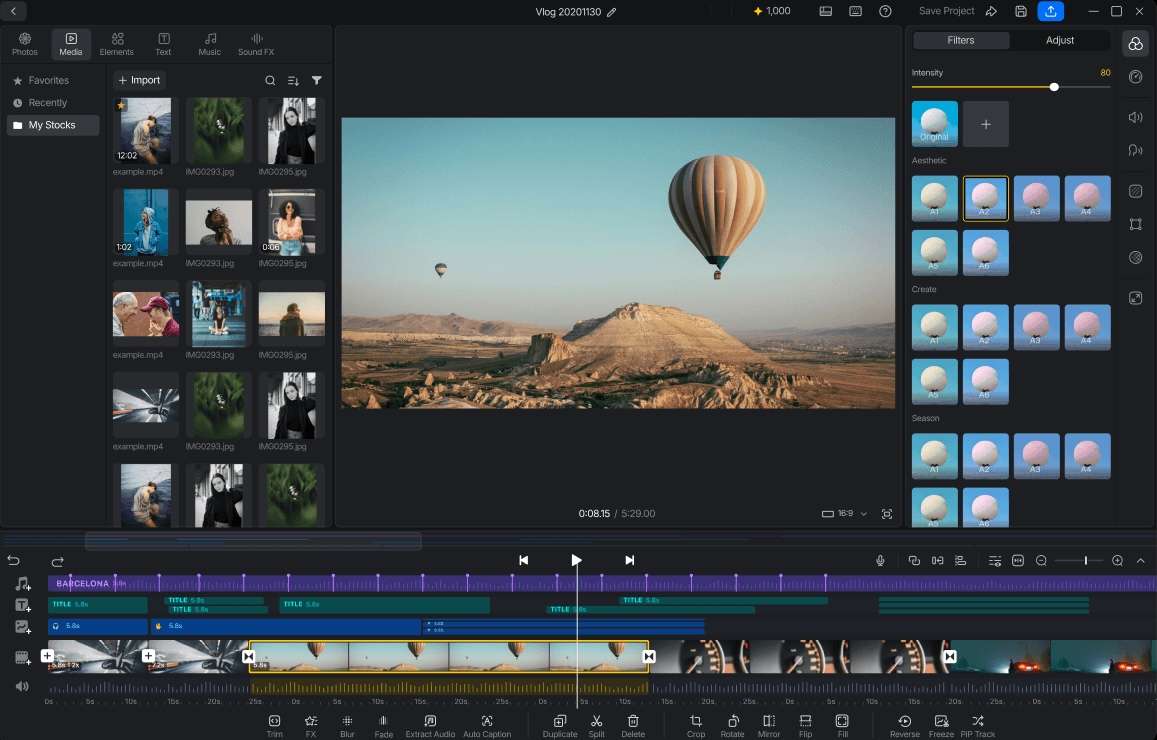
VN Video Editor is one of the closest choices for users who like Video Star’s mobile editing workflow. It supports multi-layer editing, keyframes, speed curves, filters, transitions, text, and music editing. Compared to many desktop editors, VN maintains a mobile-friendly interface, making it easier for creators who prefer to edit clips directly on their phones.
- Multi-track Timeline for layering video, images, text, and audio
- Keyframe Animation for animating elements
- Speed Curves for controlling speed changes
- Beat-based Editing for syncing cuts and effects to music
- LUT Support for importing custom color looks
Windows, macOS, iOS, Android
VN Video Editor is free to use. The main editing tools are available without a subscription, with optional in-app purchases depending on the platform.
- Free Video Star alternatives
- Mobile-style editing on PC or Mac
- Short-form videos and social content
- Free access to basic editing tools
- Supports layers and keyframes
- Familiar workflow for mobile editors
- Fewer advanced effects than professional software
- Not ideal for large or complex projects
VN is ideal for users seeking Video Star download Mac alternatives who want a free editor with a similar mobile feel. It provides familiar editing tools without requiring a professional software subscription.
5. Premiere Elements
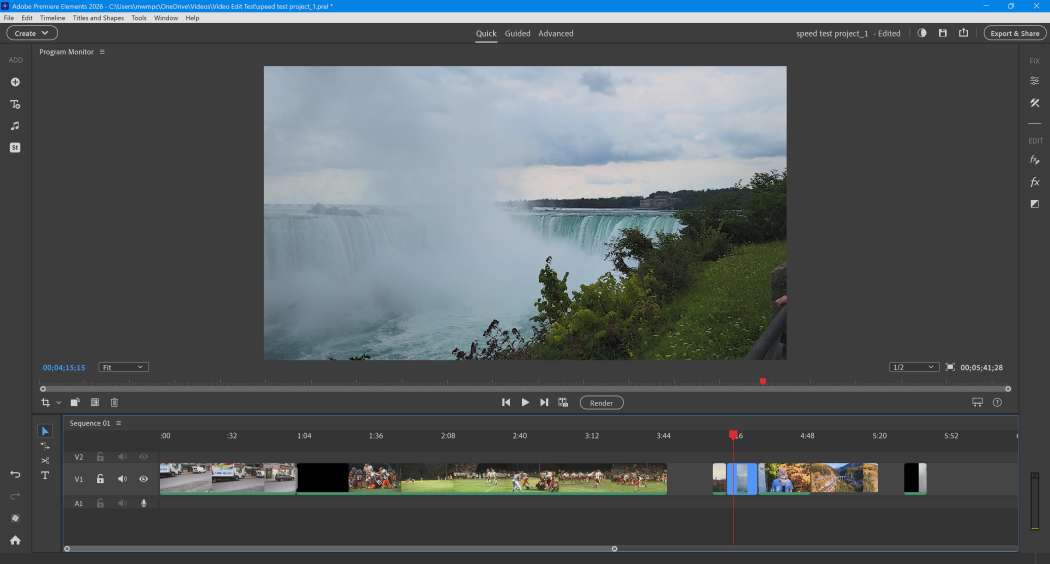
Premiere Elements is designed for beginners who want a traditional desktop editor without the complexity of professional Adobe software. The app includes guided edits, effects, transitions, color adjustments, and automated tools. It’s better suited for longer projects such as personal videos, presentations, and simple creative edits rather than fast-paced fan edits.
- AI Auto-Reframe to adjust videos to different aspect ratios
- Object Selection and Tracking to apply effects to specific areas
- AI-powered video enhancements
- Guided Edits for step-by-step editing tasks
- Quick, Guided, and Advanced modes for different editing experience levels
Windows, macOS
Premiere Elements 2026 is available as a 3-year license. The full version costs around $99.99, with a 7-day free trial available.
- Beginners transitioning from editing on mobile devices
- Personal projects
- Users who prefer guided tools
- Beginner-friendly workflow
- Guided editing features
- Traditional desktop timeline
- Limited animation control
- Not suitable for advanced fan edits
- Fewer effects customization options than After Effects
Premiere Elements is ideal for users who want a Video Star laptop editing solution with a simpler desktop workflow. It’s easier to learn than professional tools but does not offer the same level of control over effects as Filmora or After Effects.
 Secure Download
Conclusion
Video Star works well for mobile creators who enjoy building fan edits with layers, effects, and music timing, but the lack of a Windows or Mac version makes desktop editing difficult. After Effects is better for advanced visual effects, while Clipchamp is mainly suited for simpler projects.
For most users searching for a Video Star PC or Video Star for MacBook alternative, Filmora is a good workaround for transitioning from mobile edits to desktop. It brings keyframe animation, speed ramping, multi-layer editing, and creative effects into a desktop workflow without the complexity of professional software. This lets creators handle more complex edits with layers, effects, and timing controls in a desktop workspace.
FAQs
-
Can I transfer my Video Star projects to a desktop editor?
No. Video Star projects can’t be opened directly in desktop editors because each app uses its own project format. You can export the finished video from Video Star and import it into a PC or Mac editor, but the original layers, keyframes, and effects will not be editable. -
Is it safe to download Video Star PC versions from third-party sites?
There is no official Video Star PC, Windows, or Mac version. Be careful with websites offering “Video Star Pro PC” or “Video Star APK PC” downloads, as they are not legitimate versions of the app. For desktop editing, it’s better to use an editor designed for Windows or macOS. -
What are the minimum requirements to use Video Star on PC via an emulator?
Video Star does not have official PC requirements since the app is designed for iPhone and iPad. If you're experimenting with an emulator or similar workaround, check the requirements of the software you’re using. Even with a compatible PC, Video Star may not work the same as it does on a phone, as the app is designed for touch controls.
