


 TL;DR:
Aegisub is a free, desktop-only subtitle editor strictly designed for users who require manual frame-by-frame timing precision and complex ASS or SSA formatting rather than automated generation.
● Windows provides the most stable experience, while Apple Silicon Macs (M1, M2, M3) encounter stability issues that necessitate using community forks like Aegisub-Motion or TypesettingTools.
● The software completely lacks AI automation, meaning all dialogue syncing via audio waveforms, karaoke effects, and Lua scripting workflows must be executed manually.
● Creators producing YouTube or short-form social media content should bypass Aegisub for all-in-one alternatives like Wondershare Filmora, which offers automated AI transcription, auto-syncing, and translation across 45 languages.
Ask AI for a summary
 ChatGPT
 Perplexity
 Gemini
 Claude
 Grok
Grok
If you've spent any time working with video subtitles, you've probably heard of Aegisub at some point. Originally built for fansubbing, Aegisub has been a favorite free tool for subtitling that’s still around since 2005.
What keeps people coming back is the level of control it offers: frame-by-frame timing, detailed styling options, and karaoke-style effects that sync to the audio. But if you look at its interface, it looks like it was designed for people who already know what they're doing, and the documentation doesn't exactly hold your hand through it.
So, should you use it? Find the answer in this Aegisub review.
Part 1. What Is Aegisub?
If you’ve ever wondered how some subtitles can seem to have perfect timing, style, and even animation, chances are tools like Aegisub are behind them. This isn’t your typical “type and export” caption tool. It’s built for hands-on editing, letting every millisecond and visual detail be adjusted.
Aegisub is a free, open-source subtitle editor that prioritizes control. Rather than relying on automation, you work directly with audio waveforms, timing layers, and styling tools to shape how subtitles appear and behave on screen.
The Aegisub app supports everything from simple SRT files to more advanced formats like ASS and SSA, which allow for custom fonts, positioning, and effects. It runs on Windows, macOS, and Linux, so it's widely accessible, as long as you're working on a desktop.
Part 2. Key Features That Make Aegisub Stand Out
What keeps Aegisub relevant is the level of control it offers. Every feature is designed for users who prioritize timing, detail, and visual impact.
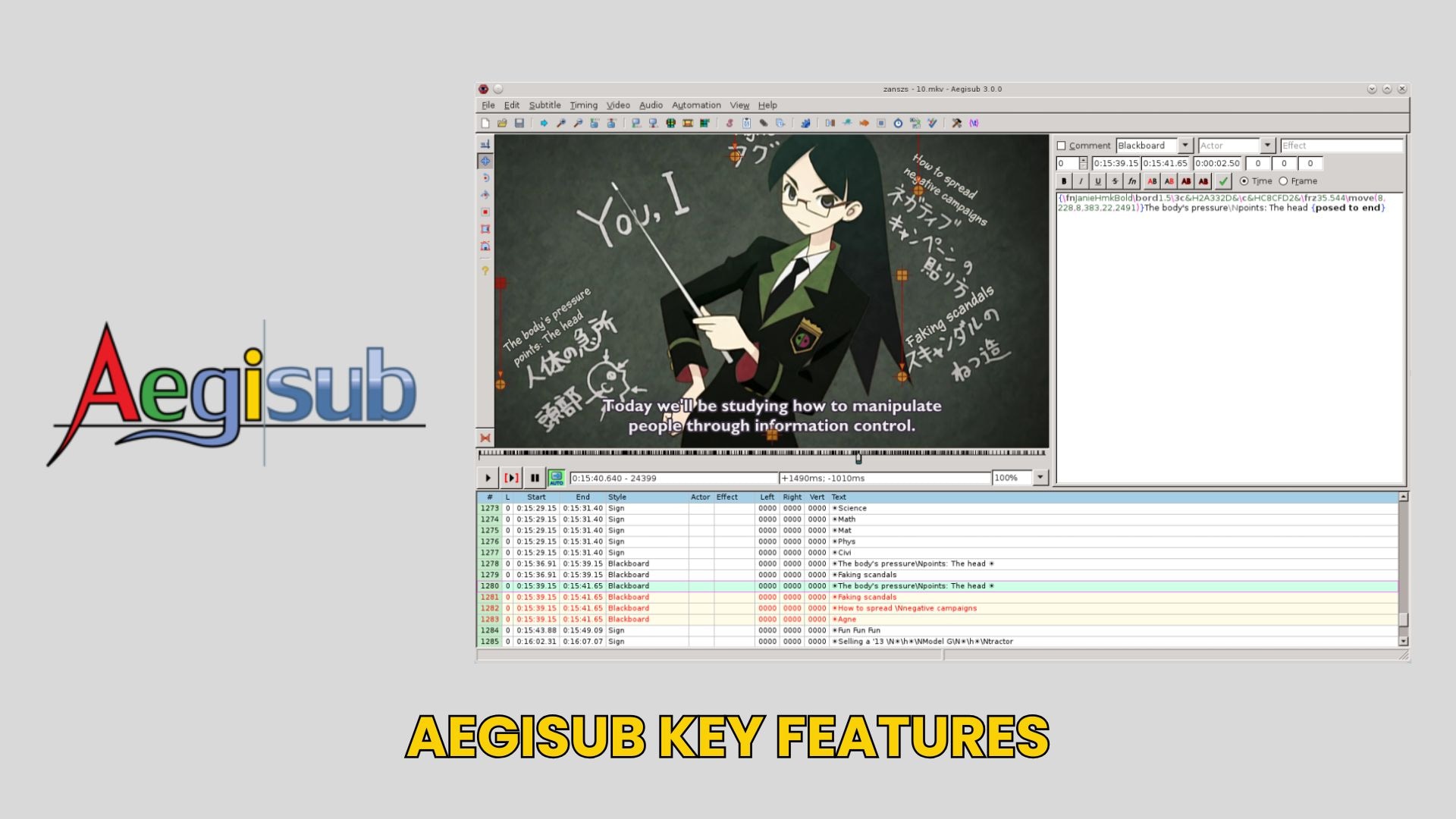
Precision Subtitle Timing
- Frame-level timing control for exact subtitle placement
- Audio waveform view for natural dialogue synchronization
- Fine-tuning for pauses, overlaps, and fast speech
Advanced Styling with ASS Format
- Full customization of fonts, colors, outlines, and shadows
- Flexible subtitle positioning anywhere on screen
- Layering support for complex subtitle designs
Karaoke Effects & Animation
- Syllable-by-syllable timing for accurate lyric syncing
- Built-in tools for animated text effects
- Popular for music videos and fansub projects
Automation & Scripting (Advanced Users)
- Lua scripting support for custom workflows
- Automate repetitive editing tasks
- Access to community-made scripts for advanced effects
Part 3. Aegisub Download and Installation Guide
Before you start editing, getting Aegisub software set up properly is important, especially since many third-party sites offer outdated or modified versions. To avoid issues, always download Aegisub from its official website or trusted repositories. This helps ensure you’re getting a clean and secure version without hidden risks.
Once downloaded, installation is fairly straightforward, though the experience can vary slightly depending on your system.
Download Aegisub for Windows
- Download the latest Windows installer from the official site
- Open the .exe file and follow the setup instructions
- The installation process is quick and beginner-friendly
- Once installed, launch Aegisub and start importing subtitle or video files
Windows offers the smoothest experience, with the most stable builds available.
Download Aegisub for Mac
- Download the macOS version (usually provided as a .dmg file)
- Drag Aegisub into the Applications folder
- If blocked, go to System Settings > Privacy & Security and allow the app manually
- Launch the app and proceed with your subtitle project
In many Aegisub reviews, however, some users on Apple Silicon Macs (M1, M2, M3) have reported stability issues and missing features compared to the Windows version. If you run into persistent problems, you may want to take a look at the community-maintained fork called Aegisub-Motion or the alternative build from the TypesettingTools GitHub. They tend to have better compatibility with newer macOS versions.
Part 4. Aegisub Pros and Cons
It’s now clear that Aegisub doesn’t aim to be a one-size-fits-all solution for everyone. The app is specifically designed for a certain type of user, and this shows in both its strengths and limitations.
- Aegisub subtitle has a highly precise timing tools that go down to the frame level
- Advanced styling options with ASS/SSA support
- Powerful karaoke and animation capabilities
- Free and open-source with no paywalls
- Trusted by experienced subtitle editors and fansub communities
- A steep learning curve, especially for beginners
- An outdated interface compared to modern editors
- No mobile or browser-based version
- Limited ongoing updates and occasional compatibility issues
- Requires manual work; no AI automation features
Part 5. Aegisub vs Modern Subtitle Tools
The way subtitles are created today looks very different from when Aegisub software first gained popularity. Back then, everything was crafted manually, with careful attention to timing, styling, and how subtitles fit the scene visually.
Now, many tools rely on AI to generate captions instantly, shifting the focus from precision to speed and convenience. This doesn’t make Aegisub outdated; it simply means it serves a different purpose.
When you compare it with AI subtitle generators and modern all-in-one editors, the difference is that one is built for detailed control, and the other for fast, scalable workflows.
Key Comparison: Aegisub vs Newer Tools
| Aspect | Aegisub | AI Subtitle Generators | All-in-One Video Editors |
| Workflow | Fully manual editing | Automatic generation | Hybrid (AI + manual editing) |
| Speed | Slow, requires manual input | Very fast (seconds) | Fast with editing flexibility |
| Accuracy Control | High (frame-level precision) | Medium (needs correction) | Medium to high |
| Styling & Effects | Advanced (ASS, animations, karaoke) | Limited styling | Moderate visual styling |
| Ease of use | Steep learning curve | Beginner-friendly | Beginner to intermediate |
| Platform | Desktop only (offline) | Mostly cloud-based | Desktop + mobile |
| Best for | Precision subtitle work | Quick captions at scale | Content creation workflows |
|
Show More
Show Less
|
|||
Simple takeaway:
- Choose Aegisub if you want full control and detailed styling
- Choose AI tools if you want speed and automation
- Choose all-in-one editors if you want balance and convenience
Part 6. Best Alternative to Aegisub
After seeing what Aegisub can do, the next question is “Do you really need that level of control for every project?” For many creators today, the answer is no. If you're subtitling a YouTube video, a short-form clip, or anything where speed matters more than frame-perfect precision, there are tools that will get you there faster.
Why Consider Alternatives?
- Faster workflow. Instead of timing subtitles line by line, modern tools can generate and sync captions in seconds.
- Beginner-friendly tools. Cleaner interfaces, drag-and-drop editing, and guided features make them easier to learn.
- Multi-platform support. Many tools work across desktops, mobile devices, or even browsers, unlike Aegisub, which is only available on desktops.
Recommended Option: Wondershare Filmora
If Aegisub feels too technical or time-consuming, you may want to consider using Wondershare Filmora. Filmora is a video editor with a built-in subtitle tool that handles most of what everyday content creators actually need, fully automated.
 Secure Download
In Filmora, you get to enjoy:
- AI subtitle generation: Automatically converts speech into subtitles with minimal effort
- Auto-sync audio to text: Captions are timed to your video without manual adjustment
- Visual editing timeline: You can edit subtitles directly alongside your video, which makes the process more intuitive
- Built-in styling tools: Customize fonts, colors, and animations without needing advanced formats like ASS
- Auto Translate: Filmora can translate your subtitles into up to 45 languages automatically.
Everything lives in one place. You edit your footage, add subtitles, adjust timing, and export inside the same app. Its auto-caption feature transcribes your audio and places subtitles on the timeline automatically. Accuracy is high for clear dialogue, and you can still review and edit when something doesn't land right.
If Aegisub gives you maximum control, Filmora gives you speed, simplicity, and a comprehensive editing workflow. For most content creators, especially those working on YouTube, social media, or short-form videos, that balance makes a big difference.
Secure DownloadConclusion
Aegisub proves that precision still has a place in modern editing. Its frame-by-frame timing, detailed styling, and signature effects offer a level of control that automated tools simply can’t replicate. For projects requiring perfectly synchronized and visually designed subtitles, Aegisub remains the right choice.
At the same time, the way people create content has changed. Speed, simplicity, and multi-platform workflows matter more than ever, which is why tools like Filmora have also become a practical choice for a lot of creators. You get to auto-generate subtitles inside a full video editor. No need to learn a complex workflow just to get captions on screen.
FAQs
-
1. Is Aegisub safe to download?
Yes, Aegisub is safe if you download it from the official site or trusted sources. Avoid random download sites to prevent outdated or modified files. -
2. Can I use Aegisub on Mac?
Yes, Aegisub works on macOS. However, you might see security warnings or minor compatibility issues on newer systems, which usually need a quick manual fix. -
3. Why is Aegisub not available on Android or iOS?
Aegisub is designed for desktop use. Its advanced tools need a larger screen and more control than mobile apps can offer. -
4. Is there an online version of Aegisub?
No, Aegisub does not have a web-based version. It needs to be installed locally on your computer to function. If you’re looking for browser-based subtitle editing, you’ll need to use alternative tools, as Aegisub is designed for offline desktop workflows.
