


 TL;DR:
Kling AI 3.0 delivers cinema-grade video generation with realistic physics and synchronized audio, making it a top-tier choice for short cinematic content, though heavy users will need to navigate its fast-depleting credit system and slow server generation times.
● Version 3.0 introduces Omni Native Audio for lip-synced dialogue in five languages, Subject Consistency 3.0 using reference images, and the ability to generate up to six distinct camera shots within a single 15-second prompt cycle.
● The free tier provides 216 monthly credits but limits output to watermarked, non-commercial 360p to 540p videos, while paid subscriptions start at $10 per month and run on a strict credit economy where a 5-second Professional mode clip costs 35 credits.
● Because native video generation is capped at 15 seconds and failed prompts do not refund credits, creators building full-length narratives will need to pair the tool with external editors like Wondershare Filmora to stitch scenes, use AI Extend, and add multi-language auto-captions.
Ask AI for a summary
 ChatGPT
 Perplexity
 Gemini
 Claude
 Grok
Grok
In 2026, the Kling AI video generator has turned the industry upside down by making high-end cinematography accessible to anyone with a keyboard. However, while a 2024 report by Grand View Research shows that the global AI video generation market is projected to surpass $2.5 billion by 2030, many creators still struggle with weird motion, broken scenes, or expensive credits that disappear too quickly.
The question is, does Kling AI actually solve these headaches, or is it just another overhyped tool? In this review, we’re diving deep into what it can really do, how the Kling AI price stacks up, and whether it’s the right fit for your creative workflow.
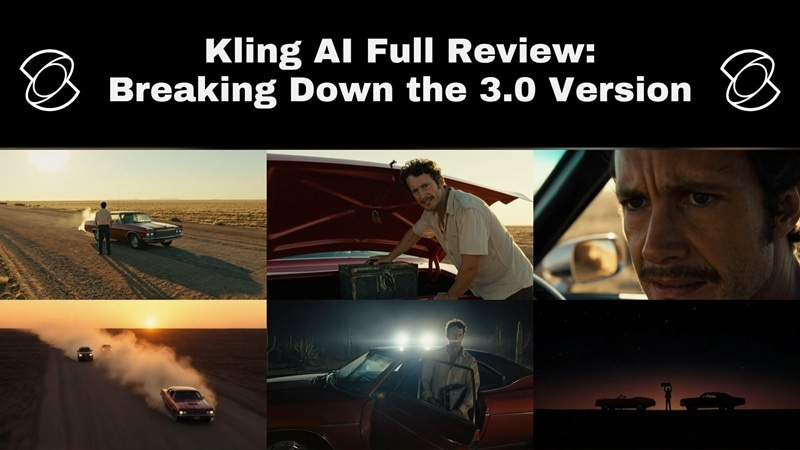
At a Glance: Kling AI Quick Facts
Before we dive deep into all about Kling, check out this snapshot of what Kling AI is working with right now. This overview is especially useful if you're comparing it to other AI video tools and want the fast facts without wading through paragraphs of tech jargon.
| Feature | Details |
| Model Name | Kling AI |
| Current Version | Kling 3.0 (Omni One Architecture) |
| Developer | Kuaishou Technology (China) |
| Input Methods | Text, Image, Video, Audio Reference |
| Audio | Native Omni Audio — voice, SFX, ambient; 5 languages |
| Motion Quality | High, strong physics simulation |
| Prompt Adherence | High: strong in Standard & Pro modes; complex scenes may vary |
| Temporal Consistency | Improved in 2.6 and 3.0 |
| Visual Fidelity | Up to 4K HDR / 1080p native; 30–60 FPS |
| API Access | Yes, via Kling platform & third-party integrators |
Part 1. What is Kling AI? Current Version and New Updates
If you haven't checked in on this tool lately, you’re in for a surprise. Developed by Kuaishou Technology and launched globally in mid-2024, Kling AI has since become one of the most talked-about AI video generators on the planet.
At its core, it's a tool that takes your text descriptions or images and spins them into high-quality video clips. But what makes it stand out is how it handles motion and realism. The Kling AI videos are complete with realistic movement, physics, and now even synchronized audio.
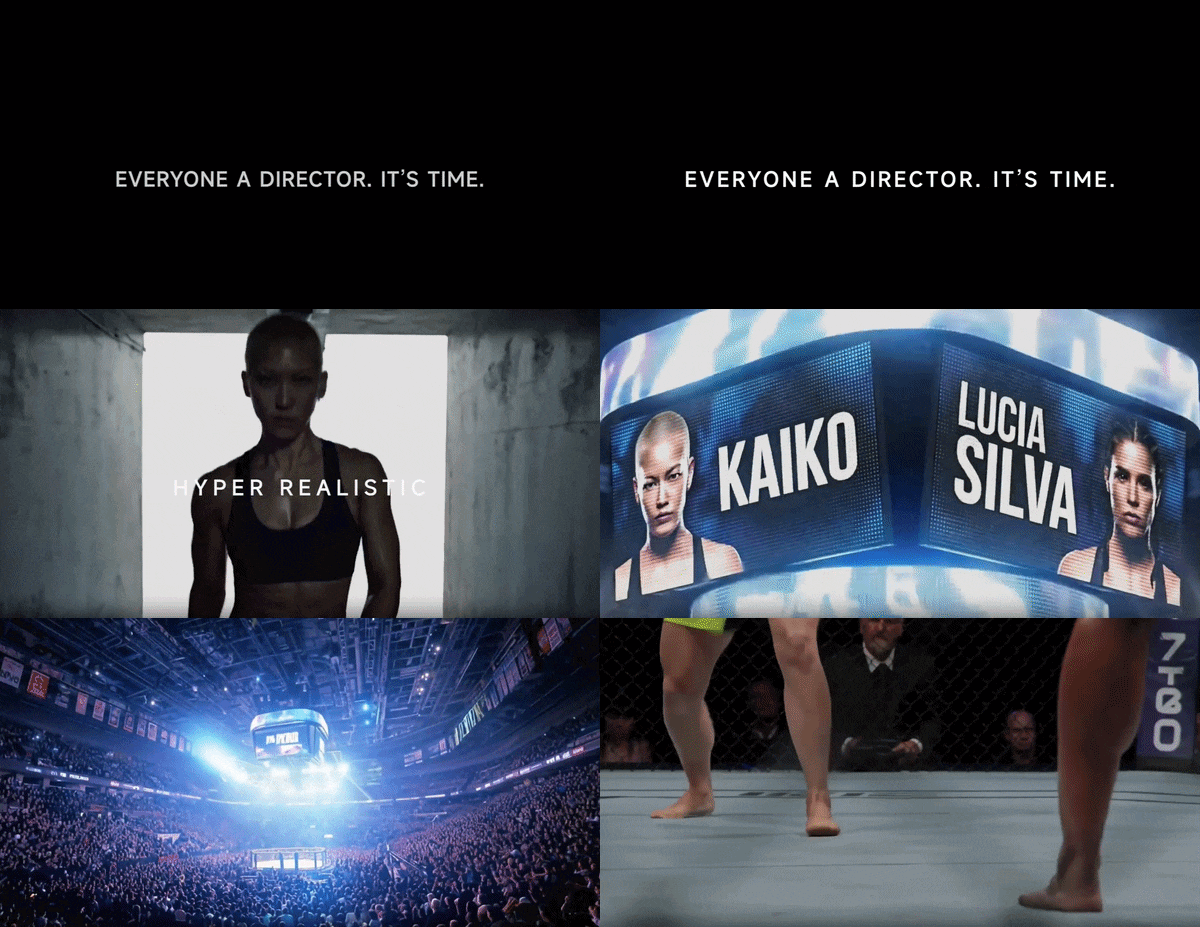
What’s New in Kling 3.0
Now, with the release of Kling AI 3.0, things just got a whole lot more exciting. Here's a breakdown of the biggest new features:
1. Multi-shot Generation
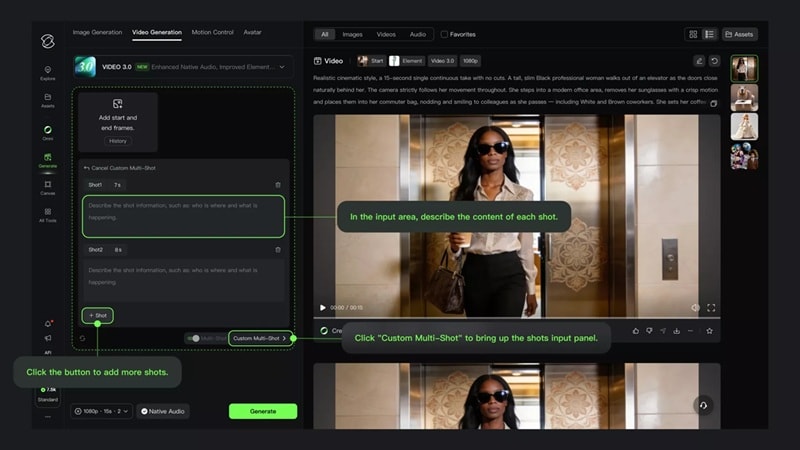
You can now generate up to 6 distinct camera shots in a single prompt cycle, complete with shot-reverse-shot transitions and automatic scene continuity.
2. Reference Elements
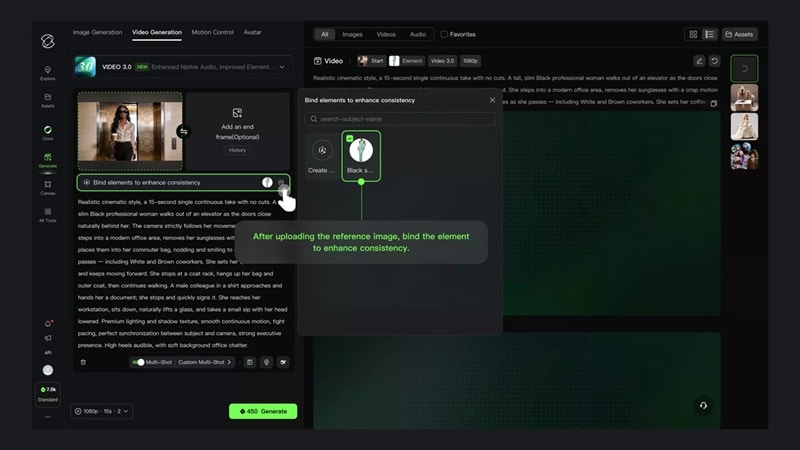
Character consistency has always been the Achilles' heel of AI video. Kling 3.0 tackles this head-on with Subject Consistency 3.0, which lets you upload reference images to lock in your character's appearance, voice, and style across every generated scene.
3. Longer Duration
Each generation pass now supports custom video lengths from 3 to 15 seconds. This is a meaningful upgrade for creators needing complete narrative beats without post-production stitching.
4. Better Audio
Kling 3.0's Omni Native Audio generates voiceovers, lip-synced dialogue, sound effects, and ambient background music simultaneously with the video. It currently supports English, Chinese, Japanese, Korean, and Spanish, including regional accents.
Comparison of Kling 1.6 vs Kling 2.6 vs Kling 3.0
As you can see, Kling has come a long way in a pretty short time. But what actually changed between versions? And more importantly, is the older version still enough, or do you really need the latest one?
To find that out, let’s break down Kling AI 1.6, Kling AI 2.6, and Kling AI 3.0 side-by-side so you can see the difference clearly.
| Kling 1.6 | Kling 2.6 | Kling 3.0 | |
| Duration | Up to 10s | Up to 10s | Up to 15s |
| Resolution | 720p / 1080p | 1080p | 1080p native / 4K HDR |
| Char. Consistency | Basic | Good | Subject Consistency 3.0 |
| Audio | None (silent) | Basic native audio | Omni Native Audio (5 languages) |
| Multi-Shot | No | No | Yes, up to 6 shots per clip |
| Motion Physics | Standard | Improved | Full physics sim (gravity, inertia) |
Part 2. Kling AI’s Features & Capabilities Breakdown
Now, let’s get into the part that actually matters in this Kling AI review: what you can really do with it. Here’s a closer look at the main features and how they actually work.
Kling AI Video Generator
At its heart, Kling AI is a world-class AI video generator capable of turning imagination into motion. The quality is cinema-grade, the controls are flexible, and the output is consistent enough for real production work. Here's how the video creation modes break down:
1. AI Text-to-Video
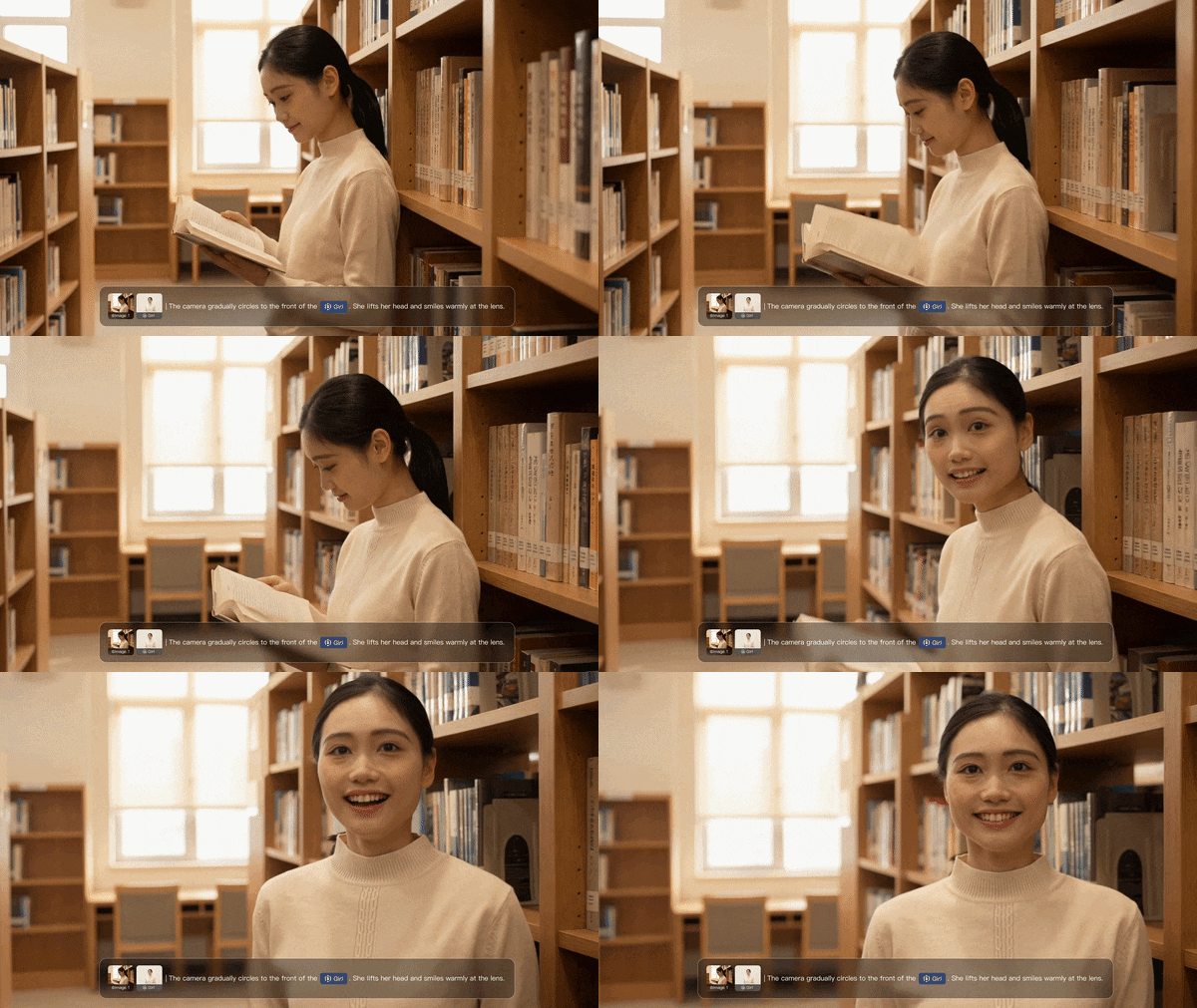
This is the classic way to play. You just type out a scene and the AI builds it from scratch. Simple idea, but the results depend a lot on how specific your prompt is. The more specific your prompt, including lighting, camera angle, mood, and subject action, the better the result.
2. AI Image-to-Video
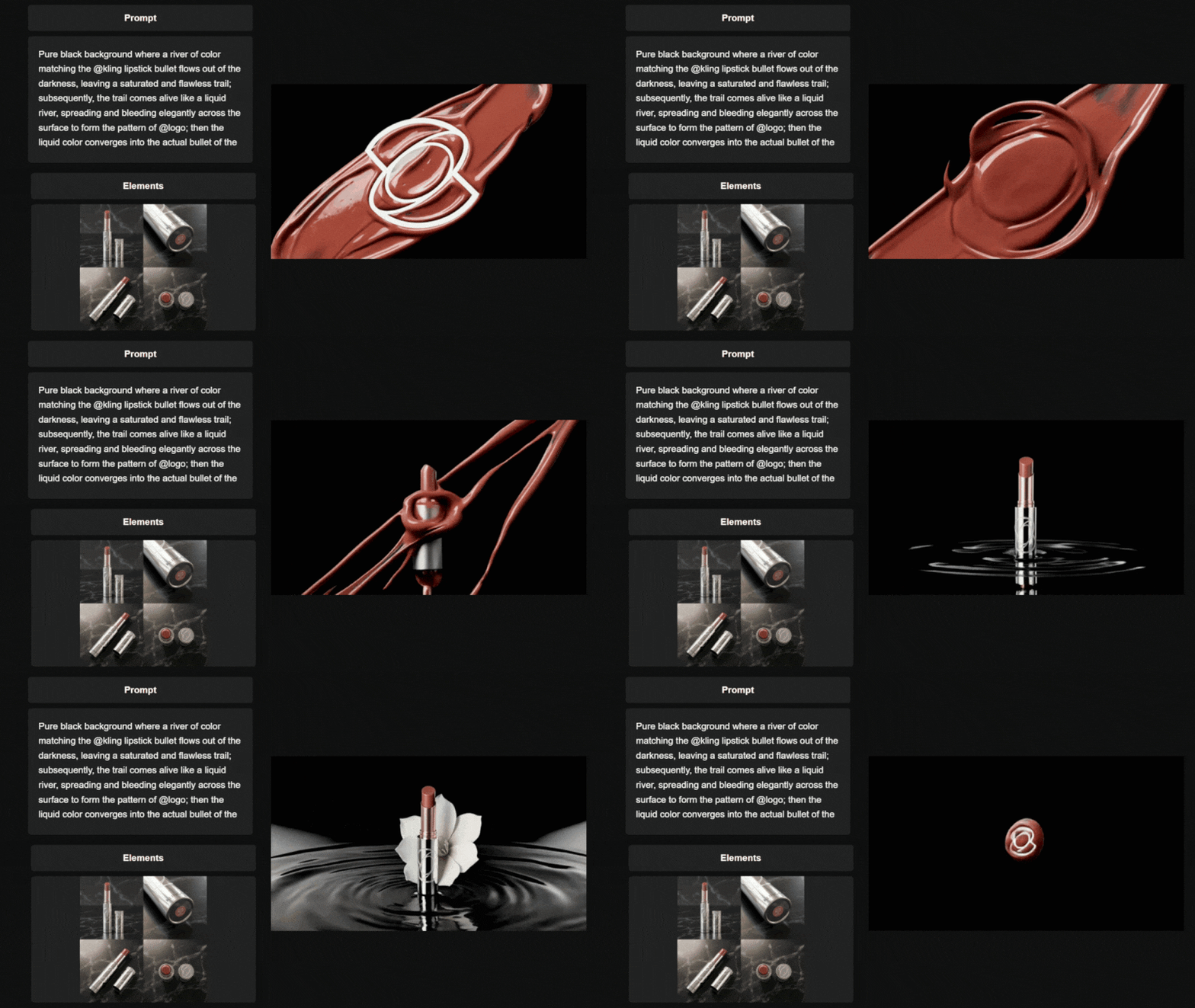
One of Kling AI's most popular features is Kling AI image-to-video, which animates your static photos or AI-generated images into living, breathing clips. This is especially popular for motion posters, product showcases, and portrait animation.
Video Effects
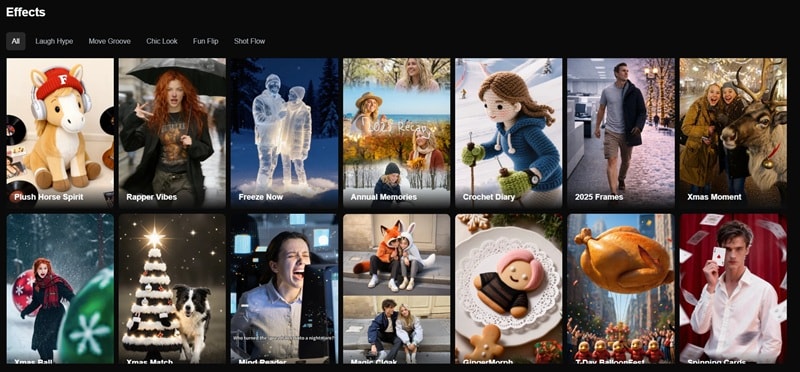
Kling AI also has a growing library of one-click video effects that have become genuinely addictive on social media. Each effect transforms an uploaded image into a distinct animated style. Here's what's currently available:
- Rapper Vibes: Turns your subject into a music video style scene with attitude and motion.
- Freeze Now: Creates a dramatic freeze frame effect with subtle movement and camera focus.
- Pet Vlogger: Makes pets look like they’re talking or acting like content creators.
- Anime Figure: Converts your image into an animated anime-style character with motion.
Advanced Creative Controls
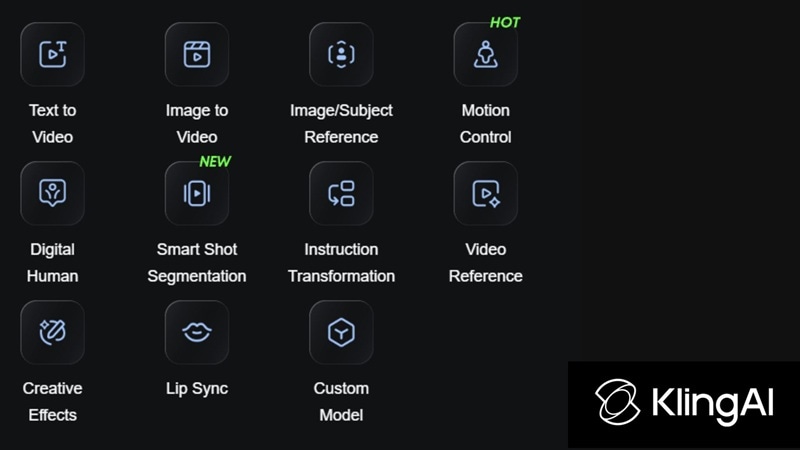
Beyond the one-click effects, Kling AI gives serious creators a deep toolkit for precision video control. That includes:
- Motion Control: Lets you guide how the camera and subjects move within the scene.
- Negative Prompting: Helps remove unwanted elements by telling the AI what to avoid.
- Element Input for Settings & Objects: Allows you to define specific objects, backgrounds, or scene details.
- Lip Syncing: Matches mouth movements to audio or dialogue for more realistic speech.
- Smart Shot Segmentations: Breaks scenes into parts so each shot can be controlled more precisely.
- Digital Human: Generates realistic human characters with natural movement and expressions.
Part 3. Kling AI Pricing and Credit System
Looking at all the Kling AI's capabilities above, people often wonder: is Kling AI free or do you have to pay for everything? Well, there is a free version, but it comes with limits. Videos are lower quality, have watermarks, and you cannot use them for commercial projects.
As for the paid plans, you have four options: Standard, Pro, Premier, and Ultra. Here's the full breakdown.
| Standard | Pro | Premier | Ultra | |
| Monthly Price | $10 | $37 | $92 | $180 |
| Annual Price | $120 | $444 | $1104 | $2160 |
| Monthly Credits | 660 | 3000 | 8000 | 26000 |
| Resolution | Up to 1080p | Up to 1080p | Up to 1080p | Up to 1080p |
| Generation Priority | Standard | Standard | High | Highest |
| Best For | Casual creators | Regular creators | Pros & agencies | Studios & high-volume |
How the Credit System Works
After looking at the table above, we know that Kling AI's pricing can feel confusing at first because it does not use a flat monthly unlimited plan. Instead, everything runs on credits. But what does that mean? To make it simpler, you can think of credits like arcade tokens. Every time you generate a video, it costs a certain number of credits depending on length and quality.
See the reference table below to better understand the concept:
| Action | Credits Used |
| 5-sec video (Standard mode) | 10 credits |
| 5-sec video (Professional mode) | 35 credits |
| 10-sec video (Professional mode) | 70 credits |
| Still image generation | ~2 credits |
Part 4. How to Use Kling AI to Generate Videos
Now that we’ve gone through the main features and its pricing system, it’s a good time to try it for real. For this quick test, let's stick to the AI text-to-video feature since it’s one of the easiest ways to see how the platform works.
Just follow the steps below to create your first clip and get a feel for how the Kling AI video generator handles prompts.
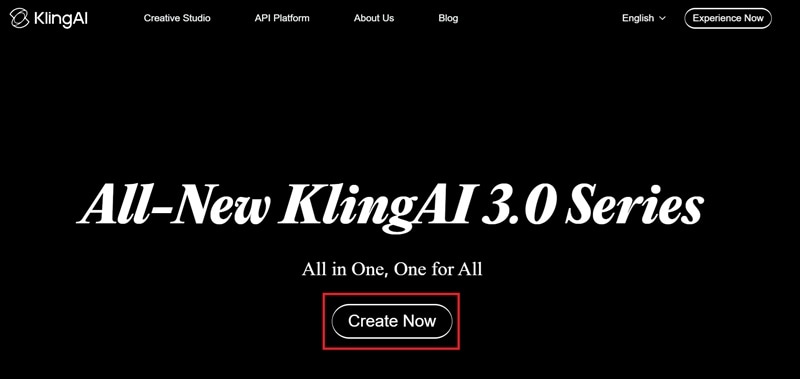
Step 1. Visit the Kling AI Website and Log in to Your Account
- Go to https://klingai.com/global/.
- Select "Create Now".
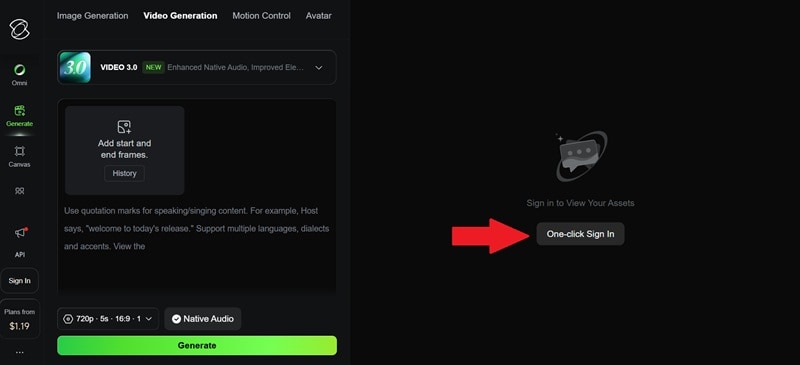
- Click "One-click Sign In".
- Register an account and log in to it.
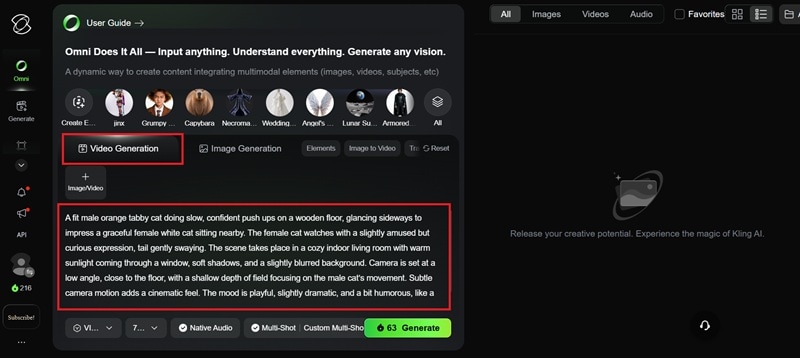
Step 2. Write Your Prompt and Generate AI Video
Write down your prompt on the "Video Generation" page.
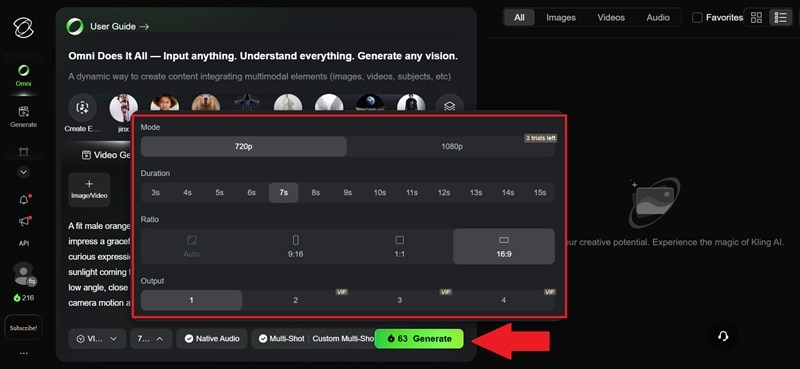
- Select your preferred video resolution, durations, and aspect ratio.
- Click "Generate".
Step 3. Preview and Download
Select the finished video to preview it. Click the download icon to save it to your device.
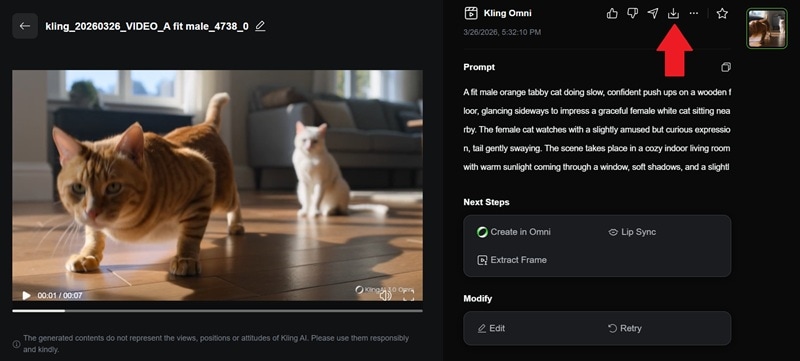
And that’s pretty much it! With these steps, you just created your first AI clip with Kling AI. See how it turns out:
Part 5. Is Kling AI Worth It? User Experience & Performance Review
Now, you've seen how Kling AI video generators work and watched the example video. But we didn't stop there, we kept playing around with it, trying different prompts, settings, and styles using Kling AI 3.0, just to see how consistent it really is.
Here's our honest take.
| Category | Rating | Verdict |
| Motion Quality | ⭐⭐⭐⭐⭐ | Movement looks surprisingly real, especially for walking, camera motion, and small details. |
| Prompt Adherence | ⭐⭐⭐⭐ | Works great when your prompt is clear, but more general prompts can give mixed results. |
| Consistency | ⭐⭐⭐⭐✨ | Much better in 3.0, especially when you use reference images or elements. |
| App Stability and Speed | ⭐⭐⭐ | A 7-second clip takes around 2 to 5 minutes, which is fine when you're doing one or two. But a bigger project starts to feel like a lot. |
| Export and Rendering | ⭐⭐⭐ | Export works fine and feels stable, but nothing particularly fast or standout. |
Part 6. Pros and Cons of Kling AI
Looking at everything we’ve talked about, it’s clear that Kling AI video generator has some massive wins, but there are also a few parts that can slow you down, especially if you plan to use it often.
So, let's break down where it shines and where it still needs work.
- Top Tier Quality: The videos you get from Kling AI 3.0 are honestly stunning because the motion is so realistic and the multi-shot feature actually works. Having native audio built right in is a massive time saver too.
- Generous Free Version: You get a solid amount of credits on the Kling AI free plan which adds up to about 216 monthly credits. This is actually enough to make some cool stuff without spending a dime.
- Perfect for Short Content: Since you have so much control over the prompts, you can create anything from a Kling AI motion poster to wild cinematic clips. Your imagination is really the only limit here.
- Flexible Compatibility: You can use it directly from your browser or through the Kling AI app. It's available on Android and iOS, so it’s easy to access without setting anything up.
- Slow Generation: When the servers are busy, the generation times can be brutally slow. Waiting five minutes for a few seconds of video feels like forever when you are in a flow.
- No Redos for Free: If the AI glitches and gives you a weird looking clip, you usually do not get a refund for those failed generations. Those credits are just gone.
- Pricing is a Bit Messy: The whole credit system is confusing and it gets expensive fast. It is way too easy to burn through a month’s worth of points in a single afternoon of experimenting.
- Support is Laggy: If you run into a technical issue, the customer support has been reported as pretty slow by a lot of users. Do not expect an instant fix if things go sideways.
Part 7. Stitch, Extend, and Enhance Your Kling AI Videos
All in all, Kling AI is definitely worth a shot. The quality is honestly top-tier, and since you get those free daily credits anyway, you might as well play around with it. That said, those 15-second clips are short. And if you try to keep generating new clips to build something longer, your credits disappear faster than you expect.
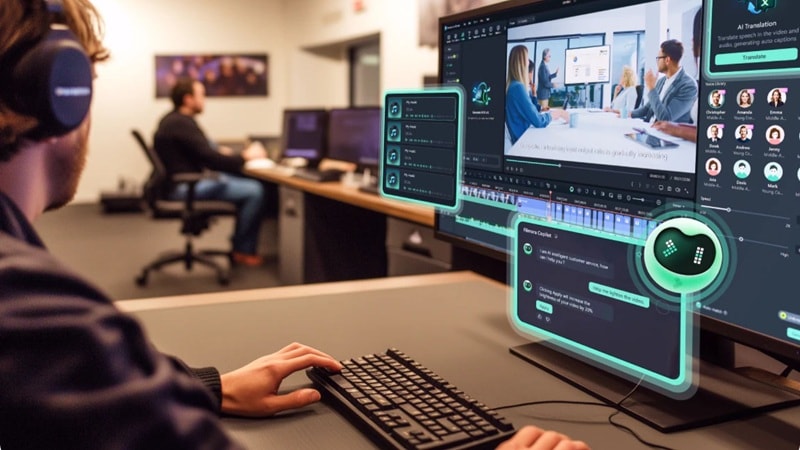
This is exactly why you need to pair your AI clips with Wondershare Filmora. You can take those short clips from Kling AI video, drop them into Filmora, and actually turn them into something complete.
 Secure Download
Why Choose Filmora?
What makes it even better is that Filmora is not just a basic editor. It also has its own AI Text-to-Video and AI Image-to-Video built in, so you can mix both approaches depending on what you need.
Here are a few features that make a big difference:
AI Extend
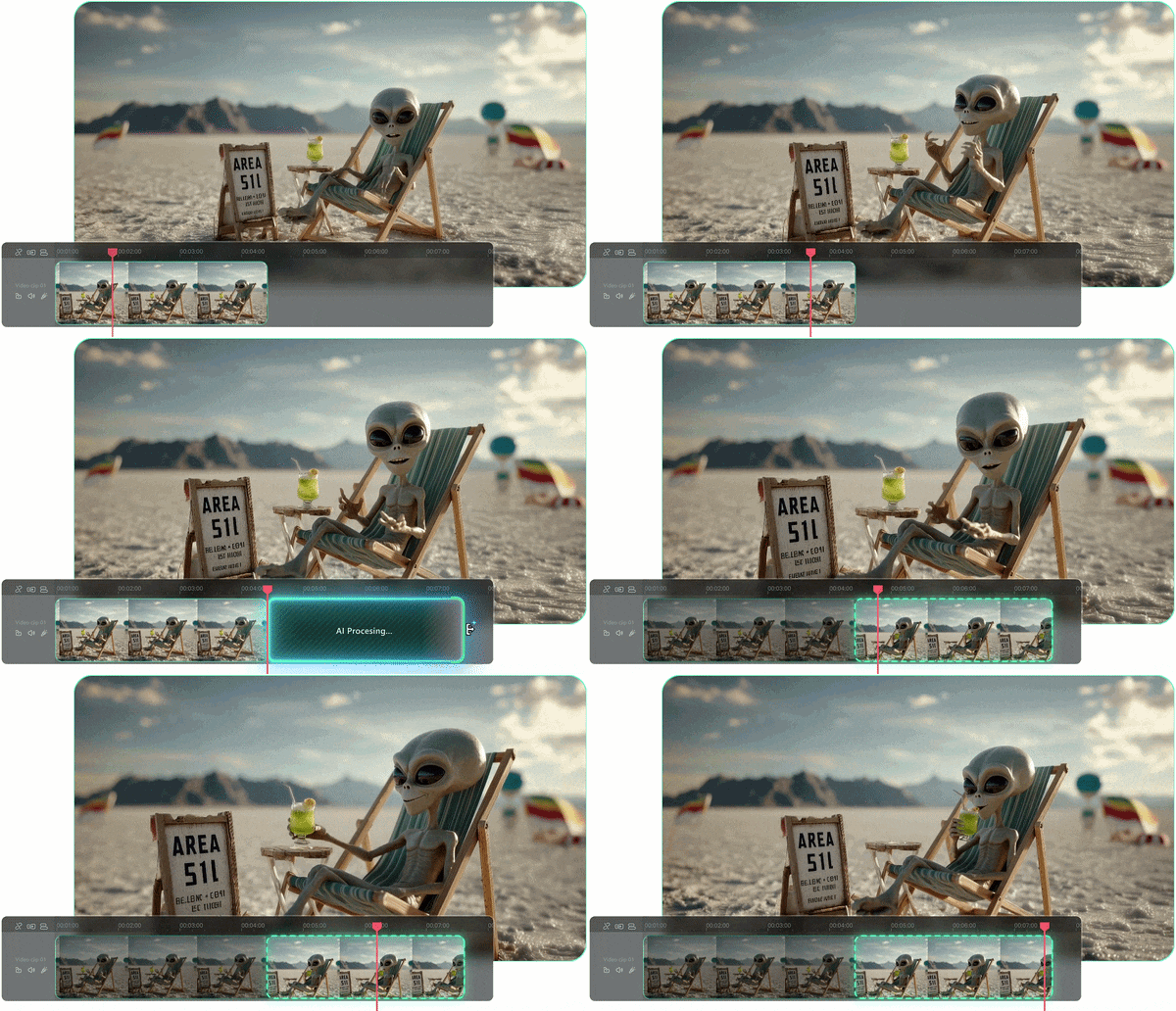
This is a lifesaver. If your Kling AI video clip ends just a second too early, you can use this to intelligently "stretch" the footage so your transitions don't feel like a jump scare.
The Massive Effects Library
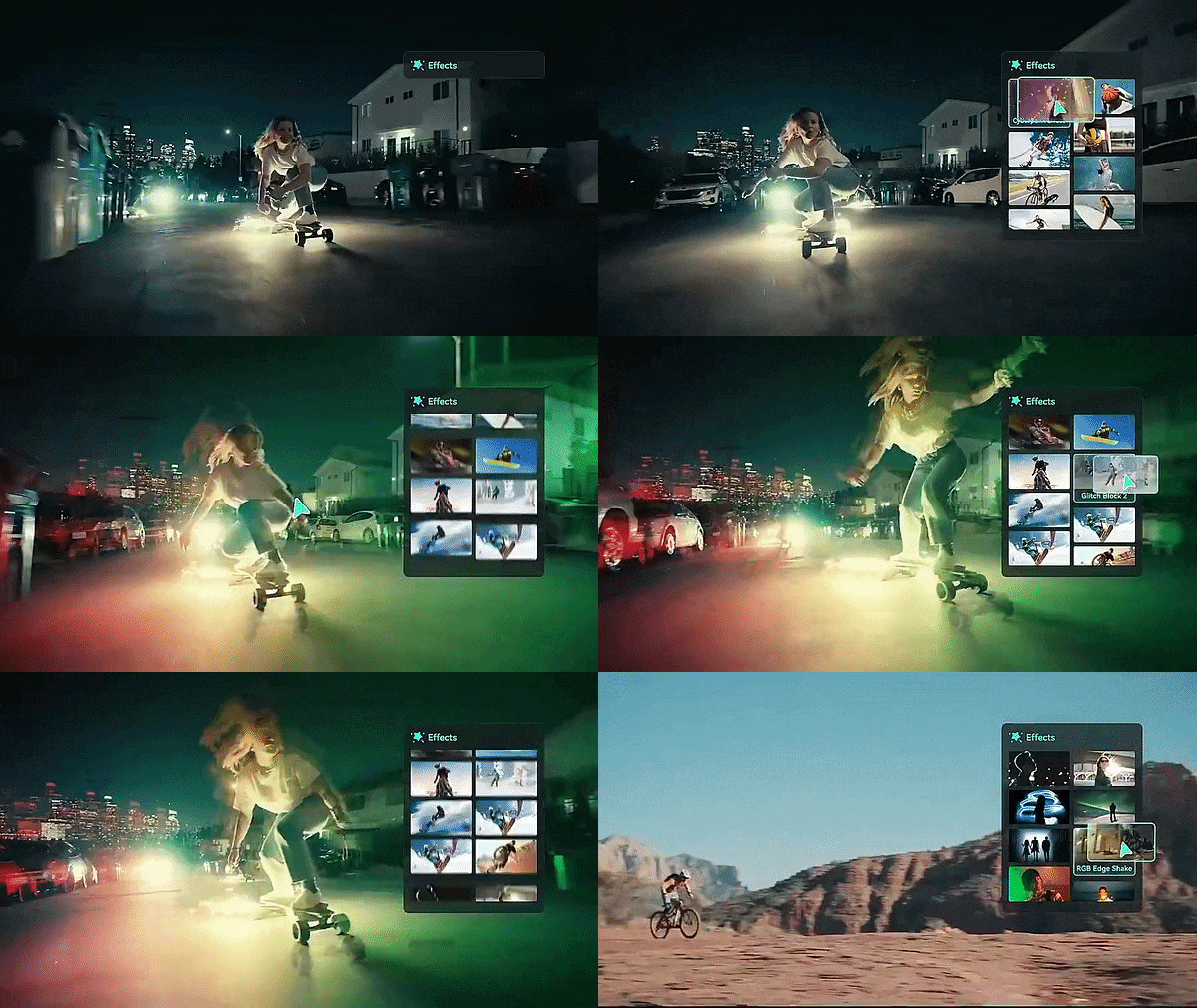
AI video can sometimes look a little "raw," but dropping some professional overlays, filters, or cinematic transitions from Filmora makes it look like a high-budget production.
Text to Speech & Auto Captions
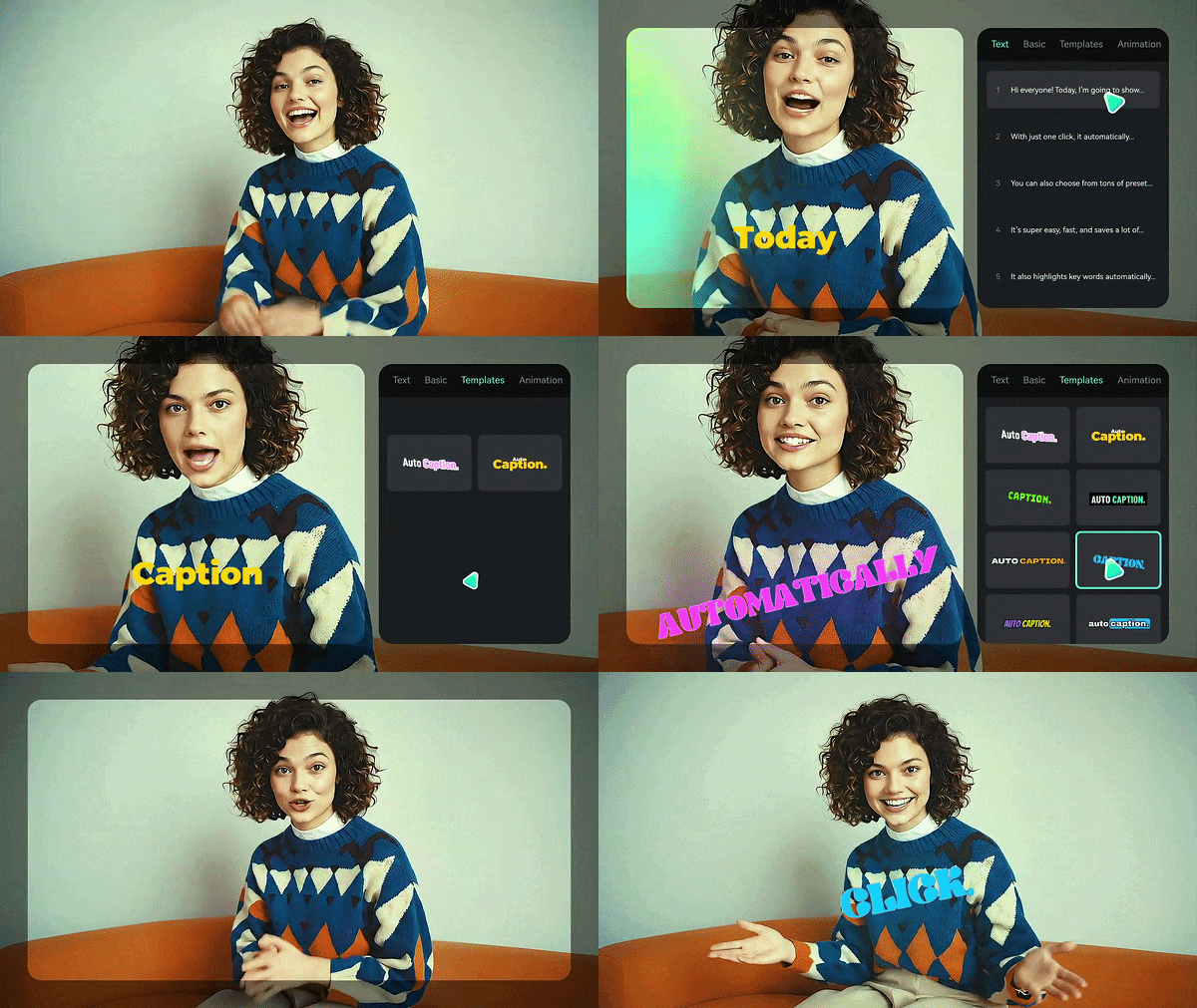
If your character isn't talking yet, you can add a voiceover in seconds. Plus, the auto-captions are a must-have if you’re posting to TikTok or Reels.
AI Translation
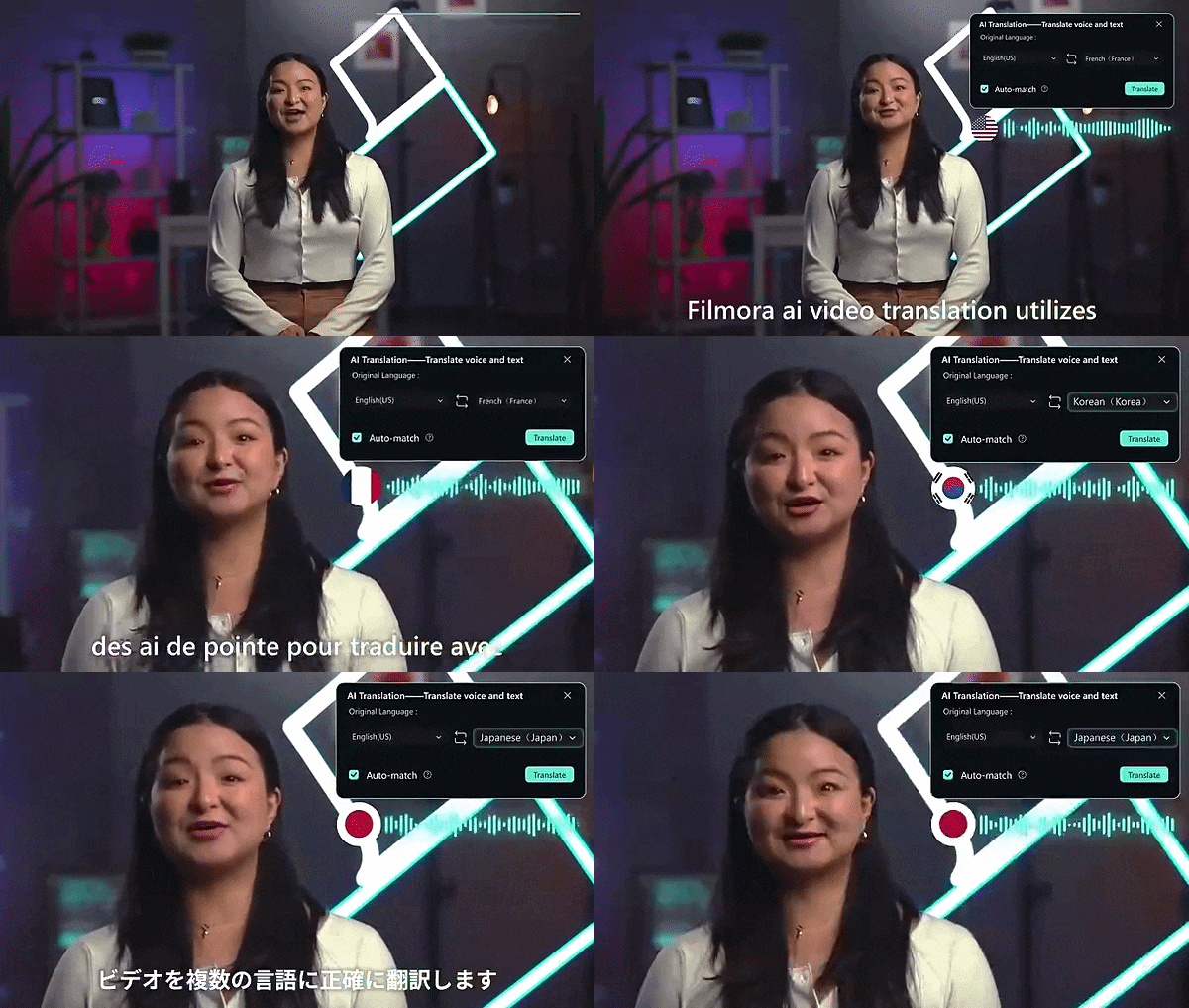
Want to go global? Take those captions and flip them into other languages, so your content can actually reach people beyond just one market.
Secure DownloadConclusion
Kling AI video generator has definitely earned its place in the conversation, especially with how real the motion looks and how cinematic the results can get. It feels like one of the most complete tools right now, but the short video length is still something you run into pretty quickly once you start using it more.
That’s why pairing Kling AI video with Wondershare Filmora just makes sense. You can take those short clips and turn them into something more complete using Filmora’s AI Extend, effects library, and flexible timeline. It basically gives you the control that Kling AI alone doesn’t offer, and makes the whole workflow feel a lot more usable from start to finish.
FAQs
-
Can you generate Kling AI videos for free?
Yes, Kling AI's free plan gives you 216 credits per month. However, free-tier videos are limited to 360p–540p resolution, come with a watermark, and can't be used commercially. -
Can you edit videos directly inside Kling AI?
You can make changes using text or image prompts. That said, for full timeline editing, combining multiple clips, adding captions, or exporting to multiple formats, you'll want a dedicated editor like Filmora alongside your Kling AI workflow. -
What types of videos work best with Kling AI?
Short cinematic clips, social media visuals, and creative experiments work best. -
Does Kling AI add watermarks to videos?
Free-tier videos are watermarked and restricted to lower resolutions (360p–540p). Once you upgrade to any paid plan, watermarks are removed and you get access to 1080p output and full commercial usage rights.
