


 TL;DR:
NemoVideo is a prompt-based AI editing tool designed for creators who want to generate quick social media videos through chat commands, while Wondershare Filmora is the better choice for those requiring precise manual control over the final output.
● NemoVideo operates on a credit-based subscription model starting at $19.99/month for 1,100 credits, and it restricts asset library usage to 10 minutes on the Free plan, scaling up to 10 hours on the Pro tier.
● The platform bypasses traditional timelines by using a Talk-to-Edit agent that executes natural-language commands to cut silence, apply automatic captions, and utilize SmartPick for extracting highlights from raw footage.
● Wondershare Filmora serves as the recommended alternative for long-term growth, combining automated features like Speech-to-Text and Auto Reframe with a comprehensive manual editing environment for complex tutorials and custom branded videos.
Ask AI for a summary
 ChatGPT
 Perplexity
 Gemini
 Claude
 Grok
Grok
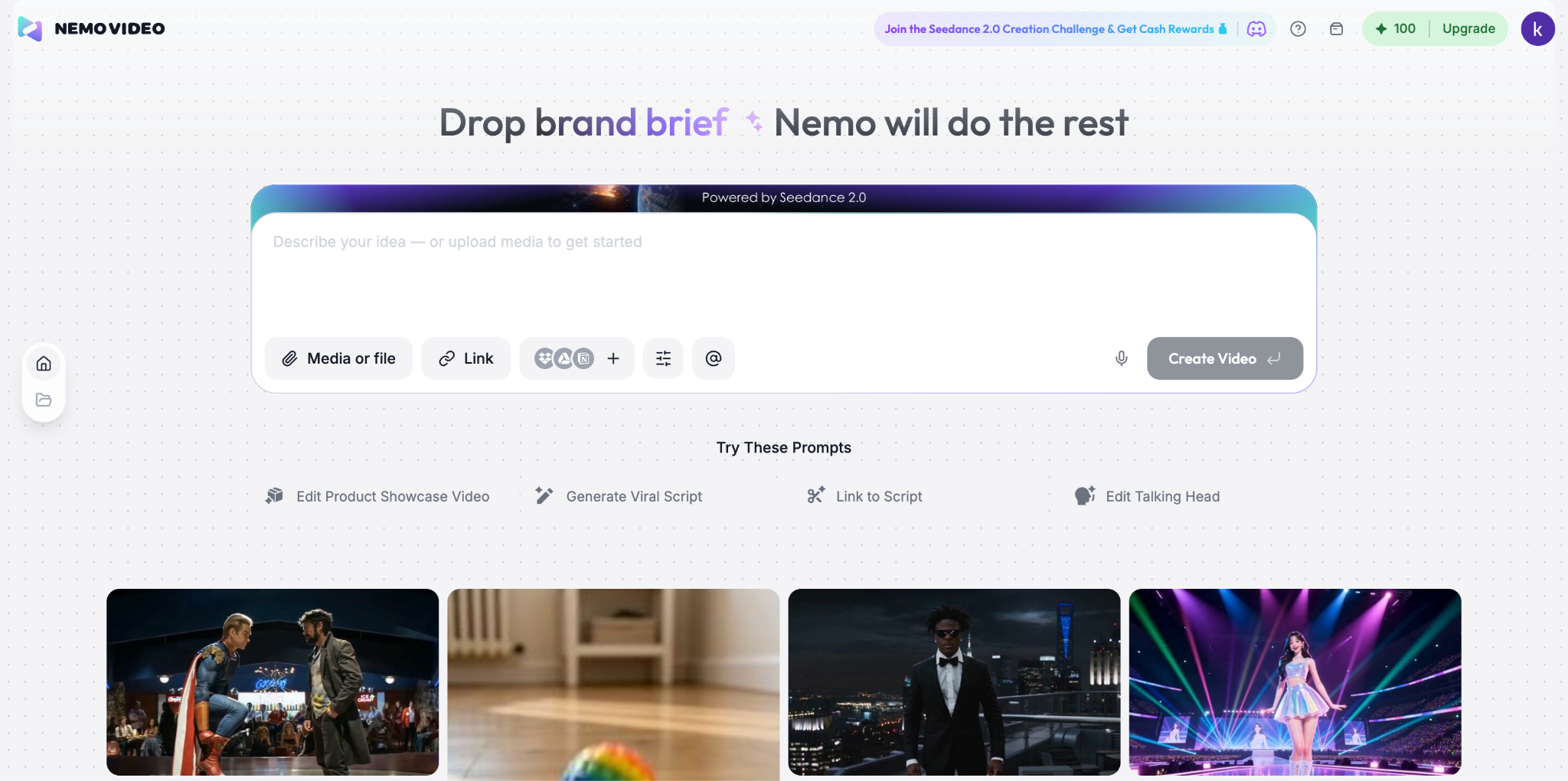
NemoVideo is one of the names people may find when looking for a faster way to edit videos with AI. It highlights viral video analysis, script writing, captions, automated editing, and talk-to-edit features. Most users want the same answers right away: what NemoVideo does, how its AI works, how to access it, and whether the price makes sense.
This article reviews NemoVideo in a simple way. We will look at its appeal, its possible limits, and who it may suit best. We will also compare it with an alternative that offers a more flexible editor, giving creators both speed and creative control in one workflow.
Part 1. Why Are People Interested in NemoVideo?
NemoVideo is designed as an AI video editing tool that works through natural-language prompts. The tool is built around a “chat your edits” workflow. So, instead of asking users to learn a complex editing timeline first, the platform works as a video editing agent you can direct through simple chat commands. That idea is a big part of why NemoVideo gets attention.
Users can give commands like cutting silence, removing filler words, adding captions, or inserting effects, and the agent will take care of those steps automatically. NemoVideo can also help users find and analyze viral videos, turn ideas into scripts, automate cuts, transitions, captions, and effects, and create multiple video variants through simple conversation.
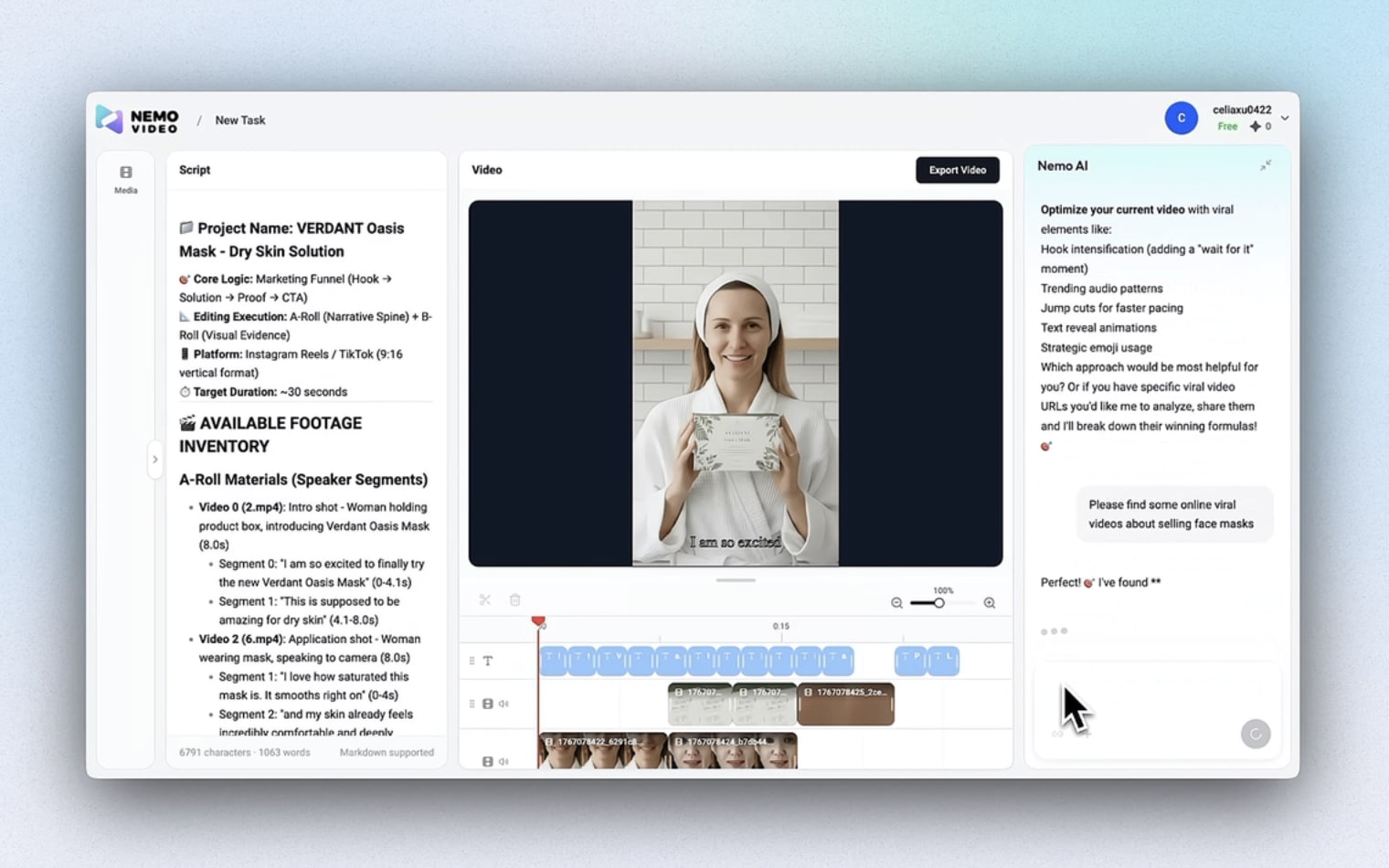
Another reason people are interested in NemoVideo is its strong creator-focused positioning. The platform specifically targets:
- Freelance editors
- Affiliate creators
- E-commerce teams
- Marketers
- Content creators
It is clearly aiming at people who need fast, repeatable video production for online content and campaigns. If you create social content often, NemoVideo is appealing because it tries to reduce the amount of manual work between a rough idea and a finished video.
At the same time, this kind of promise also raises an important question for creators: Is fast AI editing enough on its own? Or do you also need more control once the first draft is ready?
Part 2. NemoVideo AI Features: What You Actually Get
To see how reliable NemoVideo is as an editing tool, we first need to look at the features it offers.
1. Viral Video Search & Analysis
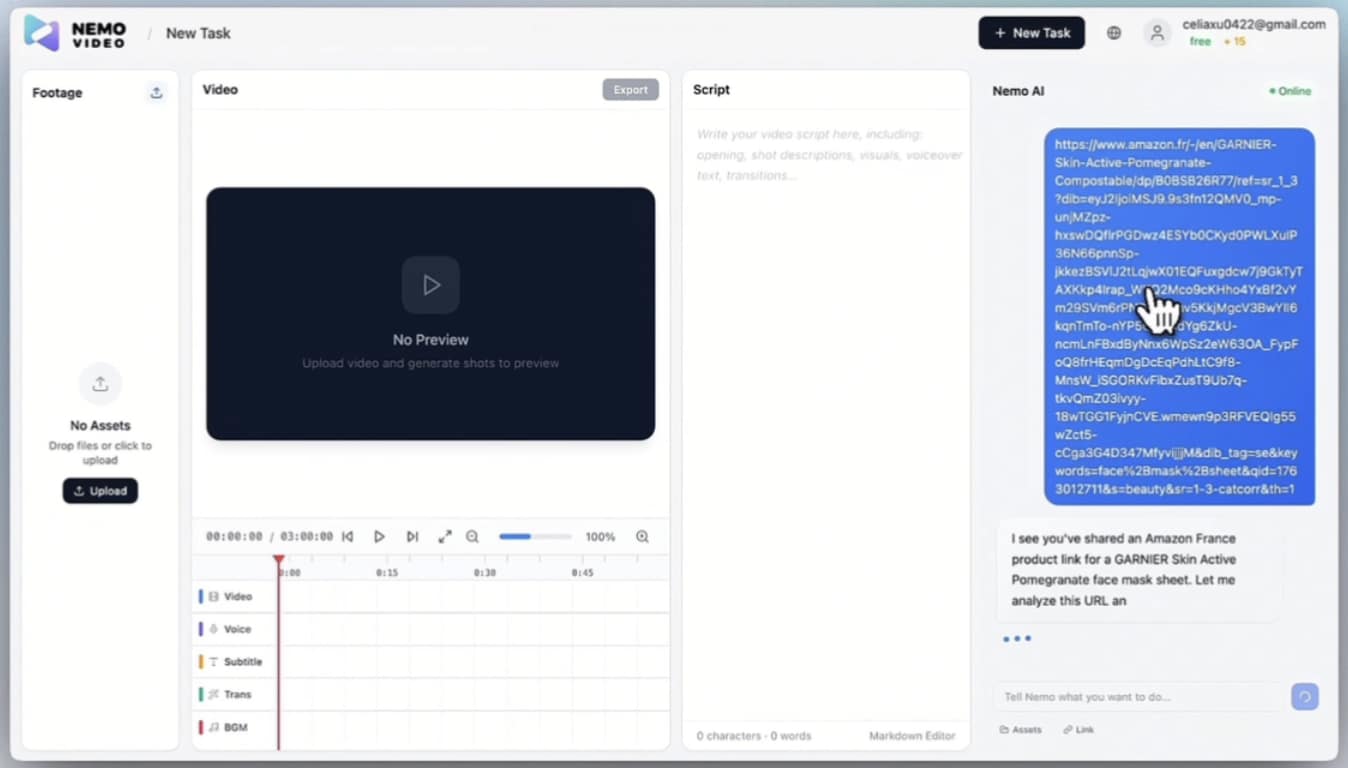
NemoVideo offers Viral+ Studio as a way to hunt viral trends and analyze winning patterns, which helps you, as a creator, to study what is already performing well before you start editing. It’s useful for people who often create social content and need inspiration quickly.
2. Viral Scripting Writing
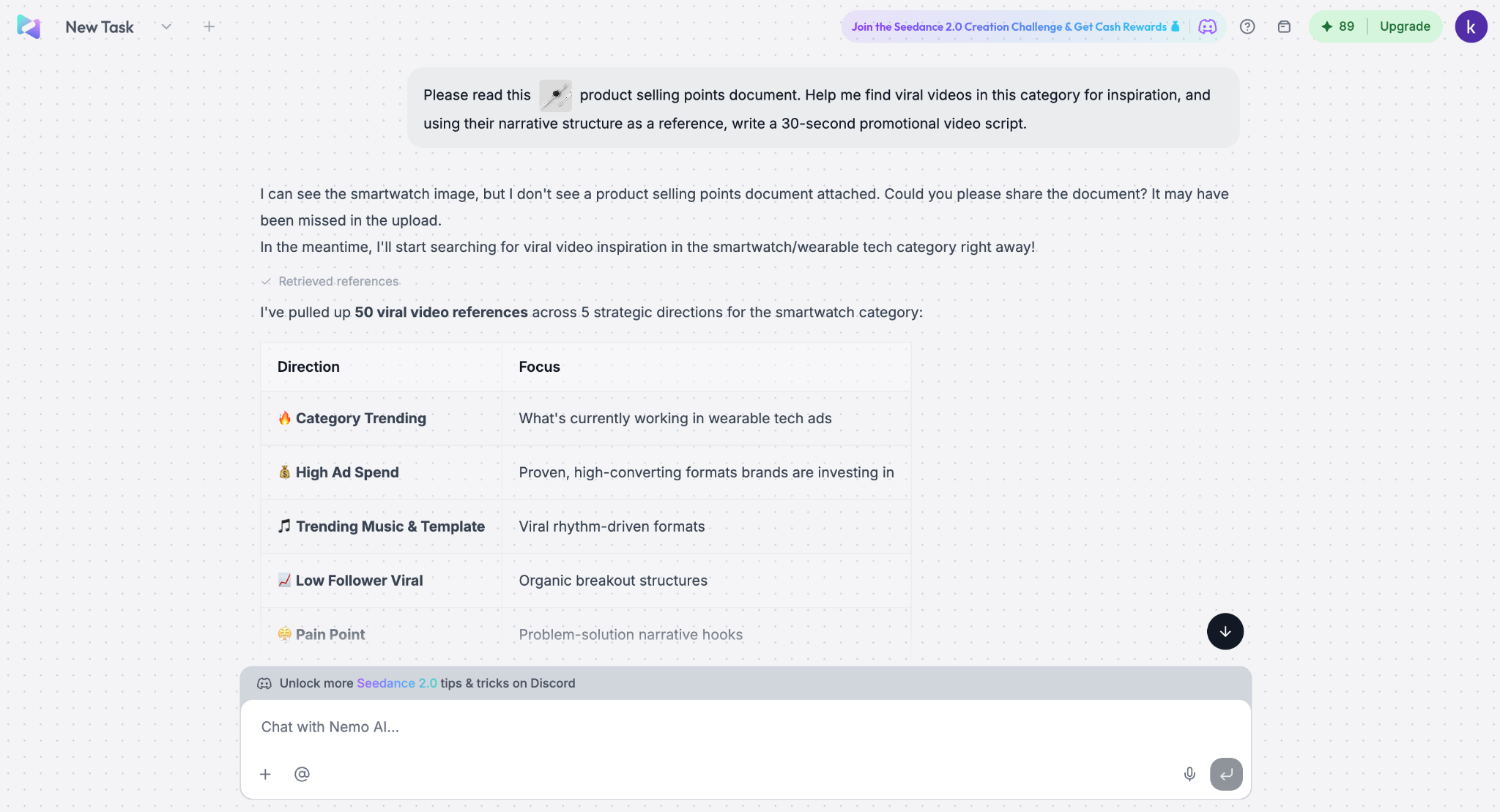
NemoVideo also highlights the Inspiration Center, which analyzes video trends and generates scripts, helping users receive ready-to-use scripts optimized for engagement. For beginners, this can remove one of the hardest parts of video creation: figuring out what to say and how to structure it.
3. Viral Video Editing and Generation
You can describe their vision in plain words, automate cuts, transitions, captions, and effects, and generate multiple video variants through simple conversations. It is one of NemoVideo’s strongest selling points for users who want a quick output.
4. Nemo Agent Talk-to-Edit Functionality
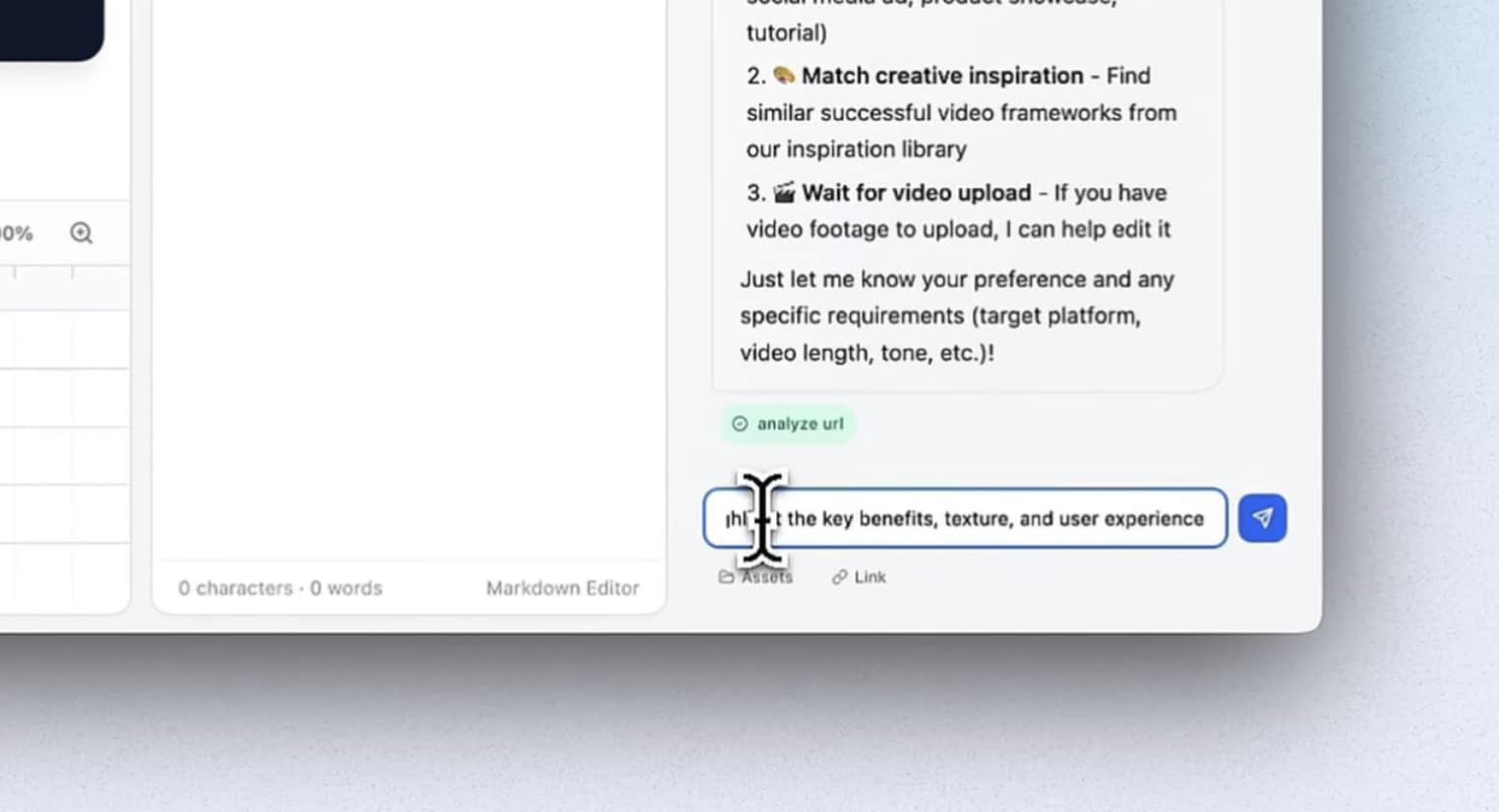
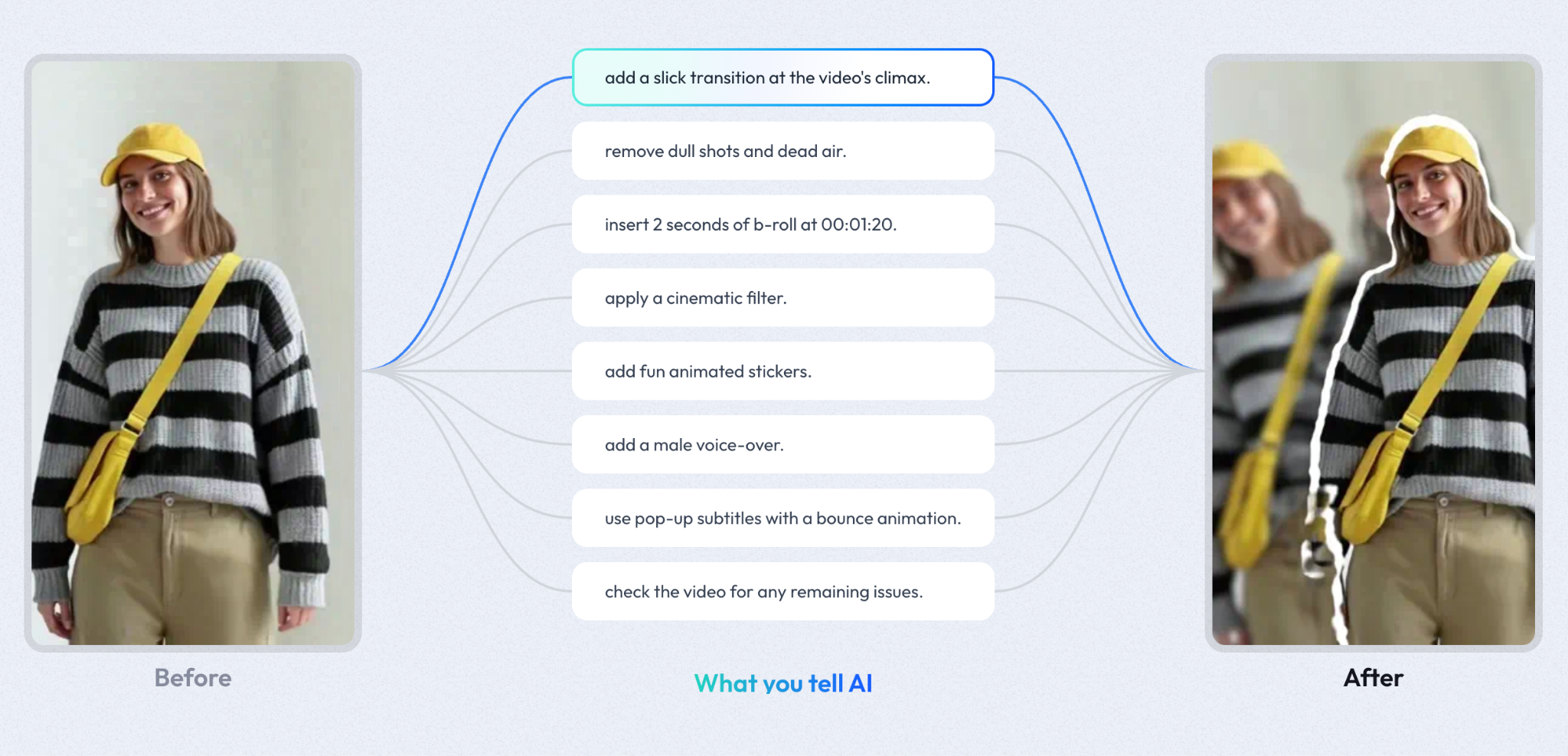
One of the core ideas behind NemoVideo is its “Talk-to-Edit” functionality. You can type commands like “Cut the silence,” “Remove filler words,” or “Add captions,” then let the agent handle the workflow. It lowers the barrier for people who do not want to learn complex editing software right away.
5. SmartAudio
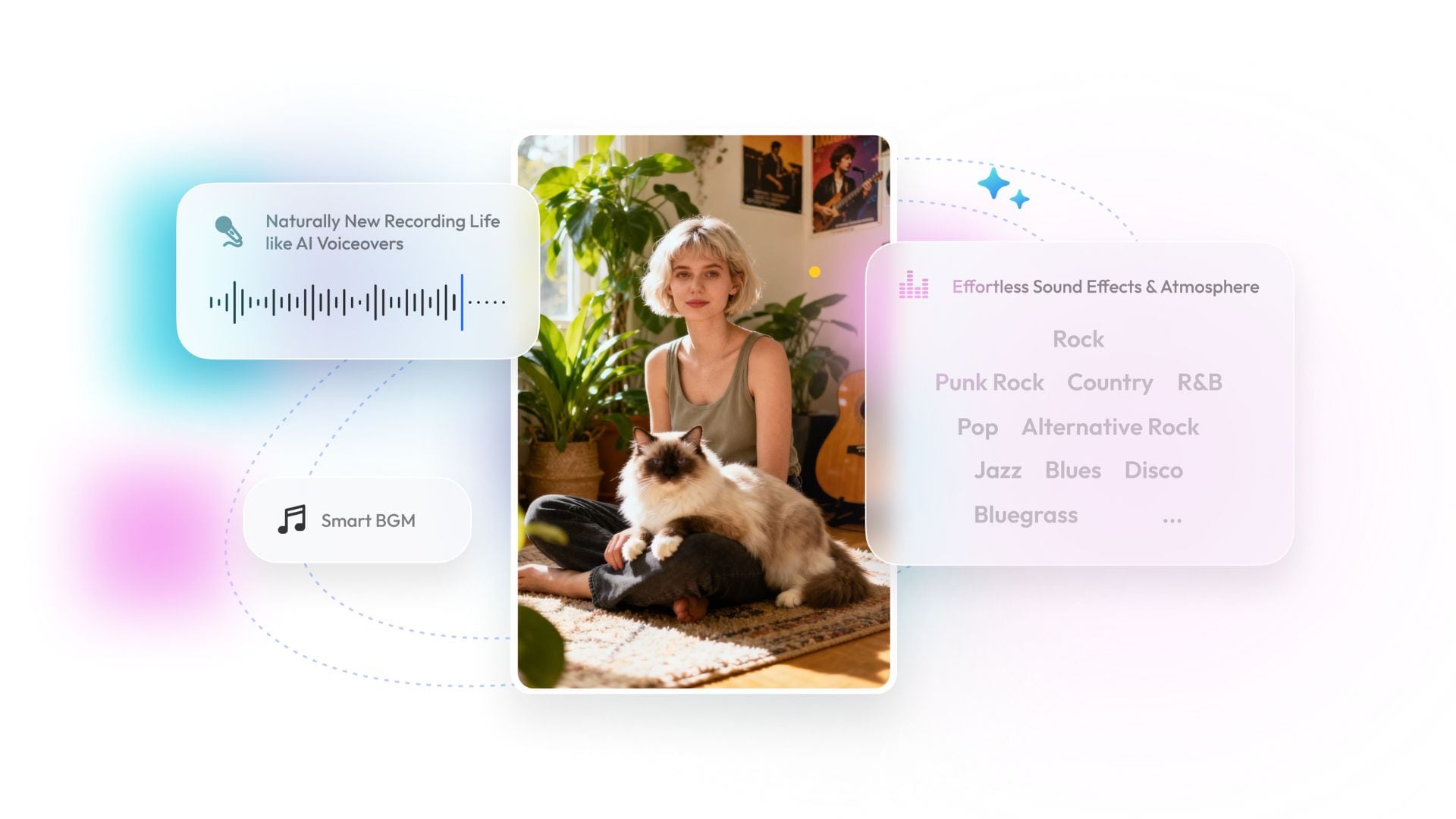
NemoVideo’s SmartAudio feature can add voiceovers and background music automatically. It is trying to simplify one of the most overlooked parts of editing: sound. For casual creators, this is helpful because audio work can slow down the whole process. A built-in shortcut for music and voiceovers makes the workflow feel lighter.
6. Smart Caption
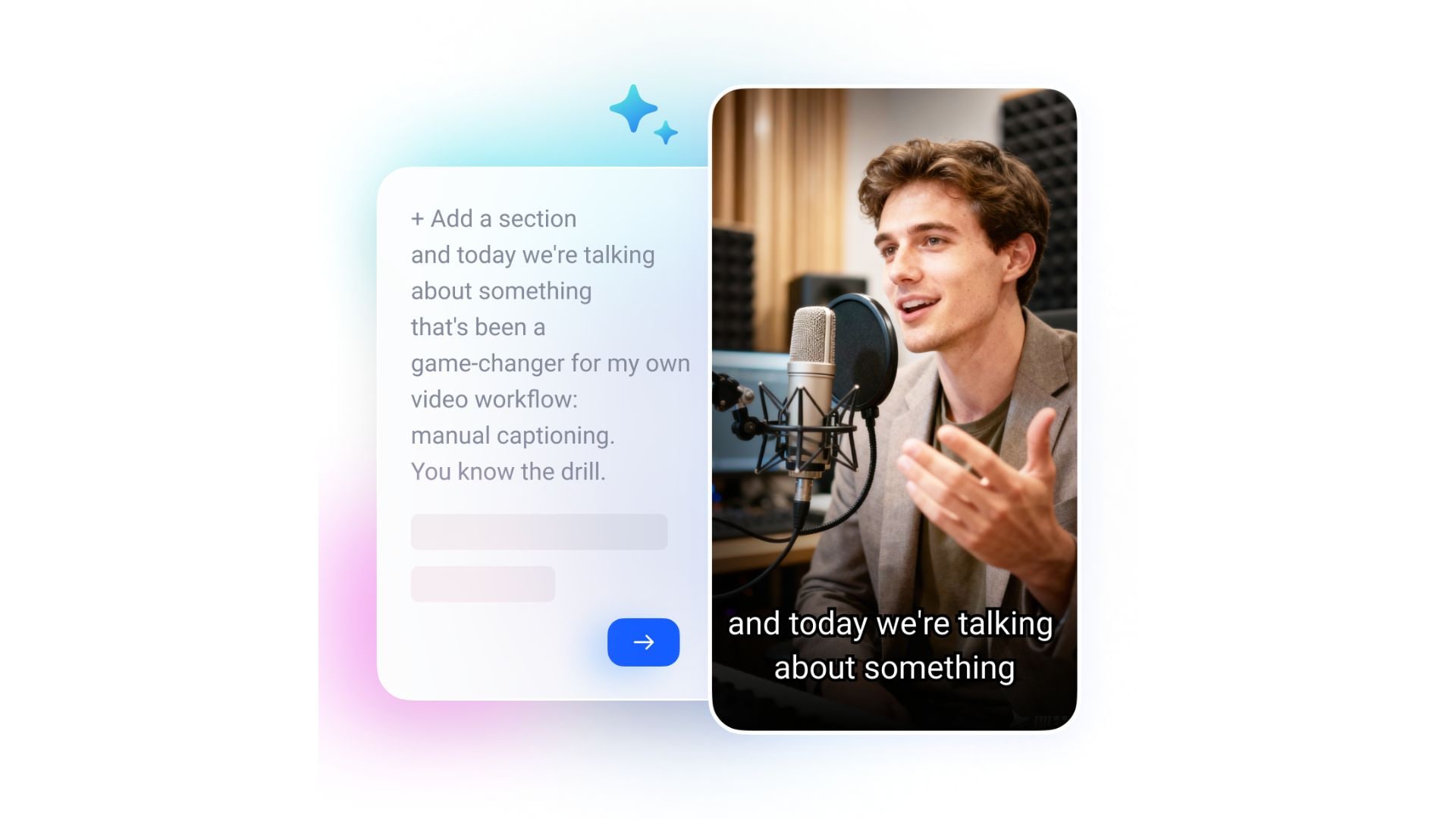
NemoVideo offers one-click captions with many trending styles. Since captions are a major part of short-form video, this feature is easy to understand and easy to value. Automatic captions are not just convenient; they also make videos feel more ready for TikTok, Reels, Shorts, and other social platforms.
7. Talking-head Video Editor
It’s an editor for talking-head videos with smart b-roll and voice matching, designed for creators who speak to the camera and want faster ways to make those videos more dynamic. This can be useful for educators, marketers, commentators, and personal brand creators, especially if they want to avoid doing every insert and adjustment by hand.
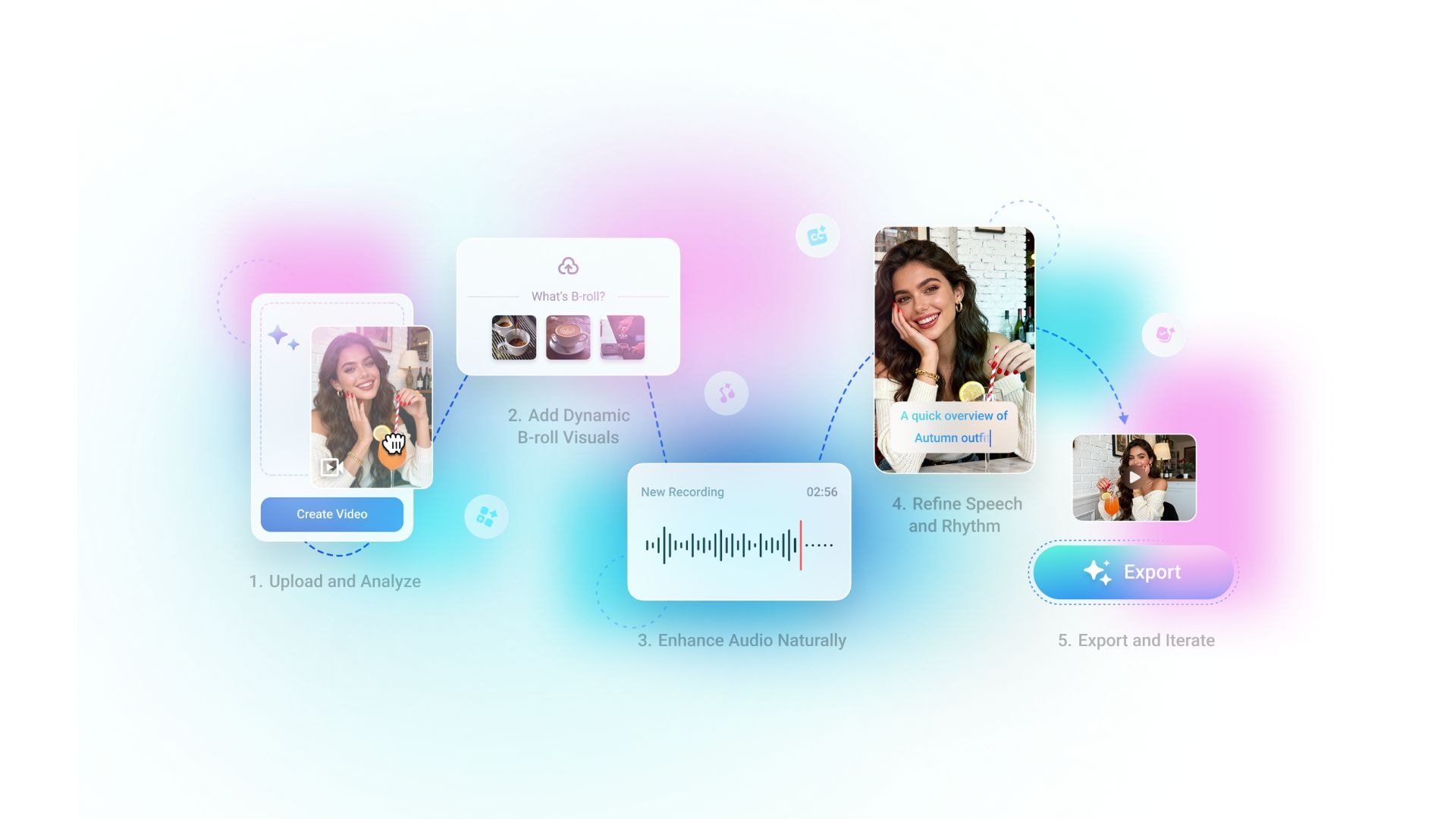
8. SmartPick
SmartPick feature auto-removes junk clips and selects highlights from raw footage. For beginners, this may be one of the easiest features to appreciate. Going through raw footage can take a lot of time, so an AI tool that helps identify highlights can make editing feel far less intimidating.
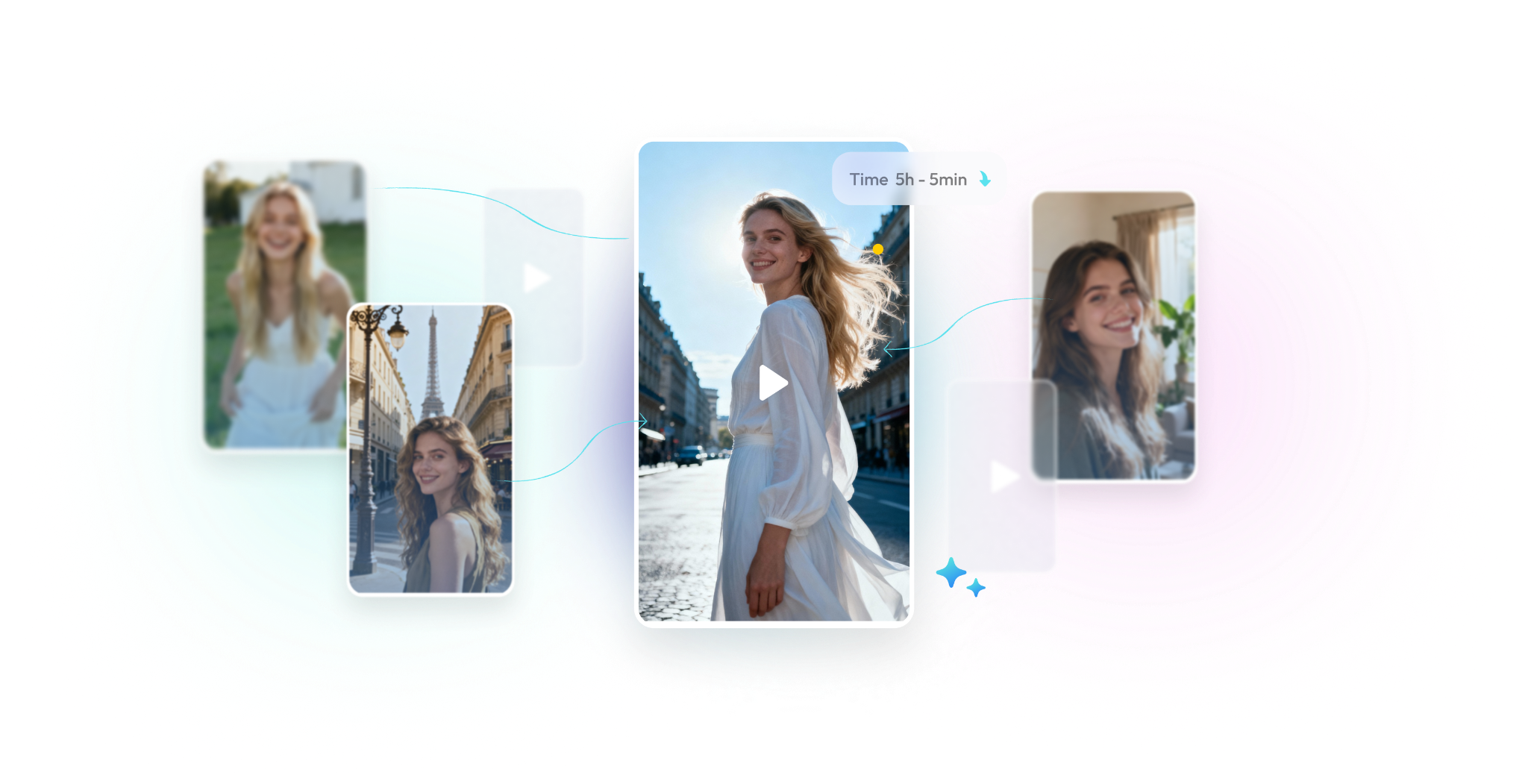
Why Is NemoVideo Useful for Beginners?
NemoVideo feels beginner-friendly because the workflow sounds simple. The platform is built around plain-language instructions, so users do not have to rely only on technical editing skills. Instead, they can describe what they want in everyday words and let the agent take care of much of the process. It may also help users move from idea to first draft faster.
Part 3. NemoVideo Download and Price: What to Know Before You Try It
If you are looking for NemoVideo downloads, the safest place to start is NemoVideo’s official website. From there, you can go to the homepage or pricing page and use the Get started option to try the tool.
NemoVideo Price
| Free | Starter | Pro | |
| Pricing | $0 | $19.99/month or $49.99/year | $39.99/month or $399.9/year |
| Monthly Credits | 100 credits | 1,100 credits | 4,300 credits |
| Watermark |
Before paying, you should look beyond the headline price and check how far the credits actually go. NemoVideo’s pricing structure is credit-based, so the real value depends on how often you create videos and how demanding each project is. A plan can look affordable at first, but feel limited if your credits run out quickly.
Part 4. Should You Use NemoVideo? Pros, Cons, and User Review
NemoVideo seems most appealing to users who want less manual work and more automation. For beginners, that can make the tool feel much easier to approach than a traditional editor.
At the same time, the platform’s value depends on expectations. If you’re looking for quick AI-assisted production, you may find it practical. If you expect detailed creative control, you may feel that speed alone is not enough.

- Simple AI-first workflow
- Built around natural-language prompts, so it feels approachable
- Helpful feature mix for idea generation, scripting, captions, and quick editing
- Strong focus on speed and convenience
- Good fit for creators making frequent online content
- Credit-based pricing means value depends on how heavily you use it
- The free plan may feel limited for regular content production
- Best for fast creation, but not necessarily for deeper editing control
- Users who want more polished or highly customized results may need a broader editing tool
- Web-based convenience is helpful, but some users may still prefer a fuller editing environment
Part 5. Filmora as a Stronger Pick for Creators Who Want More Control
Instead of relying on one AI flow, Filmora gives creators several built-in tools for scripting, clipping, captions, audio cleanup, reframing, and finishing touches. That makes it easier to shape the final video instead of stopping at a quick draft.
 Secure Download
Filmora features that make it a stronger alternative
- AI Copywriting: Helps generate script ideas, titles, descriptions, and captions from prompts. This is useful for creators who want help before editing even begins.
- Smart Short Clips: Turns long videos into short, social-ready clips by identifying key moments. This is helpful for creators who repurpose content for TikTok, Reels, Shorts, and similar platforms.
- Speech-to-Text: Automatically creates subtitles from spoken audio, making it easier to handle caption-heavy videos and talking-head content.
- AI Text-Based Editing: Converts speech into editable text, so users can trim videos by editing the transcript. This gives a faster workflow for interviews, tutorials, and dialogue-based videos.
- AI Video Generation: Helps users generate a video more comprehensively from an idea by combining scripting and video creation tools in one workflow.
- Auto Reframe: Automatically detects the focal point in a video and adjusts the crop to fit different aspect ratios. This is especially useful for multi-platform publishing.
Why Filmora stands out more
NemoVideo is appealing for fast AI-assisted creation. Filmora, on the other hand, gives creators AI features while still leaving room for manual editing, richer creative assets, and more types of projects over time.
If a creator starts with short-form content but later wants to make tutorials, promos, product videos, social ads, or more polished branded videos, Filmora fits that growth better because it combines AI convenience with a fuller editing environment.
Secure DownloadConclusion
NemoVideo is worth a look if you want a fast, AI-first way to turn ideas into short videos. Its chat-based workflow, scripting help, and automated editing tools make it appealing for quick content creation. But for creators who want more control after the first draft, Filmora is the stronger long-term choice. With tools like AI Copywriting, Smart Short Clips, Speech-to-Text, AI Text-Based Editing, AI Video Generation, and Auto Reframe, Filmora offers a more flexible editing workflow while still keeping AI features easy to use.
FAQs
-
1. Can you use NemoVideo to edit videos?
Yes. However, instead of traditional editing tools, NemoVideo uses an AI editing agent that follows user commands and handles much of the workflow automatically. In that sense, it works more like an intelligent video production assistant than a manual video editor. -
2. What is the difference between "SmartPick" and standard scene detection?
SmartPick is closer to AI highlight selection. It helps remove weaker clips and pick the best moments. Standard scene detection usually only splits footage when the visual scene changes. -
3. What are the limits on video duration per clip?
NemoVideo does not clearly state one universal per-clip limit. The clearest limit explanation is for the asset library: Free supports up to 10 minutes, Starter up to 2 hours, and Pro up to 10 hours.
