


Faceless videos have taken over TikTok and YouTube, especially for creators who'd rather stay behind the scenes. You can build a channel, post consistently, and grow an audience without showing yourself on camera or worrying about how you look on screen. How cool is that?
One tool built specifically for this is Nullface AI. The name pretty much gives away what the platform does. Nullface AI is designed to help creators make faceless videos with AI. With more tools like this entering the market, this Nullface AI review takes a closer look at how it works, what it's good at, and what sets it apart from other faceless video generators currently available.
Part 1. About Nullface AI
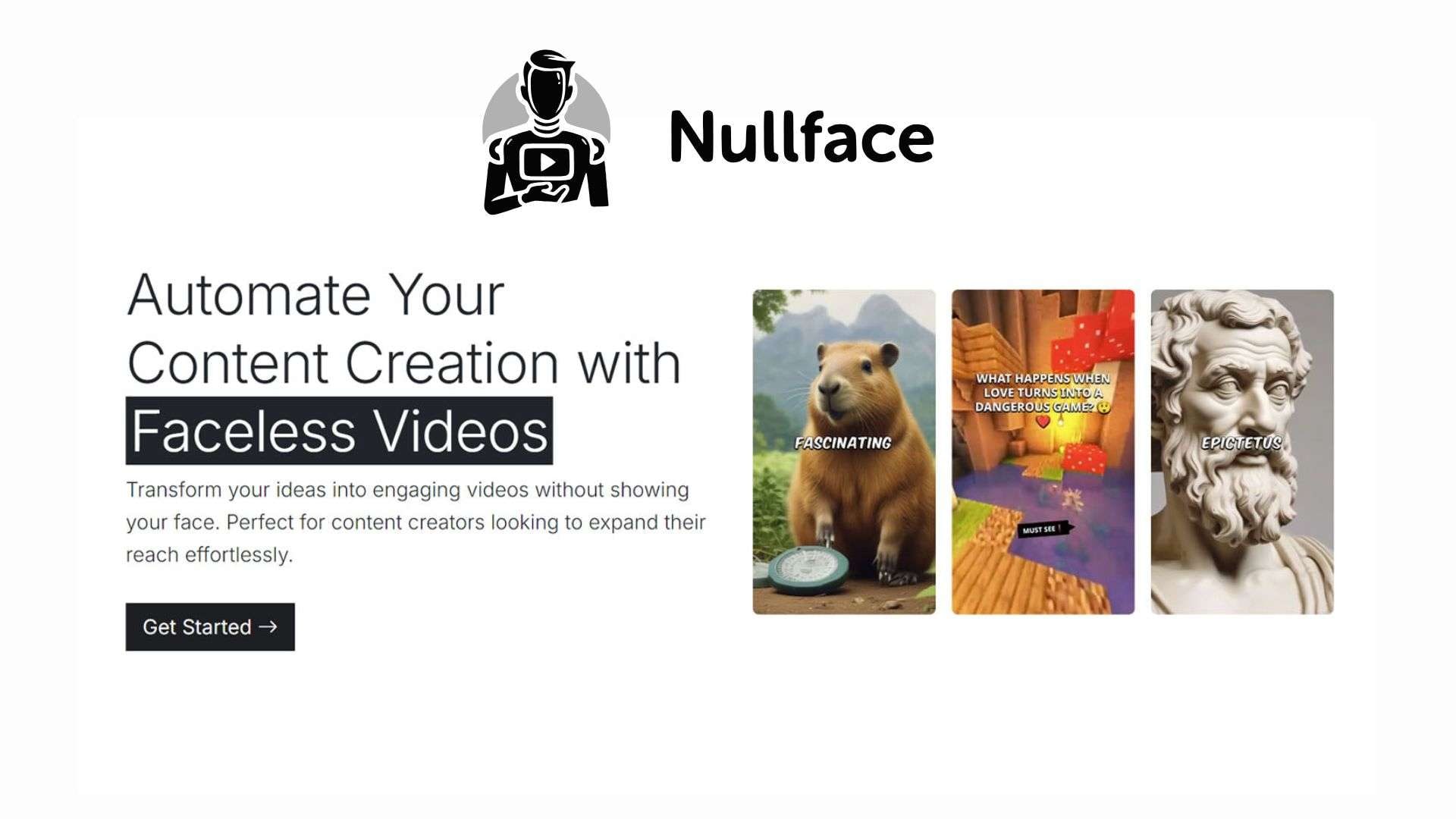
Nullface AI is a faceless video creation platform made for TikTok and YouTube creators who want to make content without appearing on camera. It combines AI video creation with tools for generating clips and music, including automation features for publishing content to social media platforms.
What Nullface AI Does
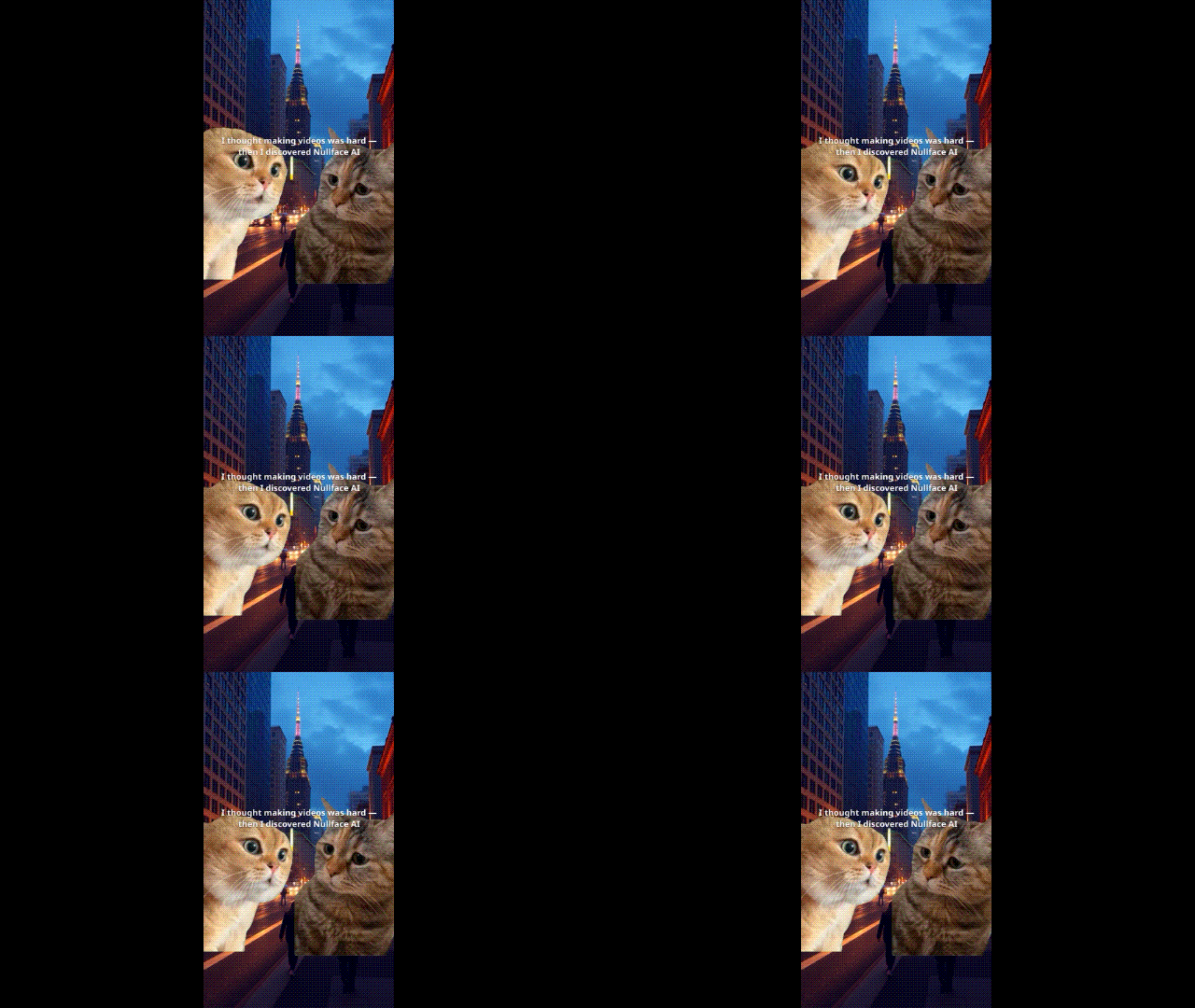
- Creates faceless videos. Nullface AI helps turn content ideas into videos without requiring creators to film themselves. Its current tools cover formats such as slideshows, hooks, and memes.
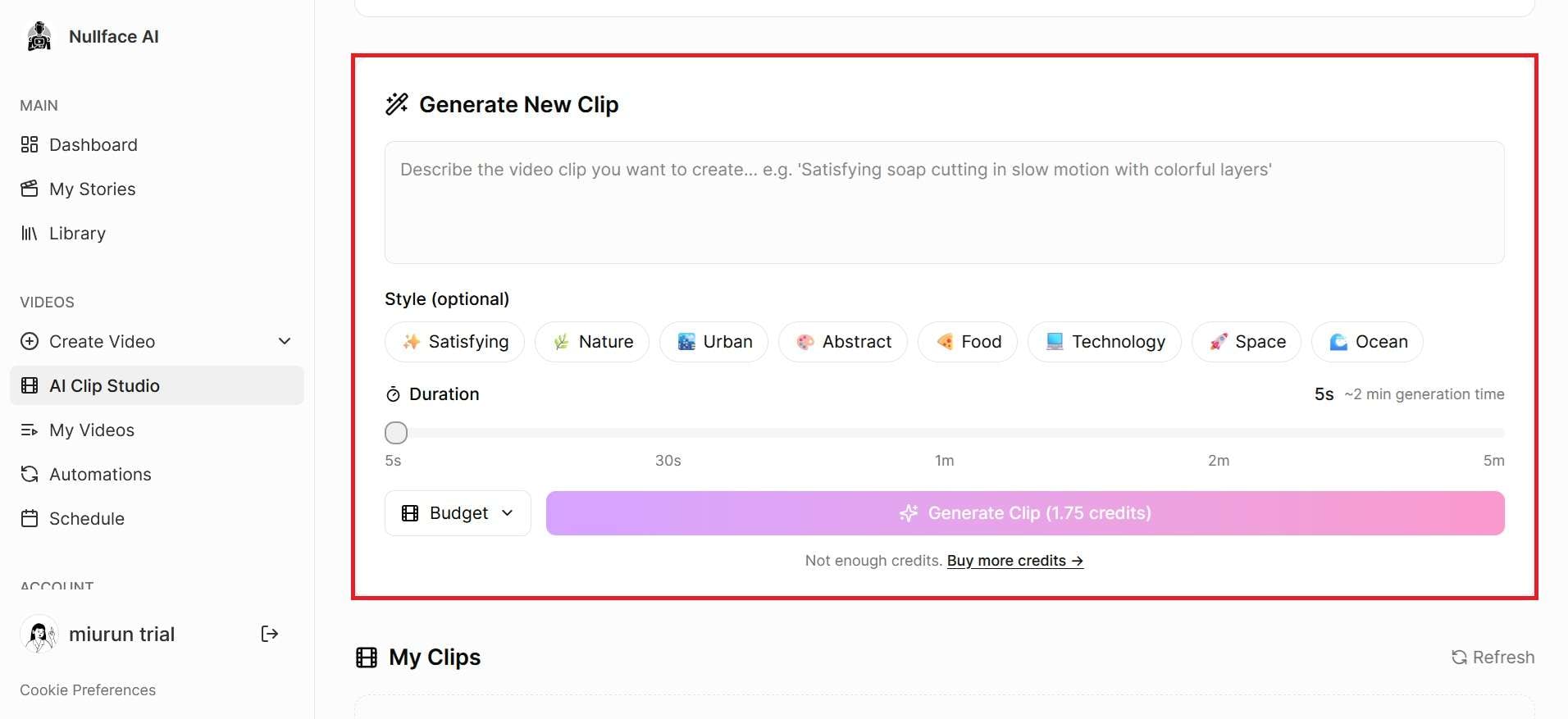
- Generates clips. It includes AI clip generation for creating shorter pieces of content. This can be useful for creators who want to produce more content from the same place.
- Creates AI music. Nullface AI also features an AI-powered music generator, allowing users to create music for their videos without using a separate tool.
- Supports TikTok and YouTube. The platform is built for TikTok and YouTube, with options to connect these platforms and automate video publishing.
- Includes content automation. Automation is a key part of Nullface AI. It doesn’t stop at video creation; the platform can also handle part of the publishing process, which fits creators who want a more streamlined faceless content workflow.
Part 2. Features and What You Can Do with Nullface AI
Nullface AI offers its video creation tools in several formats, depending on the type of content you want to create. You can create story-based videos, image slideshows, product-style demos, or meme videos, then use its clip and automation tools to handle the rest of your content.
AI Video Creator
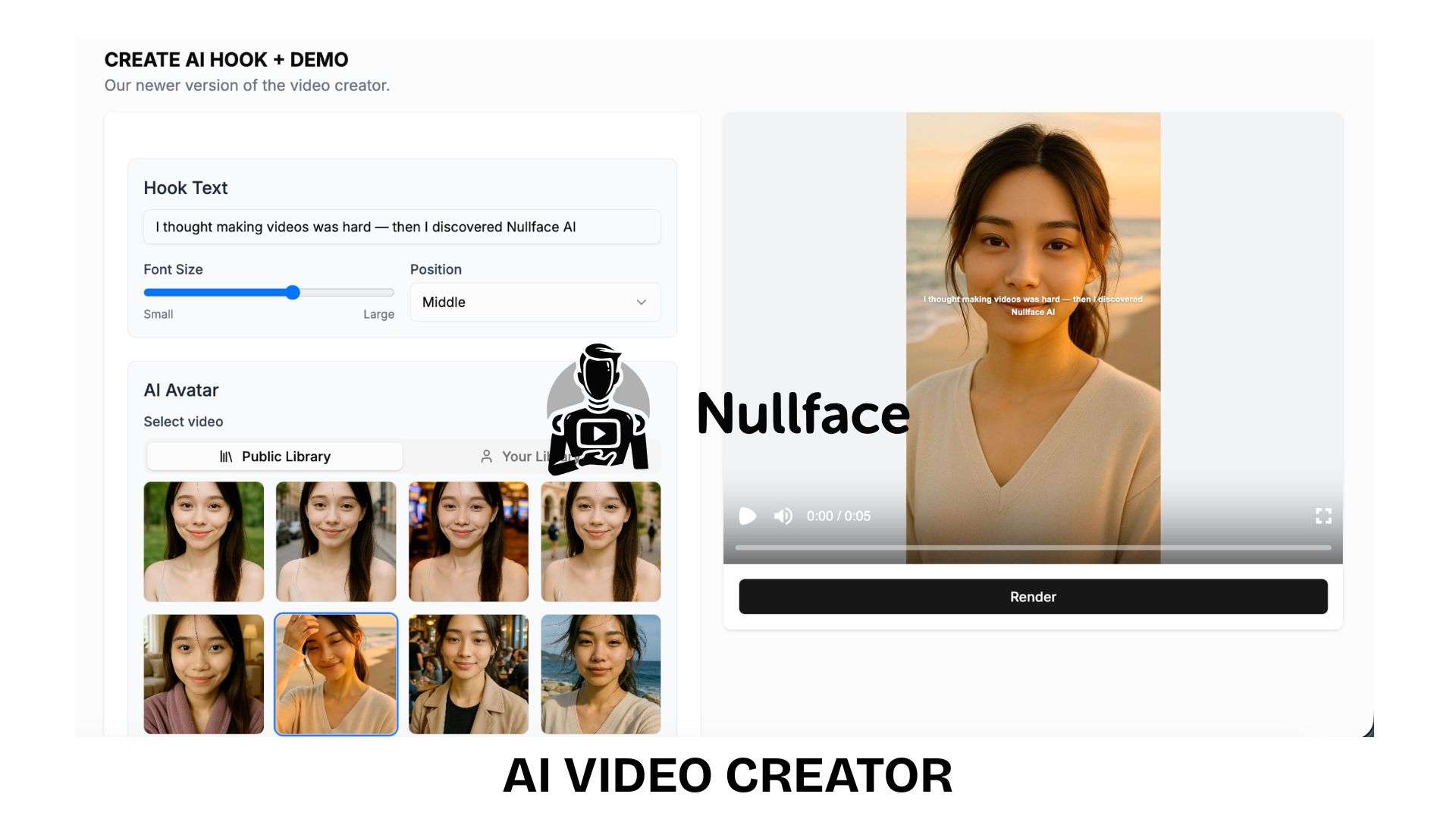
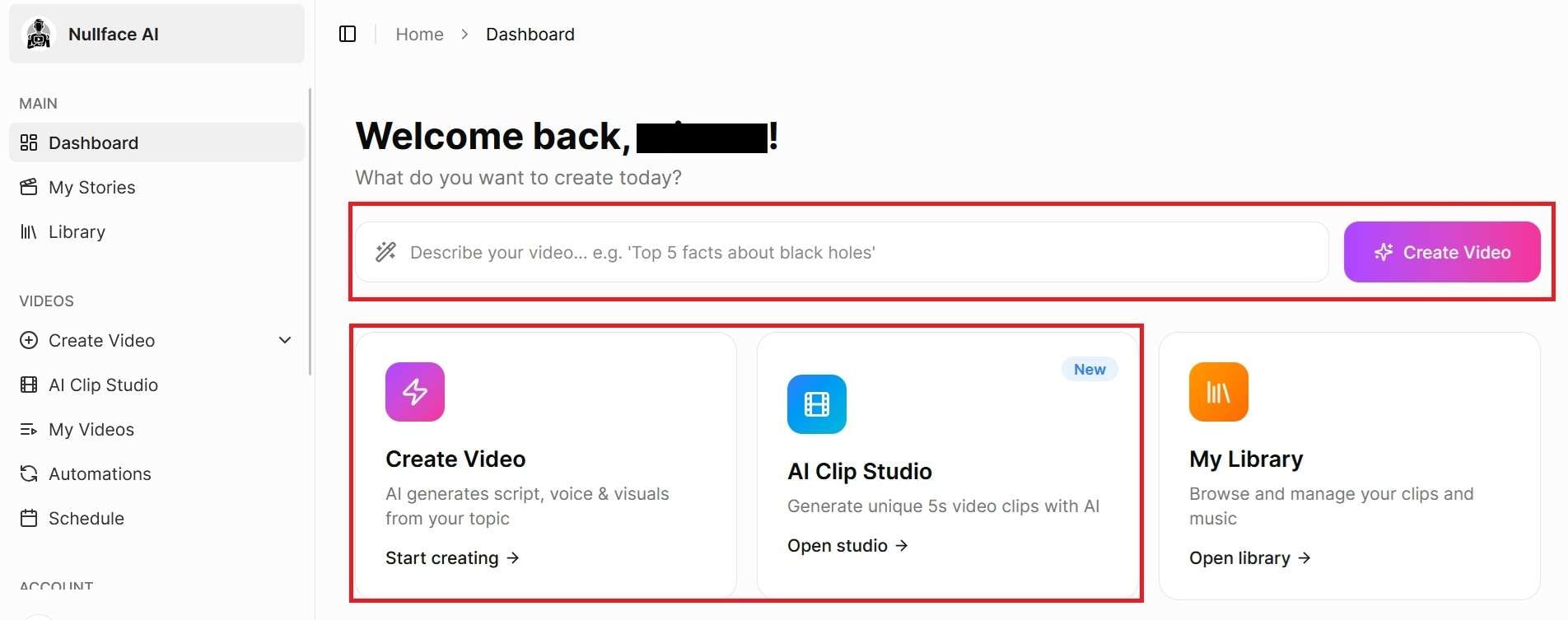
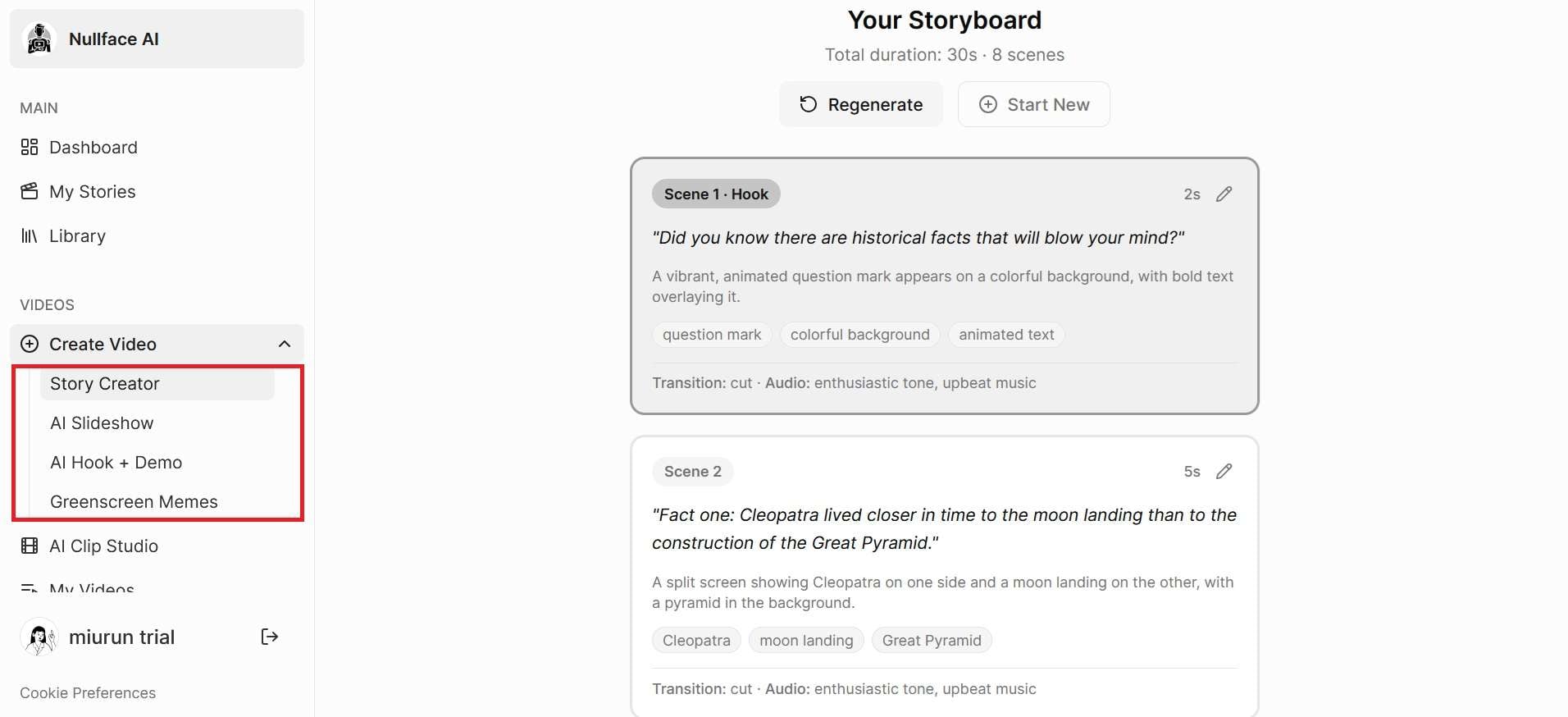
AI Video Creator is where you choose the format for your faceless video. Currently, Nullface AI offers four options, each designed for a different type of content.
- Story Creator: Creates narrative-style videos from a story or topic.
- AI Slideshow: Turns content into a slideshow using a sequence of visuals.
- AI Hook + Demo: Combines an attention-grabbing hook with a product or feature demonstration.
- Green Screen Memes: Creates short meme videos using a green-screen format.
AI Clip Studio
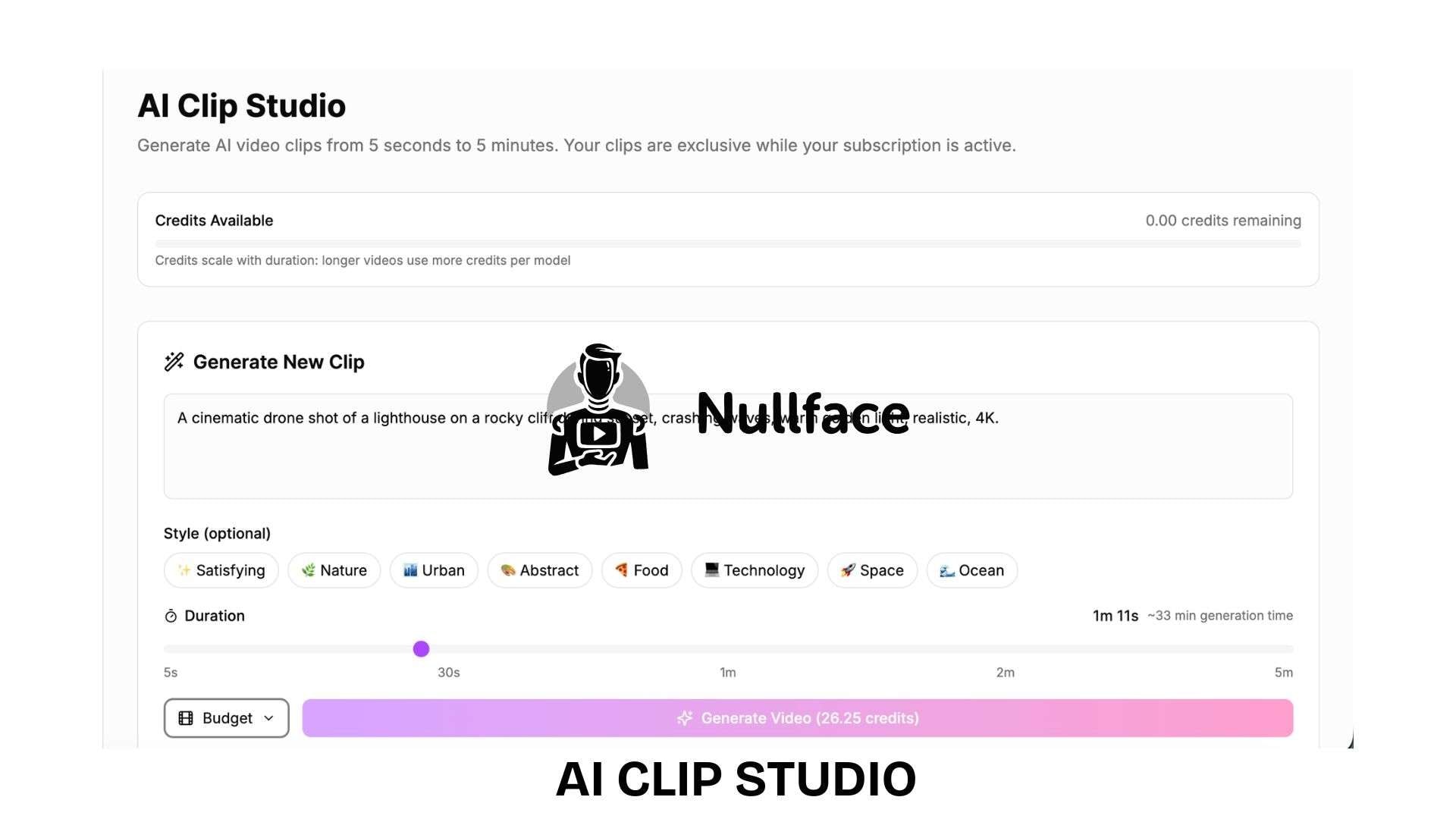
AI Clip Studio is designed for working with existing video content. You don’t need to create a video from scratch with this tool; you can use it to turn longer source material into shorter clips.
This gives Nullface AI a second workflow in addition to its AI video generator. You can create a new faceless video when starting from an idea, or work from existing footage when you already have something to repurpose.
Automations & Schedule
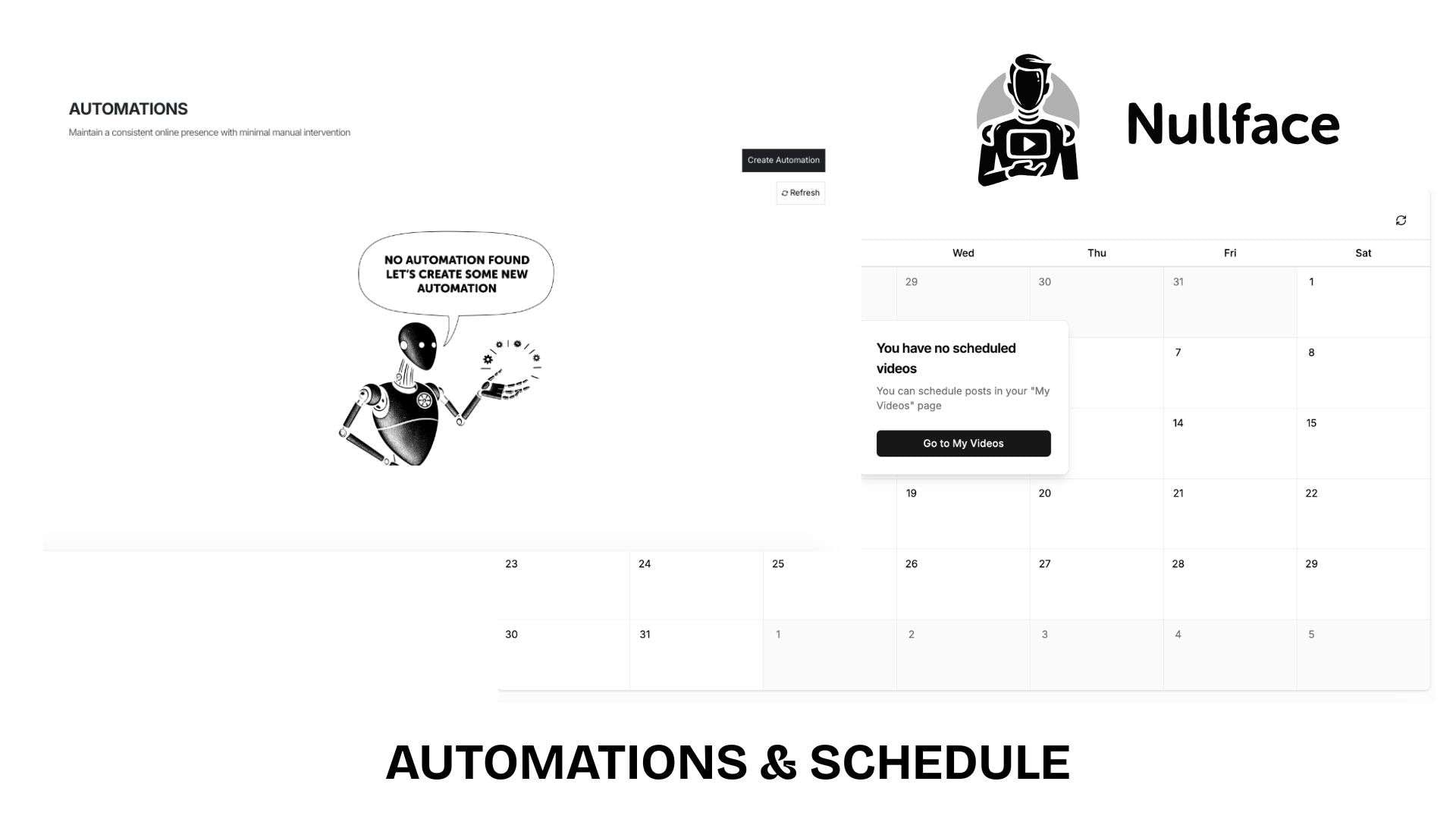
Nullface AI includes automation and scheduling tools for managing content after it's created. However, Automations currently supports only AI Slideshow videos, while AI Hook + Demo and Greenscreen Memes are planned for future support.
This feature is useful if you regularly create slideshow content and want to reduce the manual work involved in producing and publishing each video.
Part 3. Nullface AI Pricing
Nullface AI currently offers monthly and yearly subscription options. Both plans include the same core features, while the yearly plan is more cost-effective overall than paying monthly.
Nullface AI Pricing (2026)
| Monthly | Yearly | |
| Pricing | 29€ | 290€ |
|
Show More
Show Less
|
||
Both plans include:
- 43 credits per month
- AI Video Creation for slideshows, hooks, and memes
- AI Clip Generation
- AI Music Generation
- Automations
- Auto-posting to TikTok and YouTube
Part 4. How to Use Nullface AI to Create Faceless AI Videos
Creating a video on Nullface AI starts with selecting the desired format, then adding the necessary content for that format. Here are the steps.
How to Use Nullface AI
Part 5. Nullface AI Review: The Good and the Bad
Nullface AI is useful if you want to create and publish faceless content without having to handle every part of production yourself. Its ready-made formats and built-in automation features simplify the process, although there are some trade-offs in control and output quality.
- Choose from Story Creator, AI Slideshow, AI Hook + Demo, and Green Screen Memes.
- Generate clips and music without switching to another tool.
- Connect your accounts and publish videos directly through Nullface AI.
- Video creation, clip generation, and scheduling are combined in one platform.
- It doesn't offer the same level of detailed editing as dedicated video editors.
- AI-generated visuals and content may not always come out exactly as expected.
- Ready-made formats simplify creation but give you less control over the video's structure.
- Some past user discussions mention service and pricing issues, though these may not reflect the current platform.
Part 6. Nullface AI Alternative with More Advanced Editing Control
Looking for a Nullface AI alternative doesn't necessarily mean choosing another automatic faceless video generator. If you want to generate a video with AI and then edit the result yourself, Wondershare Filmora offers that option. You can use AI for the initial creation, then work on the video in a desktop editor to change scenes, timing, audio, text, and other details.
What You Can Do with Filmora
- AI Idea to Video: Enter an idea and Filmora can turn it into a script, storyboard, scenes, and a video you can edit afterward.
- AI Video Generator: Create videos from text or images, then continue editing the generated footage in Filmora.
- AI Copywriting: Generate scripts, titles, captions, and descriptions for your video and social posts.
- Stock media library: Add stock footage, images, music, and other assets when you need different visuals.
- Advanced timeline editing: Cut clips, replace scenes, change timing, adjust audio, add text, and apply effects directly on the timeline.
- Content scheduler: Schedule finished videos for TikTok, YouTube, and Instagram without leaving the app.
If Nullface AI's automated approach feels too restrictive, Filmora gives you a place to take over after the AI has completed the initial work. You can keep the generated parts that work and manually edit the rest before publishing.
 Secure Download
Conclusion
Nullface AI makes the most sense when you want to keep faceless content production simple. You can pick a format, generate the video, and move on to publishing without spending much time on a traditional editing timeline. The trade-off happens when you want to change the generated video more heavily.
For creators who mainly need quick TikTok or YouTube videos, this may not be an issue. However, if every scene, visual, or text needs to look a certain way, you’ll likely feel limited by its automated workflow.
FAQs
-
Can I monetize videos created with Nullface AI on YouTube?
Yes, but the videos still need to meet YouTube's monetization requirements. AI-generated content isn't automatically eligible for monetization. -
Does Nullface AI include copyright-free stock footage?
Yes, you can find copyright-free stock footage in Nullface AI's public library. When creating a video, you can also source visuals from this library, which includes stock videos and music cleared for use in your content. -
Can I edit videos after AI generation?
Yes. You can review and adjust the generated video before publishing, but the editing options are more basic than those of a dedicated video editor like Filmora.
