


 TL;DR:
Squido AI functions as a convenient web-based hub that aggregates multiple generative video and image models into one workspace for rapid conceptualization, but its lack of timeline controls means users will need a traditional editor like Wondershare Filmora to refine and finalize their clips.
● Free accounts include approximately 14 starter credits that are sufficient for older Seedance 1.0 tests but deplete rapidly when running advanced video models, requiring users to upgrade to the $19.9 per month plan or purchase standalone credits.
● The video generation workflow allows users to toggle engines based on specific output needs, utilizing Seedance for rapid rendering of lightweight social media clips and Kling for high-fidelity cinematic motion.
● Secondary utility features like watermark erasing, background removal, and resolution enhancement are included in the dashboard, though they are designed exclusively for quick surface-level cleanup rather than advanced image manipulation.
Ask AI for a summary
 ChatGPT
 Perplexity
 Gemini
 Claude
 Grok
Grok
AI tools are now part of everyday content creation. Adobe’s 2025 Creators’ Toolkit Report found that 86% of global creators use creative generative AI, with many using it to edit content or generate new images and videos.
Squido AI tries to bring that workflow into one place. In addition to its Squido AI video generator, it also includes image generation, background removal, image enhancement, and other simple creative tools that are useful for social media content and quick projects. But convenience alone doesn’t always mean better results, so in this review, we’ll look at how Squido AI actually performs, what it does well, where it still feels limited, and whether it’s worth trying in 2026.
Part 1. About Squido AI: A Multi-Model AI Creation Platform
Squido AI is a web-based platform that combines multiple AI generation models into a single dashboard. Users can create videos and images from text prompts within the same workspace, rather than switching between different applications.
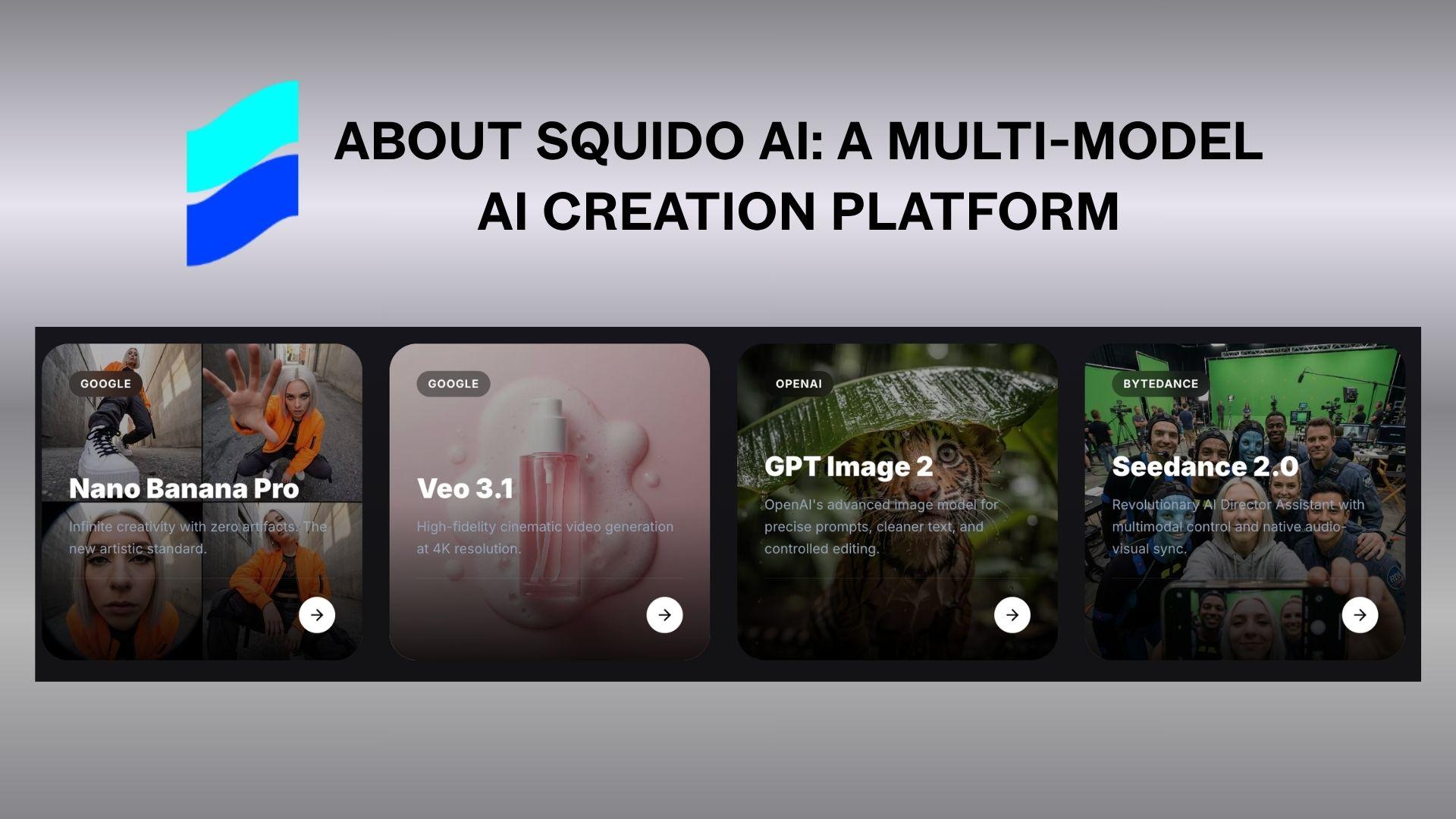
Squido AI video generator supports various AI models for different styles. For example, you can create a video with Seedance 2.0, test another motion style with Kling, then generate matching visuals using the Squido AI image generator powered by Flux. Everything stays connected within a single interface, which makes testing ideas much faster.
Besides Squido AI video and image generation, it also includes tools like image enhancement and background removal. And since it runs entirely online, there’s no installation required.
Who is Squido AI for:
- Content creators making short-form videos.
- Social media managers create fast visuals.
- Marketers producing ad creatives and promo clips.
- Designers experimenting with AI-generated images.
- Beginners exploring AI creation tools.
- Freelancers working on quick client content.
- Users compare models like Kling, Seedance, and Flux in one place.
Part 2. Squido Pricing and Free Credits
Squido AI uses a credit-based system for generating AI-powered videos and images. Each model consumes different amounts of credits, especially newer video models that require more processing power.
| Basic | Premium | Pro | |
| Price | $19.9/month | $39.9/month | $79.9/month |
| Monthly Credits | 600 credits | 1,500 credits | 4,000 credits |
Free Credits
For users who sign up for free, Squido AI currently gives around 14 starter credits. These credits are usually enough to test the Squido AI image generator or create short videos with older models like Seedance 1.0. More advanced models and longer video generations consume credits much faster, so free credits can quickly run out after a few tests.
One useful feature is that Squido keeps all models on the same dashboard, so users can compare results without paying for multiple subscriptions.
Part 3. Features and Capabilities of Squido AI
One reason people use Squido AI is the variety of models available on a single platform. The dashboard is divided into several creation sections, allowing users to switch between AI image generation, AI video generation, and quick editing tools depending on their project needs.
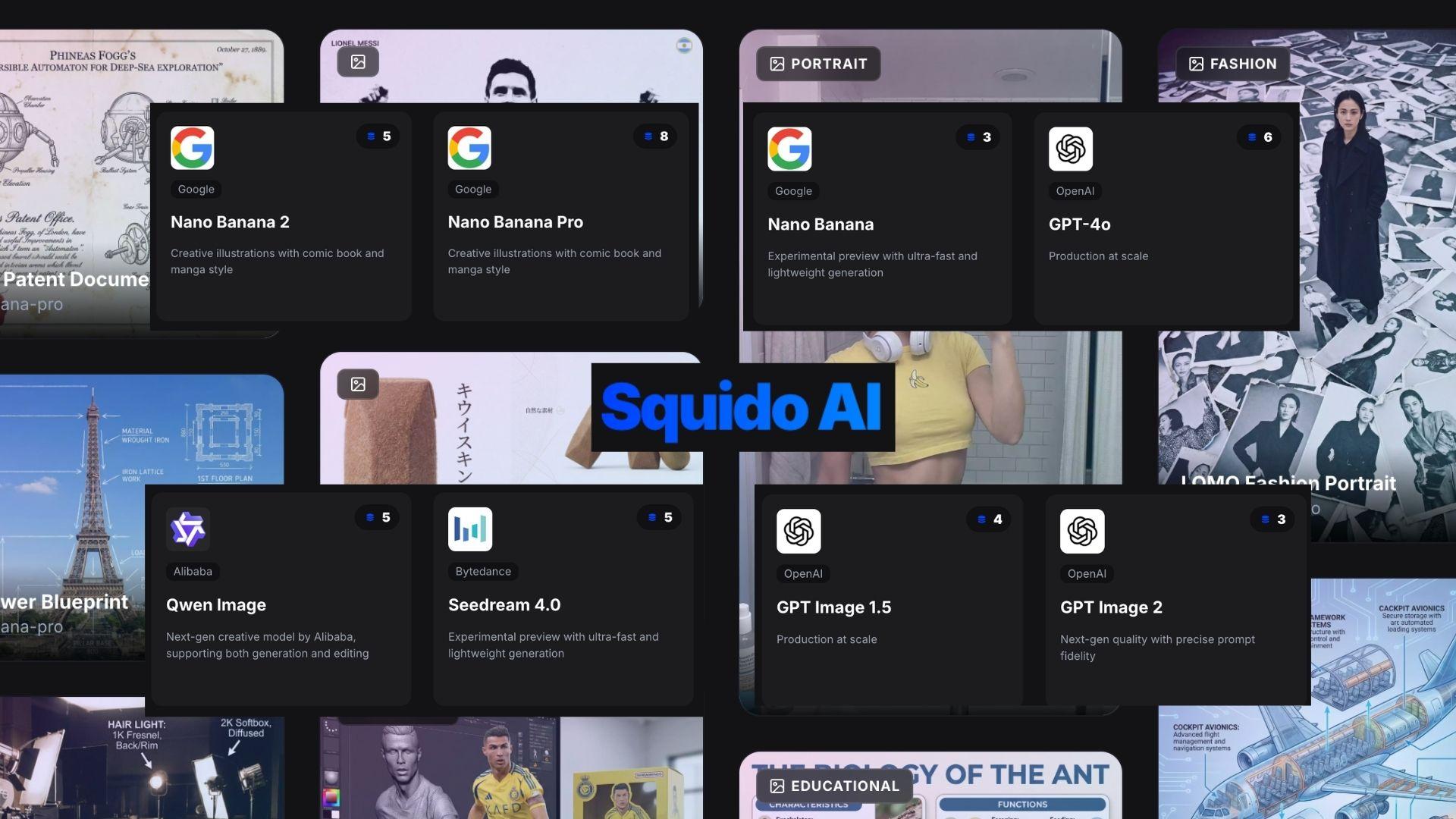
AI Video & Image Generator
The platform's main tools are its Squido AI video and Squido AI image generators. It combines high-end visual engines into one dashboard. You can toggle between different models to prioritize either lightning-fast drafts or high-fidelity, cinematic results for social media and professional projects.
Both work in a simple browser-based flow: enter a prompt, choose a model, adjust the settings, and generate.
| Feature | What It Does | Models Available | Best For |
| AI Image Generator | Creates images from text prompts in different styles | Nano Banana, Nano Banana Pro, Nano Banana 2, GPT-4o, GPT-Image 1.5, GPT Image 2, Qwen Image, Seedream 4.0, Seedream 4.5 | Realistic images, stylized art, social graphics, concept visuals |
| AI Video Generator | Turns prompts into short AI videos | Seedance 2.0 Fast, Seedance 2.0, Seedance v1.5 Pro, Veo 3.1, Kling 2.6, Kling 3.0, Seedance v1.0 Lite, Seedance v1.0 Pro | Cinematic clips, character motion, social videos, quick visual storytelling |
Quick Tools
Apart from Squido AI’s main video and image generators, the platform also includes several quick utility tools designed for fast edits and content cleanup.
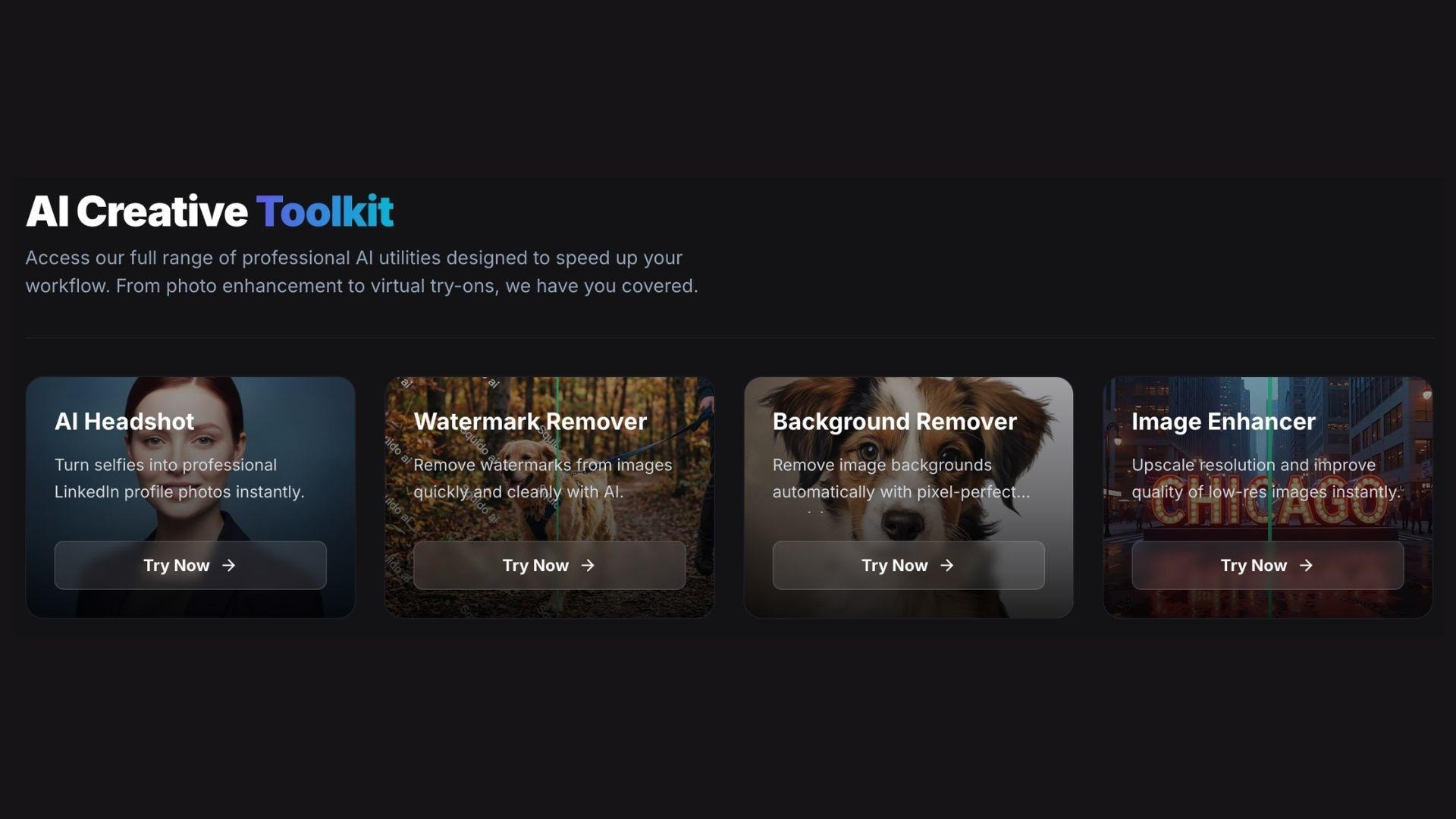
These tools are separated into different sections of the dashboard, so users can open only the features they need without going through the full generation workflow.
- AI Headshot: This tool creates polished profile-style photos from uploaded images. It’s mainly useful for LinkedIn profiles, portfolio pictures, business pages, or social media avatars. Different styles and lighting looks can be generated depending on the selected settings.
- Watermark Remover: The watermark remover helps clean images by removing logos, text marks, or unwanted overlays. Users simply upload the image and highlight the area they want removed. The AI then automatically fills the missing area.
- Background Remover: This feature removes image backgrounds in a single click, making it easier to create transparent PNGs for product photos, thumbnails, profile images, or marketing materials. It works best for portraits and simple object shots.
- Image Enhancer: The image enhancer improves image sharpness and clarity, especially for low-resolution or compressed visuals. It can also help upscale visuals for social media posts, presentations, and online content without needing separate editing software.
These smaller tools make Squido AI feel more like a complete creative workspace rather than just a prompt-to-video platform.
Part 4. How Does Using Squido AI Feel Like? Review
Using Squido AI feels more like exploring a creative AI playground than using a conventional editing app.
The platform is built around speed and experimentation, especially for users who want to try different AI models without having to open multiple websites. The interface is simple enough for beginners, and most tools are accessible within a few clicks.
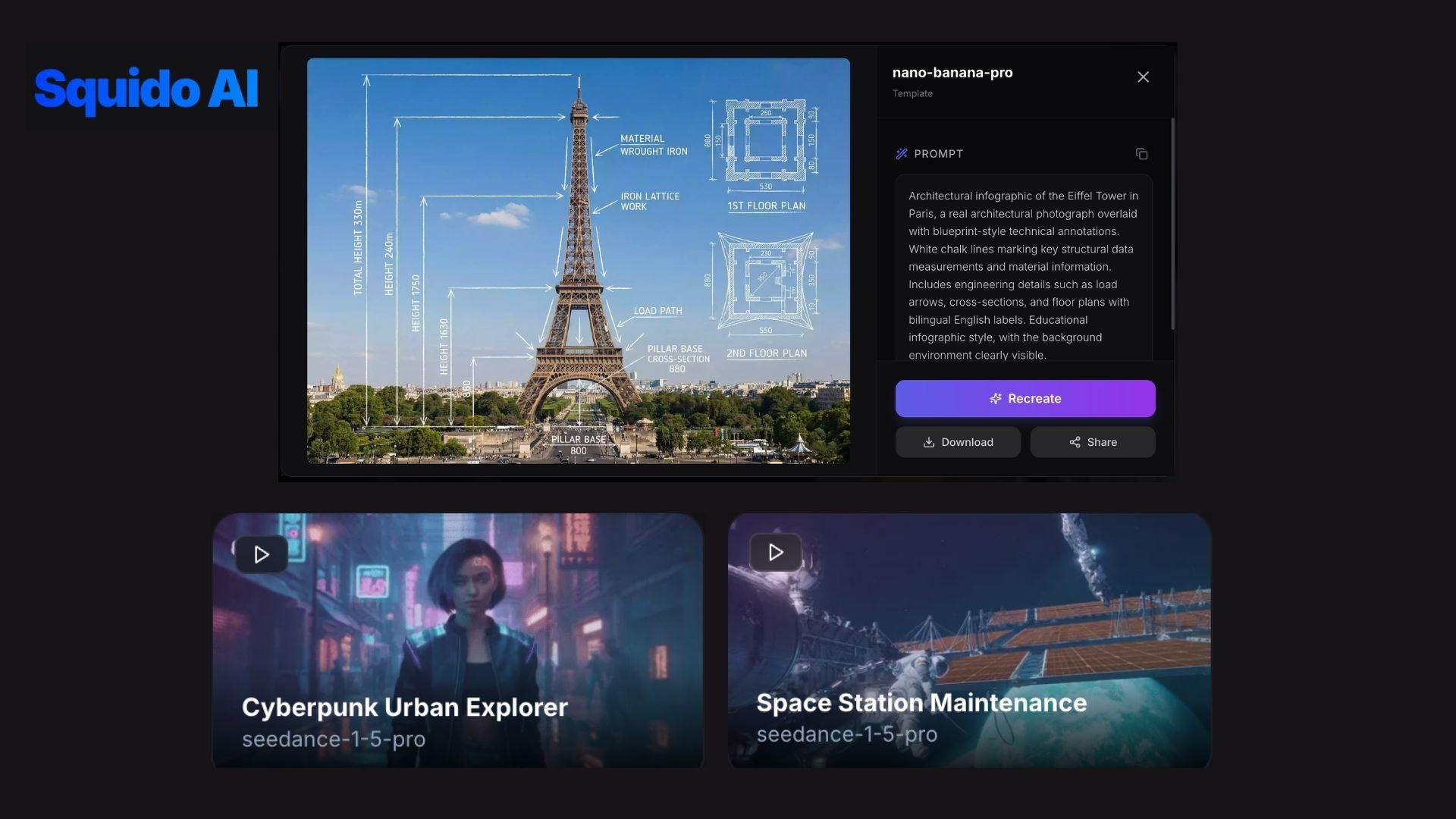
The experience also depends heavily on which model you use. Some video models generate results almost instantly, while others take longer but produce smoother motion or more cinematic outputs. Since everything runs in the browser, the workflow feels lightweight and easy to jump into.
Pros & Cons Comparison
- Ready-made prompts help you start faster
- Quick workflow. Prompt, adjust, and generate in a few clicks
- You can compare different models without much setup
- The interface is simple to understand
- Includes models like Seedance, Kling, Veo, Flux, and GPT Image
- Some parts still feel unfinished
- It’s better for generation than full editing
- High-end video models can get expensive
- Quality depends heavily on the model you choose
- Cleanup and enhancement are useful, but not very advanced yet
Part 5. A More Complete Solution for AI Video Creation and Editing
If Squido AI feels limited once you get your generated clip, you may want to look for a full editor like Wondershare Filmora. Filmora works well as the next step after AI generation. You can import clips generated from the Squido AI video generator, then continue editing them on a proper timeline instead of repeatedly regenerating scenes just to make small adjustments.
Filmora also includes built-in AI features for generating videos, images, music, subtitles, and voiceovers directly inside the editor, which makes the overall workflow feel more complete.
 Secure Download
What Makes Filmora a Better Fit
- Works with multiple AI tools: Filmora combines AI-powered generation features with traditional editing tools, so that users can create and refine content in the same project.
- Real timeline editing: Clips can be trimmed, layered, rearranged, and fine-tuned with greater precision than on generation-only platforms.
- Built-in AI enhancement features: Tools like AI subtitles, speech-to-text, AI copywriting, smart cutout, audio cleanup, and AI image generation make it easier to polish content faster.
- More creative control: Users can customize transitions, text, animations, music, effects, color adjustments, and scene timing without relying entirely on prompts.
- Cross-platform flexibility: Filmora is available on Windows, Mac, Android, iPhone, and iPad, so it's easy to continue projects across different devices.
For many creators, platforms like Squido AI are useful for generating concepts and raw visuals, while Filmora handles the editing, refinement, and final production side more comfortably.
Secure DownloadConclusion
Squido AI makes AI content creation feel much more accessible by integrating multiple video and image generation models into one platform. The ability to switch between tools like Kling, Veo, Seedance, Flux, and GPT-based image models within the same dashboard is incredibly convenient, especially for quick experimentation and social media content creation.
However, the platform still feels incomplete in some areas, especially when it comes to more in-depth editing and workflow flexibility. For users who mainly want quick AI-generated visuals, Squido AI is an interesting option to explore. Pairing it with a full editor like Wondershare Filmora creates a much smoother end-to-end workflow.
FAQs
-
Can I generate multiple videos at the same time?
Yes, Squido AI supports generating multiple projects, although the experience depends on your available credits and the model you choose. Heavier models usually take longer to process, especially during busy periods. -
How do I know which model to choose for my project?
Each model has a different style and strength. Kling models are generally better for dynamic motion and cinematic movement, while Seedance models are often faster and lighter for quick social content. Trying out a few prompts on different models is usually the easiest way to compare the results. -
Can I buy extra credits in Squido AI without upgrading my plan?
Yes. Squido AI allows users to purchase additional credits separately, so you don’t always need to switch to a higher subscription tier just to continue generating content. -
How long does it take to generate a video on Squido AI?
Generation time varies depending on the selected model, video length, server traffic, and rendering quality. Faster models can finish within a few minutes, while higher-end cinematic models may take significantly longer.
