


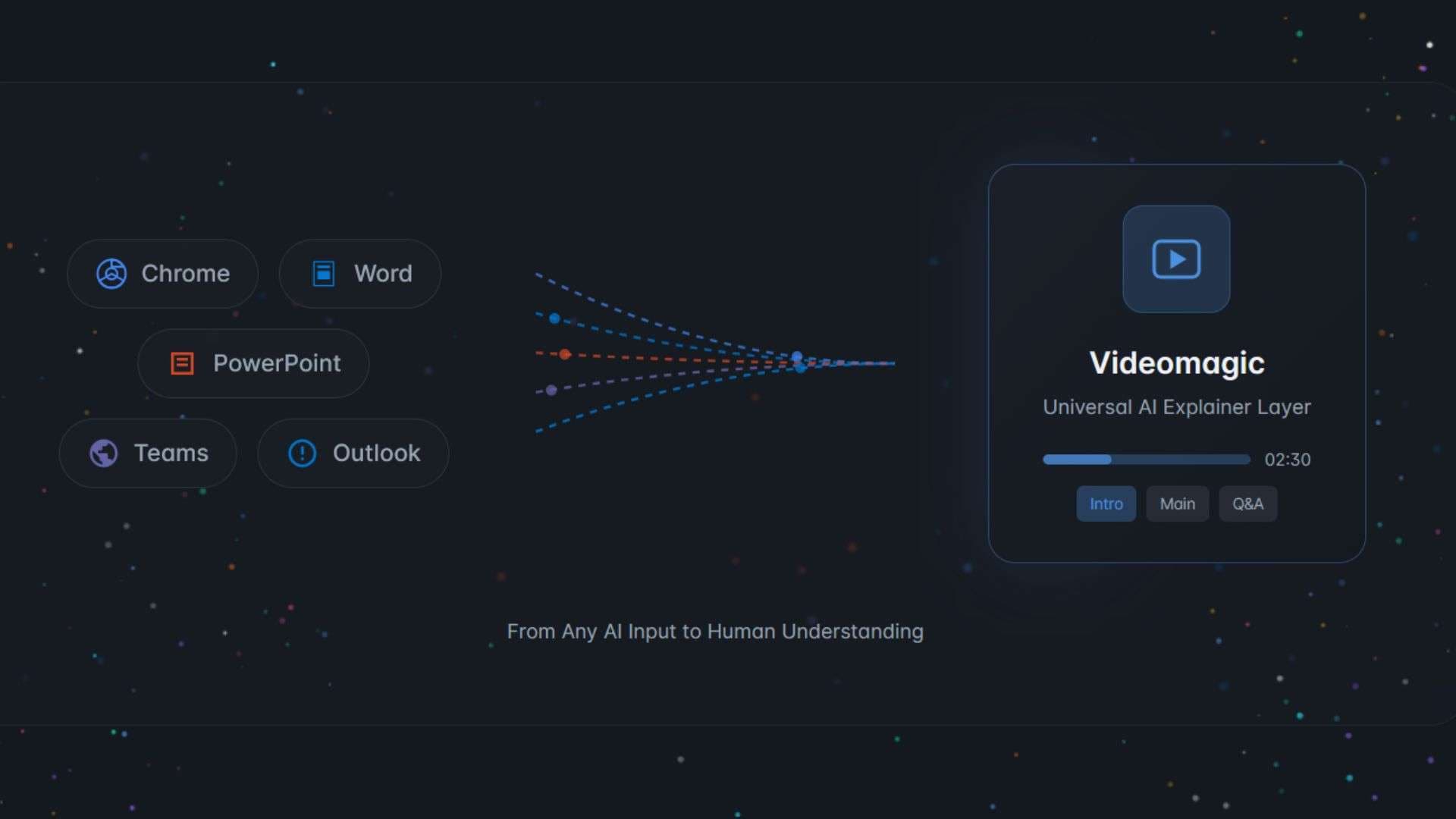
What if every AI chatbot answer had a “make this a video” button? As of August 2026, Videomagic’s Chrome extension adds roughly that to ChatGPT, Claude, Gemini, Copilot, and Grok. It also converts presentations, documents, and webpages into videos, with most of the assembly handled automatically.
The way Videomagic builds a video from content you already have, like a slide deck, a blog post, or a chatbot answer, saves time, but it can also limit how much control you get. This Videomagic AI review examines its workflow, free plan, pricing, Videomagic editor, and practical editing limits.
Part 1. What Is Videomagic AI?
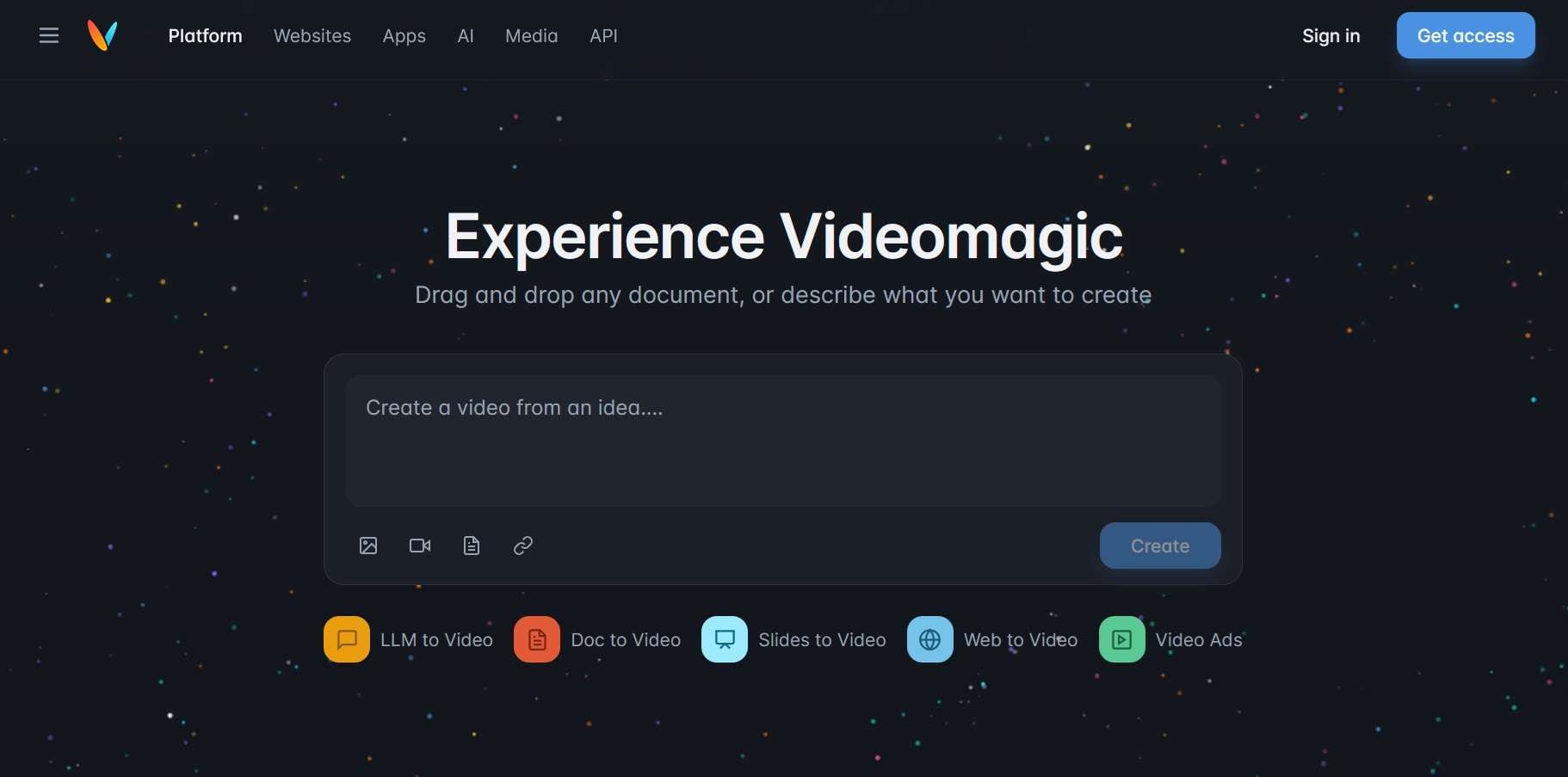
Videomagic is an AI video platform from Videomagic International LLC. It began as a tool for turning a single product or listing URL into a ready-to-publish video for social posts, ads, listing pages, and email campaigns. But the current version goes wider by taking existing content, such as a webpage or an AI chatbot answer, and building a video from it with a storyboard, voiceover, and matching visuals.
The idea is to start from material you already have, not a blank timeline. You don't write a prompt from scratch, place clips, or sync audio. The AI makes those decisions, and you adjust a few settings before it generates.
What Can You Turn Into Video?
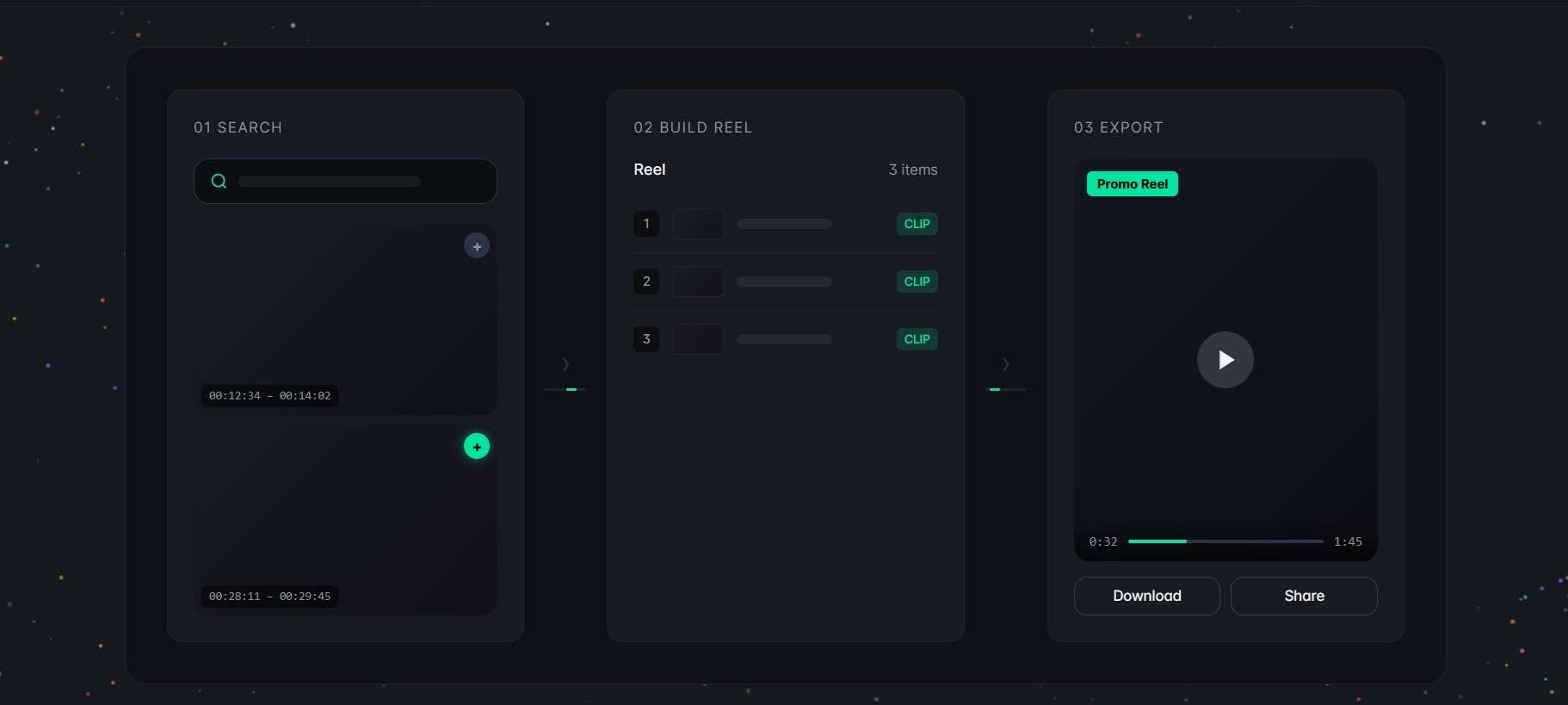
- Pasted briefs and text: Add a topic, instructions, or written content and let Videomagic turn it into a video.
- Web pages: Enter a URL and Videomagic uses the page's content to build a video around the information.
- Slides: Upload a presentation and Videomagic turns the slide content into a narrated video, making the deck easier to watch without a live presentation.
- Documents: Add a report, article, or other supported document, and Videomagic extracts the key points and pairs them with visuals and voiceover.
- LLM: The Chrome extension works with ChatGPT, Claude, Gemini, Copilot, and Grok, so you can turn a chatbot response into a video-style explanation without copying and pasting it into Videomagic.
Part 2. How Does Videomagic AI Create a Video?
Videomagic AI is a cloud-based tool and works entirely online. There's no software or app to download. You create videos in your browser or from inside a supported AI assistant through the Chrome extension.
No login is needed to test how it works the first time, but an account lets you use the Videomagic editor and start the trial. Everything runs in a chat-based workflow, where you only need to provide your content and basic instructions, then let Videomagic handle it.
Part 3. How Much Control Does Videomagic Give You?
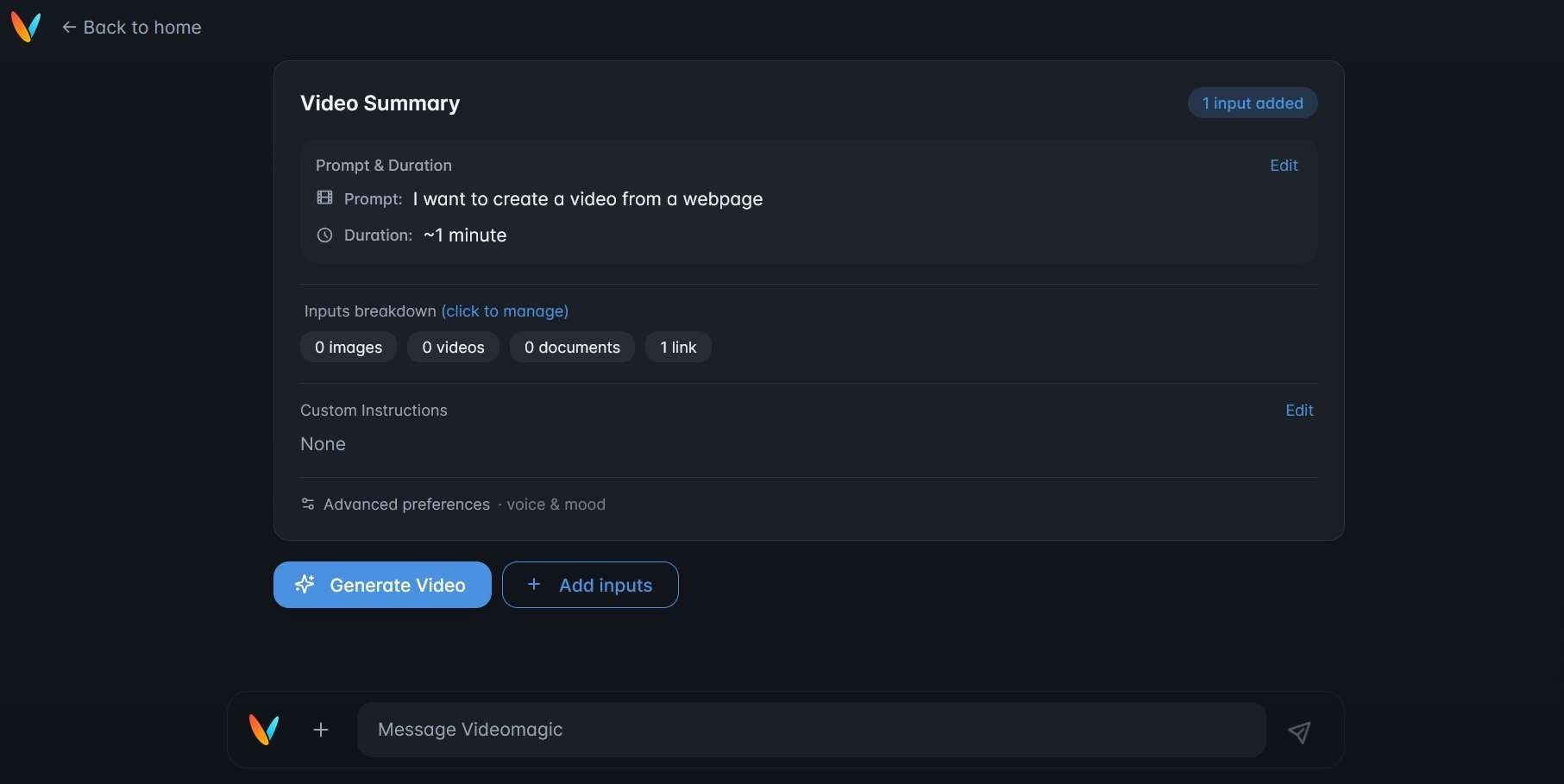
Videomagic only gives you a few basic settings to guide the video, while most production decisions stay automated. Before generation, you can adjust a few basic options to set the direction of the video:
- Voice: Choose Auto, Female, or Male.
- Mood: Select a style such as Cinematic, Corporate, Emotional, News, Happy, or Upbeat.
- Duration: Set the target length of the video.
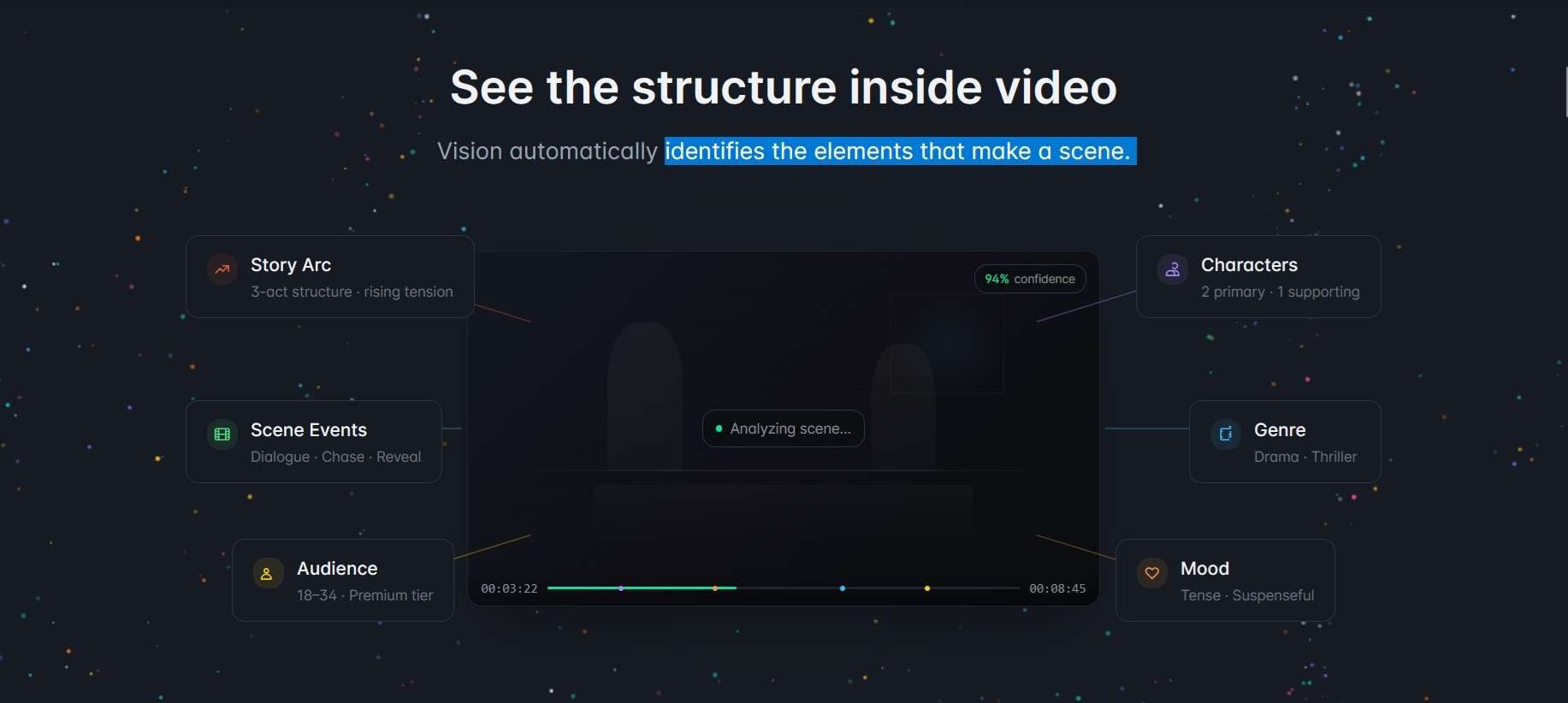
Once you generate, Videomagic makes most of the production decisions for you. The AI handles elements such as:
- Scene structure: How the video is split into scenes
- Pacing: How fast it moves from one scene to the next
- Visual style: The overall look of the video
- Music direction: The background music that fits the mood
- Visual selection: The clips and images used in each scene
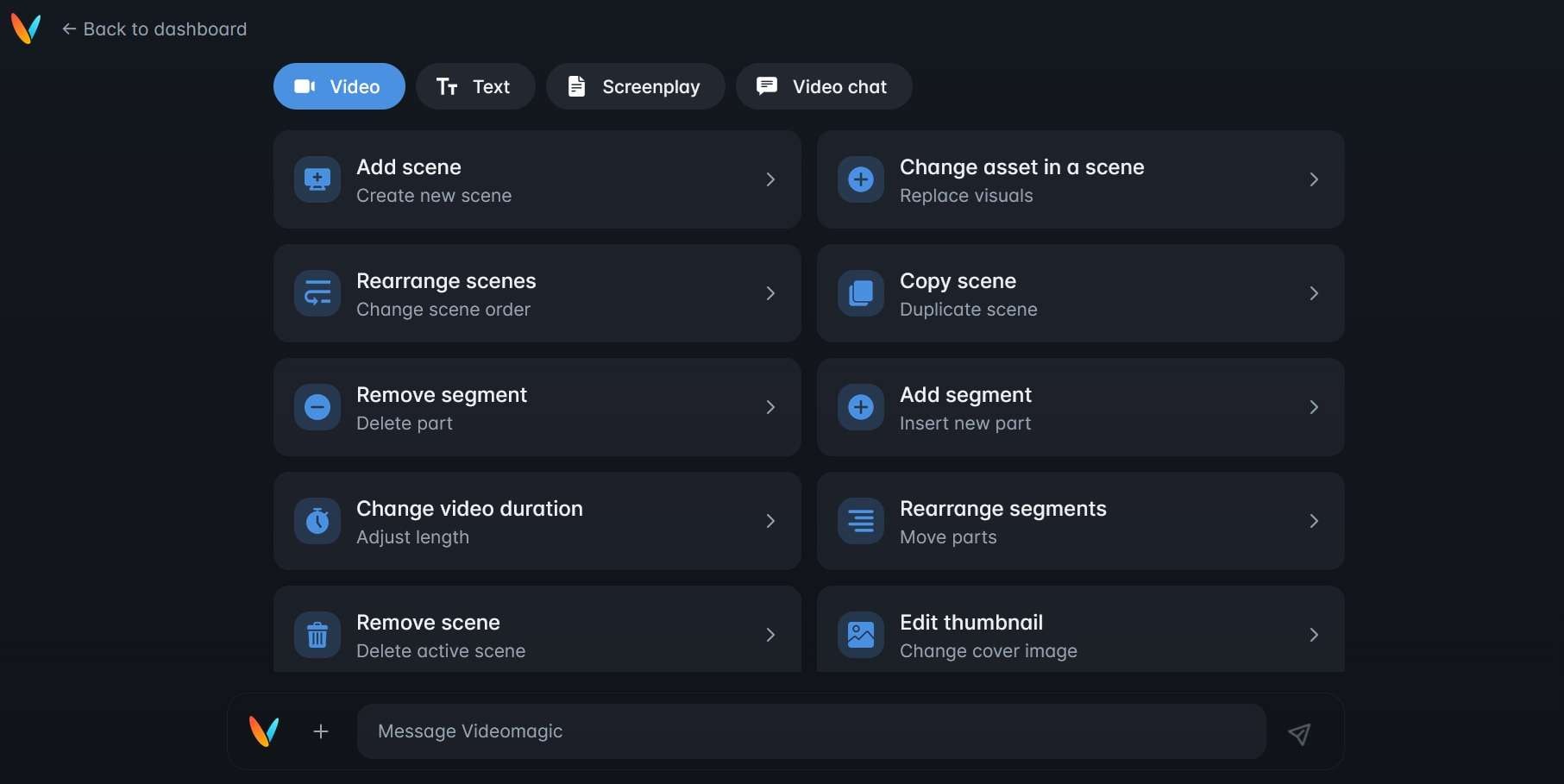
When the video is ready, you’ll see an Edit video option. You can make changes directly in the chat, using the available editing options to adjust the generated video
Part 4. Is Videomagic AI Free? Pricing Explained
If you are looking for Videomagic AI free access, you can only try the video generation once without paying. After that, you need a paid plan to continue, although Ignite and Blaze include a 15-day free trial. A card is required, but you won’t be charged during the trial.
Videomagic Pricing at a Glance
| Plan | Current Price | Video Allowance | Edits |
| Ignite | $39/month, billed yearly | 20 min/month | 1 free edit/video |
| Blaze | $79/month, billed yearly | 60 min/month | 2 free edit/video |
| Inferno | $50 per minute | Pay-per-minute model | Built to brand guidelines |
What Changes with Paid Plans?
- Spark: watermark, no rollover minutes.
- Start/Blaze: no watermark and unused minutes roll over for up to one year.
- Inferno: adds unlimited creation, unlimited edits, dedicated account management, and customizable business features.
Part 5. Videomagic Review: Where It Works and Where It Doesn't
Videomagic AI’s prime use is for quickly converting existing information into video through automation. It is more valuable for its speed and simplicity than for creative control.
- Scalable Production: Videomagic can create a high volume of videos to support multiple products or campaigns.
- Easy to Use: The platform designs the workflow for people without video-editing experience, making video creation require less manual work.
- Faster Production: Automation can reduce a process that may take hours or days to a much shorter workflow.
- Conversion-Focused: The platform is designed to create product content that helps buyers grasp offers faster and guide the purchase journey more easily.
- Input Quality Matters: The final output mostly depends on the quality of the inputs you provide, like source information, images, etc.
- Limited Creative Freedom: Using templates can limit creative freedom and may not suit projects that require more originality or detail.
- Card Required for the Trial: You aren't charged if you cancel before it ends, but you have to remember to cancel.
- Edits Have a Limit: Ignite includes one free edit per video and Blaze includes two.
Part 6. If Videomagic Automation Isn't Enough, Edit with Filmora
Videomagic is useful for quickly turning information into a first video draft. You set the brief, voice, mood, and duration, while the AI handles storyboarding, narration, assets, and scene assembly. But the main limitation is control.
Deeper editing sits behind the paid Edit video option, and you get little say over what changes, since the tool is built around automation. For the finishing work, Wondershare Filmora is a useful next stage for creators who’d rather recraft that draft than generate it again.
Filmora Tools That Help With AI Video Creation
Filmora merges a complete timeline editor with modern AI tools. Its AI video generator is now compatible with Seedance 2.0, HappyHorse, Veo 3.1, and more for text-to-video and image-to-video creation. After that, you can still improve generated clips on the timeline using Filmora's full-featured editing tools.
1. Multi-Track Timeline Editing
Upload the export of Videomagic, trim or redraft some sequences, add B-rolls, stack the graphics, adjust the timing, and work on multiple tracks. Filmora also adds Dual-Timeline Editing for more complicated projects.
2. Auto Caption
Filmora’s current Dynamic Caption tool generates synchronized captions and lets you refine text, styling, animation, and keyword highlights directly in the editor. This is useful for explainers, tutorials, and social videos.
3. AI Voice Enhancer + AI Audio Denoise
AI Voice Enhancer improves the clarity of your voice and removes distracting background sound. The AI Audio Denoise tool includes new targeted controls that you can use to clean up your narration.

4. AI Extend
Filmora AI Extend can continue a clip, video, and audio directly on the timeline. Use it when an AI-generated scene ends too early, and you need a few more seconds to fit the voiceover or a transition.
 Secure Download
Conclusion
Videomagic Editor serves best as a fast first-draft generator. Use it to convert web content and AI answers into a structured video. The process is easy with its guided setup, auto-story, voiceover, and asset sourcing. The trade-off is control, especially once you move beyond the initial generation stage. Paid access also matters, since the current plans no longer show a full free tier.
For users who want to polish that draft, Filmora fits naturally into the workflow. It adds timeline editing, captions, audio cleanup, extra AI-generated visuals, and reframing tools. In practice, Videomagic handles speed, while Filmora gives the final video more shape and precision.
FAQs About Videomagic AI
-
What files and content can Videomagic turn into videos?
Videomagic AI currently supports web content and AI-generated answers. PDF and Word files are supported in its document workflow, while Microsoft Word and PowerPoint content will be covered. -
Does Videomagic add a watermark?
No. Videomagic doesn't place a watermark on your video, whether you're testing it, on the 15-day free trial, or on a paid plan. -
Can I cancel Videomagic free trial?
Yes. According to the pricing page, you can cancel anytime during the trial, and you aren't charged if you cancel before it ends. A card is required at signup. -
What happens after the free trial ends?
The Videomagic free trial covers Ignite and Blaze. Once it ends, you're charged for the plan you chose unless you cancel first.
