

 TL;DR:
Wondershare FilmoraGo has officially rebranded as Filmora across iOS, Android, macOS, and Windows, transitioning into a unified video editing suite equipped with cross-platform cloud syncing and advanced AI generation capabilities.
● The free version applies a permanent watermark on exports and limits mobile resolution to 720p, making it suitable only for casual testing, while Pro plans (starting at $9.99/month for mobile or $49.99/year for desktop) remove watermarks and provide AI credits for professional creators.
● The mobile application is optimized for quick social media content creation, whereas the desktop version (Filmora 15) is required for YouTubers and marketers handling complex, long-form projects that demand advanced color grading, plugin support, and extensive audio editing tools.
● Bypassing paywalls through unofficial FilmoraGo Mod APKs exposes devices to malware, account bans, and frequent export crashes; secure access to new features like AI Smart Cutout or Sora 2-powered Image-to-Video requires downloading directly from official app stores or the Wondershare website.
Ask AI for a summary
 ChatGPT
 Perplexity
 Gemini
 Claude
 Grok
Grok
Wondershare FilmoraGo, one of the most well-known mobile video editing apps for professional and casual editors alike, has now been rebranded as Filmora. This change is more than just a new name, with the updated app bringing a fresh design, better performance, and a bigger set of features you’ll love.
If you’re curious about what the new Filmora brings compared to FilmoraGo and where to download it safely, this guide has covered it all for you. We will also give you a clear breakdown of Filmora and how to choose the right plan for your needs.
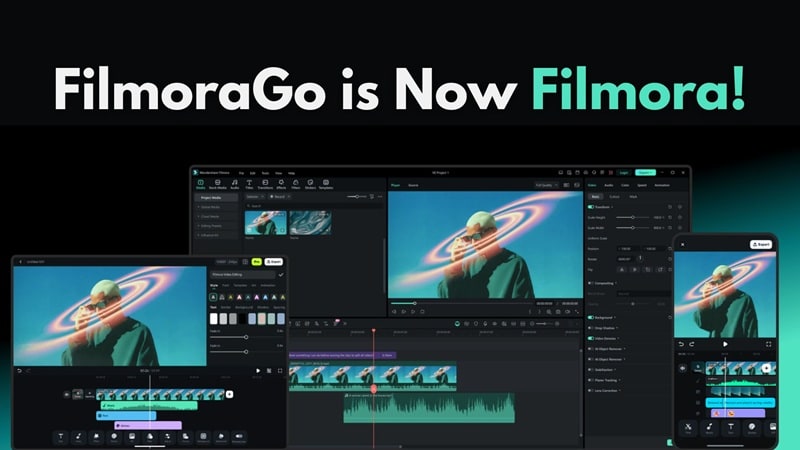
Part 1: Download Filmora (formerly FilmoraGo) on PC, Mac, and Mobile
When searching for FilmoraGo video editor, you’ll likely be redirected to Filmora instead. That’s because Wondershare has officially merged everything under one name, "Filmora," with the FilmoraGo for PC versions showing the full name as Wondershare Filmora.
The safest way to download the latest version of Filmora is through the official Wondershare website or your device’s app store. You can choose the version that matches your device:
- Filmora for Windows/PC
- Filmora for Mac
- Filmora for iPhone
- Filmora for iPad
- Filmora for Android (formerly FilmoraGo APK)
 Secure Download
Why You Should Avoid FilmoraGo Mod APK
It’s easy to be lured into downloading a FilmoraGo Mod APK that claims to unlock paid features for free. But because this is a modified version of the app from an unofficial source, it’s not recommended to use it due to several reasons:
- High risk of malware and spyware. Oftentimes, a Mod APK tricks you into installing it, only to bundle in malware, spyware, or aggressive ads that can harm your phone or steal your personal data for their own benefit.
- No updates or new features. Filmora regularly updates its app to fix bugs, improve performance, and add new features. With a FilmoraGo Pro APK, you won’t get any of these updates.
- Possible account issues. Using an unauthorized version can violate Wondershare’s terms and may lead to account restrictions or bans.
- Unstable performance. Since these apps aren’t properly tested or optimized, modded versions are far more likely to crash, freeze, or glitch during editing, and they often fail when exporting videos.
Given the high risks to your device and your personal data, you also won’t get any protection or official support from Wondershare if something goes wrong.
Part 2. What’s New in the Latest Version of Filmora?
Filmora keeps evolving to stay in sync with current editing trends and what creators actually need. With its current tagline, "Edit as an Expert," the app still aims to make video editing accessible and easier for everyone.
The most noticeable upgrade from the old FilmoraGo editor is the deeper integration of AI technology across many of its tools, which means less time and less manual work for your everyday editing tasks.
Text to Video & Image to Video
With how fast AI-generated video content is growing, you can now create videos with Filmora’s AI video generation tools, including:
- Text-to-Video: Turn simple text prompts into short video clips.
- Image-to-Video: Animate still image(s) into a video with motion and effects.
These features are powered by advanced models like Sora 2 and Veo 3.1, which deliver more realistic results while helping cut production costs and save time. For Image-to-Video, you can get started quickly with available AI templates or customize the results with your own prompts.
AI Smart Cutout
Removing backgrounds or isolating subjects won’t be a problem with Filmora’s AI Smart Cutout. It automatically detects people or objects in your footage and cuts them out instantly. There’s a Customized Cutout option if you need more control over the areas you want to keep.
Retouch
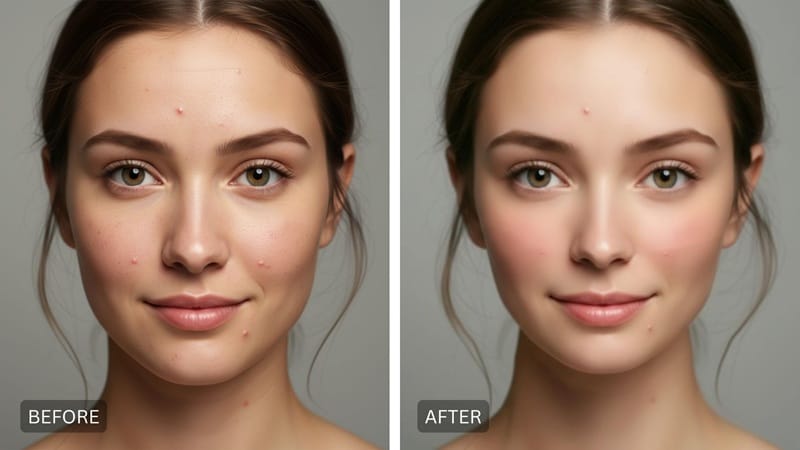
You don’t have to use extra apps to make sure you look your best in your videos. Fix small imperfections, smooth out your skin, and brighten your look with Filmora’s Retouch tools. It’s built for quick touch-ups on your face without making it look overly edited.
VideoGen (Video Element Editing)
Thinking of adding a twist to your clip by adding, replacing, or removing something from it? Try Filmora’s VideoGen (or video element editing on desktop) to generate or swap elements inside your video and create new visual details without doing it manually.
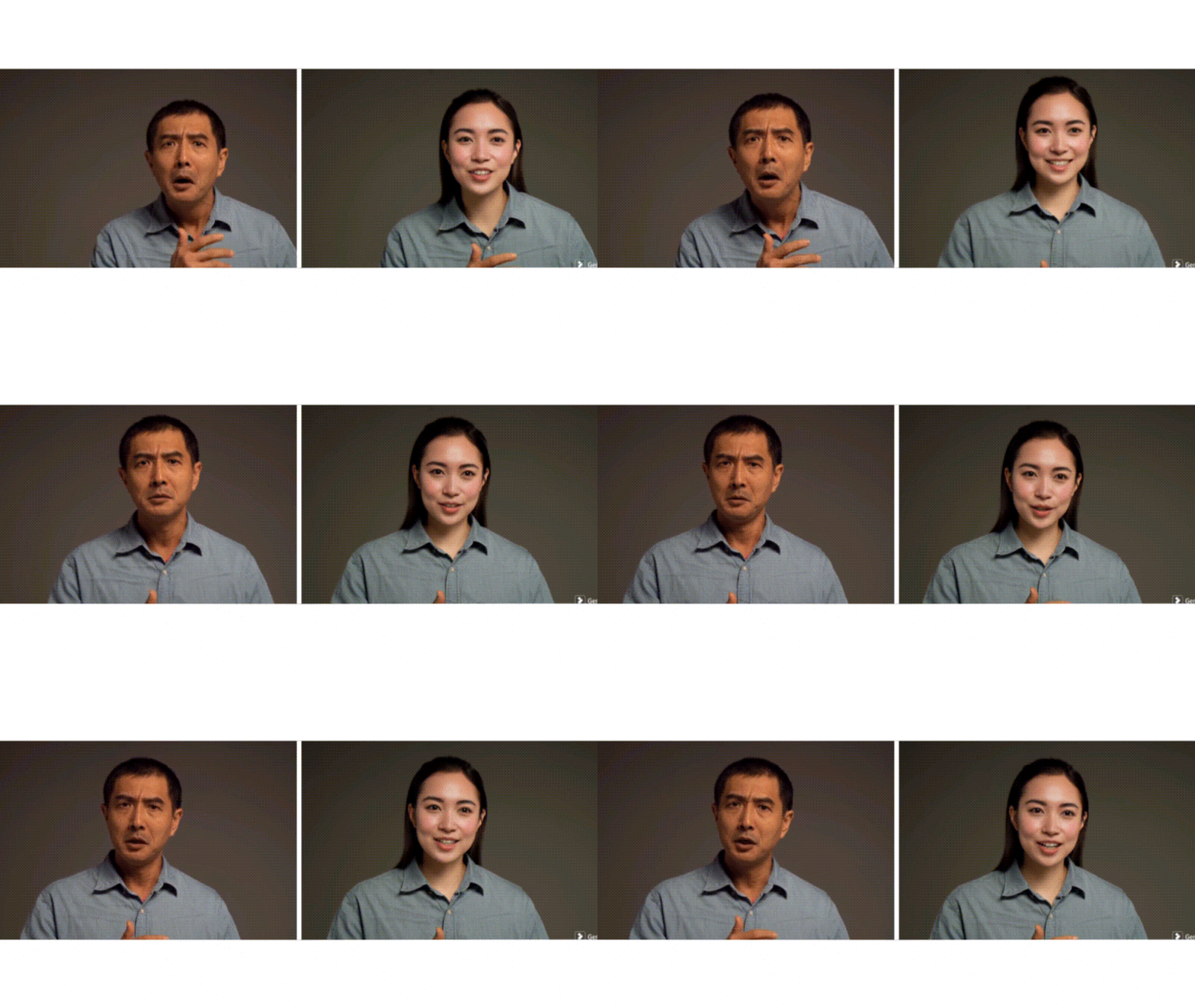
Audio Stretch
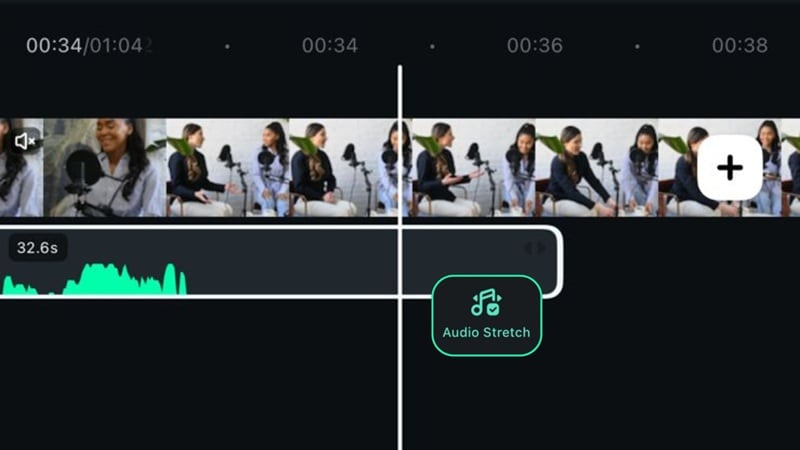
When your audio cuts off too early, Filmora now features Audio Stretch that lets you extend music or sound effects to match your video length. It uses advanced AI that analyzes the audio and fills in the extra time, so it sounds much more natural than looping or cutting it by yourself.
Massive Effects Library
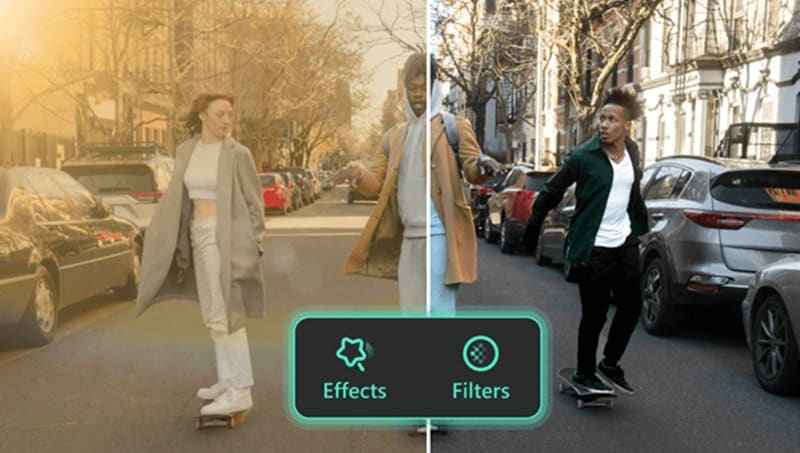
Find even more effects compared to those on FilmoraGo Video Editor & Maker that stay updated with current trends. Filmora offers a massive library of effects, along with filters, transitions, stickers, text animations, and sound effects to keep your videos looking fresh and creative.
FilmoraGo to Filmora 15: Evolution Into a Professional Cross-Platform Suite
The features listed above are only some of what the Filmora app now offers that go beyond the old FilmoraGo features. You can find even more advanced tools and creative options in the desktop version of Filmora, which is currently on version 15.
Filmora for desktop brings deeper editing controls, more AI features, and a fuller workspace for creators who want to take their videos beyond basic mobile edits.
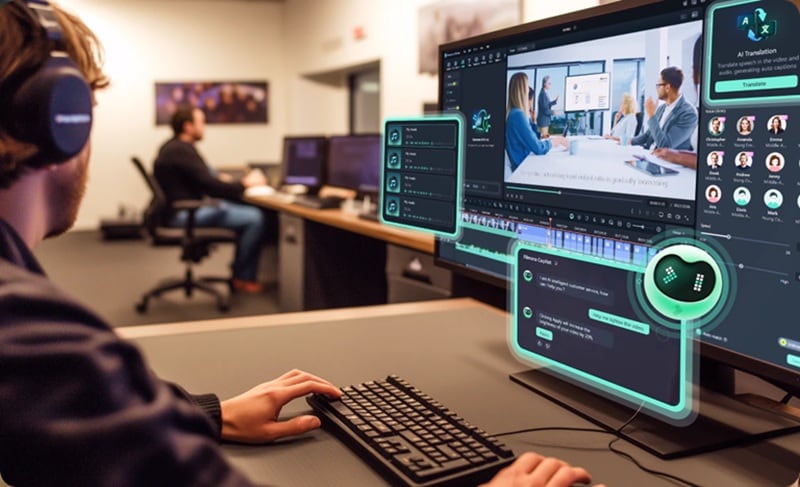
The coolest part is that both the Filmora mobile and desktop versions are integrated with the cloud. You can start editing on your phone and finish it on your computer, as long as you save the project to the cloud and sign in with the same account.
Secure DownloadPart 3. Filmora Free vs. Pro: Which One is Right for You?
One of the main reasons that many users are looking for FilmoraGo APK download is because of the limitations in the free version. Although Filmora offers a pretty good set of tools for free, some features are locked behind the Pro plan, and exported videos include a watermark.
You can weigh both options and decide whether you need to upgrade to the Pro version or if the free version already covers what you need.
For the desktop version
| Free Plan | Pro Plans | |
| Watermark on Exported Videos | ||
| Pricing Details* | $0 | Starts from $49.99/yr ($4.17/mo) |
| AI Credits | None | 1,000/mo (Advanced) or 2,000/mo (Premium) |
| Cloud Storage | 1GB–100GB | |
| Effects and Filters | 1200+ | 12K+ |
| Stock Media | 600+ | 1M+ |
| Video Editing Tools | ||
| Quality Export | Up to 8K | Up to 8K |
|
Show More
Show Less
|
||
Note: Filmora also offers a perpetual license for $79.99. Check the full pricing here.
For the mobile version
| Free Plan | Pro Plans | |
| Watermark on Exported Videos | ||
| Pricing Details* | $0 | Starts from $9.99/mo |
| AI Credits | 200-400/mo | |
| Cloud Storage | 500MB | 1–10GB |
| Effects and Filters | 1K+ | 3K+ |
| Unlimited Tracks | ||
| Video Editing Tools | ||
| Quality Export | 720p | Up to 4K |
|
Show More
Show Less
|
||
*) Prices may vary by plan availability and ongoing promotions.
So, which one should you go with?
- The free plans are more ideal for beginners or casual users who want to test Filmora’s features.
- Upgrade to the Pro plans if you are creators, YouTubers, marketers, and regular editors who need more features, AI tools, and watermark-free exports.
Secure DownloadPart 4. Filmora Mobile vs. Filmora Desktop: Which One Do You Need?
As you can see, the former FilmoraGo app has grown into a much more capable mobile editor. While it’s built for quick edits and on-the-go video creation, there are still some aspects where the desktop version of Filmora clearly goes further.
| Filmora Mobile | Filmora Desktop | |
| Platforms | iOS, Android | macOS, Windows |
| Interface | Simplified for mobile layout | Full editing workspace with timeline panels |
| AI Video Generation Tools | ||
| Video Templates | 2K+ | 3K+ |
| Plug-in Support | ||
| Color Grading | Basic | Advanced (with LUTs and AI Color Palette) |
| Audio Editing | Voice Effect, Noise Reduction, Audio Stretch | Voice Effect, Noise Reduction, Audio Stretch, Audio Ducking, Voice Enhancer, Auto Normalization, Vocal Remover, and more. |
| Limitations | Smaller screen, fewer advanced controls | Requires more system resources |
| Best For | Quick edits, social media content, editing on the go | YouTube videos, marketing content, long-form and professional projects |
|
Show More
Show Less
|
||
Choosing between the Filmora mobile app and desktop software really comes down to which device is most comfortable for you to edit on and what kind of projects you’re working on. Using the Filmora mobile app may feel more convenient for quick edits, but it’s more limited compared to the Filmora desktop version when you need deeper controls.
How to sync projects between Filmora mobile and desktop apps
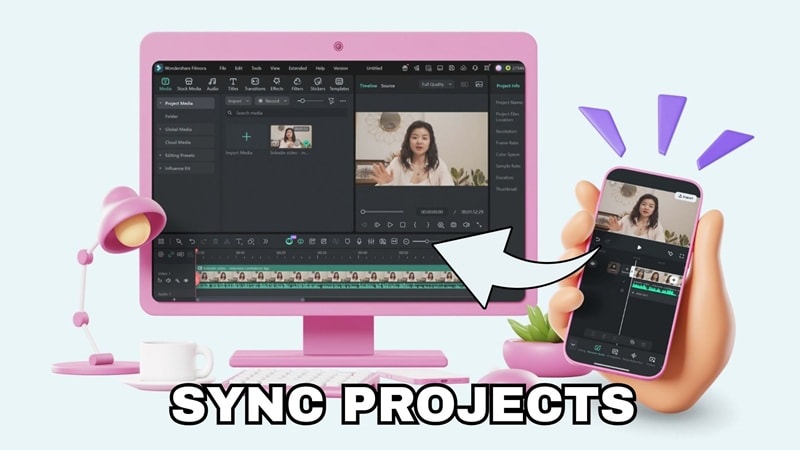
For better flexibility, you can work across devices instead of sticking to just one. When you’re on the go, you can use the mobile app. When you need more advanced tools, you can switch to the desktop version.
This workflow is possible thanks to Filmora Cloud. You can use it to move your project back and forth and keep working without losing your progress. Follow the steps below on how to do it.
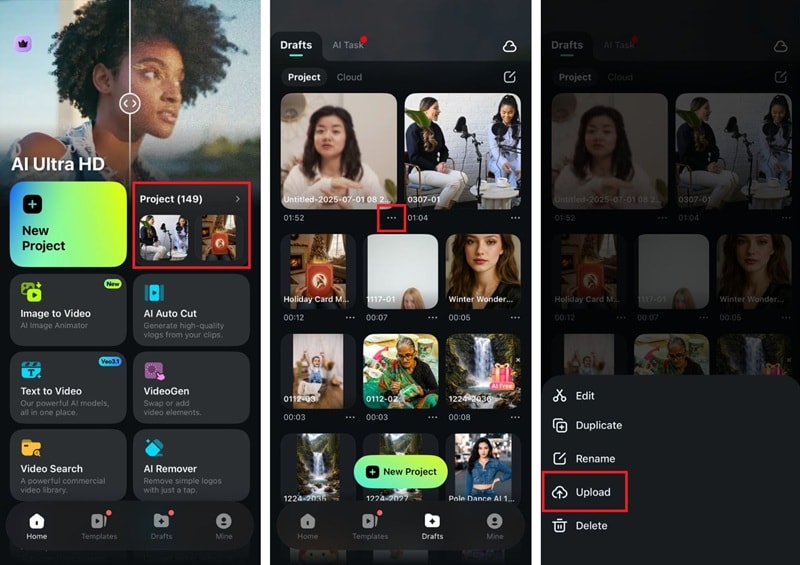
Step 1: Upload your project to the Filmora cloud.
From the Filmora mobile app:
- Open the Project folder in the Filmora app.
- Tap the three dots button on the video you want to upload.
- Select “Upload” and wait while the project syncs to Filmora Cloud.
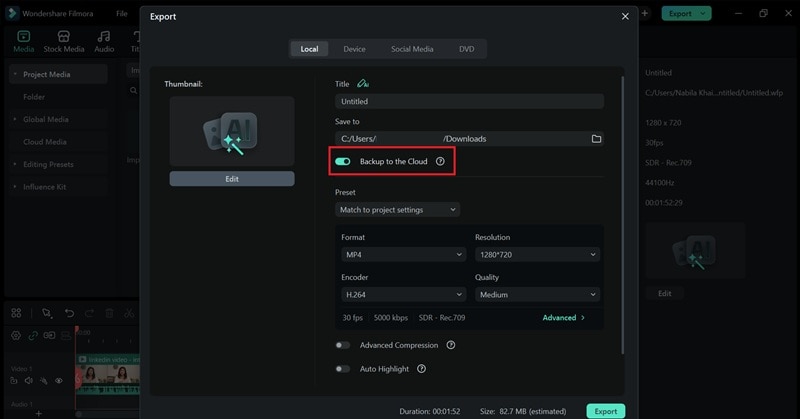
From Filmora desktop:
After making any edits, click Export and enable the “Upload to Cloud” button.
Step 2: Access the Cloud and continue your project on different devices.
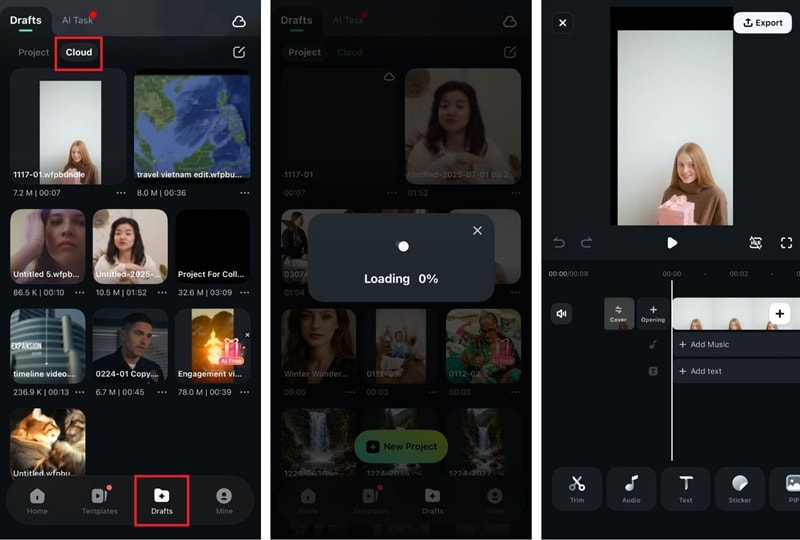
Once the upload is complete, open Filmora on your other device and sign in with the same account.
On the Filmora mobile app:
- Open Filmora and head to the Drafts tab.
- Select Cloud to find your synced project.
- Tap the project to download it, then open it in the editor.
- Keep working right where you left off.
On Filmora desktop:
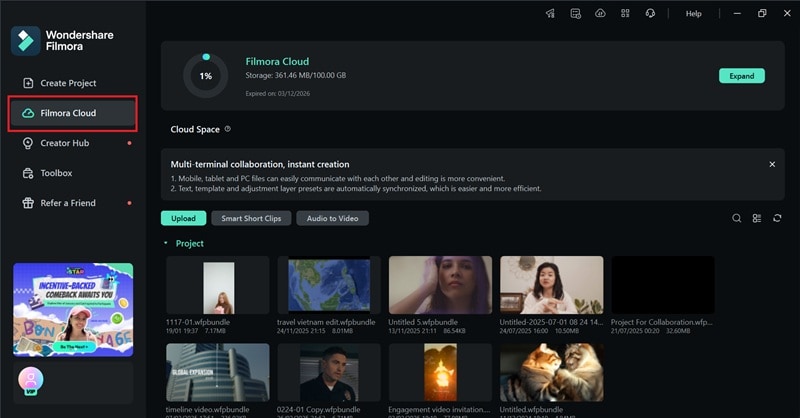
Open Filmora and select the “Filmora Cloud" panel from the startup window. You will find the projects you uploaded from your mobile app listed there.
 Secure Download
Conclusion
Although the FilmoraGo app now rebrands as Filmora, you don’t have to worry about losing what you loved about the app. It still brings the same easy-to-use editing experience, but with better performance, a fresher design, and a much bigger set of features.
If anything, Filmora now gives you more room to grow without making things complicated. Those who were comfortable with FilmoraGo before will find the new Filmora a natural upgrade. It makes everyday editing smoother, faster, and better aligned with current trends.
Frequently Asked Questions (FAQ)
-
Q1: Is FilmoraGo now Filmora?
Yes. Wondershare has officially rebranded FilmoraGo as Filmora. Both the mobile app and desktop software now go by the name Filmora. If you search for FilmoraGo video editor today, you’ll be redirected to Filmora instead. -
Q2: Can I download the FilmoraGo old version?
While you may still find the old version downloadable via FilmoraGo APK files on third-party sites, doing so is not safe or recommended. These files often come with security risks, outdated features, and no official support. The safest option is to download the latest Filmora app directly from the Google Play Store, Apple App Store, or the official Wondershare website. -
Q3: Is there a FilmoraGo Online Editor?
No. FilmoraGo, now Filmora, does not offer a browser-based online editor. Filmora is available as a mobile app for Android and iOS, and as a desktop program for Windows and macOS. To use Filmora, you’ll need to install the app on your device. -
Q4: Is Filmora free to use?
Yes. Filmora offers a free version on both mobile and desktop. You can try editing videos for free, but exported videos will include a watermark, and some advanced features are locked behind the Pro plan. If you need watermark-free exports, more effects, and access to AI tools, you can upgrade to the Pro version.
