

 TL;DR:
Wondershare Filmora creates up to 1080p customizable AI facial aging videos on desktop and mobile by utilizing the prompt-driven Image-to-Video (Veo 3) tool or the automated "Age Gracefully" preset rather than relying on fixed-output online filters.
● Optimal processing requires a well-lit, front-facing portrait of a single individual, as the AI targets one primary face and yields inconsistent results on group photos.
● Desktop custom prompt generations are restricted to a fixed 8-second video duration, and each new attempt or prompt refinement consumes AI credits.
● Beyond single-image text prompting, the software includes a "Start/End Frame to Video" function that generates an animated motion transition between two distinct user-uploaded images.
Ask AI for a summary
 ChatGPT
 Perplexity
 Gemini
 Claude
 Grok
Grok
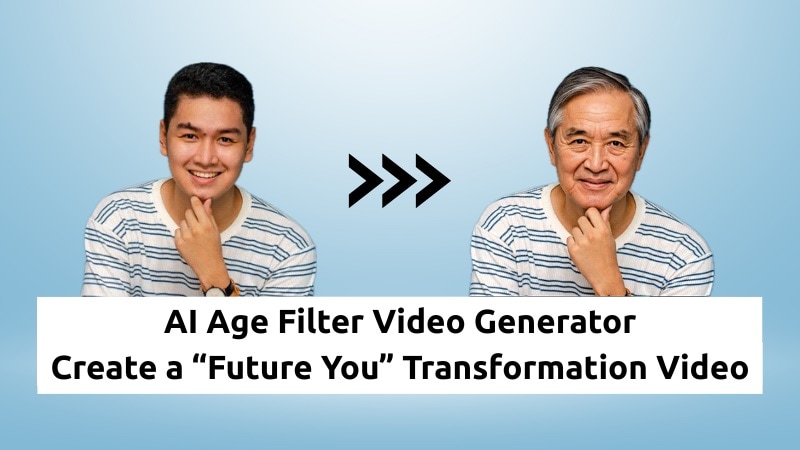
The trend of using an AI age filter to imagine your "future self" is booming! Unlike simple online tools, Wondershare Filmora is the premier AI Age Generator and AI Filter Video tool that gives you professional, prompt-based control. Learn how to create your stunning, realistic AI aging video on both desktop and mobile using Filmora's precise custom text prompts feature.
Part 1. Filmora: The Superior AI Age Filter Video & AI Age Generator (vs. Online Tools)
Most simple online tools only offer basic photo aging. Filmora, a professional AI video editor, is a powerful AI-generated video free option for new users, allowing you to create high-resolution age filter video clips and refine the aging effect through custom prompts.
These AI age filter platforms rarely let you adjust the aging level or control how the transition plays out. But with Filmora's AI Image to Video feature, you can guide the process using text prompts instead of leaving everything to automation.
Filmora lets you shape the look of your old age filter video, control how smooth the transformation feels, and refine every detail. It's a hands-on way to create your "future you" animation with more flexibility and higher quality.
| Feature | Online AI Age Filter | Filmora |
| Customization | Limited (no prompt control). | Full text-prompt control using Filmora's AI Image-to-Video (Veo 3) feature. |
| Resolution | Standard, often compressed. | High-quality output up to 1080p. |
| Editing Control | Fixed transformation, no manual adjustments. | Adjust strength, timing, and transition of the aging effect |
| Creativity Options | Output ends after rendering. | Add music, overlays, and transitions or combine with other effects. |
| Speed | Fast auto-generation but no workflow control. | Rendering takes longer, but it allows prompt and timeline adjustments before export. |
Part 2. Desktop Guide: Create AI Aging Video with Filmora's Image to Video Tool
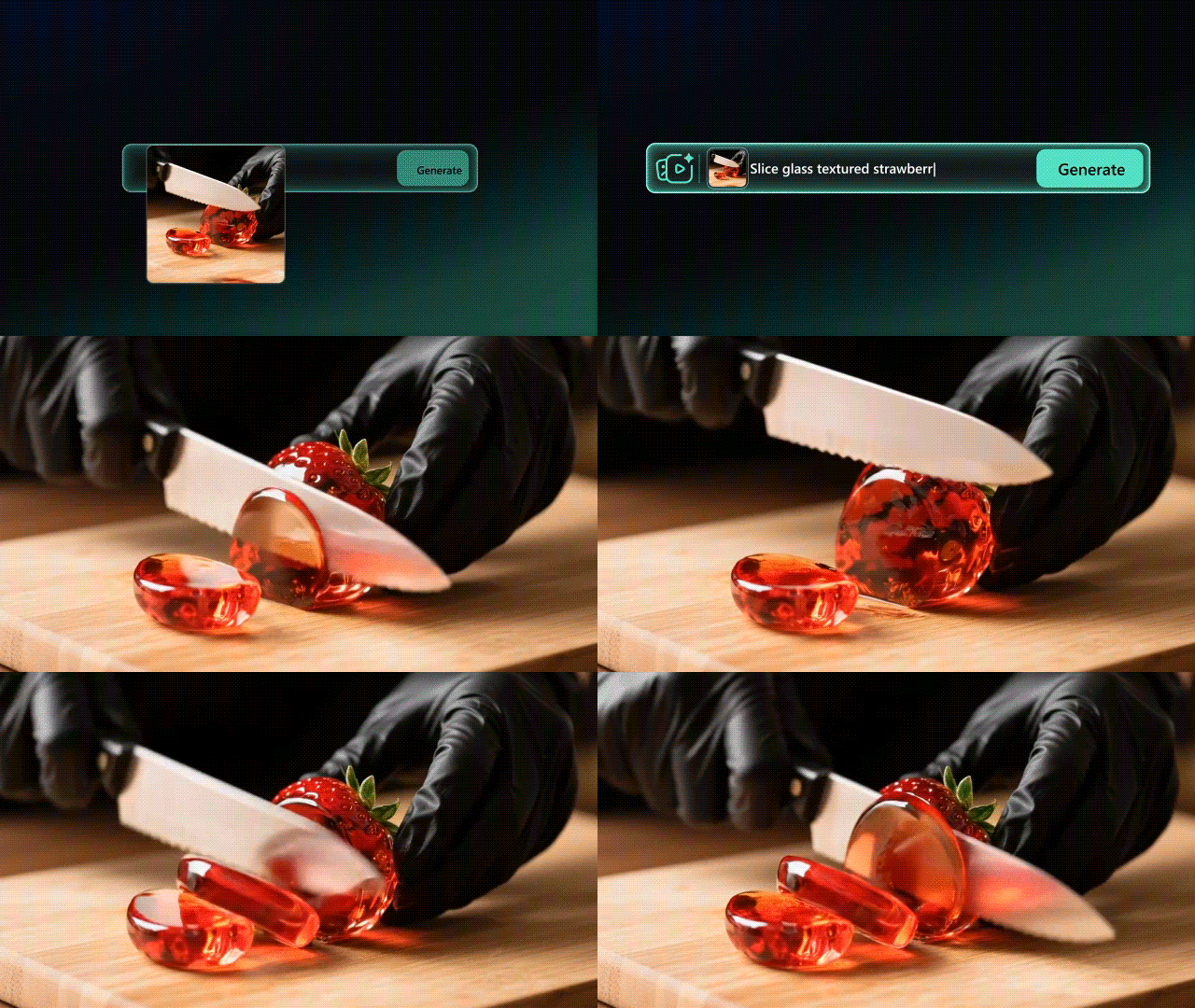
The AI aging filter effect in Filmora works through the AI Image to Video tool. This feature is available on both Mac and Windows versions of the software. Upload your photo, add a text prompt, and let Filmora generate a smooth transformation that shows your older self.
Method 1. Step-by-Step: Create Old Age Filter Video with Custom Text Prompts
Here's how to make it step by step on Filmora for desktop:
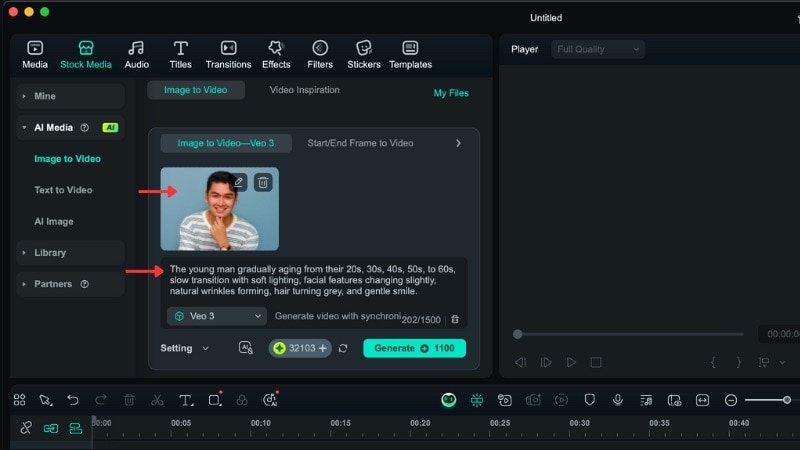
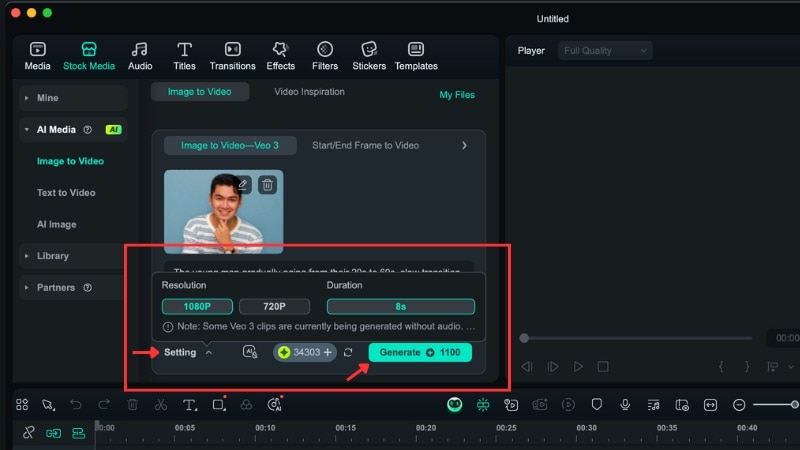

Method 2. Quick AI Age Filter Transformation with Video Inspiration Presets
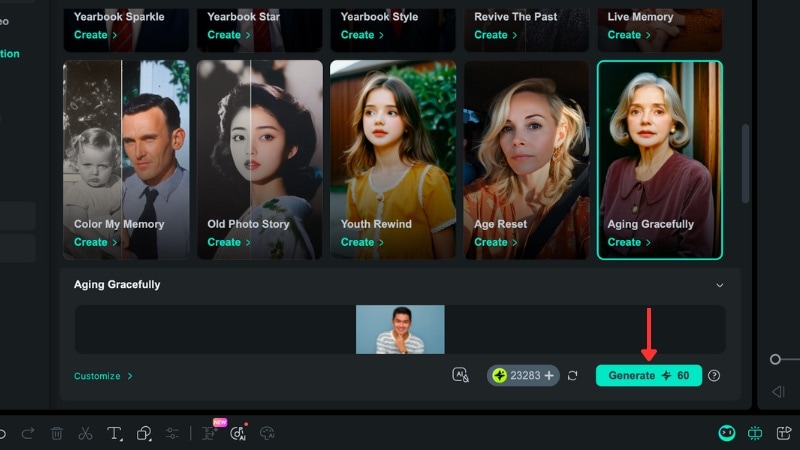
AI age filter effect can also be created through Filmora's Video Inspiration preset template. Among its AI templates, the "Age Gracefully" preset gives you a ready-made transformation that shows an elegant transition from youth to old age.
Follow the instruction below to learn how to create them in Filmora:
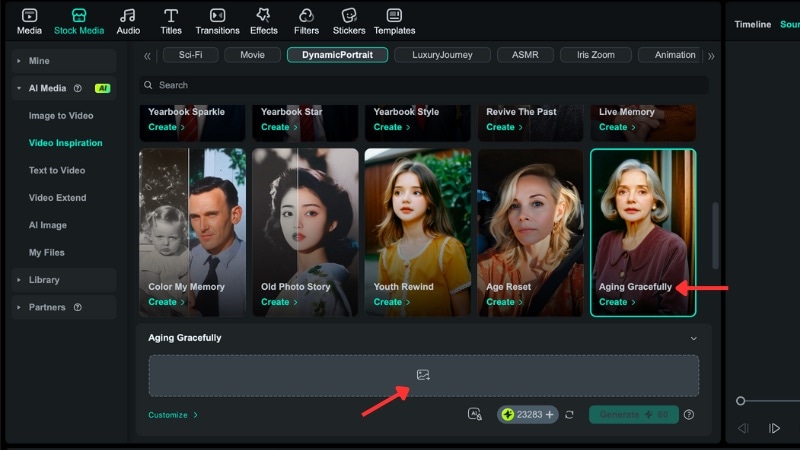
- Select the face area you want Filmora to focus on for the transformation.
- Set the aspect ratio (9:16, 16:9, or Custom) that fits your project.
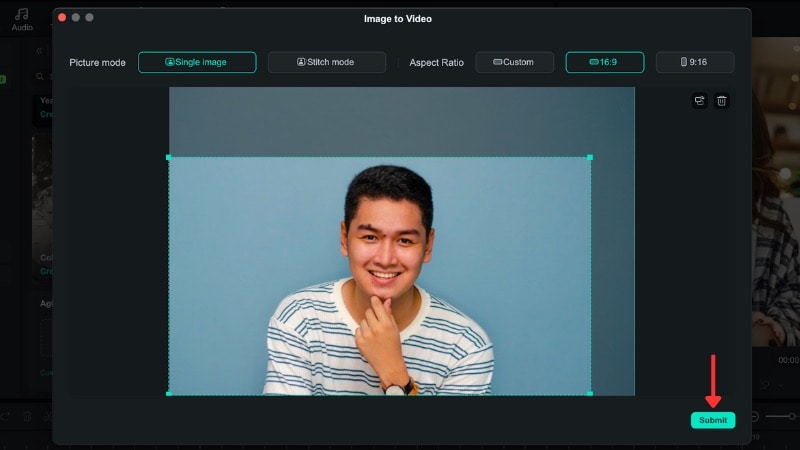
Part 3. How to Create an AI Age Filter-Style Video in Filmora (Mobile Version)
For the Filmora mobile app, you can also create age changing filter videos using its Image to Video feature. You upload a photo, write a text prompt, and let the AI transform your current look into your older self. The feature runs on both Android and iOS devices.
 Secure Download
Follow the instructions below to create age filter videos using Filmora Mobile:
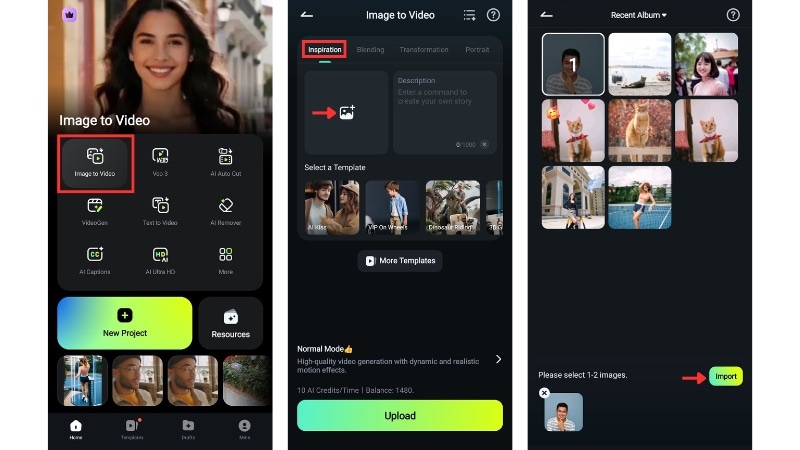
"A person slowly growing older from mid-20s to 60s, gradual facial transformation, black hair becoming grey, identical lighting and background."
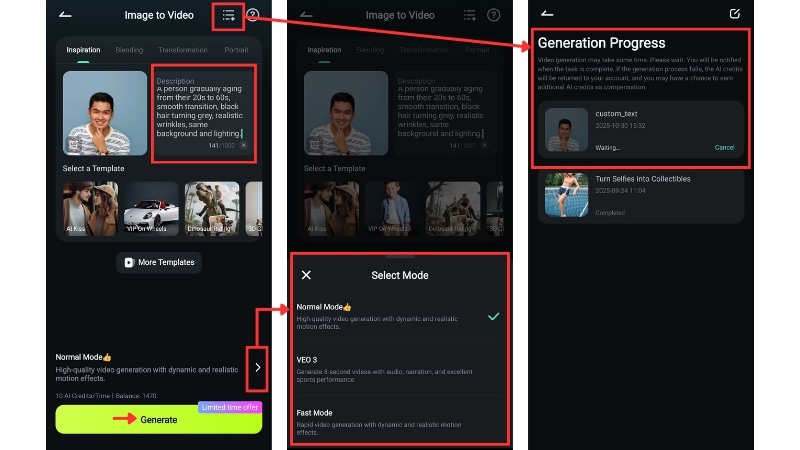
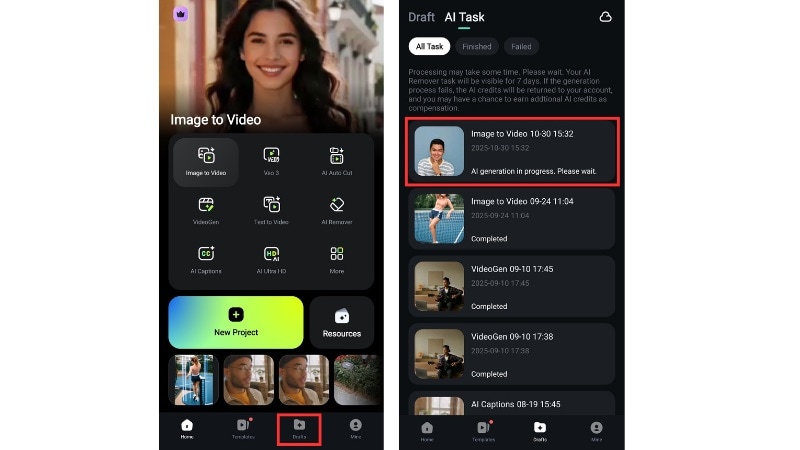
To check progress, tap the List icon in the top-right corner of your screen. You can also return to the home screen and open Draft > AI Task to track your generation status.
The video generation may take a short while. Filmora will notify you when your AI age filter video is complete and ready to preview.
Part 4. Beyond Aging – Other Creative Videos You Can Make with Filmora's Image-to-Video Feature
Filmora's Image to Video feature goes beyond the old age filter trend. It can be used as an AI Video Generator Avatar tool, allowing you to create different types of personalized AI-generated videos from a single photo.
Here are some other things that you can create in Filmora's Image to Video feature:
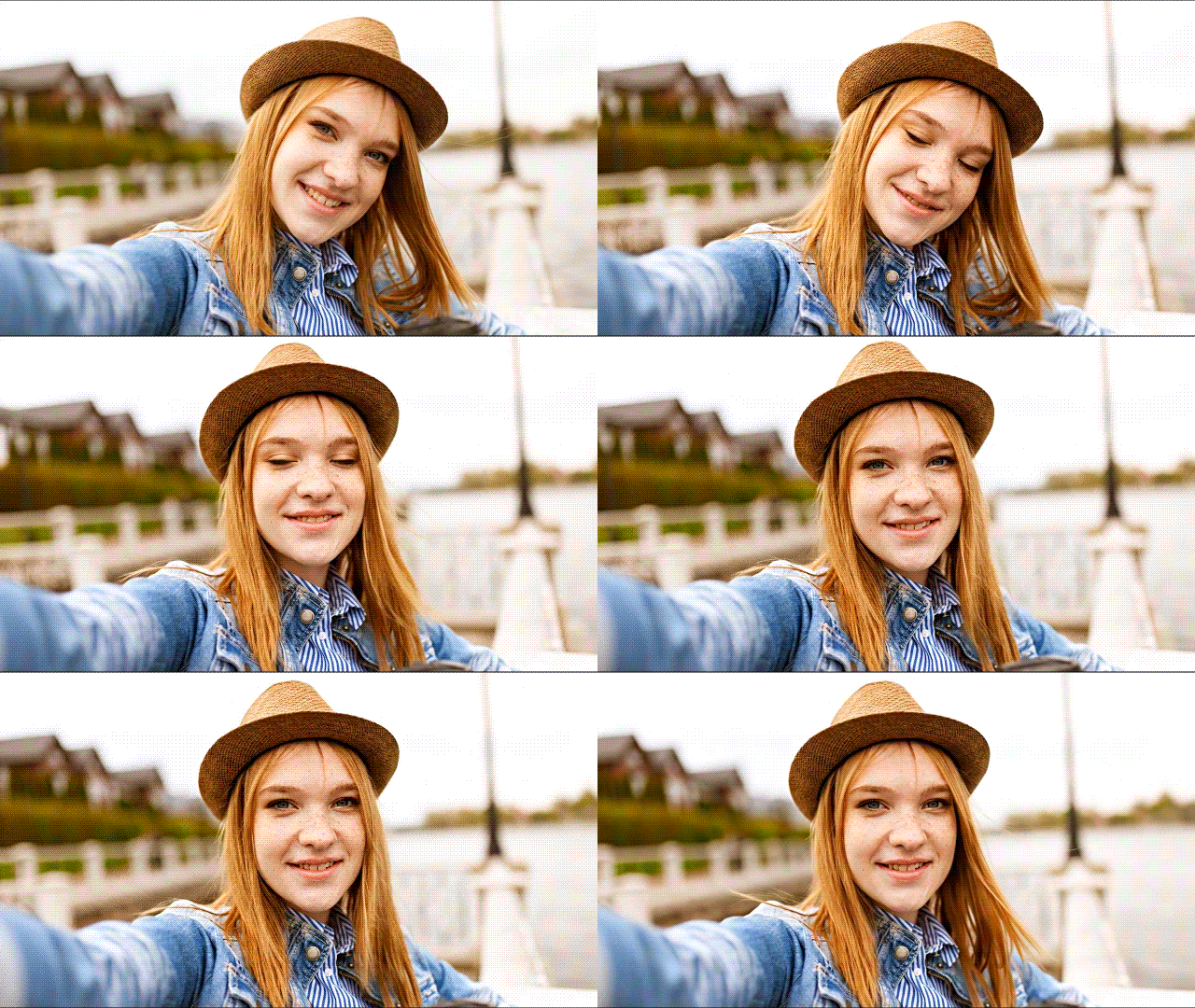
1. Animate Portraits and Characters
You can use the Image to Video tool to animate portraits, selfies, or character designs.Use prompts that describe natural eye movement, a head tilt, or a gentle smile. You can also change the lighting or background tone to suit your style.
2. Memory and Nostalgia Videos
Turn meaningful photos, such as old family photos, a childhood snapshot, or a parent's wedding picture, into short moving clips. Use prompts that add gentle camera moves, soft light changes, or fading effects to create a nostalgic mood.
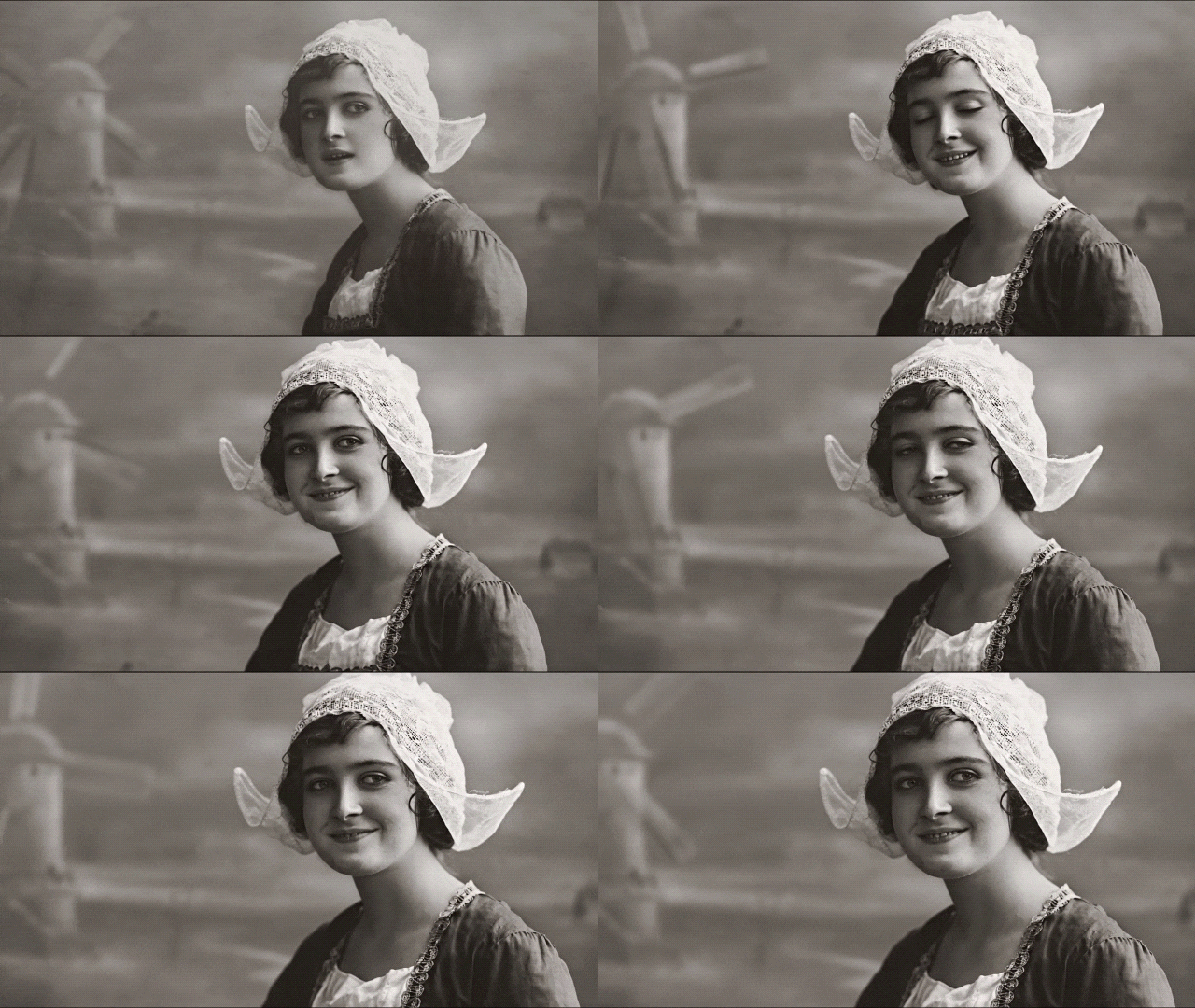
Tip: You can follow the same steps from the age filter workflow for both animated portraits and nostalgia videos. Focus your prompt on movement, like how the subject behaves or reacts, rather than transformation.
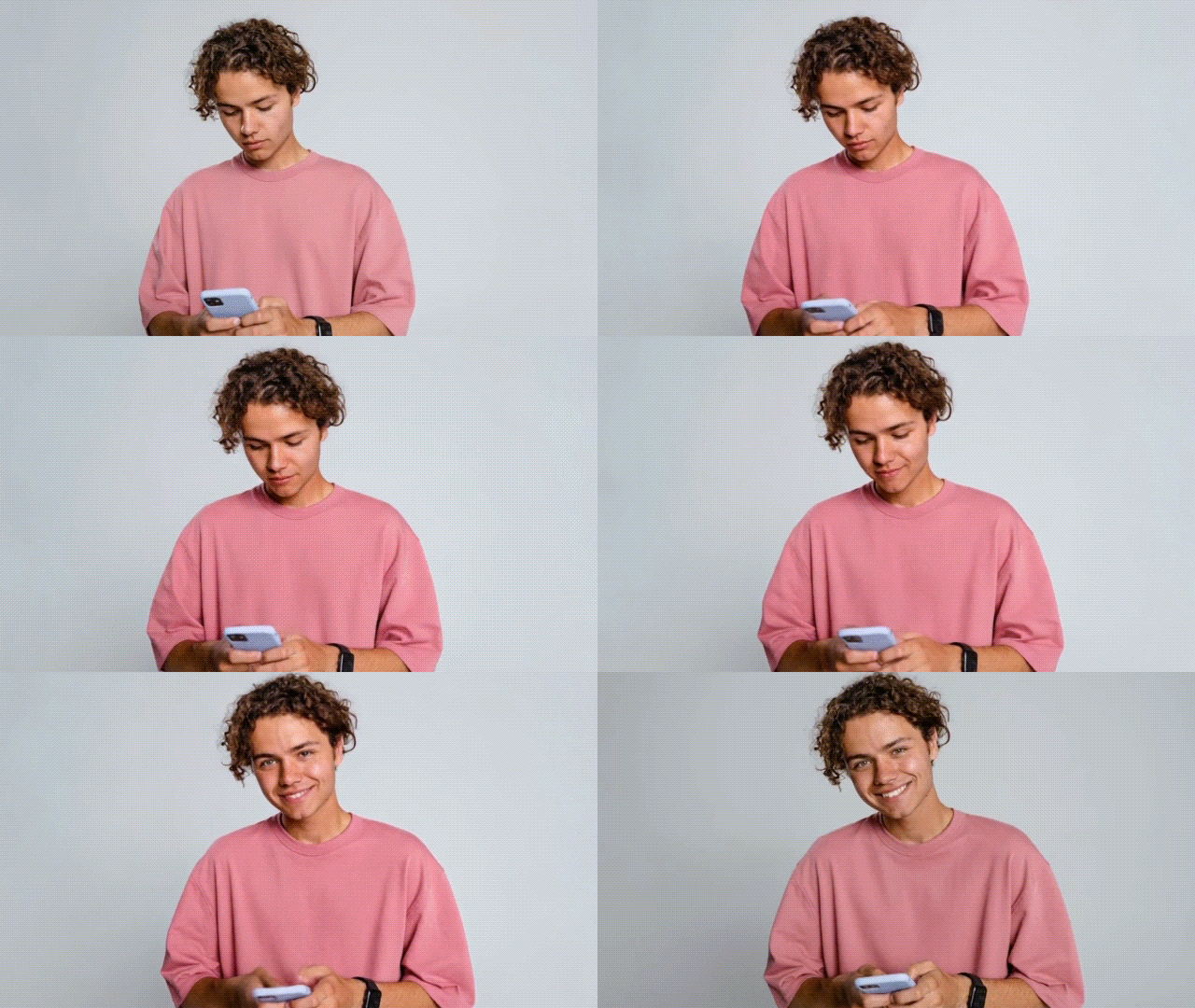
3. Set Start and End Frames for Dynamic Transitions
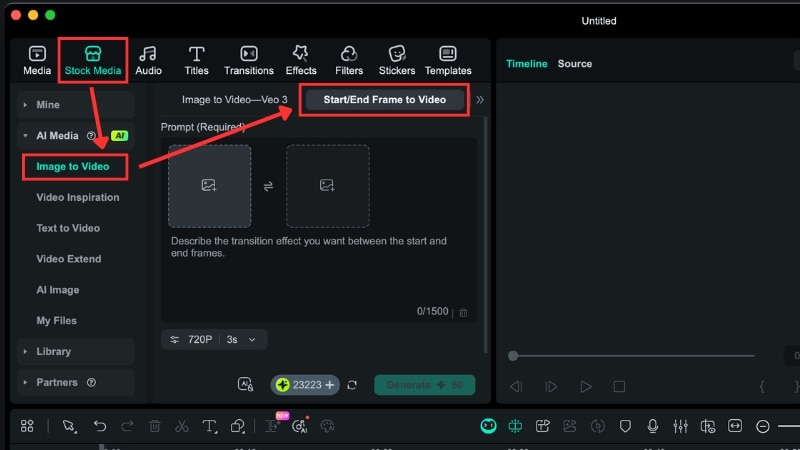
Another creative way to use Filmora's Image-to-Video feature is through the Start/End Frame to Video option. This tool lets you create smooth transitions between two images, turning still visuals into a cinematic motion clip with AI-generated movement in between.
Follow the instructions below to learn how to do it:
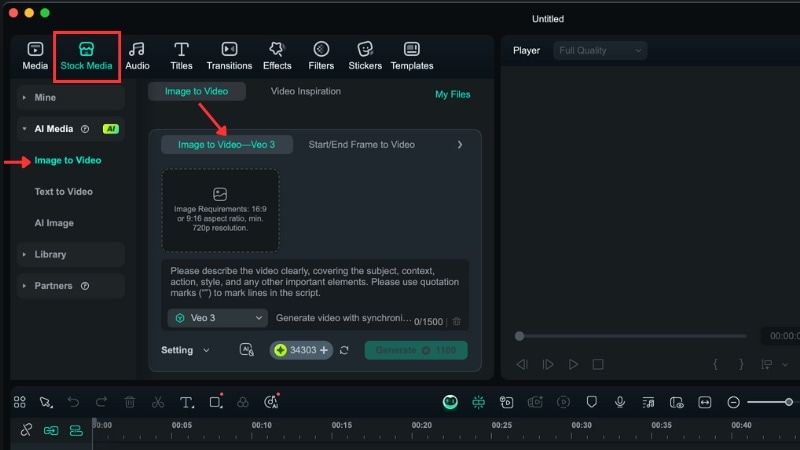
Step 1. Go to the Stock Media tab > AI Media > Image to Video > Start/End Frame to Video.
Step 2. Upload the images you want to use as your starting and ending frames.
Step 3. Type in your text prompt to describe how you want the transition to look.
Step 4. Open Settings to set your preferred Resolution and Duration, then click Generate to start the process.
With Filmora's AI Image-to-Video feature, your creativity isn't limited to the AI age filter videos. You can experiment with portraits, old photos, or stylized edits, all from a single image or video and a few words.
Conclusion
Creating an AI aging video is a fun way to see how you might look years from now. With Filmora's Image-to-Video feature, you get full control over the result, making it the best AI Age Generator for detailed, cinematic age filter video content.
Unlike most online AI age filter tools that give you a single fixed output, Filmora lets you shape the effect using text prompts. You can make old age filter videos on both the desktop and mobile versions of Filmora.
Try creating your own AI-generated video free in Filmora today and see the "future you" come to life in seconds with our professional AI Age Filter tool.

Frequently Asked Questions
-
What if I don't like the AI aging filter style that's generated?
You can adjust your text prompt and generate a new result with different details. Keep in mind that each new generation uses AI credits, so it's best to refine your prompt carefully before regenerating. -
How detailed should my prompt be when creating an AI age filter-style video?
Be specific but concise. Include details like the person's age range, lighting, facial features, or mood. A clear prompt helps Filmora create a more accurate transformation. -
Does the AI age filter in Filmora work on group photos?
It focuses on one main face when creating motion or transformation effects. It can process group photos, but the results may vary depending on lighting and face clarity. For the best outcome, choose photos where faces are clear and well-lit.
