

 100% Security Verified | No Subscription Required | No Malware


 ChatGPT
 Perplexity
 Gemini
 Claude
 Grok
Grok
Video editing has become a must-have skill for today’s creators—whether you’re making YouTube tutorials, TikTok clips, or marketing videos for a small business. With so many tools available, it’s easy to feel overwhelmed when choosing the right software. Adobe Creative Cloud is often the first name that comes up, with Premiere Pro being its most popular video editing tool. But not every creator needs the complexity or cost of Adobe’s system. That’s where alternatives like Filmora V15 step in, offering a balance of professional quality and simplicity.
Part 1. Background
While Adobe CC video editing offers powerful tools like color grading, advanced transitions, and professional audio mixing, it’s not always the most accessible choice. The software requires a monthly subscription, runs best on high-end machines, and has a steep learning curve for beginners.
That’s why many creators today—especially content creators, small businesses, and social media editors—are exploring Premiere Pro alternatives like Wondershare Filmora. With features that cover most of Premiere’s core functions but with an easier interface, Filmora V15 delivers high-quality results without the complexity.
Part 2. PR Application & Limitations
How Premiere Pro Works in Creative Cloud Video Editing
- Timeline-based editing with multiple layers.
- Advanced color correction and grading.
- Professional audio mixing tools.
- Integration with After Effects for motion graphics.
Advantages of Adobe Premiere Pro
- Industry-standard for professional video editing.
- Deep creative control and customization.
- Regular updates and Adobe ecosystem compatibility.
Drawbacks of Adobe Premiere Pro
- Subscription-based (high cost over time).
- Requires powerful hardware to run smoothly.
- Steep learning curve for beginners.
- Not optimized for quick social media publishing.
While Premiere Pro shines in professional filmmaking and agency-level editing, it’s often overkill for YouTubers, influencers, educators, and small businesses who want fast, stylish edits without the complexity.
Part 3. Filmora V15 as a PR Alternative
If Adobe Premiere Pro feels too heavy, Filmora V15 is a strong alternative. It’s designed to balance professional-quality editing with user-friendly tools that save time. While it covers most of Premiere’s editing needs, Filmora goes beyond by adding features that modern creators actually use daily.
 secure download

Key Features Filmora Offers Instead of Premiere Pro
Part 4. Simple Step Guide: How to Edit & Export in Filmora
Wondershare Filmora is designed for simplicity. Even if you’ve never edited a video before, you can create polished, professional results in just a few easy steps.
Step1Import Your Footage.
Open Filmora and drag your video clips directly into the media library — no complicated project setup required. Once imported, drop them onto the timeline to begin editing.

Step2Edit Easily.
Arrange clips on the timeline, trim extras, and add titles, transitions, and filters using simple drag-and-drop tools. Filmora’s intuitive interface ensures there’s no steep learning curve — perfect for beginners and professionals alike.
Step3Add Effects (Optional).
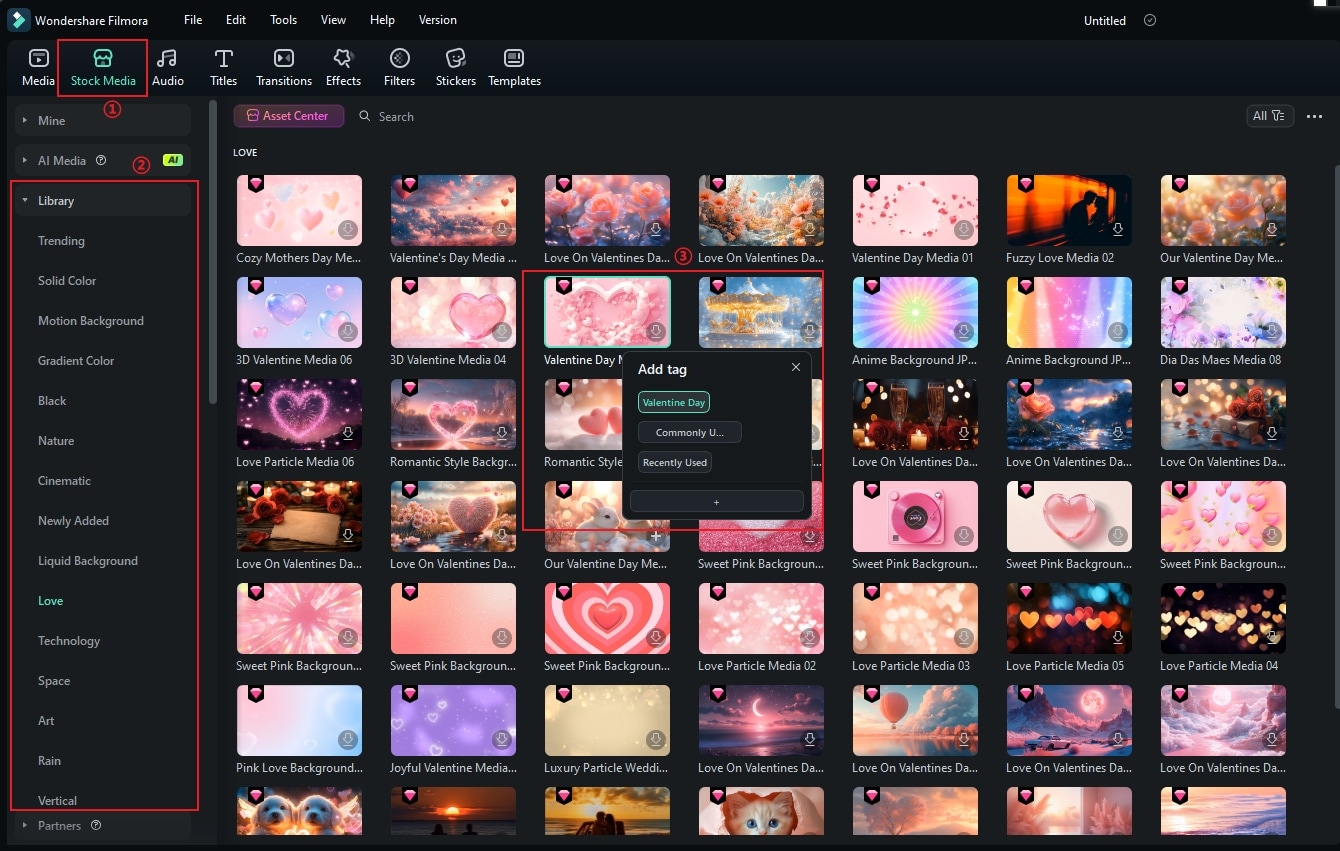
Elevate your video with cinematic LUTs, overlays, trendy transitions, and animated stickers to give your content a stylish, polished finish in seconds.

Step4Use Batch Export.
Export videos in multiple aspect ratios — 16:9 for YouTube, 9:16 for TikTok or Reels, and 1:1 for Facebook — all in one go. Filmora’s Batch Export feature eliminates repetitive rendering.
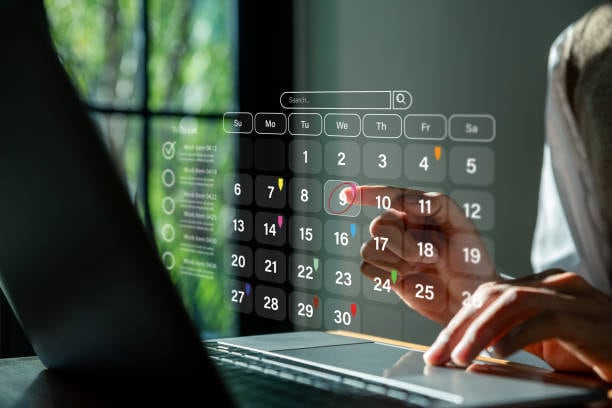
Step5Publish with Social Media Planner.
Upload and schedule your videos directly to Instagram, TikTok, or YouTube using Filmora’s integrated Social Media Planner. Maintain consistent posting without relying on extra publishing tools.
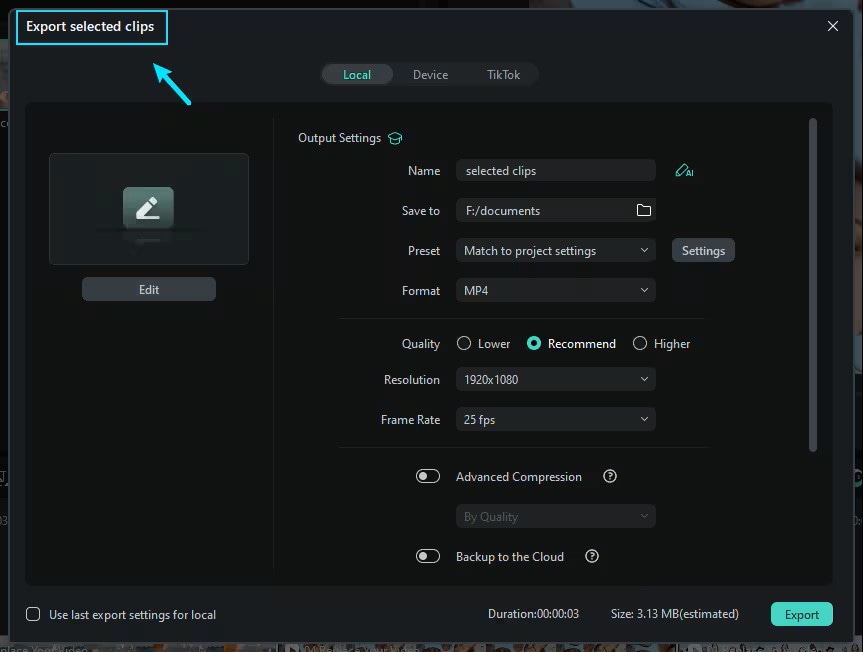
If you only want to export one clip from your timeline rather than the entire project, Filmora provides a streamlined option to export the selected clip with custom settings. Follow the steps below:
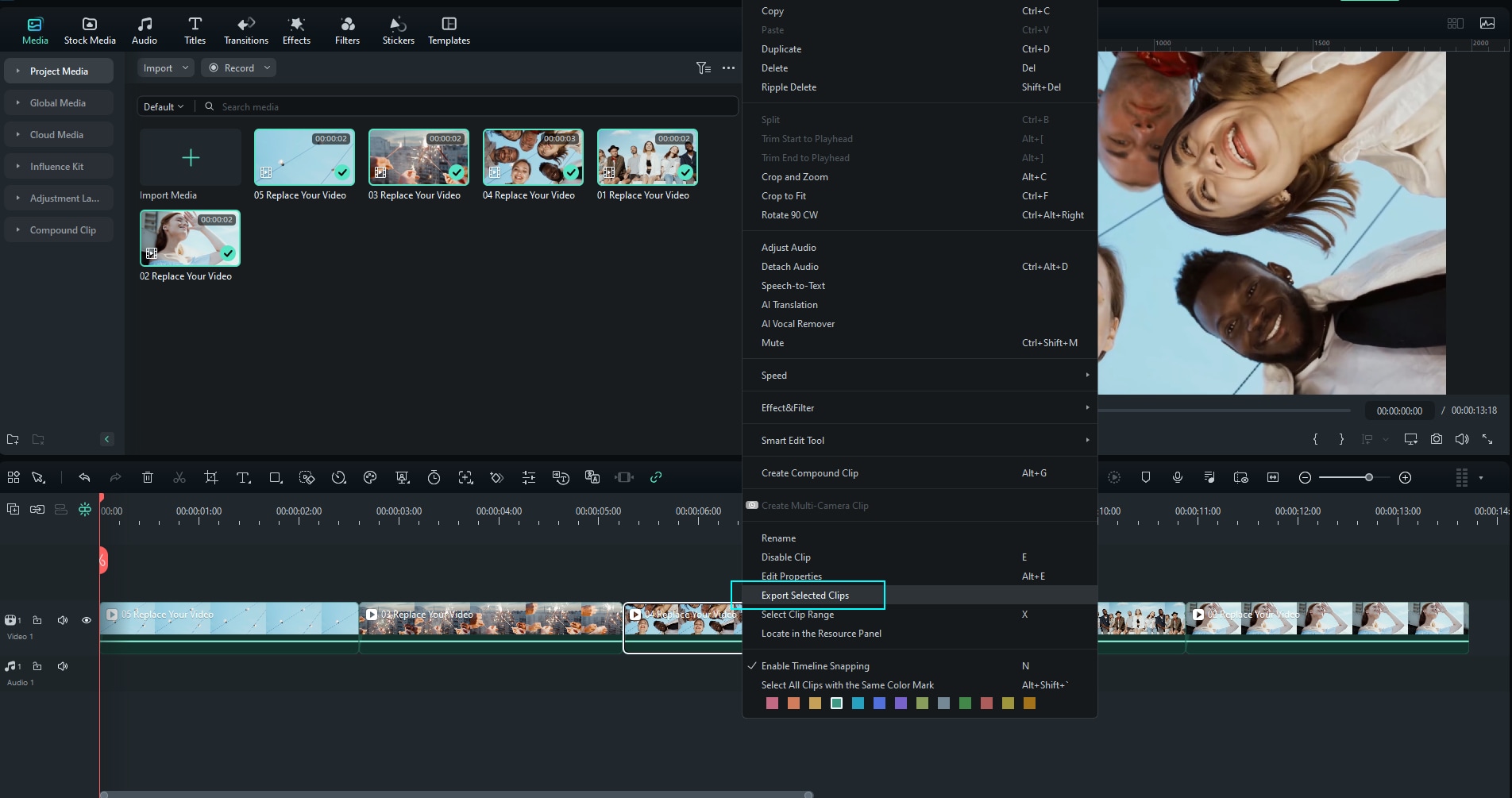
Step1Right-click the Clip and Choose “Export Selected Clips”.
In the timeline, select the clip you want to export. Right-click it and select Export Selected Clips from the context menu. This triggers the export interface for just that clip.
Step2Customize Output Settings.
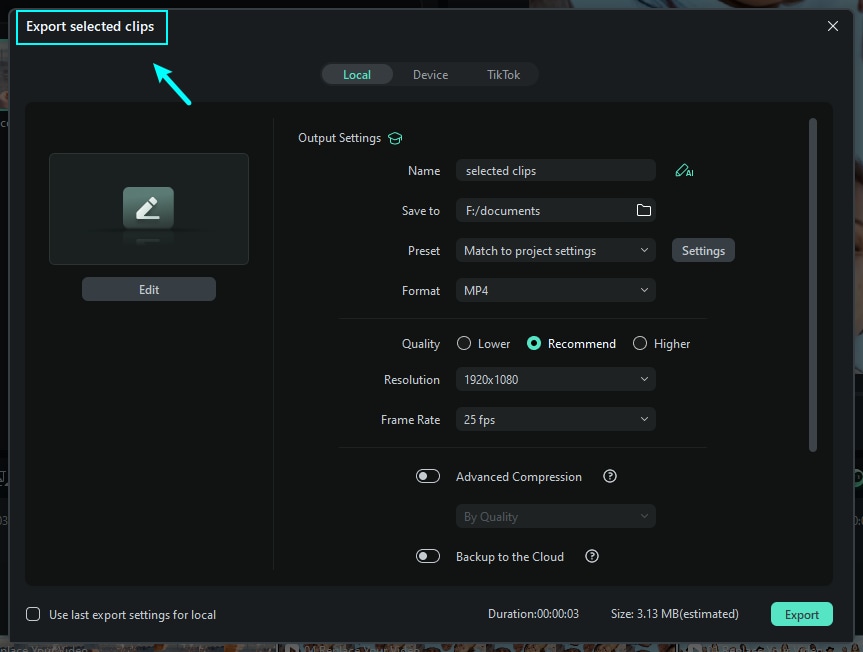
In the export window that appears, you can set the file name, destination folder, format, resolution, frame rate, and other parameters. Adjust as needed, then click Export to render and save the selected clip.
Step3Monitor the Export Progress and Finish.
The export process will display a progress bar. Once the rendering finishes, the saved clip will be available in your chosen output folder. You can then view or upload that clip as required.
If you want to learn how to export select clips only or export clip range, you can check this guide. New released Filmora compresses these steps into one seamless process.
Part 5. Conclusion
Adobe Creative Cloud video editing with Premiere Pro is powerful, but it’s not always practical. The cost, learning curve, and hardware demands make it tough for many creators.
Filmora V15 bridges that gap. It offers professional-level editing features while keeping the workflow simple. With batch export and social media planning tools, Filmora doesn’t just compete with Premiere Pro—it goes further by giving creators what they actually need today: efficiency, accessibility, and flexibility.
If you want professional-quality results without the Adobe Creative Cloud hassle, try Wondershare Filmora V15 and start editing smarter.
secure download Part 6. FAQs
-
Q1. Is Adobe Creative Cloud video editing better than Filmora?
Adobe Creative Cloud (Premiere Pro) is ideal for advanced, professional workflows that demand detailed control. However, Filmora is better suited for creators who prioritize speed, simplicity, and affordability without sacrificing quality. -
Q2. Does Filmora have all the same features as Premiere Pro?
Filmora covers nearly all essential editing needs — including timeline editing, effects, transitions, and color correction — while adding features like Batch Export and built-in social media publishing that Premiere Pro doesn’t offer natively. -
Q3. Is Filmora easier to use than Adobe Creative Cloud Premiere Pro?
Yes. Filmora’s drag-and-drop interface is designed for effortless editing and a minimal learning curve, whereas Premiere Pro can be overwhelming for beginners or casual users. -
Q4. Can I use Filmora for professional projects?
Absolutely. Many small businesses, YouTubers, and digital marketers rely on Filmora to produce professional-quality videos quickly and efficiently, without needing a steep technical background. -
Q5. Do I need a powerful computer to run Filmora?
No. Filmora performs smoothly on most mid-range PCs and laptops, while Premiere Pro typically requires high-end hardware to ensure stable playback and rendering.
