

 100% Security Verified | No Subscription Required | No Malware


 ChatGPT
 Perplexity
 Gemini
 Claude
 Grok
Grok
Separating the audio asset from video footage has become a common editing practice. Some creators do this to turn audio into podcast episodes, while others want to further enhance the sound quality. Fortunately, this process is now extremely simple. You can export audio only in Premiere Pro with just a few clicks. Once you familiarize yourself with the available settings, you can quickly extract and save the audio file locally.
In this article, we will discuss how to export audio only in Adobe Premiere Pro and introduce an easier alternative if you want more flexibility. Continue reading below to learn more.
In this article
How to Export Audio Only in Premiere Pro?
Although Adobe Premiere Pro is mainly known for high-quality video exporting, it also allows users to extract audio only from any project. The exporting process is similar to exporting full videos — you simply disable the video output and keep the audio enabled.

Short Guide
- Open the project that contains the audio you want to export.
- Navigate to File > Export > Media.
- In the export window, uncheck “Export Video” and keep “Export Audio” checked.
- Select your preferred audio format (MP3, WAV, AAC, etc.).
- Adjust settings such as Sample Rate, Channels, and Codec as needed.
Advantages & Drawbacks
Advantages
- Capable of exporting professional-grade audio, including uncompressed formats.
- Provides customizable export settings such as sample rate, bitrate, channels, and codec.
- No need for a third-party app — audio extraction is built-in.
- Extracted audio renders quickly since video data is excluded.
- Supports multiple formats like MP3, WAV, AAC, and AIFF.
Drawbacks
- The interface may feel overwhelming to beginners.
- Lacks advanced audio tools for precision editing and enhancement.
- Requires strong hardware to run smoothly.
- Needs an active Adobe Creative Cloud subscription.
Can You Export Audio Only in Wondershare Filmora V15?
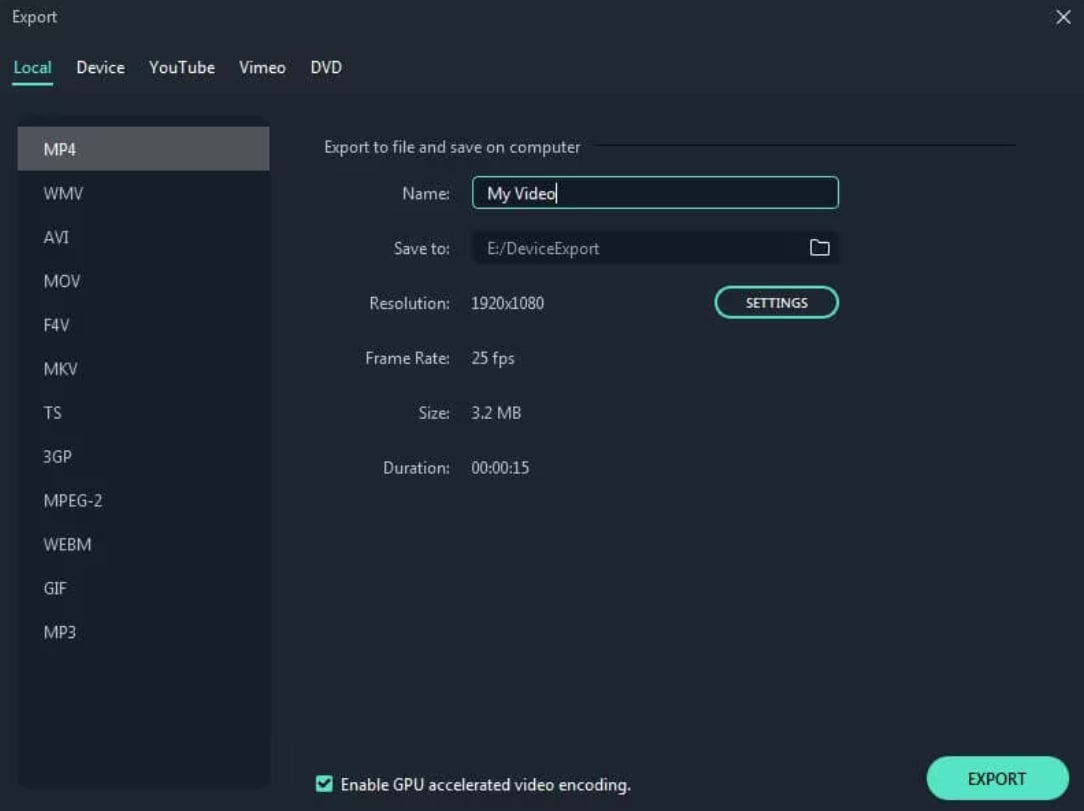
While the option to export audio only in Premiere Pro is convenient, not everyone uses Premiere or prefers its complexity. The good news is that Wondershare Filmora V15 also allows you to extract and export audio files in formats such as MP3 with ease. The process is intuitive, making it ideal for beginners and non-technical users.
 secure download

Why Wondershare Filmora V15?
- Precision: Select specific audio sections and export only the portion you need.
- Format Options: Export audio to MP3 and other supported audio formats.
- Customizable Settings: Adjust bitrate, sample rate, and channels easily.
- Real-Time Preview: Inspect your audio timeline before exporting.
Other Useful Features in Wondershare Filmora
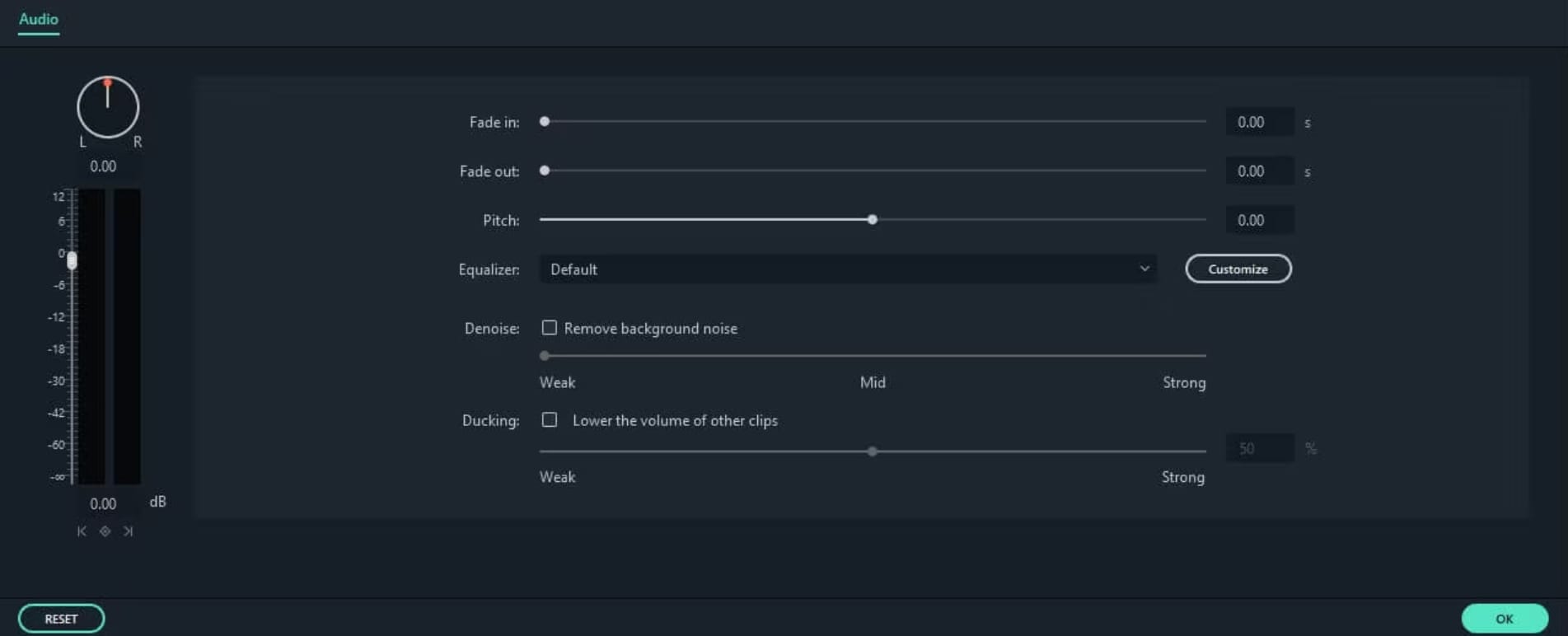
- Built-in Audio Editor: Includes noise removal, equalizer, volume keyframing, and more.
- AI Voice Cloning: Clone your voice and use it in your content.
- AI Audio Stretch: Extend audio without distortion.
- AI Audio Denoise: Remove background noise with one click.
- Silence Detection: Automatically identifies and removes dead-air segments.
Conclusion
Exporting audio only in Premiere Pro is straightforward and extremely useful when creating podcasts, extracting soundtracks, or enhancing audio separately. However, Premiere Pro isn’t always the ideal solution for everyone due to its complexity and subscription cost.
If you want an easier, more accessible alternative, Wondershare Filmora V15 is an excellent choice. It provides similar exporting options with a simpler workflow and powerful extra features. Download Wondershare Filmora V15 today and experience a seamless audio and video editing solution.
secure download FAQs
-
Q1. What are the supported audio formats in Premiere Pro export?
Premiere Pro supports multiple audio formats including WAV, MP3, AAC, and AIFF. -
Q2. Should you export audio only in Premiere Pro?
Yes. If you need to extract audio for podcasting, enhancement, or reuse, exporting audio only is a convenient option. If you prefer alternatives, Wondershare Filmora provides similar functionality with easier controls. -
Q3. Can I edit the project before exporting the audio?
Absolutely. You can edit the timeline, adjust audio levels, and apply enhancements before exporting in both Premiere Pro and Wondershare Filmora.
