

 100% Security Verified | No Subscription Required | No Malware


 ChatGPT
 Perplexity
 Gemini
 Claude
 Grok
Grok
GIFs are one of the most effective ways to share short, looping visuals online — whether it’s for tutorials, product highlights, or quick reactions on social media. Many creators use Adobe Premiere Pro (PR) to craft high-quality clips but often struggle when it comes to exporting them as GIFs. The process usually requires Adobe Media Encoder, multiple parameters, and longer render times, which can feel unnecessarily complex for such a small format.
In this article, we’ll break down how to export GIFs from Premiere Pro and discuss why it can be challenging for users who handle multiple short projects. We’ll then explore how Filmora V15 simplifies the process with one-click GIF export, built-in quality controls, and fast batch rendering — making it a smarter alternative for creators who value both speed and simplicity.
In this article
How to Export GIFs from Premiere Pro
Adobe Premiere Pro can export animated GIFs through Adobe Media Encoder. While possible, the workflow requires multiple steps and application switching.
Steps to Export a GIF:
- Select your sequence or trim the clip you want to convert.
- Go to File > Export > Media to open Export Settings.
- Choose Animated GIF (Media Encoder) or H.264 (older versions).
- Adjust resolution and frame rate for social media optimization.
- Click Queue to send it to Adobe Media Encoder.
- Choose Animated GIF in Media Encoder and start the queue.
Advantages & Limitations
Advantages
- Produces high-quality GIFs with accurate colors and smooth motion.
- Offers frame rate, resolution, and bitrate control.
- Ideal for brand assets needing precise visual consistency.
Limitations
- No direct GIF export inside Premiere — Media Encoder is required.
- No native batch export — each GIF must be added manually.
- Settings like dithering and frame sampling may confuse beginners.
Filmora V15 as a Simpler GIF Export Alternative
Filmora V15 eliminates the complexity of Premiere's GIF workflow. Instead of switching apps and adjusting technical options manually, you can export a GIF directly with a single click.
 secure download


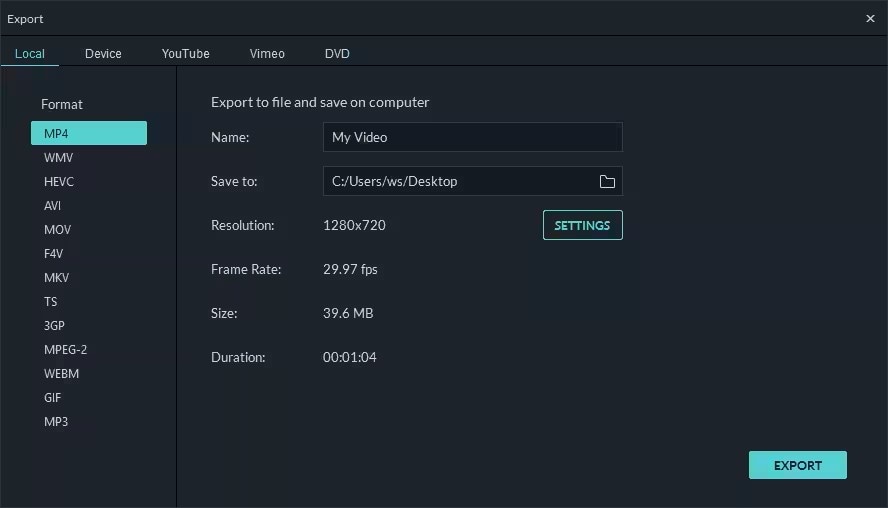
How to Export GIF in Filmora V15:
- Import your clip into Filmora’s timeline.
- Click Export.
- Select GIF from the formats list.
- Adjust size, frame rate, and loop settings if needed.
- Click Export again — your GIF is ready instantly.
Efficiency Comparison: Batch Export Advantage
- Filmora’s Batch Export Manager can render multiple GIFs automatically.
- Up to 40% faster than Premiere + Media Encoder in performance tests.
- Automatically optimized file sizes suitable for platforms like Instagram, Discord, or Twitter.
Extra Features That Enhance the GIF Workflow
- Instant loop preview before exporting.
- Smart optimization for web-friendly file sizes.
- Transparent background export for overlays.
- Custom export presets for consistent branding.
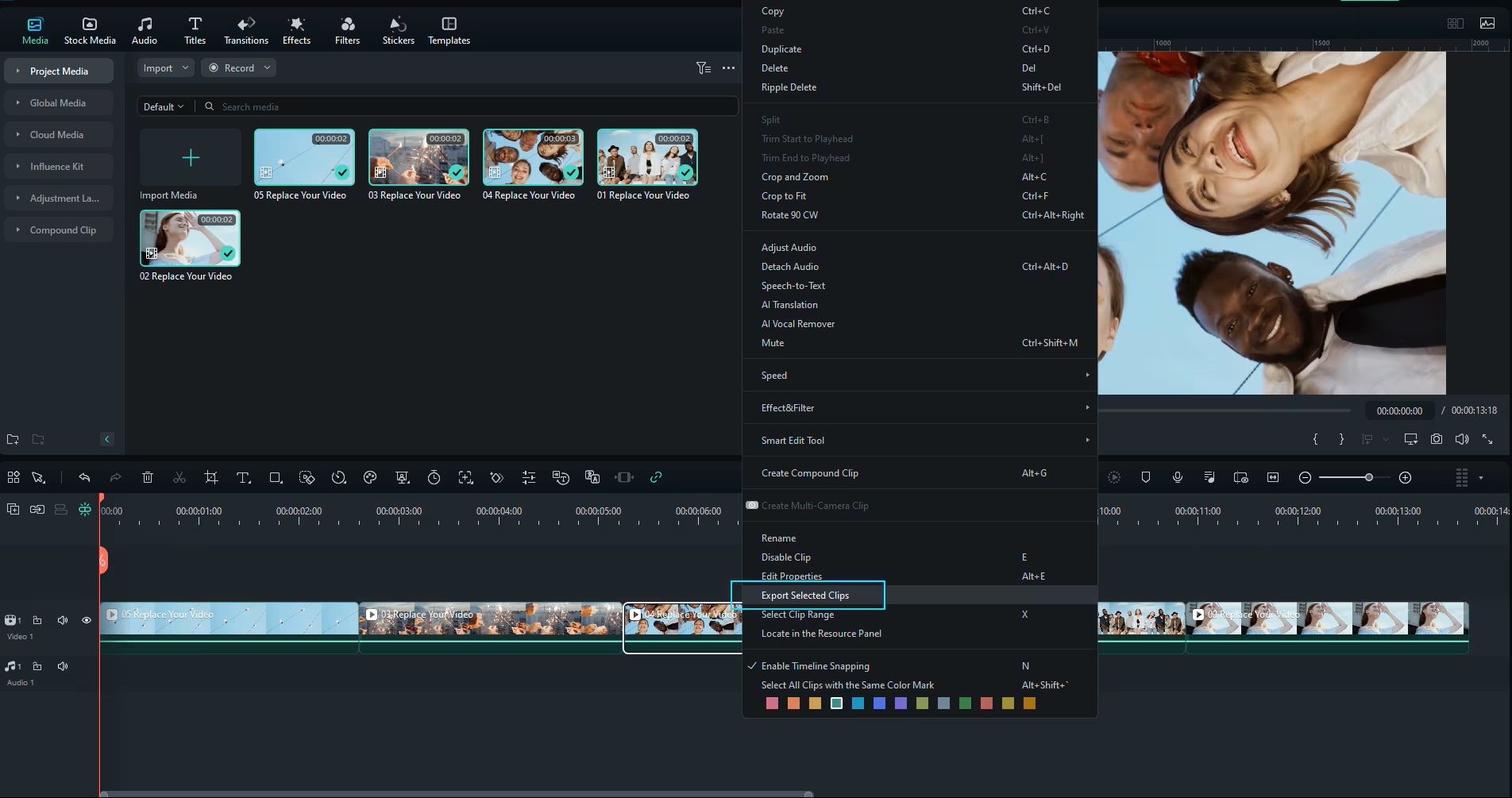
- AI Clip Resizer — automatically crops GIFs for different platforms.
- Batch Social Upload — export & upload GIFs to multiple platforms.
- Cloud GIF Sync — save and sync GIFs across devices and teams.
Conclusion
Exporting GIFs from Premiere Pro is functional but often slow due to its reliance on Media Encoder. While it offers precise color and motion control, the workflow is too time-consuming for creators producing multiple GIFs daily.
Filmora V15 provides a faster, easier, and more intuitive approach. With one-click GIF export, batch rendering, and social-ready optimization, Filmora lets creators focus on creativity instead of technical steps.
Try Wondershare Filmora V15 today — and transform GIF exporting into a fast, enjoyable part of your workflow.
secure download FAQs
-
Q1. How do I export a GIF in Premiere Pro?
Go to File > Export > Media, then queue the project to Adobe Media Encoder and choose Animated GIF as your output format. -
Q2. Why can’t I export a GIF directly from Premiere Pro?
Premiere Pro does not support direct GIF exporting — it relies on Adobe Media Encoder to process GIF conversions. -
Q3. Can Filmora export GIFs directly?
Yes. Filmora includes native GIF export without requiring external software. -
Q4. How can I export multiple GIFs at once?
Filmora’s Batch Export Manager allows you to export several GIFs in a single queue, ideal for bulk content creation. -
Q5. Does Filmora support transparent GIF exports?
Yes. You can enable Transparent Background when exporting GIFs containing alpha channels.
