


Having captions for your video now feels pretty much mandatory, especially since research from AMZG and Digiday shows that up to 85% of social media videos are watched completely on mute. Since Hindi speakers make up one of the largest global audiences on the internet, learning how to add Hindi captions in video projects is an essential step if you don't want your content to get scrolled right past.
However, trying to manually translate, sync, and format Devanagari script can quickly turn into a total editing nightmare. We'll show you how to add Hindi subtitles to a video using Wondershare Filmora, from generating captions to editing their appearance.

Part 1. The Hidden Challenges of Adding Hindi Subtitles to Videos
Dropping captions into a video editor sounds super easy on paper until you actually try doing it in Hindi. A ton of popular software out there might let you type Hindi manually while offering no Hindi speech-to-text option.
Another struggle in learning how to add Hindi subtitles to a video is the dreaded "font glitch." Devanagari script uses intricate conjunct character combinations and diacritics that sit above, below, or beside consonants. Basic text engines often mangle these characters, turning perfectly spoken Hindi into weird, broken symbols, random question marks, or floating boxes.

Why Adding Hindi Captions to Your Video is Essential for Growth
Despite those technical hurdles, taking the time to figure out how to add Indian titles to video clips is totally worth the extra effort. Here is why you should start adding them to every upload:
- Tapping Into a Massive Audience: With over 600 million Hindi speakers active online, skipping Hindi captions means leaving a huge chunk of potential fans on the table.
- Keeping Muted Viewers Glued to the Screen: Most people scroll through their feeds in public, on trains, or late at night without sound. Eye-catching captions keep them watching till the end.
- Making Content Fully Inclusive: Subtitles break down barriers for deaf and hard-of-hearing viewers, making sure everyone gets to enjoy your story.
- Giving Your Video SEO a Big Lift: Search engines can't watch your video, but they definitely read text tracks. Synced captions give algorithms the exact context they need to recommend your content to relevant regional searches.
Part 2. The Best Editor to Add Hindi Captions to Video: Filmora
Luckily, there are editors that actually think through the problems of broken fonts and buggy transcription, and Wondershare Filmora is one of them. It's a multi-platform video editor equipped with native AI subtitle tools, and the latest Filmora update natively supports a fresh batch of stunning regional fonts, including:
- Pancho Devanagari
- Brahmos Devanagari
- Sanchi Devanagari
- KunKun Devanagari
- Kohinoor Devanagari Rounded
- Akhand Devanagari
- Kohinoor Gurmukhi
- Tulika Bengali
- Intercom Tamil
- Sheershak Gujarati
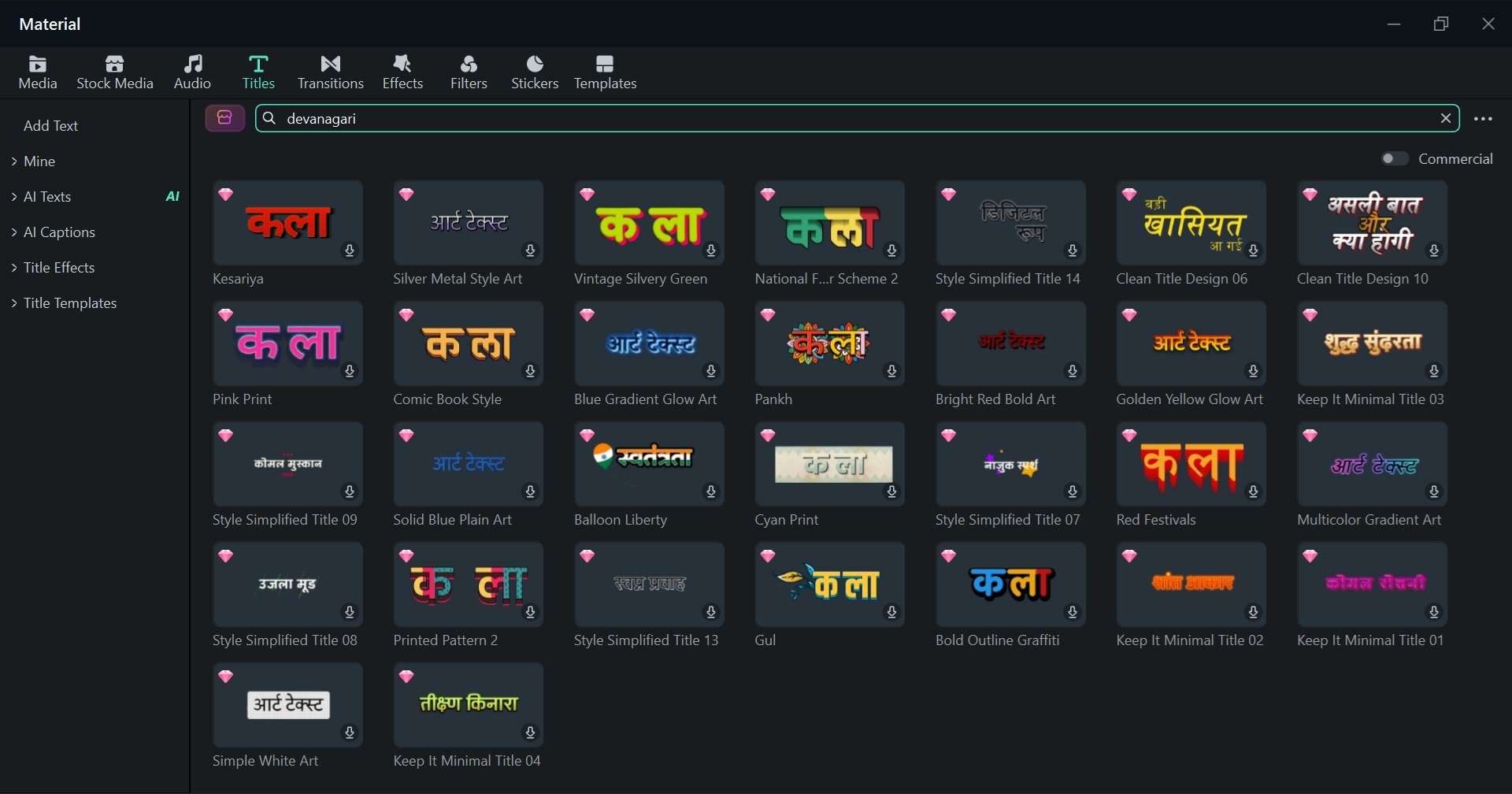
Why Filmora Is a Good Choice for Hindi Captions
- One-Click AI Subtitle Generation: Filmora's speech-to-text engine can transcribe spoken Hindi directly into Devanagari captions, instead of leaving you to type everything manually.
- Streamlined, Beginner-Friendly Workflow: The whole process lives inside one panel, so you're not hunting through menus to figure out where captioning even lives.
- Full Style Customization: Once captions are generated, you can tweak fonts, shadows, strokes, and background bubbles easily.
- Native Support for Indian Regional Fonts: Proper Devanagari, Gurmukhi, Bengali, Tamil, and Gujarati typefaces mean your captions render correctly instead of showing broken glyphs.
- Time-Saving Batch Editing Features: Bulk find-and-replace and apply-to-all styling options mean you're not fixing the same word or formatting choice one caption at a time.
 Secure Download
Part 3. How to Add Hindi Captions to a Video (Tutorial Guide)
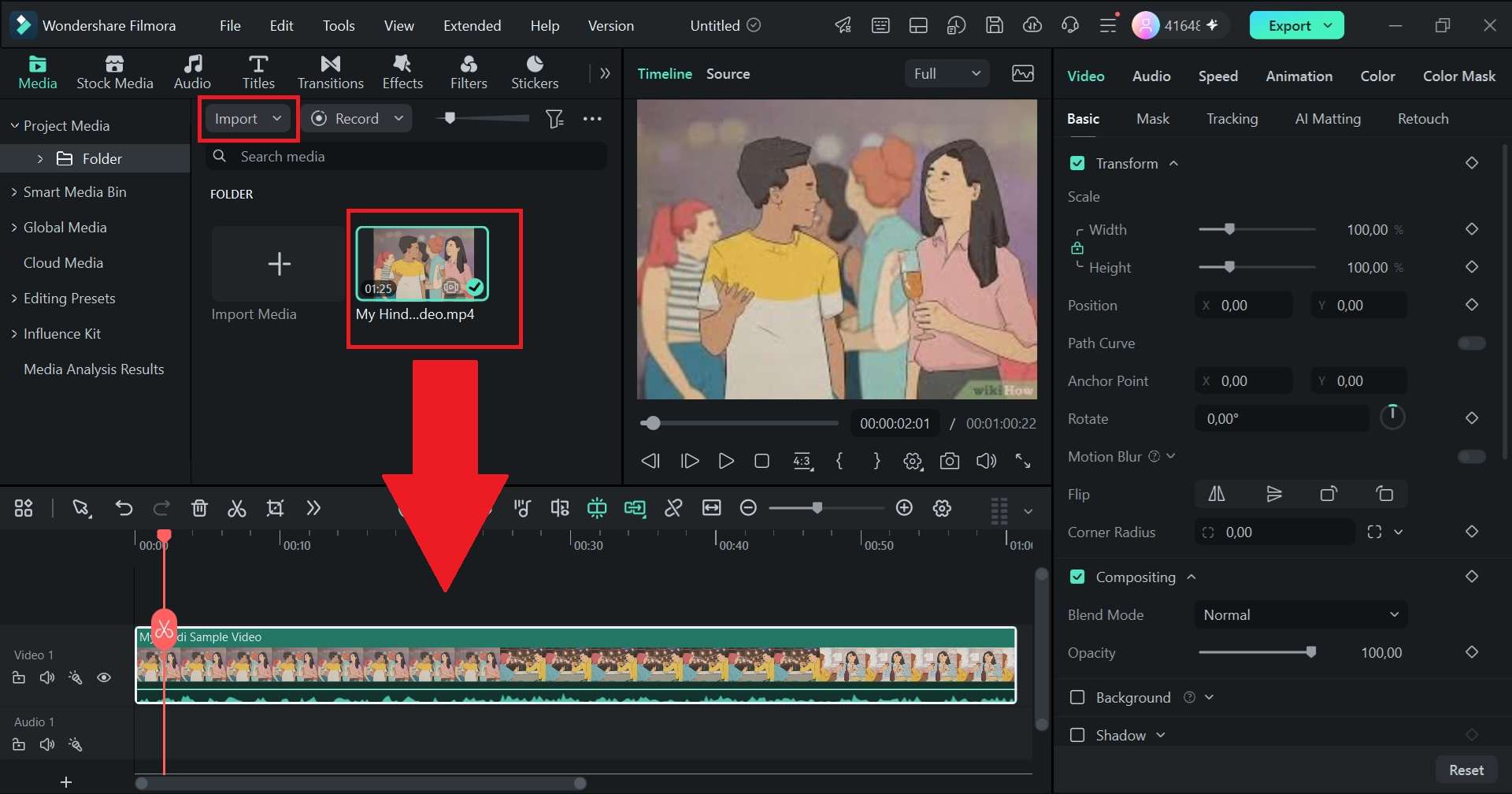
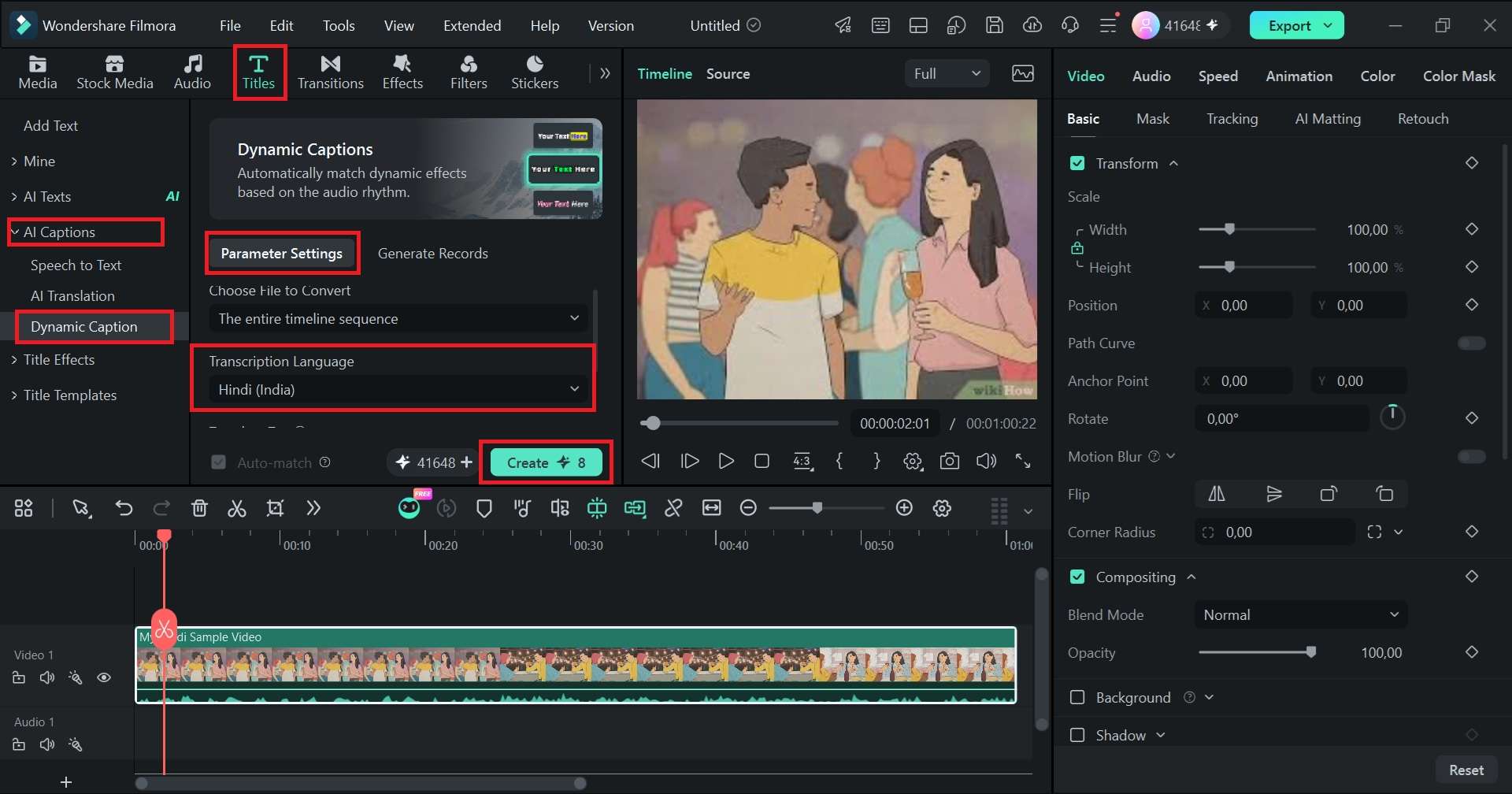
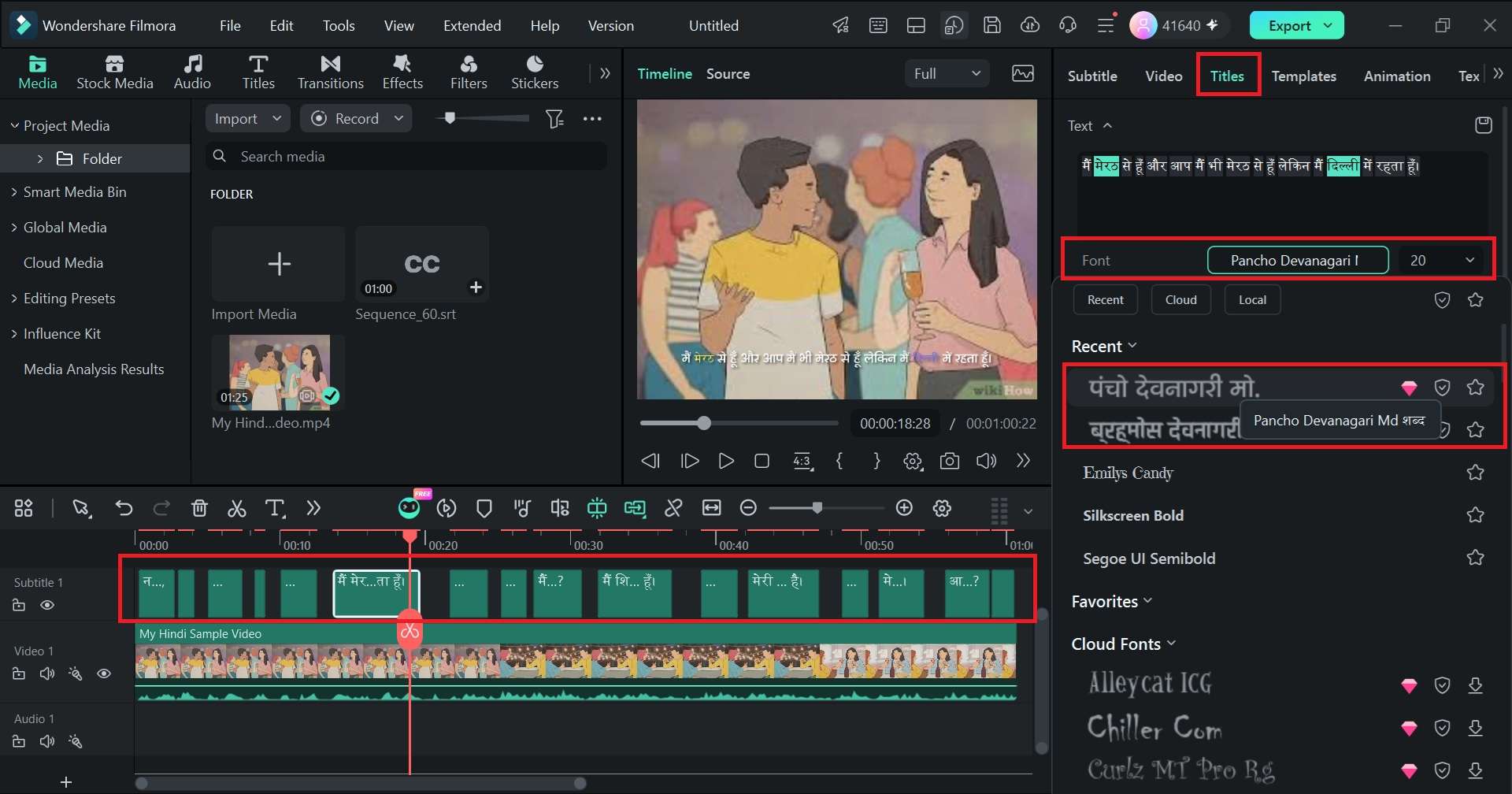
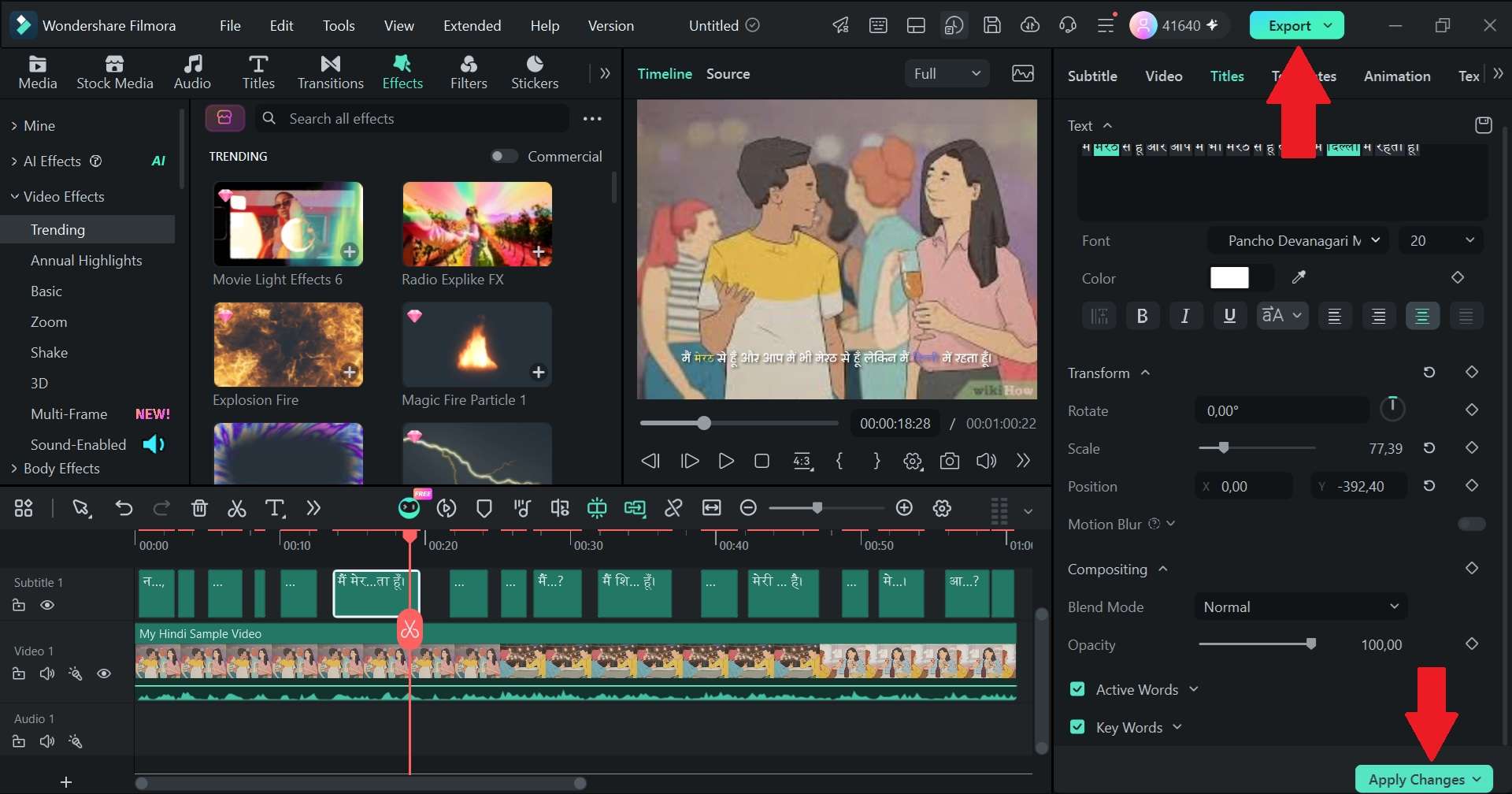
There are a few ways to learn how to add Hindi subtitles to a video with Filmora, and the first method is the one to use when your video is already spoken in Hindi. Instead of translating anything, you can let Filmora transcribe the Hindi dialogue and then clean up the generated captions.
How to Add Hindi Captions to a Video
 Secure Download
Part 4. How to Translate English Captions Into Hindi With Filmora
Now, let's look at another super common situation: what if your video is recorded in English, but you want to capture the massive Hindi-speaking market without hiring a voice actor or manual translator? There's Filmora's AI Video Translation to the rescue!

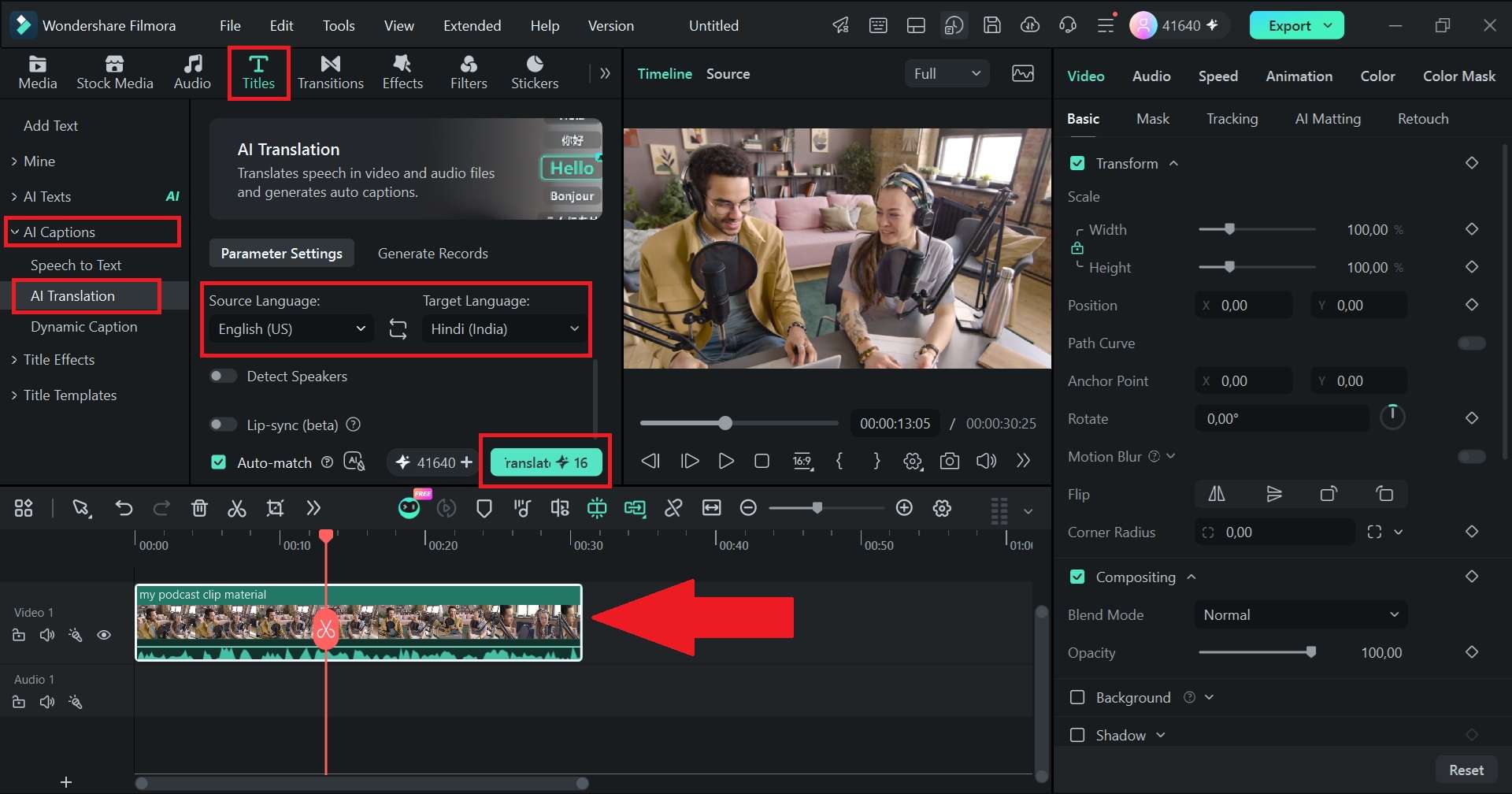
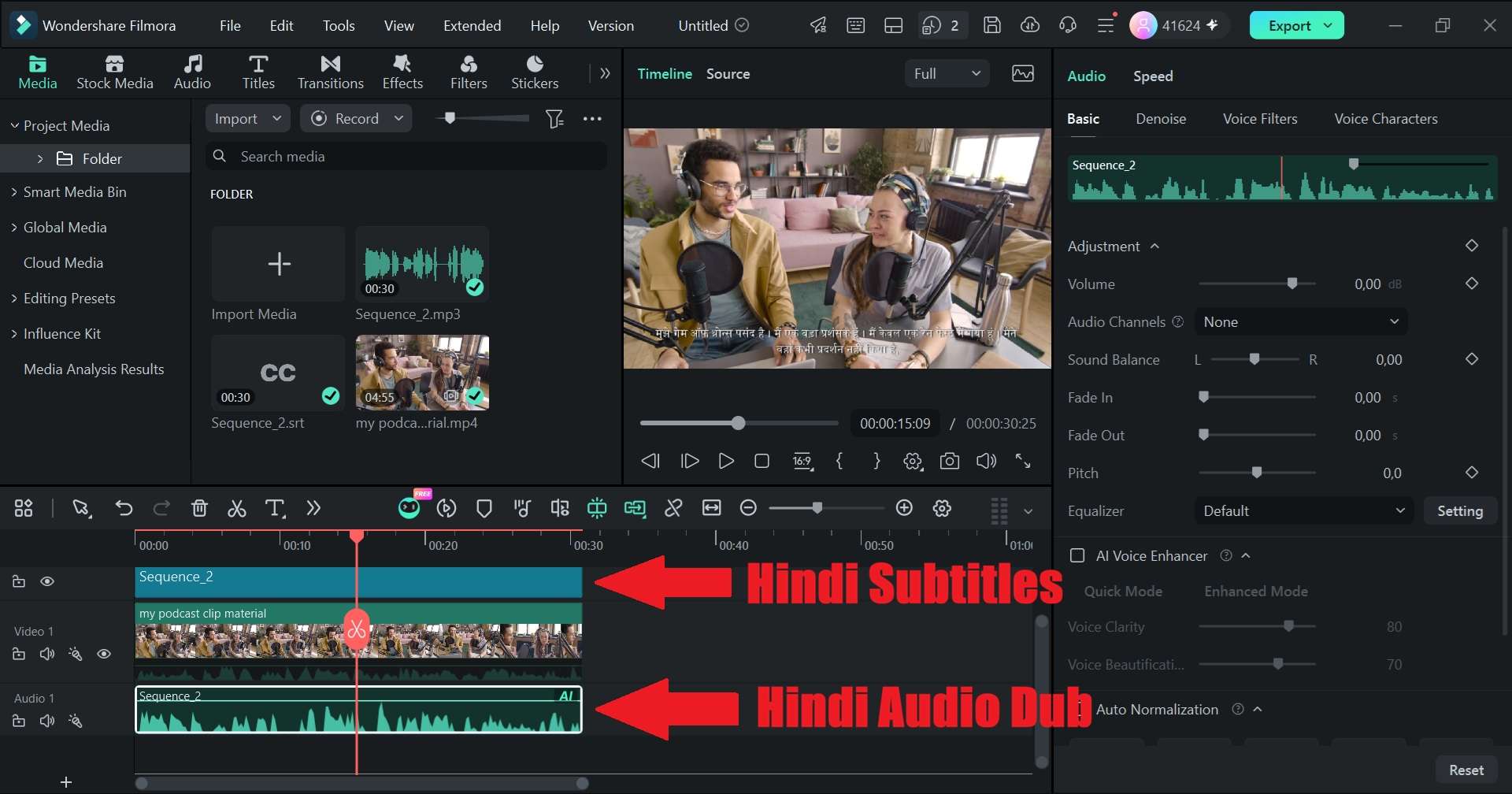
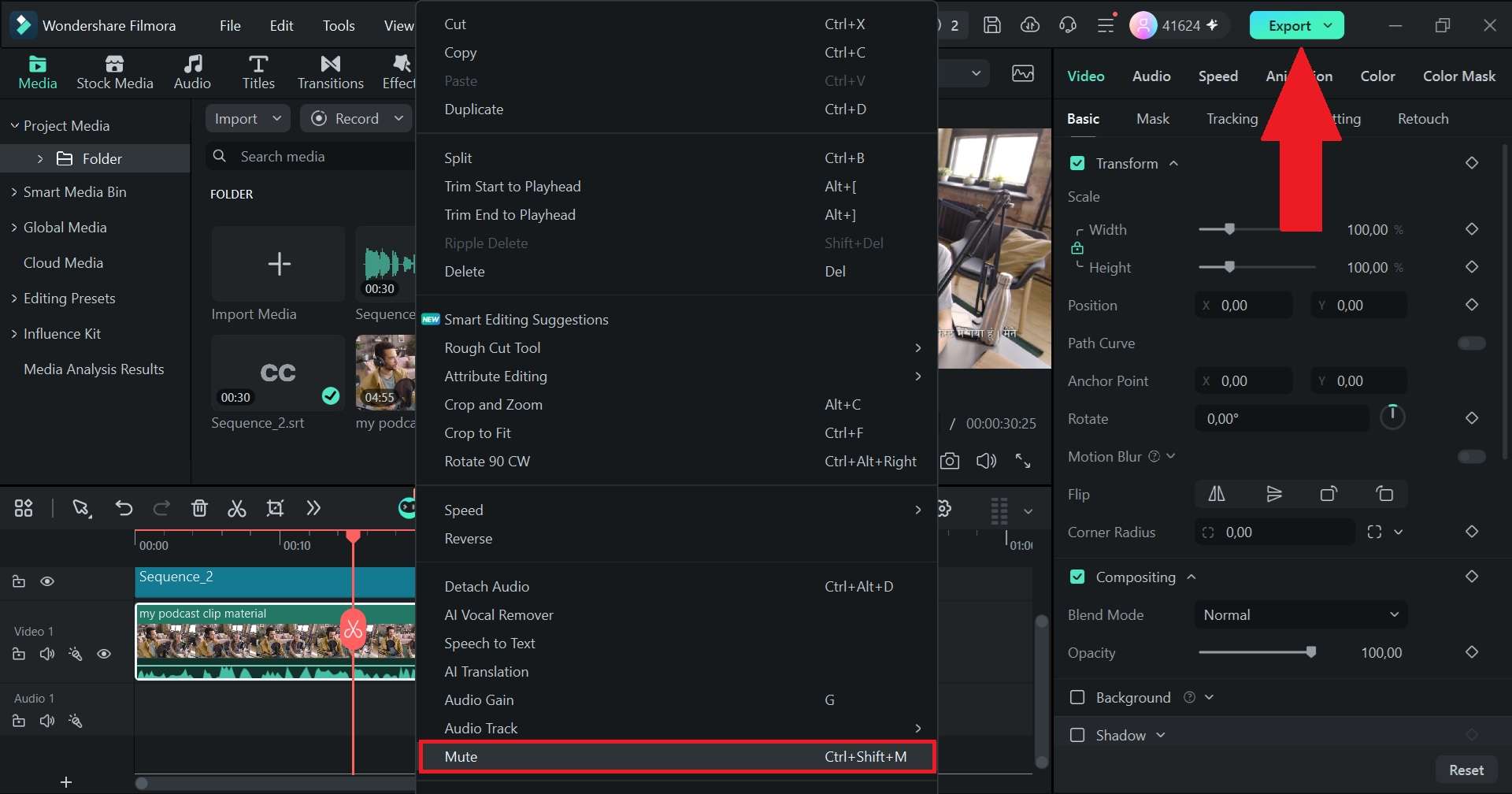
This feature can translate both the voice and the subtitles of a video, with Hindi among its supported languages. There's also a text-only translation option, which is exactly what you want when the goal is Hindi subtitles rather than a full Hindi dub.
How to add Hindi subtitles to a video in English
 Secure Download
Part 5. Tips to Make Your Hindi Captions Stand Out on Reels
As you can see, Filmora makes the whole process of adding Hindi captions much simpler. But generating your captions is only half the battle. If you want to know how to add Hindi captions in Instagram Reels that actually grab attention and hold watch time, styling is key. They need to be readable quickly without covering the face, product, or other important parts of the frame.
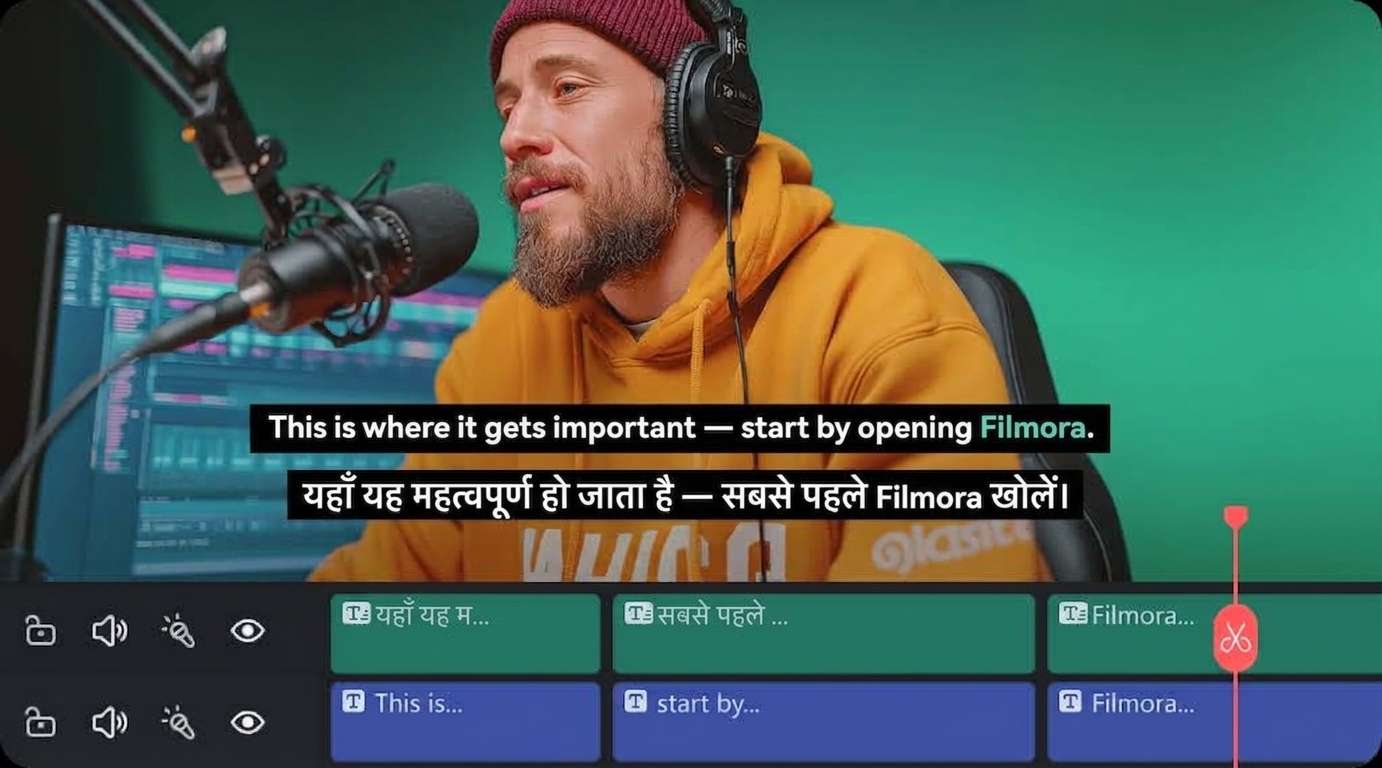
Below are five simple ways to make them work better:
- Pick Heavy, Punchy Fonts: Ditch thin, wispy lettering. Use bold options like Akhand Devanagari or Brahmos Devanagari so your text remains crystal clear even on tiny phone screens.
- Keep Lines Short: Don't crowd the display with massive blocks of text. Stick to 2–4 words per line so viewers can read them effortlessly at a glance.
- Stay Inside the Safe Zone: Position your captions right in the middle-lower third of the display. This prevents Instagram's overlay buttons (like the heart, comment icons, or user handle) from blocking your text.
- Turn On Karaoke Highlights: Use Filmora’s Active Words mode to highlight each word in real-time as it's spoken. This rapid motion keeps eyes locked onto your video.
- Use High-Contrast Colors: Bright yellow or white text paired with a dark drop shadow or a semi-transparent black background box ensures your Hindi script pops against any background scene.
Conclusion
Learning how to add Hindi captions in video is essential if you want to expand your reach as a creator. And with the right editor, much of that work can happen automatically, while you still get the final say over the wording and design.
If you want to skip the endless headaches of manual typing and broken Devanagari characters, grabbing a modern tool like Filmora makes the entire process ridiculously smooth. With its automated AI captioning, instant speech translation, and a huge built-in library of native Indian fonts like Pancho Devanagari and Akhand Devanagari, you can pump out professional, localized videos in just a few clicks.
FAQs
-
Can I export my generated Hindi captions as an SRT file to upload directly to YouTube Studio?
Yes! Once Filmora generates your Hindi subtitle track, you can right-click the subtitle layer on the timeline and export it as a standalone .srt file. This lets you upload soft subtitles directly to YouTube's closed caption settings without burning them into the video frames. -
What is the difference between burn-in video captions and soft subtitles for social media platforms?
Burn-in captions are permanently rendered directly onto your video pixels, meaning viewers will see them on any screen or player regardless of their app settings (perfect for Instagram Reels and TikTok). Soft subtitles are separate text tracks that viewers can manually toggle on or off inside players like YouTube or Netflix. -
Is it possible to mix English and Hindi script (Hinglish) on the same subtitle track?
Absolutely. You can double-click any generated caption segment in Filmora's text editor to mix Roman alphabet characters (English) and Devanagari script (Hindi) on the very same line. Filmora seamlessly renders both fonts side-by-side without crashing or messing up line spacing.
