Filmora
Filmora - AI Video Editor
Edit Faster, Smarter and Easier!
OPEN
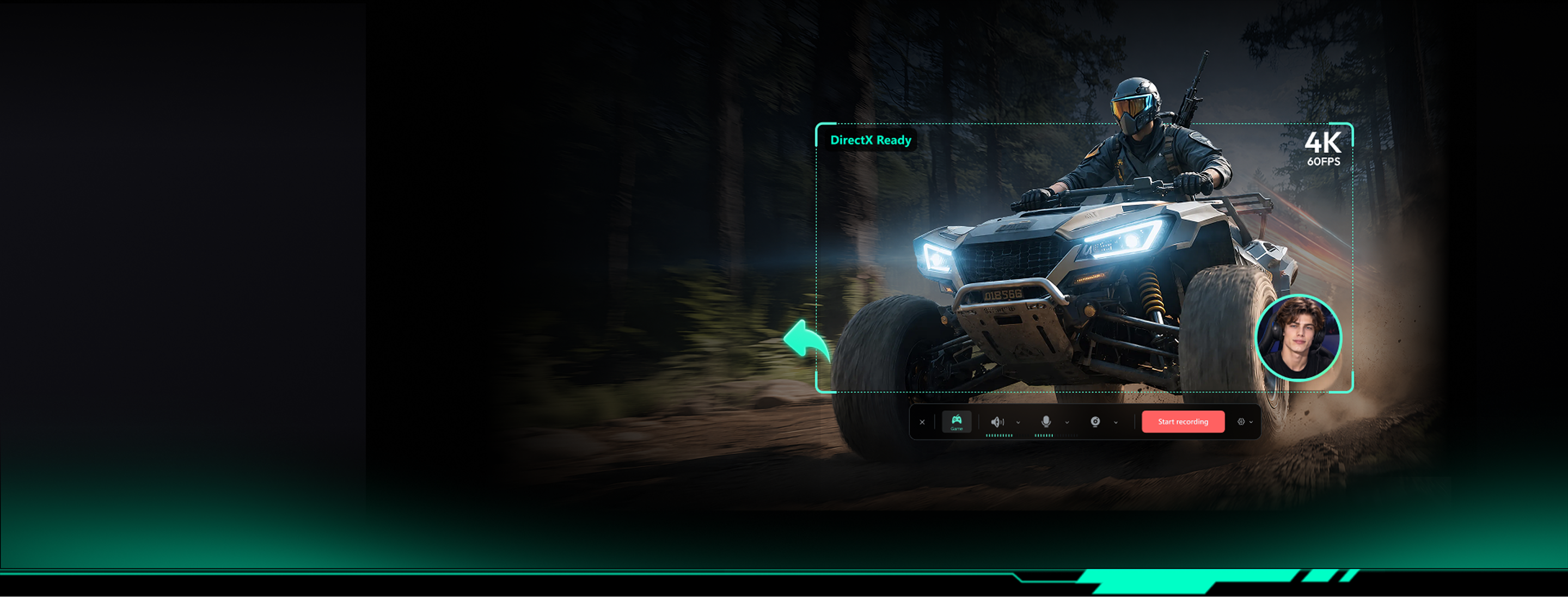
4K 60fps
4K · 60fps
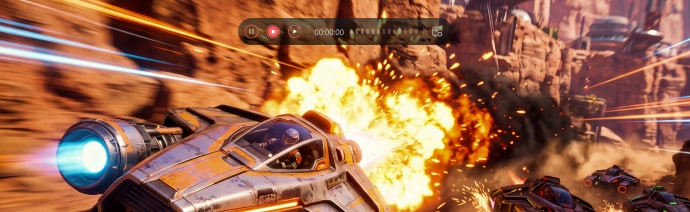
gameplay capture
DirectX
DirectX
render-layer capture
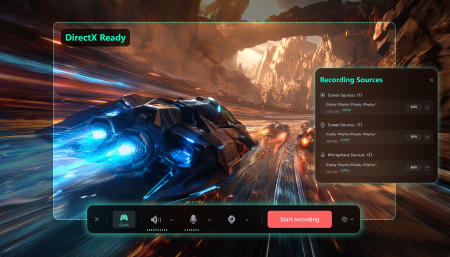
Game and mic
Game + mic
separate tracks
Timeline
Timeline
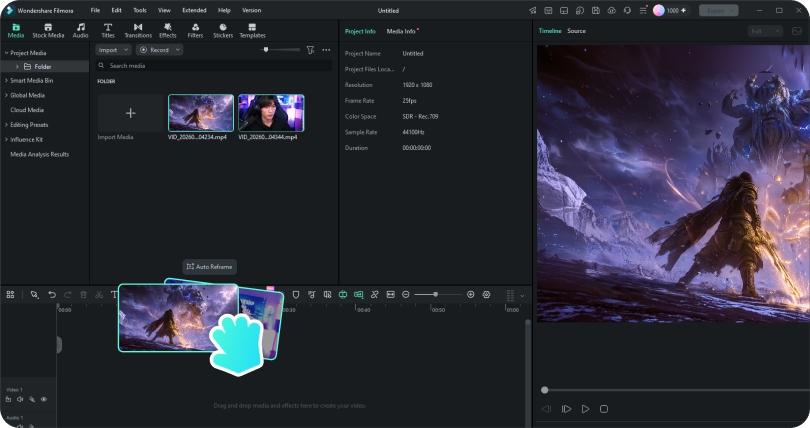
auto-import
4K 60fps
4K · 60fps
gameplay capture
DirectX
DirectX
render-layer capture
Game and mic
Game + mic
separate tracks
Timeline
Timeline
auto-import

The Problem, The Fix

The Game Recording Software
That Fixes What Others Break

Four traps in every other game recorder
— and how Filmora avoids them. Hover a card (or tap it) to flip.

Game frames slip through generic recorders DirectX-level capture
The Problem

Game frames slip through generic recorders

Games render through DirectX — and desktop-level capture can miss the game window entirely. The result: black frames, failed recordings, and broken trust.

The Fix

DirectX-level capture

Game Recording Mode hooks the game's DirectX render layer directly — stable window capture, frame after frame. "Not a reskinned screen recorder — a dedicated mode built for game windows."
Recording steals the frames you're chasing Capture without the tax
The Problem

Recording steals the frames you're chasing

Games already push CPU and GPU hard. Adding capture on top is when frame drops and stutter appear — hurting both the run and the footage.

The Fix

Capture without the tax

DirectX-based capture with hardware-accelerated encoding keeps the load low — your game stays smooth, and so does the recording.

Which window is being recorded You choose exactly what gets recorded
The Problem

Which window is being recorded

Games render through DirectX — and desktop-level capture can miss the game window entirely. The result: black frames, failed recordings, and broken trust.

The Fix

You choose exactly what gets recorded

Recordable DirectX windows are auto-enumerated with title and process name — search, refresh, or re-select, one window at a time.

No game open Smart fallback, zero waiting
The Problem

No game open

Clicking Game Recording with nothing to capture leaves new users stuck — do they switch modes, or open a game first?

The Fix

Smart fallback, zero waiting

If no DirectX window is found, Filmora prompts a one-click switch to screen recording — your input sources are kept.

Recording and editing don't talk Straight into the timeline
The Problem

Recording and editing don't talk

Pure capture tools make you export, open an editor, re-import, then re-export. Every hop costs quality and time — slow publishing.

The Fix

Straight into the timeline

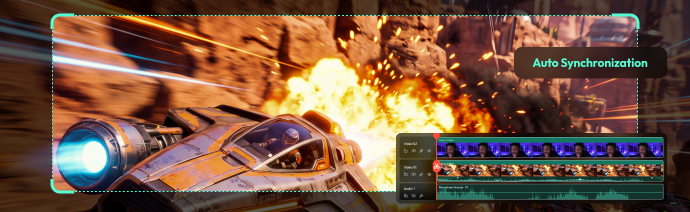
Stop recording — footage auto-imports into Filmora's timeline, with gameplay, webcam, mic, and system audio aligned on their own tracks.

Feature Tour

Everything a Good Game
Recorder for PC Should Be

The new Game Recording Mode
— purpose-built for games, not a reskinned screen recorder.

DirectX Dedicated Capture

Record through the game's own render layer for stable frames and sharper picture.

Auto-Detect Game Windows

Recordable DirectX windows are enumerated with title and process name — pick one and go.

Precise Window Selection

Search, refresh, or re-select when games, emulators, and players are all open.

Smart Fallback to Screen Recording

No game window detected? Filmora guides you to the right mode instead of leaving you stuck.

Game, Voice & Cam in One Take

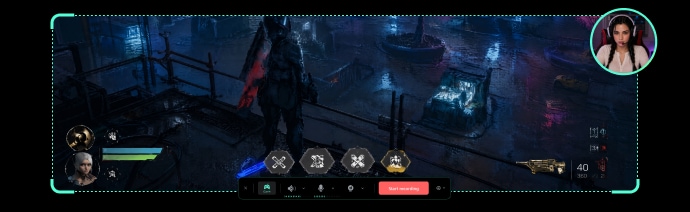
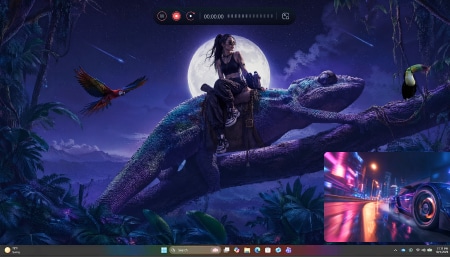
Gameplay, commentary, system sound, and webcam configured together — you're show-ready instantly.

Straight into the Timeline

On stop, footage auto-imports to the Filmora timeline — aligned by track, ready to edit.

Made For Your Kind Of Play

One Mode, Six Ways to Play

From first clutch clip to nightly stream
— Game Recording Mode fits how you actually capture.

Let's Play Creators

Let's Play Creators

Full sessions, highlight runs, and challenge videos.

  • stable frames
  • no stutter
  • fast clips

"Record, land in the timeline, and cut your best moments in seconds."

Guide & Tutorial Makers

Guide & Tutorial Makers

Walkthroughs, level guides, and skill breakdowns.

  • game + mic
  • captions
  • annotations

"Narrate as you play — add captions and labels in the same tool."

PC & Console Gamers

PC & Console Gamers

Clutch moments, full runs, and squad clips.

  • one-click
  • no config
  • any game

"Pick the game window, hit record — done."

Short-Form Creators

Short-Form Creators

Clips for Douyin, Xiaohongshu, Shorts, and TikTok.

  • fast assets
  • captions + BGM
  • trending cuts

"Record, edit, and package — one complete workflow."

Reaction & Facecam Streamers

Reaction & Facecam Streamers

Gameplay, camera, and mic — all at once.

  • audio sync
  • separate tracks
  • webcam overlay

"Gameplay and facecam together — separate tracks make the edit easy."

Reviewers & Media

Reviewers & Media

Multi-game and playback comparisons.

  • precise target
  • no mis-capture
  • multiple windows

"Many windows open? Still pick exactly which one records."

Feature Comparison

Game Recorder vs.Screen Recorder
— Not the Same Capture

Game Recording Mode captures through the game's own render layer,
not a copy of your desktop.

Game Recorder

Capture method
Direct connection to the game render layer (DirectX / OpenGL / UWP / Vulkan)
Picture quality
Higher, more stable quality optimized for game visuals
Window clarity
Recordable windows auto-listed with title and process; you pick exactly one
Performance
Optimized for game scenes, with hardware-accelerated encoding
After recording
Auto-imports into the Filmora timeline with tracks aligned
VS

Screen Recorder

Capture method
Copy of the desktop image stream
Picture quality
Opaque copies — blur, black frames and lost frames possible in game scenes
Window clarity
Any window, but which one is recorded can be unclear in multi-window setups
Performance
Higher overhead while games already saturate CPU / GPU
After recording
Export, open an editor, re-import, re-export

Step-by-step Guide

How to Record Gameplay in Filmora — 3 Steps

From install to an edited clip in under five minutes.

Launch Game Recording

Step 1: Launch Game Recording

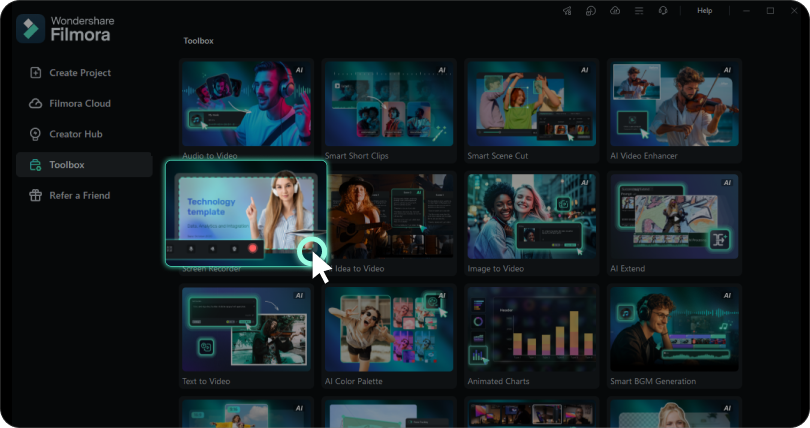
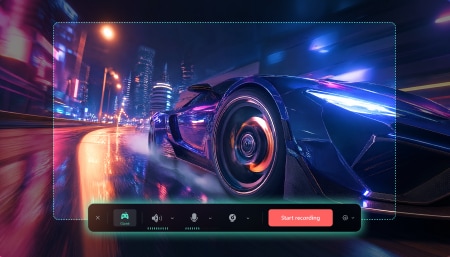
Start Filmora and either create a new project or open an existing one. Navigate to the Media section, click the Record drop-down arrow, and choose Game Recording to access the game capture interface.

Choose Your Game and Begin Capturing

Step 2: Choose Your Game and Begin Capturing

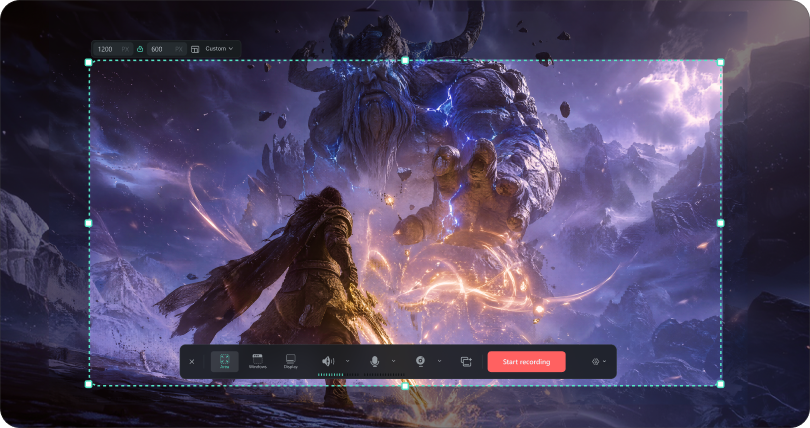
From the Select Window panel, pick the game you'd like to record. If it isn't listed, hit Refresh or turn on Show All Windows to find it. Fine-tune the audio and camera settings as needed, then hit Start Recording to kick off your gameplay capture.

Check and Export Your Gameplay

Step 3: Check and Export Your Gameplay

Once you've finished, stop the recording. Go through the captured footage in Filmora and drag it onto the Timeline for additional editing if you want. After previewing the final output, click Export to save your video.

  • Launch Game Recording

    Start Filmora and either create a new project or open an
    existing one. Navigate to the Media section, click the Record
    drop-down arrow, and choose Game Recording to access the
    game capture interface.

  • Choose Your Game and Begin Capturing

    From the Select Window panel, pick the game you'd like to record.
    If it isn't listed, hit Refresh or turn on Show All Windows to find it.
    Fine-tune the audio and camera settings as needed,
    then hit Start Recording to kick off
    your gameplay capture.

  • Check and Export Your Gameplay

    Once you've finished, stop the recording. Go through
    the captured footage in Filmora and drag it onto the Timeline
    for additional editing if you want. After previewing
    the final output, click Export to save your video.

Compare Side By Side

Compare The Good Recording
Software for Gaming

Game recorder Recording method DirectX support Window selection Live preview Post-recording  editing Price
Filmora Yes Dedicated Game
Recording Mode(DirectX layer)
Yes DirectX · OpenGL
UWP · Vulkan
Yes Auto-detect
+ manual pick
Yes Preview while
recording
Yes Full editor
straight to timeline
Yes Freemium
Bandicam Game recording mode DirectX 11 / 12 Single window Yes Preview while
recording
Basic editing Free
OBS Studio Game capture source DirectX / Vulkan / OpenGL Single window Yes Live preview No None Free,
open source
NVIDIA ShadowPlay GPU direct capture DirectX Auto-detect current game Yes Live preview No None Free(NVIDIA GPU)
Xbox Game Bar Built-in DirectX / Vulkan / OpenGL Auto-detect game window preview No None Free(built-in)
Action DirectX / Vulkan capture DirectX Single window Yes Live preview Basic editing Paid
CapCut / Jianying No No dedicated
game recording
No None General screen capture only No None Yes Built-in editing Free,
open source

One-Tool Workflow

From Clutch to Content — in One Tool

Other recorders hand you a file. Filmora hands you a finished video
— the video game recorder for PC that turns a 3-hour session into a 45-second clip worth posting.

Capture the session

Capture the session

4K 60fps gameplay, game + mic audio, facecam — in one hotkey.

Turn it into content

Turn it into content

Auto scene-cut, captions, and transitions on footage already in the editor.

Export anywhere

Export anywhere

One-click presets for YouTube, TikTok, and Twitch, in platform-ready formats.

FAQS of Filmora Video Game Screen Recorder

Yes. Filmora is a game recorder for PC with hardware-accelerated capture, 4K gameplay recording, separate game/mic tracks, and facecam overlay — plus a full editing suite dedicated recorders don't offer.
Filmora offloads encoding to your GPU with hardware acceleration, keeping CPU and GPU impact low. Actual impact varies by hardware and game settings.
Yes. Game sound and your voice are captured on independent tracks and balanced separately during editing.
Filmora offers a free download with a trial. See the official pricing page for plan details.
Yes. Any window-based game works — hotkey capture covers most titles with no game-specific setup.
Yes. Overlay your camera feed while recording so your reactions become part of the video.
MP4, MOV, MKV, GIF and more, with preset targets for YouTube, TikTok, and Twitch.
No. Filmora is only supported on Windows for the time being, but you can remain concerined.
Game Recording Mode captures through the game's own render layer (DirectX, OpenGL, UWP, or Vulkan), giving higher, more stable quality with performance optimized for game scenes. Screen Recording Mode copies the desktop stream and covers everything else.