

 TL;DR:
You can only remove TikTok filters before recording or while the video is in your drafts, because once a video is posted or saved to your device, the effect is permanently baked into the file and cannot be reversed.
● To clear a filter in a draft or before recording, tap the Filters panel and select the "No" icon, but if the video still looks altered, you must also check and disable active items in the Effects menu.
● Apps claiming to be an invisible filter remover for saved, posted, or other people's videos do not work and pose security risks, as TikTok modifies the actual pixel data during export rather than storing filters on a removable layer.
● To retain the ability to change or remove filters without losing your original footage, edit your raw video in external software like Wondershare Filmora using non-destructive adjustment layers before uploading to TikTok.
Ask AI for a summary
 ChatGPT
 Perplexity
 Gemini
 Claude
 Grok
Grok
Filters play a big role in how videos look on TikTok. But after you post, you might change your mind and look up how to remove a filter on TikTok. Whether you want to remove TikTok filters from a draft, before recording, or you're wondering about the TikTok invisible filter remover, this 2026 guide covers everything you need to know to fix your video style.
Part 1. Can You Actually Remove a TikTok Filter After Posting?
Can you remove a filter from a posted TikTok video? Many people search for how to remove a filter from TikTok videos after posting them, hoping for a quick fix. TikTok does not offer a way to remove filters from TikTok video after posting. Once the video is live, the effects are "baked" into the file. To avoid this, many creators prefer using professional editors like Wondershare Filmora to maintain original footage quality.

When you post a video, TikTok treats the filter as part of the video itself. The app no longer keeps an unfiltered copy because the effect merges into the image during processing. This situation creates several limits:
- TikTok saves only the final rendered version of the video.
- Filters modify pixels instead of sitting on an editable or separate layer.
- Posted videos do not include a toggle to disable effects after posting.
- Re-edit options disappear after publishing.
If you still want to change the look, your best option is to use the original video file saved on your device. You can re-edit that clip in TikTok or another editor, adjust colors or effects, and upload a new version instead.
Part 2. How to Remove TikTok Filter Before Recording
You can't remove filters from videos that are already posted on TikTok. The safest option is to remove the filter before you start recording. At this stage, TikTok still gives you full control, since the camera has not captured any footage yet. Once you turn the filter off here, it will not affect your video later.

Follow these steps to learn how to remove a filter on TikTok before recording:
Step 1. Open the TikTok app and tap the Plus button at the bottom of the screen to open the recording camera.
Step 2. Check the Filters panel on the left side. If TikTok applied a filter from a previous session, the filter icon may appear active. Tap it to open the filter menu.
Step 3. Tap the "No" icon at the top of the filter options. This action clears any visual filter linked to the camera.
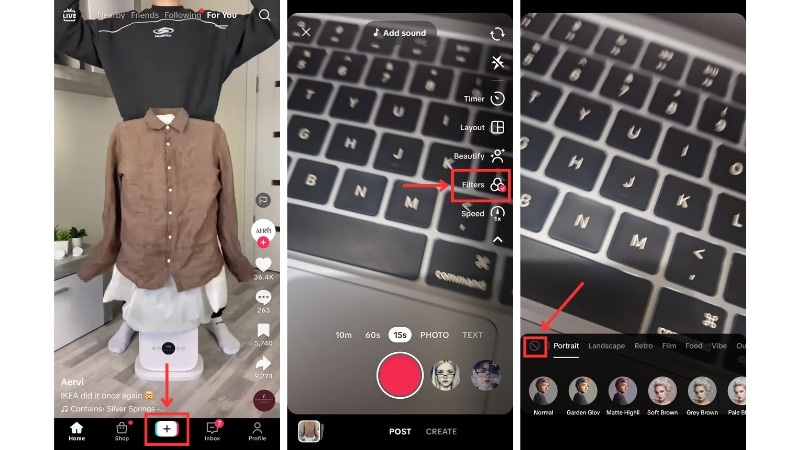
By turning off filters and effects at this stage, you can record a clean video directly on TikTok. This setup gives you more flexibility later and avoids issues that cannot be fixed after posting or saving the video.
Tip: Some filters may also attach sound effects without notice. Before recording, tap the Sound icon at the top and remove any added audio to avoid unwanted sounds tied to the filter.
Part 3. How to Remove Filter from TikTok Drafts
If your video is still saved as a draft, you have more room to fix mistakes. Learning how to remove a filter on a TikTok video at this stage is simple because drafts keep editing options open. TikTok lets you change or remove filters here as long as you have not posted or exported the video.

Follow these steps to remove a filter from a TikTok draft:
Step 1. Open the TikTok app and tap Profile at the bottom of the screen.
Step 2. Tap Drafts and select the video you want to edit. Then, you'll be directed to the editing workspace where you can continue editing the video.
Step 3. Look for the Filters or Effects option on the right side of the screen and tap it. If a filter is active, you will see it highlighted.
Step 4. Select the "No" option or switch back to Normal to remove the filter from the TikTok video.
Step 5. Preview the video to confirm the filter no longer applies, then save the draft or continue editing.
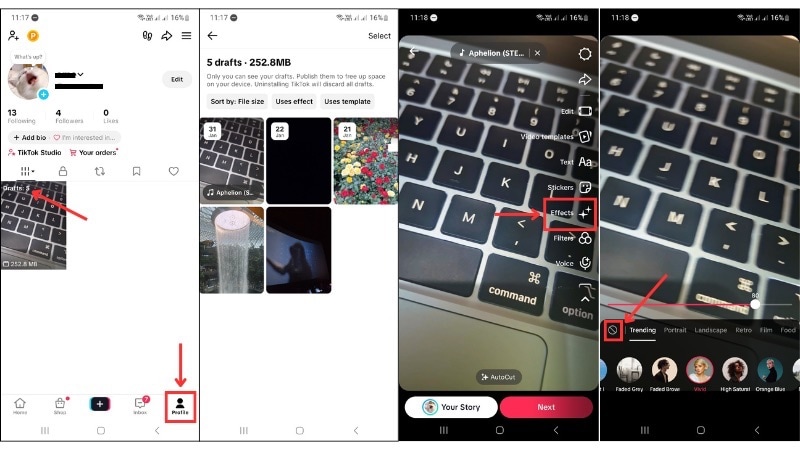
Drafts keep filters separate from the video file, which is why removal still works at this stage. Once you publish the video, TikTok merges the filter into the final output and locks these controls.
For best results, always review filters, effects, and sounds in drafts before posting so you avoid re-recording or starting over.
Part 4. Can You Remove TikTok Filter from Saved Video? (The Reality)
Many people search for how to remove the TikTok filter from a saved video after downloading a clip they edited on TikTok. But at this stage, the video already exists as a finished file. This means the filter is no longer separate from the footage.
When you save or download the video you edit on TikTok, the app exports it as a single video file. Any filter applied becomes part of the image itself. The colors, blur, and facial changes alter pixel data, not a removable layer. Because of this, no setting or editor can reverse the filter after saving.
About "Invisible Filter Remover" Tools
- Filters modify pixel values inside the video.
- Saved videos do not contain an original version to restore.
- No app can rebuild the original image data from the exported file.

Many of these tools also request access to personal files or redirect users to unsafe downloads. Even video editors that offer color correction can only adjust tone or brightness. They do not remove the filter itself.
If you want a clean result, return to the original video recorded on your phone and edit that file instead. If the only file you have is the saved TikTok version, the filter is already locked into the video.
Part 5. Pro Tip: Use Filmora to Better Control Your TikTok Video Style
After learning how to remove the TikTok filter from a video, it becomes clear that the issue comes from editing limits inside TikTok. The app works for quick posts, but if you want more flexibility, editing outside TikTok makes a real difference.
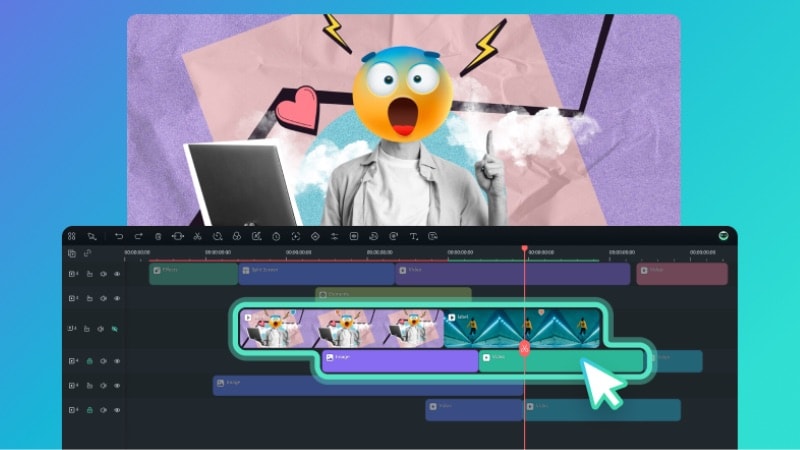
Why Pro Creators Use Wondershare Filmora to Manage TikTok Filters
If you want to avoid the limitations of the TikTok app, using Wondershare Filmora is the best alternative. Unlike TikTok, Filmora allows you to apply non-destructive filters. This means you can add, adjust, or remove filters at any time during the editing process without losing your original raw footage.
In Filmora, filters stay on separate layers instead of merging into the video. This setup helps you preview clean footage, compare styles, and export only when the result meets your expectations.
Check out some of Filmora's key features that help with filter control:
- Customizable Beauty Parameters let you fine-tune skin smoothing, color tone, and facial details instead of relying on preset looks.
- Smart Cutout allows you to isolate a subject. So, you can apply effects to the subject or background without affecting the other.
- Adjustment Layers make it possible to apply color edits on top of your footage. You can turn them on or off without changing the source clip.
- Keyframe Controls give you control over when effects start, change, or end across the timeline.
- Direct Upload to TikTok lets you export and post your video to TikTok from Filmor. This approach reduces extra steps and helps keep quality consistent.
You can edit the video in Filmora with full control, then upload a polished version to TikTok. Even after exporting, you can reopen the project file and adjust filters, effects, or colors to create a new version without starting from scratch.
Watch the video below to see what's new in Filmora. It covers AI tools that help you fix lighting, improve video quality, and keep edits flexible when creating content for TikTok.
Conclusion
If you want to learn how to remove a filter on TikTok, the key is knowing when TikTok still allows changes. You can remove filters before recording and inside drafts. Once a video is posted or saved from TikTok, the filter becomes part of the file and cannot be undone.
Understanding how to remove the TikTok filter at each stage helps you avoid wasted time and tools that do not work. For more flexibility, edit videos outside TikTok using an editor like Filmora. That small step can save you from redoing edits later.

 Secure Download
FAQ
-
Is there a TikTok filter remover app?
No. No app can remove a TikTok filter from a video that has already been posted or saved. Once TikTok exports a video, the filter becomes part of the image itself. Apps that claim to remove filters from finished videos do not work and often pose security risks. -
Why can't I edit the filter on my draft?
This usually happens when the filter comes from an effect instead of the Filters panel. Some effects include built-in visual changes that do not show up as removable filters. Check the Effects menu and remove the effect first. -
Can I remove filters from other people's videos?
No, you cannot remove filters from videos posted by other users. TikTok only lets you interact with the final version they uploaded. Any tool claiming to restore an unfiltered version of someone else's video is misleading.
