


One of the perks of shooting with an Insta360 camera is being able to capture everything around you, but that also means your footage needs a different kind of editing than regular video clips. The problem is, not every video editor can handle 360° footage properly, so your options can feel pretty limited.
So, which Insta360 editing software is actually worth using? We’ve rounded up the top tools to help you find the best way to edit Insta360 videos and turn your footage into something you’ll actually want to share.
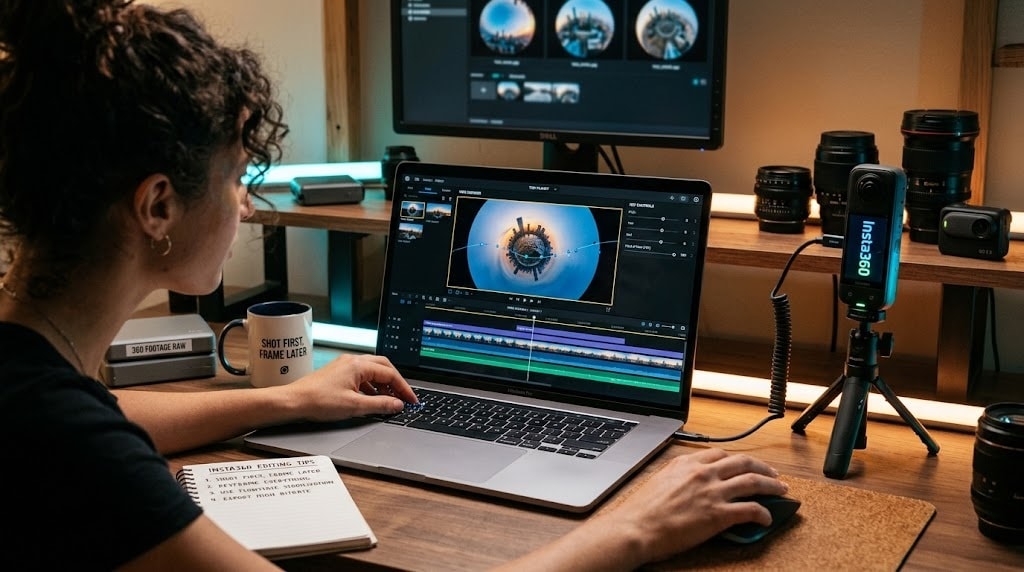
A software being able to open a video file doesn't automatically make it a good Insta360 desktop editor. So for this list, we looked at a few practical factors that matter when turning 360° footage into a finished video:
- 360° Footage Support: Can it read .insv/.insp and other spherical formats natively, or does everything need converting first?
- Reframing and Viewpoint Controls: Does it offer manual keyframing, AI-assisted tracking, one-click presets, or some mix of all three?
- Regular Video Editing Tools: How well does each Insta360 video editor handle ordinary editing tasks after the 360° work is done?
- Export Options & Hardware Acceleration: What resolutions and codecs are supported, and does it lean on your GPU to keep large 360° files from crawling?
Our Top 3 Insta360 Desktop Editor Picks
There isn't one perfect Insta360 video editing software for every Insta360 user. But considering the factors above, these three stand out for different reasons, from an all-in-one editing workflow to dedicated 360° tools and more advanced desktop editing.


Part 1. Insta360 Desktop Editor Comparison Chart
Before we dive into each recommendation, let's put the main differences side by side. The goal isn't to find the Insta360 PC editing software with the longest feature list. It's to see which one fits the way you actually plan to edit.
| Software | Platform | Pricing Model | 360 Reframing Method | Best For |
| Filmora | Windows, macOS | Freemium (Subscription / Perpetual) | Viewport Drag, Panoramic Controls & 1-Click Presets | Quick 360 reframing paired with a full creative editing timeline |
| Insta360 Studio | Windows, macOS | Free | Keyframe Timeline, Deep Track AI & Auto Frame | Pure reframing, high-bitrate raw exports, and camera calibration |
| GoPro Player | Windows, macOS | Free (+ $99.99 one-time unlock for pro stabilization) | Reframe Keyframe Points & Horizon Lock | Lightweight batch exporting and universal 360 clip playback |
| Pinnacle Studio | Windows | One-Time Purchase (Perpetual) | View Designer & Interactive Keyframing | Consumer-level timeline editing |
| Premiere Pro | Windows, macOS | Paid Subscription Only | Insta360 Reframe Plugin & VR Workspace | Professional, fully custom VR/360 workflows |
|
Show More
Show Less
|
||||
 Secure Download
Part 2. Top 5 Insta360 Editing Software for Easy Video Editing in 2026
Now let's get into the actual picks. We'll explain why each recommendations is good using the same format, so it's easier to compare what each Insta360 video editor is actually good at.
1. Wondershare Filmora
Let's start with one of the most versatile Insta360 editing software options for PC. In the upcoming Filmora 16, Wondershare Filmora brings full 360° Video Editing natively into its main timeline editor. Instead of converting clips in a separate application first, you can drop raw 360 footage straight onto your track, reframe the perspective with interactive controls, add movement presets, and polish the final video with standard titles, sound effects, and transitions.
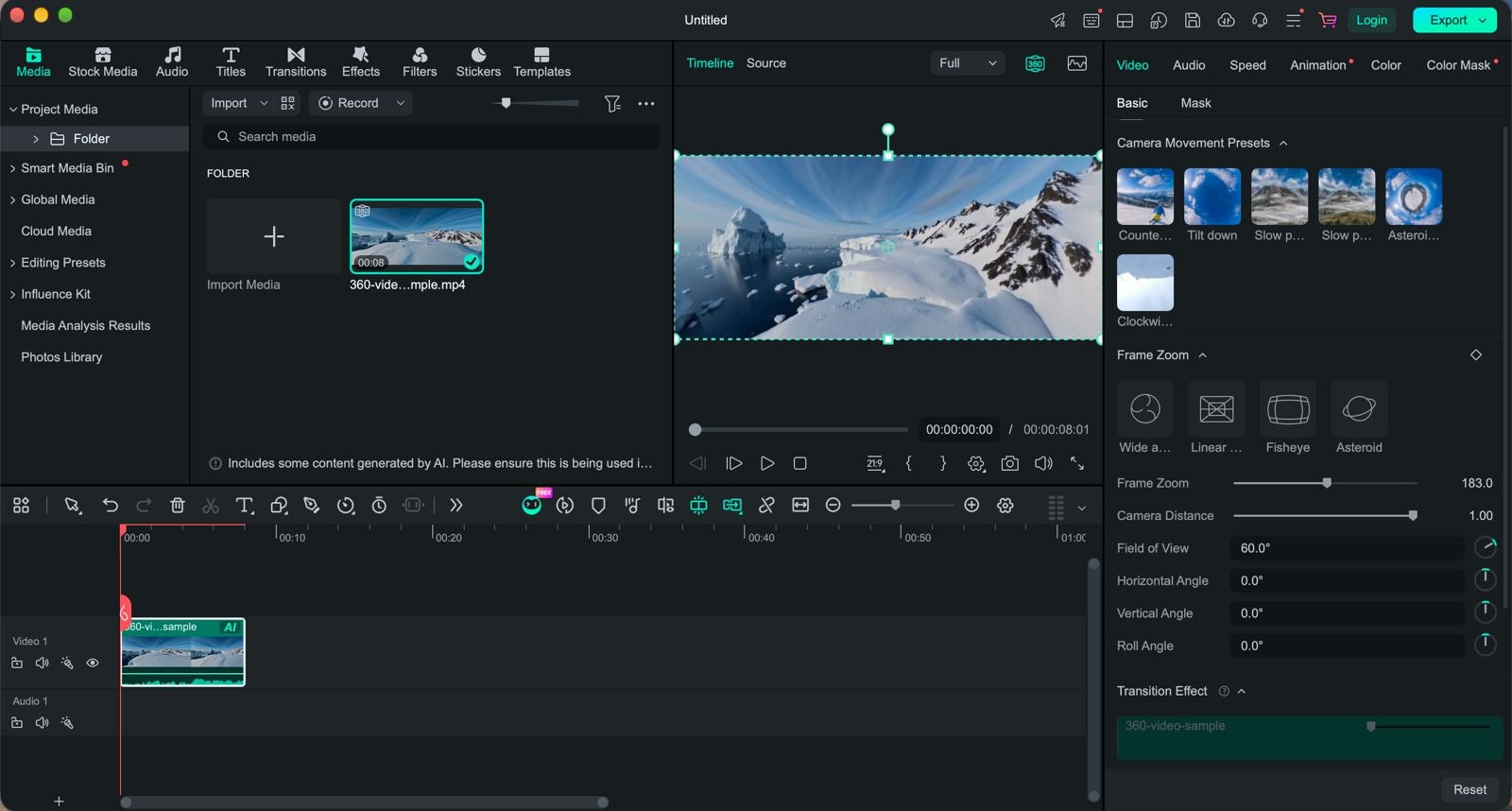
- Native 360° import with automatic metadata recognition for standard equirectangular MP4 files.
- Interactive preview player with click-and-drag view angles and mouse-wheel FOV zooming.
- 1-Click Display Presets including Tiny Planet, Fisheye, Wide Angle, and De-distortion.
- Camera Movement Presets like Orbit/Pan, Sky Flip, and Tiny Planet Unfold.
- Direct 2D export optimization for 16:9 YouTube or 9:16 vertical TikTok/Reels.
Windows & macOS.
- Insta360, GoPro, and DJI action-camera users.
- Travel vloggers.
- Outdoor and sports creators.
- TikTok, Instagram Reels, and YouTube Shorts creators.
- Beginners who want 360° editing and normal video editing in one place.
A free version is available (with a watermark). Flexible paid plans are available on the Filmora pricing page.
- Presets replace what used to require manually calculating keyframe paths.
- Full standard editing suite (titles, audio, transitions, color grading) sits right alongside your 360 footage.
- Noticeably gentler learning curve than a professional NLE like Premiere Pro.
- Smooth performance on moderate hardware setups.
- The free version exports videos with a watermark.
- Currently focused on flattening 360° into standard 2D output, not full interactive 360°/VR exports.
Secure Download2. Insta360 Studio
If you own an Insta360 camera and mainly want Insta360 editing software that understands your camera's footage, start here. is the official desktop companion software made specifically for Insta360 hardware. It provides precise stitching, FlowState stabilization control, and clean reframing tools tailored directly to the camera's optical profiles.
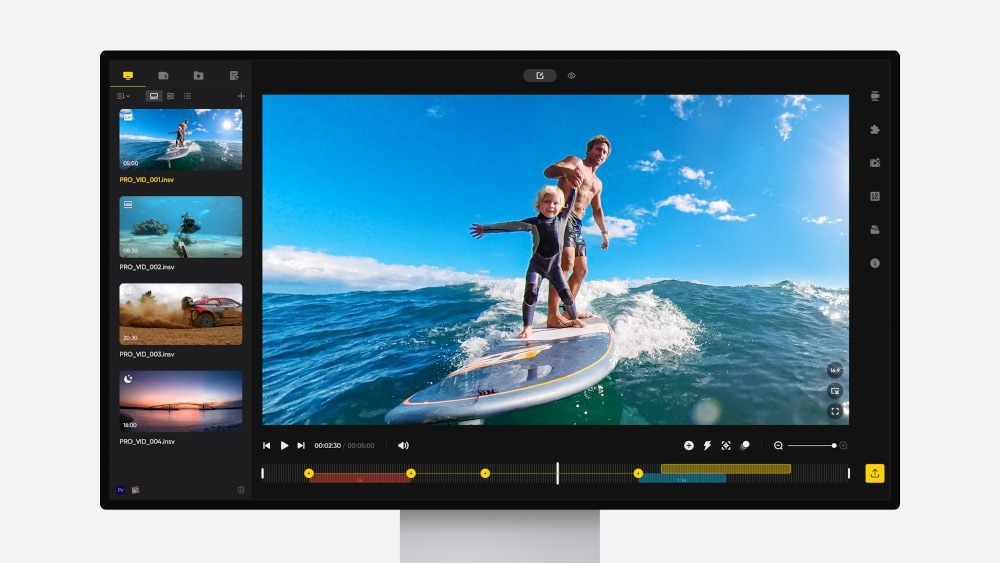
- FlowState Stabilization and 360° Horizon Lock for steady, level footage.
- AI Deep Track subject tracking that keeps a person, vehicle, or pet centered automatically.
- Stitching and lens guard calibration to clean up seam lines between the two lenses.
- Pro exports up to 8K in H.264, H.265, or ProRes, with LUT support for LOG footage.
Windows & macOS.
- Insta360 camera owners.
- Beginners who want a free desktop tool.
- Reframing and processing 360° footage.
- Preparing footage for Premiere Pro, Final Cut Pro, Filmora, or another editor.
Free.
- Completely free, with no watermarks on your exports.
- The 2026 release brought a real timeline, music, and text.
- Built around Insta360's own file types; other 360 cameras generally need pre-converted footage.
- Color adjustments are basic compared to full video editing suites.
3. GoPro Player
If your camera setup isn't limited to Insta360, GoPro Player is worth considering as an Insta360 editing software for Mac and Windows. It's designed around GoPro footage, but its desktop tools also cover 360° media, including reframing. GoPro also offers a Reframe plugin for professional editors such as Premiere Pro, After Effects, and DaVinci Resolve.
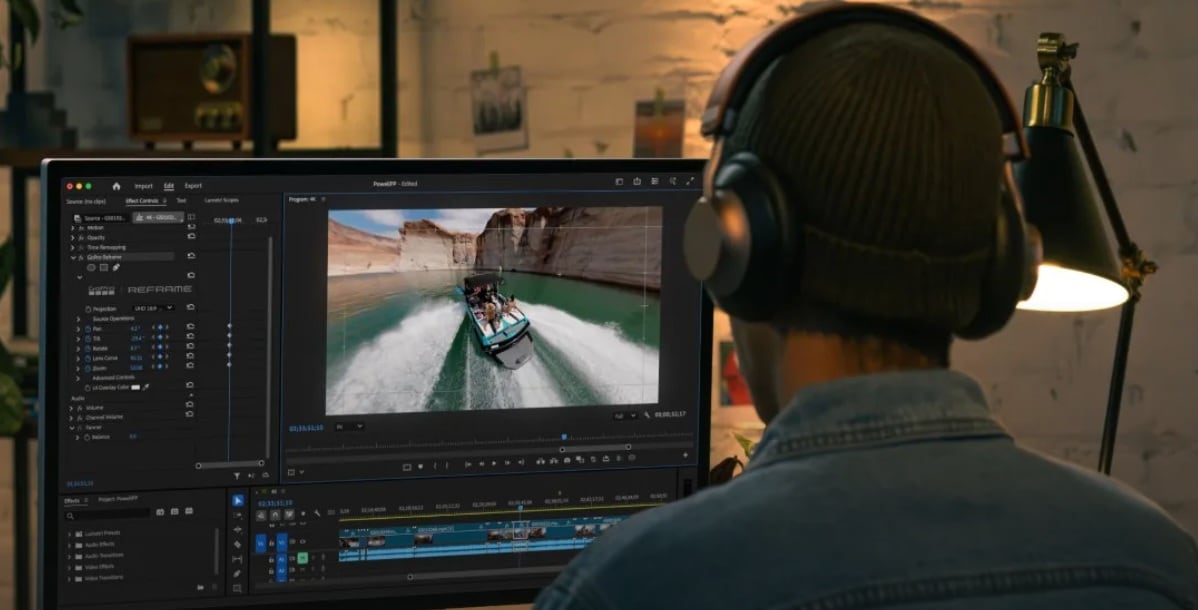
- Reframe tool that turns 360° MAX footage into flat, shareable video with keyframeable transitions.
- Batch export queue to convert multiple 360 clips unattended.
- Multi-format export options up to 5.6K resolution.
- World Lock and horizon stabilization toggles.
Windows & macOS.
- GoPro users.
- Action-camera creators.
- Basic 360° processing.
- Users who want a simple desktop tool before moving footage into another editor.
Free, with a one-time $99.99 in-app purchase to unlock ReelSteady/HyperSmooth Pro stabilization and lens correction.
- Plugin support extends it into professional editors when you need more power.
- Free to use and useful if you also shoot with GoPro cameras.
- The flashier AI-driven tools (object tracking, CameraFx, MotionFrame) currently live over in the mobile Quik app rather than on desktop.
- Premium stabilization sits behind a separate $99.99 purchase.
4. Pinnacle Studio
Pinnacle Studio is another interesting option for an Insta360 editor. It earns its spot as one of the few consumer-level editors that treats 360° footage as first-class timeline material rather than a bolt-on feature. You can clean up and enhance the raw spherical frame, add titles and graphics that stay correctly oriented in 360° space.
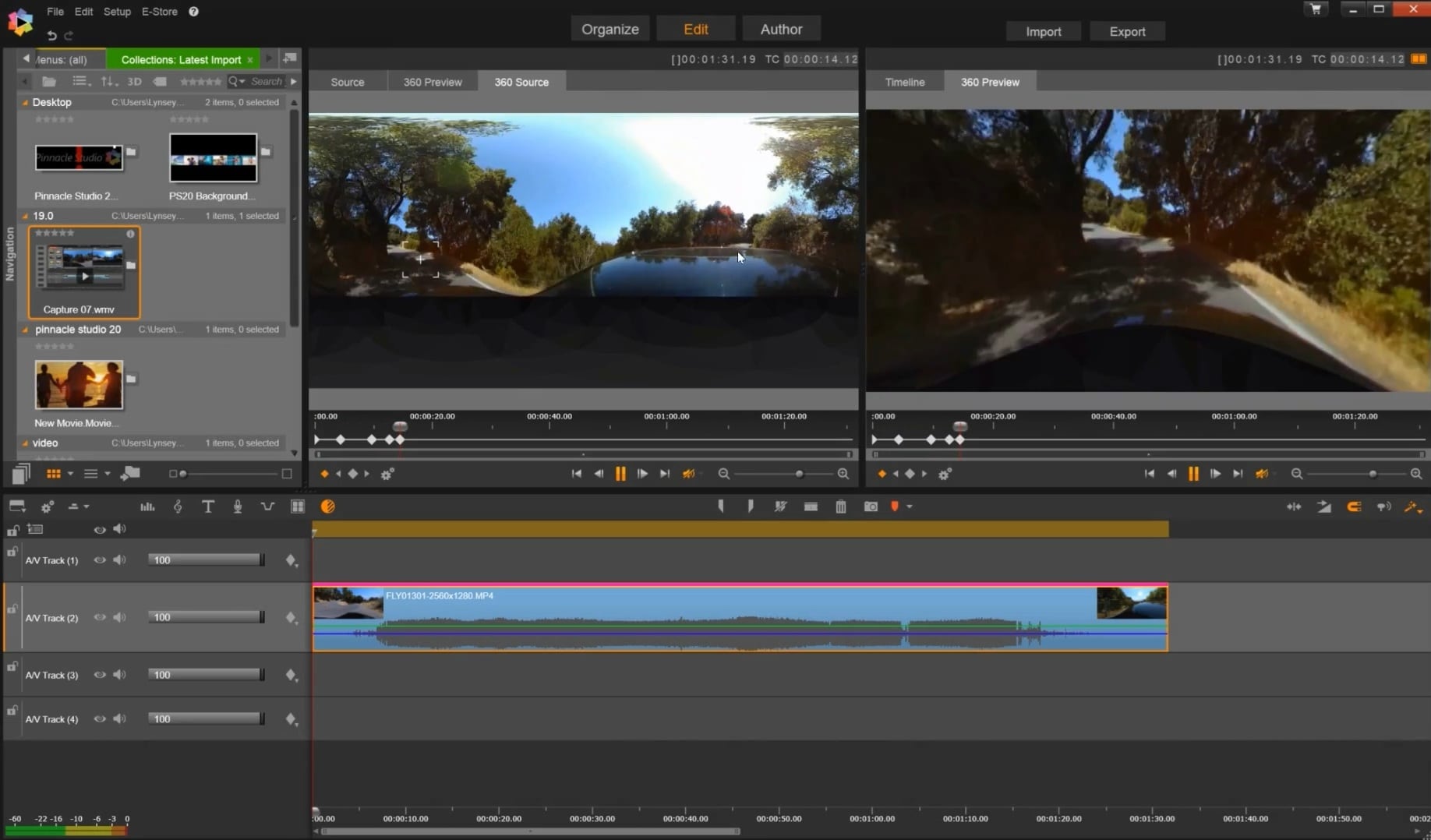
- View Designer for reframing 360 footage into standard 2D perspective videos.
- 360-to-360 video trimming and stitching workflows.
- Integrated motion tracking to attach graphics or blurs to moving objects in a 360 space.
- Split-screen video templates designed specifically for multi-angle displays.
Windows.
- Windows users.
- Creators who want 360° tools inside a traditional timeline editor.
- Users who prefer a one-time purchase over a subscription.
- More involved home, travel, and action-camera projects.
One-time purchase at $129.99 (Ultimate).
- A real multi-track timeline, which most 360-specific tools don't offer.
- Supports complex multi-camera edits alongside 360 footage.
- 360° editing is only available in the Ultimate tier.
- Windows-only. No Insta360 editor Mac version available.
5. Adobe Premiere Pro
Premiere Pro rounds out this list as the Insta360 video editor option for people who've outgrown presets and want to build their own 360° workflow from the ground up. Its Immersive Video effects panel gives you GPU-accelerated, VR-specific tools built for equirectangular footage, and the keyframeable VR Projection effect lets you reframe with total precision.
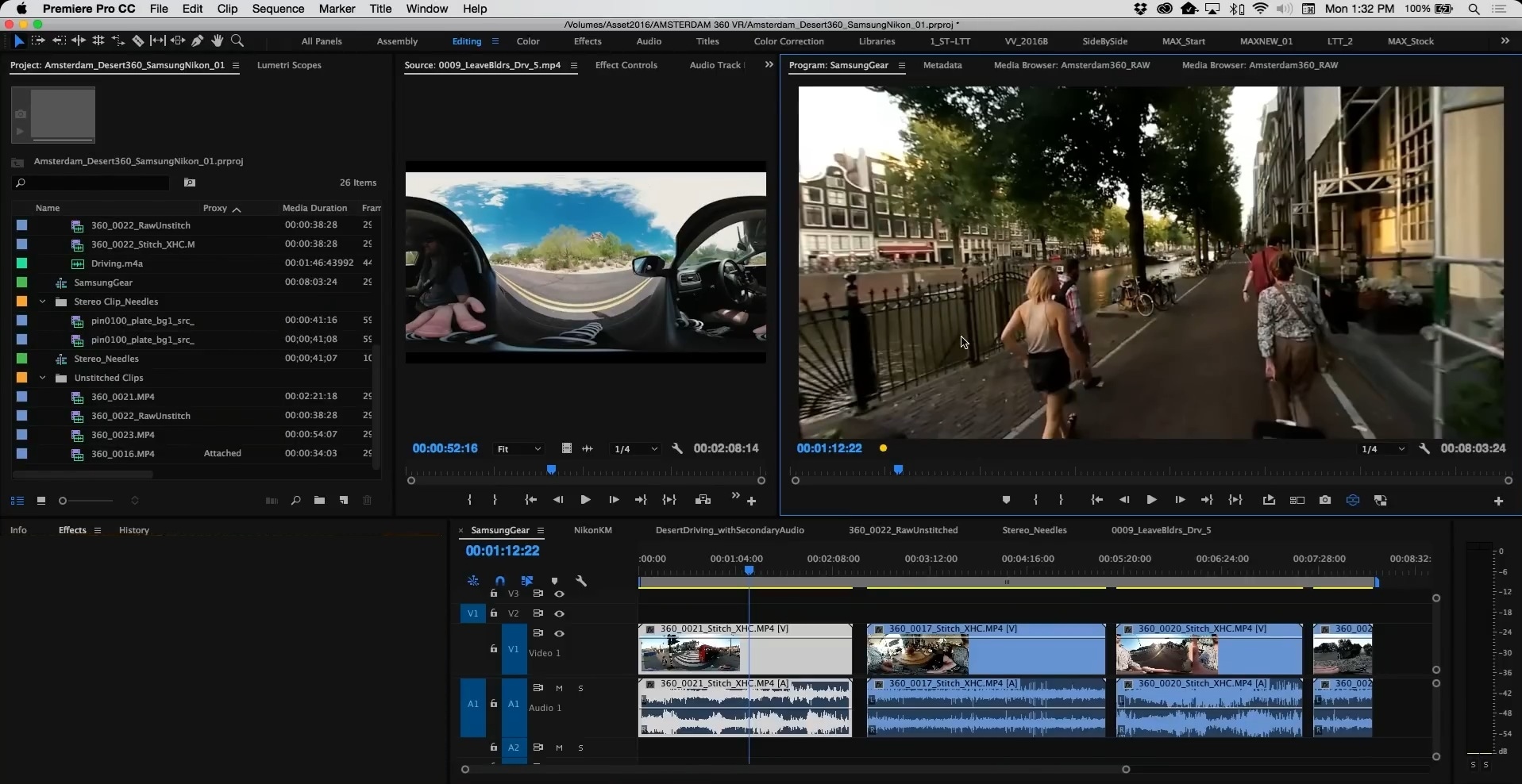
- Official Insta360 Reframe plugin integration for native timeline reframing.
- Dedicated VR video editing workspace with VR Headset preview support.
- Lumetri Color panel for professional color grading and correction.
- Essential Sound panel with AI noise removal and audio ducking.
Windows & macOS.
- Professional editors.
- Larger video projects.
- Creators already familiar with Adobe Premiere.
- Users who need advanced editing, audio, effects, and color tools alongside 360° capabilities.
Subscription-based, starting around $22.99/month for the single-app plan, or bundled into Creative Cloud All Apps.
- Integrates directly with After Effects for advanced compositing work.
- The most customizable 360°/VR toolset of anything on this list.
- Steep learning curve compared to purpose-built or consumer tools.
- Requires a powerful computer with a strong GPU for smooth 360 playback.
Part 3. How to Choose the Best Insta360 Desktop Editor
With five solid options above, it can still be hard to decide which Insta360 video editing software fits your needs. The easiest approach is to start with what you actually want to do with your footage rather than simply picking the software with the most features.
Here's a simpler way to narrow it down.
| Your Situation | Our Recommendation | Reasoning |
| You want everything on one timeline, with no extra software | Wondershare Filmora | Combines native 360 reframing, 1-click movement presets, and full timeline editing in one beginner-friendly app |
| You need frame-accurate control, plugins, and a professional pipeline | Adobe Premiere Pro | The deepest customization and industry-standard integration, at the cost of a steeper learning curve |
| You want a free tool made specifically for Insta360 cameras | Insta360 Studio | Built specifically around Insta360's file types, totally free, with genuinely useful AI tracking |
| You hate subscriptions and prefer one-time purchase software | Pinnacle Studio | Provides a complete desktop timeline and View Designer reframing without a monthly subscription |
|
Show More
Show Less
|
||
Conclusion
At the end of the day, the best Insta360 editing software really comes down to how much control you want and how many programs you're willing to juggle. If you only shoot on Insta360 and want something free, Insta360 Studio still gets the job done. If you need frame-perfect precision, Premiere Pro delivers it but with a steeper learning curve.
But if you'd rather handle reframing, titles, audio, and color grading without switching between five different apps, Wondershare Filmora's upcoming native 360° editing is worth keeping an eye on. It folds the whole workflow into one familiar timeline, so your footage stops bouncing between programs before you've even started editing.
FAQs
-
Do I need a powerful computer to edit 360° footage smoothly?
Yes, more than you might expect. 360° files are essentially capturing double the visual information of a normal video, since they record the whole sphere at once, so previewing and exporting at 5.7K–8K puts real strain on your CPU and GPU. A dedicated graphics card and at least 16GB of RAM will save you a lot of laggy scrubbing. -
What is the difference between reframing a 360 video and editing in 360 VR?
Reframing means picking specific 2D camera angles (yaw, pitch, roll, FOV) out of your 360 footage to turn it into a standard flat video for platforms like TikTok or YouTube. Editing in 360 VR keeps the entire interactive sphere intact so viewers can pan around using VR headsets or touchscreens. -
Is it better to shoot in 360° and reframe later, or just record in normal wide-angle mode?
It depends on how much you value flexibility over simplicity. Shooting in 360° and reframing later means you never miss a moment because the “camera” happened to be pointed the wrong way; you decide the angle after the fact. The trade-off is bigger files and an extra reframing step before you can share anything.
