


 TL;DR:
Since there is no official Unfold desktop application for Windows or macOS, you must either run the mobile app using an Android emulator like BlueStacks or switch to desktop-native alternatives for a smoother editing experience on larger screens.
● Running the original Unfold app via BlueStacks lets you keep your familiar mobile templates, but the mobile-optimized interface may not feel as smooth or intuitive when controlled on a desktop computer.
● Wondershare Filmora is the most comprehensive Windows and Mac alternative for creators needing advanced timeline editing, animations, and AI tools for short-form video, while Canva excels at quick, template-based branded graphics.
● For browser-based workflows without software installation, Adobe Express provides useful one-click resizing and social scheduling, whereas Snappa is limited solely to static graphics and caps free accounts at three downloads per month.
Ask AI for a summary
 ChatGPT
 Perplexity
 Gemini
 Claude
 Grok
Grok
Unfold is one of the most popular apps for creating stories and Reels, but it is only officially available on mobile devices. If you want to use Unfold on Mac or PC, the first thing to know is that there is no official Unfold desktop app for Windows or macOS.
The good news is that you still have a few practical options. You can run the Unfold mobile app on your computer with an Android emulator, or you can choose a desktop-friendly alternative that offers similar, or even better, features built for a larger screen.
Both options are covered below, so pick whichever approach works best for you.
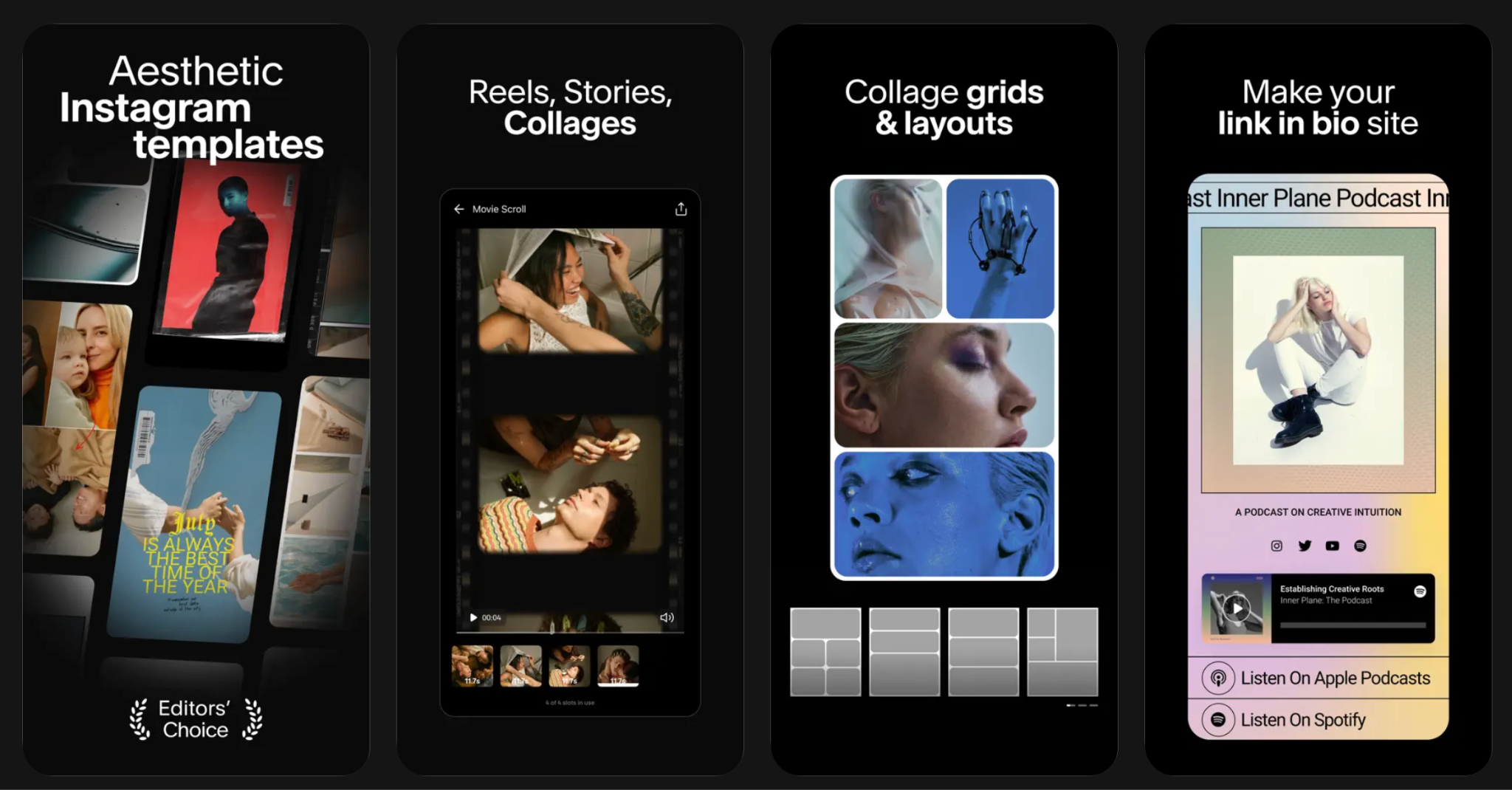
Part 1. Download Unfold on PC/Mac Using Emulator
If you want to keep using Unfold’s original templates and interface, an Android emulator is the easiest workaround. Since there is no official Unfold desktop app for Windows or Mac, an emulator lets you run the mobile version on your computer instead.
An emulator is a program that creates a virtual Android device on your desktop. This allows you to download and use mobile apps, including Unfold, on a larger screen. It is a practical option for users who specifically want to use the actual Unfold app on a laptop or desktop.
Via Bluestacks (Android Emulator)
BlueStacks is one of the most popular Android emulators and is available for both Windows and macOS. It works by giving you access to the Google Play Store on your computer, so you can install Unfold just like you would on an Android phone.
Here’s how to do it:
- Download and install BlueStacks on your Windows PC or Mac.
- Open BlueStacks and sign in to your Google account.
- Go to the Google Play Store inside the emulator.
- Search for Unfold and install the app.
- Open Unfold and start editing on your desktop.
This method is best if you want to keep the original Unfold experience. However, since the app is still designed for mobile use, the desktop experience may not feel as smooth as using a tool built specifically for Mac or PC
Part 2. 5 Best Unfold Alternatives for Mac & PC
If you do not want to use an emulator for Unfold for PC, the better option is to choose a desktop-native alternative. These tools are built for larger screens, so they are usually easier to use on a laptop or desktop and give you more control when editing stories, reels, and social posts.
To find the best alternatives to Unfold for Windows and Mac, we focused on the features that matter most for social media creation.
- Template variety and quality: We looked at how many templates each tool offers and how useful they are for real projects. This includes layouts, templates, collage designs, and overall visual quality.
- Free plan availability and value: We checked whether the free plan is actually usable. A good alternative should give enough features, templates, or exports to help users get started without paying right away.
- Export options: We reviewed how each tool handles exports, including supported formats, output quality, and flexibility for different types of content. This is important for users who want a better Unfold PC workflow.
- Social media-optimized: We also focused on tools that work well for social media content. That includes vertical formats, story and reel presets, and easy resizing for platforms like Instagram, TikTok, and YouTube Shorts.
With these points in mind, here are the 5 best Unfold alternatives for Mac and PC.
1. Wondershare Filmora
Wondershare Filmora is one of the strongest alternatives for users looking for a smoother Unfold desktop experience. It is available for both Windows and Mac, and it gives you a desktop-friendly workspace for creating social posts. Moreover, it provides AI-powered tools and advanced editing features, so it can work as an all-in-one video editor.
- Ready-made video templates for social content and short-form editing.
- Supports social-media-friendly aspect ratios like 16:9, 9:16, 1:1, and 4:5.
- Offers AI-powered tools to speed up editing, including features for subtitles, sound effects, object removal, voice enhancement, and translation
- Includes video editing tools for text, effects, transitions, and animation.
- Offers flexible export formats such as MP4, MOV, AVI, MKV, WEBM, GIF, and MP3.
- Available on both Windows and Mac, which makes it a practical desktop alternative to Unfold.
- Available on both Windows and Mac.
- Great for turning simple story ideas into more polished video content with transitions, motion effects, and layered editing.
- AI tools can save time on tasks like captioning, translation, and audio cleanup.
- Flexible export options make it easier to create content for different platforms and use cases.
- The desktop interface gives you more room and control when editing longer or more detailed social videos.
- It is a broader editor, so it may feel like more than you need if you only want simple story templates.
- Some advanced features are tied to paid plans or AI credits.
 Secure Download
2. Canva
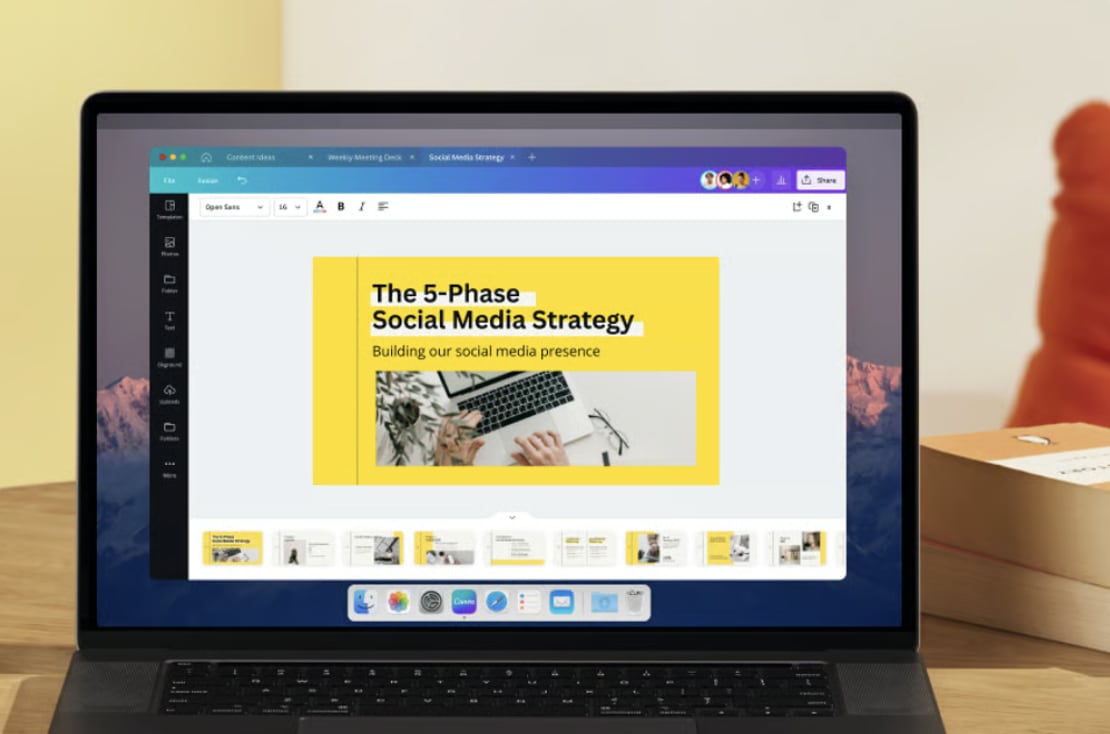
Canva is a desktop-friendly design and content creation tool that works well for making stories, social posts, short videos, and branded visuals on a larger screen. It is available as a desktop app for both Windows and Mac, which makes it a practical option for users searching for an Unfold desktop alternative.
- Desktop apps are available for both Windows and Mac.
- Large template library for social posts, stories, and video content.
- Drag-and-drop editor for quick and simple content creation.
- Brand Kit tools for storing logos, fonts, colors, and other brand assets.
- Magic Resize for adapting one design to different social media formats.
- AI tools through Magic Studio for faster design and content creation/
- Very convenient for making branded story posts, promo graphics, and simple social visuals quickly.
- Brand Kit is useful for keeping fonts, colors, and logos consistent across multiple posts.
- Magic Resize helps speed up repurposing content for different platforms.
- The editor is easy to learn, especially for users who prefer templates over manual editing.
- Video editing controls are more basic, so it is not ideal for users who want detailed timing, layered animation, or complex edits.
- Many of the most useful features, including Brand Kit and Magic Resize, are locked behind paid plans.
- Templates can look repetitive if you do not customize them enough.
3. Picsart
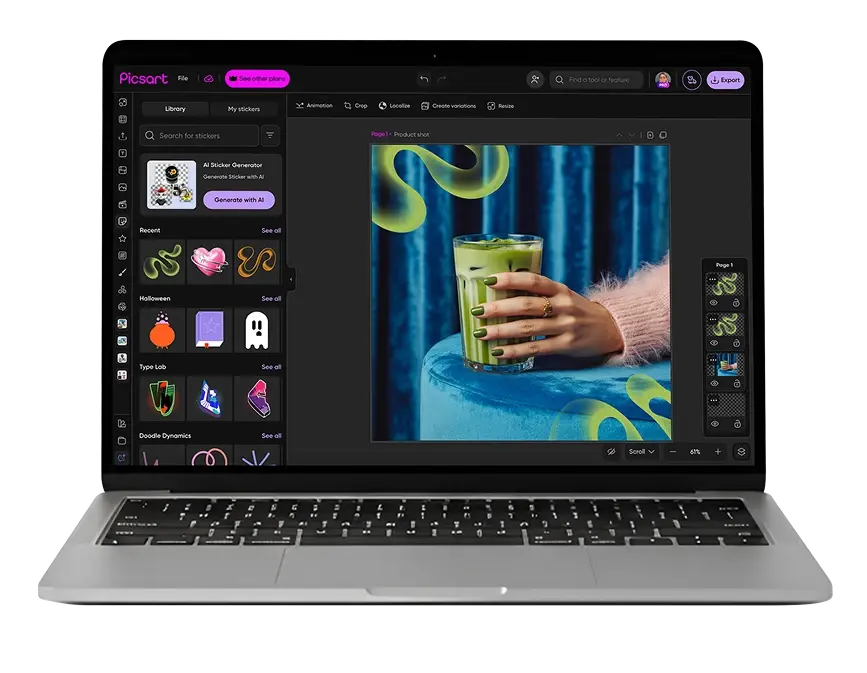
Picsart is a flexible creative tool for users who want to make social posts, short videos, collages, and visual edits on a bigger screen. For people searching for an Unfold for PC alternative, Picsart works mainly through its web editor and it also offers a Windows app. Its main strength is quick content creation with templates, effects, stickers, and AI-powered tools.
- Works on the web, so you can edit directly in your browser without installing software.
- Offers a Windows app through the Microsoft Store for Windows 10 and 11.
- Includes a large template library, with 80k+ templates overall and 650+ video templates for platforms like Instagram, TikTok, and YouTube.
- Comes with photo and video editing tools, including text, music, subtitles, animations, speed control, layers, and resizing for different formats.
- Offers AI-powered features for faster editing, including AI video tools, automatic captions, smart adjustments, and creative generation tools.
- Good for quick social content because the browser-based editor is easy to access and does not require a full desktop install.
- Strong template and effects library for creators who want ready-made visuals, stickers, and trendy edits.
- Useful for both photo-based and video-based content on one platform.
- AI tools help speed up everyday creative tasks.
- Since there is no official Mac desktop app, the web version is the main option for Mac users.
- Some premium templates, AI tools, and higher-tier features are locked behind paid plans.
- It is more focused on fast creative edits and template-based design than deep desktop-style video production.
4. Adobe Express
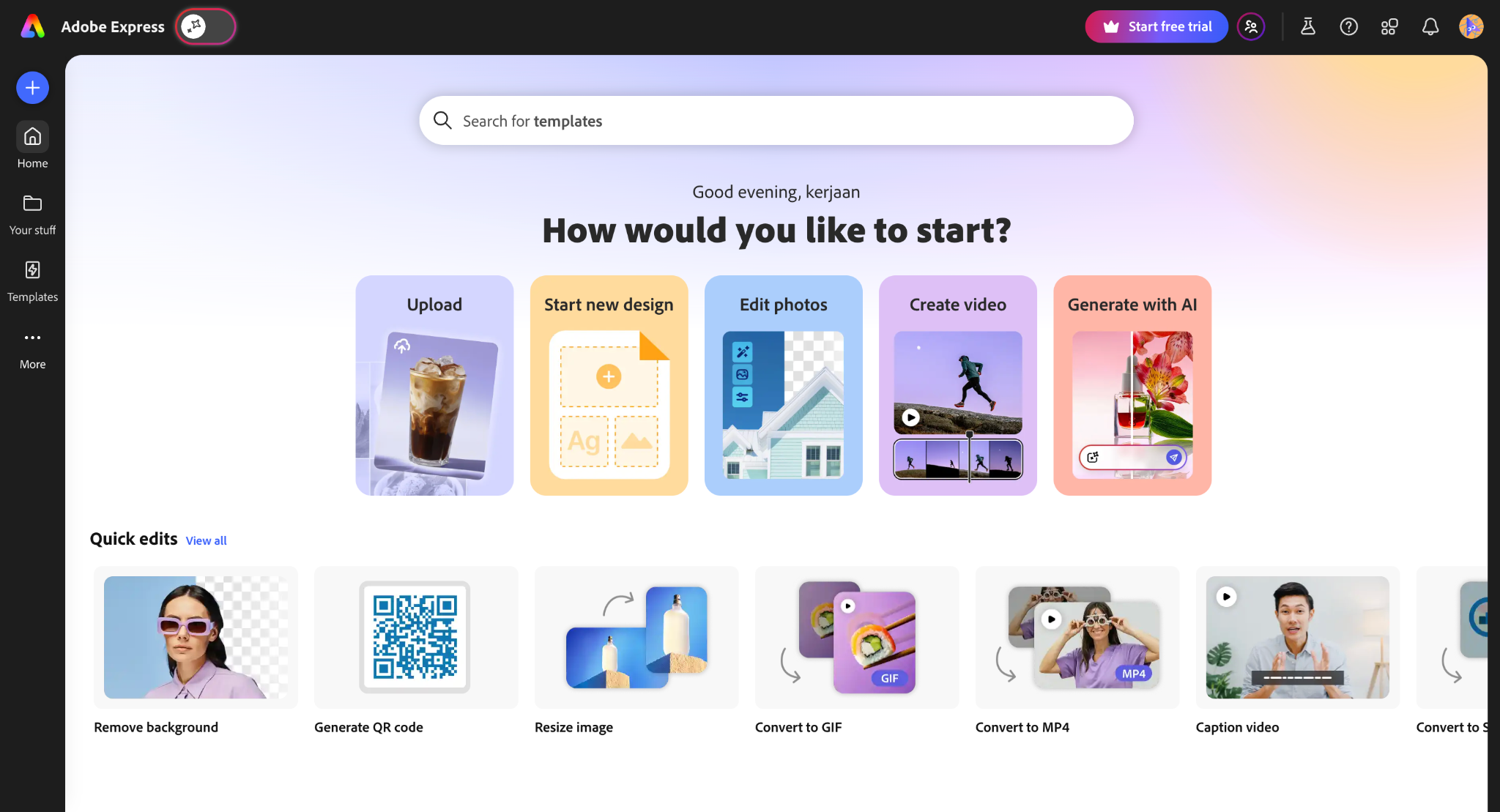
Adobe Express is a browser-based content creation tool designed for making social posts, stories, short videos, flyers, and other branded visuals. It works on desktop browsers and mobile phones, which makes it a practical option for users who want an Unfold desktop alternative without installing heavy editing software.
- Works on desktop browsers and mobile phones, with synced files across devices.
- Includes thousands of templates for social posts, stories, videos, and other visual content.
- Offers video tools for combining clips, adding music, trimming, cropping, resizing, and merging videos.
- Supports one-click Resize for adapting content to different social channels.
- Includes Brand Kit tools for managing fonts, colors, and logos.
- Includes a built-in content scheduler for planning and publishing social posts.
- Good for making story-style graphics, promo posts, and simple short videos in one browser-based workspace.
- One-click resize is useful when you need the same content in different social media formats.
- Brand Kit and scheduling tools make it practical for users who create content regularly.
- It is mainly browser-based, so users who prefer a traditional desktop editing app may not like the workflow as much.
- Some of its more useful features, such as premium templates, Brand Kit, one-click resize, and advanced AI tools, are tied to paid plans.
- Its video editing tools are better suited for quick social content than more detailed timeline-based editing.
5. Snappa
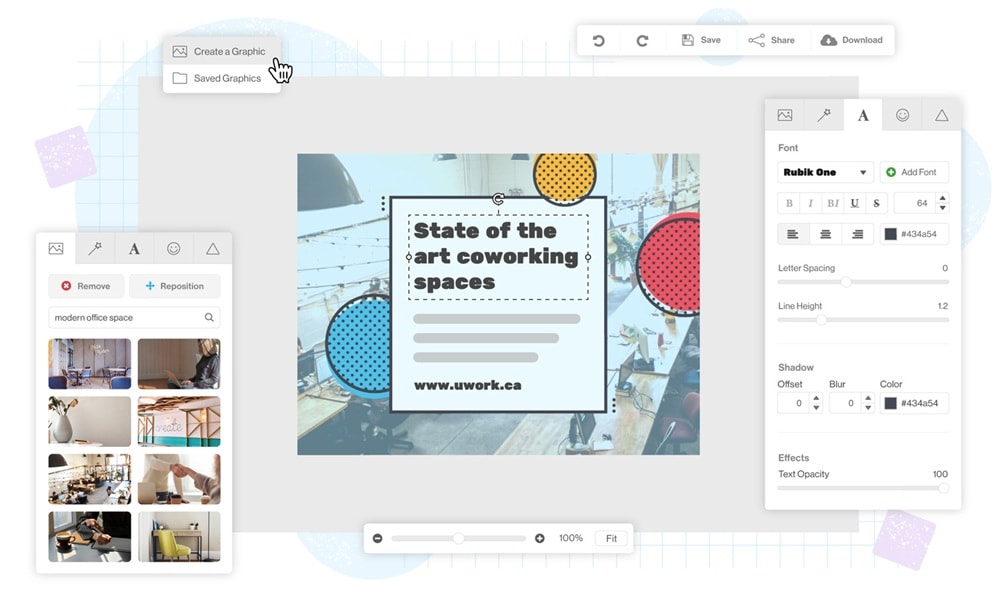
If you've been looking for something like Unfold for desktop, Snappa is one of the closest matches. Snappa is a browser-based graphic design tool built for people who aren't designers. You only need to open it in any browser on your PC or laptop, pick a template, make your edits, and export. It covers social media graphics, ads, blog headers, infographics, and more with preset dimensions so you never have to look up the right image size for each platform.
- 6,000+ pre-made templates across social media formats, ads, blogs, emails, and more
- Access to 5,000,000+ royalty-free HD stock photos
- One-click background remover for headshots, logos, and product images
- One-click image resizer to repurpose one design across multiple platform formats
- 200+ fonts, 100,000+ vectors and shapes, plus photo effects
- Direct social sharing and Buffer integration for scheduling posts
- Intuitive interface with a very short learning curve
- Stock photos and graphics are royalty-free and licensed for commercial use
- Free plan includes access to all templates and HD photos
- No need to install any software
- No custom drawing tools; the options are very limited if you want to build something from scratch
- No animation support
- Free plan caps you at 3 downloads per month
Part 3. Comparison Table: Unfold Alternatives for Desktop at a Glance
| Pricing | Templates | Video & Animation | Export Formats | Best for | |
| Filmora | Free version, subscription, and perpetual license | 3K+ video templates with social-friendly aspect ratios. | Strong video editing, transitions, animation, and AI-powered tools. | Multiple export formats, including MP4, MOV, AVI, MKV, WEBM, GIF, and MP3. | Users who want an all-in-one desktop editor for stories, reels, and short videos. |
| Canva | Offers a free plan, while paid options start from US$15/month. | Large template library for social posts, stories, videos, and branded content. | Basic video editing, simple animation, and AI-assisted design tools. | PDF, JPG, PNG, MP4, and GIF | Quick branded posts, simple story designs, and easy content repurposing. |
| Picsart | Free plan available. Paid plans start at US$2.83/month billed yearly or US$126/year for Pro. | 80k+ templates overall, including 650+ video templates. | Includes a versatile mix of photo and video editing features, plus subtitles, music, effects, and AI tools. | PNG and PDF. | Fast content creation with trendy effects, stickers, and social-ready visuals. |
| Adobe Express | Offers a free plan. Paid plans include Adobe Express Premium at US$9.99/month. | Large template library for social posts, stories, videos, and marketing content. | Solid for quick video edits, simple animation, AI generation, and social scheduling. | MP4 and image conversion to JPG, PNG, and SVG. | Template-based social content creation with built-in resize and scheduling tools. |
| Snappa | Free plan available; Pro plans start from US$10/month billed annually. | 6,000+ static templates for social media, ads, blogs, and emails. | None | JPG and PNG | PC-based creators who need fast, simple static graphics |
|
Show More
Show Less
|
|||||
Secure DownloadPart 4. What to Look for in Unfold Alternatives for Desktop
There are some aspects that can help you narrow down the right Unfold alternative for you. Since Unfold is mainly known for stylish story templates and simple mobile editing, the best desktop replacement should give you the same ease of use while offering a smoother experience on a larger screen.
1. Template Library
Templates are one of the main reasons people use Unfold in the first place. So, when choosing an Unfold desktop alternative, start by checking the template library. Look for tools that offer modern layouts for stories, reels, posts, and short videos. It is even better if the templates are easy to customize, so your content does not end up looking too generic.
2. Desktop-friendly UI
A tool may have good templates, but it still needs to feel comfortable on a laptop or desktop. A desktop-friendly interface should give you enough space to edit, drag elements, adjust layers, and preview your content without feeling cramped. This matters a lot if you want a better experience than simply running the mobile app through an emulator.
3. Video & Animation Support
Some users only need static story designs, but many now also create reels, animated stories, and short-form videos. Because of that, a good Unfold for PC or Unfold for Mac alternative should support video editing, motion effects, transitions, and text animation. This gives you more flexibility when creating content for Instagram, TikTok, or YouTube Shorts.
4. Export Flexibility
Export options are also important. A desktop tool should let you save your projects in common formats and in quality settings that match your needs. It helps if the tool supports both image and video exports, since social content often includes both. Flexible export options also make it easier to repurpose the same project for different platforms.
5. Direct Social Media Sharing
If you create content regularly, direct sharing can save time. Some tools let you publish or schedule content straight to your social platforms, while others make it easy to resize and prepare the same design for multiple channels. This is especially useful if you want a faster workflow for stories, reels, and branded posts.
Final recommendation
If you want the best Unfold desktop alternative, Filmora is the strongest option overall. It gives you ready-made templates, supports social-media-friendly aspect ratios, and offers stronger video and animation tools than a basic template editor.
Filmora also works well on both Windows and Mac, making it a practical choice for users looking for Unfold for PC. On top of that, its AI-powered tools and flexible export options make it easier to create polished social content in one place.
Secure DownloadConclusion
In short, there is no official Unfold for Mac or Unfold for PC, but desktop users still have good options. You can run Unfold through an emulator if you want to keep its original mobile experience, or switch to a desktop-native alternative for a smoother workflow.
Tools like Canva, Picsart, Adobe Express, and Snappa can handle simple social content, but Filmora stands out as the most complete choice. It offers templates, social-media-ready aspect ratios, video and animation tools, AI features, and flexible exports in one place. If you want an easier way to create polished content on a desktop, Filmora is the strongest option.
FAQs
-
Can I use unfold on a desktop?
There is no official standalone Unfold for Mac or Unfold for Windows app. Unfold is presented as available on iOS and Android, so desktop use usually means using an emulator or switching to a desktop alternative. Unfold Pro also has a web dashboard, but that is mainly for brand assets and account tools rather than a full desktop editing app. -
Is the Unfold app free?
Yes. Unfold offers a free version, as well as paid subscription tiers called Unfold Plus and Unfold Pro. The free version is available to all users, while paid plans unlock more templates and features. -
What are the best alternatives to Unfold?
Some of the best desktop alternatives to Unfold are Wondershare Filmora, Canva, Picsart, Adobe Express, and Snappa. They cover different needs, but for this article’s desktop focus, Filmora stands out because it combines templates, video editing, animation, AI tools, and flexible export options in one desktop-friendly editor. -
Does Unfold use AI?
Yes, Unfold does include AI-related features. An AI photo editor is a part of Unfold+ and Remove Background in Unfold Pro, which uses a third-party service from PhotoRoom for one-tap background removal.
